Ramp QuickBooks Integration: Simplify Your Financial Workflow
Many businesses adopt Ramp to streamline corporate spending, only to find that the Ramp–QuickBooks integration does not always deliver the level of automation and control they expect. While the integration is designed to sync expenses, users frequently encounter limitations such as delayed or manual transaction syncing, reliance on managing Ramp card expenses in the Ramp app, and additional steps before data is accurately reflected in QuickBooks. These friction points can dilute the value of maintaining a truly centralized financial workflow.
When expense data requires additional handling before it reaches your accounting system, the integration begins to feel more like a workaround than a seamless solution. For finance teams seeking accuracy, efficiency, and scalability, these gaps can lead to reconciliation delays, increased manual effort, and reduced visibility into real-time financials.
Rather than relying solely on the native Ramp–QuickBooks integration, many organizations opt for a more controlled and flexible approach using SaasAnt Transactions. This solution enables you to export Ramp data and import it into QuickBooks with greater precision and consistency. In the sections that follow, we’ll explore how this approach works and why it can be a more effective way to maintain clean, reliable financial records.
Why Import Ramp Transactions Using SaasAnt Transactions?
If you are currently using the Ramp–QuickBooks integration, you may already be familiar with some of its operational challenges. Manual or delayed syncing can be time-consuming and error-prone, while the setup and ongoing management of the connection may feel unnecessarily complex. Additionally, having to finalize Ramp card expenses within the Ramp platform before transferring them to QuickBooks can undermine the objective of a single source of truth for financial data. Limited support options can further complicate issue resolution.
SaasAnt Transactions offers a practical alternative by simplifying the process of exporting Ramp data and importing it into QuickBooks in a structured, controlled manner. This approach helps ensure your accounting records remain accurate, complete, and up to date—while giving your finance team greater confidence and control over the entire workflow.
Why Import Ramp Transactions Using SaasAnt Transactions?
If you’re using Ramp QuickBooks Integration, you may encounter challenges. Manual transaction syncing can be time-consuming and prone to errors, and setting up the connection can feel complicated. Managing Ramp card expenses within the Ramp app before transferring them to QuickBooks can undermine the goal of a centralized financial management system. Additionally, the lack of live support can leave you feeling stranded. A practical solution is to use SaasAnt Transactions, which simplifies exporting data from Ramp to QuickBooks, ensuring your records are accurate and up to date.
Contents
Why Import Ramp Transactions Using SaasAnt Transactions?
Step-by-Step Guide to Download Financial Data from Ramp
How to Use SaasAnt Transactions to Upload Financial Data into QuickBooks
Make It Even Easier with Automation
Benefits of Using SaasAnt Transactions with Ramp
Conclusion
FAQ
Step-by-Step Guide to Download Financial Data from Ramp
Before downloading, you need to categorize transactions and create rules. Here’s how to do it.
Rule creation
Step 1: Access the accounting page, where transactions are organized by date. The accounting category field will be marked in red, indicating it is required.
Step 2: Click the dropdown to view available accounting categories sourced from the chart of accounts.
Step 3: Create a rule at the merchant level that references the transaction merchant. The category level pertains to the Ramp category, and the card level refers to the card used for the transaction.
Step 4: Set an accounting category for the merchant, category, and card hierarchy, then create a rule. This will apply to all transactions for that merchant under the specified category and card.
Exporting data from Ramp
You can export or download the transactions after you create rules.
Here’s how to do it.
Step 1: Use the option on the right side to mark all transactions you wish to export as "Ready." You can also do this in bulk by selecting the checkbox at the top.
Step 2: After selecting the transactions, the export button will display the number of marked transactions. Click the export button to review your selections.
Step 3: You can export the transactions as journal entries or as a CSV or IIF file.
How to Use SaasAnt Transactions to Upload Financial Data into QuickBooks
You can get started with a 30-day free trial to try out how importing Ramp transactions into QuickBooks works.
Step 1: Find SaasAnt Transactions in the QuickBooks App Store and connect it to your QuickBooks account. This certified, secure app keeps your data safe and well-managed.
Step 2: Go to SaasAnt Transactions Dashboard -> “New Import” -> "Credit Card Statement." This will direct you to the Upload Files page, where you can download the sample file template.
Step 3: Upload the credit card transaction file downloaded from Ramp. You can upload any file format, such as XLS, XLSX, CSV, or IIF. Additionally, if you have a PDF file, you can convert it to a supported format. You can also enter the Google Sheet link.
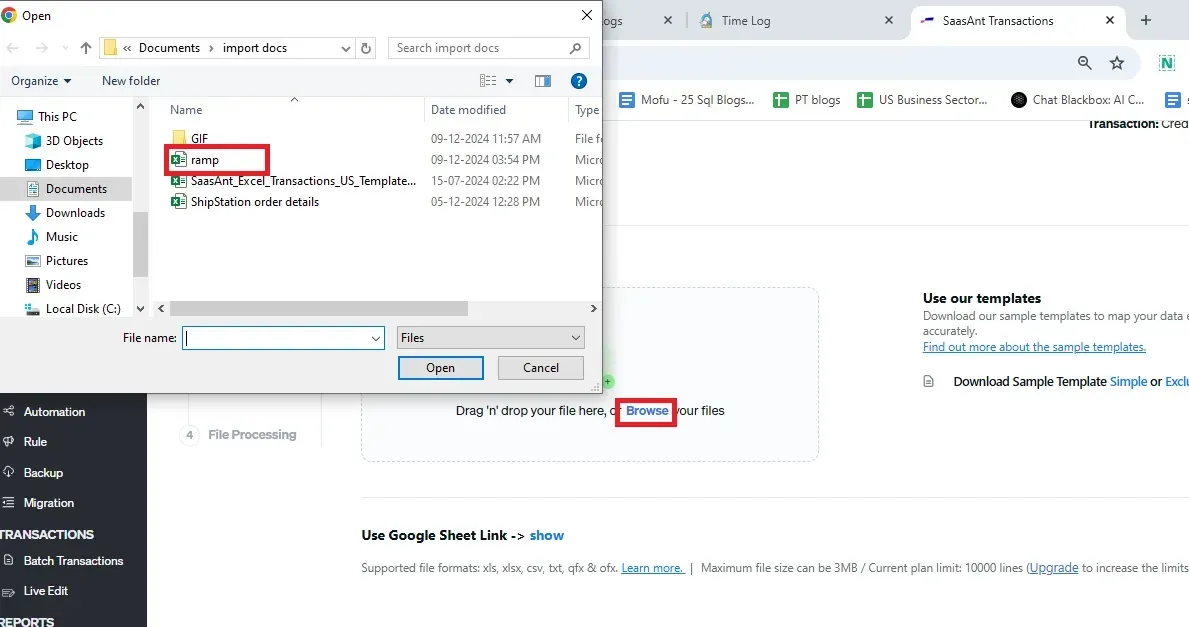
Note: To make this step more manageable, you can download the SaasAnt Transactions template from the right side of the screen. Format the ‘credit card statement’ sheet as stated in the table below and then upload the file.
Step 4: Mapping matches the fields in QuickBooks to those in the imported file. If you haven’t used the SaasAnt Transactions template, map the fields based on the table below.
Ramp Fields | SaasAnt Transactions Fields |
Merchant | Payee |
Accounting category | Category account |
Amount | Amount |
Memo | Memo |
Description | Receipt |
Date | Date |
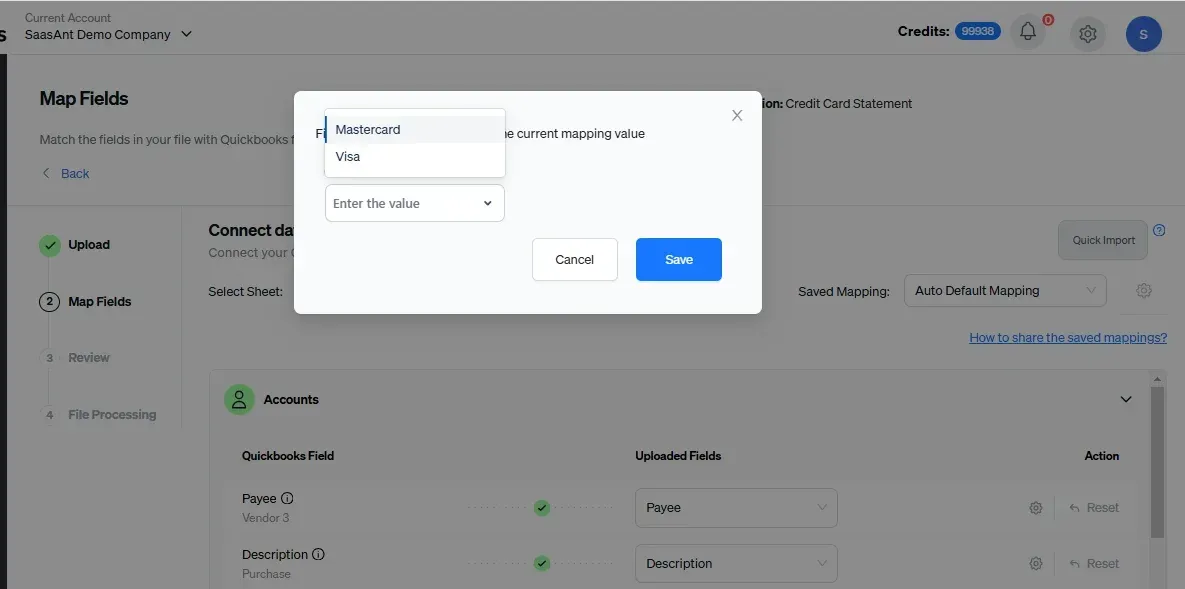
Note: For the Credit Card Account field, select either Mastercard or Visa. For the Bank Account field, choose checking or savings. The mandatory fields for processing are Bank Account, Category Account, and Credit Card Account.
Step 5: Review the mapped data to avoid mistakes and ensure accurate alignment of all details. SaasAnt Transactions facilitates data review and corrections, helping you identify and resolve errors. Upon confirming the data accuracy, click ‘Upload’ to import your file into QuickBooks Online.
Step 6: The uploaded transactions will appear with their reference number upon successful import. Click on the reference number to verify whether that transaction has been uploaded into QuickBooks. You can also roll back (undo) the imported data if needed.
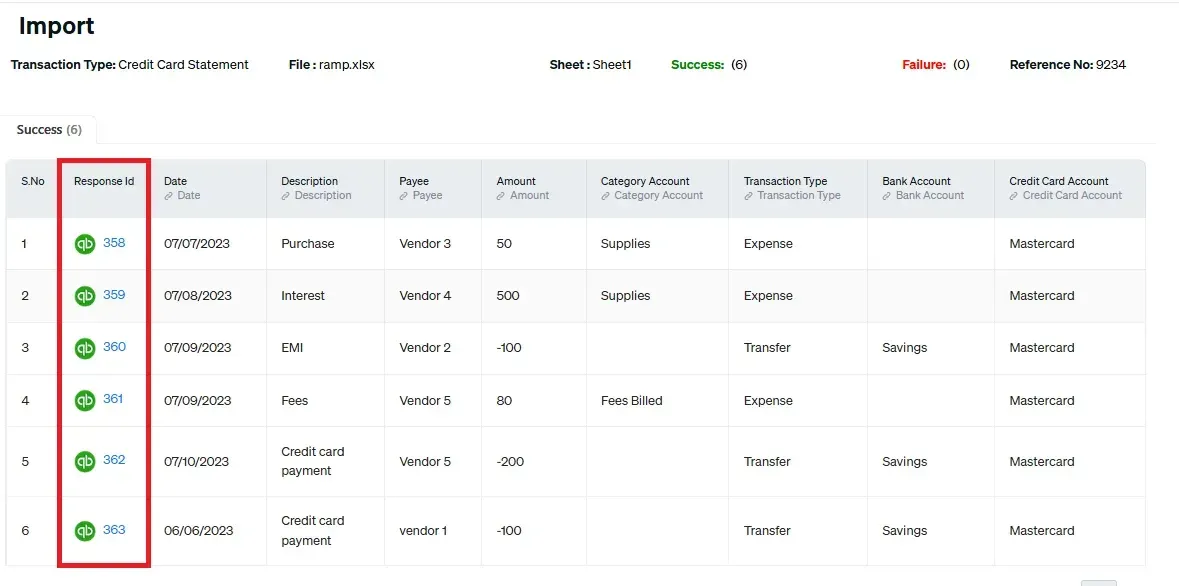
SaasAnt Transactions also lets you live-edit, bulk-delete, export, and modify your Ramp transactions to keep them up to date.
Make It Even Easier with Automation
If you want to simplify the import process even further, consider automating the bulk upload of your financial statements. With SaasAnt Transactions, you can automate this task using Email, FTP/SFTP, or Zapier. This approach can save time and reduce manual effort, making your workflow more efficient.
Related Reading: Here’s a detailed article on Email, FTP/SFTP, or Zapier automation.
Benefits of Using SaasAnt Transactions with Ramp
Combining SaasAnt Transactions with Ramp can enhance your financial processes.
For instance, the user-friendly interface makes navigation easy, reducing the learning curve for your team.
Automation features help eliminate repetitive tasks, allowing you to focus on more strategic activities.
Error-checking capabilities catch potential issues before they become problems, ensuring your financial data remains reliable.
With live support, you can get assistance whenever you need it, making troubleshooting a breeze.
The ability to customize data mapping and set up rules lets you tailor the import process to your specific needs, while data security features keep your information safe.
The flexibility to work with various file formats, such as XLS, XLSX, CSV, and IIF, and to automate data imports lets you manage your financial data on your terms.
Conclusion
So there you have it! You can streamline your financial workflows by combining the power of Ramp and SaasAnt Transactions. This integration offers a solution to common challenges Ramp users face, including advanced features such as automated data import. With a user-friendly interface and powerful automation features, SaasAnt Transactions makes it easy to import your Ramp data into QuickBooks and get a clear picture of your finances. Whether you're a small business owner, an accountant, or part of a finance team, SaasAnt Transactions can help you save time and reduce the risk of errors. This means less time wrestling with spreadsheets and more time focusing on what matters—growing your business.
FAQ
What file formats do SaasAnt Transactions support?
SaasAnt Transactions supports various file formats, including XLS, XLSX, CSV, and IIF, making it easy to upload your financial data.
Is there support available if I encounter issues?
Absolutely! SaasAnt Transactions offers live support to assist users with issues, ensuring a smoother experience while managing financial data.
What other functions do SaasAnt Transactions offer besides importing data?
SaasAnt Transactions provides several additional features, including exporting financial data, live editing transactions, and bulk deleting or modifying entries. These functions allow users to keep their financial records up to date, streamline data management, and ensure accurate accounting processes.
How does the automated import feature work in SaasAnt Transactions?
The automated import feature in SaasAnt Transactions allows users to automate regular data uploads using methods like Email, FTP/SFTP, or Zapier. Users can also set up automatic transfers of financial statements, reducing manual effort and ensuring their accounting records remain current and accurate.
Are third-party data import tools for QuickBooks safe to use?
Absolutely. Certified applications like SaasAnt Transactions, found on the QuickBooks App Store, offer secure methods for data import. They guarantee that your financial records remain accurate, organized, and safeguarded throughout the import process.
What is the easiest way to sync credit card statements from Ramp in QuickBooks Online?
Download credit card statements from Ramp and use SaasAnt Transactions to import them into QuickBooks. Just upload the file and map the fields in your file to the QuickBooks fields and click on ‘import.’ You can also automate imports using email, FTP/SFTP, or Zapier.