How to Import PDF Invoices into QuickBooks Online
You have a folder full of invoice PDFs and a month to close. What you want is simple. Turn those PDFs into real invoices or bills in QuickBooks, with the right customer or vendor, dates, totals, tax, and lines. You also want the PDF attached to the transaction so reviews and audits are quick. This guide shows a clean way to do it, with tips that save time and prevent rework.
What a good PDF invoice import looks like
Each PDF becomes one posted transaction with:
Vendor or customer
Invoice number, invoice date, due date
Currency, subtotal, tax, total
Lines where you need them, or header only when that is enough
Coding for account, item, class, location, project, and memo
The original PDF attached to the entry
You review before posting. The software does the typing.
Two reliable ways to import PDF invoices
QuickBooks Online built-in capture
Upload a single PDF, let QuickBooks read the basics, then add or match. This is fine for a few invoices.
SaasAnt Transactions Online
Batch upload many PDFs, see a side preview next to editable fields, fix small details fast, then post to QuickBooks with the PDF attached. Saved mappings and simple rules keep repeat suppliers coded the same way every time. This is better for volume, cleanup work, and teams.
Use one path or mix both. Pick the one that fits the size of the job in front of you.
Import PDF Invoices into QuickBooks Online Step by step: from PDF to posted invoice or bill
Collect your files
Download PDFs from email. If a single file contains many invoices, split it so each invoice has its own file. Use a simple name like2025-10-29_Vendorname_INV1234.pdf.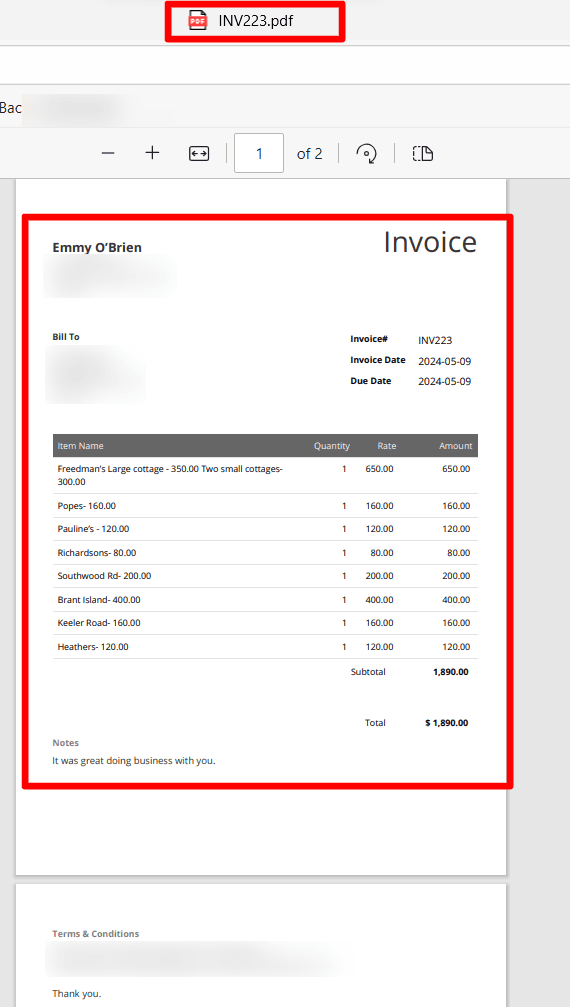
Upload
For light work, upload one PDF at a time in QuickBooks. For batches, drag and drop the files into SaasAnt.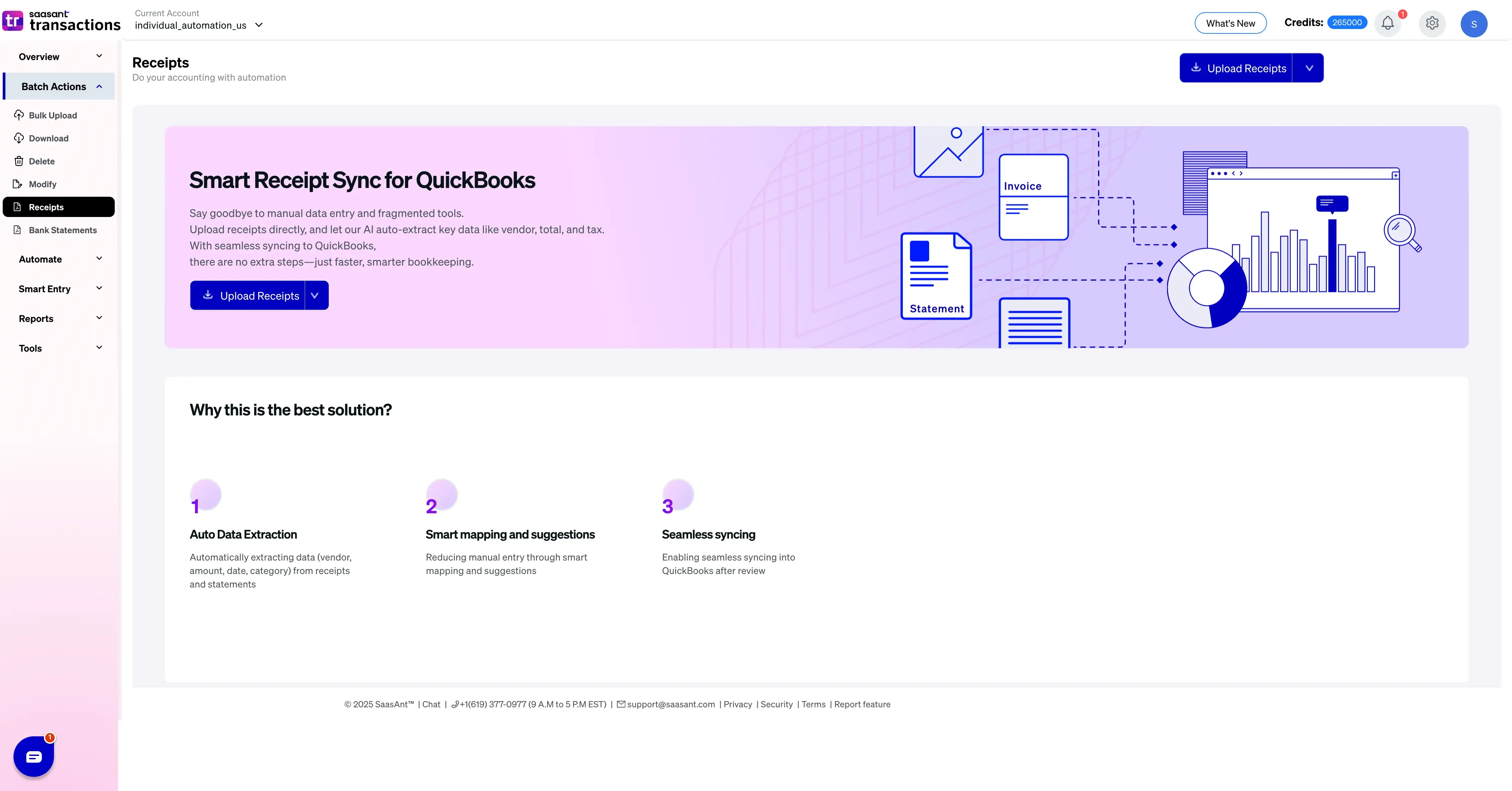
Let the tool read the PDF
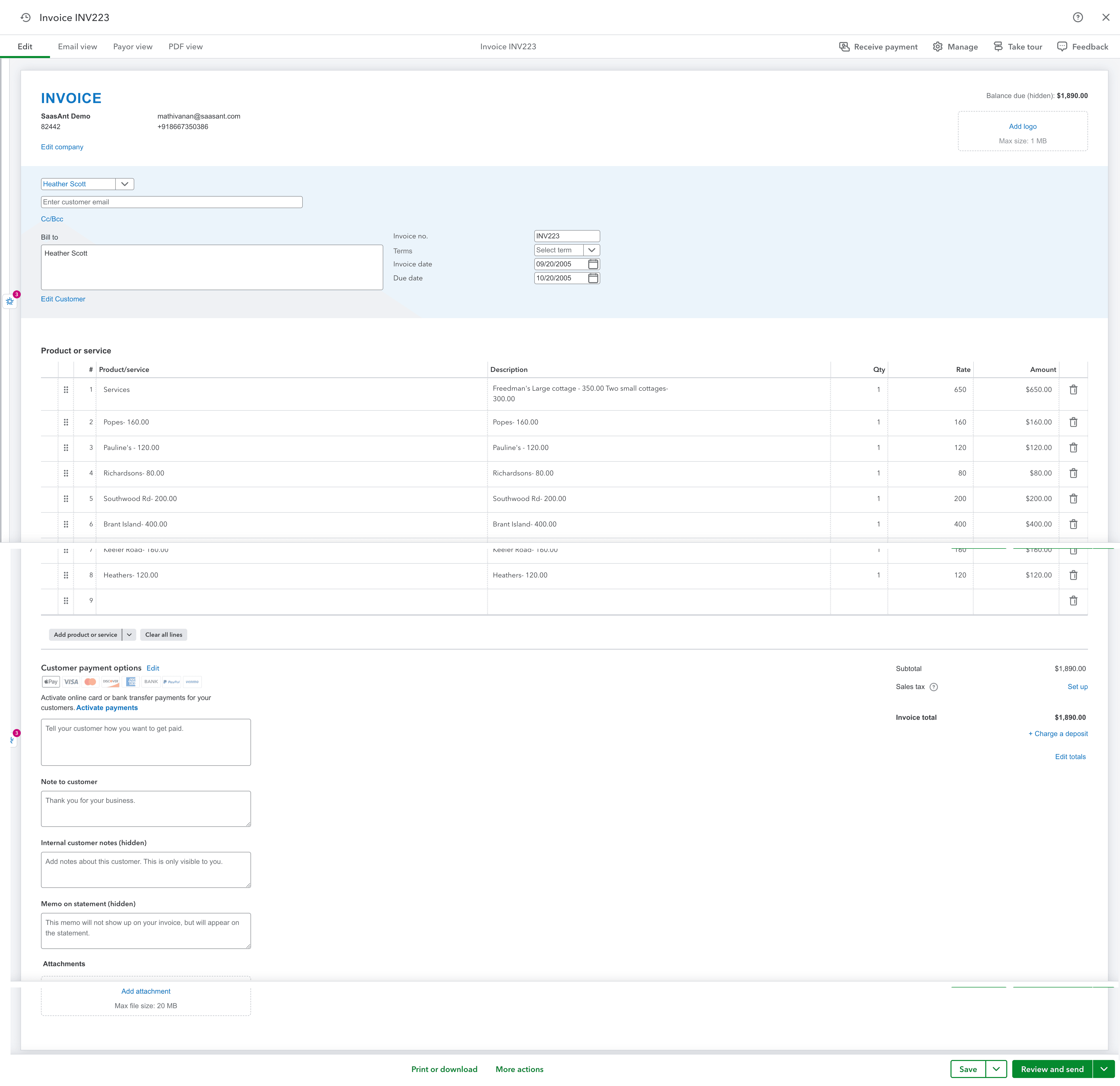
OCR and AI capture vendor or customer, invoice number, dates, totals, tax, and lines where supported. Everything appears in one review table with a live preview of the PDF.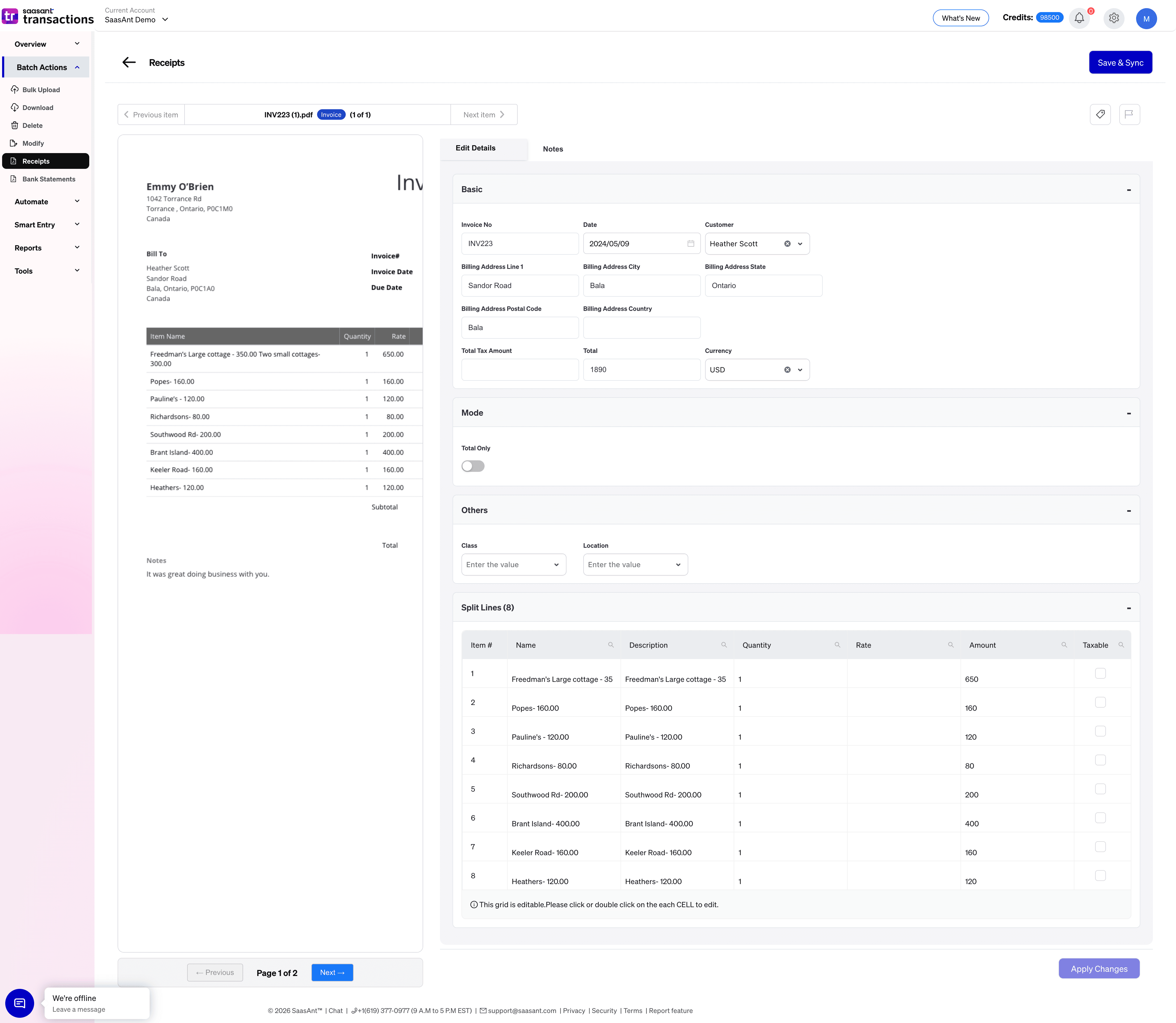
Review and code
Confirm the vendor or customer. Set terms and due date. Choose the account or item for each line, or pick a category for header only. Set tax codes. Add class, location, project, and memo if you track them. Save a vendor or customer mapping so next time is faster.Post to QuickBooks
Approve to create the invoice or bill. The original PDF is attached to the posted transaction.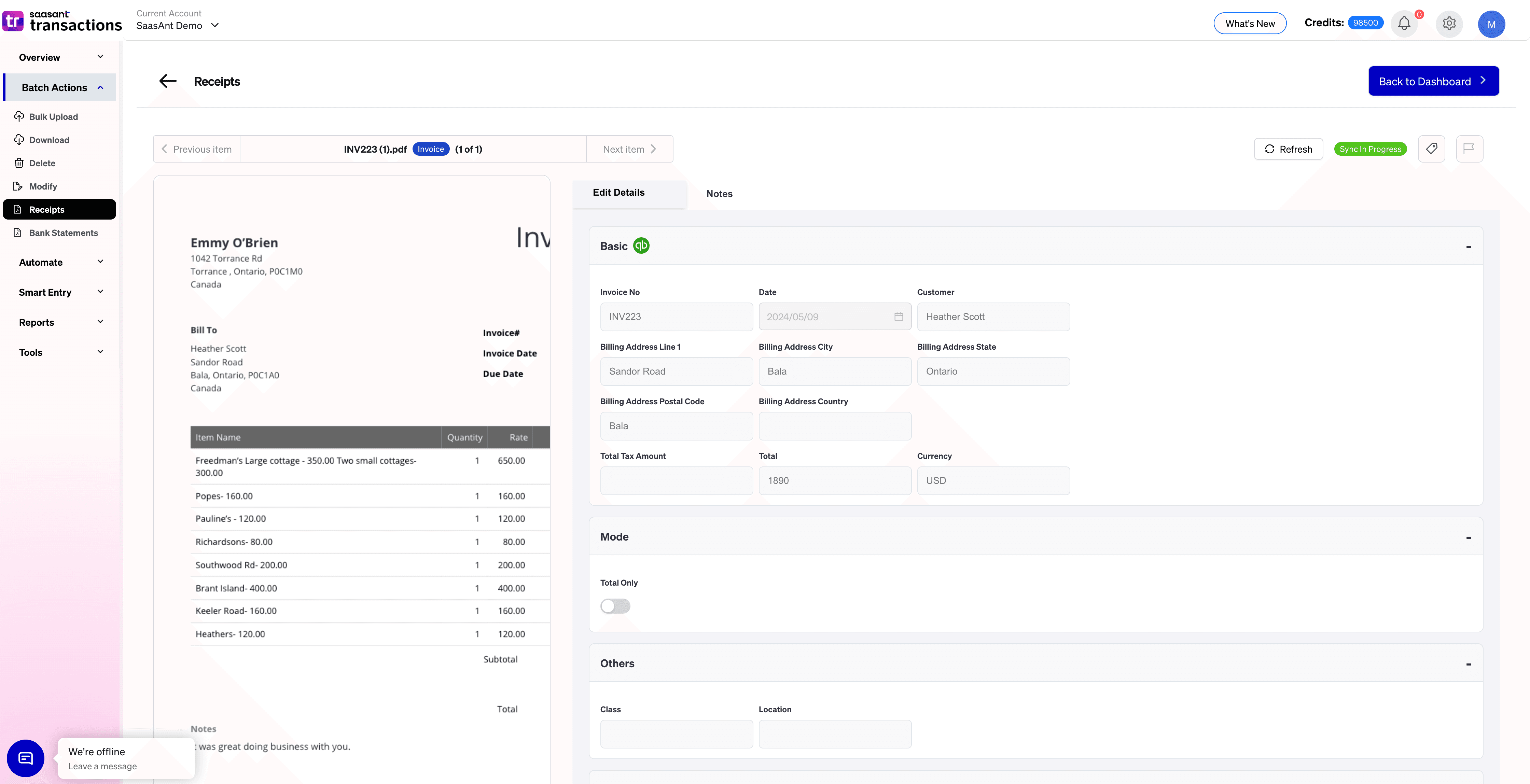
Finish your flow
For bills, pay or schedule as usual. For invoices, send or record payments through your normal AR process.
Real situations this solves
Supplier bills that only arrive as PDFs
Vendors email monthly bills. You import the PDFs, code them once, and post with the file attached. No retyping. No missing paperwork at month end.
Invoices exported from a legacy tool
Your old system can only give you PDFs. Import them, keep numbering and dates, and move AR into QuickBooks without a manual rebuild.
Cleanup and catch-up
You inherit three months of AP PDFs. Batch import, review in one pass, and post. Use attachments to keep an audit trail for the cleanup period.
Job and customer coding
Construction, agencies, and service firms need spend by job or client. Add project tags during review so reports are right and the source file is one click away.
Centralized AP for many suppliers
Firms handling AP for several clients need a single queue. PDFs flow in, a reviewer codes vendor, terms, accounts, and tax, then posts with attachments.
Common pitfalls and how to avoid them
Duplicate entries
If a bill already exists, a second import creates a duplicate. Use the pair of vendor and invoice number as your quick check. Keep a search tab open while you review.
Wrong tax treatment
Invoices may include tax or show it separately. Confirm the intended code during review. Save a vendor default to prevent repeats.
Missing vendors or customers
Add the contact during review and save the mapping. Next imports will pick it automatically.
Header only when lines are required
Some layouts import as header only. If you need lines for items and reporting, verify support for your key suppliers and adjust the process.
Multi-invoice PDFs
Packs that hold many invoices confuse extraction. Split the file or confirm page by page in review.
How SaasAnt helps when volume is high
Batch upload many invoice PDFs at once
See a live preview while you edit fields
Assign accounts, items, taxes, class, location, and project in one place
Post to QuickBooks with the PDF attached to every transaction
Save mappings and create simple rules so repeat suppliers code themselves
If your bank feed missed months and you also need expenses from statement PDFs, use Bank Statement Upload to extract lines and post transactions. Those entries do not go into the bank feed. You reconcile as usual.
Frequently asked questions
Can I import many PDF invoices in one go?
Yes. Use a batch upload to process monthly supplier packs or historical folders. It is the fastest way to get through a backlog.
Will the PDF be attached to the transaction in QuickBooks
Yes, when you post through a workflow that supports attachments. With SaasAnt, the source PDF is attached to the posted invoice or bill.
Do I need to convert PDFs to CSV first?
No. OCR and AI read the PDF so you can review and post without any conversion.
What can I edit before posting?
Vendor or customer, invoice number, dates, totals, tax, memo, terms, and coding such as accounts, items, class, location, and project. Where supported you can also adjust line details.
Will this affect my bank feed?
Invoices and bills do not enter the bank feed. You will match payments and receipts through your normal AP and AR flows.
Does this work for older PDF?s
Yes. Historical PDFs can be imported in batches. Post with the source file attached so audits are simpler.
The bottom line
PDF invoice import should feel like one clean loop. Collect the PDFs, upload, let the tool read the fields, review next to a live preview, then post to QuickBooks with the file attached. Use QuickBooks built in capture for a few invoices. Use SaasAnt Transactions when you have volume, tight deadlines, or a cleanup project. The result is fewer clicks, fewer errors, and a complete audit trail.
Read also
Batch Upload Invoices to QuickBooks Online
Import Invoices into QuickBooks Online: Step-by-Step Guide
How to Edit Invoices in QuickBooks Online
Workflow Automation for Bookkeeping and Accounting Professionals