How to Import Transactions into QuickBooks Desktop
Importing transactions into QuickBooks Desktop manually can be time-consuming and prone to mistakes, especially when managing hundreds or thousands of records. Whether it involves invoices, bills, or journal entries, ensuring efficient data entry is essential for maintaining accurate and organized records.
SaasAnt Transactions Desktop enables you to effortlessly import a diverse array of transactions without the complications of manual data entry.
This blog will guide you through the step-by-step process of importing transactions into QuickBooks Desktop using SaasAnt, covering everything from setup and field mapping to review and rollback.
This blog is ideal for accountants, bookkeepers, small business owners, and QuickBooks Desktop users who want to simplify bulk transaction imports, reduce manual entry, and improve accuracy.
Contents
Import Transactions into QuickBooks Desktop: Quick Instructions
How to Import Excel Transactions into QuickBooks Desktop: Step-By-Step Guide
Wrap Up
Frequently Asked Questions
Import Transactions into QuickBooks Desktop: Quick Instructions
Connect SaasAnt Transactions Desktop to QuickBooks Desktop.
Upload your transaction file
Check and Import.
Rollback (undo) if needed.
How to Import Excel Transactions into QuickBooks Desktop: Step-By-Step Guide
Follow the steps below to import the transactions in QuickBooks Desktop using SaasAnt Transactions Desktop.
Step 1: Install and Connect SaasAnt Transactions
Download the latest SaaSAnt Transactions Desktop version.
Run SaasAntTransactions-Setup.exe as an administrator.
Accept the license agreement and complete the installation.
Open the app, go to Subscription > Register.
Enter the license key from your confirmation email.
Keep your internet connection active.
Step 2: Launch SaasAnt Transactions Desktop
Start by opening the SaasAnt Transactions Desktop app on your system.
Ensure that QuickBooks Desktop is open and connected to your company file before proceeding.
Step 3: Connect to QuickBooks Desktop
Now you need to connect the SaasAnt Transactions Desktop with QuickBooks Desktop. Here's how:
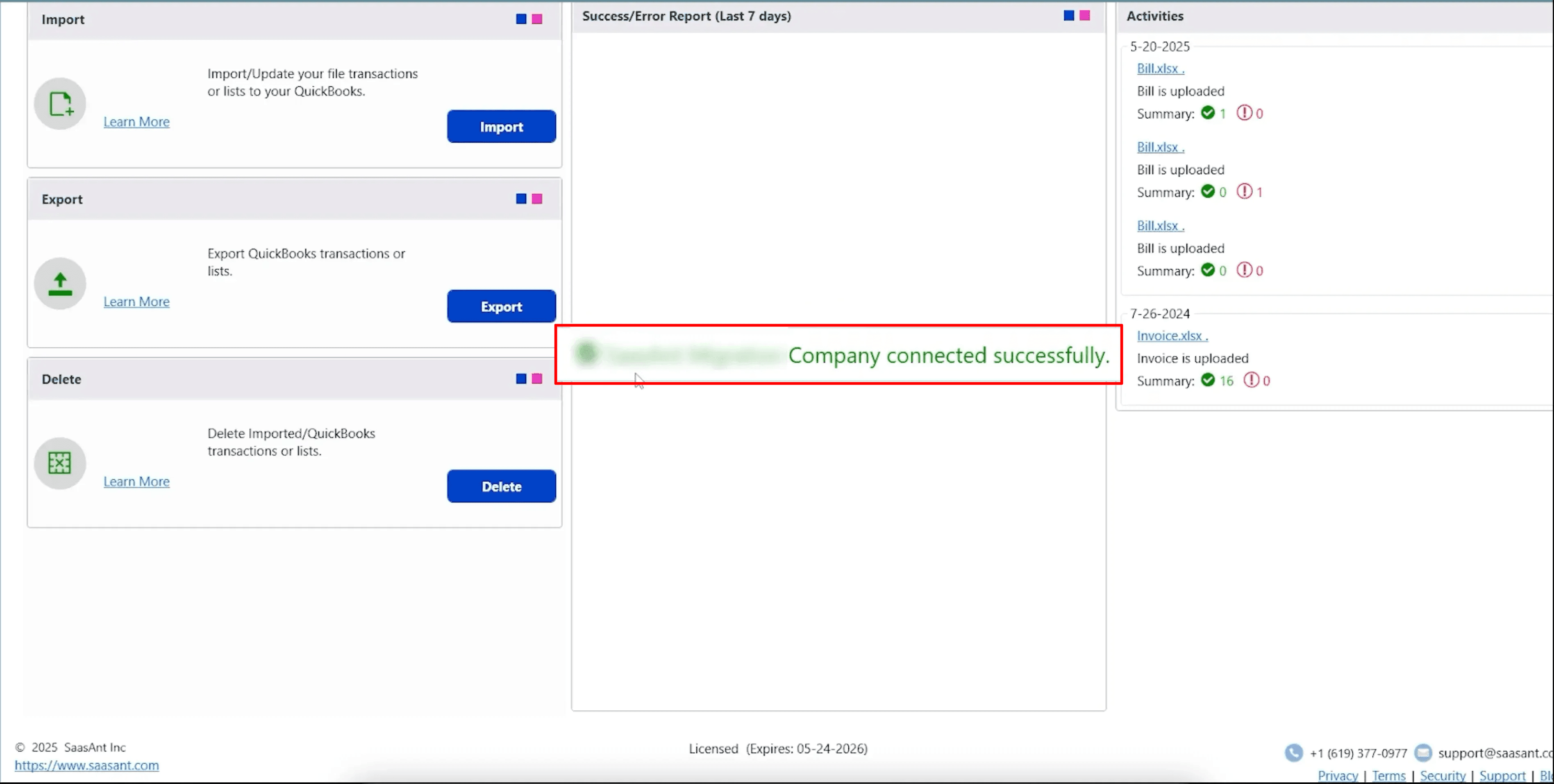
Go to the ‘File’ menu in the top-left corner of SaasAnt Transactions Desktop.
Click ‘Connect to QuickBooks’ from the dropdown.
Step 4: Open SaasAnt Transactions
On the SaasAnt dashboard:
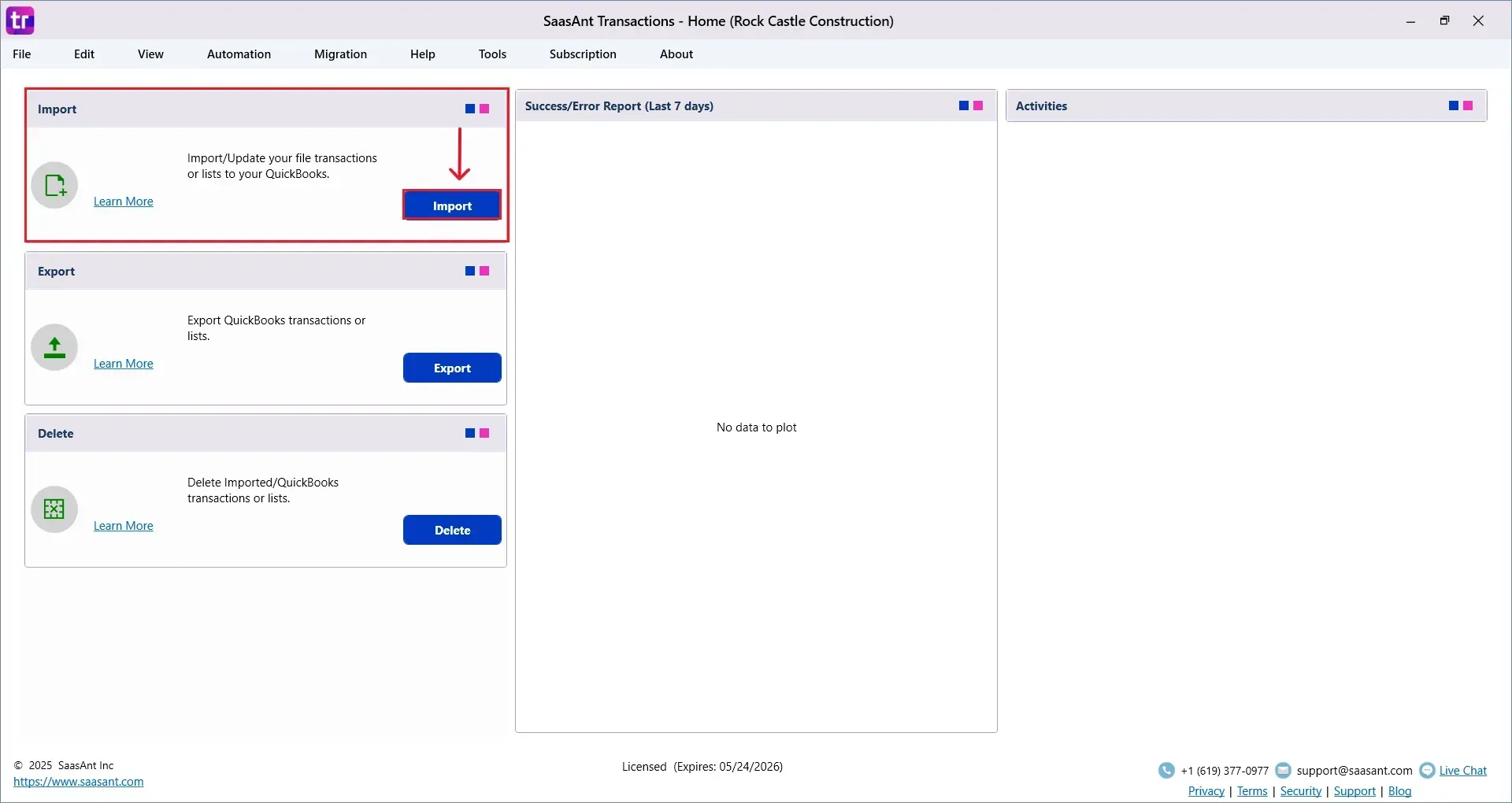
On the top left side of the SaasAnt Transactions dashboard, you can see the menu bar with various options.
Select “Import.”
The dashboard appears as shown in the image below.
Select “Bank Statement” or any other transactions you want to bring in from the SaasAnt Transaction Type dropdown, and upload your Transactions file.
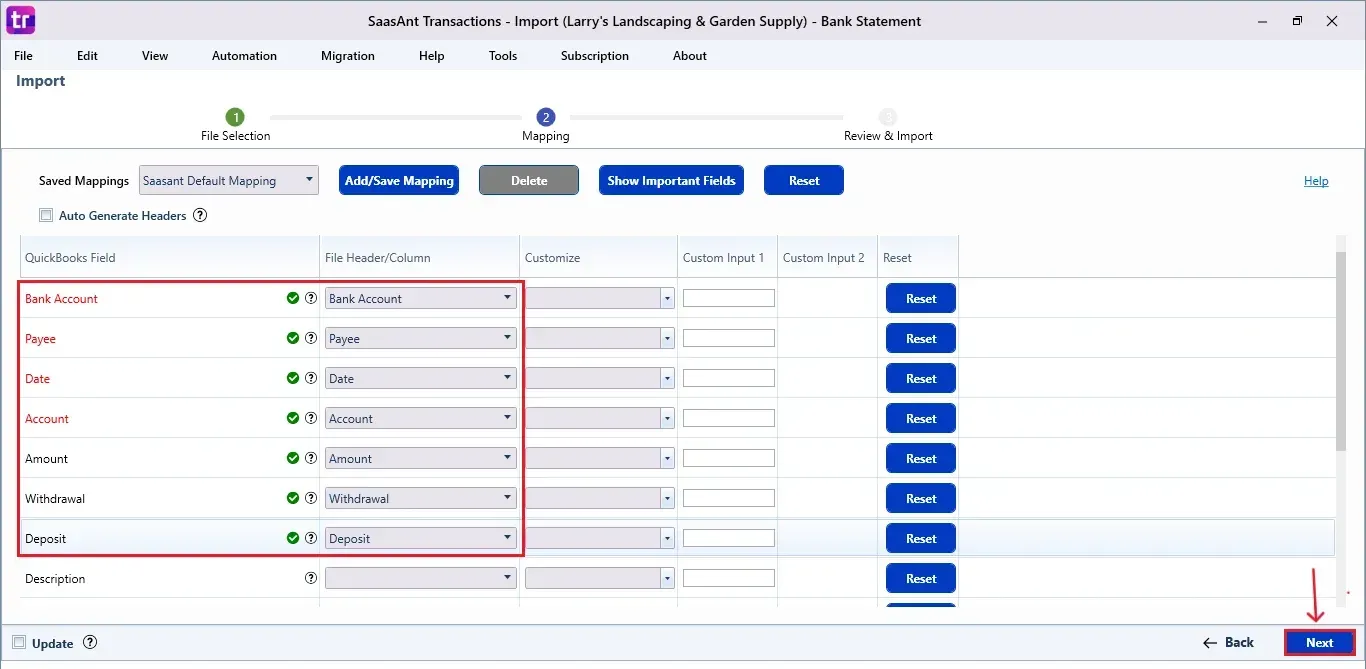
Select “SaasAnt Default Mapping” under the Saved Mapping dropdown.
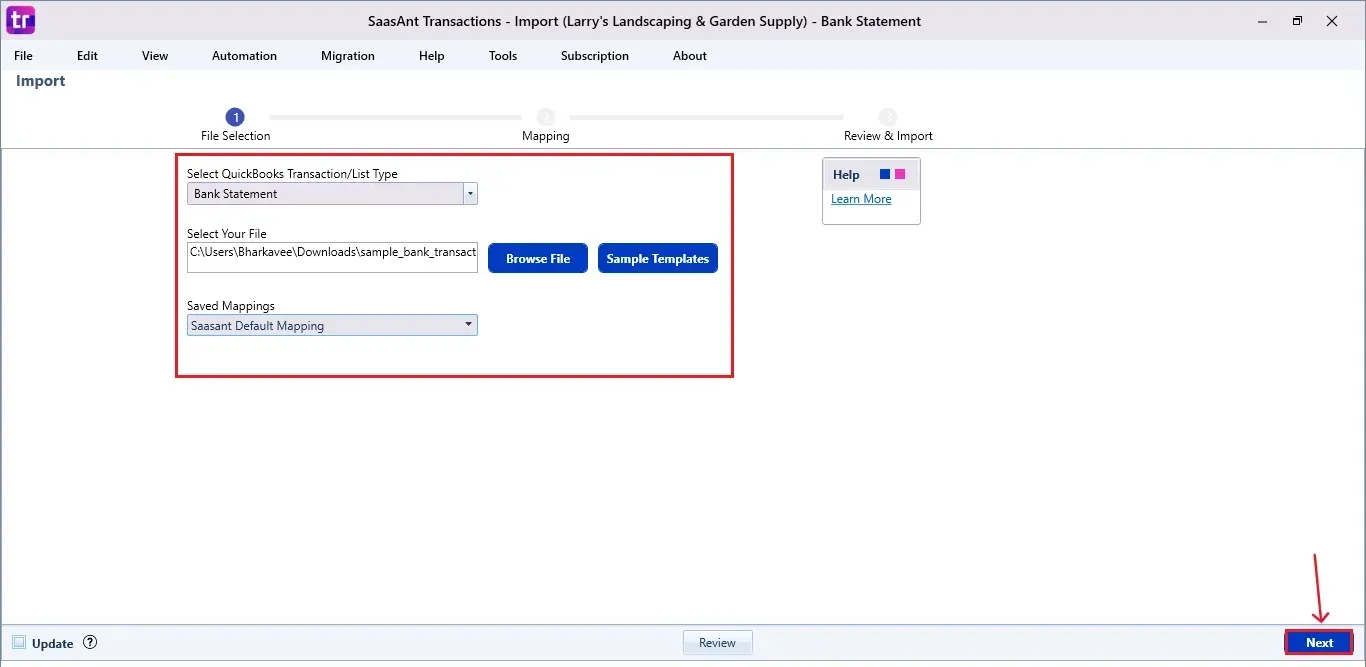
Note: You can import various file formats, including XLS, XLSX, CSV, IIF, and text files.IFF, .QIF, .OFX, .ACCDB, .MDB, .XLSM, .XLSB and XLS.
Below is a detailed list of the transactions and list types that are supported:
Vendor Transactions | Customer Transactions | Other Transactions | Lists |
Bill | Invoice | Journal Entry | Customer |
Checks | Receive payments | Time Tracking | Vendor |
Item Receipt | Estimates | Credit Card Statements | Employee |
Bill Payments | Credit memo | Bank Statements | Location |
Purchase Orders | Sales Order | Trial Balance | Product/Service |
Credit Card Charge | Refund | Deposit | Accounts |
Credit Card Credits | Statement Charge | Transfer | Attachments |
Item Receipt with Bill | Inventory adjustments | Assembly Items | |
Vehicle Mileage | Item | ||
Item Payment | |||
Item Discount | |||
Item Group | |||
Inventory Item | |||
Inventory Assembly | |||
Fixed Asset | |||
Price Level | |||
Other Name | |||
Sales Tax | |||
Sales Tax Group | |||
Class |
Step 5: Mapping Fields
Ensures the mapping of essential fields, including bank account, payee, date, amount, etc.
Select “Next” at the bottom right of the dashboard.
Step 6: Review and Import the Data
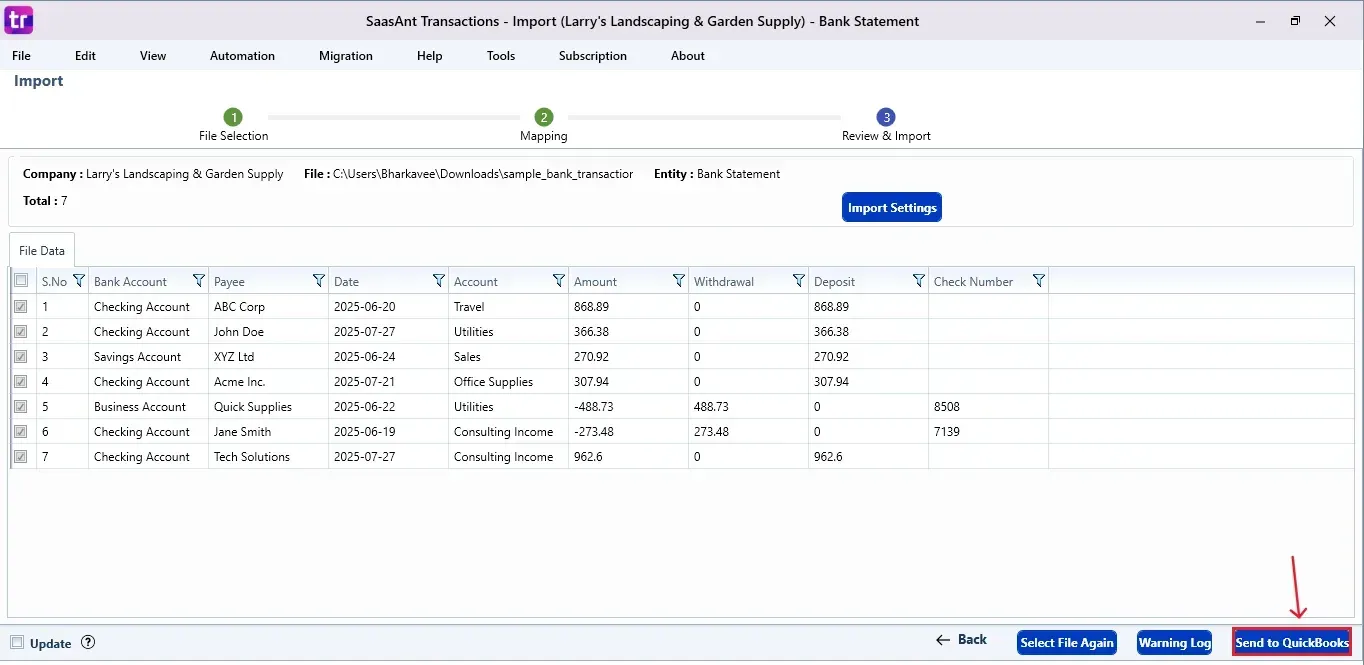
Click the “Send to QuickBooks” option at the bottom right of the dashboard, as shown in the image below.
SaasAnt will now push your bank transactions into your connected QuickBooks Desktop account.
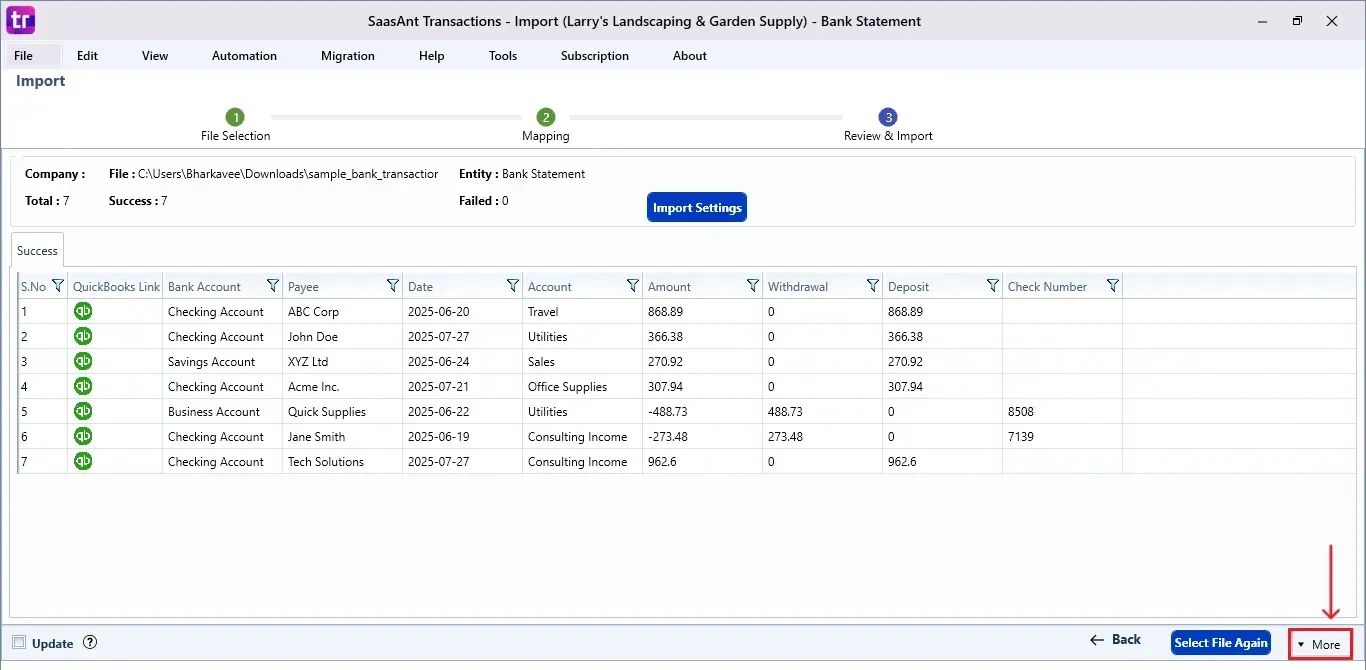
The imported transactions are successfully reflected in the dashboard.
At the bottom right, click the “More” dropdown and select the option to download your transactions for reference.
Additionally, next to the download option, you can see “Undo”, which allows you to roll back your bill transactions.
Step 7: Verify in QuickBooks Desktop
Open QuickBooks Desktop, go to the “Customers” menu, and select “Customer Centre”.
Search for the customer name you imported.

This final step ensures that your data is accurate and appropriately reconciled within QuickBooks.
Also Read: How to Import Invoices into QuickBooks Desktop
Why this matters and how SaasAnt actually helps
You are here because typing transactions by hand is not the job. Getting clean data into QuickBooks Desktop is. Here is how this plays out in real life, and how SaasAnt Transactions Desktop helps you get it done without drama.
If you are catching up months of work
The issue: Hundreds of invoices, bills, or journals live in spreadsheets. Manual entry will blow the deadline.
How SaasAnt helps: Upload the CSV, map once, and run batches. Line items, rates, discounts, classes, and tax all come through. Spot check, then post the rest.
If you are rebuilding or switching systems
The issue: You exported history from a legacy tool or a damaged file. References do not line up.
How SaasAnt helps: Import lists first, then transactions. Preflight flags missing customers, vendors, items, or tax codes so you fix them before anything posts.
If you have bank and card CSVs
The issue: Your bank gave you CSV, not..QBO. You still need clean Expenses, Deposits, or Transfers with vendors and memos.
How SaasAnt helps: Map columns to the correct QuickBooks fields, save the mapping for this bank format, run a 10 row test, then import the month in one pass.
If you post invoices and bills with many lines
The issue: File has multi line detail. Native paths choke on line level fields or mix headers and lines.
How SaasAnt helps: True header plus line mapping. Items, quantities, rates, tax, and classes land where they belong.
If you track classes, jobs, or projects
The issue: Reports break when classes or jobs get missed on lines.
How SaasAnt helps: Map classes and jobs at header or line. Preflight catches blanks so your P&L by class and job stays correct.
If you manage sales tax or multi currency
The issue: Mixed tax codes and currencies trigger errors or bad totals.
How SaasAnt helps: Validate tax code references during review. Respect supported currency fields so you are not fixing amounts after posting.
If you need inventory corrections
The issue: After a count, quantities and values are off. Journals are not enough.
How SaasAnt helps: Import Inventory Adjustments in bulk with the right items and accounts. Recheck your valuation reports right away.
If you work under audits and deadlines
The issue: You need a clean trail and a safe way to reverse mistakes.
How SaasAnt helps: Keep the source CSV, review logs, and import logs for each run. Use Undo to roll back a batch, correct the file, and re import.
If you repeat this every month
The issue: New exports arrive from the same sources. Rebuilding mappings wastes time and invites errors.
How SaasAnt helps: Save mappings per source and transaction type. Next month takes minutes because the setup is done.
If you worry about breaking the file
The issue: One wrong import can create bad balances.
How SaasAnt helps: Test 5 to 10 rows in a copy of your company file, review totals, then post the full batch. If something looks off, Undo and try again.
Use this flow as your working checklist: import lists, map once, test small, post in batches, verify in QuickBooks, keep the logs. SaasAnt gives you the control, the safety net, and the speed to make that routine stick.
Wrap Up
Importing transactions into QuickBooks Desktop doesn’t have to be tedious or complicated. With SaasAnt Transactions Desktop, you can import different file types, adjust mappings, and automate data entry accurately. Whether it's invoices or bank deposits, the whole process is made easier, saving time, minimizing mistakes, and enhancing bookkeeping workflows.
By leveraging trustworthy platforms like QuickBooks for your accounting processes and SaasAnt for transaction management and automation, you can enhance the overall workflow, minimize errors, save time, and acquire greater financial insight.
If you have inquiries regarding our products, features, trial, or pricing, or if you require a personalized demo, contact our team today. We are ready to help you find the ideal solution for your QuickBooks workflow.
Here is a guide on how to get started:
Frequently Asked Questions
1) Can I import transactions from Excel to QuickBooks Desktop?
Yes, you can import transactions from Excel to QuickBooks Desktop using SaasAnt Transactions Desktop. Simply upload your transaction file, check the details, and import. If needed, you can undo the import using the rollback feature.
2) What file formats does SaasAnt Transactions Desktop support?
It supports XLS, XLSX, CSV, IIF, QIF, OFX, ACCDB, MDB, XLSM, XLSB, and text files.
3) Is it possible to undo an import if something goes wrong?
Yes. The “Undo” feature allows you to roll back specific imported transactions easily.
4) Will the import affect existing transactions in QuickBooks?
Only new transactions will be included. Existing transactions will not change unless you opt to overwrite or manually update them.
5) How do I verify if the transactions were successfully imported?
You can check the data by opening your QuickBooks Desktop.
Read Also
How to Import CSV file into QuickBooks Desktop
How to Export Data from QuickBooks Desktop to Excel
How to Edit Transactions in QuickBooks Desktop
How to Delete Multiple Transactions in QuickBooks Desktop?