How to Import Item List into QuickBooks Desktop
Importing a list of items into QuickBooks Desktop is essential for keeping accurate inventory, pricing, and product records. Whether you are onboarding a new client, changing accounting systems, or simply need to clean up and reimport your items, doing it manually can be labor-intensive and susceptible to errors. With SaasAnt Transactions Desktop, you can simplify this process and import substantial amounts of item data with just a few clicks.
This guide will guide you through a step-by-step method to effectively import your item list into QuickBooks Desktop using SaasAnt.
A retail company with a wide range of products needs to update its item list in QuickBooks Desktop. Rather than typing in each product by hand, they utilize SaasAnt Transactions Desktop to import an Excel file that has item names, types, purchase prices, and descriptions. This saves them hours of effort and minimizes data entry mistakes.
This blog is ideal for small business owners, accountants, and bookkeepers looking to efficiently manage bulk item data by importing it into QuickBooks Desktop using SaasAnt.
Contents
How to Import Item List into QuickBooks Desktop: Step-By-Step Guide
Wrap Up
Frequently Asked Questions
How to Import Item List into QuickBooks Desktop: Step-By-Step Guide
Follow the steps below to import the item list in QuickBooks Desktop using SaasAnt Transactions Desktop.
Step 1: Install and Connect SaasAnt Transactions
Download the latest SaasAnt Transactions Desktop version.
Run SaasAntTransactions-Setup.exe as an administrator.
Accept the license agreement and complete the installation.
Open the app, go to Subscription > Register.
Enter the license key from your confirmation email.
Keep your internet connection active.
Step 2: Launch SaasAnt Transactions Desktop
Start by opening the SaasAnt Transactions Desktop app on your system.
Ensure that QuickBooks Desktop is open and connected to your company file before proceeding.
Step 3: Connect to QuickBooks Desktop
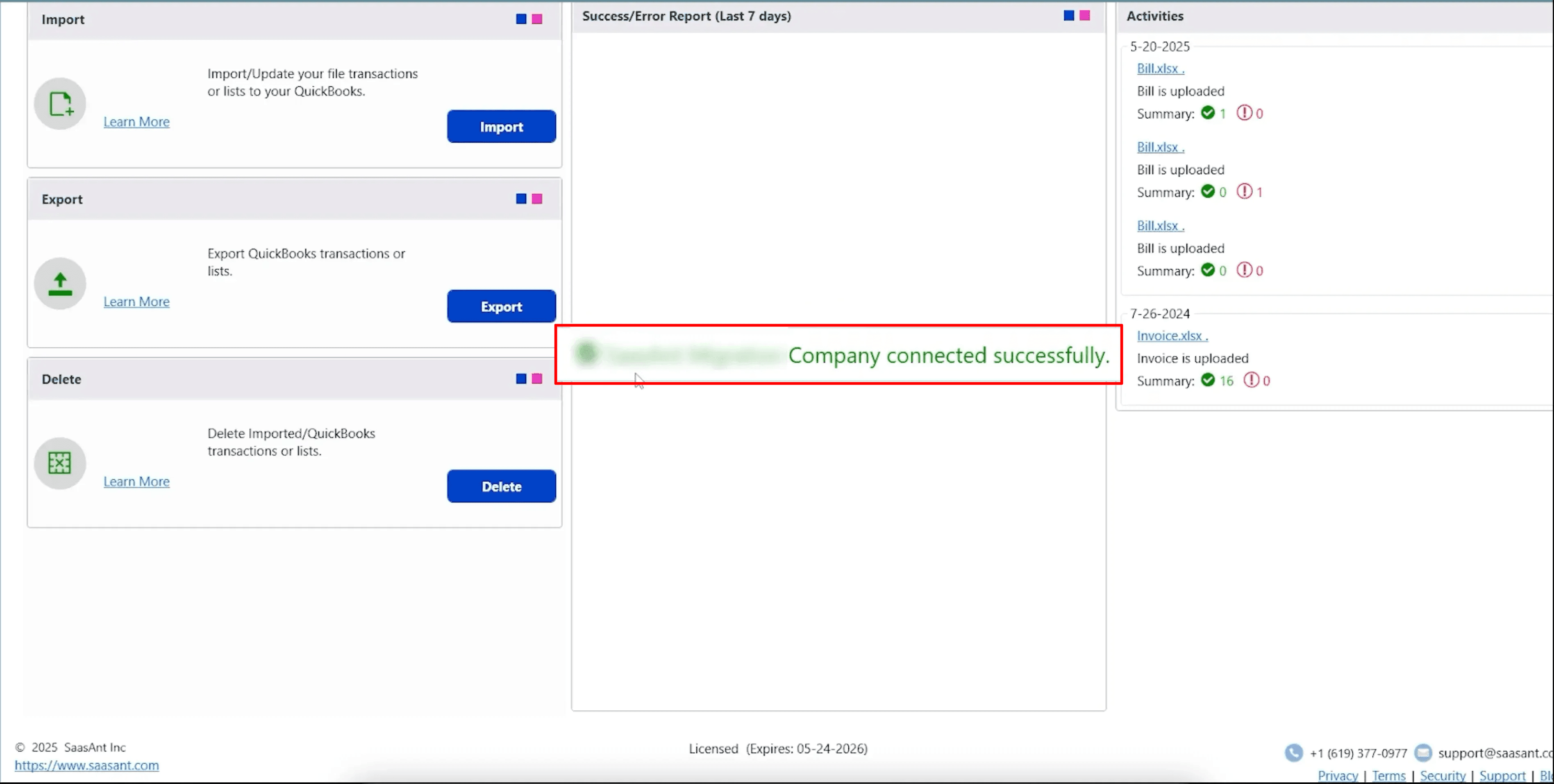
To connect the SaasAnt Transactions Desktop with QuickBooks Desktop. Here's how:
Go to the ‘File’ menu in the top-left corner of SaasAnt Transactions Desktop.
Click ‘Connect to QuickBooks’ from the dropdown.
Step 4: Open SaasAnt Transactions
On the SaasAnt dashboard:
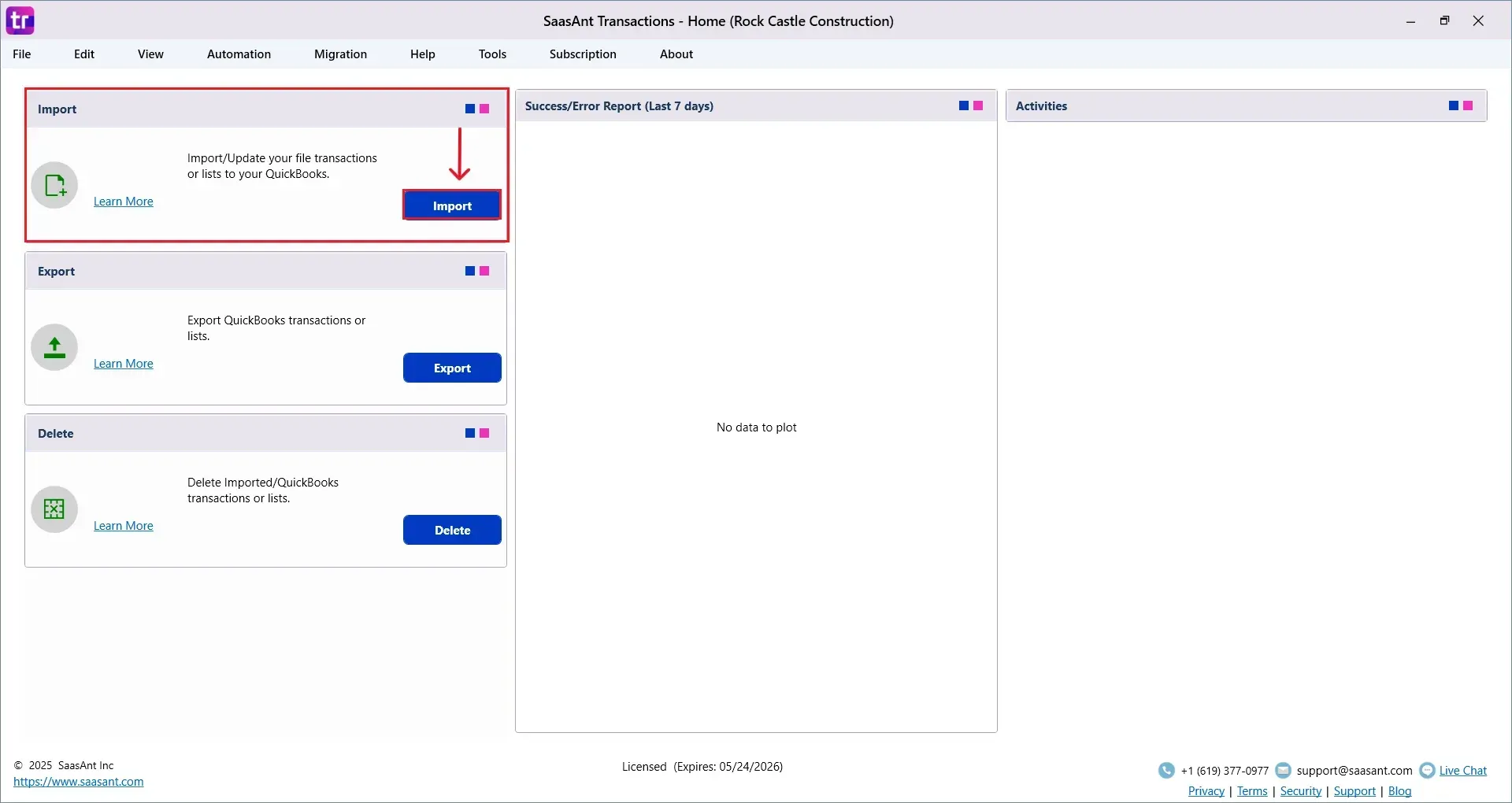
On the top left side of the SaasAnt Transactions dashboard, you can see the menu bar with various options.
Select “Import”.
The Dashboard appears as shown in the image below.
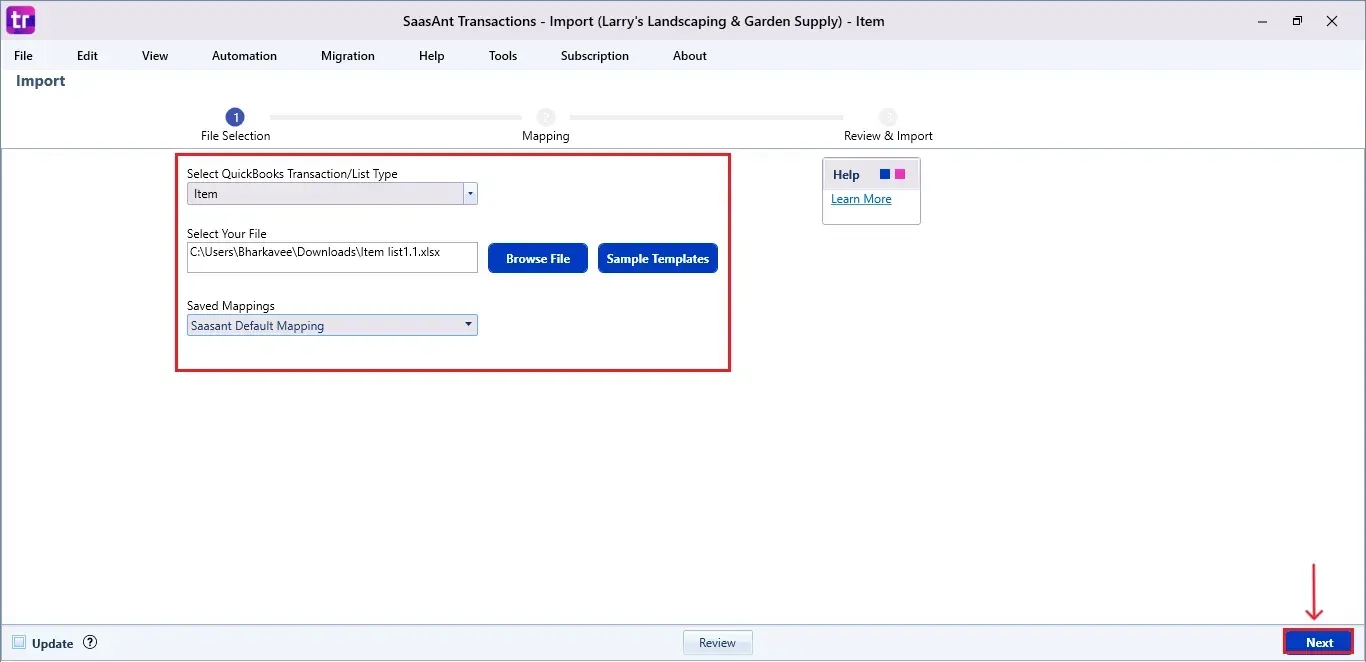
Select “Item list” from the SaasAnt Transaction Type dropdown and upload your Excel or CSV file.
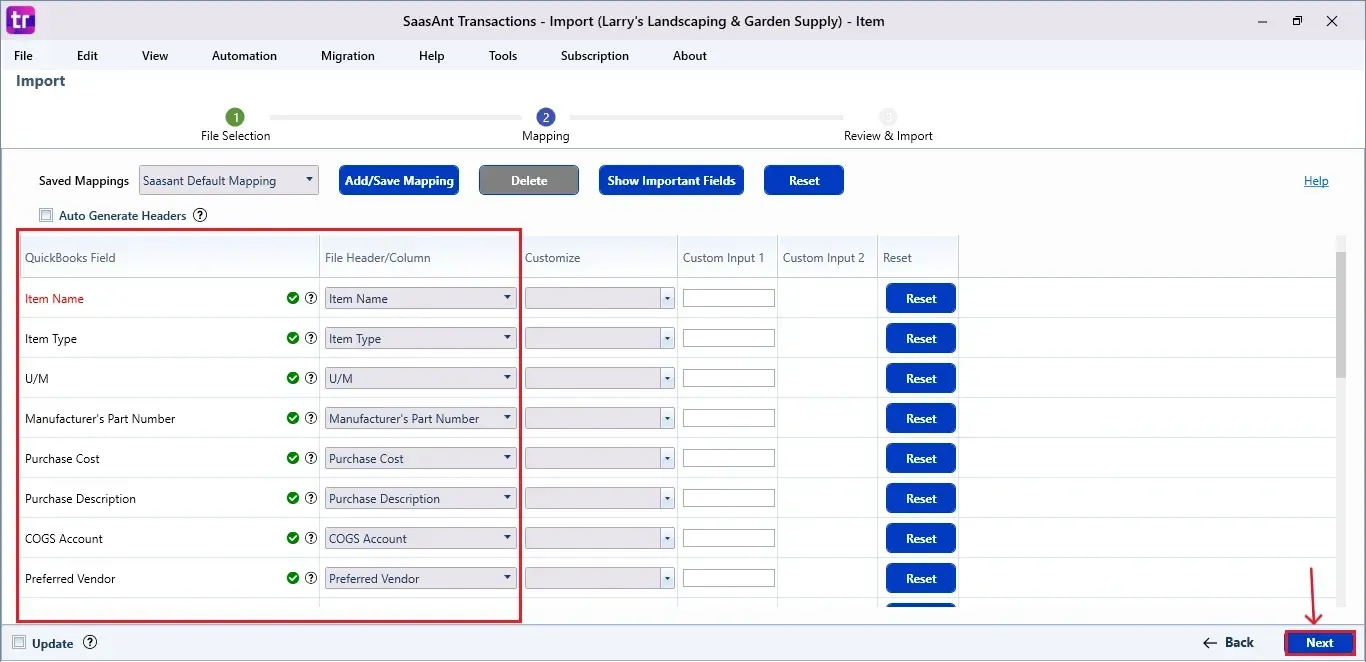
Select “SaasAnt Default Mapping” under the Saved Mapping dropdown.
Step 5: Mapping Fields
Ensures the mapping of essential fields, including Item name, item type, purchase cost, and purchase description, among others.
Select “Next” at the bottom right of the dashboard.
Step 6: Review and Import the Data
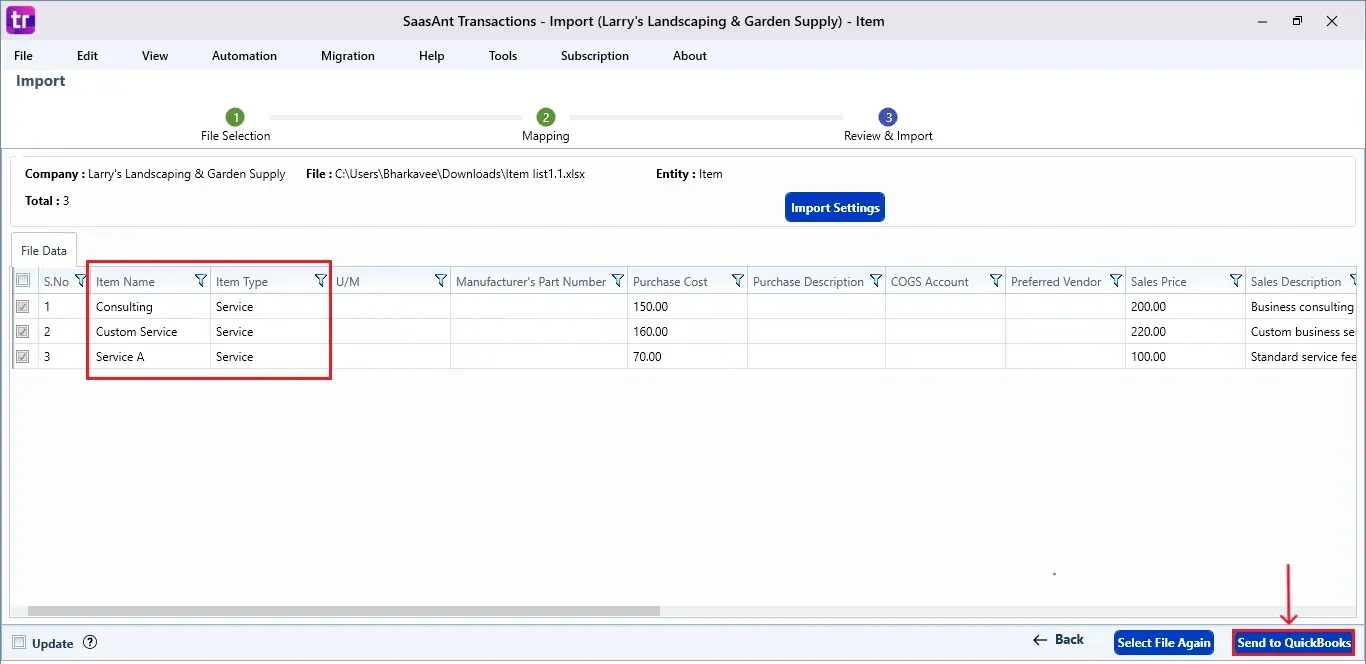
Before importing, SaasAnt allows you to preview and edit the Item list data directly within the interface.
Click the “Send to QuickBooks” option at the bottom right of the dashboard, as shown in the image below.
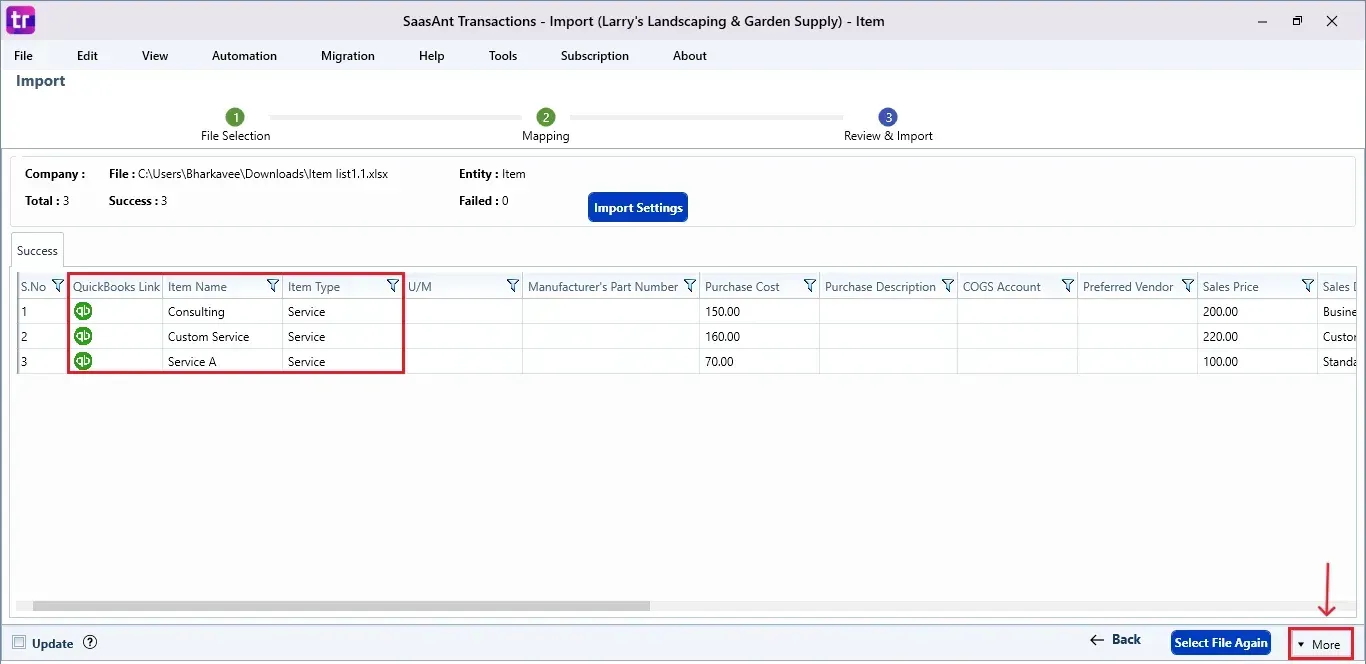
SaasAnt will now push the item list into your connected QuickBooks Desktop account.
The item list is reflected in the dashboard.
At the bottom right, click the “More” dropdown and select the option to download your item list for reference.
Step 7: Verify in QuickBooks Desktop
Open QuickBooks Desktop, go to the “Lists” menu, and select “Item list”.
Search for the item name to view.
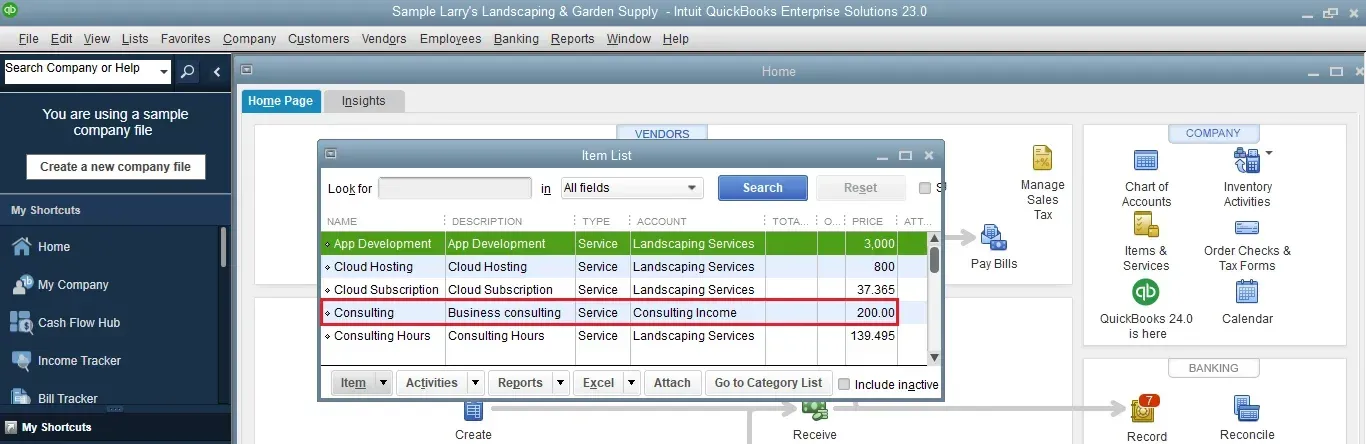
This final step ensures that your data is accurate and appropriately reconciled within QuickBooks.
Wrap Up
With SaasAnt Transactions Desktop, importing your item list into QuickBooks Desktop becomes a streamlined, accurate, and efficient task. From installation to verification, every step ensures your item data is managed accurately. Whether you're bringing in new inventory or updating existing items, this helps maintain clear records and supports better financial decisions.
By leveraging trustworthy platforms like QuickBooks for your accounting processes and SaasAnt for transaction management and automation, you can enhance the overall workflow, minimize errors, save time, and acquire greater financial insight.
If you have inquiries regarding our products, features, trial, or pricing, or if you require a personalized demo, contact our team today. We are ready to help you find the ideal solution for your QuickBooks workflow.
Frequently Asked Questions
1) Is it necessary to have QuickBooks Desktop open during the import?
Yes. Ensure that your company file is open and connected while importing data using SaasAnt.
2) What happens if there are errors in the uploaded file?
SaasAnt will show any errors in the preview stage, enabling you to modify or correct the data prior to sending it to QuickBooks.
3) Will existing items in QuickBooks be updated or duplicated?
You have the option to either update current items or create new ones based on your import settings.
4) Can I save mapping templates for future imports?
Yes. You can use or create saved mapping templates for reliable and faster imports.
Read Also
How to Import Bills into QuickBooks Desktop
How to Import Payments in QuickBooks Desktop
How to Import Purchase Orders in QuickBooks Desktop
How to Export Item List from QuickBooks Desktop to Excel