How to Import Inventory Adjustment in QuickBooks Online
Managing inventory adjustments in QuickBooks can be time-consuming if done manually. Whether you need to update stock levels, correct discrepancies, or handle bulk changes, SaasAnt Transactions Online, an Accountant Favorite and User's Choice, awarded app that makes the process seamless with its bulk import feature.
In this guide, we’ll walk you through the step-by-step process of importing inventory adjustments into QuickBooks using SaasAnt Transactions Online.
Contents
Quick Instructions
Frequently Asked Questions (FAQs)
Quick Instructions
Log in to SaasAnt Transactions Online.
Go to the Bulk Import tab.
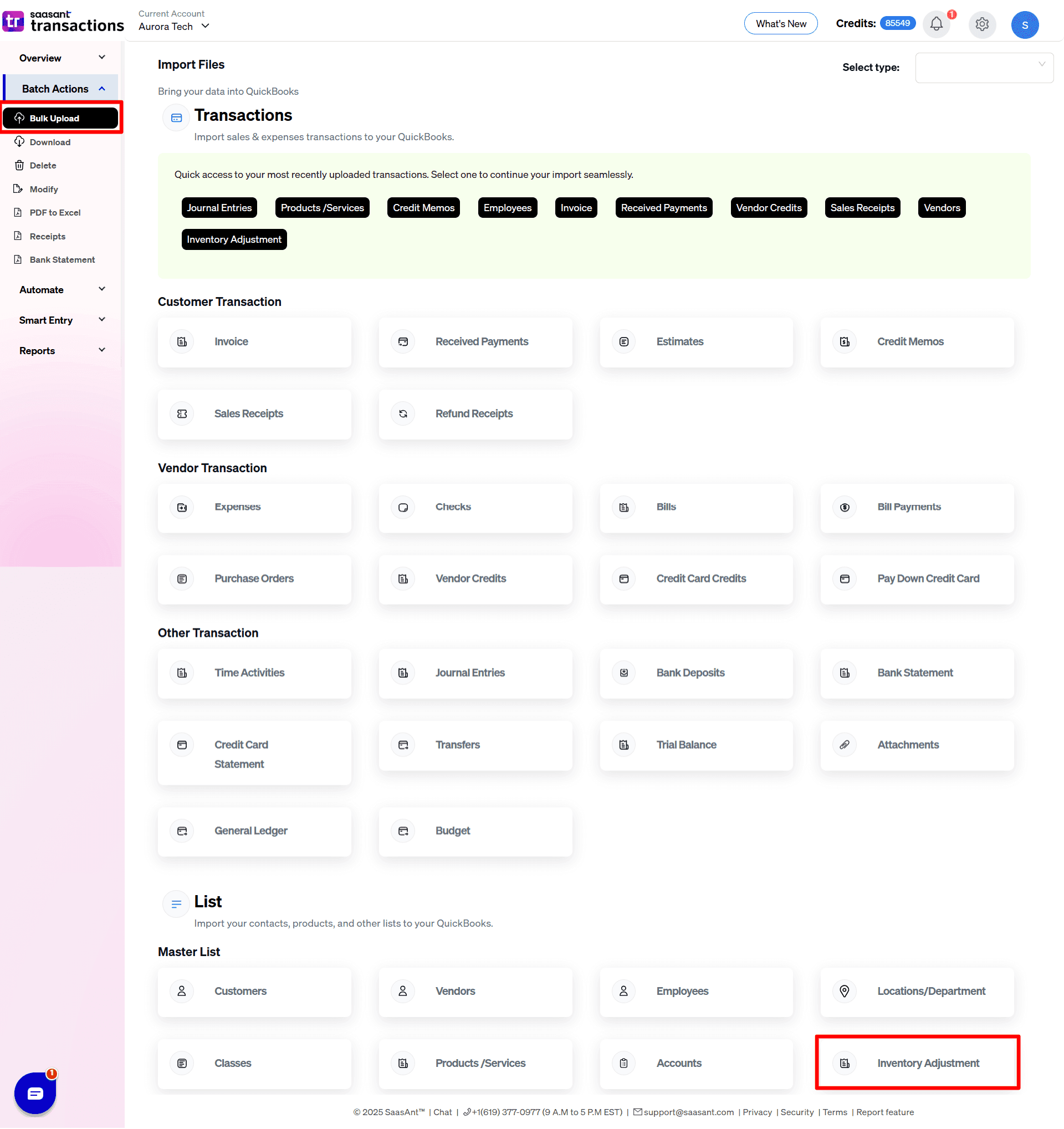
Choose Inventory Adjustment as the QuickBooks entity.
Browse and upload your Excel or CSV file.
Map the columns in your file to QuickBooks fields.
Click Upload to process the file.
Review the success confirmation once the data is imported.
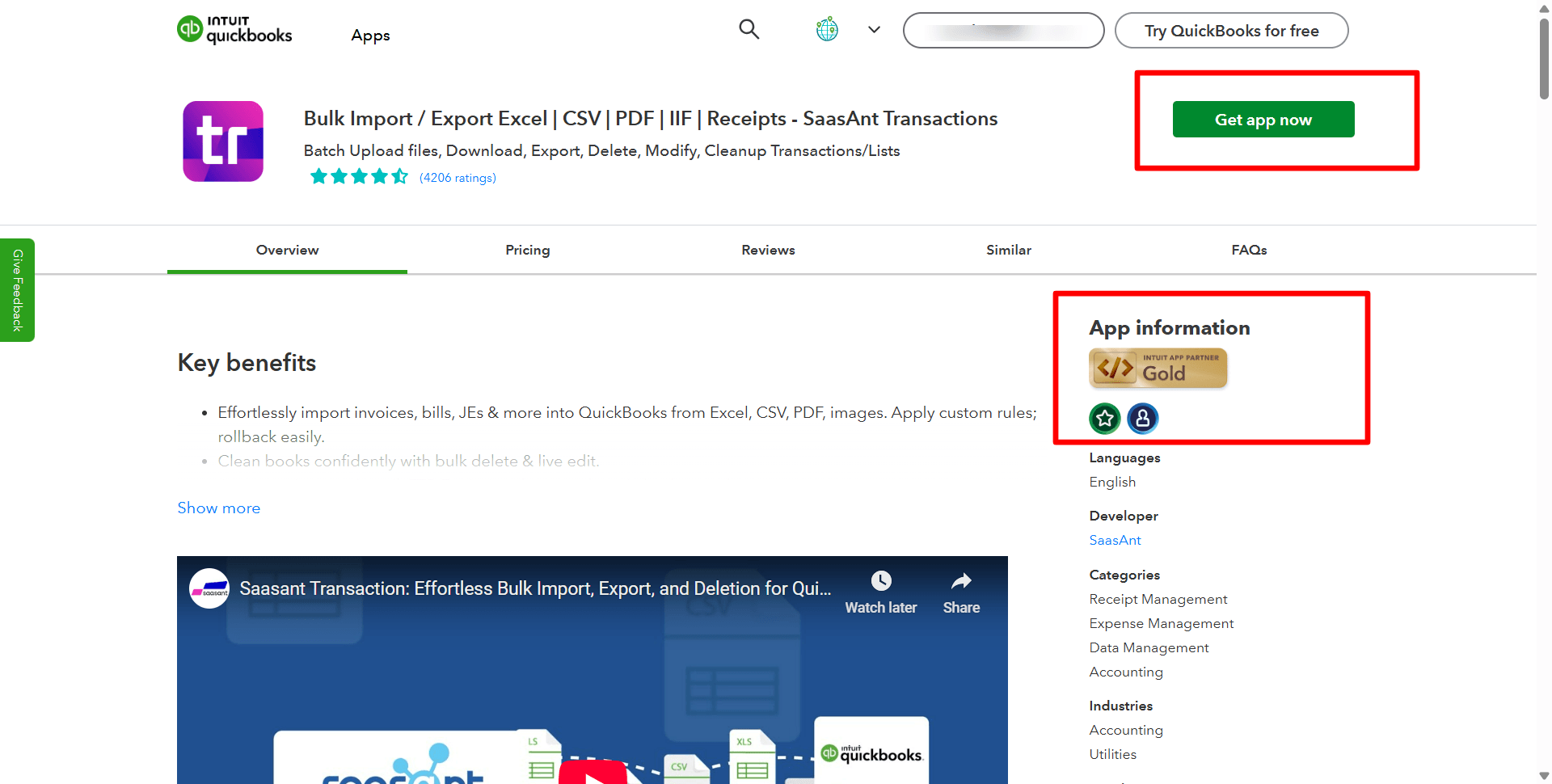
Step 1: Log in to SaasAnt Transactions Online
Start by signing in to your SaasAnt Transactions Online account. Once logged in, you’ll be ready to access all available features for importing data into QuickBooks.
Step 2: Go to the Bulk Import Tab
From the dashboard, click on the Bulk Import tab. This is where you can manage large volumes of financial data, including invoices, bills, and, in this case, inventory adjustments.
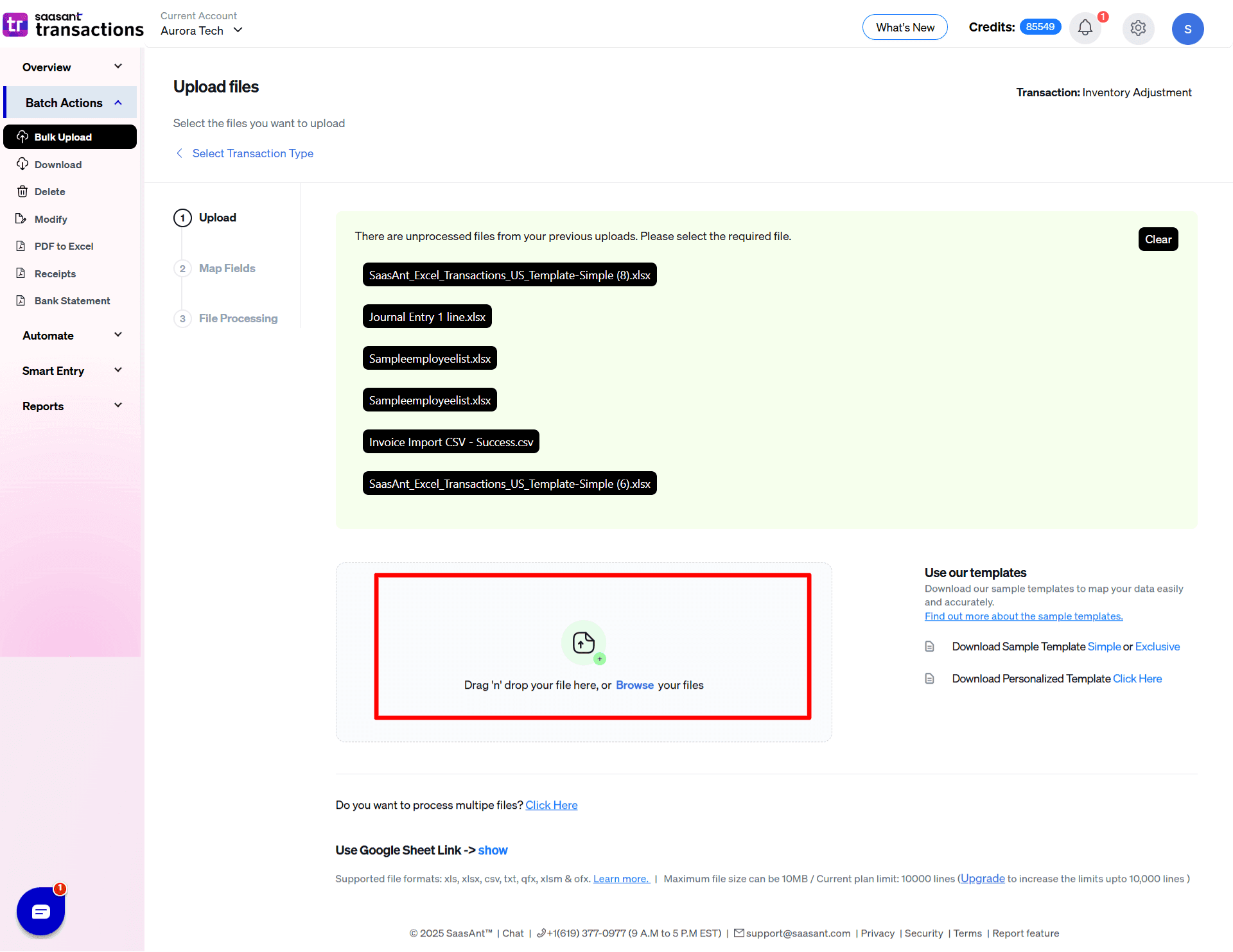
Step 3: Select the File You Want to Upload
Click "Browse" and select the Excel or CSV file containing your inventory adjustment data. Ensure your file is formatted correctly for a seamless upload process.
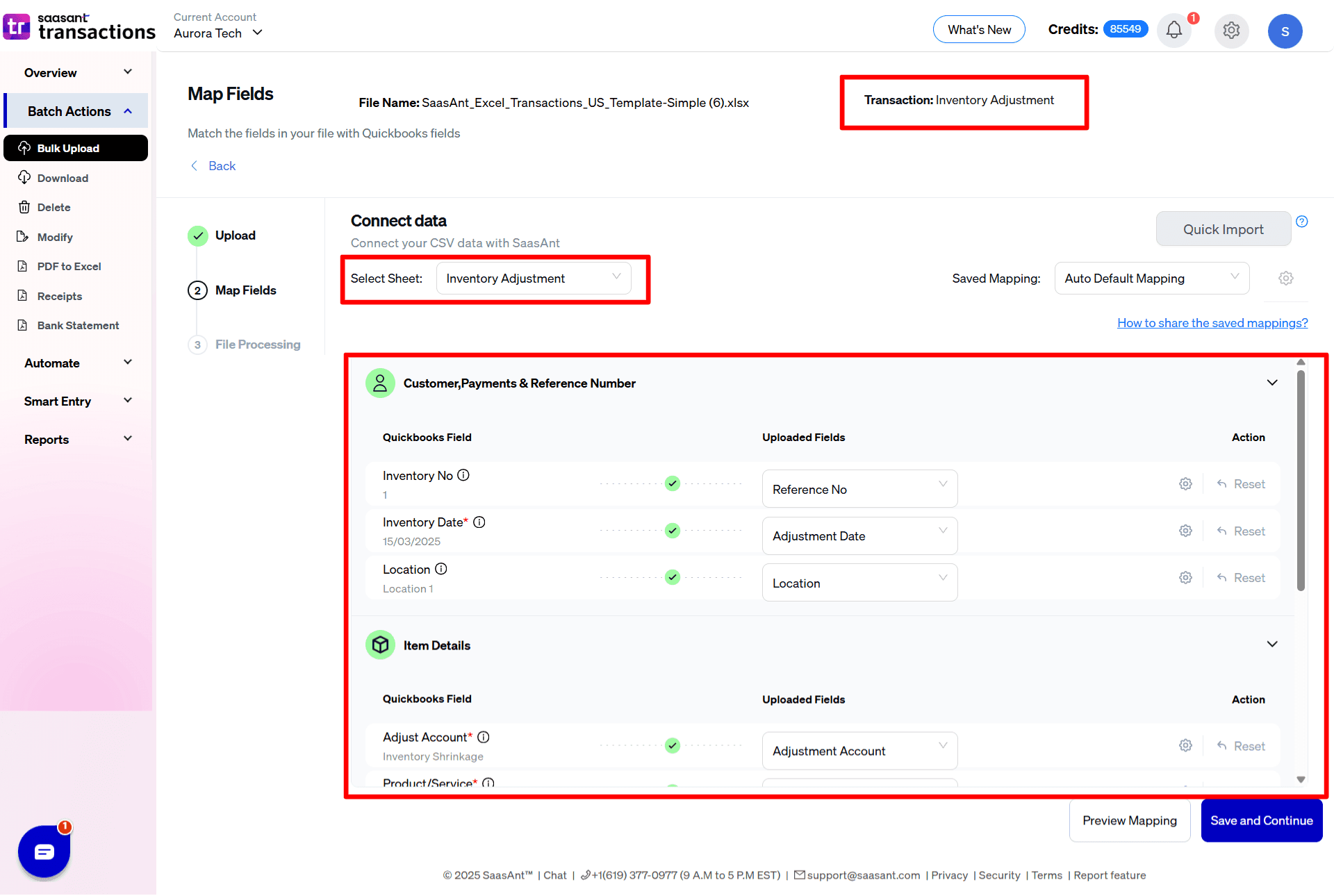
Step 4: Map Your Columns
SaasAnt allows you to map the columns in your file to the corresponding QuickBooks fields. This step ensures that each piece of data, such as item name, quantity, and adjustment account, matches correctly with QuickBooks.
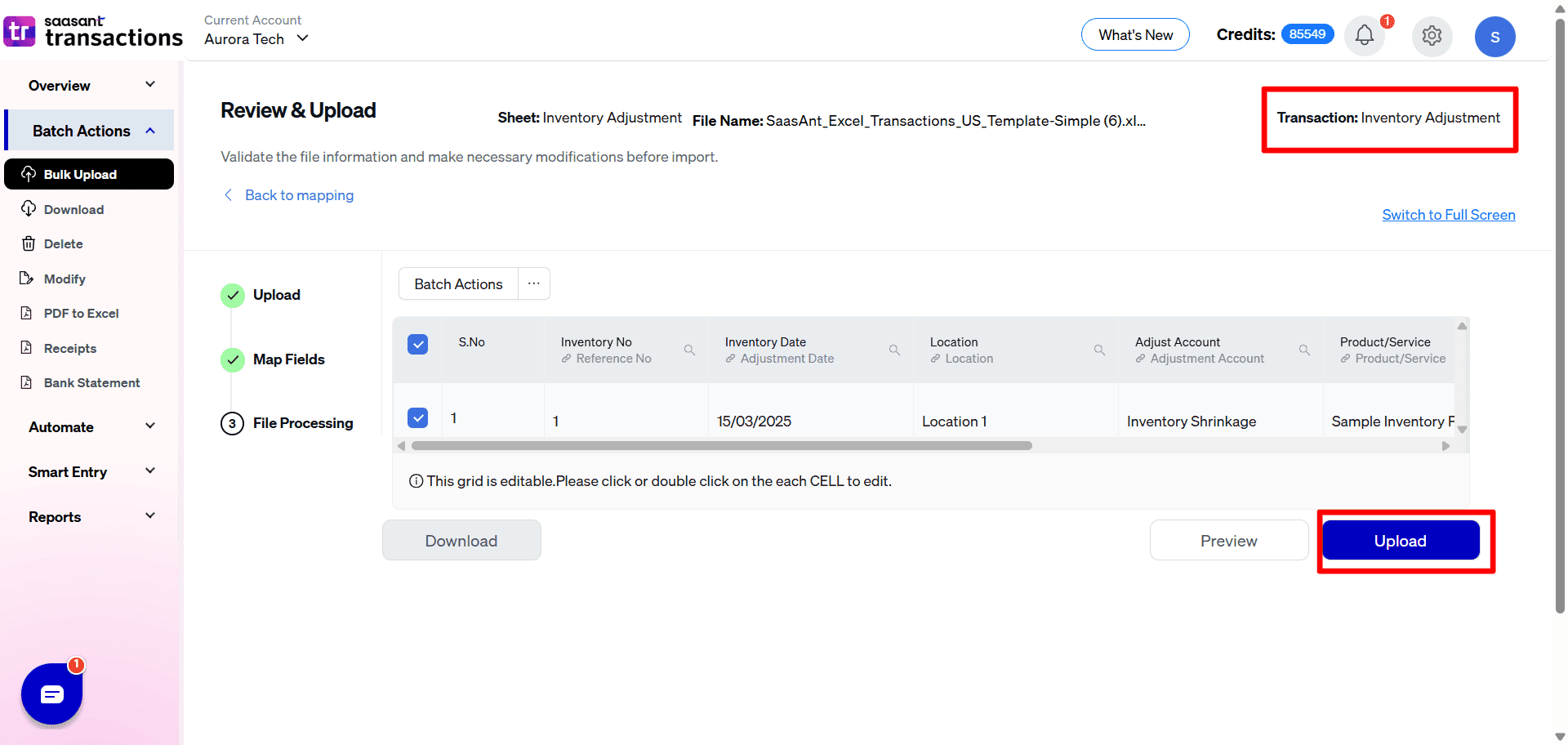
Step 6: Upload Your File
Once mapping is complete, click on the Upload tab to process the file. SaasAnt will validate the data and transfer it directly into QuickBooks.
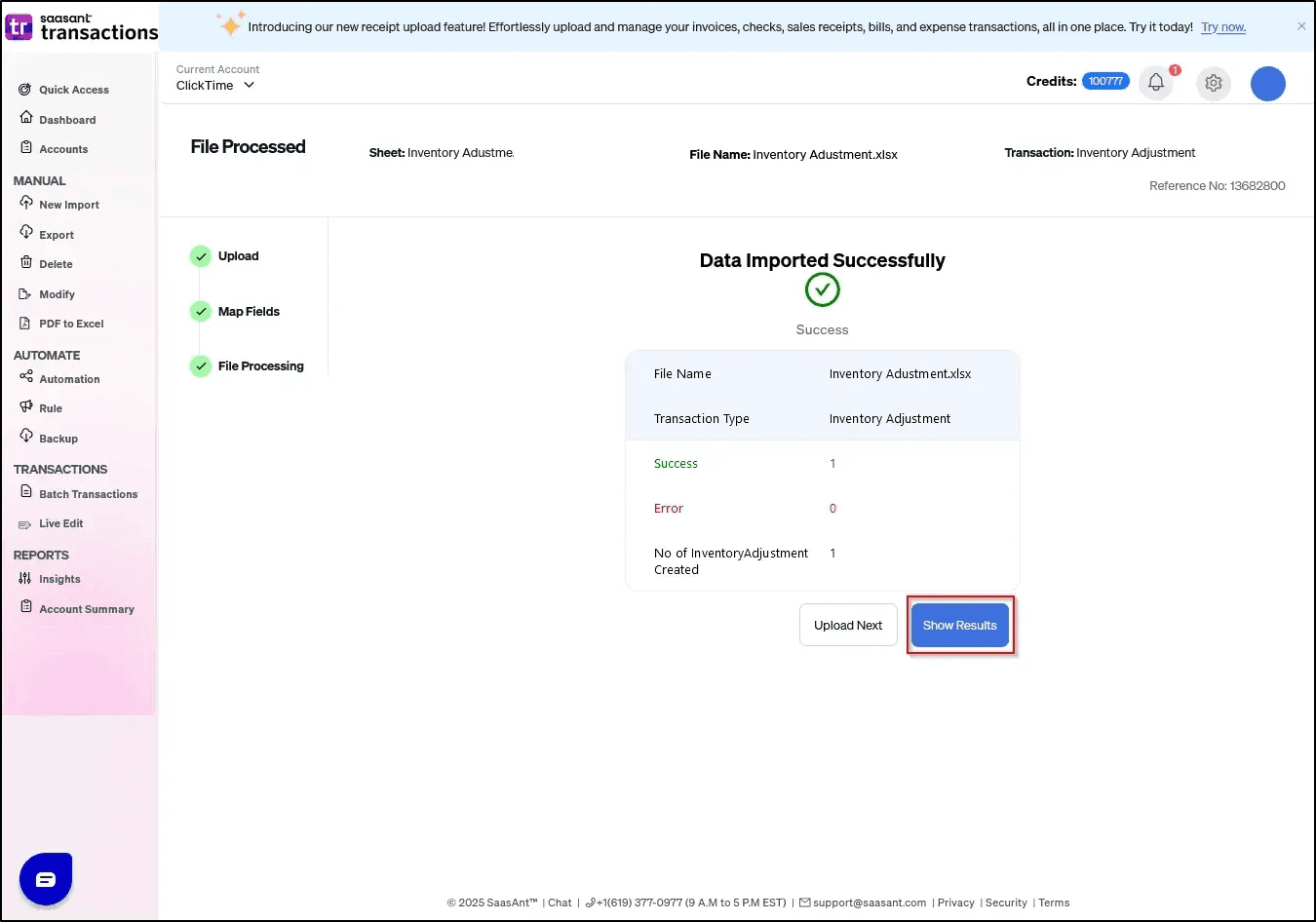
Step 7: Confirm Success
After the upload, you’ll see a confirmation message that your inventory adjustment data has been successfully imported into QuickBooks.
Final Thoughts
With SaasAnt Transactions Online, importing bulk inventory adjustments into QuickBooks is a simple process that takes just a few clicks. Instead of spending hours on manual data entry, you can update your stock records quickly and accurately.
If you frequently deal with large inventory datasets, this tool can save you valuable time while reducing errors.
Frequently Asked Questions (FAQs)
1. What is an inventory adjustment in QuickBooks?
An inventory adjustment is used to update stock quantities or values in QuickBooks. It helps correct discrepancies, reflect damaged or lost goods, and maintain accurate inventory records.
2. Can I import bulk inventory adjustments into QuickBooks?
Yes. While QuickBooks allows manual entry, importing bulk inventory adjustments is much faster with SaasAnt Transactions Online, which supports Excel and CSV file uploads.
3. Do I need to map fields every time I upload?
No. SaasAnt allows you to save mapping templates, so after the initial setup, you can reuse the mapping for future imports without having to repeat the process.
4. What fields can I include in my inventory adjustment import?
You can import fields such as Item Name, Quantity Adjustment, Adjustment Date, Adjustment Account, and Location/Class (if enabled in QuickBooks).
5. Can I undo imported inventory adjustments if I make a mistake?
Yes. SaasAnt Transactions Online offers a bulk delete feature, so you can quickly remove incorrect adjustments and re-upload the correct data.
Read Also
How to Import Credit Card Transactions into QuickBooks Online
How to Import Sales Invoices into QuickBooks Online?