How To Import Data Into Xero
Managing financial data effectively is essential for all businesses. Xero, a leading cloud-based accounting solution, streamlines bookkeeping by offering a range of tools for managing invoices, expenses, bank reconciliations, and more.
However, many businesses encounter challenges when trying to bulk import data into Xero. Although Xero has a built-in import feature, it has some limitations that can slow down processes and lead to unnecessary issues for businesses managing extensive data.
Limited Data Types: You are allowed to import only specific records (such as invoices, bills, and contacts), not every type of transaction.
Limited File Formats: Xero only allows basic CSV files for import. It does not support Excel, text, or PDF formats, which limits flexibility for users with different file types.
No Undo or Bulk Edits: Once data is imported, it becomes nearly impossible to make corrections or edit multiple entries simultaneously in Xero.
Lack of Automation: The process cannot be automated for repeated imports, leading to redundancy and inefficiency.
Error Handling Problems: Xero lacks detailed error logs, which makes troubleshooting take longer.
This is where SaasAnt Transactions for Xero proves to be a valuable add-on, helping businesses efficiently handle large imports, edits, and deletions.
In this blog, we will explore how to import data into Xero, discuss the limitations of Xero's built-in features, and explain why SaasAnt is the ideal solution to address these issues.
Contents
How an Accounting Firm Manages Multiple Clients Efficiently
How to Import Data Into Xero
Why Choose SaasAnt Over Xero’s Native Import?
Comparison: Xero vs. SaasAnt Transactions for Xero
Wrap Up
Frequently Asked Questions
How an Accounting Firm Manages Multiple Clients Efficiently
Consider an accounting firm that works with over 50 small business clients. Each client provides monthly financial data in Excel or CSV format, which includes sales invoices, expense records, and payroll adjustments. If the firm uses only Xero’s importer, it would spend hours reformatting each file, addressing template mismatches, and uploading data in small groups. Errors would require re-uploads, and correcting or removing transactions would be a tedious process.
With SaasAnt Transactions for Xero, the same accounting firm can:
Import bulk data for various clients in just a few minutes.
Save templates for imports that are done regularly.
Easily remove or fix transactions without needing manual input.
Increase accuracy and reduce the workload, allowing accountants to prioritise strategic tasks over data entry.
This blog is suitable for accountants, bookkeepers, and small to medium business owners who use Xero and want quicker, accurate methods to import, edit, and handle bulk financial data effectively.
How to Import Data Into Xero
Always back up your Xero Online data before you begin. Even though SaasAnt is designed to be safe and reliable, a backup provides an added layer of security. Follow the steps below to get started.
Step 1: Log In to Your Xero Account
Log in to your Xero account.
Step 2: Navigate to the Apps Menu
On the right side of the Xero dashboard, you can see the menu bar with various options.
Select the “Waffle” icon. Click the dropdown and select “Find more apps on Xerp App Store.”
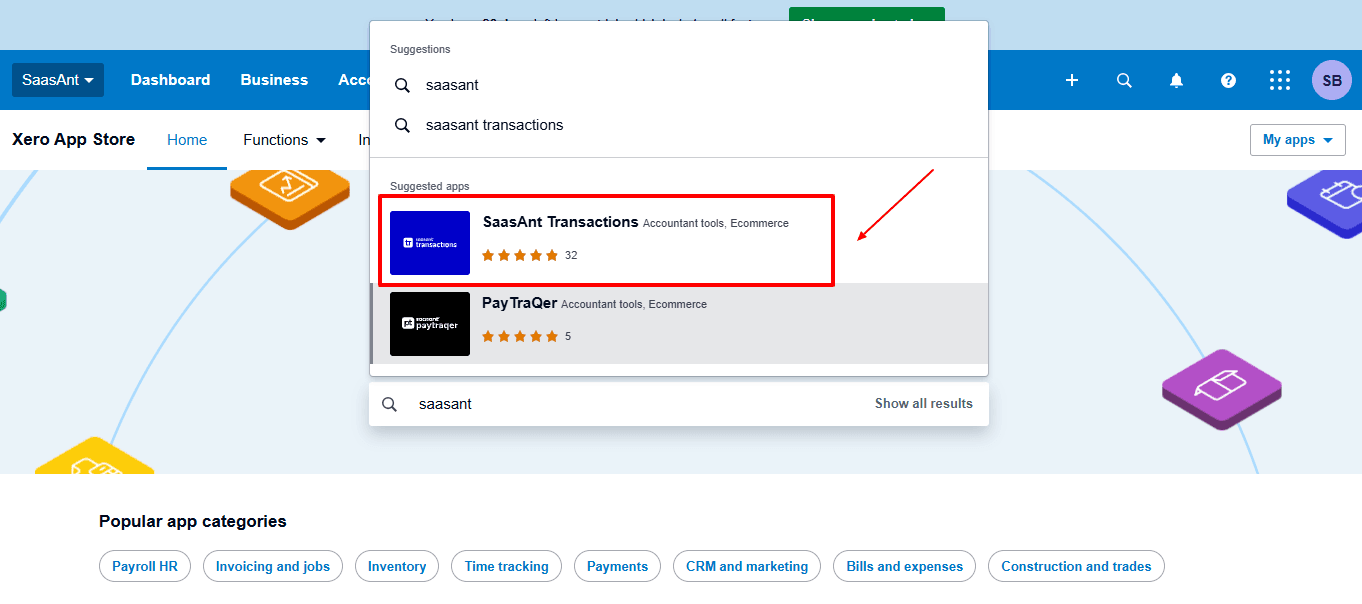
Step 3: Search SaasAnt Transactions
In the search bar, type “SaasAnt Transactions” as shown by the arrow in the image below.
Step 4: Open SaasAnt Transactions
Get the app from the App Store and connect it to Xero.
On the SaasAnt dashboard:
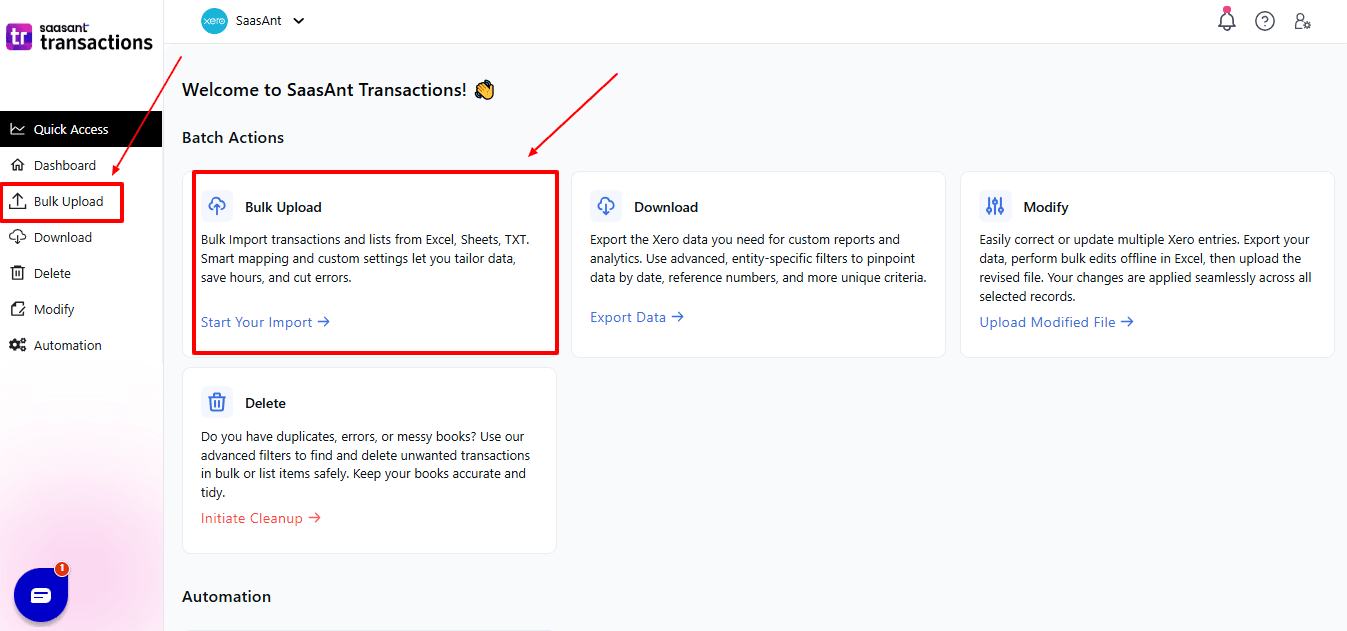
On the left side of the SaasAnt Transactions dashboard, you can see the menu bar with various options.
Select "Bulk Upload”
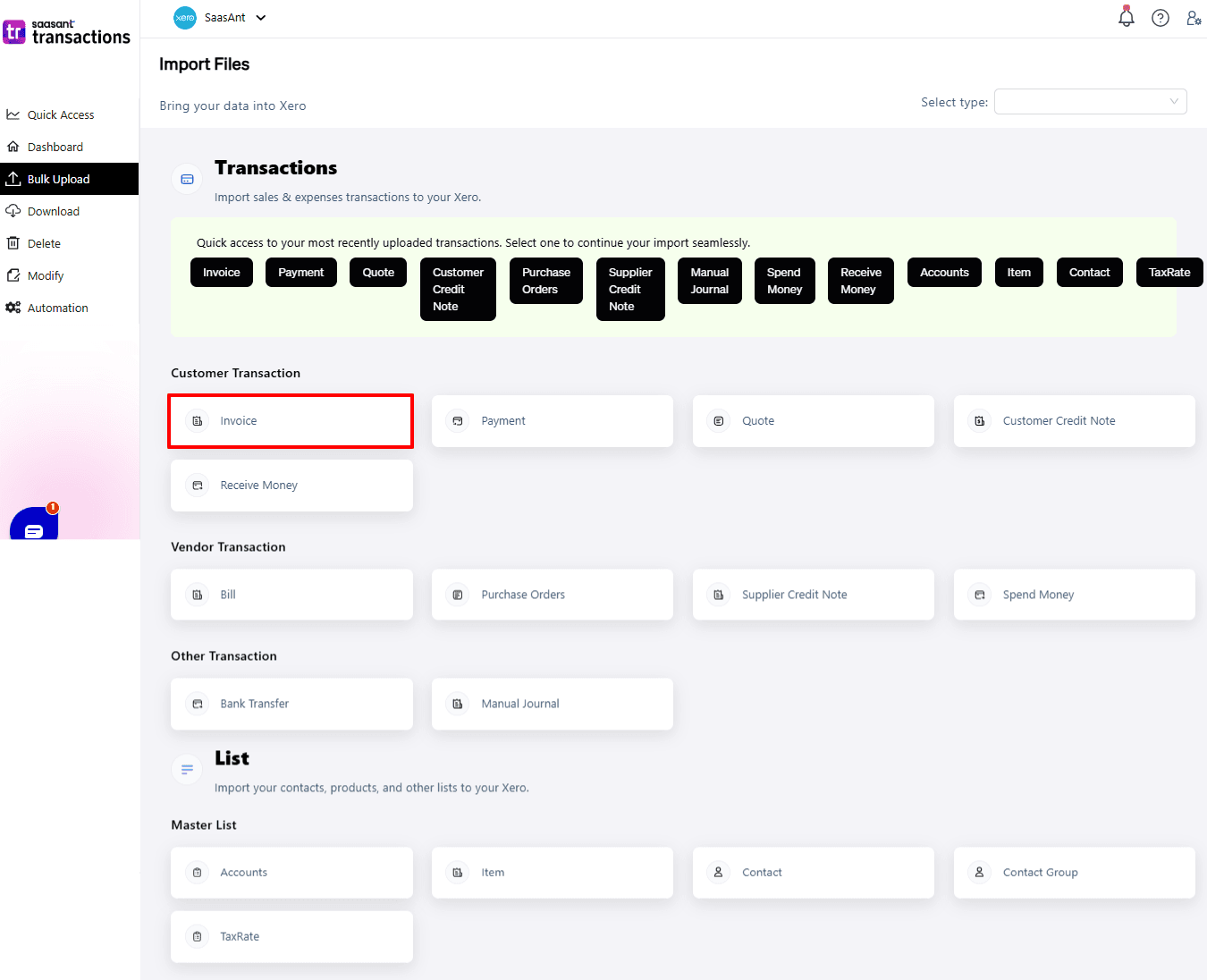
Now select from the entities you need to import. For example, if you want to import invoices into Xero, select “Invoice”.
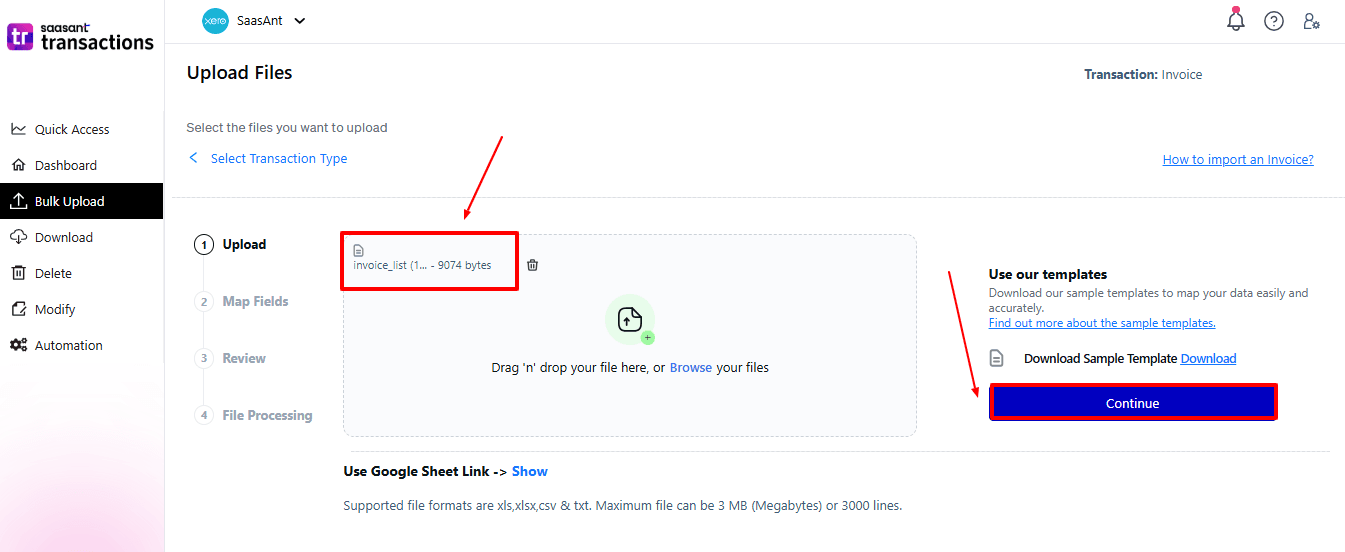
Now, upload your respective invoice files from your device and click “Continue”.
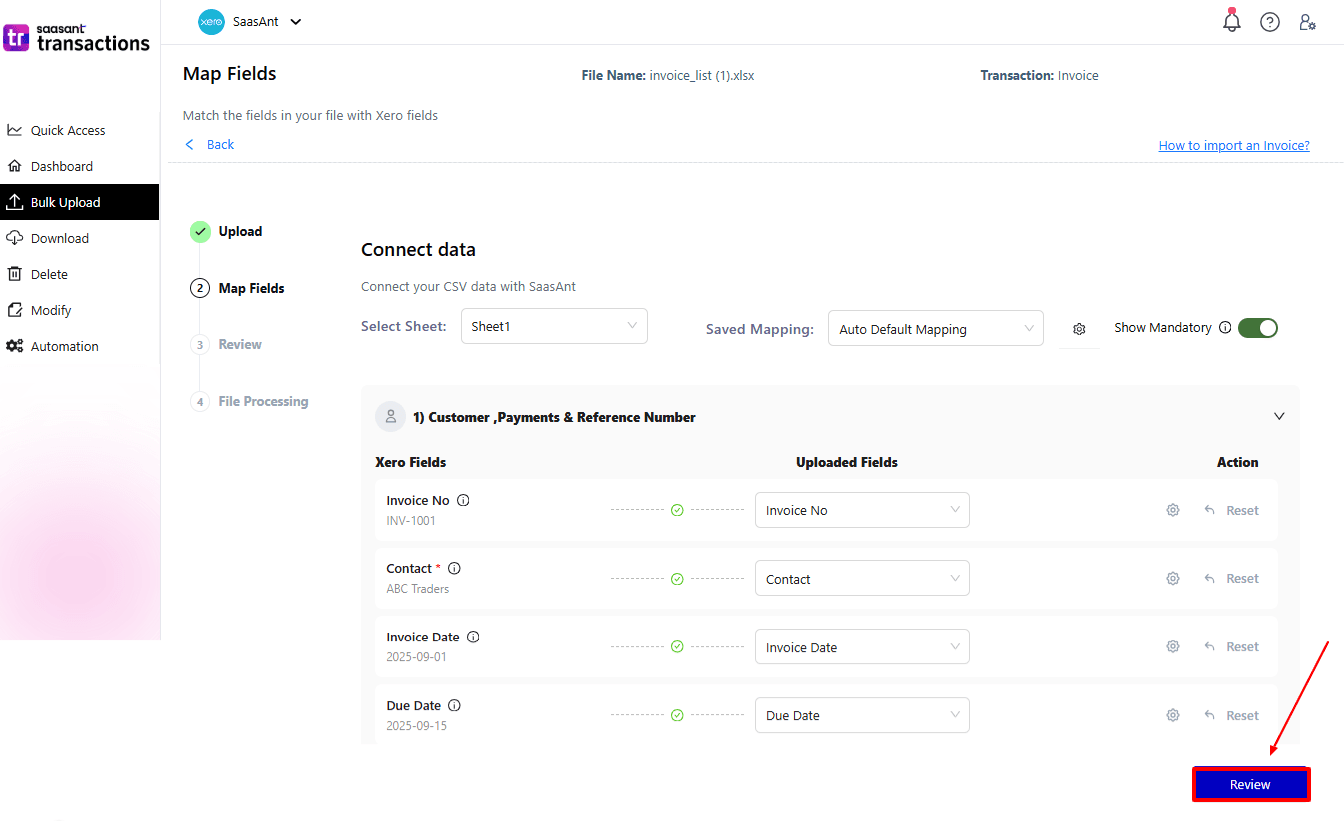
Step 5: Mapping Fields And Review
Ensures accurate mapping of essential fields: invoice number, contact, invoice date, etc.
The ‘Preview Mapping’ feature allows users to verify field alignment before review.
Select “Review” after finalising the mapping of all fields.
Step 6: Review And Upload
Review the invoice data and select “Upload”.
At the bottom left, there is a “Download” option, where you can download this invoice data for your future reference.
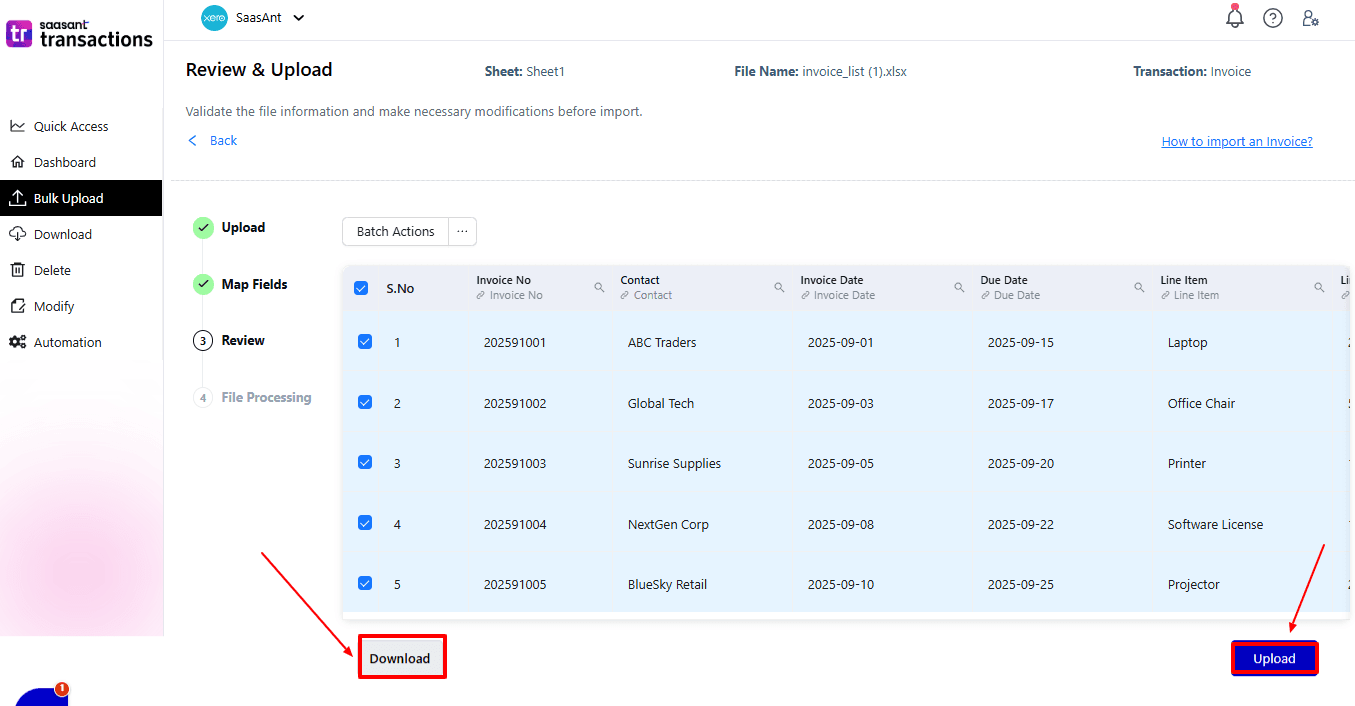
Your invoice data will be imported into Xero Online. Click “Show Results”.
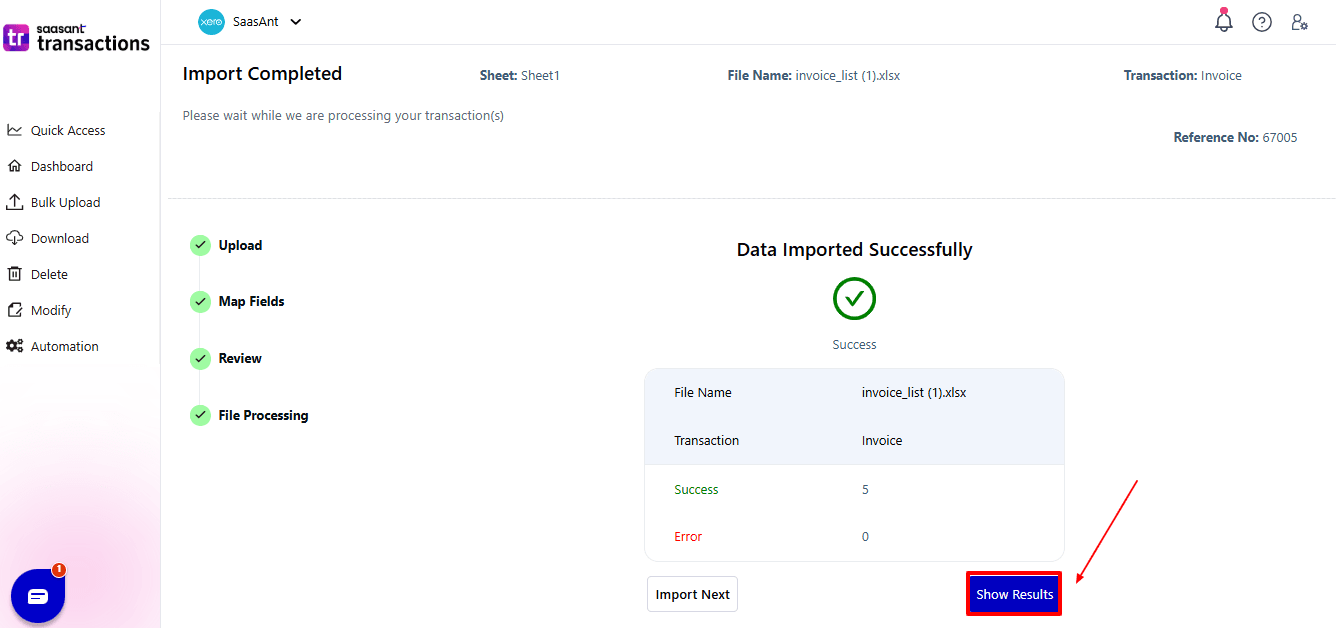
Step 7: Imported Data
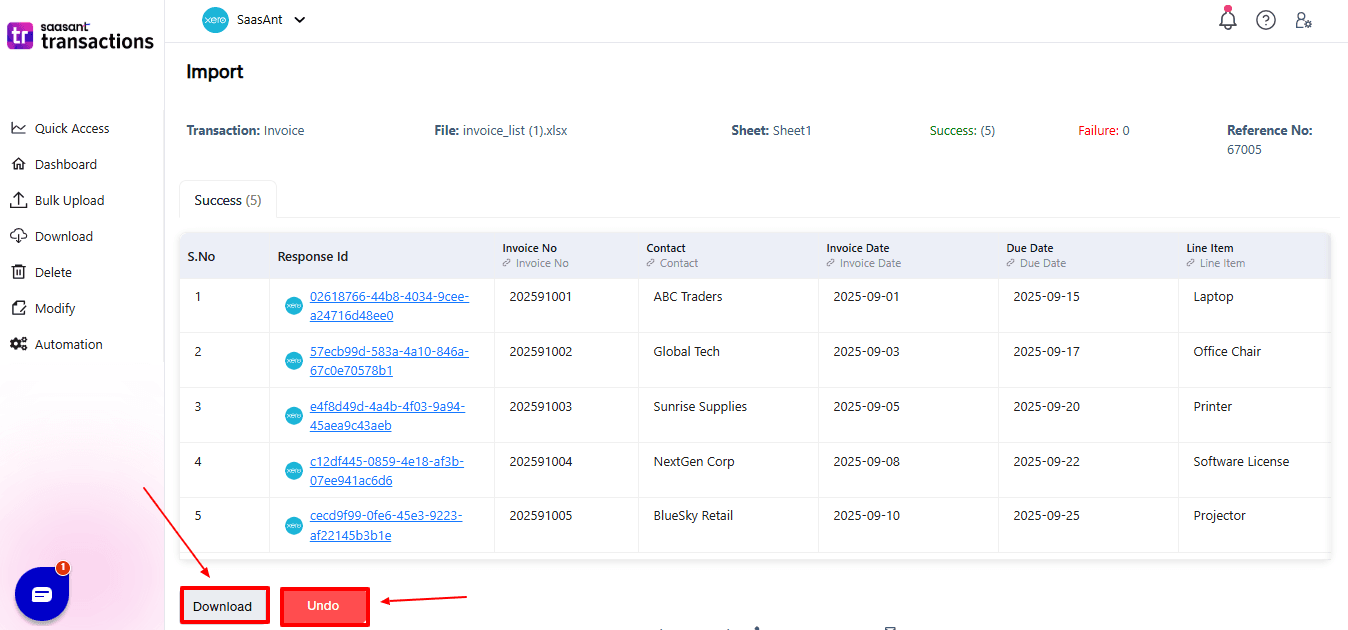
Your imported invoice data appears. At the bottom left, there is a “Download” option, where you can download your invoice data for future reference.
Additionally, next to “Download”, you can see “Undo”, which allows you to roll back your invoice data.
Step 8: View Imported Data in Xero
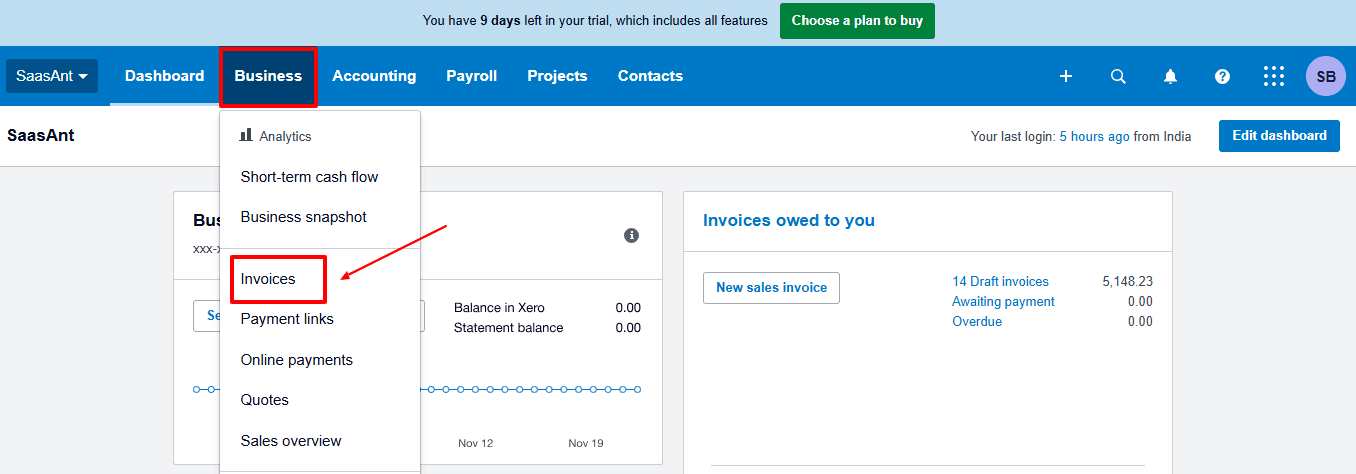
Now, back to the Xero dashboard, select from the various options on the top left, according to the entity you have imported.
Select “Business” from the dropdown, and now select “Invoices.”
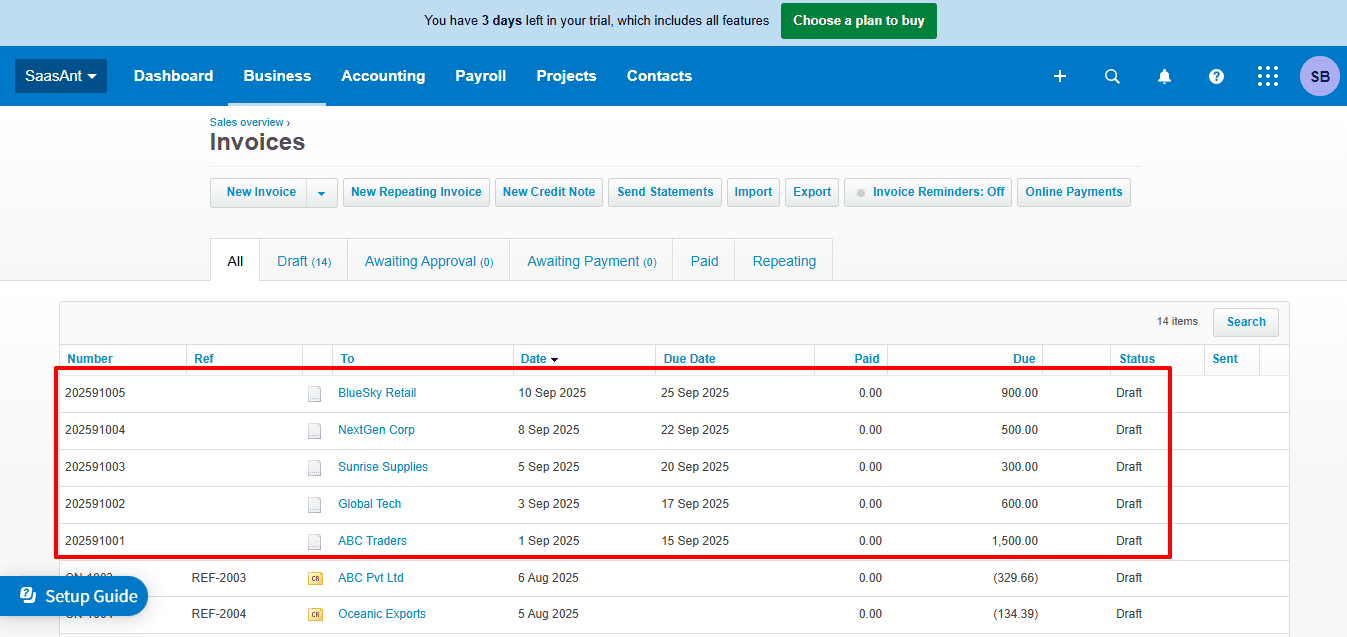
Imported invoice data is displayed, as shown in the image below.
Why Choose SaasAnt Over Xero’s Native Import?
Even though Xero's native import tool has fundamental capabilities, it often does not suffice for companies dealing with significant data volumes. This is where SaasAnt Transactions for Xero really stands out.
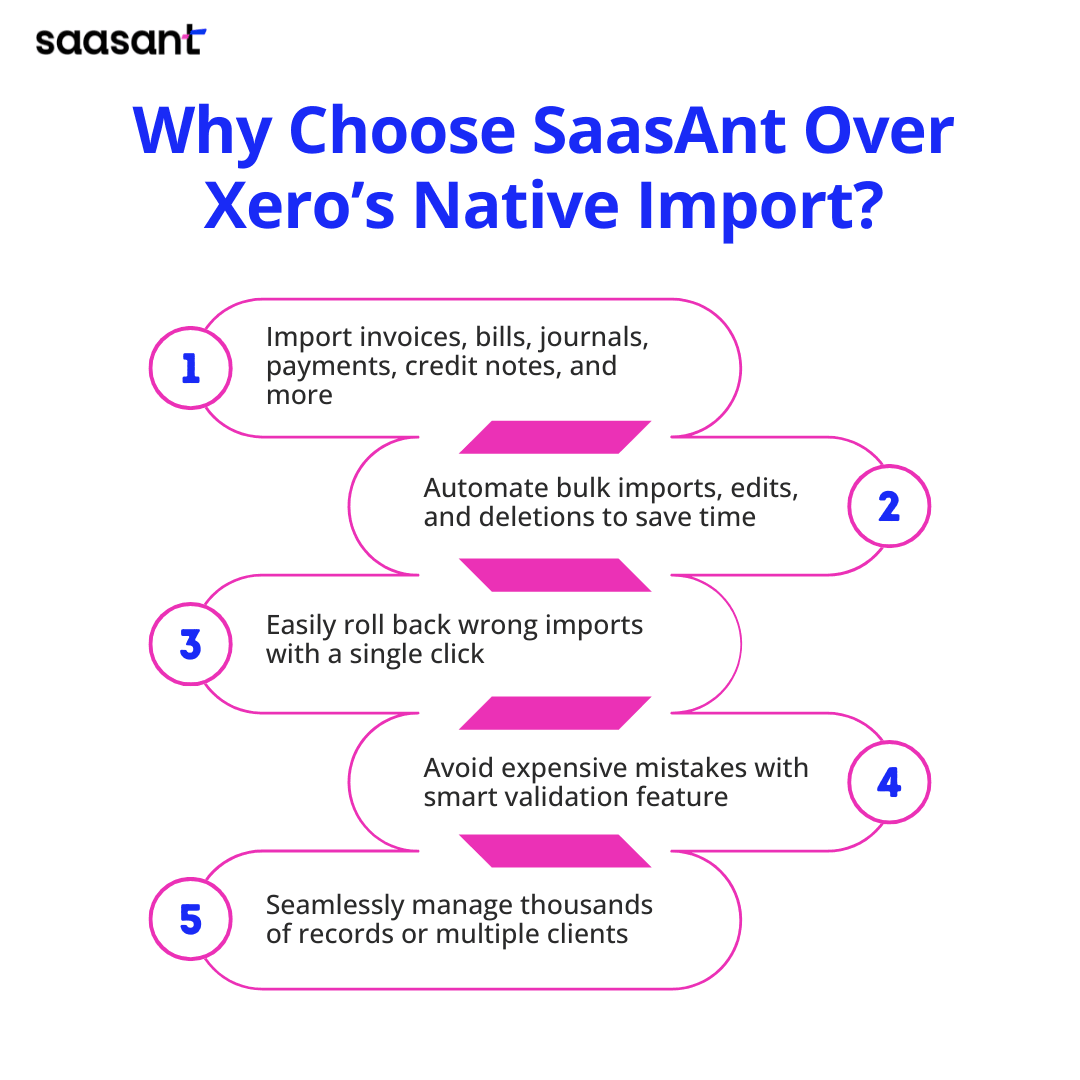
Flexibility: Xero’s importer only handles a few records, but SaasAnt includes invoices, bills, journals, payments, credit notes, and more. This flexibility allows businesses to manage all their financial data without needing to switch tools.
Bulk Automation: Rather than spending hours formatting and uploading data, SaasAnt automates imports, edits, and deletions on a large scale. This reduces manual work and speeds up bookkeeping tasks.
Undo Imports with One Click: SaasAnt, unlike Xero, includes an undo feature that allows users to swiftly roll back any incorrect imports, eliminating the need for manual cleanups.
Decrease Errors with Smart Validation: Errors can be expensive in accounting. SaasAnt’s validation and undo features help prevent errors, ensuring accuracy
Scalable for Expanding Requirements: Whether managing thousands of records or several clients, SaasAnt scales with your workload, removing data bottlenecks.
Comparison: Xero vs. SaasAnt Transactions for Xero
Features | Xero | SaasAnt Transactions for Xero |
Supported Data Types | Limited (invoices, bills, contacts, chart of accounts) | Extensive (invoices, bills, payments, credit notes, manual journals, purchase orders, quotes, products/services) and more. |
File Formats | Primarily CSV (with strict formatting) and some Excel support based on the entity. | Supports CSV, TXT, and XLS / XLSX formats. |
Bulk Operations (Import / Delete / Update) | You cannot import in bulk. Usually, deleting or undoing imports requires a manual and limited approach. Updating existing records in bulk is often unsupported. | All bulk features available: import, export, delete, "undo" recent imports, and adjust current data sets. |
Error Handling & Validation | Manual corrections required. | Real-time validation with undo option, pre-import checks, summary reports, notifications, mismatched amounts detection, and better control. |
Automation | Automation is not available, so each import needs to be done manually. | Automates tasks that are done repeatedly, including field mapping, entity creation, and bulk corrections, leading to faster and more reliable large imports. |
Wrap Up
Importing data into Xero is easy for small businesses with few records. However, for accountants, bookkeepers, and expanding businesses handling large amounts of financial data, Xero’s built-in importer has its limitations. SaasAnt Transactions for Xero bridges this gap with strong features that facilitate bulk importing, editing, deleting, and error-free automation. By utilising SaasAnt, businesses can change tedious data management tasks into a smooth, efficient, and reliable process, ultimately making financial workflows more streamlined and scalable.
If you're looking to enhance bookkeeping automation, SaasAnt simplifies bookkeeping so you stay accurate, efficient, and audit-ready.
If you have inquiries regarding our products, features, trial, or pricing, or if you require a personalised demo, contact our team today. We are ready to help you find the ideal solution for your QuickBooks workflow.
Frequently Asked Questions
1) What types of data can I import into Xero natively?
Xero supports importing invoices, bills, contacts, bank statements, and a chart of accounts via CSV files.
2) How does SaasAnt improve the Xero import process?
SaasAnt supports bulk imports for multiple data types, features smart mapping, permits bulk edits and deletions, and includes an undo feature.
3) How do I back up Xero data before importing?
Always remember to export your current data from Xero. SaasAnt allows you to download a copy of your import data before you upload it, ensuring added security.
4) How can I map fields correctly when importing into Xero?
For each import, Xero requires manual field mapping. SaasAnt allows you to use saved templates and view mappings, ensuring that all fields are correctly aligned before the upload.
5) Can I import multiple client data at once with SaasAnt?
Yes. SaasAnt allows you to import data for multiple clients at once, saving you hours compared to the native importer of Xero.
How to Create a Journal Entry in Xero
How to Delete Bills in Xero
How to Add Chart of Accounts in Xero
How to Edit Item in Xero