How to Import Bills in Xero
Importing bills into Xero is a straightforward method for managing vendor payments and maintaining accurate accounts payable records. Xero’s built-in importer allows you to upload bills using CSV templates, which is particularly helpful for small batches. However, companies that handle a large number of transactions or require more customisation frequently find Xero’s standard import tools to be limiting.
Limited Bulk Capacity: Xero struggles to manage large files, often requiring users to split data into smaller sections, which increases time and effort.
No Undo or Rollback Option: If data is imported incorrectly, correcting it requires manually deleting entries, which increases the risk of errors.
Minimal Field Flexibility: Users cannot map custom fields or include additional data points beyond those specified in the standard Xero template.
Lack of Automation: Xero does not offer options for recurring imports, bulk edits, or automated checks, which can result in repetitive tasks taking longer.
These limitations highlight why companies managing multiple bills need a more effective solution, such as SaasAnt Transactions. That’s where SaasAnt Transactions for Xero comes in. It improves Xero’s features, enabling you to import bills in bulk, easily correct errors, and automate recurring imports. Rather than wasting hours on manual file preparation or fixing failed uploads, you can streamline the entire process and focus on expanding your business.
Contents
Bulk Importing Vendor Bills for a Growing Business
How to Import Bills Into Xero
Why Choose SaasAnt Transactions for Xero?
Wrap Up
Frequently Asked Questions
Bulk Importing Vendor Bills for a Growing Business
Imagine a mid-sized retail chain managing over 500 supplier bills every month. Different suppliers send various bills for utilities, inventory purchases, and logistics. Relying solely on Xero, the finance team dedicates hours to formatting CSV files, uploading small batches, and fixing failed imports.
With SaasAnt Transactions for Xero, the team can upload all bills in a single file, map custom supplier references, automatically validate tax rates, and even undo any accidental duplicates with the Undo button.
The outcome is 80% time saved, enhanced accuracy, and staff members can concentrate on analysis instead of data entry.
This blog is suitable for accountants, bookkeepers, and small to medium-sized business owners who use Xero and want quicker, more accurate methods to import, edit, and manage bulk financial data effectively.
How to Import Bills Into Xero
Always back up your Xero Online data before you begin. Even though SaasAnt is designed to be safe and reliable, a backup provides an added layer of security. Follow the steps below to get started.
Step 1: Log In to Your Xero Account
Log in to your Xero account.
Step 2: Navigate to the Apps Menu
On the right side of the Xero dashboard, you can see the menu bar with various options.
Select the “Waffle” icon. Click the dropdown and select “Find more apps on Xerp App Store.”
Step 3: Search SaasAnt Transactions
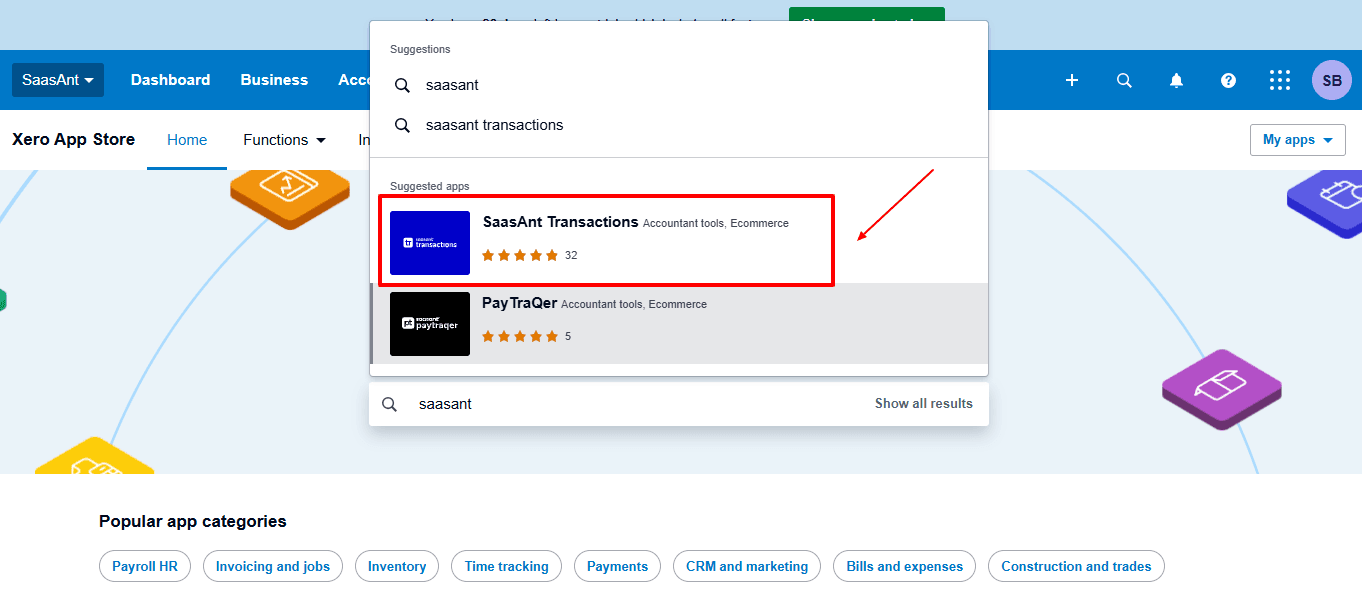
In the search bar, type “SaasAnt Transactions” as shown by the arrow in the image below.
Step 4: Open SaasAnt Transactions
Get the app from the App Store and connect it to Xero.
On the SaasAnt dashboard:
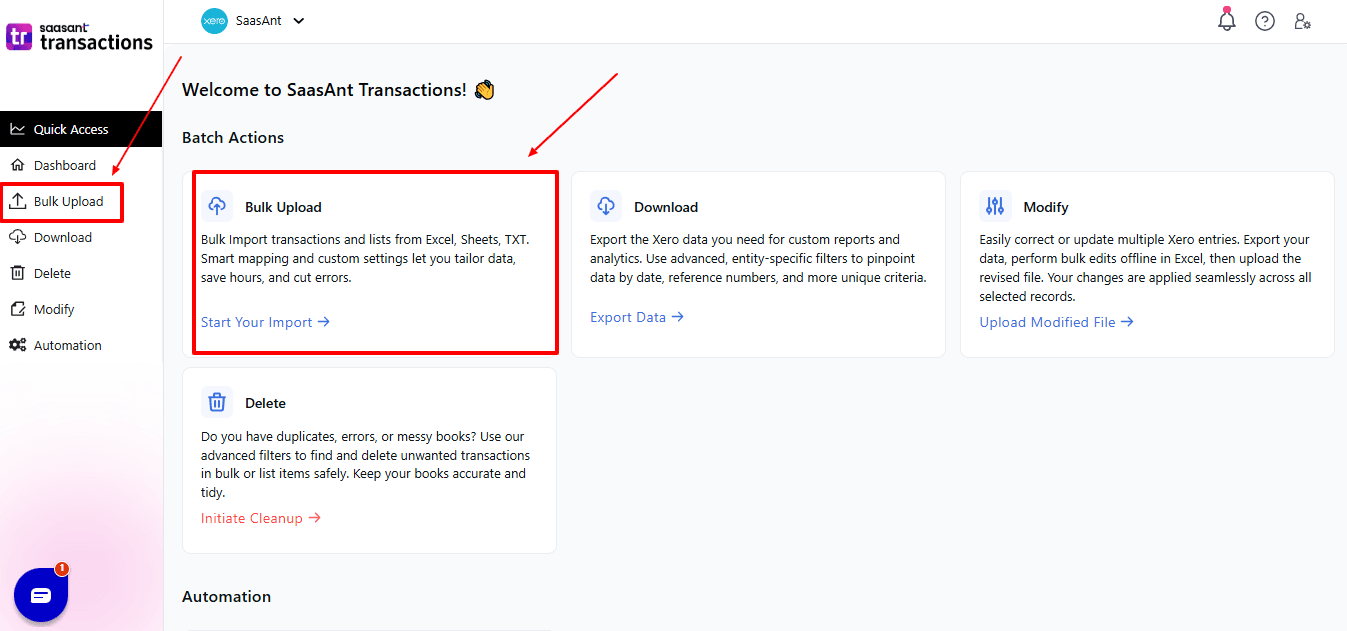
On the left side of the SaasAnt Transactions dashboard, you can see the menu bar with various options.
Select "Bulk Upload”
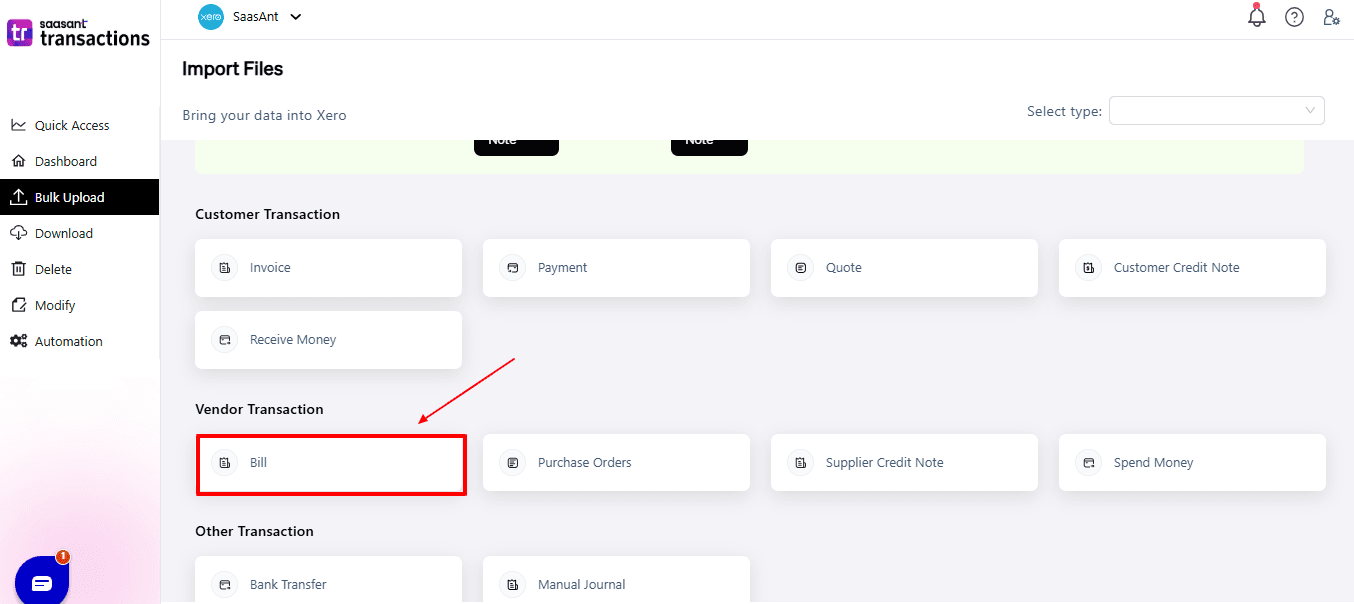
Now select “Bill” from the vendor transaction.
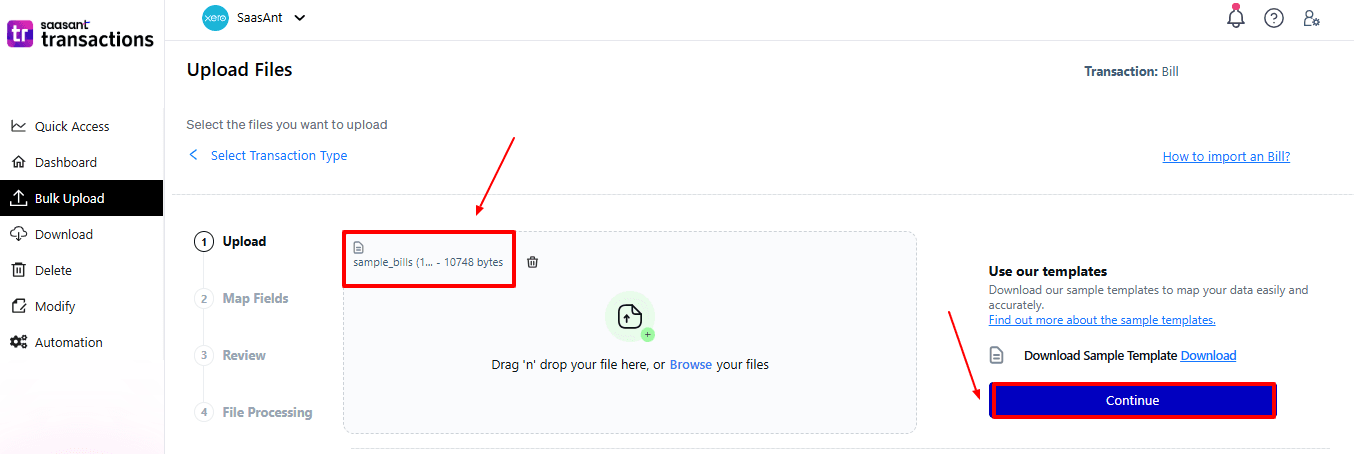
Now, upload your respective bill files from your device and click “Continue”.
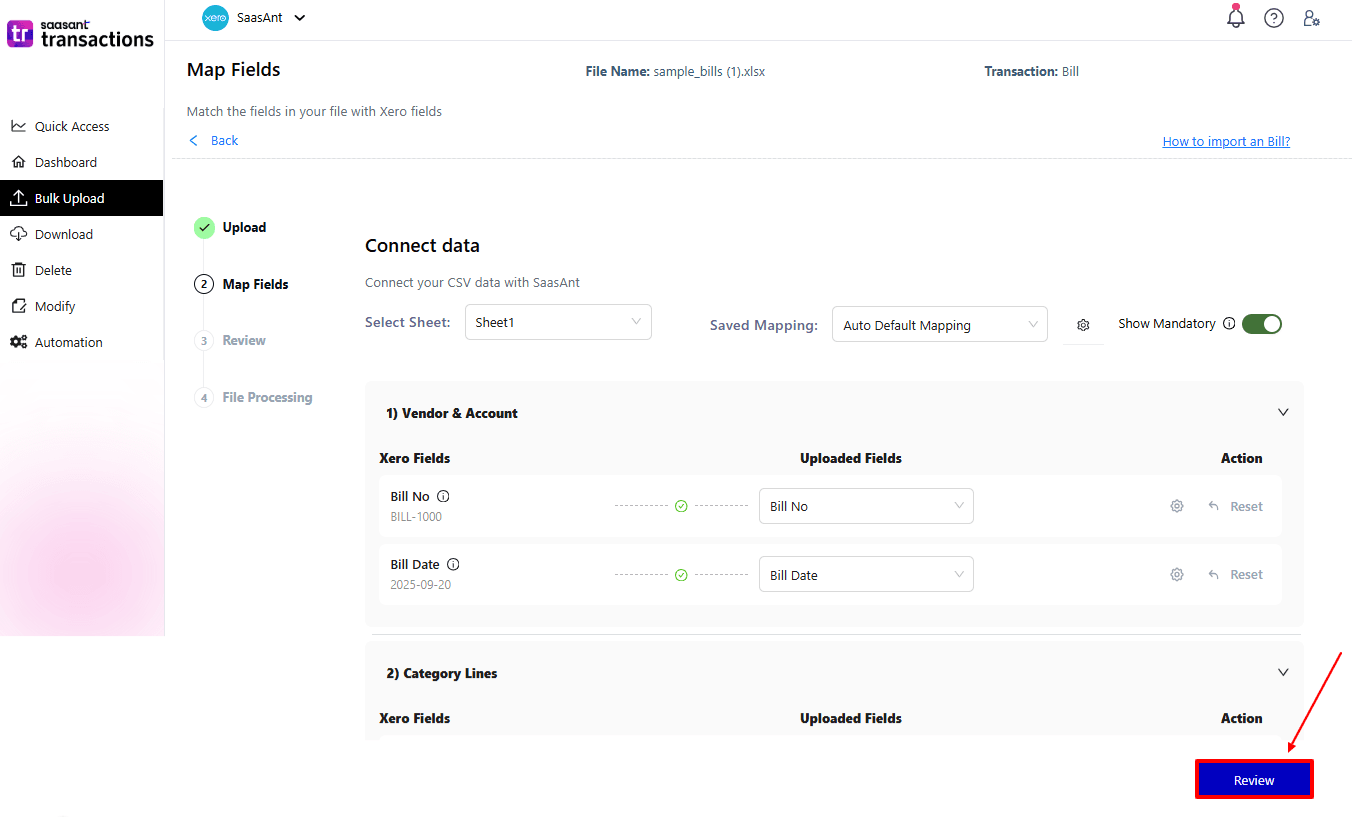
Step 5: Mapping Fields And Review
Ensures the accurate mapping of essential fields, including bill number, contact, and bill date.
The ‘Preview Mapping’ feature allows users to verify field alignment before review.
Select “Review” after finalising the mapping of all fields.
Step 6: Review And Upload
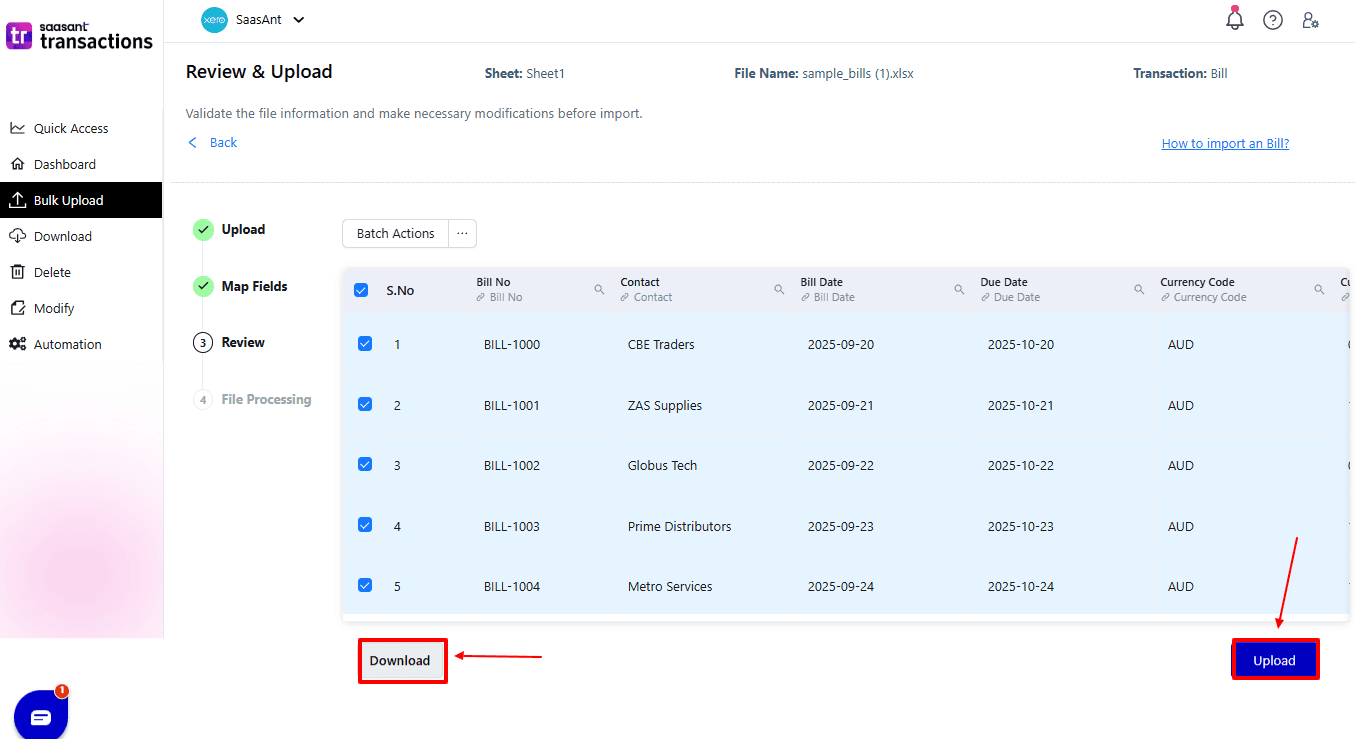
Review the bills and select “Upload”.
At the bottom left, there is a “Download” option, allowing you to save these bills for future reference.
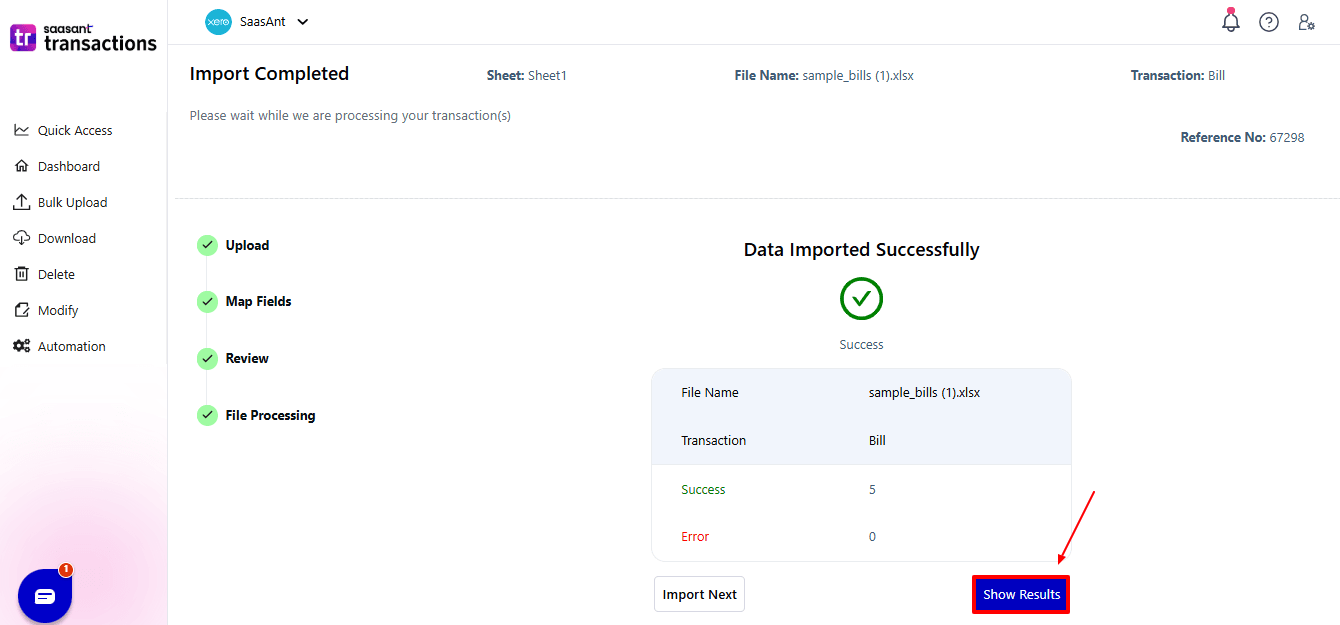
Your bills data will be imported into Xero Online. Click “Show Results”.
Step 7: Imported Data
Your imported bills data appears. At the bottom left, there is a “Download” option, which allows you to download your bills for future reference.
Additionally, next to the download option, you can see “Undo”, which allows you to roll back your bills.
Step 8: View Imported Data in Xero
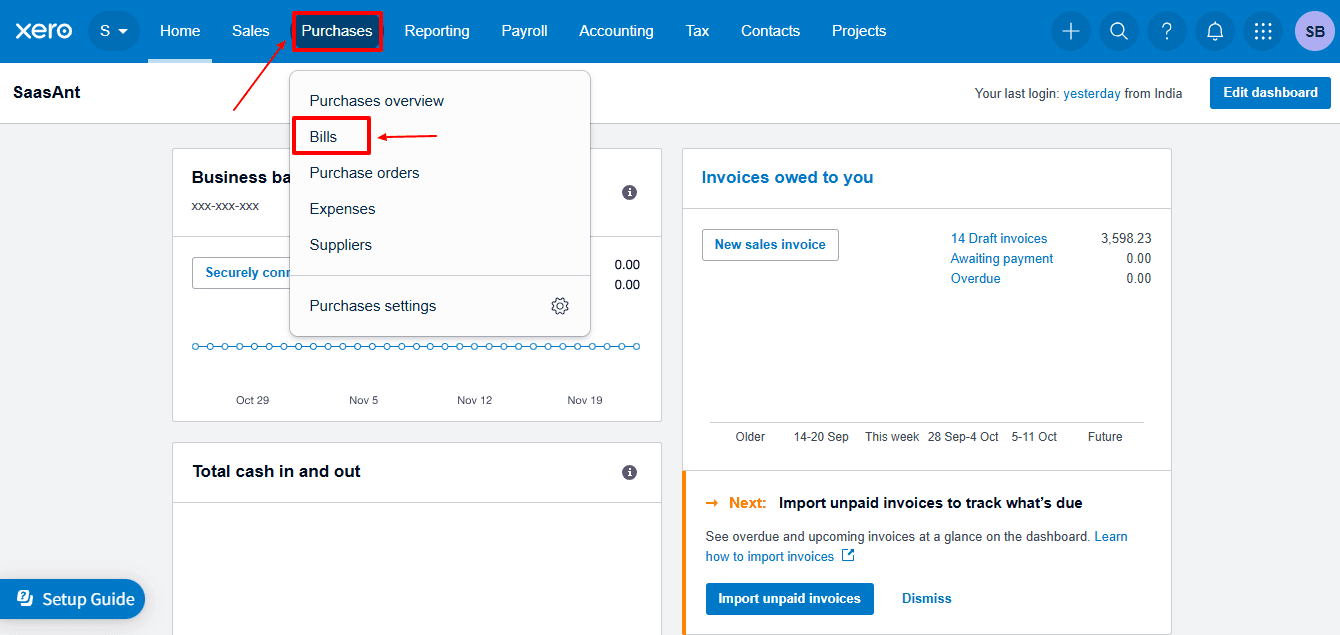
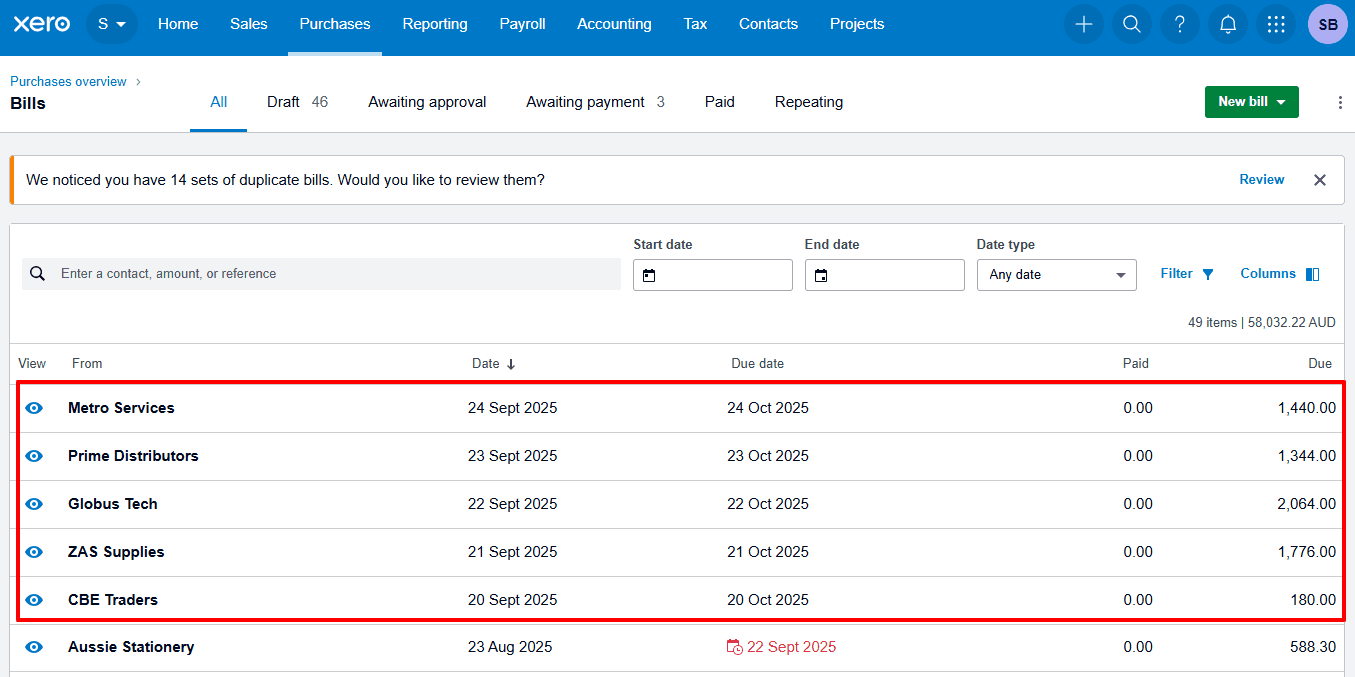
Now, back to the Xero dashboard, select “Purchases” from the dropdown, and select “Bills.”
Imported bills are displayed, as shown in the image below.
Why Choose SaasAnt Transactions for Xero?
SaasAnt Transactions addresses the challenges of Xero’s native import, providing businesses with automation, accuracy, and control.
Bulk Import Features: Unlike Xero's built-in import, SaasAnt allows you to upload thousands of bills at once, saving you hours of manual data entry.
Flexible Field Mapping: You can easily map both standard and custom fields, ensuring that every detail, including bill number, contact, line item specifics, or tax rate, is imported correctly.
Undo/Rollback Option: Errors can occur. SaasAnt offers a one-click Undo feature to quickly reverse imports, eliminating the need to correct mistakes in Xero manually.
Error Detection and Validation: The system automatically identifies any missing or incorrect entries, preventing failed imports and ensuring your books remain accurate.
Support for Multiple File Formats: SaasAnt supports CSV, XLSX, and TXT files, providing you with flexibility when importing data from different sources or systems.
Automation and Time Savings: With templates, bulk editing, and recurring import options, SaasAnt reduces repetitive tasks, allowing your team to prioritise more critical financial tasks.
Wrap Up
Importing bills into Xero is easy for small datasets, but it gets inefficient with larger transaction volumes. The strict import process, limited automation, and lack of error-handling tools in Xero can hinder business operations.
Integrating SaasAnt Transactions for Xero provides companies with flexibility, speed, accuracy, and scalability. Whether you are a retail chain, a service-based business with ongoing vendor invoices, or a company dealing with several suppliers, SaasAnt guarantees that importing bills is a seamless part of your workflow, not a bottleneck.
If you have inquiries regarding our products, features, trial, or pricing, or if you require a personalised demo, contact our team today. We are ready to help you find the ideal solution for your QuickBooks workflow.
Frequently Asked Questions
1) Can I import bills directly into Xero?
Yes, Xero allows bill imports using CSV templates; however, there are limitations regarding bulk processing and flexibility.
2) Can I import thousands of bills at once in Xero?
Xero cannot process thousands of bills all at once, but SaasAnt provides a smooth bulk import with automation, error handling, and an undo feature.
3) What if I import incorrect bills?
Xero needs to be deleted manually. But, SaasAnt provides an Undo option for easy rollback.
4) How does SaasAnt help with bill imports?
SaasAnt enables bulk imports, works with Excel/CSV/text files, offers custom mapping, and simplifies error handling.
5) Can I use SaasAnt Transactions for other data types in Xero?
Indeed, you can import invoices, credit notes, payments, and more.
Read Also
How to Add Chart of Accounts in Xero
How to Create a Journal Entry in Xero
How to Create an Invoice in Xero
How to Create a Purchase Order in Xero