How to Import Spend Money in Xero
In Xero, Spend Money transactions are important for tracking all outgoing payments, from supplier invoices to petty cash expenses. However, as businesses increase in size, manually entering every transaction or using Xero’s standard import features can soon become tedious and susceptible to errors.
Xero has a few native import options, but they are not sufficient for dealing with bulk or complex data. Below are the main challenges businesses often face:
No Bulk Upload: You cannot upload many Spend Money records at the same time, which is not efficient for businesses with a lot of transactions.
Rigid File Requirements: Only certain CSV templates can be used for importing, which limits flexibility or customisation in the data format.
Limited customisation: The field mapping is inflexible, and custom data fields are not allowed.
No rollback/undo option: If you make a mistake during import, there’s no easy way to revert the data.
This is where SaasAnt Transactions for Xero is helpful. It changes a once tedious task into a seamless, automated process, enabling you to import thousands of Spend Money transactions with just a few clicks.
What is Spend Money in Xero?
In Xero, Spend Money is a tool for recording payments that come directly from your bank account for business expenses. It keeps track of outgoing funds for items like utilities, office supplies, vendor payments, or occasional purchases. Unlike bills, Spend Money transactions are immediate payments, aiding businesses in maintaining accurate cash flow records and improving expense management.
Bulk Spend Money Imports in Xero
An accounting firm that manages many clients frequently processes hundreds of Spend Money transactions monthly, which include payments to suppliers, reimbursements, and petty cash. Entering these transactions manually into Xero takes a lot of time and is likely to have mistakes. With SaasAnt Transactions, the firm can import all Spend Money records in bulk, accurately map both standard and custom fields, and quickly undo any errors if necessary. This improves workflows, minimises errors, and allows accountants to concentrate on more valuable tasks such as financial analysis and client advisory.
This blog is suitable for accountants, bookkeepers, and small to medium business owners who use Xero and want quicker, accurate methods to import, edit, and handle bulk financial data effectively.
Contents
What is Spend Money in Xero?
Bulk Spend Money Imports in Xero
How to Import Spend Money Into Xero
Why Choose SaasAnt Transactions for Xero?
Wrap Up
Frequently Asked Questions
How to Import Spend Money Into Xero
Always back up your Xero Online data before you begin. Even though SaasAnt is designed to be safe and reliable, a backup provides an added layer of security. Follow the steps below to get started.
Step 1: Log In to Your Xero Account
Log in to your Xero account.
Step 2: Navigate to the Apps Menu
On the right side of the Xero dashboard, you can see the menu bar with various options.
Select the “Waffle” icon. Click the dropdown and select “Find more apps on Xerp App Store.”
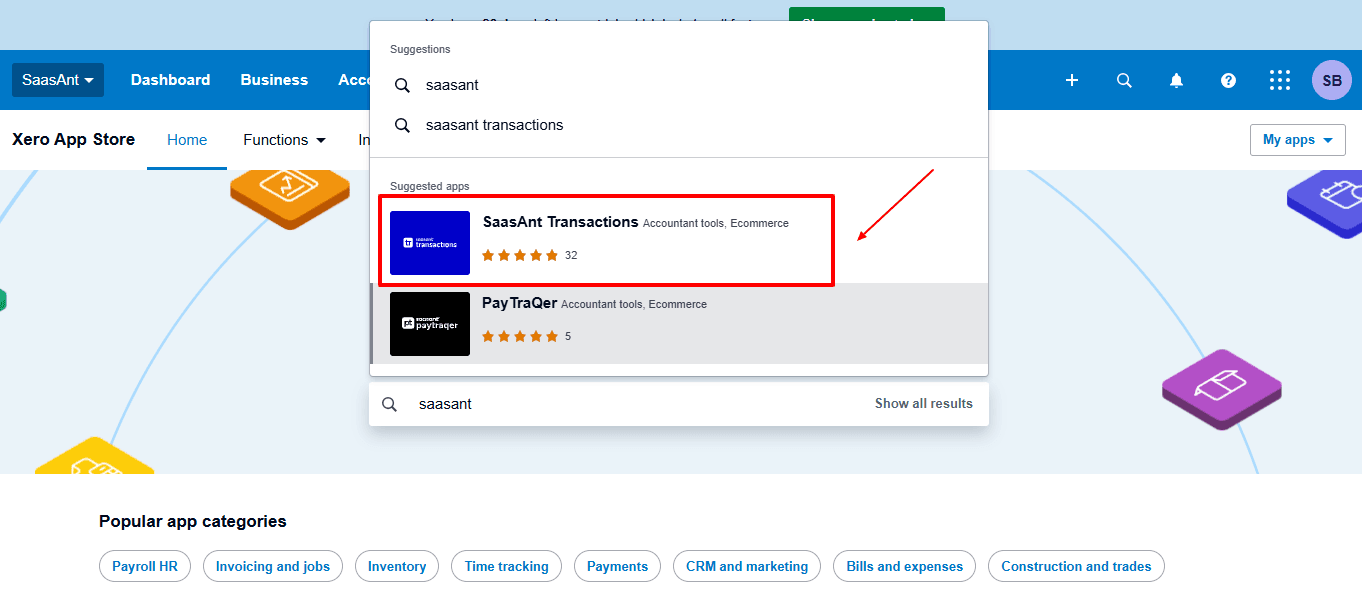
Step 3: Search SaasAnt Transactions
In the search bar, type “SaasAnt Transactions” as shown by the arrow in the image below.
Step 4: Open SaasAnt Transactions
Get the app from the App Store and connect it to Xero.
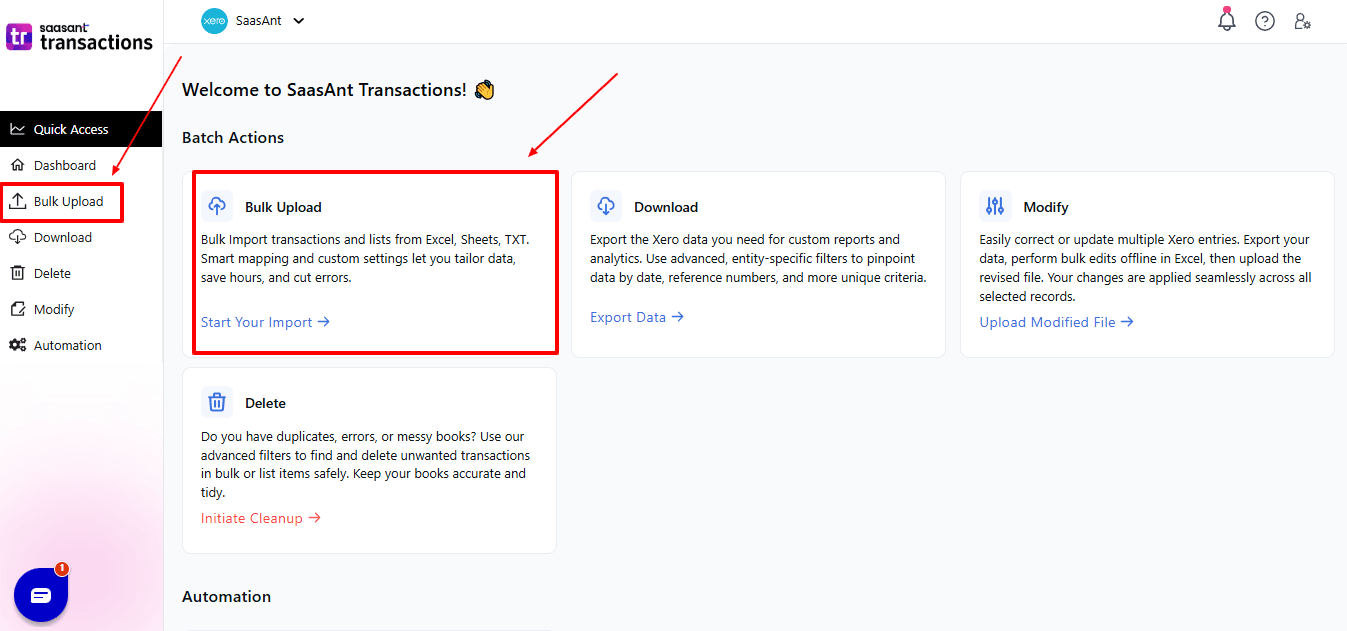
On the SaasAnt dashboard:
On the left side of the SaasAnt Transactions dashboard, you can see the menu bar with various options.
Select "Bulk Upload”
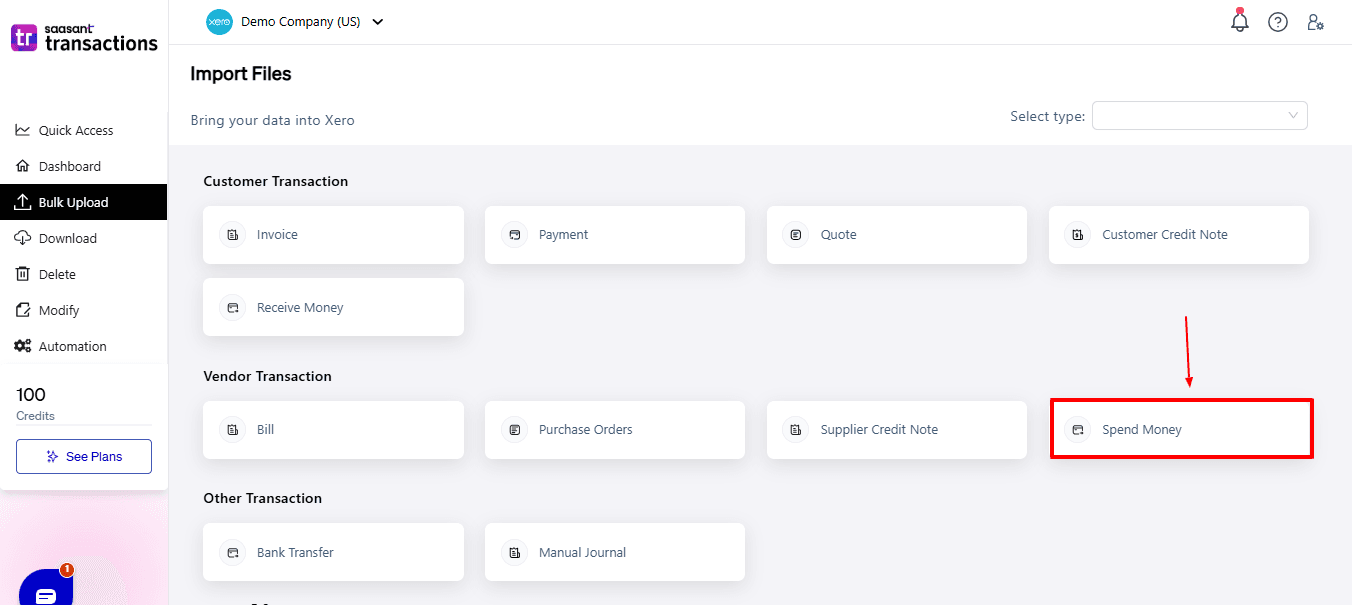
Now select “spend money” from the vendor transaction.
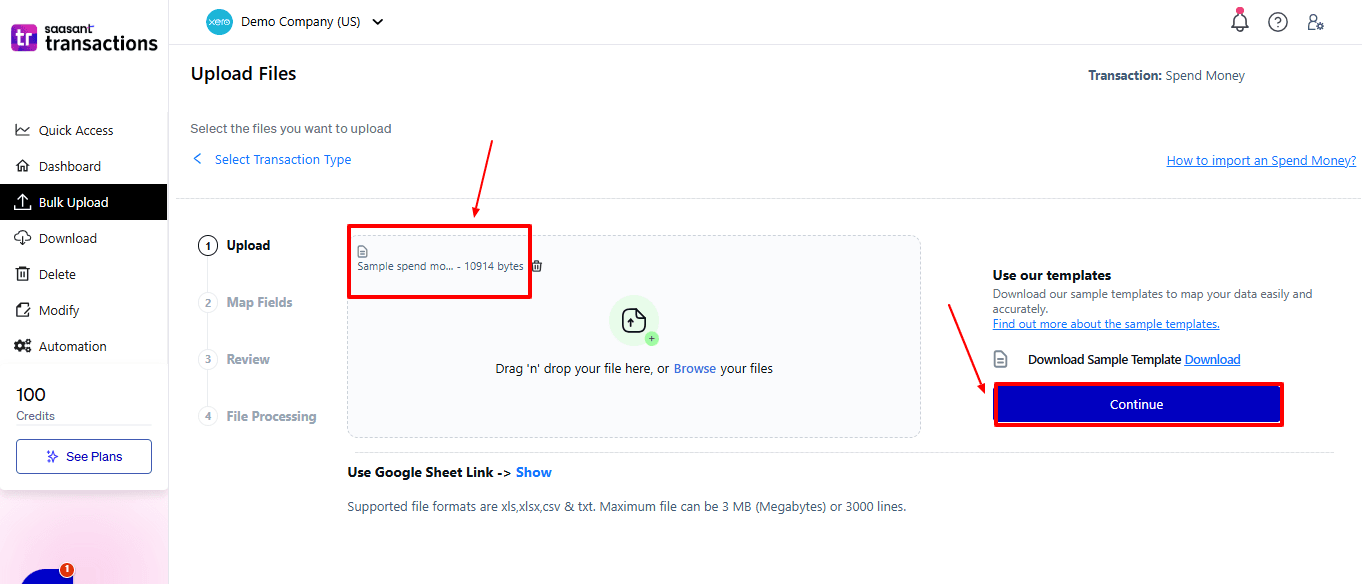
Now, upload your respective payment files from your device and click “Continue”.
Step 5: Mapping Fields And Review
Ensures accurate mapping of essential fields: payment number, contact, payment date, etc.
The ‘Preview Mapping’ feature allows users to verify field alignment before review.
Select “Review” after finalising the mapping of all fields.
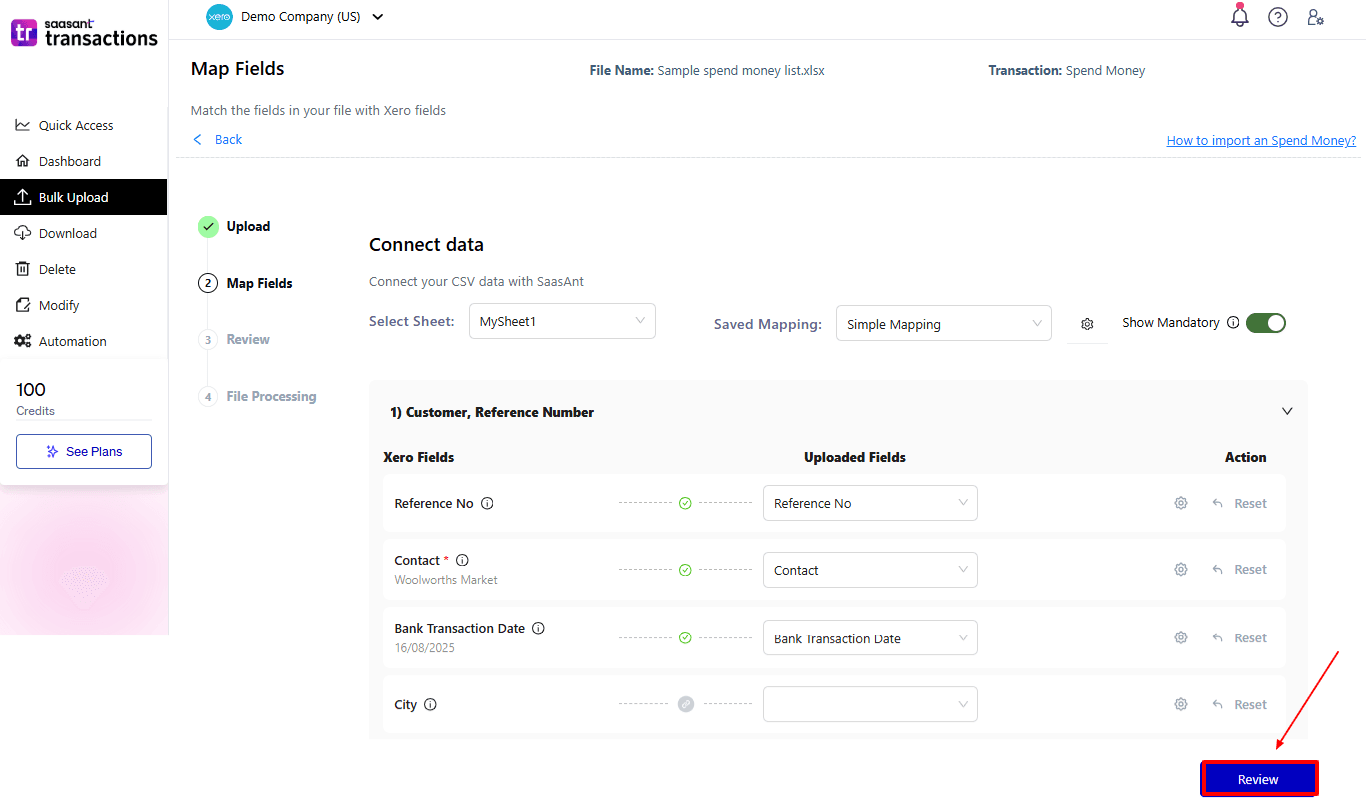
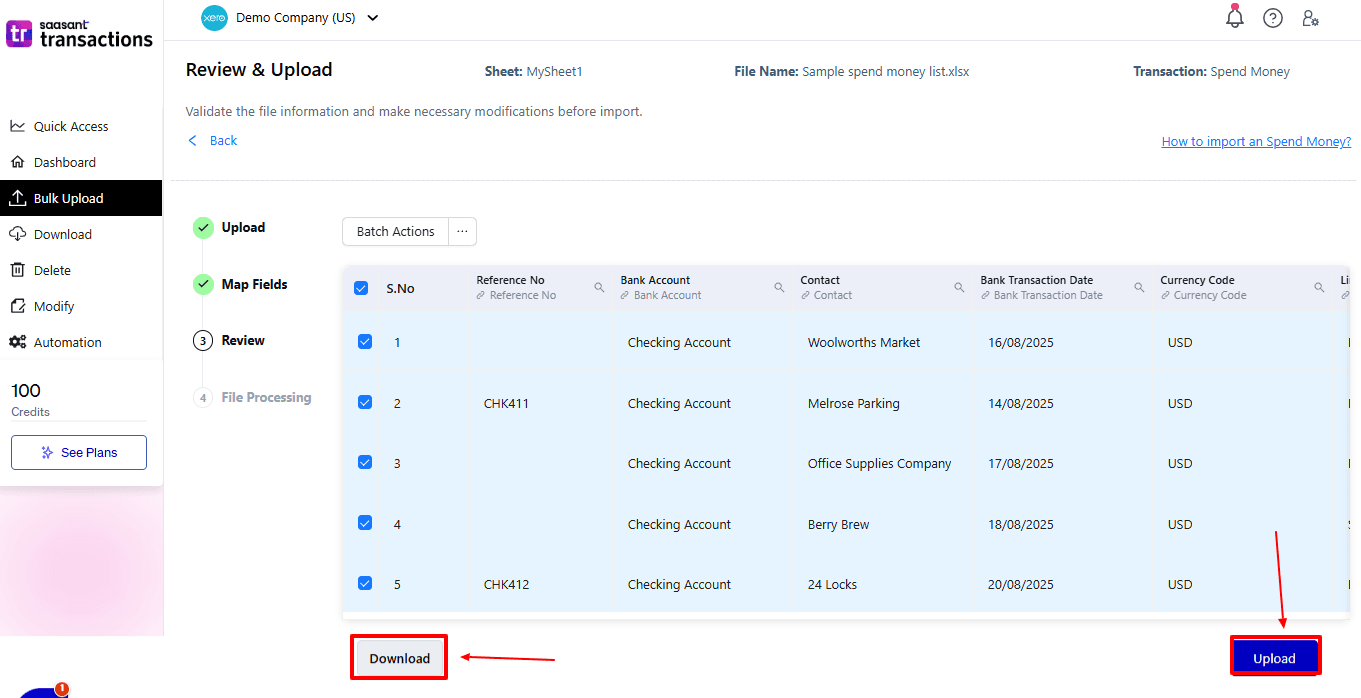
Step 6: Review And Upload
Review the spend money and select “Upload”.
At the bottom left, there is a “Download” option, allowing you to save this money for future reference.
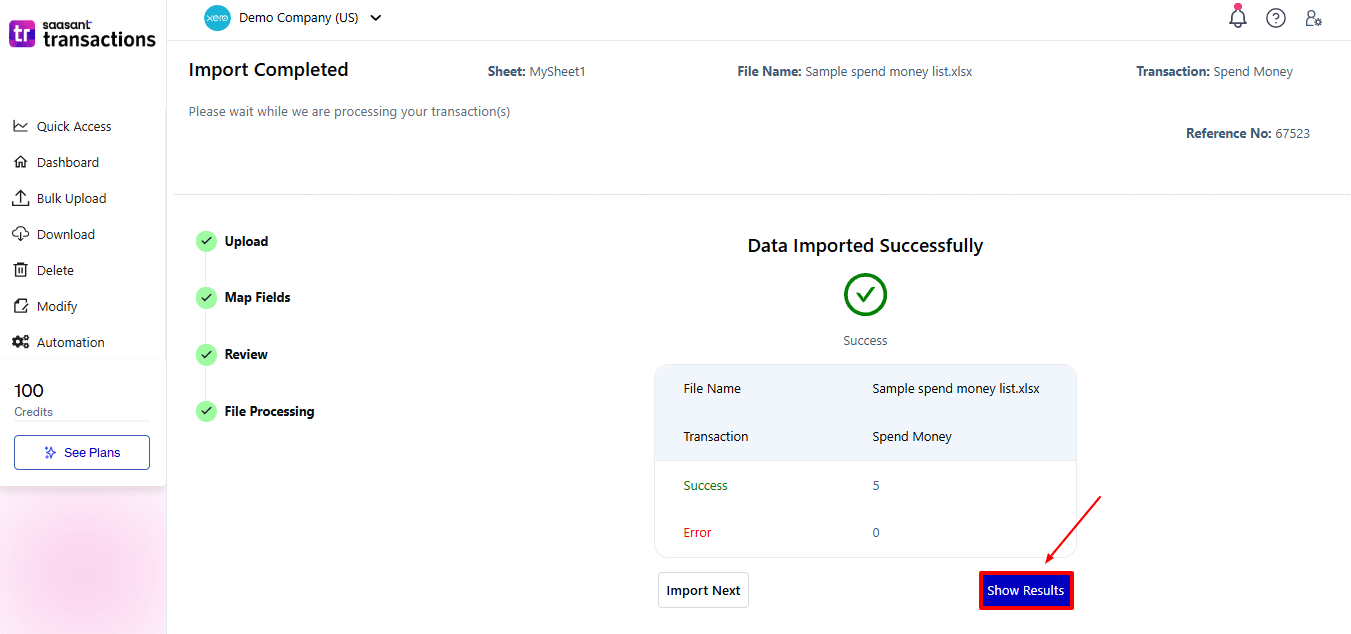
Your payment data will be imported into Xero Online. Click “Show Results”.
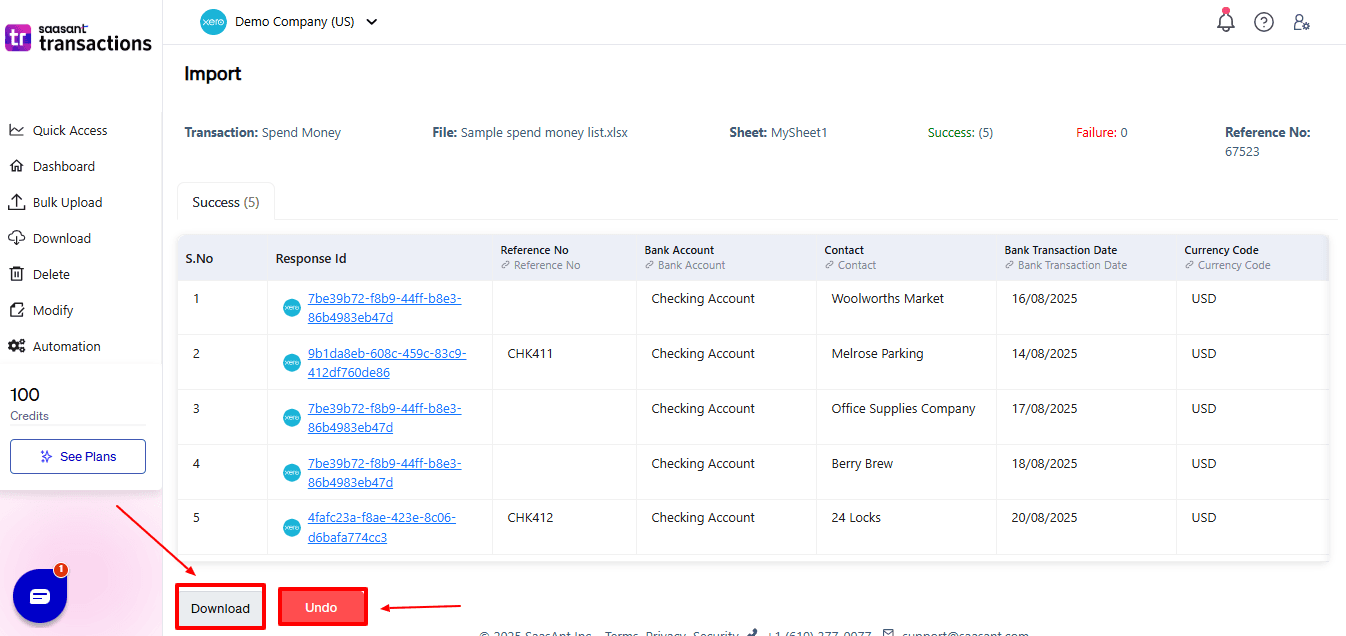
Step 7: Imported Data
Your imported spend money data appears. At the bottom left, there is a “Download” option, where you can download your spend money for future reference.
Additionally, next to the download option, you can see “Undo”, which allows you to roll back your spend money.
Step 8: View Imported Data in Xero
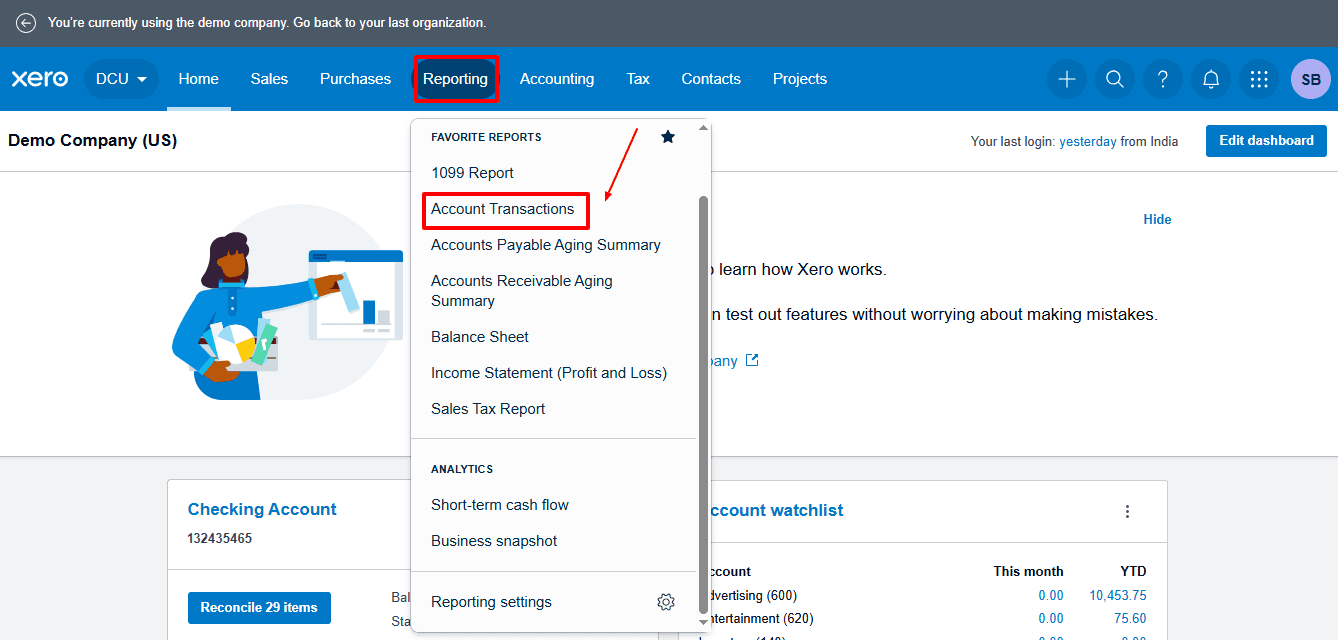
Now, back to the Xero dashboard, select “Reporting” from the dropdown, and then select “Account Transactions”
The dashboard appears like this, as shown in the image below. Now select the “Filter” and choose “Source”. From the source dropdown, select “Spend Money”.
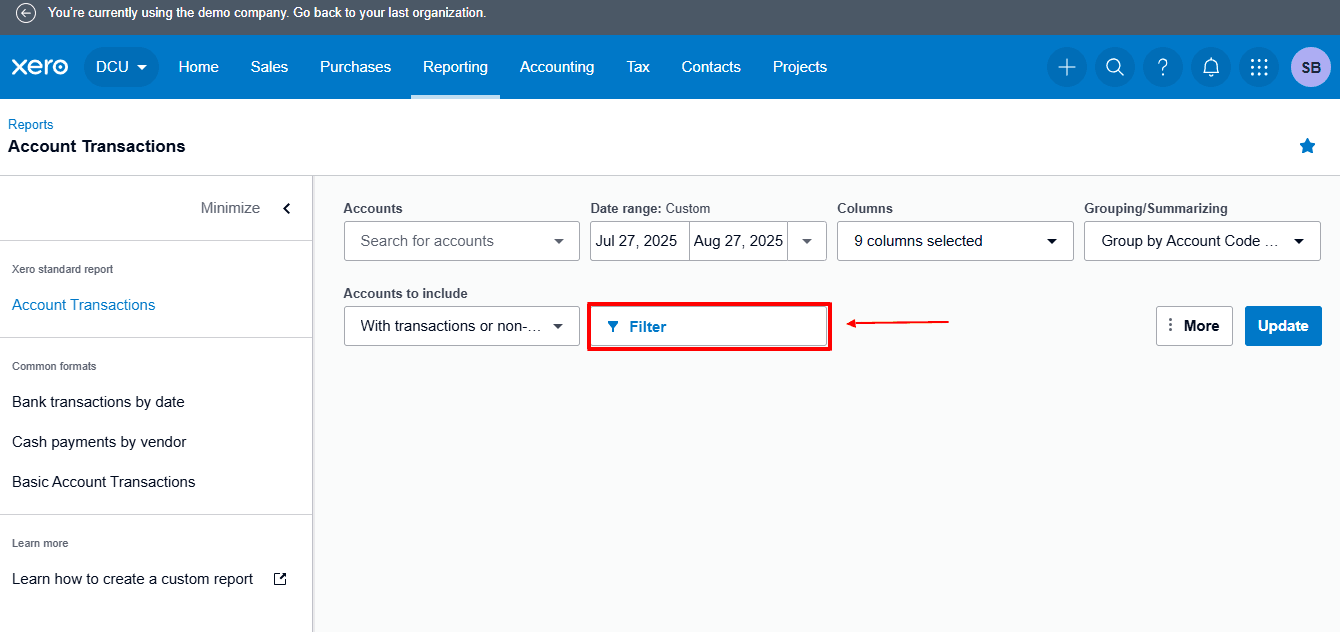
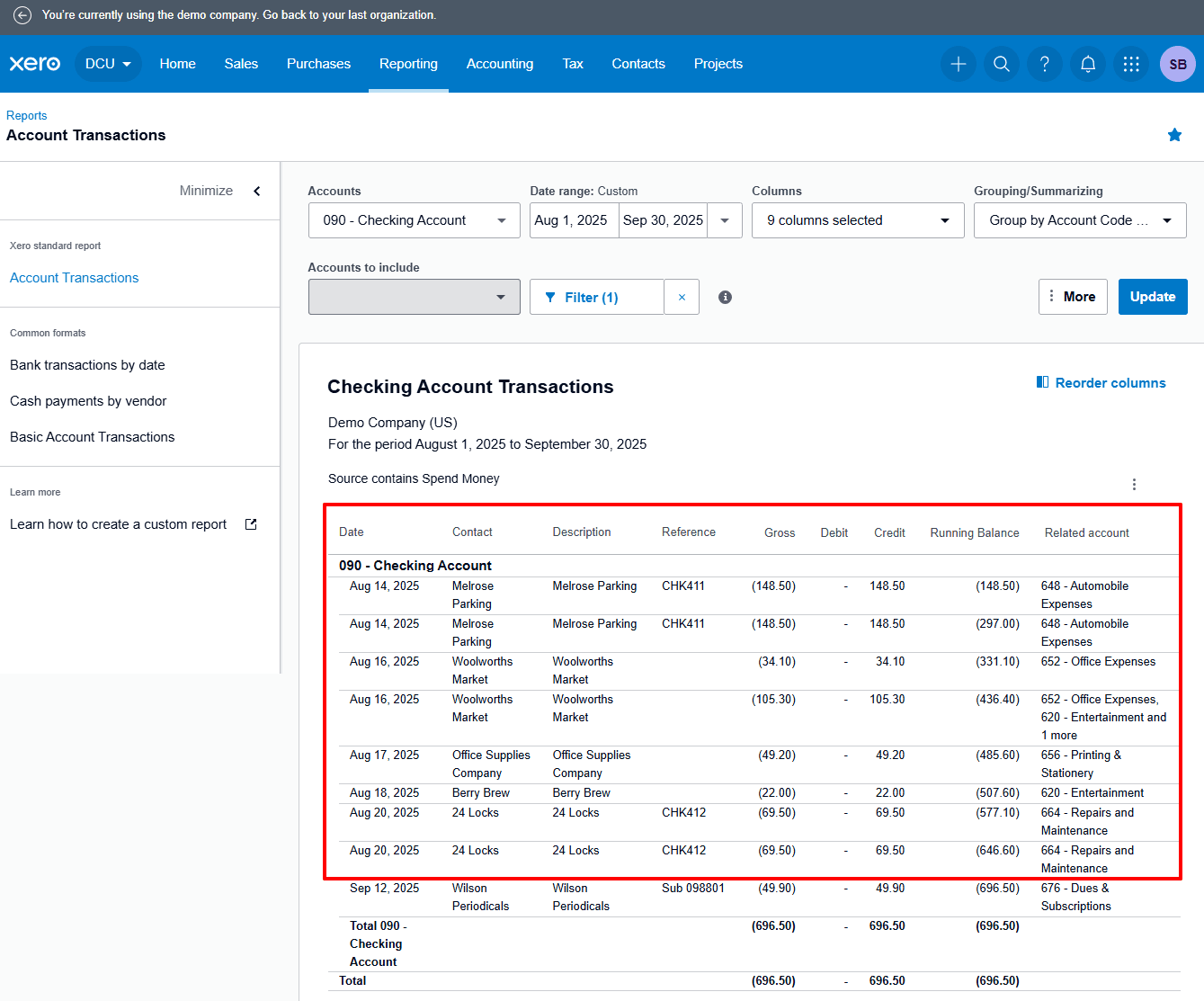
And fill the rest of the boxes with required information and click “Update”
Imported spend money is displayed, as shown in the image below.
Why Choose SaasAnt Transactions for Xero?
SaasAnt surpasses the native capabilities of Xero, delivering automation, flexibility, and control for bulk data imports.
Bulk Uploads: Import a large number of Spend Money transactions, invoices, bills, or other data at once, which saves you hours of manual effort.
Flexible Field Mapping: Quickly map both standard and custom fields to make sure all payment details, tax codes, and references are imported correctly.
Undo/Rollback Feature: Instantly fix mistakes with a single click rollback, eliminating the need for lengthy manual deletions or edits.
Multiple File Formats: Compatible with Excel, CSV, and other popular file types, providing a level of flexibility that Xero’s built-in import lacks.
Error Validation: Identify errors before upload using integrated validation tools, reducing the chances of failed imports or incorrect data entry.
Wrap Up
Effective expense management is essential for precise bookkeeping and smooth financial processes. Even though Xero provides the necessary tools for recording Spend Money transactions, its default import function is insufficient for dealing with high data volumes or complicated mapping requirements.
For accountants, bookkeepers, and small to medium-sized businesses, using SaasAnt not only speeds up workflows but also allows teams to prioritise strategic tasks over repetitive data entry.
SaasAnt Transactions for Xero addresses these issues by offering bulk import options, effective error handling, and automation that helps save time and cut down on errors. Features such as customizable field mapping and an undo function give businesses the confidence to maintain data accuracy.
If you have inquiries regarding our products, features, trial, or pricing, or if you require a personalised demo, contact our team today. We are ready to help you find the ideal solution for your QuickBooks workflow.
Frequently Asked Questions
1) Why should I use SaasAnt instead of Xero’s native method?
SaasAnt saves time, supports bulk imports, has custom fields, and provides rollback options that Xero lacks.
2) What file formats does SaasAnt support for Spend Money imports?
You can upload Excel, CSV, or other structured formats, unlike Xero, which only accepts CSV.
3) What if I make a mistake in my spreadsheet after uploading?
SaasAnt has a one-click Undo feature that immediately undoes the import, letting you adjust your spreadsheet and re-import without changing your Xero data.
4) How can I make sure my bank accounts and tax rates match exactly during import?
SaasAnt’s field mapping and validation features make sure your bank accounts, tax codes, and other important fields match up with Xero, reducing errors.
5) Does SaasAnt only work for Spend Money transactions?
You can also import invoices, bills, credit notes, bank transfers, and journal entries in bulk.
Read Also
How to Import Payments in Xero
How to Import Sales Invoices Into Xero?
How to Import Quotes into Xero?
How to Import Contacts Into Xero?