How to Import Journal Entry in Xero
Journal Entries are essential for accurate accounting; they record debits and credits, correct errors, and adjust accounts during month-end and year-end closings. For accountants and bookkeepers using Xero, manually importing journal entries can quickly become time-consuming and error-prone, especially when managing multiple clients or high transaction volumes. While Xero does not allow for the bulk import of journal entries, its capabilities in this area are pretty limited.
Xero does permit the import of Journal Entry, but its features come with several limitations that can affect your workflow:
No Bulk Importing: Xero does not allow users to bulk import journal entries. Every entry needs to be created individually, which is inefficient for businesses that process hundreds or thousands of transactions.
File Format Restrictions: Xero only accepts CSV files with specific column headers and field order. Any changes, like a missing comma or a wrong header, can cause upload errors.
Limited Error Handling: If an issue occurs with a single journal line, the entire import fails. Users have to locate and resolve the problem manually before they can re-upload, wasting time.
No Undo Option: Once the data is imported, you cannot use an "undo" feature. You need to delete wrong entries manually, one at a time, which increases the likelihood of inconsistencies.
Lack of Customisation: Xero lacks support for custom field mapping and additional details such as references, tags, or department notes, which limits its flexibility for thorough reporting or audit tracking.
These issues show that although Xero can manage journal entry imports, it is not optimised for speed, flexibility, or large-scale operations. This is where SaasAnt Transactions for Xero is useful. It offers customizable import options, bulk updates, undo capabilities, and automation, changing how businesses handle payment data. This not only saves time but also minimises errors, resulting in more precise financial records and more efficient operations for businesses of any size.
Accounting Practice Handling Multiple Clients
Consider a mid-sized accounting firm that manages the financial records for over 20 small businesses. Each month, they must record salary adjustments, accruals, and depreciation entries for every client. Manually entering these transactions into Xero could take several hours for each company.
With SaasAnt Transactions for Xero, the accountant can:
Upload all journal entries for each client in a matter of minutes.
Map recurring journal formats once and reuse those templates.
Instantly undo or correct any data that has been posted incorrectly.
Create audit-ready reports with just one click.
This workflow not only saves numerous staff hours each month but also ensures data accuracy and compliance with audit standards.
This blog is suitable for accountants, bookkeepers, and small to medium-sized business owners who use Xero and want quicker, more accurate methods to import, edit, and manage bulk journal entries effectively.
Contents
Accounting Practice Handling Multiple Clients
How to Import Journal Entry Into Xero
Why Choose SaasAnt Transactions for Xero?
Wrap Up
Frequently Asked Questions
How to Import Journal Entry Into Xero
Always back up your Xero Online data before you begin. Even though SaasAnt is designed to be safe and reliable, a backup provides an added layer of security. Follow the steps below to get started.
Step 1: Log In to Your Xero Account
Log in to your Xero account.
Step 2: Navigate to the Apps Menu
On the right side of the Xero dashboard, you can see the menu bar, which offers various options.
Select the “Waffle” icon. Click the dropdown and select “Find more apps on Xerp App Store.”
Step 3: Search SaasAnt Transactions
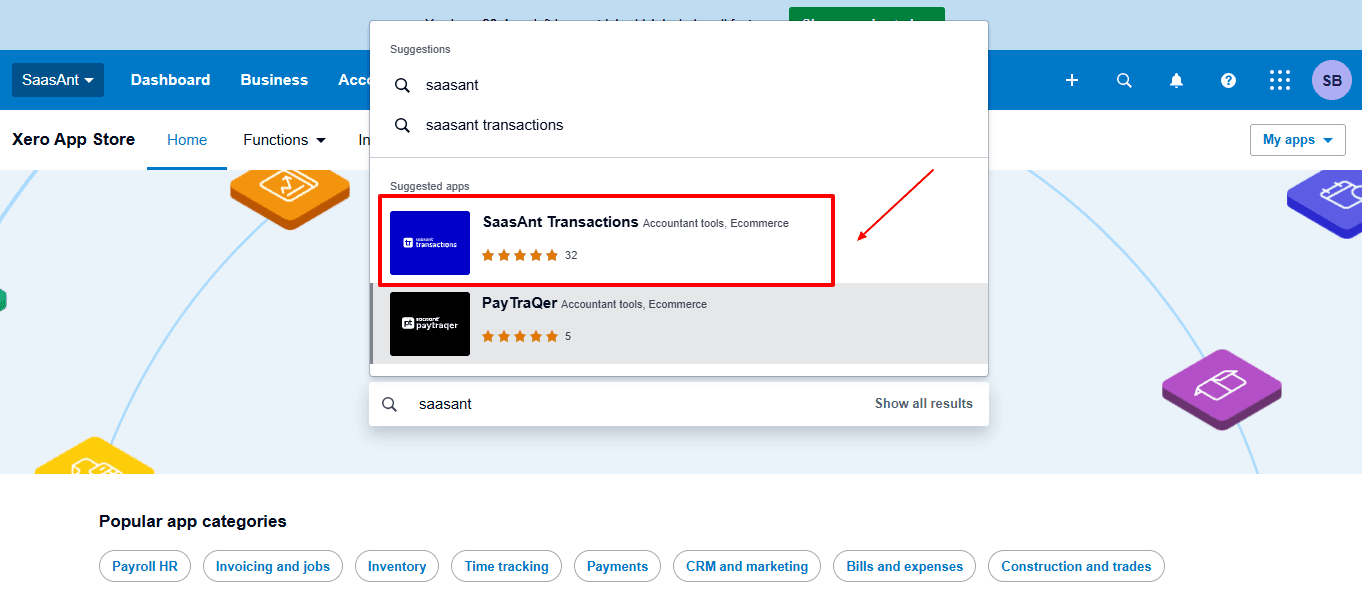
In the search bar, type “SaasAnt Transactions” as shown by the arrow in the image below.
Step 4: Open SaasAnt Transactions
Get the app from the App Store and connect it to Xero.
On the SaasAnt dashboard:
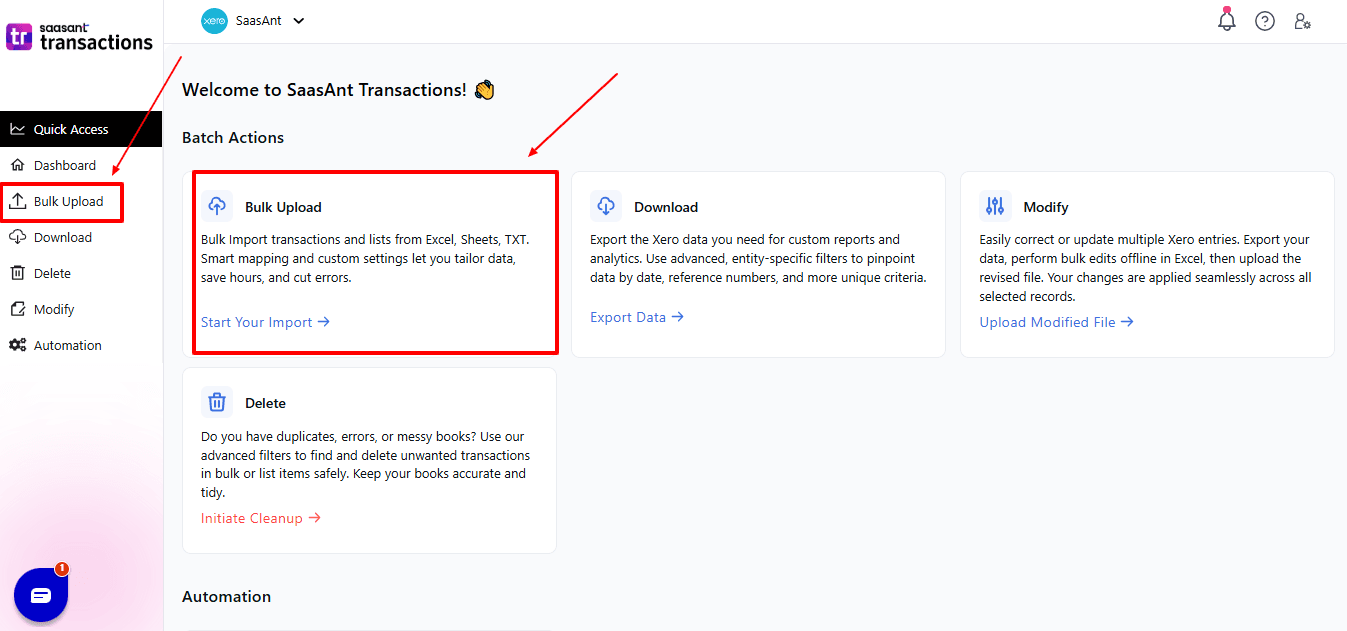
On the left side of the SaasAnt Transactions dashboard, you can see the menu bar with various options.
Select "Bulk Upload”
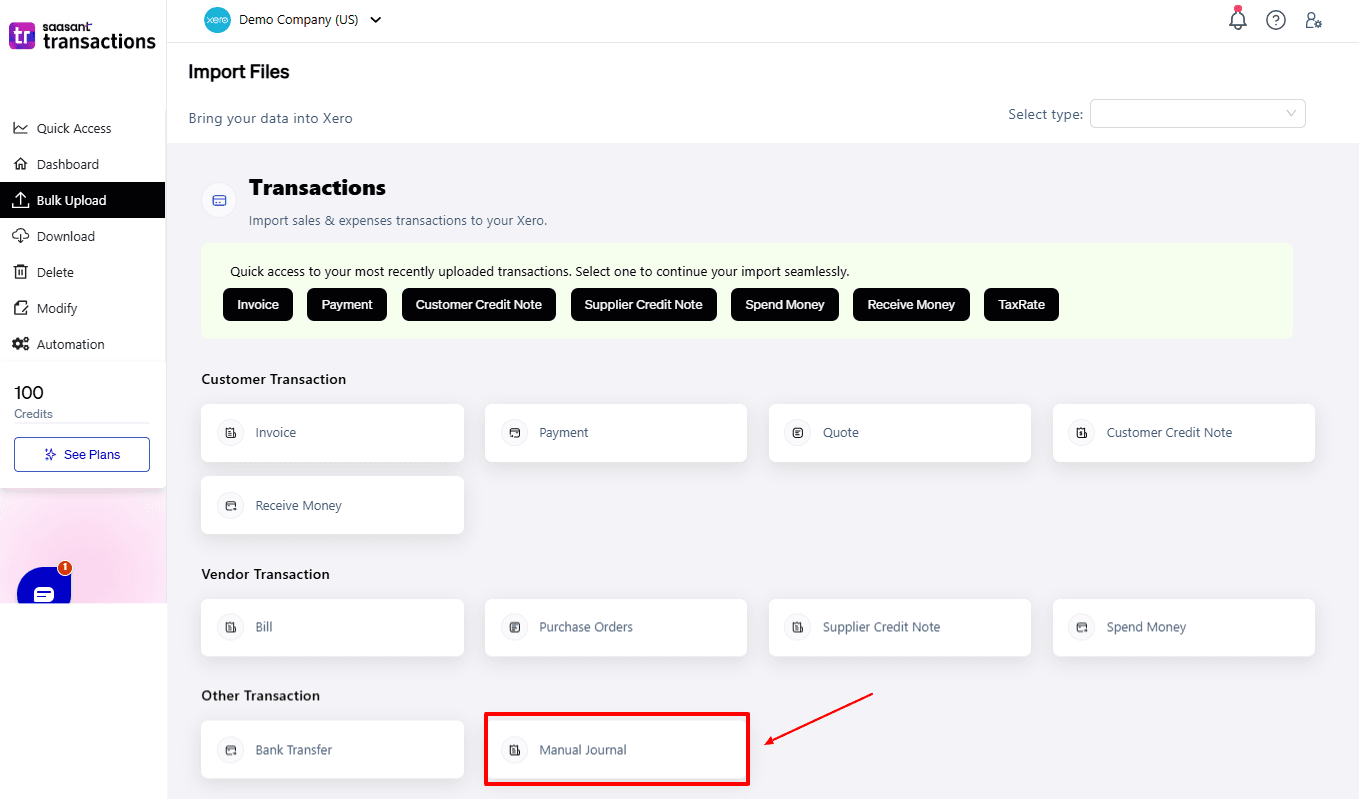
Now select “Journal Entry” from the other transaction.
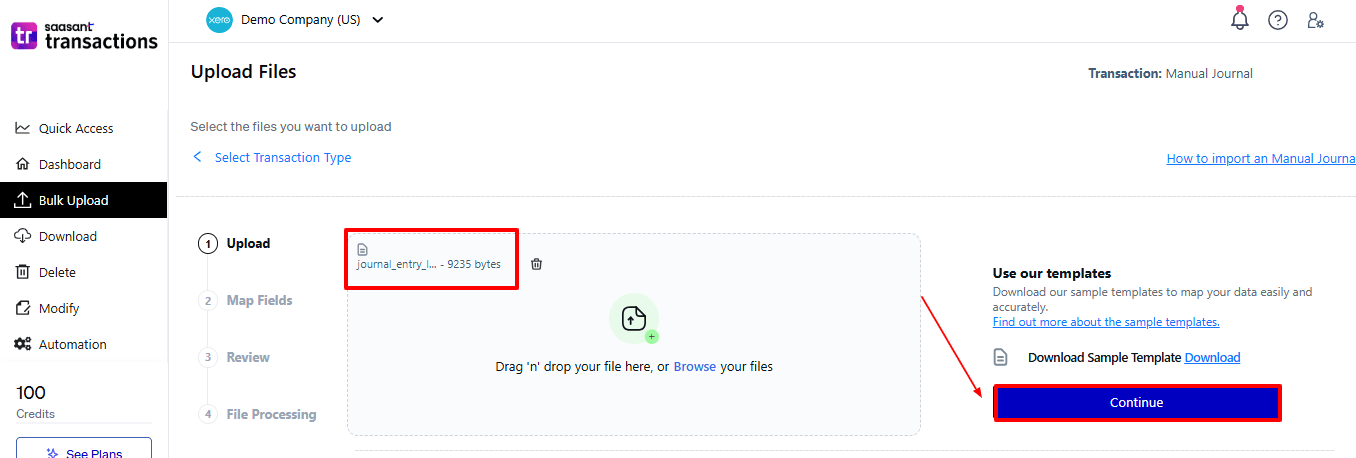
Now, upload your respective journal entries files from your device and click “Continue”.
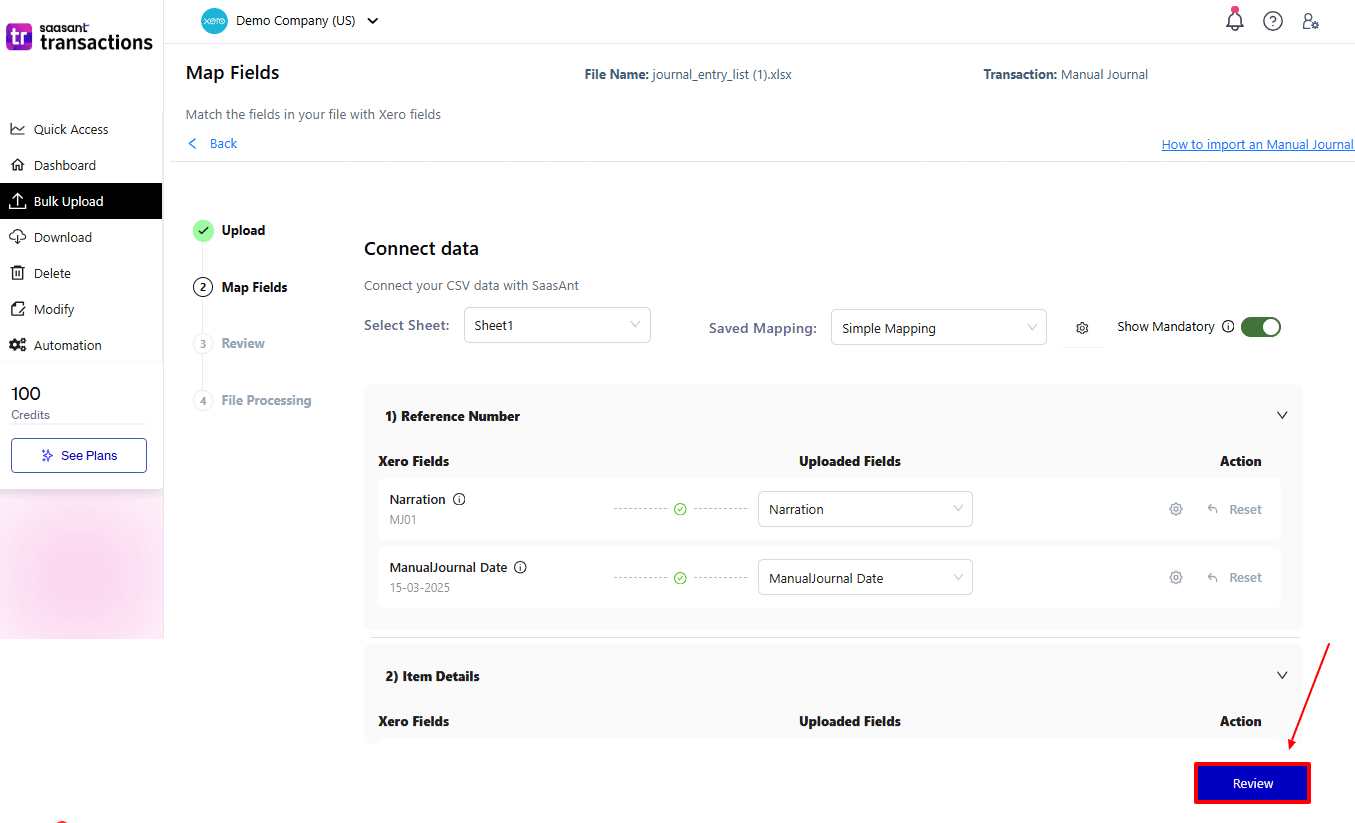
Step 5: Mapping Fields And Review
Ensures accurate mapping of essential fields: invoice number, payment date, etc.
The ‘Preview Mapping’ feature allows users to verify field alignment before review.
Select “Review” after finalising the mapping of all fields.
Step 6: Review And Upload
Review the Journal Entry and select “Upload”.
At the bottom left, there is a “Download” option, allowing you to save these journal entries for future reference.
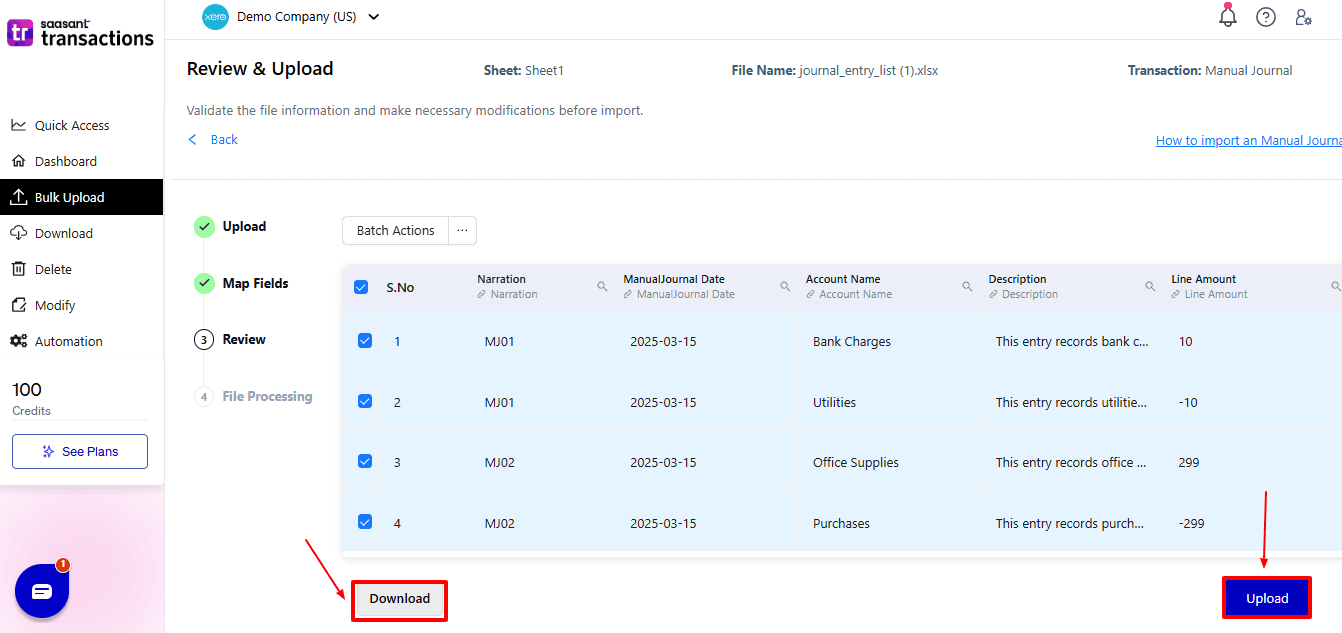
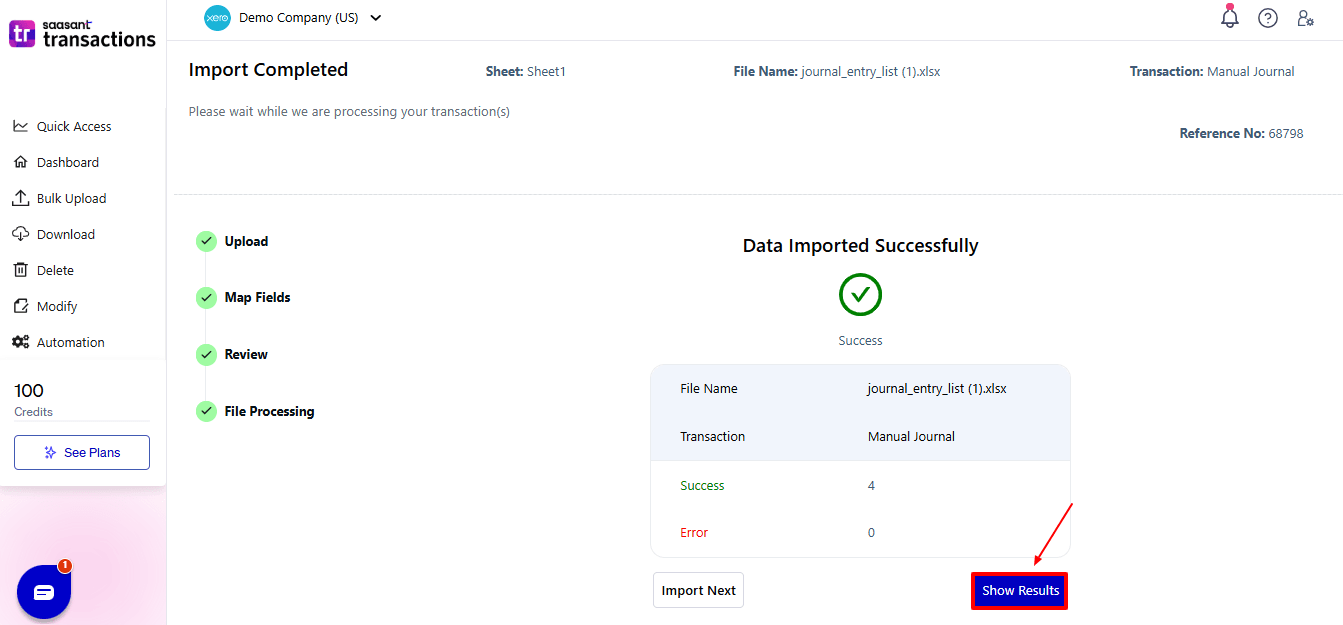
Your journal entries data will be imported into Xero Online. Click “Show Results”.
Step 7: Imported Data
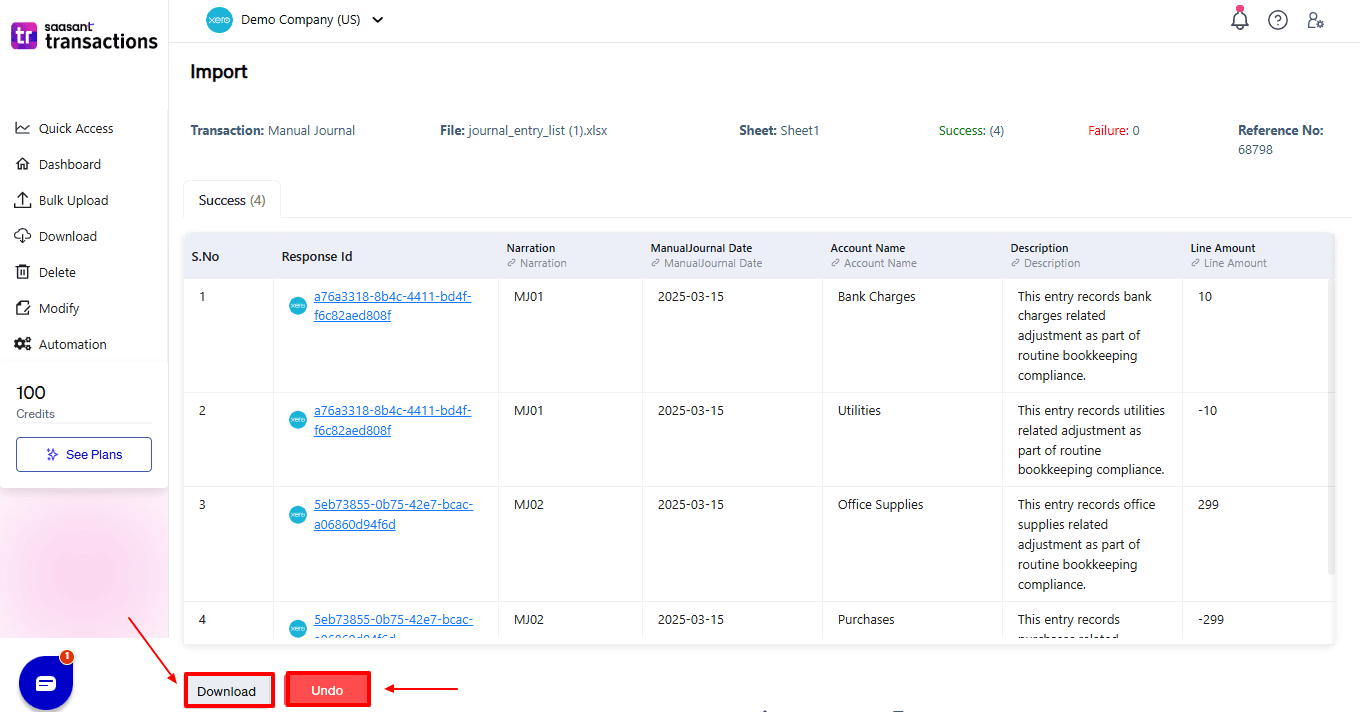
Your imported journal entry data appears. At the bottom left, there is a “Download” option, which allows you to download your journal entry for future reference.
Additionally, next to the download option, you can see “Undo”, which allows you to roll back your journal entry.
Step 8: View Imported Data in Xero
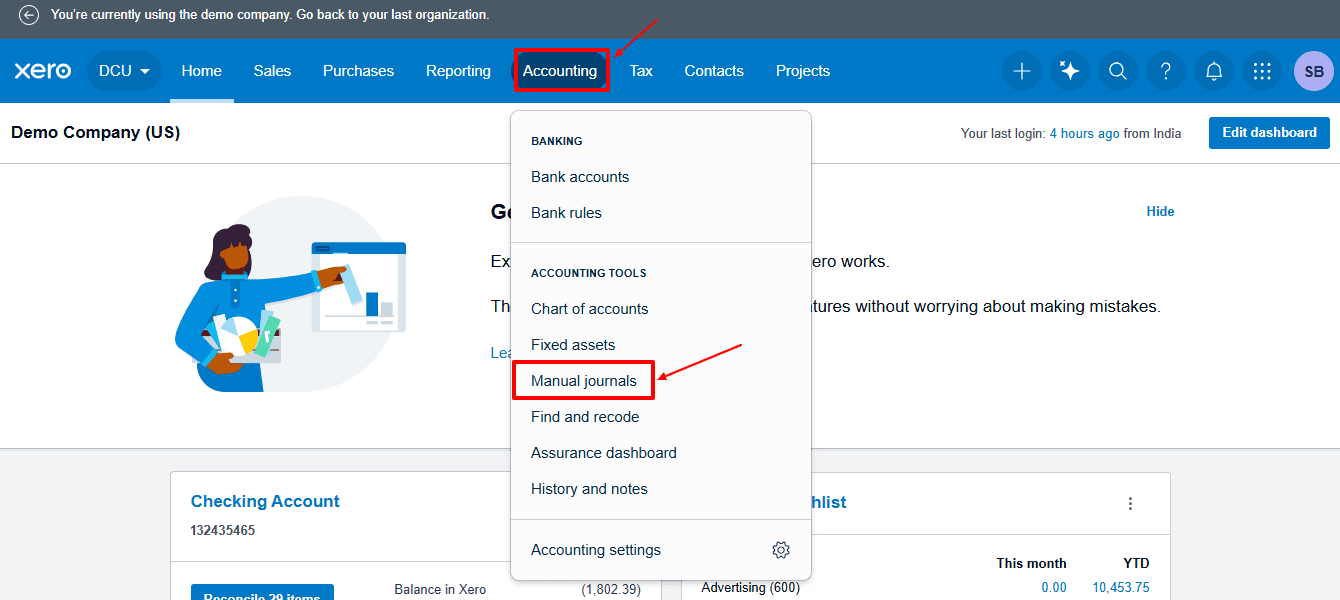
Now, back to the Xero dashboard, select “Accounting” from the dropdown, and then select “Manual Journals”
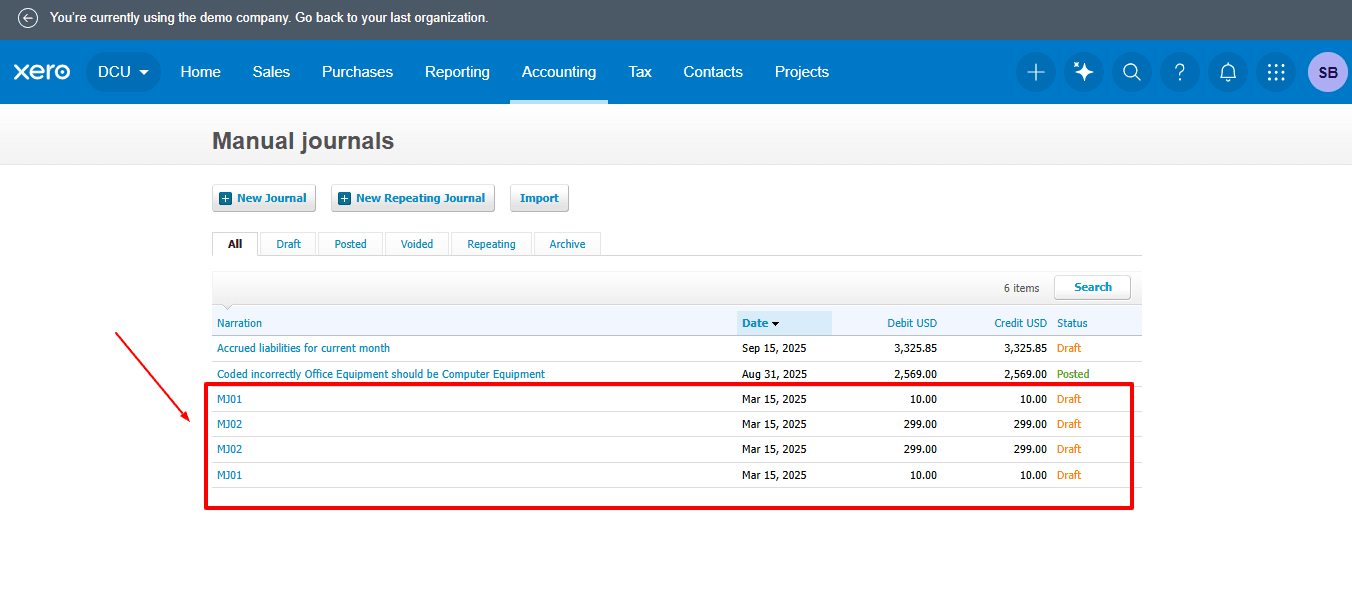
The imported journal entries are displayed, as shown in the image below.
Why Choose SaasAnt Transactions for Xero?
SaasAnt Transactions for Xero addresses all previous limitations by giving you full control over importing, validating, and managing journal entries. Whether you are an accountant, bookkeeper, or business owner, it makes large-scale imports easier with its advanced automation features. SaasAnt Transactions for Xero stands out with its strong automation and data management capabilities.
Bulk Import Features: Import a large number of journal entries from Excel or CSV all at once, eliminating the need for manual input.
Support for Multiple File Formats: SaasAnt supports exports in both CSV and XLSX, unlike Xero, which is limited to CSV. This gives accountants the flexibility to analyse or share data on various platforms.
Flexible Field Mapping: Directly map fields from your source file (such as Account Code, Debit, Credit, Date, Description, Reference, etc.) to the Xero structure, providing complete flexibility.
Undo/Rollback Option: If you enter the wrong data, use the undo feature to quickly reverse the transactions without changing your Xero records.
Error Detection and Validation: The system validates your data before import, automatically identifying errors such as missing accounts or incorrect values.
Wrap Up
Importing journal entries into Xero can be a lengthy task, particularly when dealing with large volumes of data or frequent changes. Although Xero offers basic import features, it lacks the flexibility, automation, and control needed for effective bulk operations. SaasAnt Transactions for Xero addresses this issue by delivering advanced import customisation, intelligent error management, and one-click undo capabilities. It changes how accountants and bookkeepers handle journal data, saving time, reducing manual mistakes, and ensuring total accuracy. For those looking for a quicker, error-free import experience, SaasAnt is the perfect partner for Xero.
If you have inquiries regarding our products, features, trial, or pricing, or if you require a personalised demo, contact our team today. We are ready to help you find the ideal solution for your Xero workflow.
Frequently Asked Questions
1) Can I bulk import adjusting journal entries for monthly or year-end closing?
Definitely, SaasAnt allows you to upload thousands of adjusting journal entries at once, including depreciation, accruals, and payroll adjustments, saving you hours of manual entry during month-end or year-end reconciliations.
2) Does Xero allow bulk journal entry imports natively?
Xero only allows manual entry or a few CSV uploads. There is no built-in feature for bulk importing multiple journal entries simultaneously, which is why SaasAnt is a vital automation add-on.
3) How does SaasAnt validate my journal entries before import?
SaasAnt reviews your file for issues such as missing account codes, unbalanced debits and credits, or invalid dates. It identifies errors before import, enabling you to fix them quickly, stopping rejections in Xero.
4) I use recurring journal templates. Can I reuse the same mapping setup?
Yes. When you set up field mapping in SaasAnt, you can save it as a template. For journal types that repeat (like monthly rent or payroll accruals), you only need to upload new data using the saved mapping; there's no need to remap each time.
5) Does SaasAnt automatically balance journal entries during import?
No, it doesn't automatically balance entries, but it verifies if total debits match total credits. If they don't, the import will stop and show the imbalance for you to fix before uploading.
Read Also
How to Export Purchase Order in Xero
How to Export Spend Money in Xero
How to Export Receive Money in Xero
How to Export Data in Xero