How to Import Invoices in Xero
Invoices are essential for business accounting, they monitor income, guarantee prompt payments, and keep a transparent financial history. Although Xero has a built-in invoice import function, it can be restrictive when handling large quantities, intricate datasets, or particular formatting requirements.
For accountants, bookkeepers, and small business owners, manually importing invoices is tedious and prone to errors.
Xero offers a few native import options, but they are insufficient for handling bulk or complex data. Below are the main challenges businesses often face:
No Bulk Upload: You cannot upload multiple invoice records at once, which is inefficient for businesses with a high volume of transactions.
Rigid File Requirements: The import is restricted to CSV files, which can be inconvenient. Numerous businesses depend on Excel or alternative formats, requiring users to invest extra time in data conversion.
Limited customisation: Xero features a rigid field structure. This limitation makes it challenging to import invoices that contain detailed line items, custom tax codes, or references.
No rollback/undo option: If data is imported incorrectly, there is no option to undo or correct the error. You will need to locate and rectify each transaction manually.
This is where SaasAnt Transactions for Xero is helpful. SaasAnt Transactions for Xero serves as a strong add-on that makes invoice imports easier, helping businesses to save time, lower mistakes, and optimise accounting workflows.
Managing Bulk Invoice Imports for Growing Businesses
A medium-sized eCommerce company handles hundreds of orders each week, which requires bulk invoice imports into Xero to ensure accurate bookkeeping. The native import functionality of Xero struggles with high volumes, adheres to strict CSV formats, and lacks an undo feature, resulting in delays and inaccuracies. With SaasAnt Transactions, the team can import thousands of invoices in one go, map custom fields such as tax codes and order references, and easily correct any mistakes. This not only saves time but also reduces errors and optimises financial workflows.
This blog is suitable for accountants, bookkeepers, and small to medium business owners who use Xero and want quicker, accurate methods to import, edit, and handle bulk financial data effectively.
Contents
Managing Bulk Invoice Imports for Growing Businesses
How to Import Invoices Into Xero
Why Choose SaasAnt Transactions for Xero?
Wrap Up
Frequently Asked Questions
How to Import Invoices Into Xero
Always back up your Xero Online data before you begin. Even though SaasAnt is designed to be safe and reliable, a backup provides an added layer of security. Follow the steps below to get started.
Step 1: Log In to Your Xero Account
Log in to your Xero account.
Step 2: Navigate to the Apps Menu
On the right side of the Xero dashboard, you can see the menu bar with various options.
Select the “Waffle” icon. Click the dropdown and select “Find more apps on Xerp App Store.”
Step 3: Search SaasAnt Transactions
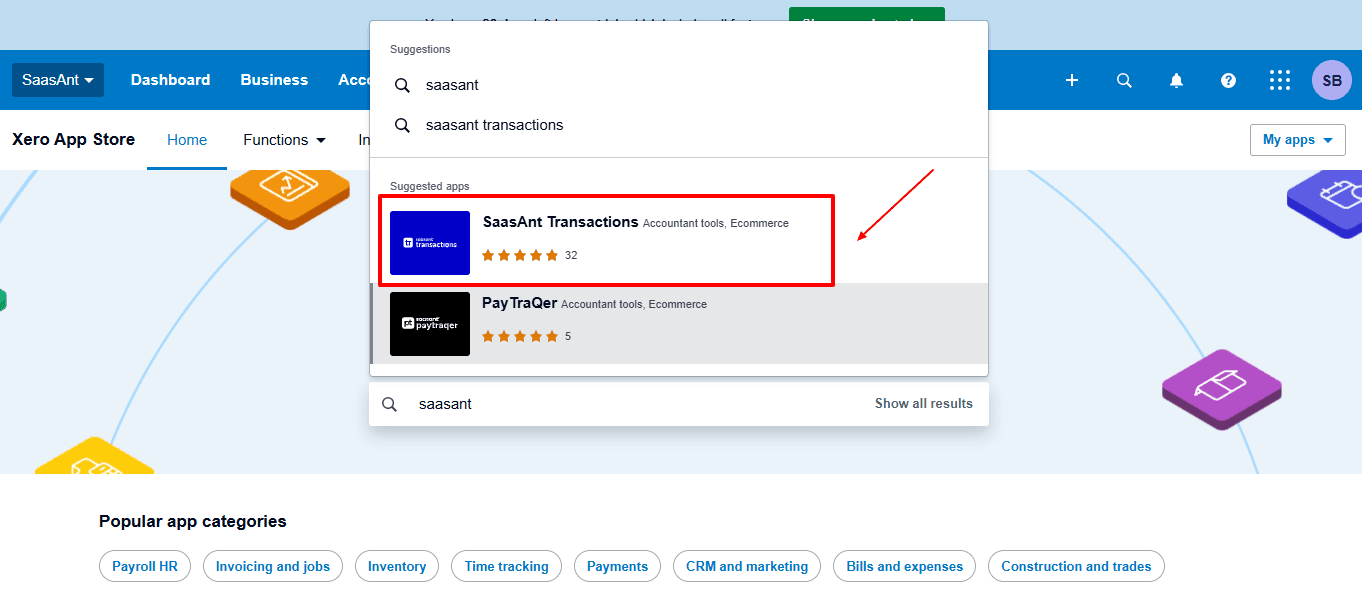
In the search bar, type “SaasAnt Transactions” as shown by the arrow in the image below.
Step 4: Open SaasAnt Transactions
Get the app from the App Store and connect it to Xero.
On the SaasAnt dashboard:
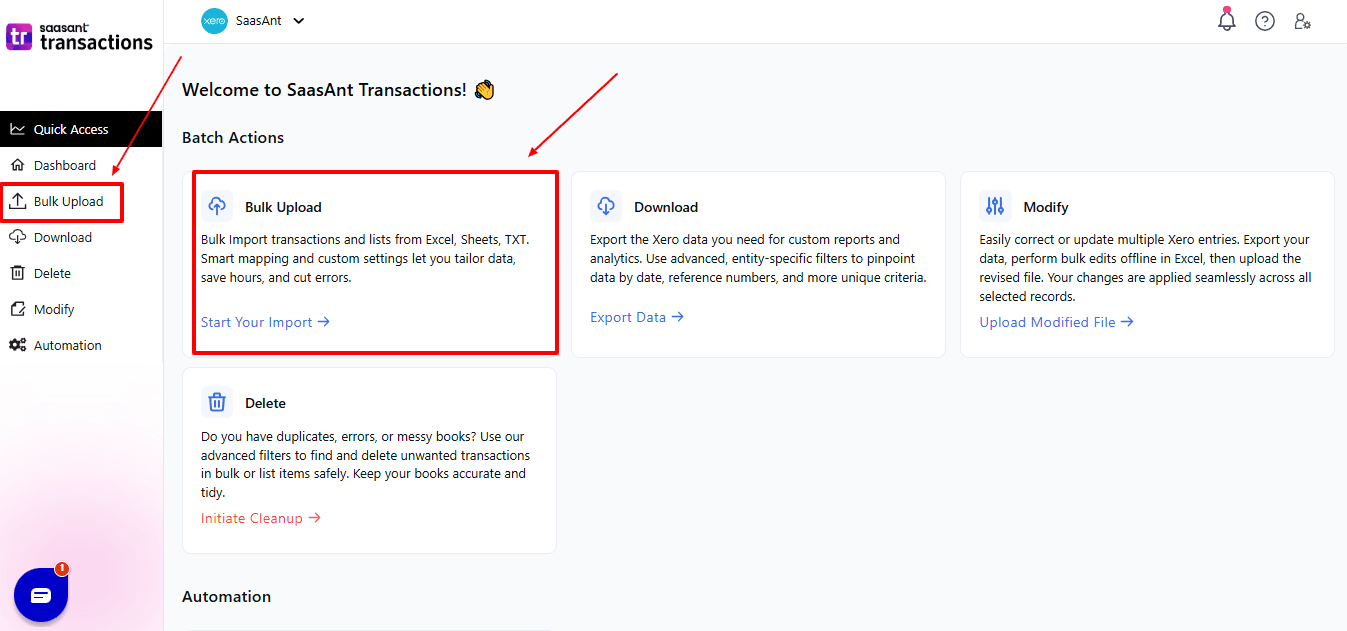
On the left side of the SaasAnt Transactions dashboard, you can see the menu bar with various options.
Select "Bulk Upload”
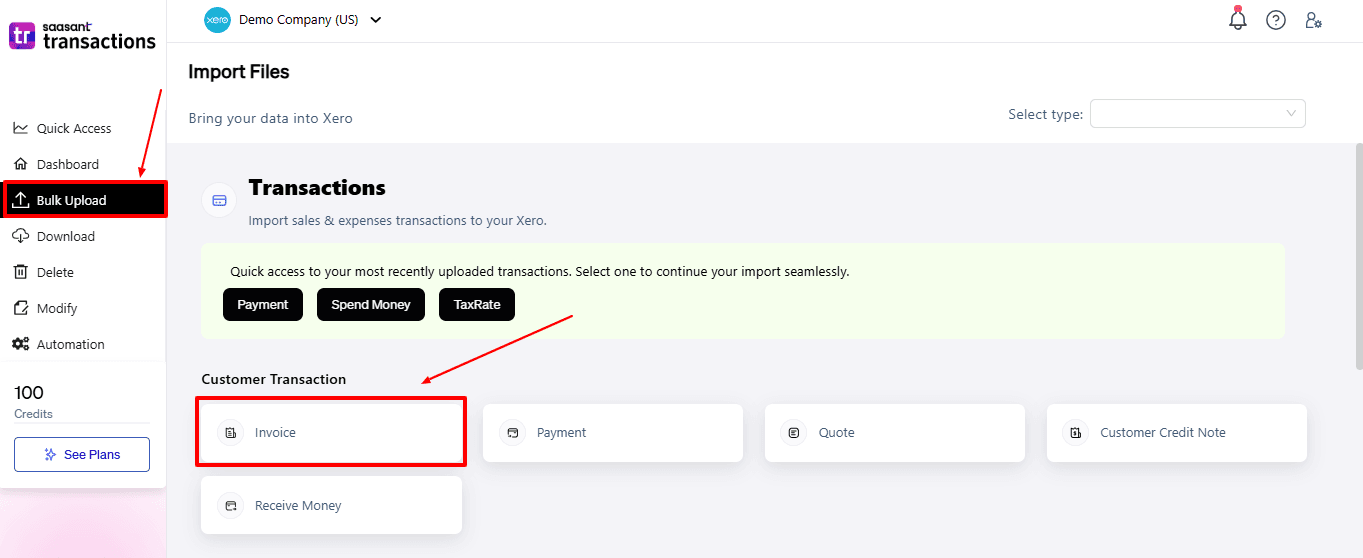
Now select “Invoice” from the vendor transaction.
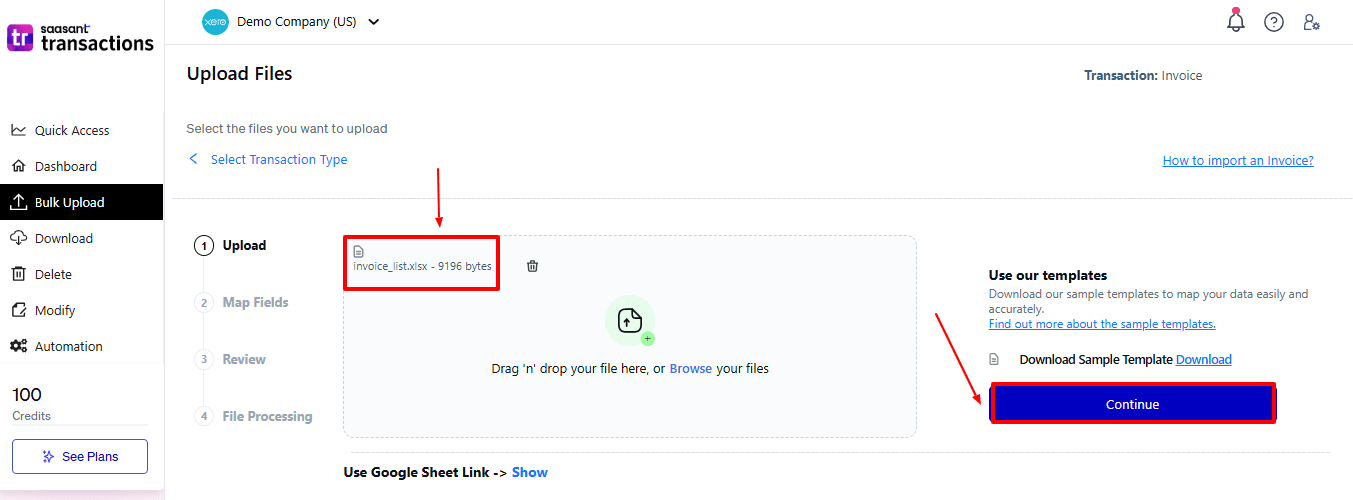
Now, upload your respective payment files from your device and click “Continue”.
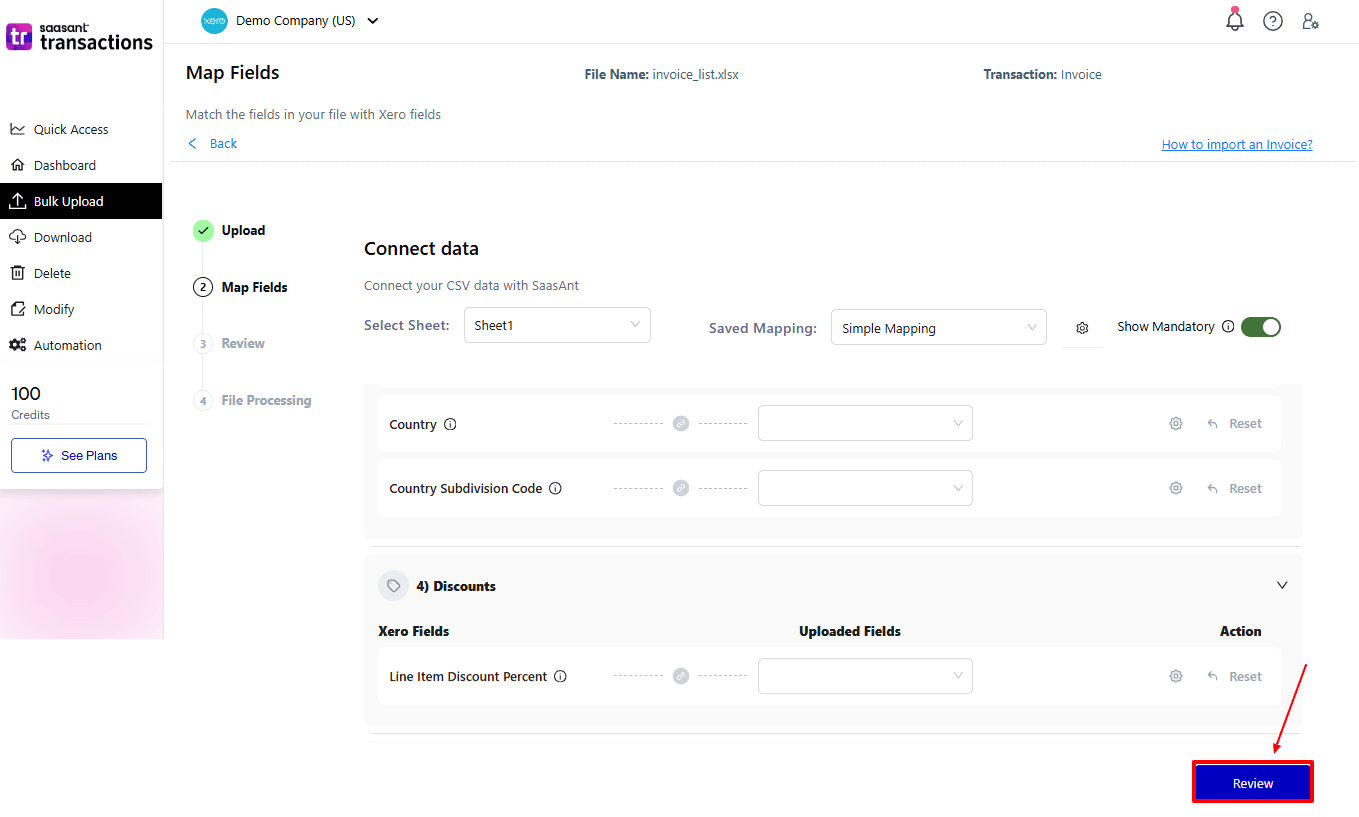
Step 5: Mapping Fields And Review
Ensures accurate mapping of essential fields: invoice number, contact, payment date, etc.
The ‘Preview Mapping’ feature allows users to verify field alignment before review.
Select “Review” after finalising the mapping of all fields.
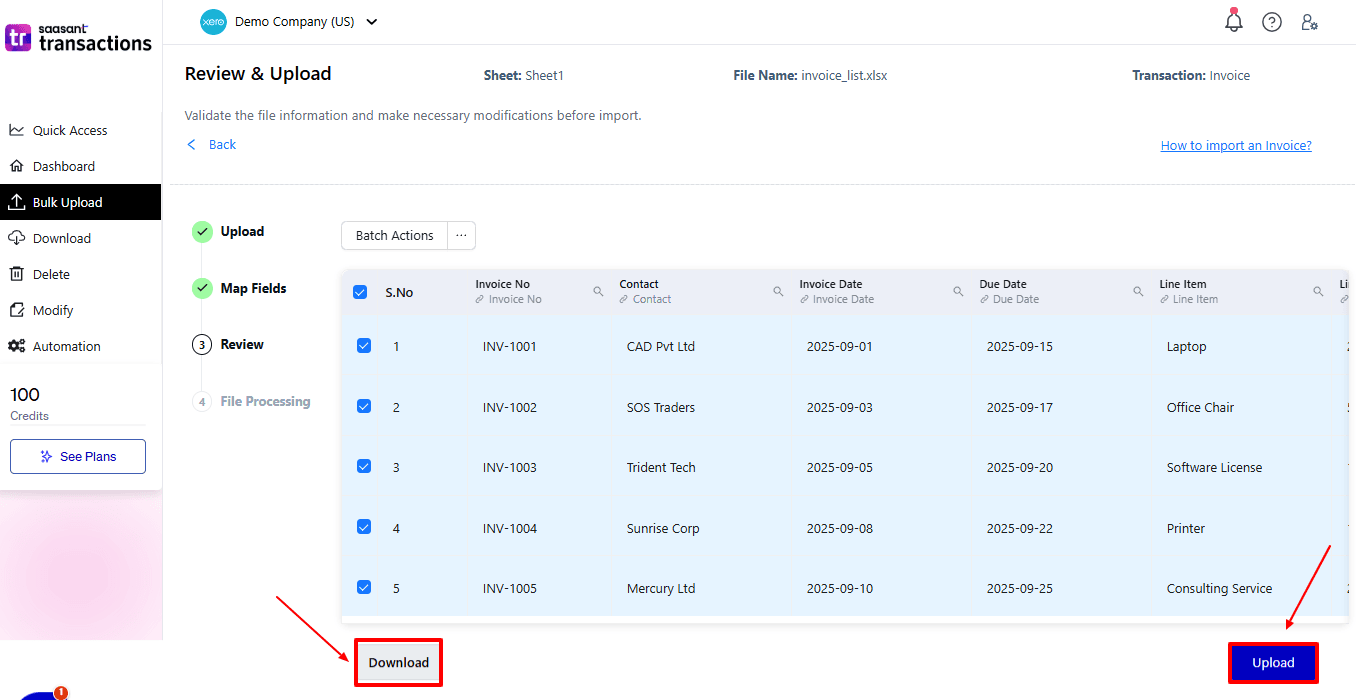
Step 6: Review And Upload
Review the invoice and select “Upload”.
At the bottom left, there is a “Download” option, allowing you to save this money for future reference.
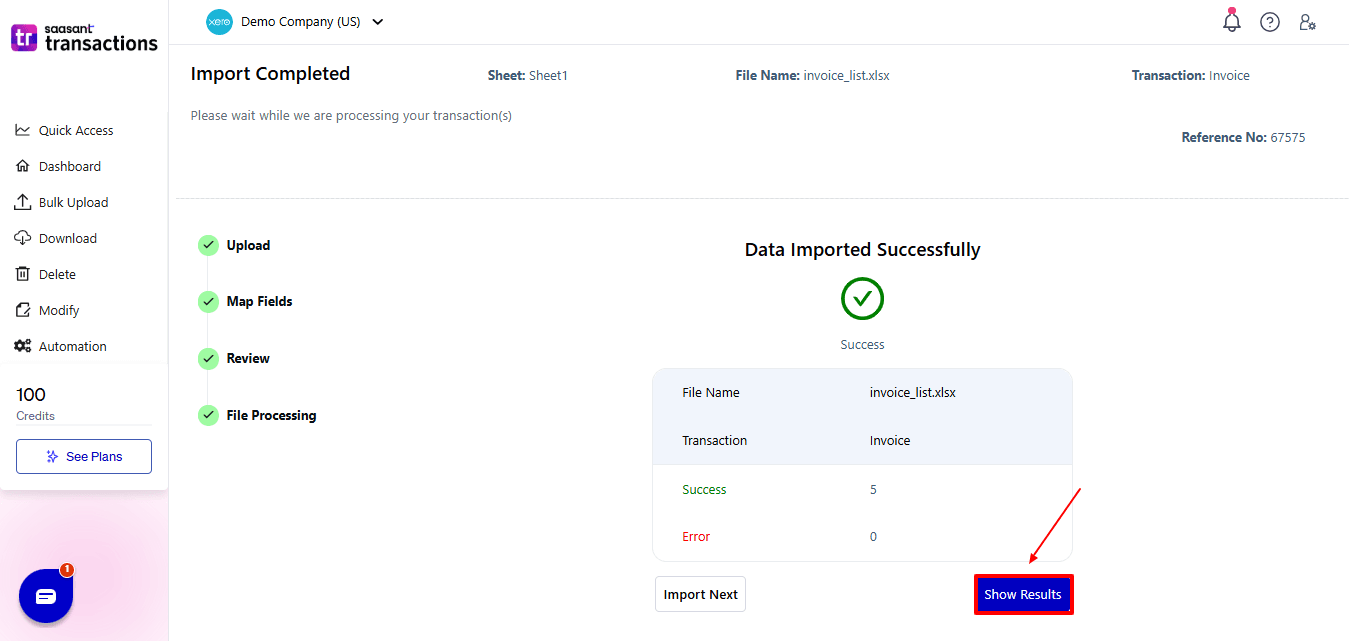
Your payment data will be imported into Xero Online. Click “Show Results”.
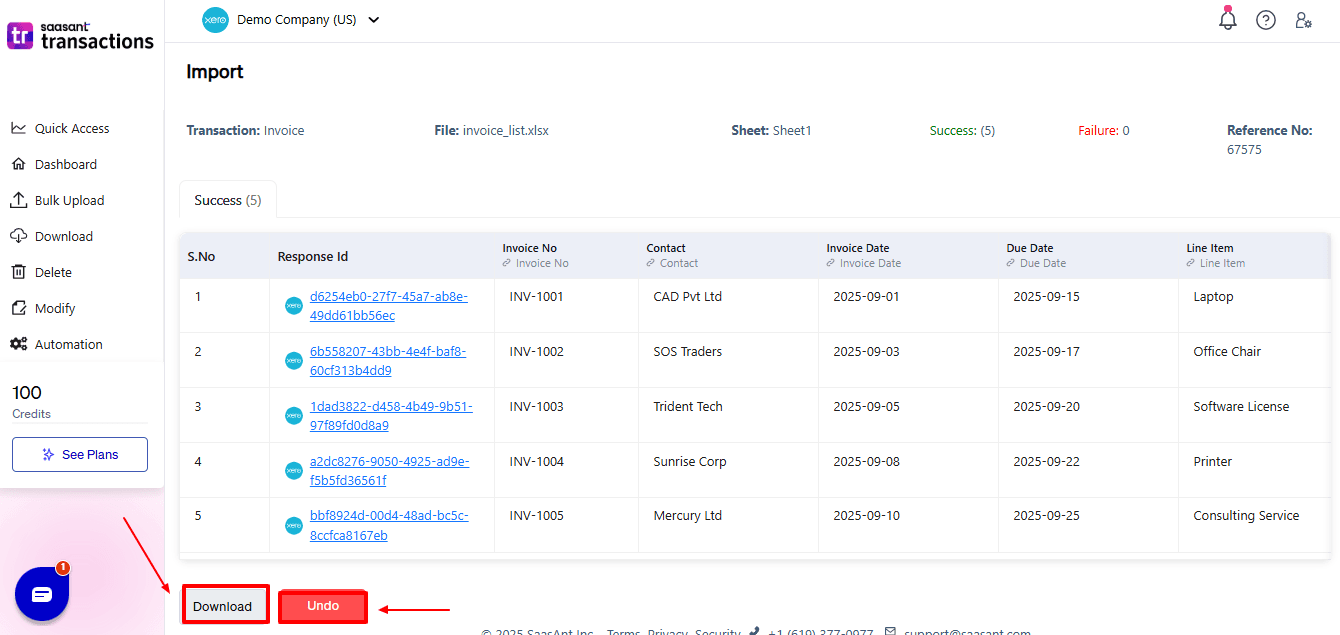
Step 7: Imported Data
Your imported invoice data appears. At the bottom left, there is a “Download” option, where you can download your invoice for future reference.
Additionally, next to the download option, you can see “Undo”, which allows you to roll back your Invoice.
Step 8: View Imported Data in Xero
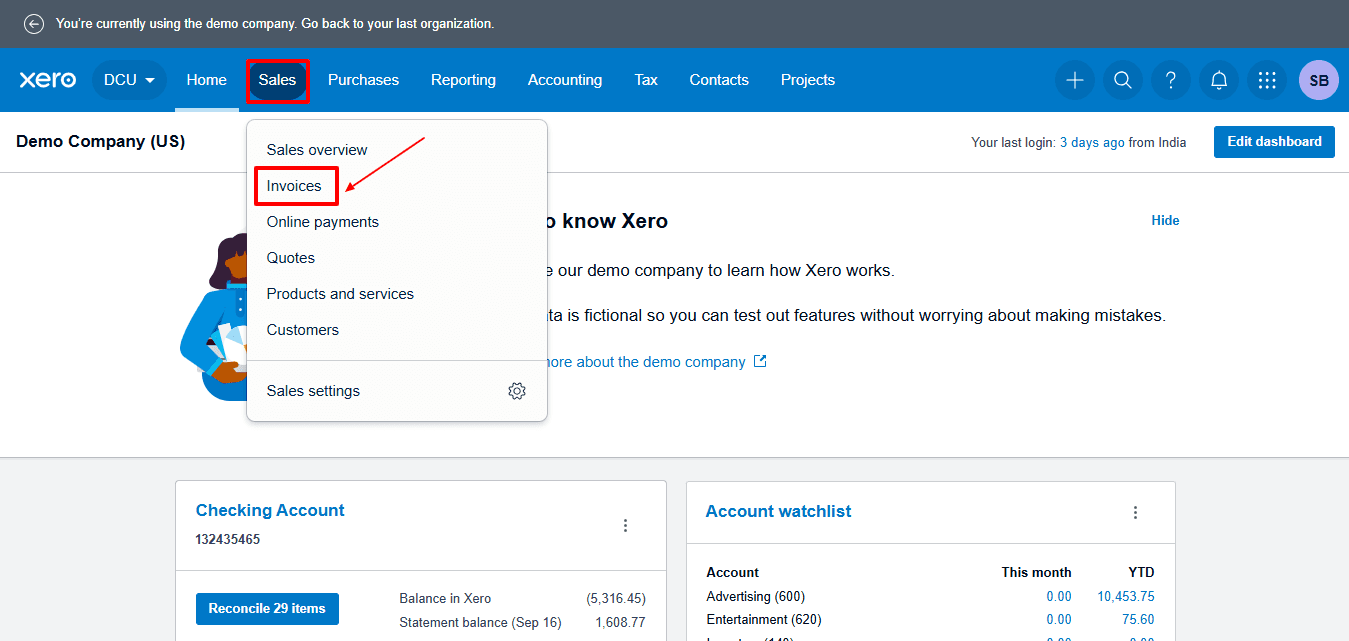
Now, back to the Xero dashboard, select “Sales” from the dropdown, and then select “Invoices”
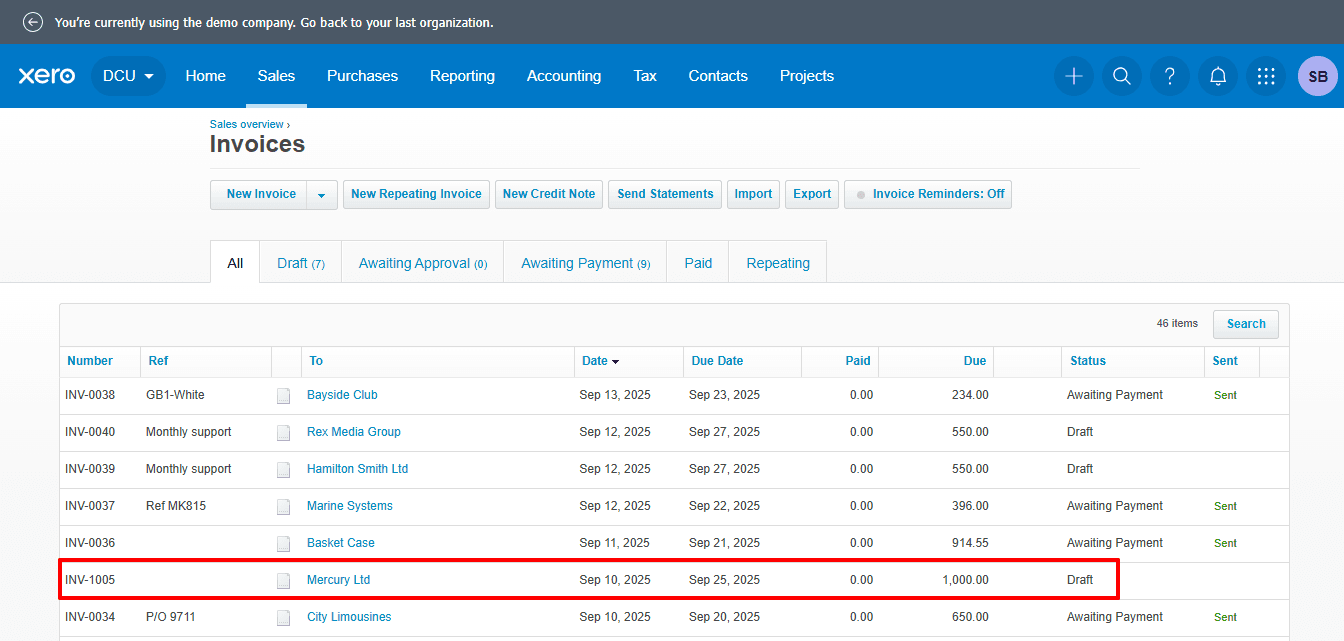
Imported invoices are displayed, as shown in the image below.
Why Choose SaasAnt Transactions for Xero?
SaasAnt Transactions for Xero extends beyond the usual features of Xero, giving accountants, bookkeepers, and small businesses the tools to operate more quickly and precisely. Here’s why it truly matters:
Bulk Uploads: Whether you are managing hundreds or thousands of invoices, bills, or payments, SaasAnt allows you to import or export them all at once, removing the limitations of Xero’s smaller batch limits.
Flexible Field Mapping: Unlike the rigid templates provided by Xero, SaasAnt gives you total flexibility in mapping both standard and custom fields, ensuring your data aligns with your reporting and compliance requirements.
Undo/Rollback Feature: Fixing mistakes in Xero manually can be very time-consuming. SaasAnt provides a one-click undo or rollback option, so errors won’t disturb your workflow.
Multiple File Formats: Compatible with Excel, CSV, and other popular file types, providing a level of flexibility that Xero’s built-in import lacks.
Error Validation: Identify errors before upload using integrated validation tools, reducing the chances of failed imports or incorrect data entry.
SaasAnt offers efficiency, exactness, and flexibility, making accounting operations more seamless and considerably more scalable.
Wrap Up
Importing invoices into Xero can be done, but it is often time-consuming, inflexible, and susceptible to mistakes when dealing with large quantities. SaasAnt Transactions for Xero improves this process by providing bulk import, adaptable field mapping, validation, undo options, and automation. These features help save time, enhance accuracy, and lessen manual work for accountants, bookkeepers, and small to medium-sized businesses.
By integrating Xero with SaasAnt’s advanced import features, businesses can efficiently oversee large invoice volumes, ensure compliance, and focus on strategic financial planning rather than repetitive data entry.
If you have inquiries regarding our products, features, trial, or pricing, or if you require a personalised demo, contact our team today. We are ready to help you find the ideal solution for your Xero workflow.
Frequently Asked Questions
1) Can I import hundreds of invoices at once in Xero?
Not effectively. Xero can only handle smaller batches. SaasAnt enables the import of thousands of invoices at once.
2) Do I really need to use CSV files, or can I work with Excel?
Xero only accepts CSV files. With SaasAnt, you can upload both CSV and Excel files, making it easier for many businesses.
3) What happens if I make a mistake during the import? Do I need to delete everything manually?
In Xero, you would need to correct errors individually. SaasAnt offers a one-click undo option that quickly reverts the import.
4) We import invoices every month. Do I have to set up the mapping each time?
No. With SaasAnt, you can store your mapping as a template and use it again, which saves a lot of time.
5) Does SaasAnt only work for Invoice transactions?
You can also import bills, credit notes, bank transfers, and journal entries in bulk.
Read Also
How to Create Quotes in Xero
How to Edit Accounts in Xero
How to Edit Contacts in Xero
How to Delete Invoices in Xero