How to Import Data into QuickBooks Desktop
Importing data into QuickBooks Desktop enables businesses to streamline their accounting processes, reduce the time spent on manual entries, and ensure the integrity of their financial records. Whether you are updating customer databases, transferring transactions, or organizing your financial statements, automated data importing provides both speed and reliable accuracy.
QuickBooks Desktop offers various import methods, yet many users opt for advanced tools that manage substantial data volumes with enhanced accuracy. SaasAnt Transactions Desktop is an application that assists accountants, bookkeepers, and business owners in seamlessly transferring data into QuickBooks. This guide outlines the importing process, the types of data you can import, and how SaasAnt can facilitate each step effectively.
This blog is ideal for accountants, bookkeepers, and small business owners using QuickBooks Desktop who are looking to automate bulk transaction imports, lessen manual entry inaccuracies, save time, and efficiently and accurately optimize bookkeeping workflows.
Why Importing Data Matters
Importing data is essential because it enables you to maintain orderly records without the need for extensive manual entry. Instead of entering each invoice or vendor detail by hand, you can import all information at once using structured Excel or CSV files. This approach reduces the likelihood of errors, boosts productivity, and ensures your financial history remains intact during migrations or system upgrades.
How to Import Data into QuickBooks Desktop: Step-By-Step Guide
Follow the steps below to import the data into QuickBooks Desktop using the SaasAnt Transactions Desktop.
Step 1: Install and Connect SaasAnt Transactions
Download the latest SaaSAnt Transactions Desktop version.
Run SaasAntTransactions-Setup.exe as an administrator.
Accept the license agreement and complete the installation.
Open the app, go to Subscription > Register.
Enter the license key from your confirmation email.
Keep your internet connection active.
Step 2: Launch SaasAnt Transactions Desktop
Start by opening the SaasAnt Transactions Desktop app on your system.
Ensure that QuickBooks Desktop is open and connected to your company file before proceeding.
Step 3: Connect to QuickBooks Desktop
To access, you need to connect the SaasAnt Transactions Desktop with QuickBooks Desktop. Here's how:
Go to the ‘File’ menu in the top-left corner of SaasAnt Transactions Desktop.
Click ‘Connect to QuickBooks’ from the dropdown.
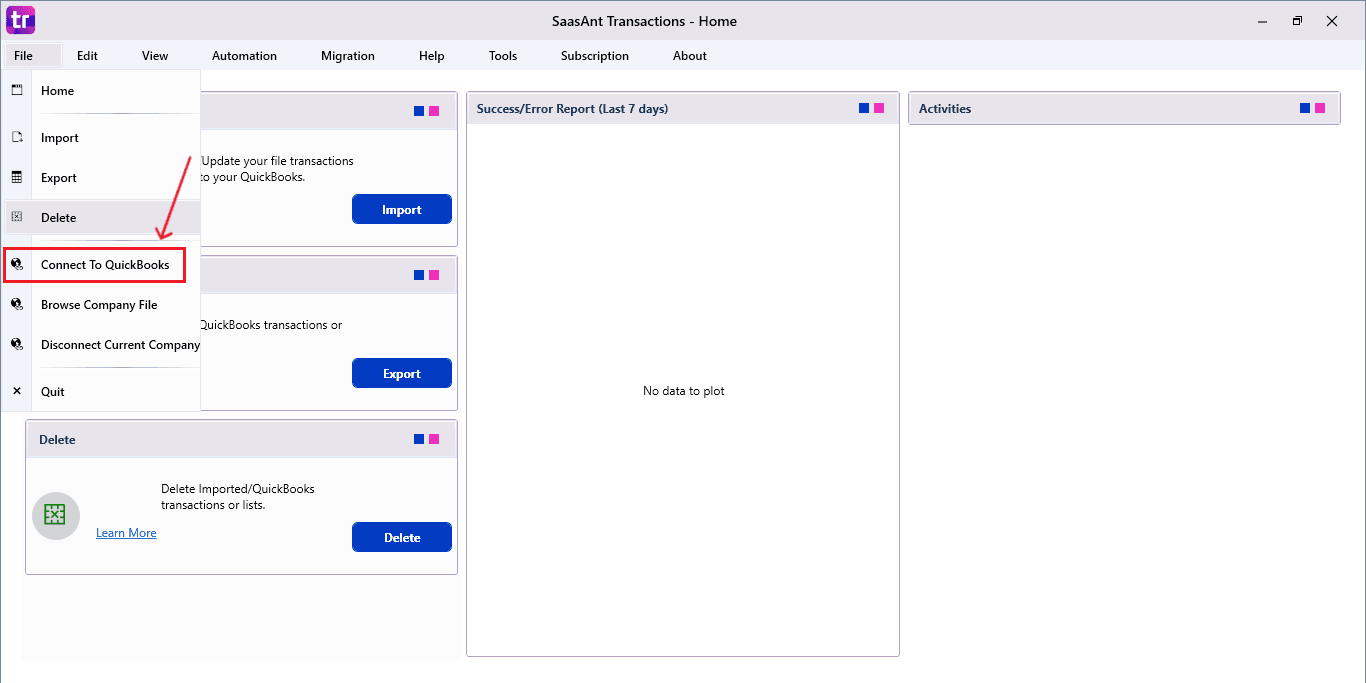
The company is now successfully connected to QuickBooks.
Step 4: Open SaasAnt Transactions
On the SaasAnt dashboard:
On the top left side of the SaasAnt Transactions dashboard, select “Import.”
The dashboard appears as shown in the image below.
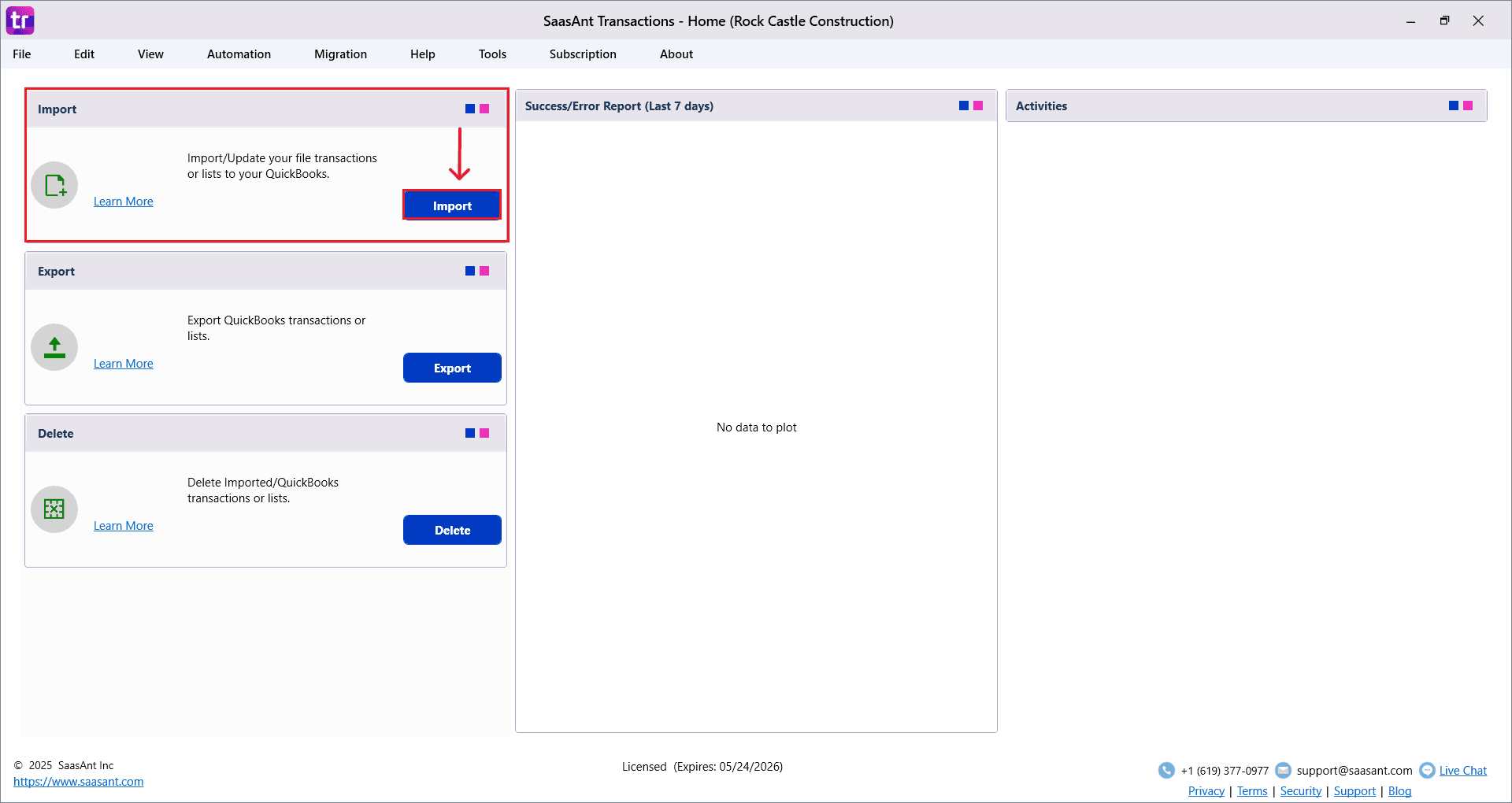
We can import any type of data. Now select “Item Receipts” in the customer transaction section.
Select “Item Receipts” from the SaasAnt Transaction Type dropdown and upload your Excel or CSV file.
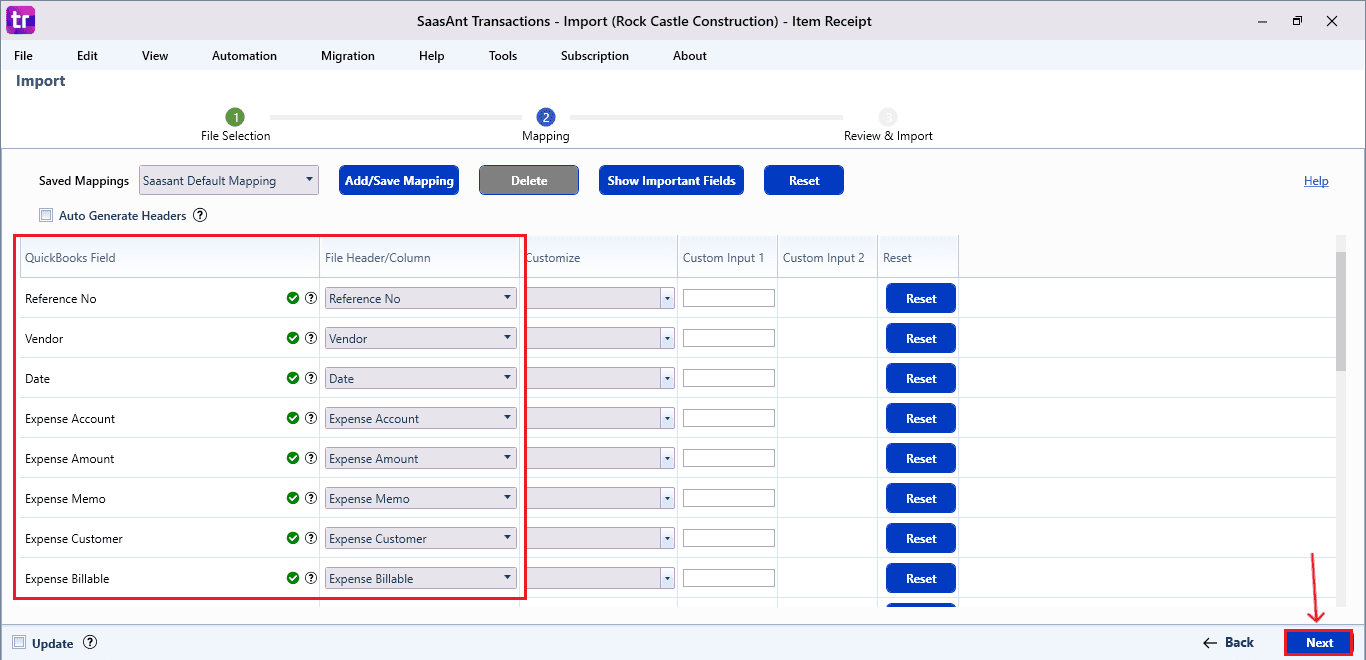
Select “SaasAnt Default Mapping” under the Saved Mapping dropdown.

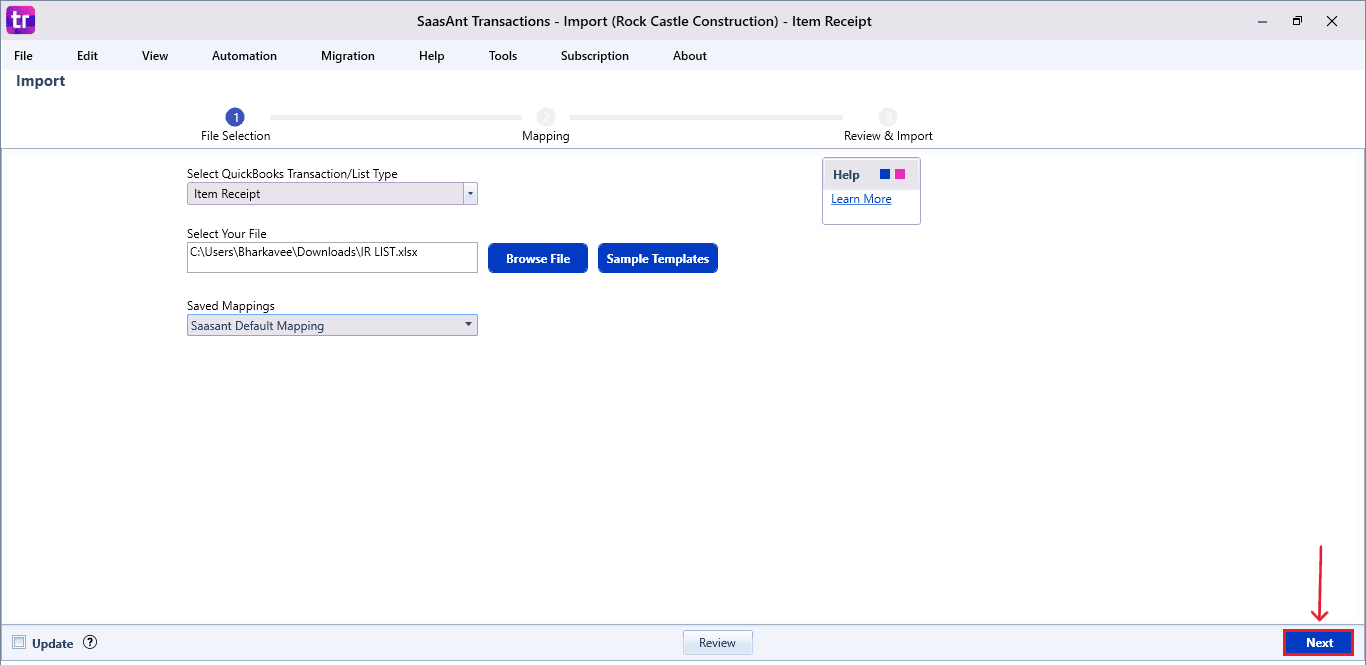
Step 5: Mapping Fields
Ensures the mapping of essential fields, including reference number, vendor, date, etc.
Select “Next” at the bottom right of the dashboard.
Step 6: Review and Import the Data
Click the “Send to QuickBooks” option at the bottom right of the dashboard, as shown in the image below.
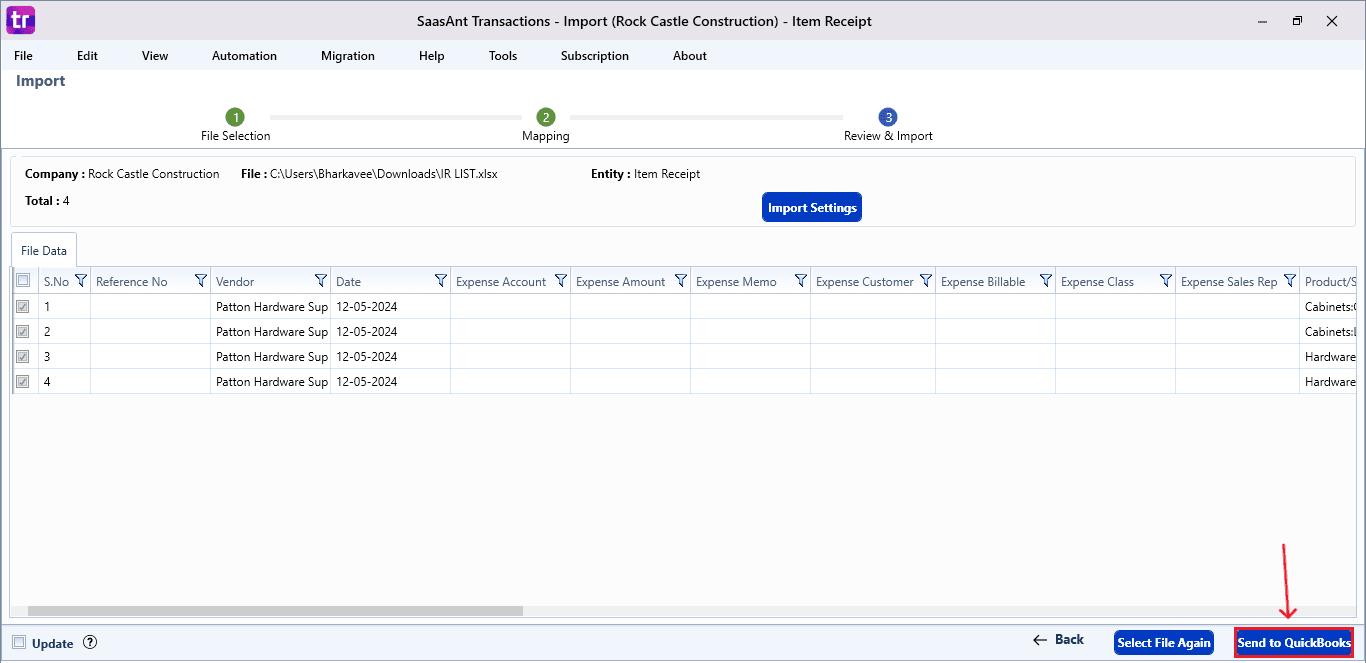
SaasAnt will now push the item receipts into your connected QuickBooks Desktop account.
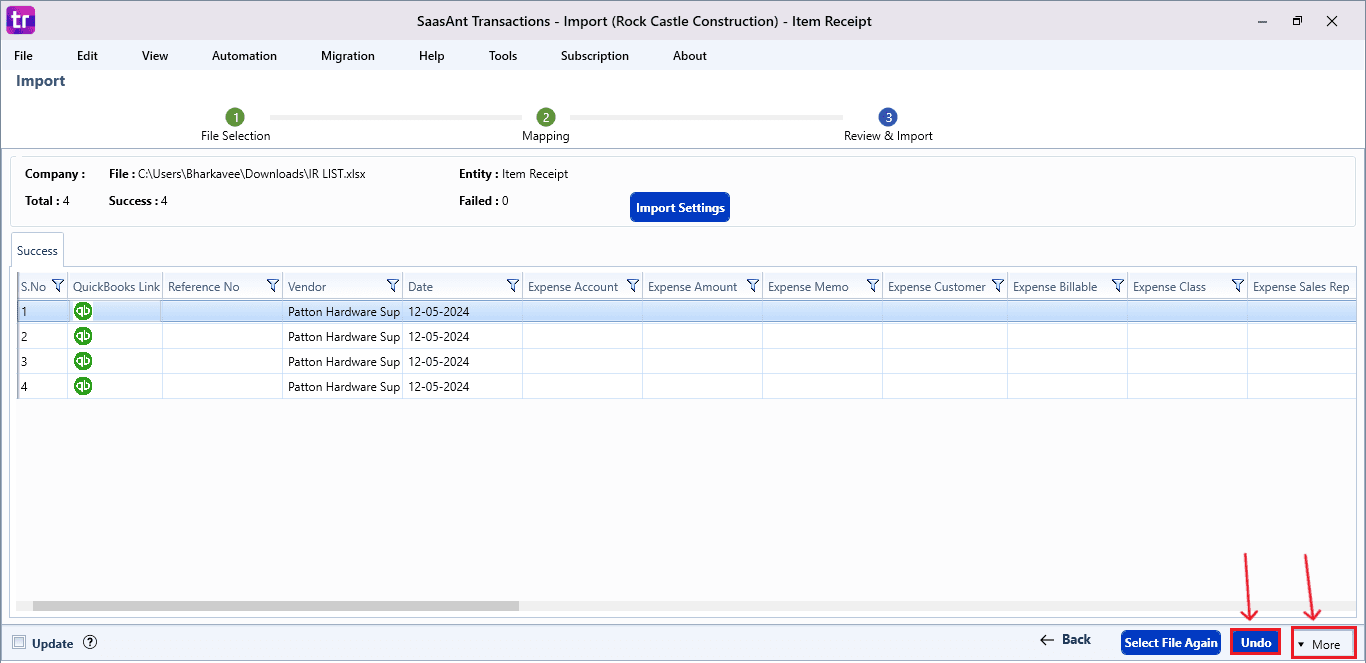
The item receipts are reflected in the dashboard.
At the bottom right, click the “More” dropdown and select the option to download your item receipts for reference.
Additionally, next to the download option, you can see “Undo,” which allows you to roll back your “Item Receipts.”
Step 7: Verify in QuickBooks Desktop
Click the “qb” icon to view the imported item receipts.
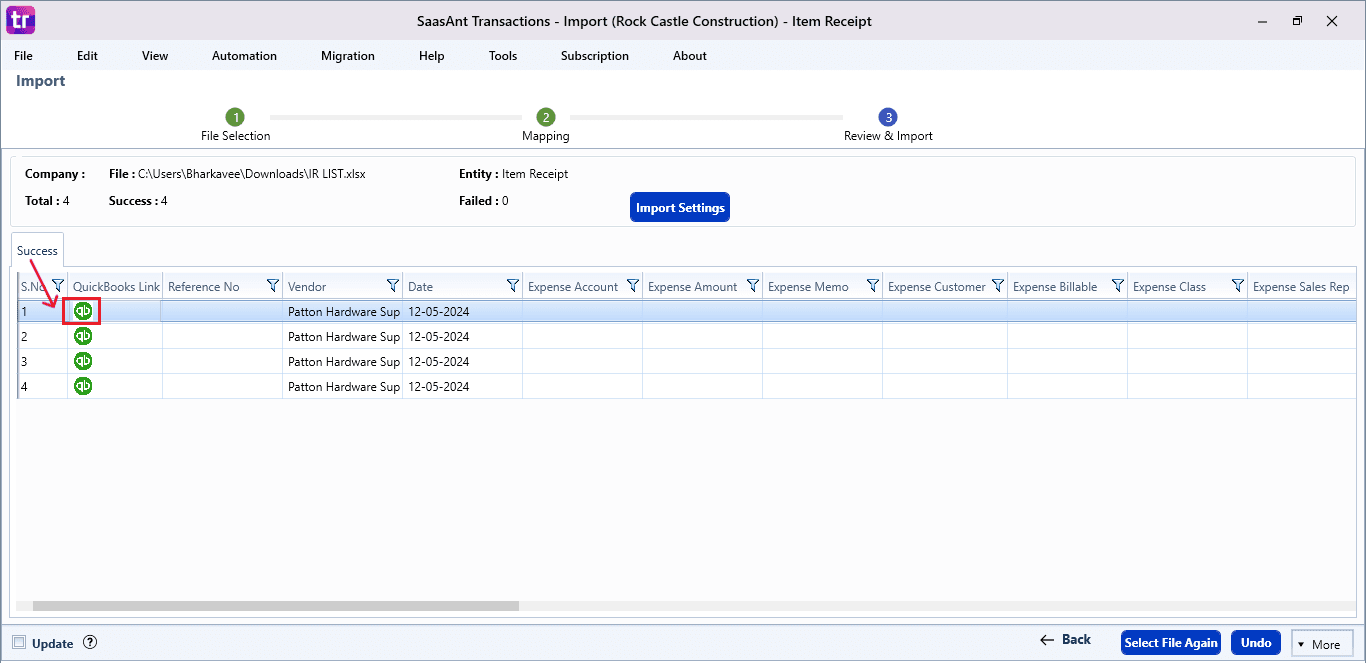
The imported item receipts will be reflected in your QuickBooks Desktop as shown in the image below.
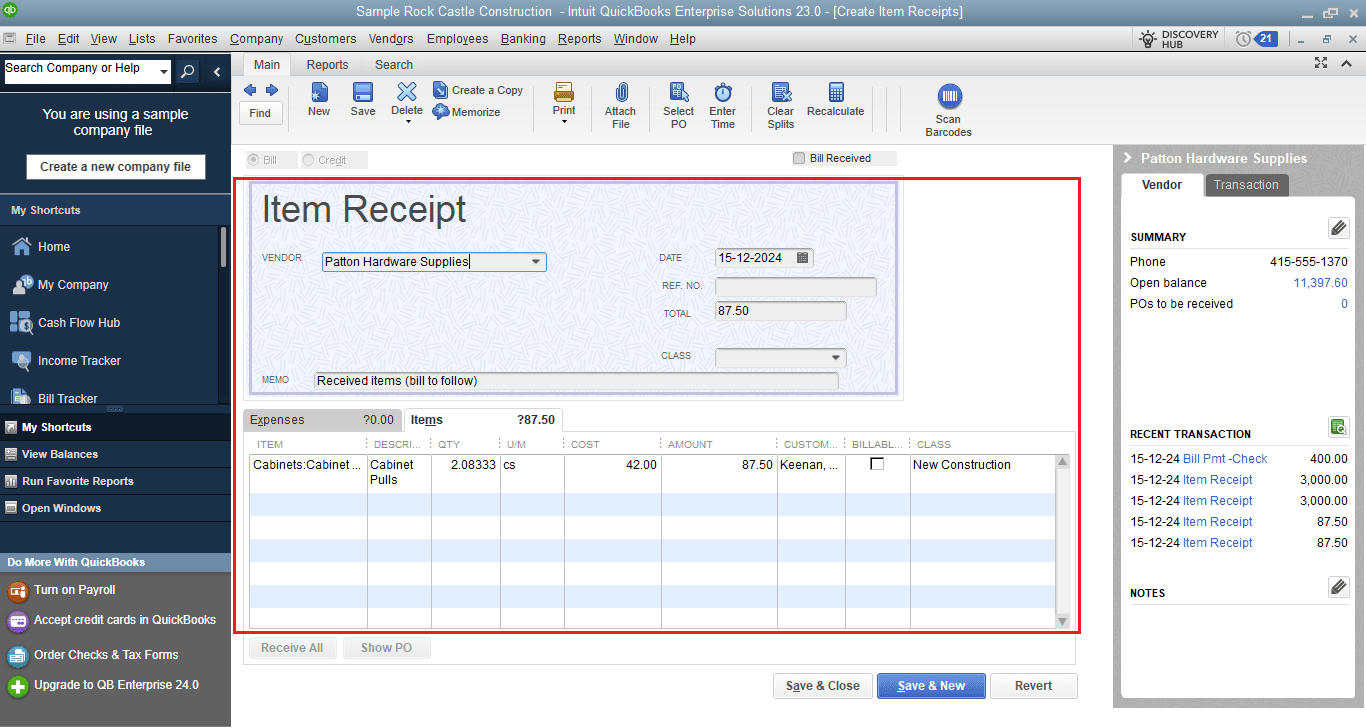
This final step ensures that your data is accurate and appropriately reconciled within QuickBooks.
Types of Data You Can Import into QuickBooks Desktop
QuickBooks Desktop enables the import of various records. With SaasAnt Transactions Desktop, this range increases significantly.
Customer-related data | Vendor-related data | Banking and financial data | Inventory data | Other lists and supporting data |
Invoices | Bills | Deposits | Inventory items | Chart of accounts |
Statement charge | Bill payments | Checks | Inventory adjustments | Service items |
Estimates | Item receipts | Journal entries | Inventory Assembly | Fixed asset |
Receive payments | Item receipts with the bill | Bank statements | Classes and terms | |
Sales order | Credit card charge | Transfer | Customer list | |
Sales receipts | Purchase orders | Credit card statement | Vendor list | |
Credit memos | Credit card credit | Trial balance | Employee | |
Refunds | Location | |||
Sales tax | ||||
Sales tax group |
Why SaasAnt Transactions Desktop Is the Best Choice for Importing Data
Accounting professionals prefer SaasAnt Transactions Desktop as it provides both user-friendliness and significant customization for bulk imports. It exceeds the limited import functionalities of QuickBooks by enabling support for complex data formats and large data sets. Here’s what makes it exceptional:
Bulk Importing: SaasAnt enables users to import thousands of transactions at once. This greatly reduces the time needed compared to manual data entry and ensures large accounting tasks are handled with full consistency and accuracy for every entry.
Flexible File Formats: SaasAnt supports Excel, CSV, and text files. This flexibility allows you to import data from various systems without needing to change file types or modify formats, making your workflow seamless and user-friendly.
Advanced and Flexible Field Mapping: SaasAnt provides accurate and customizable field mapping for all Item Receipts information and retains previous configurations, guaranteeing precise and error-free imports into QuickBooks Desktop without the need for repetitive setup.
Undo Import Instantly: SaasAnt offers a strong Undo feature that quickly deletes imported data, which is ideal for fixing errors or trying out sample imports without changing your real QuickBooks company file.
Smart Error Detection: The system's built-in validations quickly identify any missing fields or mismatched data. This proactive alert system prevents incorrect information from being entered into QuickBooks Desktop, allowing you to maintain accurate accounting records without constant corrections.
Wrap Up
Importing data into QuickBooks Desktop is simple when you use a structured tool like SaasAnt Transactions Desktop. It streamlines complex tasks, minimizes manual labor, and helps you keep your books neat and precise throughout the year.
Whether you have a small business or handle multiple clients, SaasAnt guarantees reliable management of every import. It allows you to work with bulk files, automate routine processes, and maintain consistency in your financial operations. This makes it an essential resource for modern bookkeeping.
If you have inquiries regarding our products, features, trial, or pricing, or if you require a personalized demo, contact our team today. We are ready to help you find the ideal solution for your QuickBooks workflow.
Frequently Asked Questions
1) What types of data can I import into QuickBooks Desktop?
You can use SaasAnt Transactions Desktop to import invoices, bills, payments, customers, vendors, journal entries, deposits, item receipts, and other important accounting entities.
2) Does SaasAnt support Excel and CSV files?
Yes, SaasAnt supports both Excel and CSV formats. This makes it easy to import data, no matter the source system or data structure you are using.
3) Can I undo an import if something goes wrong?
Yes, SaasAnt offers an Undo feature. This allows you to quickly reverse any import, giving you full control and safety in your workflow.
4) Will SaasAnt overwrite existing QuickBooks data?
No. SaasAnt adds new entries without altering the existing QuickBooks data unless you deliberately select the update-specific options intended for modifications.
5) Can I preview data before importing?
Definitely. SaasAnt includes a thorough preview panel that helps you ensure accuracy, address issues, and validate formatting before uploading anything to QuickBooks.
Read Also
How to Import CSV file into QuickBooks Desktop
Bulk Import, Export, Edit, Delete in QuickBooks Desktop using SaasAnt Transactions Desktop
How to Import Transactions into QuickBooks Desktop
How to Import Invoices into QuickBooks Desktop