How to Export Spend Money in Xero
Xero's Spend Money transactions allow you to monitor all outgoing payments, including vendor bills and regular business expenses. Although Xero makes it easy to log these payments, many accountants, bookkeepers, and business owners find it challenging to export this information.
Xero does offer a method to export financial data, but its built-in export options are restricted, particularly for large numbers of transactions.
CSV-Only Format: Xero limits exports to CSV files and does not support Excel or other common formats.
Limited Bulk Export: Exporting substantial amounts of Spend Money transactions presents difficulties, requiring users to process data in smaller groups.
No Undo Capability: If there are errors in an export, Xero lacks a rollback option, requiring users to make manual corrections.
Rigid Templates: The platform allows for very little customisation in field mapping, which makes it difficult to modify data according to unique needs.
Scalability Challenges: Expanding businesses and accounting firms rapidly exceed Xero's limited export functionalities.
In this regard, SaasAnt Transactions for Xero acts as a pivotal innovation. It amplifies the native features of Xero, resulting in faster, more versatile, and highly accurate bulk export processes.
Bulk Export for Vendor Payments
An accounting firm handles vendor payments for several small and medium-sized business clients. At the end of the year, they must export thousands of Spend Money records for auditing and reconciliation. The team spends hours manually exporting and formatting data using only CSV.
With SaasAnt, the firm can filter Spend Money by client, date, and vendor, and then export all the data straight into Excel. This helps avoid errors, saves time, and makes reporting easy.
This blog is suitable for accountants, bookkeepers, and small to medium business owners who use Xero and want quicker, accurate methods to import bulk spend money effectively.
Contents
Bulk Export for Vendor Payments
How to Export Spend Money from Xero
Why Choose SaasAnt Transactions for Xero?
Wrap Up
Frequently Asked Questions
How to Export Spend Money from Xero
Always back up your Xero Online data before you begin. Even though SaasAnt is designed to be safe and reliable, a backup provides an added layer of security. Follow the steps below to get started.
Step 1: Log In to Your Xero Account
Log in to your Xero account.
Step 2: Navigate to the Apps Menu
On the right side of the Xero dashboard, you can see the menu bar with various options.
Select the “Waffle” icon. Click the dropdown and select “Find more apps on Xerp App Store.”
Step 3: Search SaasAnt Transactions
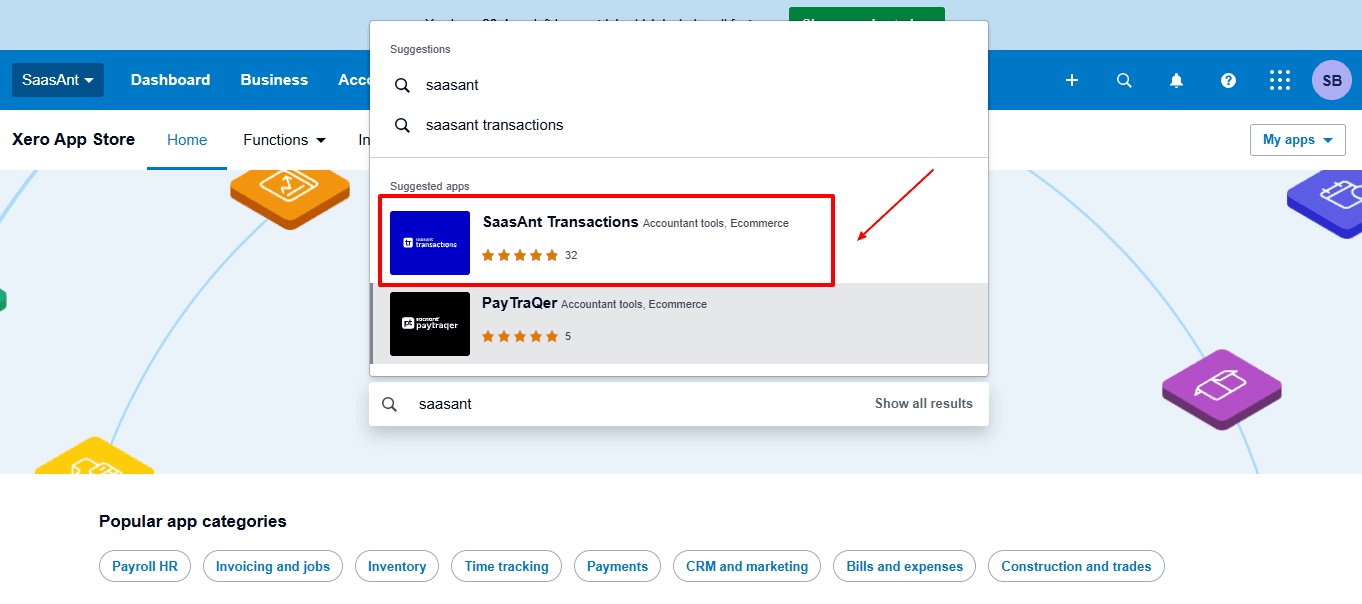
In the search bar, type “SaasAnt Transactions” as shown by the arrow in the image below.
Step 4: Open SaasAnt Transactions
Get the app from the App Store and connect it to Xero.
On the SaasAnt dashboard:
On the left side of the SaasAnt Transactions dashboard, you can see the menu bar with various options.
Select "Download”
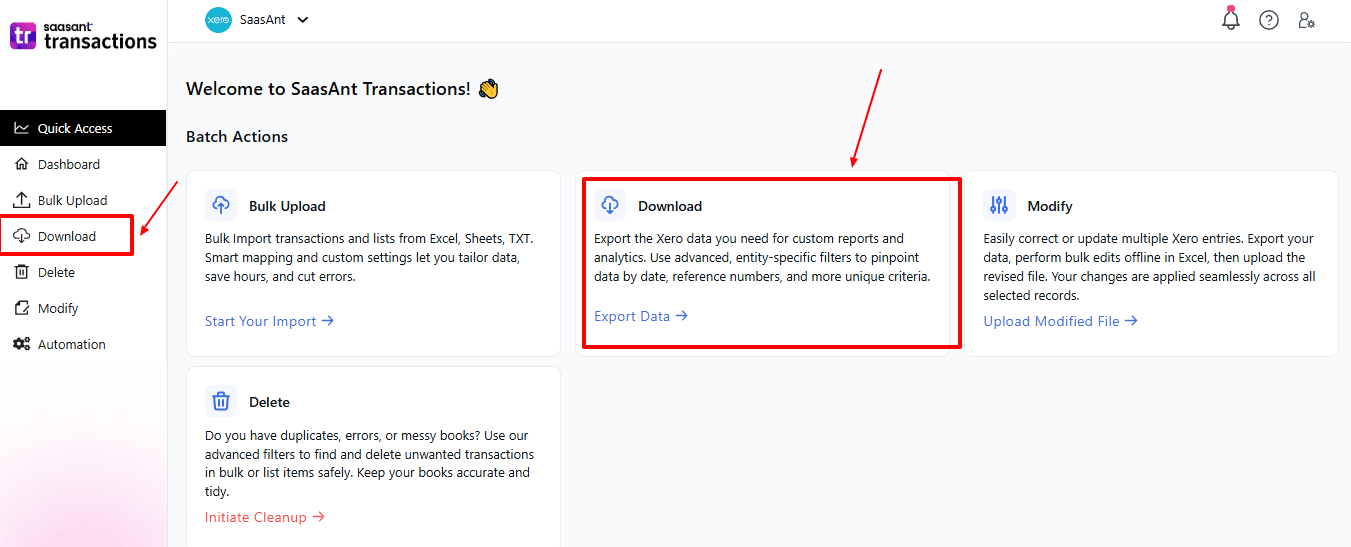
The Dashboard appears as shown in the image below.
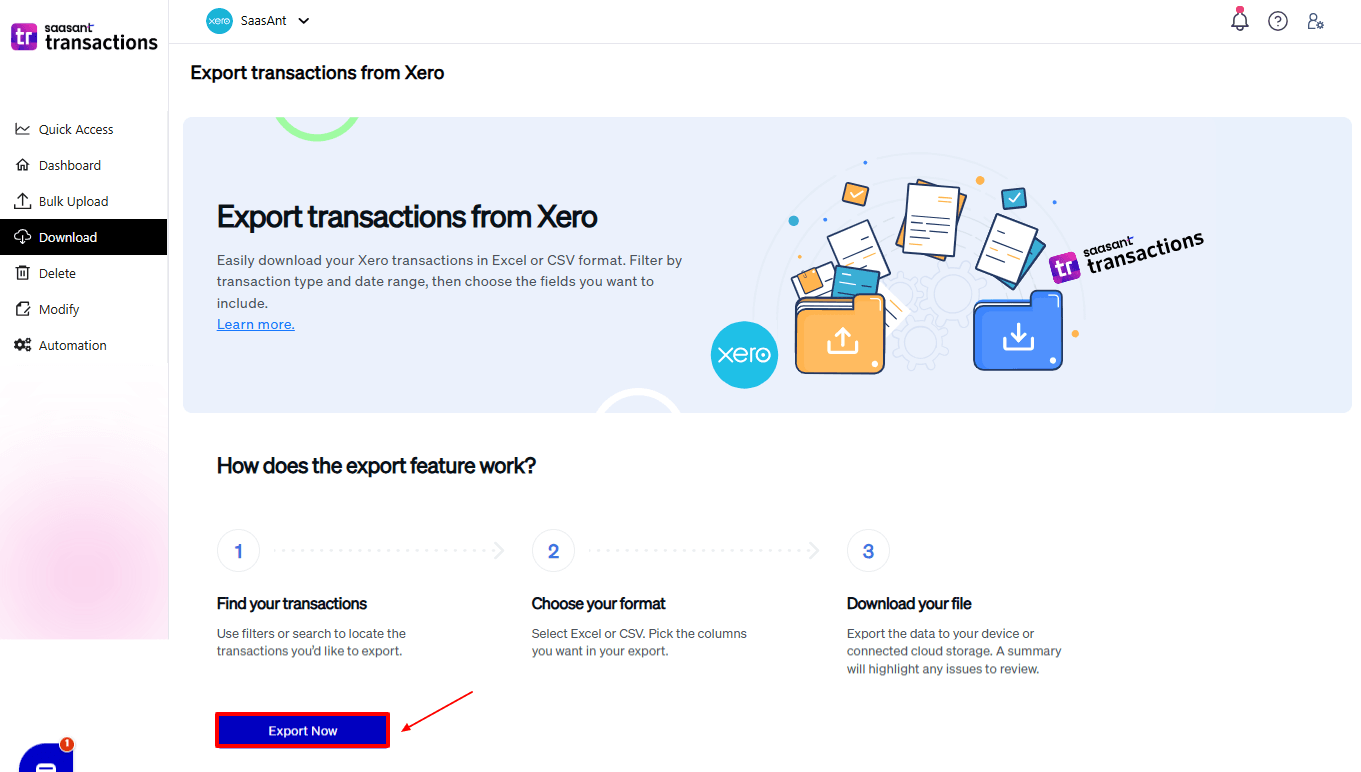
Step 5: Search and Filter Data
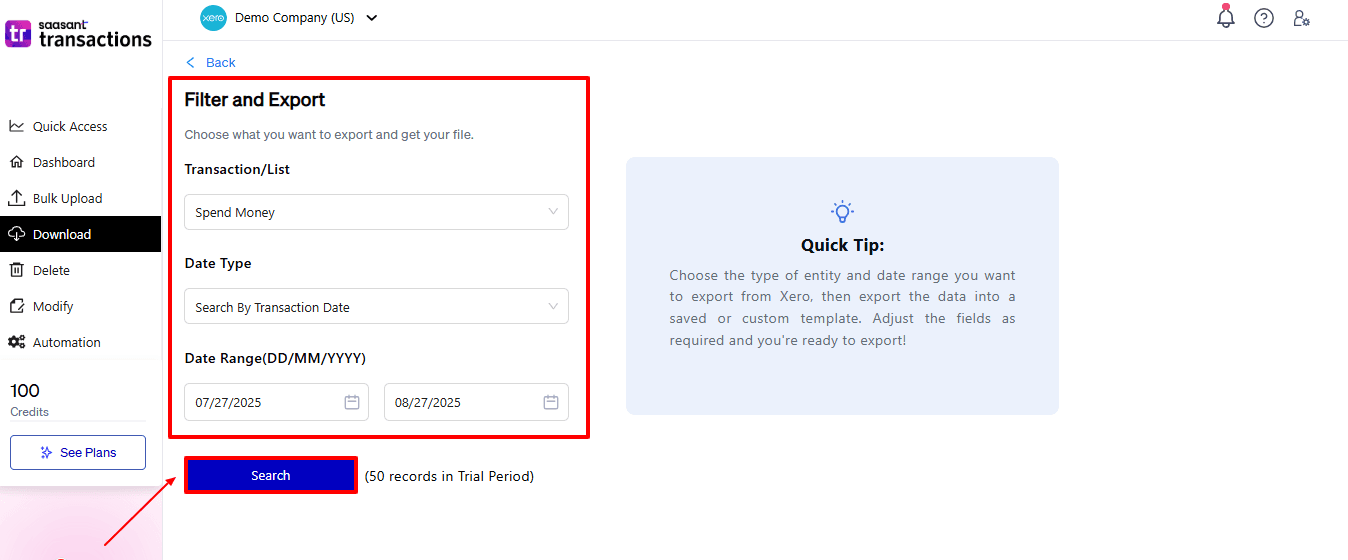
Fill in the required fields, such as transaction type, date type, and date range. We can select the transaction type as “spend money”.
Step 6: Download Data
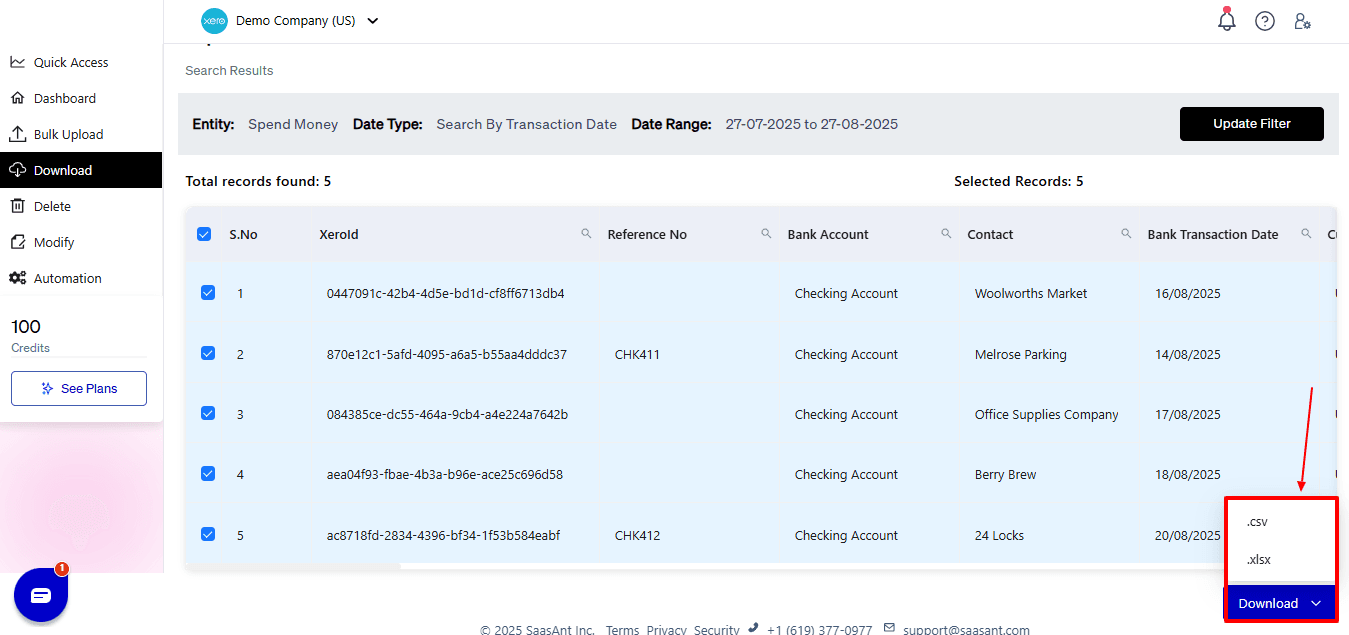
Click “Search,” and the spend money appears in the dashboard. Now select “Download”.
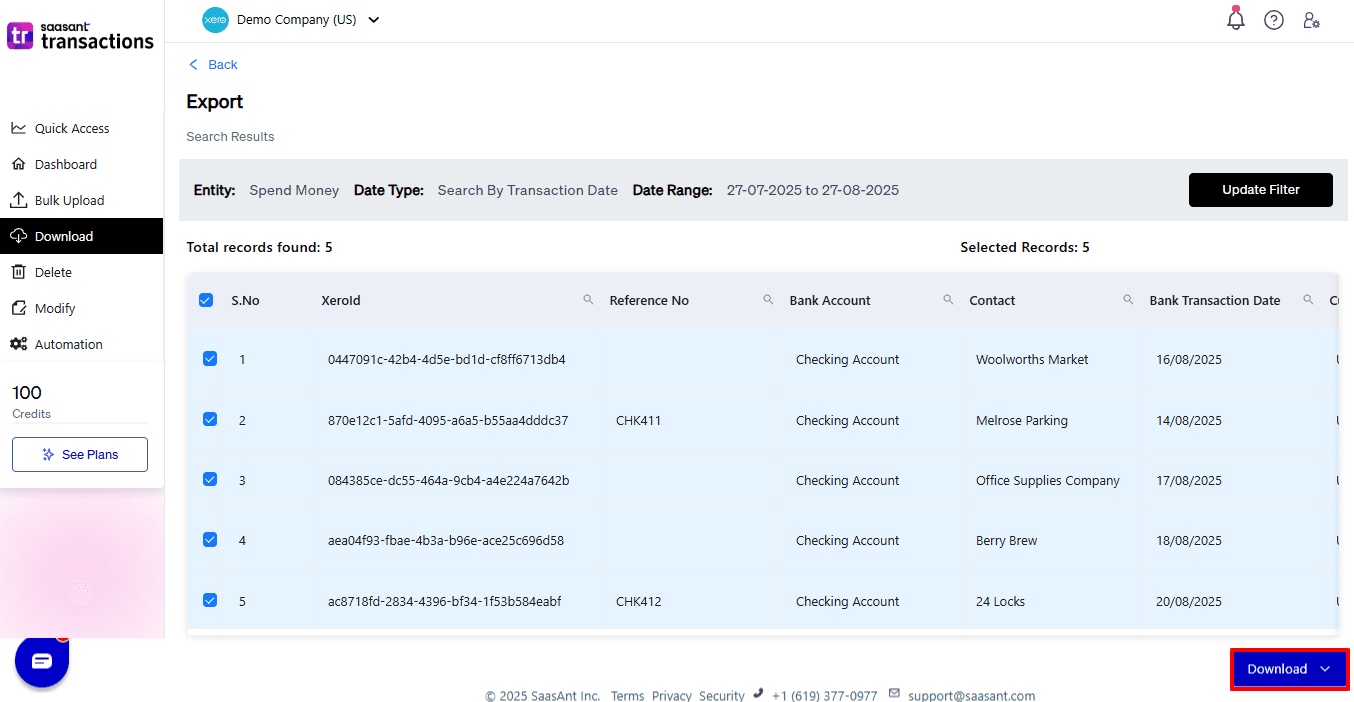
After you choose ‘Download,’ a dropdown will appear with two file format options: CSV and XLSX. Select your preferred format and download your spend money data.
Why Choose SaasAnt Transactions for Xero?
SaasAnt Transactions for Xero is made to address the shortcomings of Xero’s built-in export and import functions, providing companies and accountants with a quicker, more adaptable, and precise workflow. Here’s what makes it unique:
Bulk Export: Manage thousands of Spend Money transactions, invoices, bills, and other records all at once, removing the necessity for repetitive small-batch processing.
Adaptable File Support: Unlike Xero’s limitation to CSV exports, SaasAnt supports CSV, Excel, and text files, allowing users to choose their desired formats.
Custom Field Mapping: Modify how you export data by matching fields to Xero’s layout and setting exact filters for dates, transaction types, or contacts.
One-Click Undo: Mistakes can happen, but with SaasAnt, you can quickly undo any import or export, saving time and eliminating the need for manual corrections.
Automation & Templates: Save templates for export tasks that you do regularly, reducing repetitive work and maintaining consistency across different clients or time spans.
Wrap Up
Using Xero's built-in tools to export Spend Money is suitable for small businesses with a limited number of records. But for accountants, bookkeepers, and SMBs dealing with large volumes, Xero’s CSV-only, limited, and manual process is a bottleneck.
SaasAnt Transactions for Xero improves this workflow by allowing bulk exports, advanced filtering, customizable field mapping, and undo functionality. These features not only save hours of manual work but also ensure accuracy and compliance in financial reporting. By integrating Xero’s accounting features with SaasAnt’s efficiency, businesses and accountants achieve a streamlined, dependable, and scalable solution for effectively managing Spend Money transactions.
With SaasAnt, businesses, accountants and bookkeepers are able to simplify the process of repetitive exports, save time, decrease errors, and easily retrieve payment data.
If you have inquiries regarding our products, features, trial, or pricing, or if you require a personalised demo, contact our team today. We are ready to help you find the ideal solution for your Xero workflow.
Frequently Asked Questions
1) I manage hundreds of monthly expense payments. Can Xero export them all at once?
Xero exports in limited batches, but SaasAnt allows for the export of hundreds or thousands of Spend Money transactions all at once.
2) My business has different tax codes for expenses. Can I filter Spend Money exports by tax code?
Xero does not support this level of filtering. However, SaasAnt includes advanced filters like tax codes, vendors, payment methods, and additional options.
3) We operate multiple bank accounts in Xero. Can I export Spend Money from all accounts together?
In Xero, it is necessary to export each account individually. SaasAnt enables you to extract Spend Money from various accounts into a single consolidated file.
4) I sometimes export the wrong date range. Do I need to redo the whole process?
Yes, that is correct for Xero. On the other hand, with SaasAnt, you can easily re-run the export or even undo/rollback with a single click, which saves time.
5) Can SaasAnt export other transaction types besides spend money?
Yes. SaasAnt supports exporting invoices, bills, credit notes, expenses, and more, giving businesses a complete solution.
Read Also
How to Clean Up Historical Data in Xero
How To Import Data Into Xero
How to Edit Accounts in Xero
How to Edit Customer Credit Note in Xero