How to Export Purchase Order in Xero
Purchase orders are essential for managing supplier relationships, tracking inventory, and controlling business expenses. While Xero lets you create and manage purchase orders, exporting them for reporting, analysis, or reconciliation can be tedious. Manual exports, limited customisation options, and restrictions on bulk handling make it hard for accountants, bookkeepers, and small business owners to obtain accurate data efficiently.
Xero's built-in export tool is effective for small-scale applications. However, as you begin managing larger datasets or require advanced filtering, it can become restrictive. Here's the reason:
No Bulk Exporting: Xero does not allow bulk exporting of purchase orders. Users need to export POs individually, which is inefficient for businesses that handle many supplier transactions every day.
No Bulk Editing: Once exported, Xero does not permit batch editing of purchase order details such as supplier names, references, or accounts, requiring users to change each entry manually outside the system.
Limited File Formats: Xero only supports CSV and PDF exports. Users requiring Excel, IIF, or other advanced formats for reporting or analysis encounter avoidable compatibility issues.
Manual Reconciliation Challenges: Data exported from Xero often omits custom fields, such as supplier codes or memo details, which complicates accurate matching of purchase orders with bills, inventory, or audit records.
No Undo/Rollback Option: After exporting, Xero does not permit undoing or rolling back. If there are mistakes in the exports, you must go through the process again, which raises the chance of duplicate entries or missing data.
These limitations create challenges for accounting firms, bookkeepers, and SMBs in their efforts to manage purchase orders efficiently. This is where SaasAnt Transactions for Xero comes in. With features such as bulk exporting, customizable filters, undo capabilities, and support for different file formats, it changes a time-consuming task into an easy, automated workflow.
Manufacturing Business Exporting Bulk Purchase Orders
A medium-sized manufacturing firm frequently generates hundreds of purchase orders for raw materials and components from various suppliers. The finance department needed to export these POs from Xero for procurement analysis, supplier audits, and budget forecasting.
However, Xero’s built-in export feature only permitted limited data extraction, necessitating manual work and spreadsheet reformatting. With SaasAnt Transactions for Xero, the team can now bulk-export comprehensive purchase order data, including line items, tax information, and delivery addresses, directly into Excel. This saves hours of manual labour, ensures precision, and offers real-time insights into purchasing trends and supplier performance.
This blog is suitable for accountants, bookkeepers, and small- to medium-sized business owners who use Xero and want quicker, more accurate methods to export bulk purchase orders.
Contents
Manufacturing Business Exporting Bulk Purchase Orders
How to Export Purchase Orders from Xero
Why Choose SaasAnt Transactions for Xero?
Wrap Up
Frequently Asked Questions
How to Export Purchase Orders from Xero
Always back up your Xero Online data before you begin. Even though SaasAnt is designed to be safe and reliable, a backup provides an added layer of security. Follow the steps below to get started.
Step 1: Log In to Your Xero Account
Log in to your Xero account.
Step 2: Navigate to the Apps Menu
On the right side of the Xero dashboard, you can see the menu bar with various options.
Select the “Waffle” icon. Click the dropdown and select “Find more apps on Xero App Store.”
Step 3: Search SaasAnt Transactions
In the search bar, type “SaasAnt Transactions” as shown by the arrow in the image below.
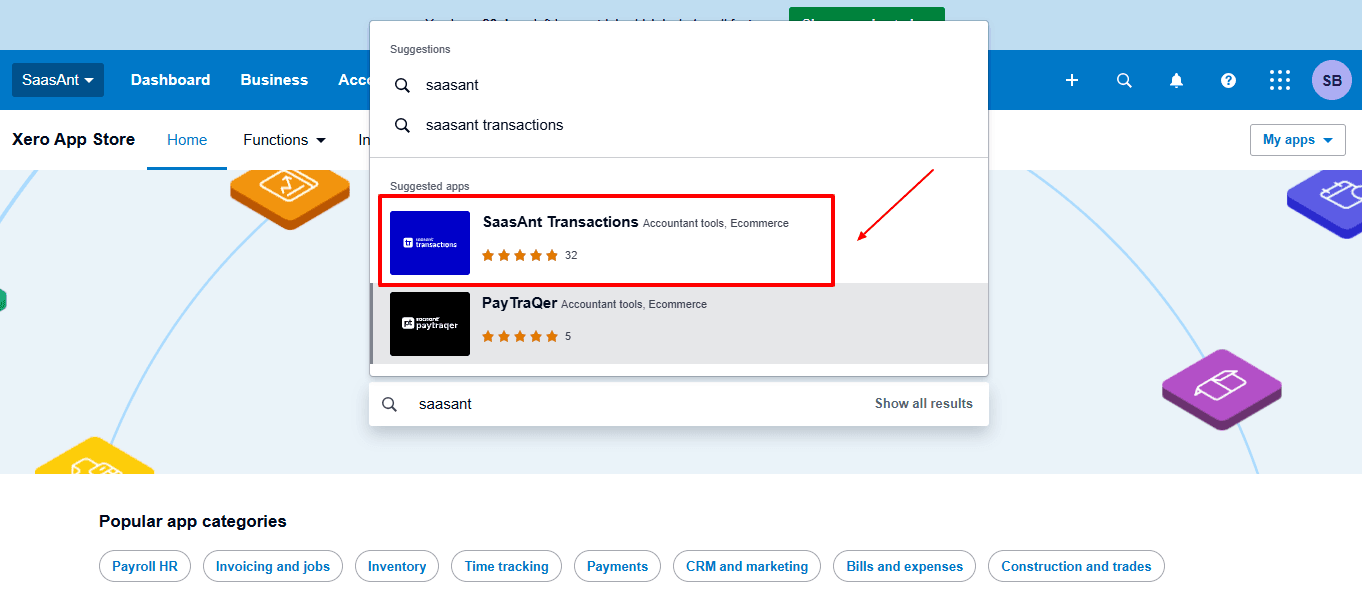
Step 4: Open SaasAnt Transactions
Get the app from the App Store and connect it to Xero.
On the SaasAnt dashboard:
On the left side of the SaasAnt Transactions dashboard, you can see the menu bar with various options.
Select "Download”
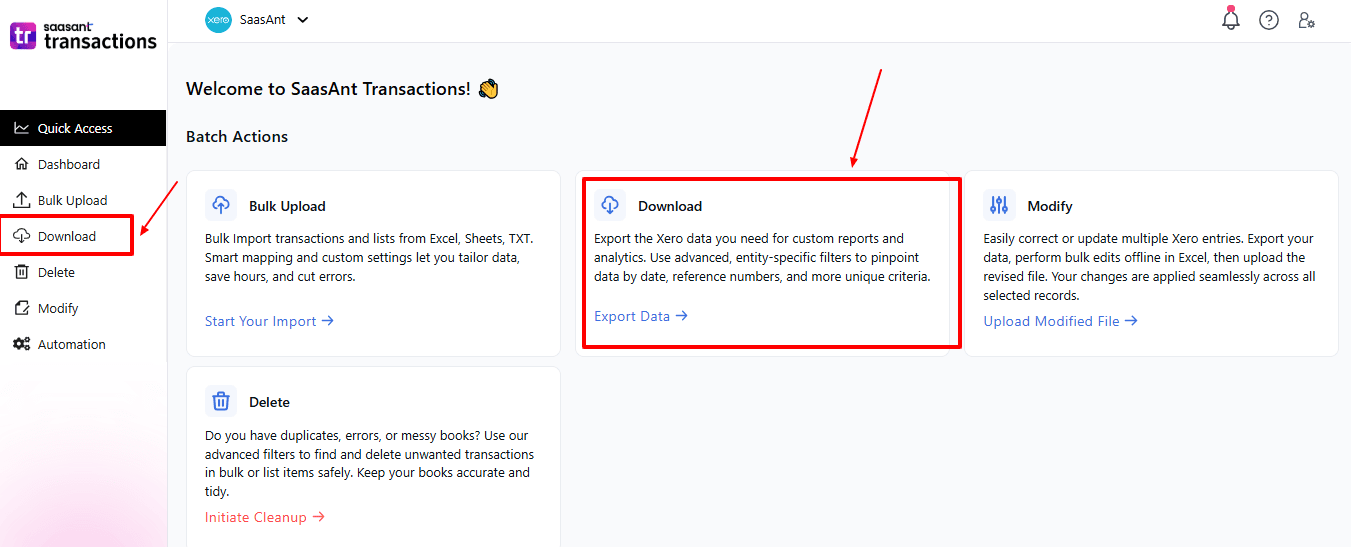
The Dashboard appears as shown in the image below.
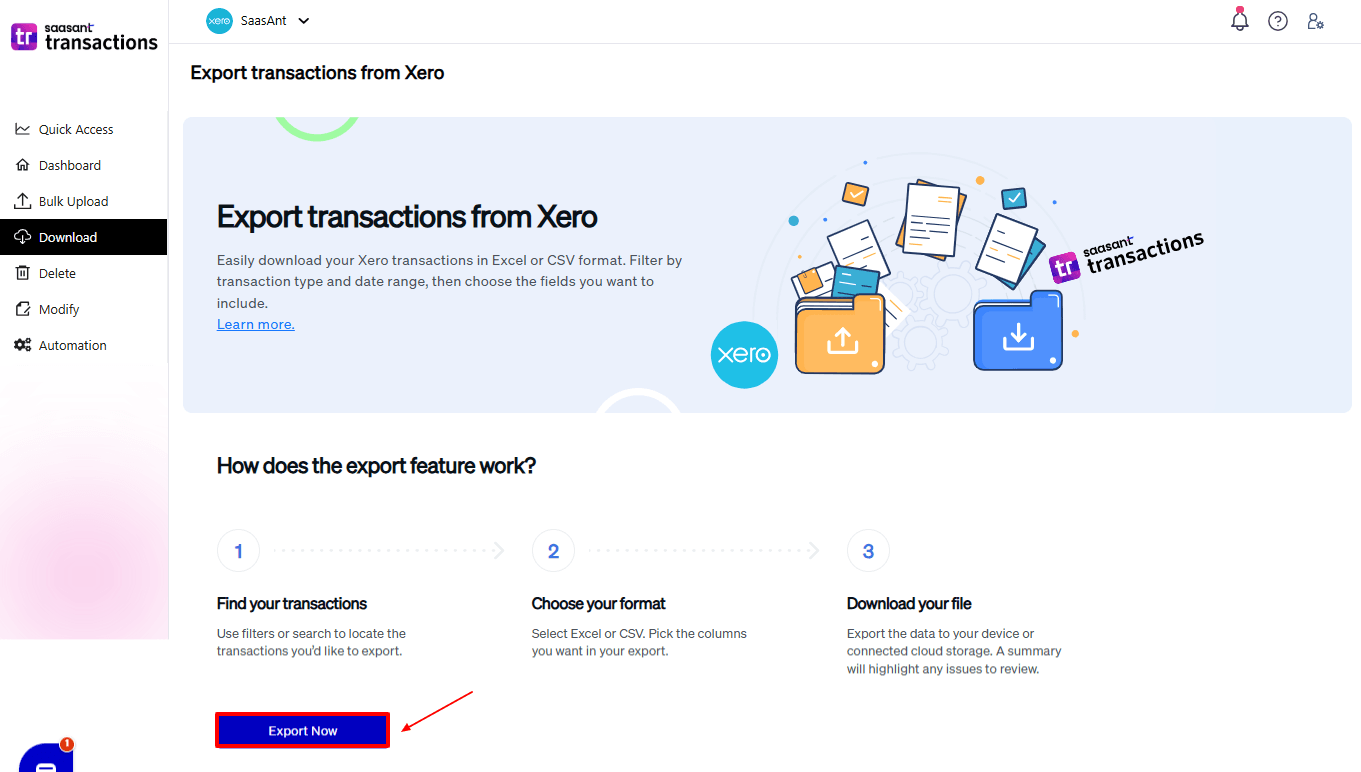
Step 5: Search and Filter Data
Fill in the required fields, such as transaction type, date type, and date range. We can select the transaction type as “Purchase Order”.
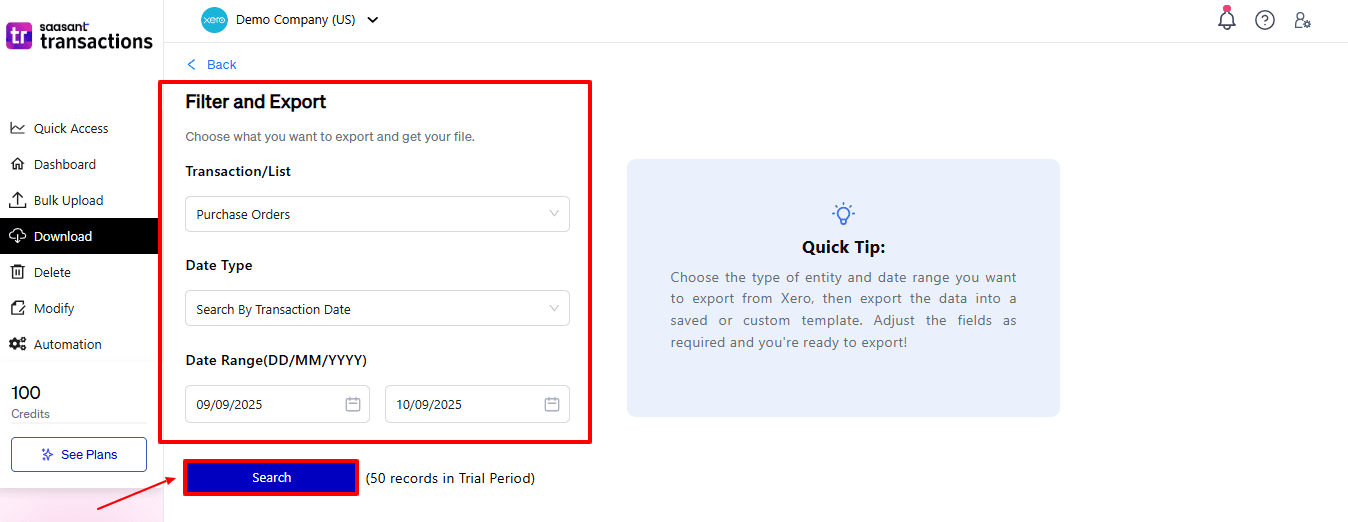
Step 6: Download Data
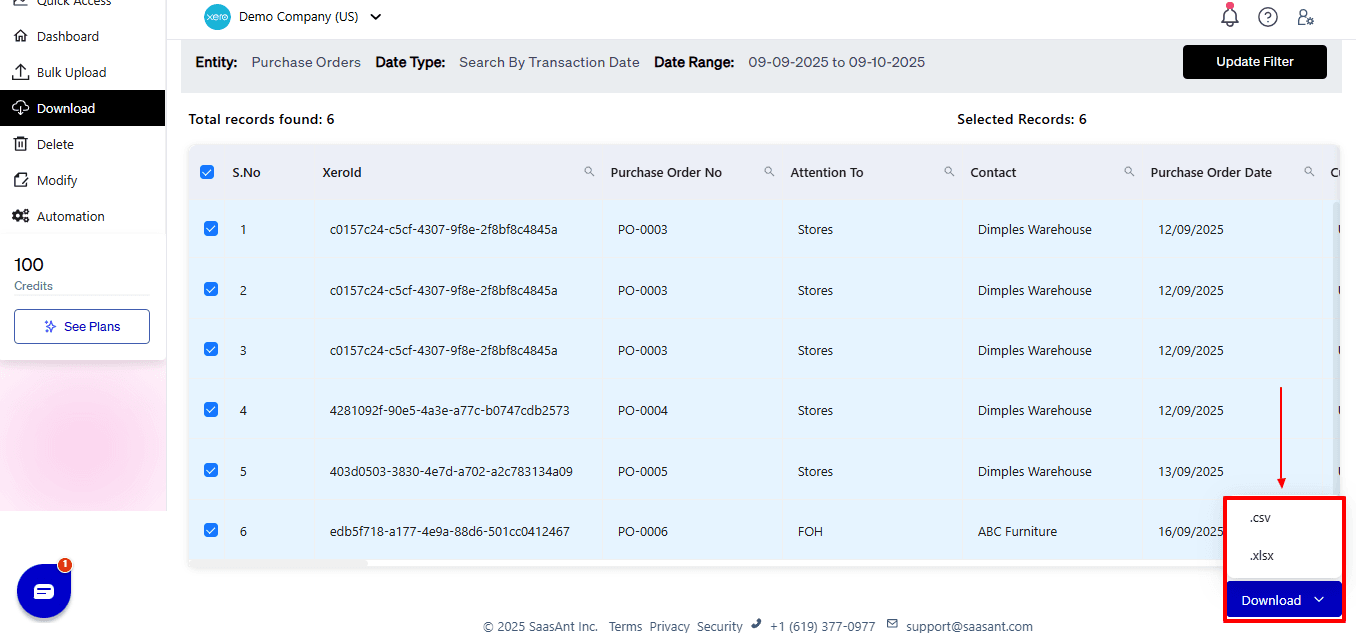
Click “Search,” and the purchase order appears in the dashboard. Now select “Download”.
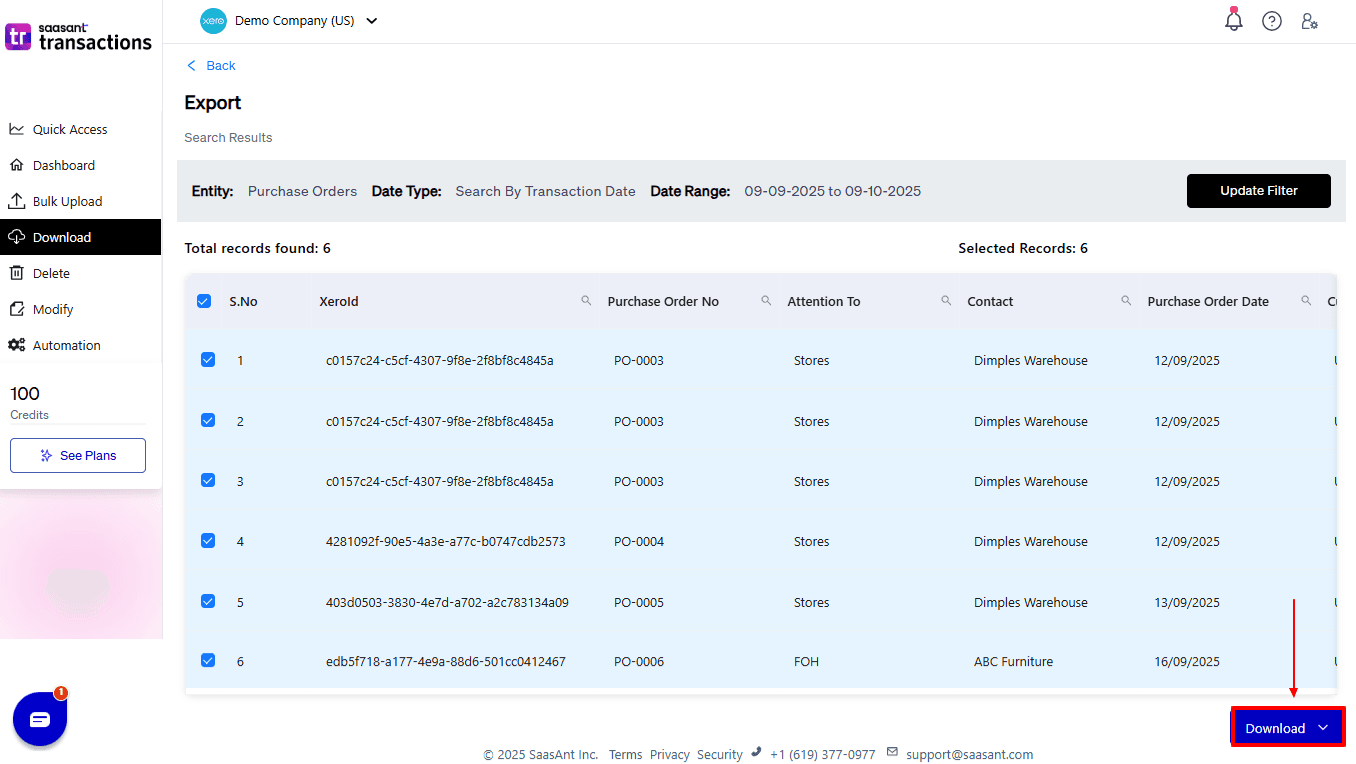
After you choose ‘Download,’ a dropdown will appear with two file format options: CSV and XLSX. Select your preferred format and download your purchase order data.
Why Choose SaasAnt Transactions for Xero?
SaasAnt Transactions overcomes Xero’s shortcomings and enhances the efficiency of the PO export process:
Bulk Export: With SaasAnt, you can export hundreds or thousands of purchase orders in a single go, eliminating the slow, inefficient manual export process in Xero that high-volume businesses often face.
Adaptable File Support: Export in Excel, CSV, or IIF formats, giving flexibility for reporting, connections with other systems, or internal analysis.
Custom Field Mapping: Unlike Xero, SaasAnt allows exporting detailed fields, including line items, tax codes, delivery dates, supplier references, and internal notes, ensuring the data is complete and accurate.
One-Click Undo: If there are errors in an export, SaasAnt lets you reverse it instantly —a feature Xero’s native export workflow lacks completely.
Automation & Templates: Plan regular exports and save personalised templates, enhancing monthly or quarterly reporting and removing repetitive manual work.
Wrap Up
Efficiently exporting purchase orders is essential for accurate accounts payable, reporting, and supplier management. Xero’s built-in export features are limited for high-volume or complex datasets, making manual processes time-consuming and error-prone. SaasAnt Transactions for Xero addresses these gaps with bulk export, customizable field mapping, automation, and one-click undo. Accountants, bookkeepers, and SMB owners can now export hundreds of purchase orders in minutes, validate data, and maintain audit-ready records.
SaasAnt transforms purchase order export from a tedious task into a streamlined, accurate, and scalable process, enhancing workflow efficiency and financial transparency.
If you have inquiries regarding our products, features, trial, or pricing, or if you require a personalised demo, contact our team today. We are ready to help you find the ideal solution for your Xero workflow.
Frequently Asked Questions
1) Can I export all purchase orders for a specific supplier at once?
Yes, with SaasAnt, you can filter by supplier and export all related POs in bulk.
2) Is there a way to undo an export if I make a mistake?
Yes, SaasAnt offers a one-click undo option to reverse any export actions.
3) Does SaasAnt validate purchase order data before export?
It verifies for any missing fields, wrong tax codes, and duplicate references to avoid mistakes.
4) Can I export purchase orders in formats other than CSV or PDF?
Yes, SaasAnt provides export options in CSV, XLSX, and IIF formats to ensure compatibility with reporting or accounting software.
5) Can I automate recurring purchase order exports?
With SaasAnt’s Automation plan, you can set up regular exports of purchase orders on a weekly, monthly, or quarterly basis, helping maintain consistent reporting and saving you time.
Read Also
How to Change Tax Rate on Invoice in Xero
How to Create a Purchase Order in Xero
How to Edit Accounts in Xero
How to Edit Contacts in Xero