How to Export Deposits from QuickBooks Desktop
Exporting deposits from QuickBooks Desktop is an essential function for accountants, bookkeepers, firms, and small business owners who depend significantly on precise financial reporting, audit preparation, forecasting, and migration processes. Although QuickBooks Desktop supports some data extraction, exporting transaction-level details, particularly in bulk, can be tedious, time-consuming, and prone to inconsistencies when done manually.
This is where SaasAnt Transactions Desktop becomes extremely valuable. With its advanced export automation features, flexibility, and precision, SaasAnt enables businesses to extract deposit data effortlessly and utilize it for audits, reconciliations, analytics, cash-flow management, and system migrations, all without any manual difficulties.
This guide is perfectly suited for accountants, bookkeepers, finance teams, and small businesses that require quick and precise bulk Deposit exports from QuickBooks Desktop for audits, reporting, reconciliations, migrations, and enhancing automated workflow efficiency.
Also Read: How to Export Data from QuickBooks Desktop to Excel
How to Export Deposits from QuickBooks Desktop: Step-By-Step Guide
Follow the steps below to export the deposits in QuickBooks Desktop using SaasAnt Transactions Desktop.
Step 1: Install and Connect SaasAnt Transactions
Download the latest SaasAnt Transactions Desktop version.
Run SaasAntTransactions-Setup.exe as an administrator.
Accept the license agreement and complete the installation.
Open the app, go to Subscription > Register.
Enter the license key from your confirmation email.
Keep your internet connection active.
Step 2: Launch SaasAnt Transactions Desktop
Start by opening the SaasAnt Transactions Desktop app on your system.
Ensure that QuickBooks Desktop is open and connected to your company file before proceeding.
Step 3: Connect to QuickBooks Desktop
To access, you need to connect the SaasAnt Transactions Desktop with QuickBooks Desktop. Here's how:
Go to the ‘File’ menu in the top-left corner of SaasAnt Transactions Desktop.
Click ‘Connect to QuickBooks’ from the dropdown.
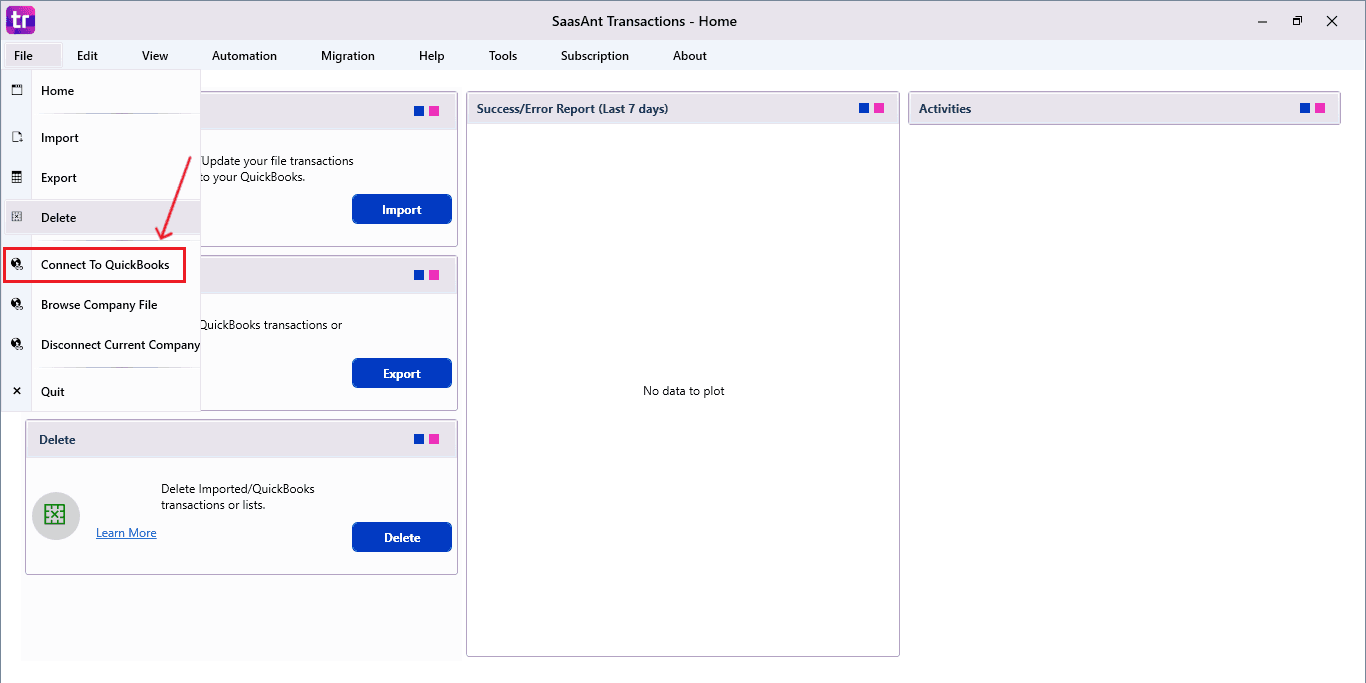
The company is now successfully connected to QuickBooks.
Step 4: Open SaasAnt Transactions
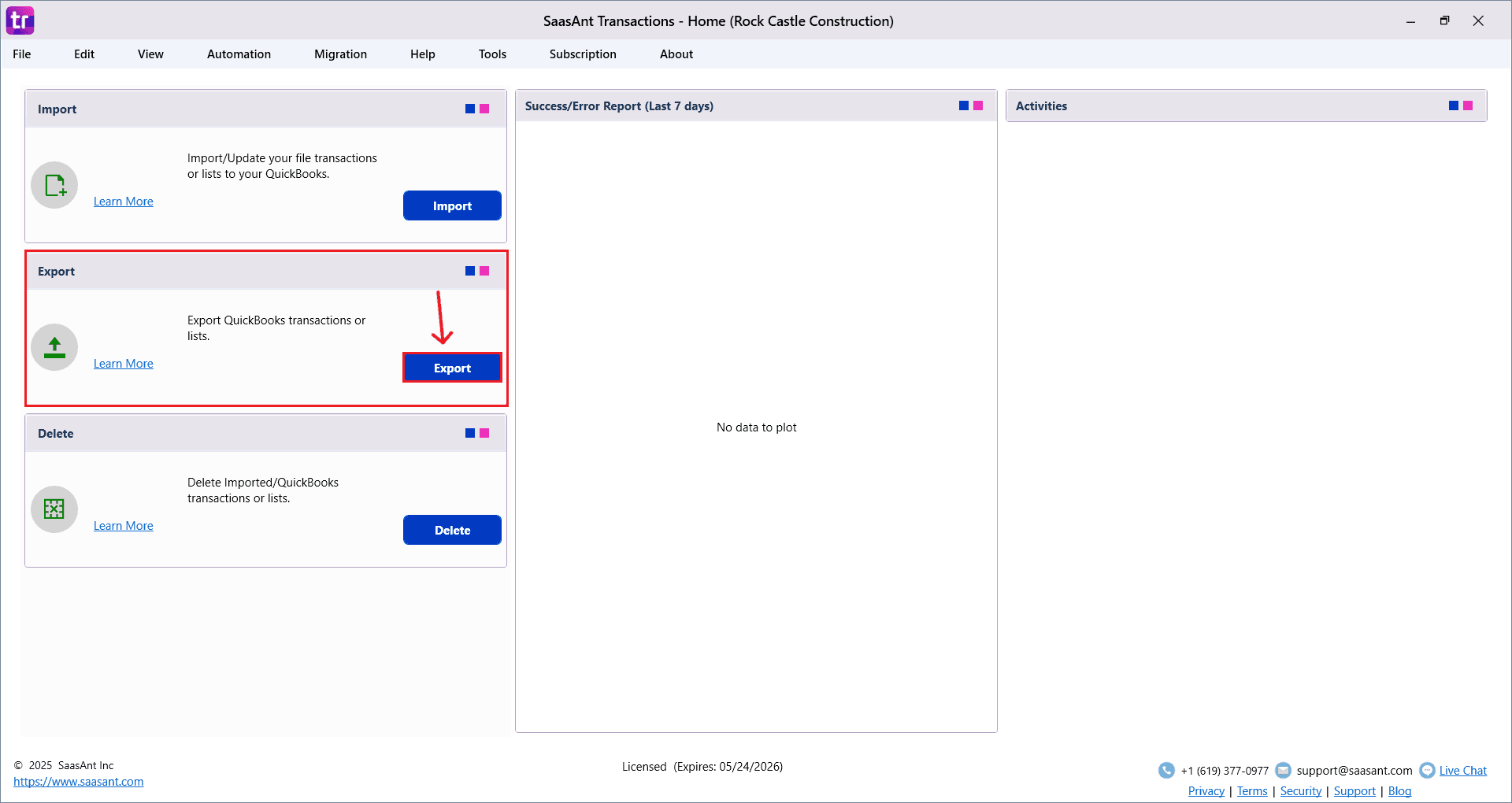
On the SaasAnt dashboard:
On the top-left of the SaasAnt Transactions dashboard, you can see various options. Select “Export.”
Step 5: Search and Download Deposits
Fill in the required fields, such as QuickBooks Type, Date Type, From Date, and To Date.
You can also choose Export template from the options available in the dropdown menu.
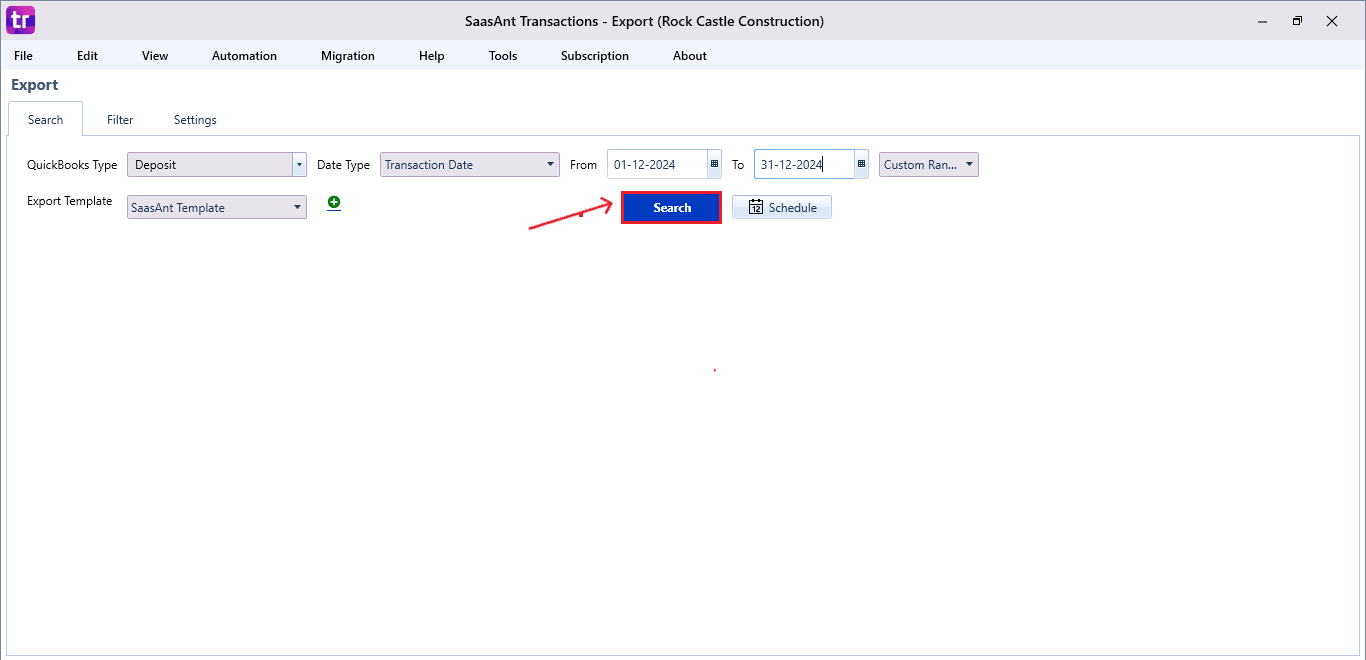
Click “Search,” and the Deposits appear in the dashboard. Now select “Download”.
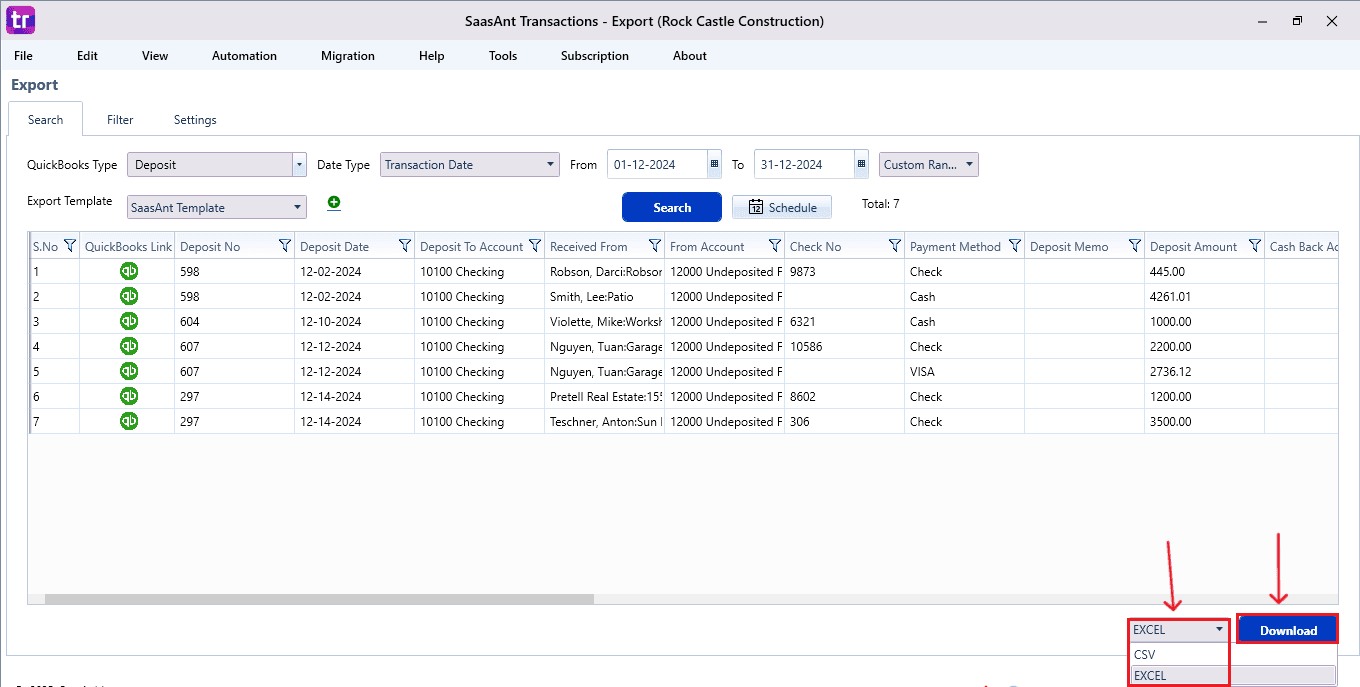
The file can be downloaded in both Excel and CSV formats. Choose the file format that best suits your requirements.
Step 6: Export the Data
Choose the file location when the pop-up appears.
Save the exported Deposits to your system.
Step 7: Exported Deposits Data
Your exported deposit data looks like this in your system.

Step 8: Schedule Export (Optional)
There is another option, “Schedule,” where you can schedule the export of your data.

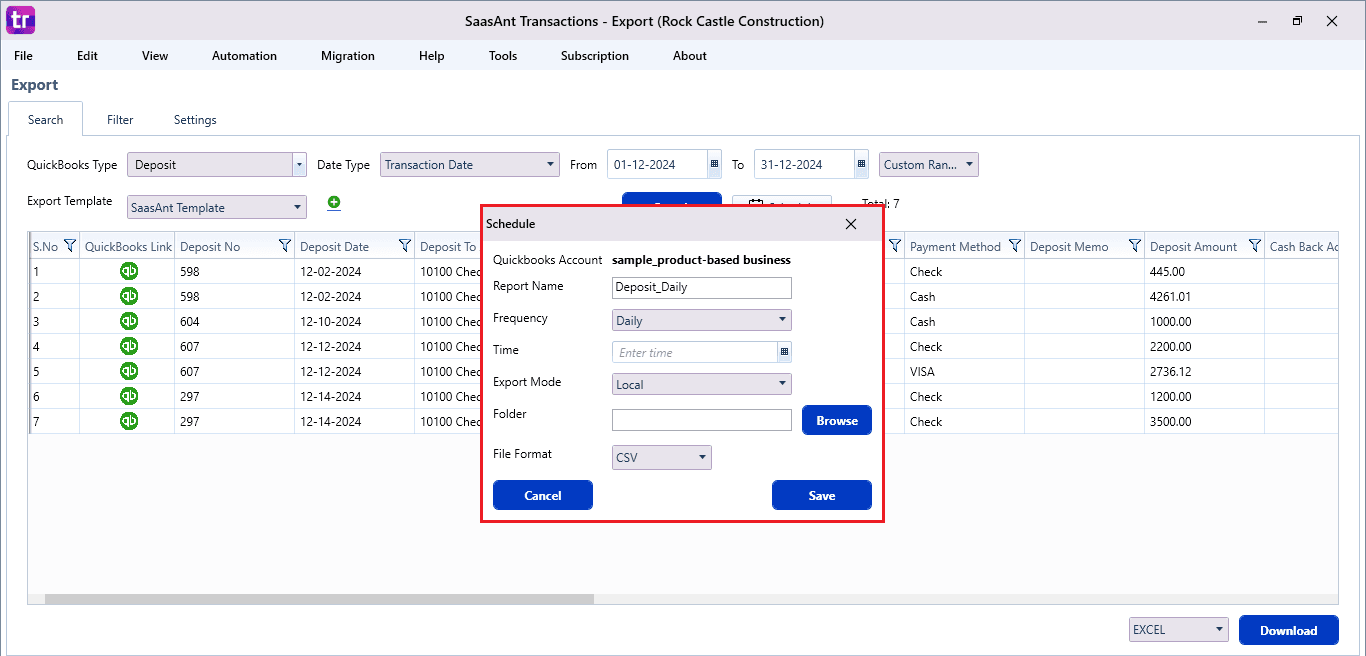
Fill in the required fields, such as report name, frequency (daily, weekly, or monthly), time, export mode (local, server, or email), folder location, and file format.
Once all fields are filled, click “Save”. Your Deposits (or any selected data) will now be exported at the scheduled time and location.
Also Read: How to Export Journal Entries from QuickBooks Desktop
Why SaasAnt Transactions Desktop Is the Best for Exporting Deposits
Exporting deposits from QuickBooks Desktop demands accuracy, flexibility, and swiftness qualities that standard tools often lack. SaasAnt Transactions Desktop addresses these issues with strong automation, tailored exports, and dependable performance made for accountants and expanding businesses.
Full Access to Every Field: SaasAnt collects thorough Deposit information, which includes headers, line items, customers, classes, accounts, and custom fields, delivering greater insight than typical QuickBooks reports and efficiently supporting audits, reconciliations, and financial assessments.
Bulk Export: SaasAnt makes high-volume exports more manageable by processing thousands of deposit transactions seamlessly, without any system lag. It provides reliable output, even while dealing with multiple years of historical financial data.
Reusable Templates for Recurring Exports: You are able to save tailored templates that maintain your preferred field mappings and filters, thus enabling consistent and repeatable Deposit exports for month-end closings, audits, compliance reporting, and regular accounting tasks without the requirement for repeated setup.
Multiple Export Options: SaasAnt provides support for Excel, CSV, and IIF formats, allowing businesses to opt for the optimal output for reporting, analytics, migrations, or system integrations without requiring additional formatting, conversions, or manual adjustments subsequently.
Automates Export Tasks with Scheduling: The scheduling functionality automates the export of deposits on a daily, weekly, or monthly basis, sending files directly to specified folders or email addresses, thereby ensuring consistent and timely reporting for ongoing workflows and financial oversight requirements.
Wrap Up
Exporting deposits from QuickBooks Desktop is made simple, precise, and entirely customizable with SaasAnt Transactions Desktop. Whether you require weekly insights, audit-ready reports, cash-flow analysis, or comprehensive migration data, SaasAnt guarantees that every field is extracted clearly and effectively. Featuring bulk processing, templates, automation, and various export formats, it serves as the perfect solution for accountants, bookkeepers, and expanding businesses aiming to enhance their financial workflows.
If you have inquiries regarding our products, features, trial, or pricing, or if you require a personalized demo, contact our team today. We are ready to help you find the ideal solution for your QuickBooks workflow.
Frequently Asked Questions
1) How many Deposits can I export at one time?
There is no effective limit. SaasAnt is capable of managing thousands of Deposit transactions in one export session without compromising QuickBooks performance.
2) What file formats does SaasAnt allow for exporting Deposits?
You have the option to export Deposit data in Excel, CSV, and IIF formats. This simplifies the process of integrating with reporting tools, financial models, and third-party systems.
3) Can I customize which Deposit fields appear in my exported file?
Certainly. SaasAnt enables you to create and store export templates, allowing you to select or omit particular fields according to your reporting requirements.
4) Can I automate daily or weekly Deposit exports?
While QuickBooks Desktop lacks scheduling capabilities, SaasAnt’s effective scheduler automates the export of deposits on a daily, weekly, or monthly schedule, ensuring that files are delivered automatically without requiring manual effort for reporting.
5) Is there a way to export Deposits for multiple customers at once?
Yes, SaasAnt allows for bulk filtering and exporting across different customers, locations, classes, and accounts without requiring any manual sorting.
Read Also
How to Delete a Deposit in QuickBooks Desktop
How to Edit a Deposit in QuickBooks Desktop
How to Export Data from QuickBooks Desktop to Excel
How to Edit Transactions in QuickBooks Desktop