How to Export Check in QuickBooks Desktop
Exporting checks from QuickBooks Desktop is frequently essential for audits, financial assessments, reporting, external evaluations, or transferring data between tools and teams.
However, the native export functions of QuickBooks Desktop are somewhat restricted, particularly when it comes to processing large amounts of check data. This is where SaasAnt Transactions Desktop proves to be an invaluable resource. Tailored specifically for accountants, bookkeepers, and rapidly expanding businesses, SaasAnt simplifies and automates the export process to provide accurate, organized, and analysis-ready files.
Whether you require customized reports, bulk exports, or scheduled summaries of checks, SaasAnt guarantees speed, precision, and total flexibility. This step-by-step guide will assist you in exporting check data effortlessly.
This blog is perfect for accountants, bookkeepers, and expanding businesses requiring precise, customizable, and bulk check exports from QuickBooks Desktop for audits, reporting, migration, compliance, or financial analysis with reduced manual effort.
How to Export Check from QuickBooks Desktop: Step-By-Step Guide
Follow the steps below to export the Check in QuickBooks Desktop using the SaasAnt Transactions Desktop.
Step 1: Install and Connect SaasAnt Transactions
Download the latest SaasAnt Transactions Desktop version.
Run SaasAntTransactions-Setup.exe as an administrator.
Accept the license agreement and complete the installation.
Open the app, go to Subscription > Register.
Enter the license key from your confirmation email.
Keep your internet connection active.
Step 2: Launch SaasAnt Transactions Desktop
Start by opening the SaasAnt Transactions Desktop app on your system.
Ensure that QuickBooks Desktop is open and connected to your company file before proceeding.
Step 3: Connect to QuickBooks Desktop
To access, you need to connect the SaasAnt Transactions Desktop with QuickBooks Desktop. Here's how:
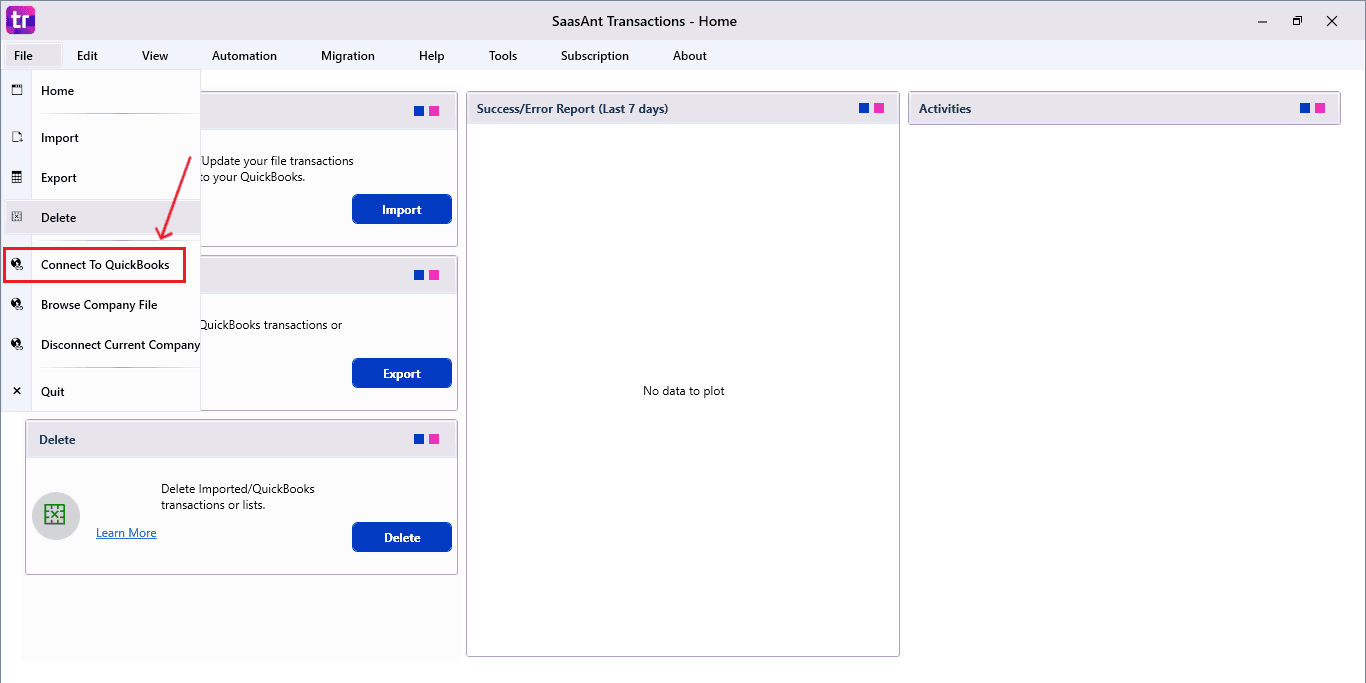
Go to the ‘File’ menu in the top-left corner of SaasAnt Transactions Desktop.
Click ‘Connect to QuickBooks’ from the dropdown.
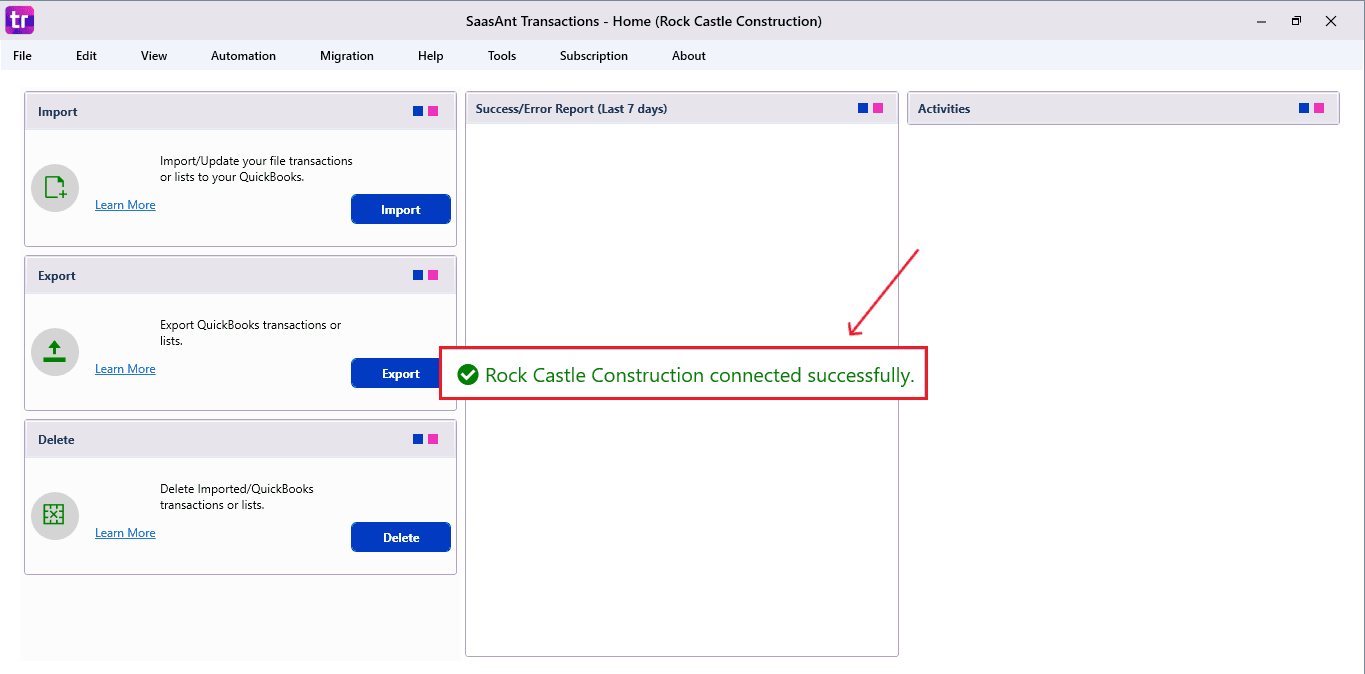
The company is now successfully connected to QuickBooks.
Step 4: Open SaasAnt Transactions
On the SaasAnt dashboard:
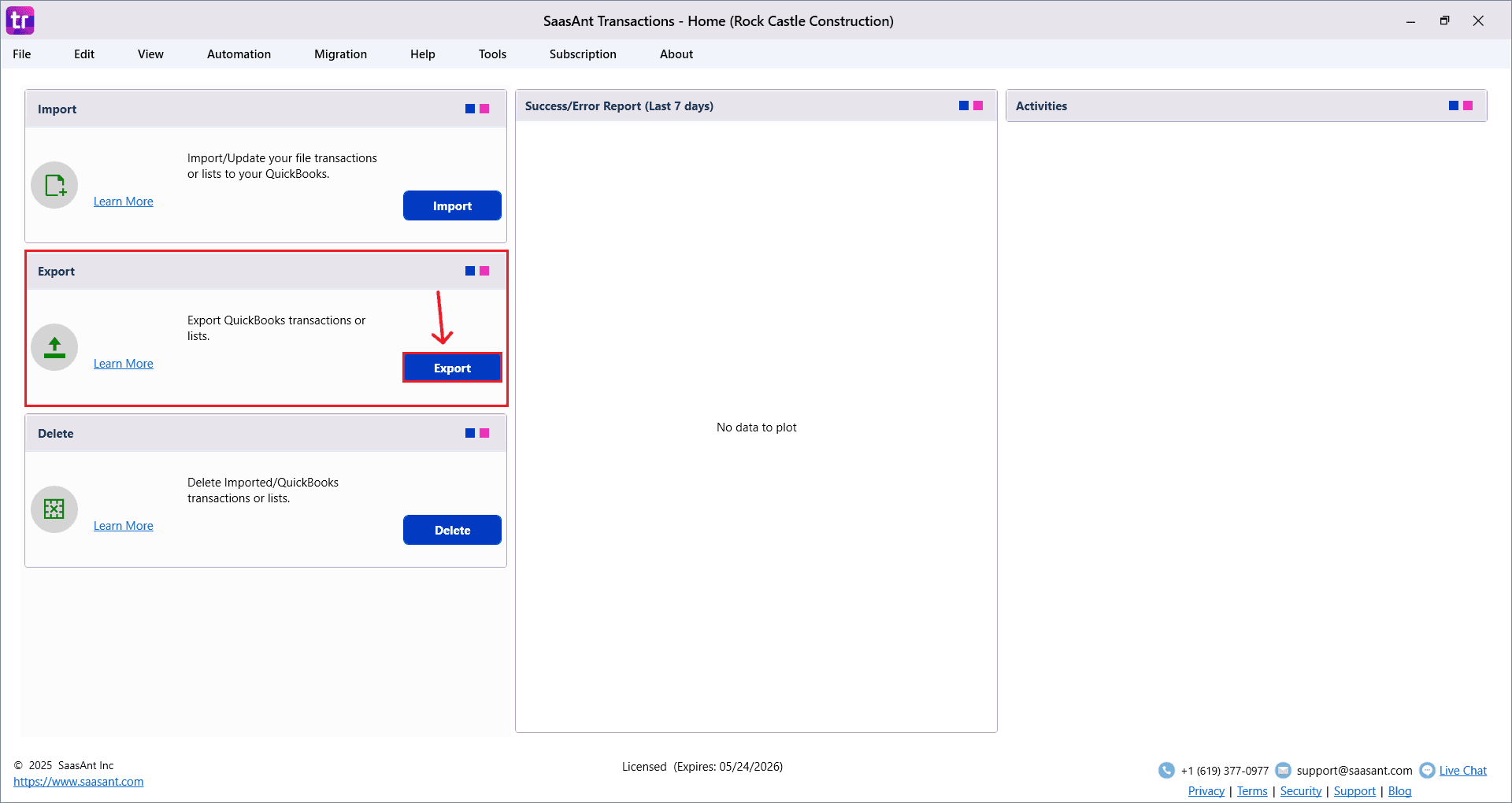
On the top-left of the SaasAnt Transactions dashboard, you can see various options. Select “Export”.
Step 5: Search and Download Check
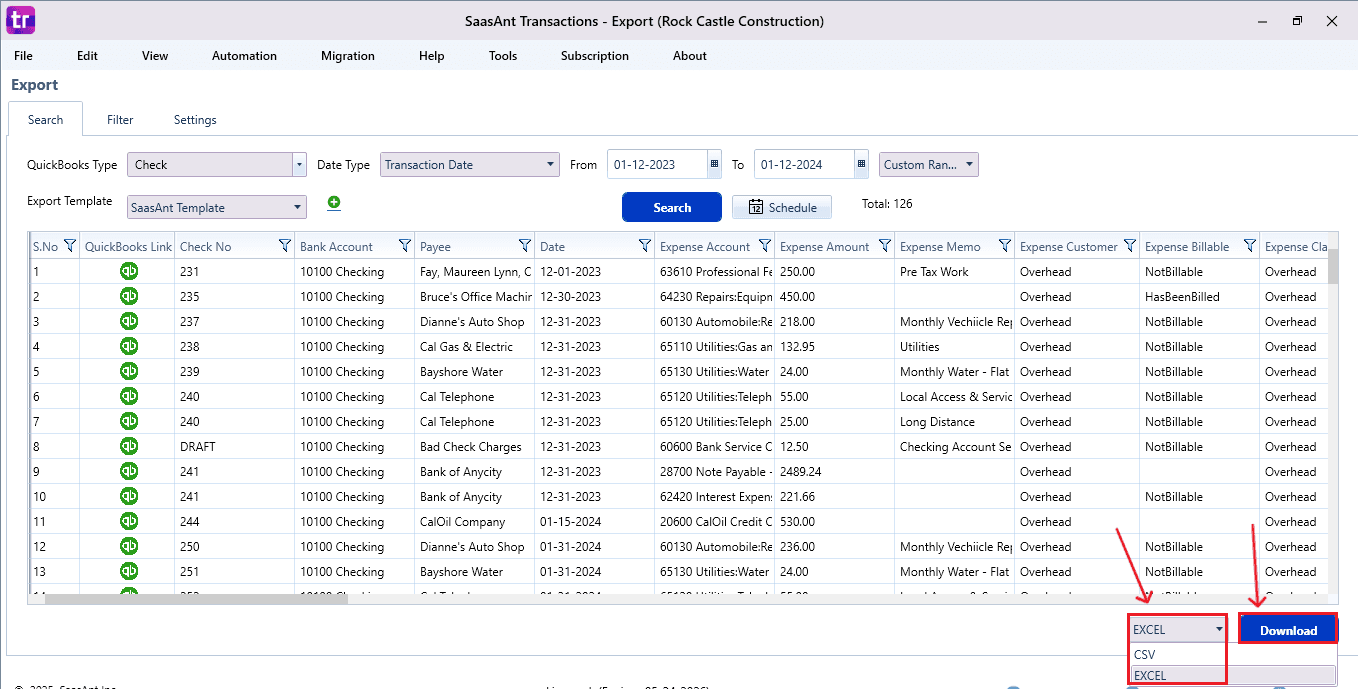
Fill in the required fields, such as QuickBooks Type, Date Type, From Date, and To Date.
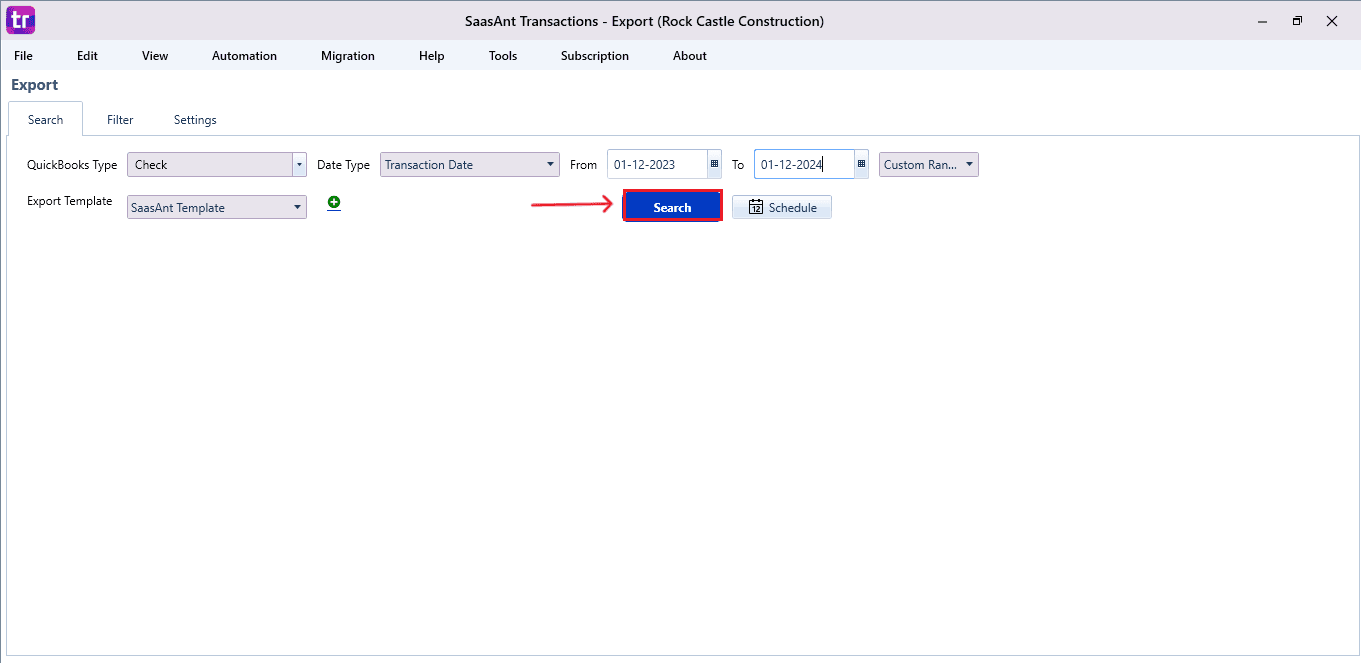
Click “Search,” and the Check appears in the dashboard.
Now select “Download”.
The file can be downloaded in both Excel and CSV formats. Choose the file format that best suits your requirements.
Step 6: Export the Data
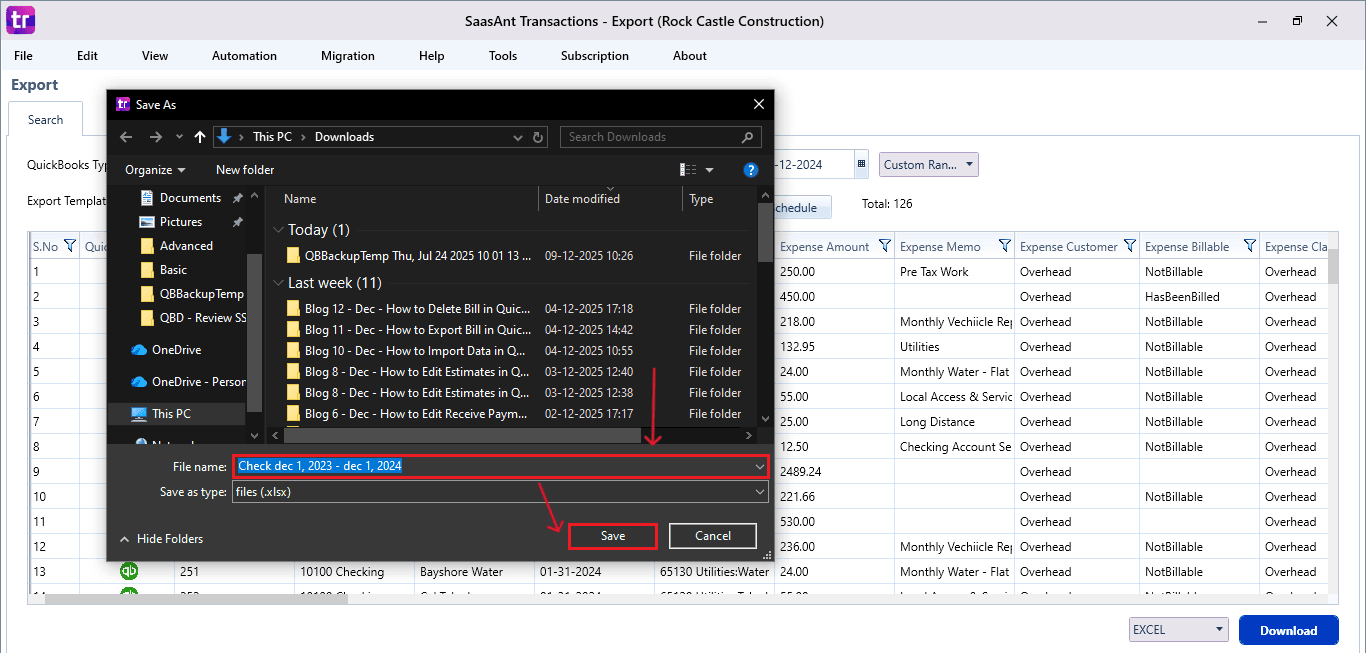
Choose the file location when the pop-up appears.
Save the exported Check to your system.
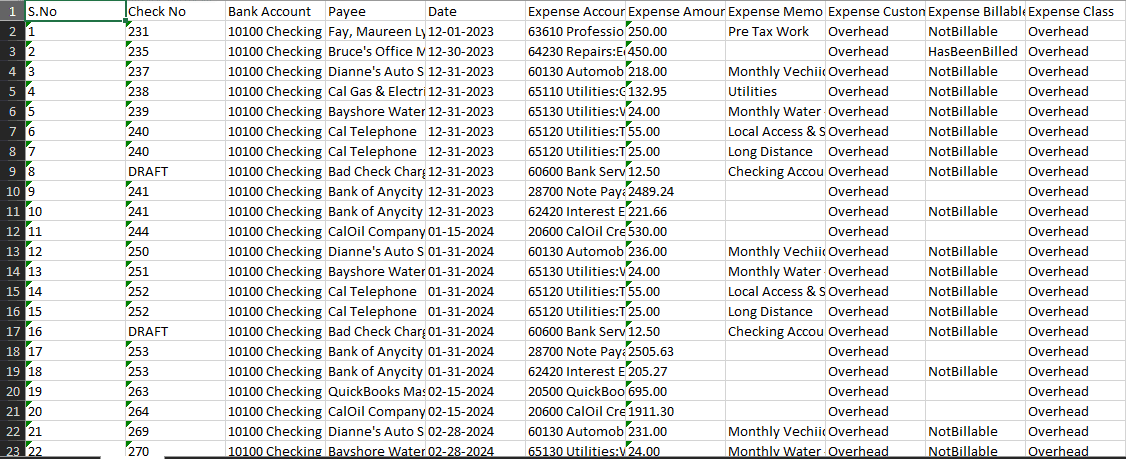
Step 7: Exported Check Data
Your exported Check data looks like this in your system.
Step 8: Schedule Export (Optional)
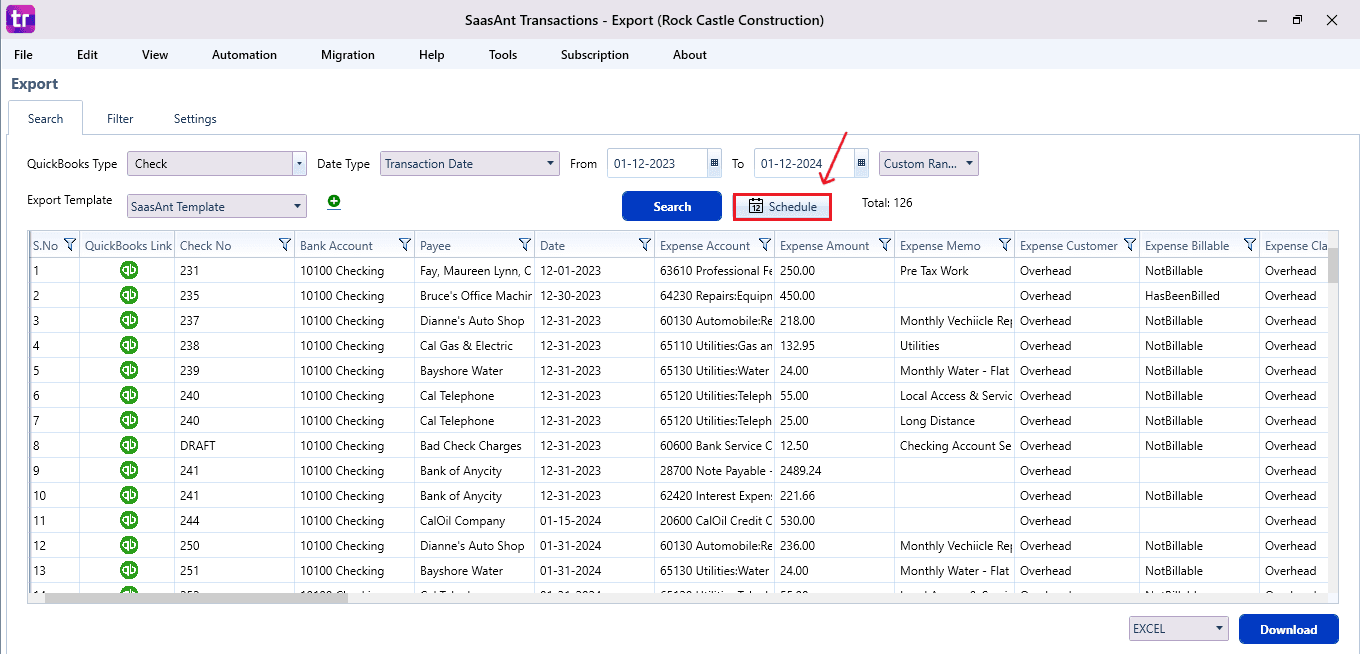
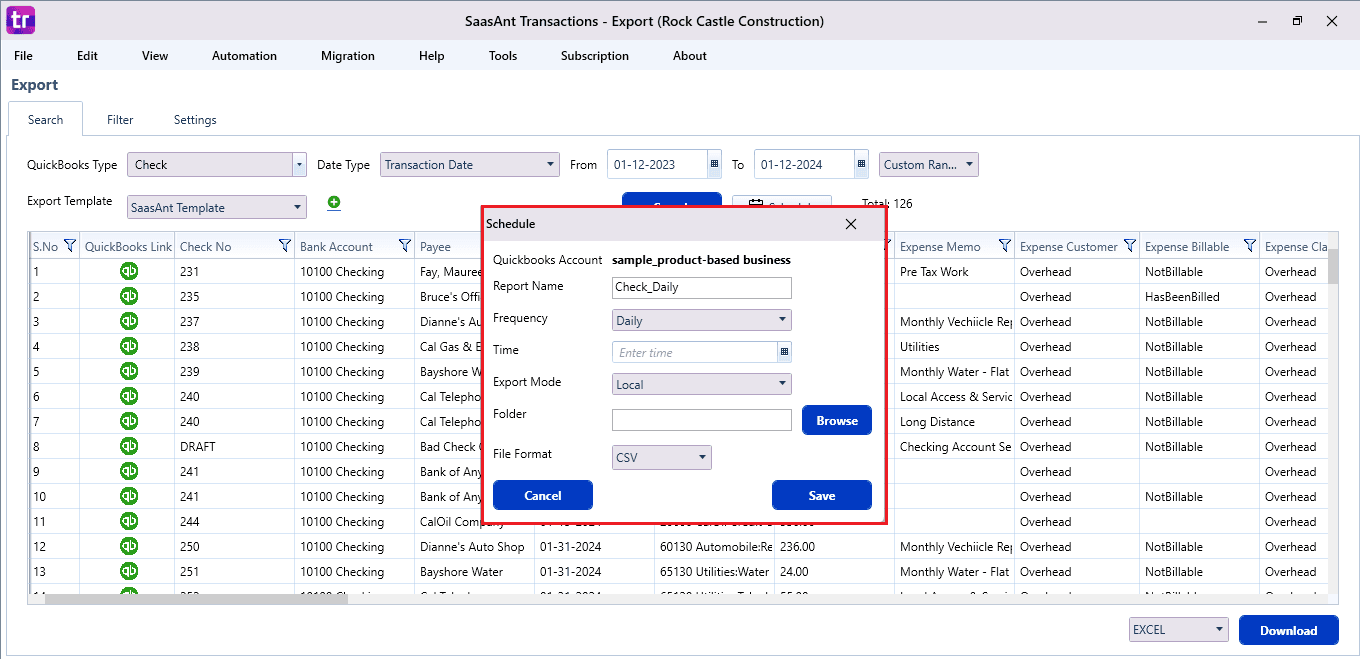
There is another option, “Schedule”, where you can schedule the export of your data.
Fill in the required fields, such as report name, frequency (daily, weekly, or monthly), time, export mode (local, server, or email), folder location, and file format.
Once all fields are filled, click “Save”. Your Check data will now be exported at the scheduled time and location.
Why the SaasAnt Transactions Desktop Is the Best for Exporting Checks
SaasAnt Transactions Desktop is regarded as the most reliable solution for exporting Checks from QuickBooks Desktop due to its speed, user-friendly design, and its specific development for accountants and bookkeepers managing large volumes of data. Here’s what makes it exceptional:
Bulk Export Without Data Limitations: SaasAnt allows you to export hundreds or even thousands of checks right away without any slowdown or data size limits. This makes it perfect for audits, reconciliations, data migrations, and large operations with multiple vendors.
Customizable Filters and Date Ranges: Organize checks according to vendor, amount, date, reference number, status, or line-item information. SaasAnt makes sure you obtain the exact check dataset necessary for reporting, analysis, or client-specific purposes.
Reusable Export Templates: Ensure that you save your export preferences, including the selection of columns and layout, so you won't have to set up filters again. This is ideal for teams conducting regular monthly, quarterly, or annual Check exports.
Automated and Scheduled Exports: Whether you need daily customer payment reports or weekly or monthly AR summaries, SaasAnt’s scheduling system lets you automate everything without manual effort.
Supports Large, Multi-Company Workflows: If you work with multiple QuickBooks company files, SaasAnt provides quick switching, exporting, and reusing templates, which helps accounting firms to seamlessly enhance all client checking exports.
Wrap Up
Exporting checks from QuickBooks Desktop can be a lengthy process when performed manually, particularly during audits, reporting periods, or financial assessments. SaasAnt Transactions Desktop provides a quicker, simpler, and more dependable approach to exporting check data in bulk with total accuracy.
With features such as reusable templates, effective filters, automation, and scheduled exports, SaasAnt streamlines your workflow and minimizes errors. If you wish to simplify regular check exports, SaasAnt is the best tool tailored for accounting professionals.
If you have inquiries regarding our products, features, trial, or pricing, or if you require a personalized demo, contact our team today. We are ready to help you find the ideal solution for your QuickBooks workflow.
Frequently Asked Questions
1) Can I export checks directly from QuickBooks Desktop?
Yes, the export has limitations, lacks customization, and does not provide line-level details. But SaasAnt offers comprehensive, flexible, and bulk check exports with improved formatting and accuracy.
2) What file formats can I export checks in using SaasAnt?
Checks can be exported in both Excel (.xlsx) and CSV (.csv) formats, enabling easy integration of the data into reporting tools, analytics platforms, or audit workflows.
3) Does SaasAnt allow exporting checks from multiple QuickBooks company files?
Yes, SaasAnt allows for fast switching between different company files, which is perfect for accounting firms that handle multiple clients or businesses with various entities.
4) Can I schedule automatic check exports?
Yes, SaasAnt has a built-in scheduler that exports check data every day, week, or month and automatically saves or emails the file.
5) Will exporting checks affect my QuickBooks company file?
No, exports are exclusively read-only. SaasAnt does not change, delete, or modify your QuickBooks data while exporting.
6) Is there a way to reuse the same export settings every month?
Yes, SaasAnt’s template feature lets you save filters, column choices, and layouts, enabling you to quickly export regular reports.
Read Also
How to Export Bills in QuickBooks Desktop
How to Export Data from QuickBooks Desktop to Excel
How to Export Chart of Accounts from QuickBooks Desktop
How to Export Class List from QuickBooks Desktop