How to Edit Credit Memo in QuickBooks Online: A Complete Guide
 Managing financial records effectively is crucial for any accounting professional. When adjustments are needed, editing credit memos should be straightforward and error-free. This blog will walk you through editing credit memos in QuickBooks using SaasAnt Transactions, an Accountant's Favorite and User's choice award-winning app. Whether you’re correcting an amount, altering a service description, or updating a customer’s details, this blog ensures you can make these changes efficiently and accurately.
Contents
Edit Credit Memo in QuickBooks: Quick Instructions
How to Edit Credit Memo in QuickBooks Online: Step-by-Step Guide
Wrap Up
Frequently Asked Questions
Edit Credit Memo in QuickBooks: Quick Instructions
Log in to your QuickBooks account and navigate to the Apps menu.Select the 'Credit Memos' section from the dashboard.
Look for "SaasAnt Transactions" and install the application.
In SaasAnt, select Download → Let’s Export → Credit Memos to export your current data.
Open the exported file in Excel or Google Sheets (make changes to amounts, dates, or customers).
In SaasAnt, go to Modify → Let’s Modify → Credit Memos to re-import the updated file.
Ensure fields are mapped correctly (credit memo number, customer, date) and use Preview Mapping to check.
Check and update the data in QuickBooks, and download the revised file for your records.
How to Edit Credit Memo in QuickBooks Online: Step-by-Step Guide
Always back up your QuickBooks Online data before you begin. Even though SaasAnt is designed to be safe and reliable, a backup provides an added layer of security. Follow the steps below to get started.
Step 1: Log In to Your QuickBooks Account
Log in to your QuickBooks account.
Step 2: Navigate to the Apps Menu
On the left side of the QuickBooks dashboard, you can see the menu bar with various options.
Select “Apps.” Click the dropdown and select “Find Apps.”
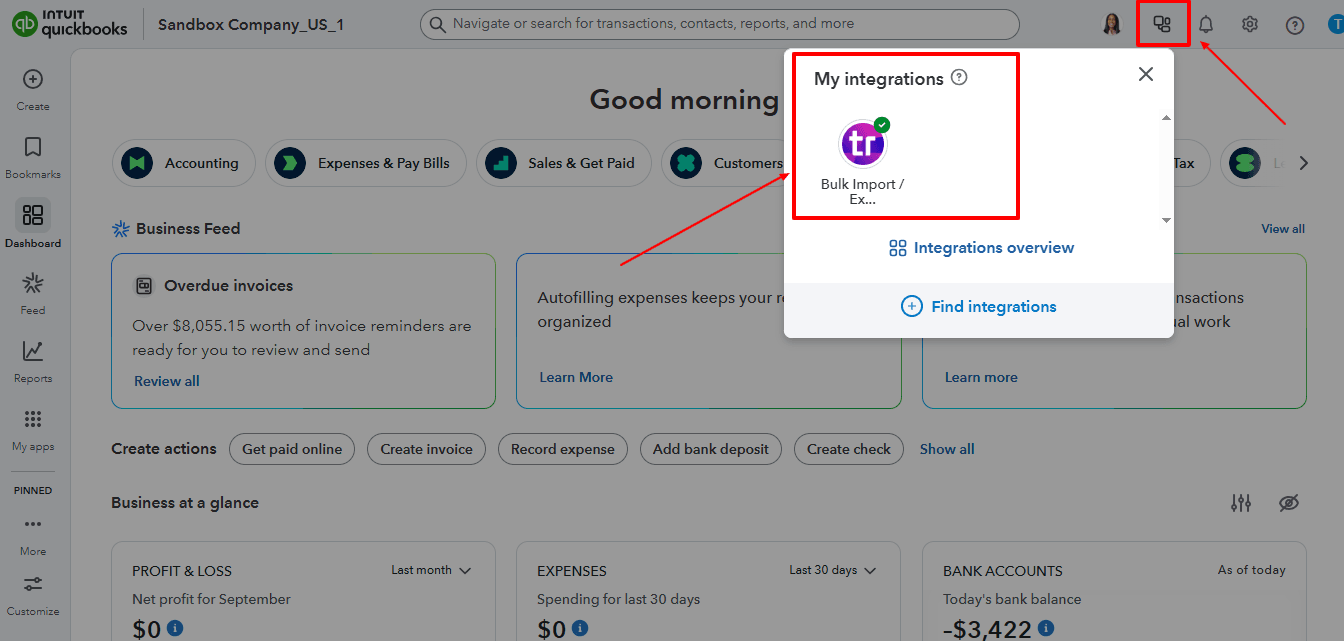
Step 3: Search and Install SaasAnt Transactions
In the search bar, type “SaasAnt Transactions” as shown by the arrow in the image below.
Step 4: Download existing Credit Memos
On the SaasAnt dashboard:
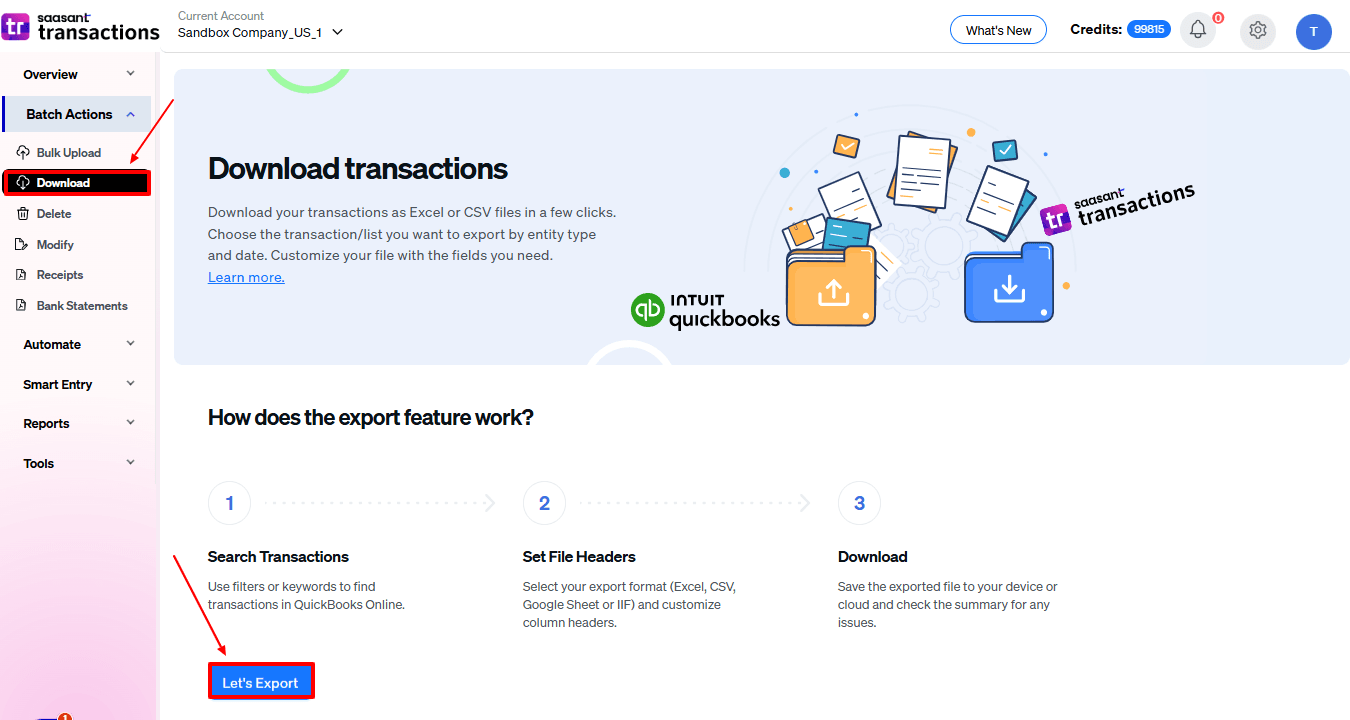
On the left side of the SaasAnt Transactions dashboard, you can see the menu bar with various options.
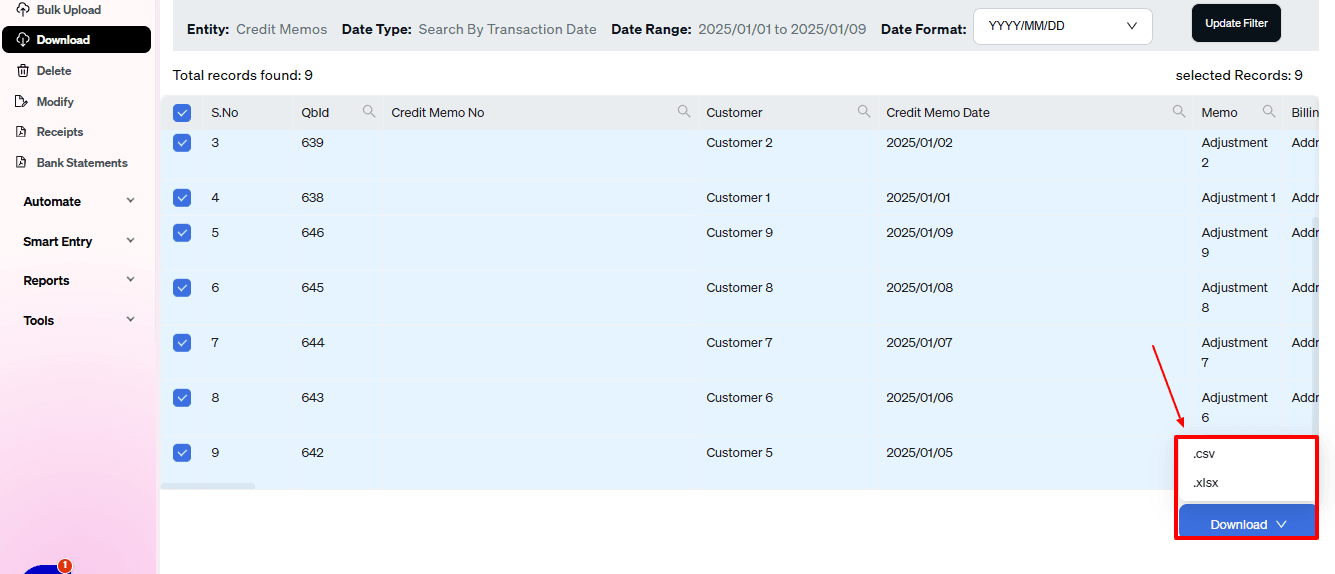
Select “Download.”
At the bottom right, click on “Let’s Export.”
In SaasAnt Transactions, choose the entity "Estimates."
Use filters to select the date range, customer(s), or credit memo status you want to modify.
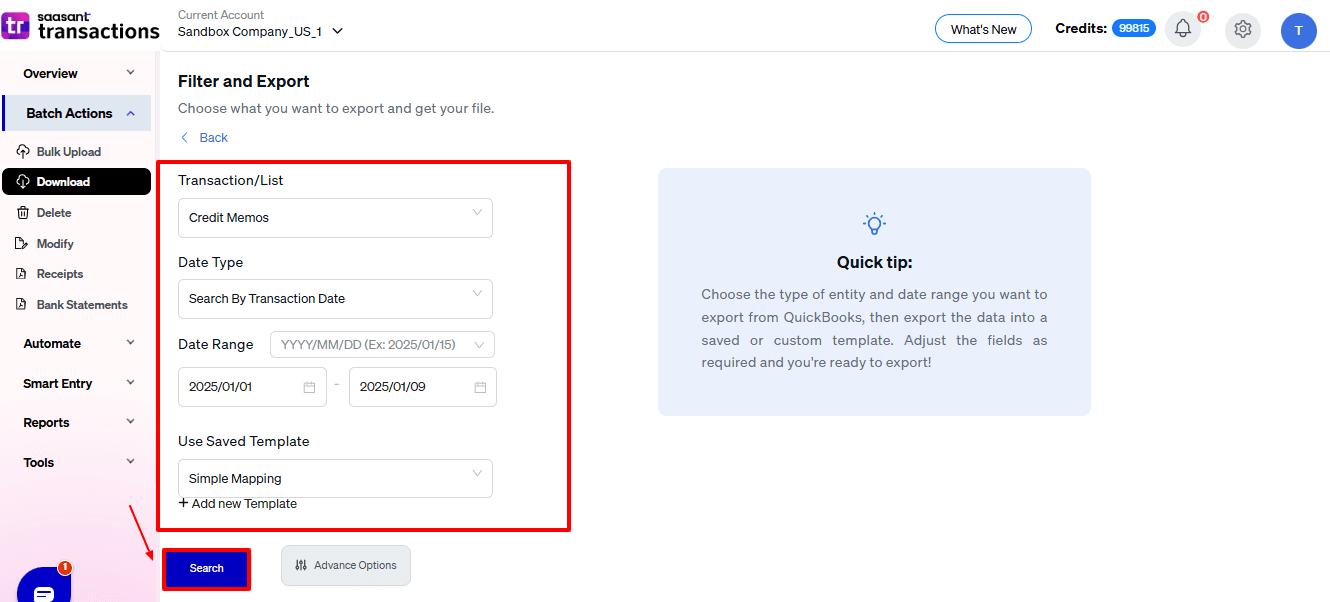
Export the credit memos to Excel (.xlsx) or CSV for editing.
Step 5: Make edits in the spreadsheet
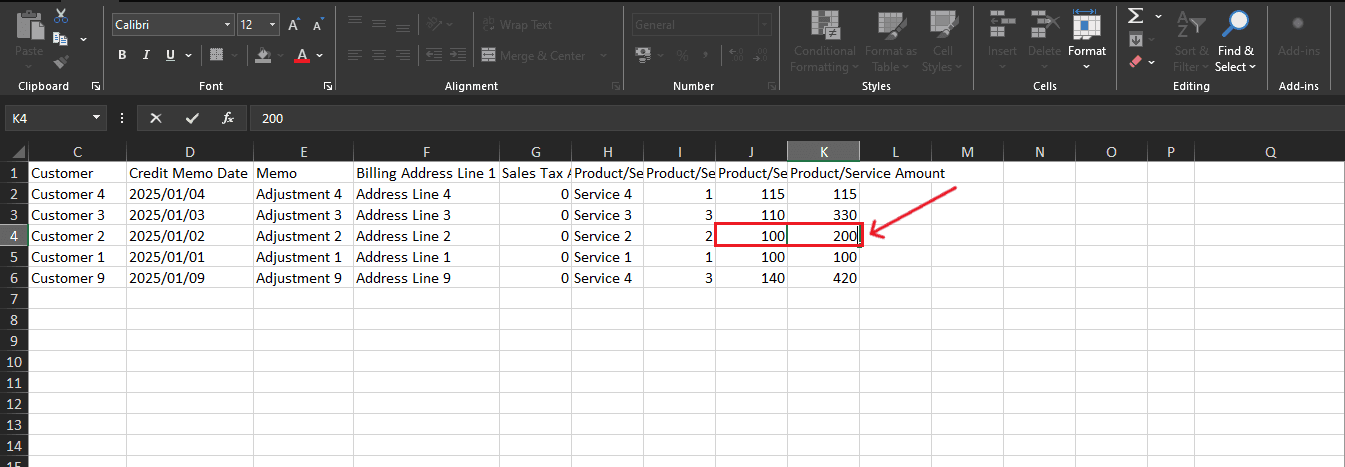
Open the exported file using Excel or Google Sheets.
Find the credit memos you need to change (by estimate number, customer, or date).
Make the necessary adjustments: change amounts, dates, line items, customer information, etc.
Save the file as a CSV (if SaasAnt requires it).
Step 6: Re-import the edited Credit Memos
Return to SaasAnt Transactions.
On the SaasAnt dashboard:
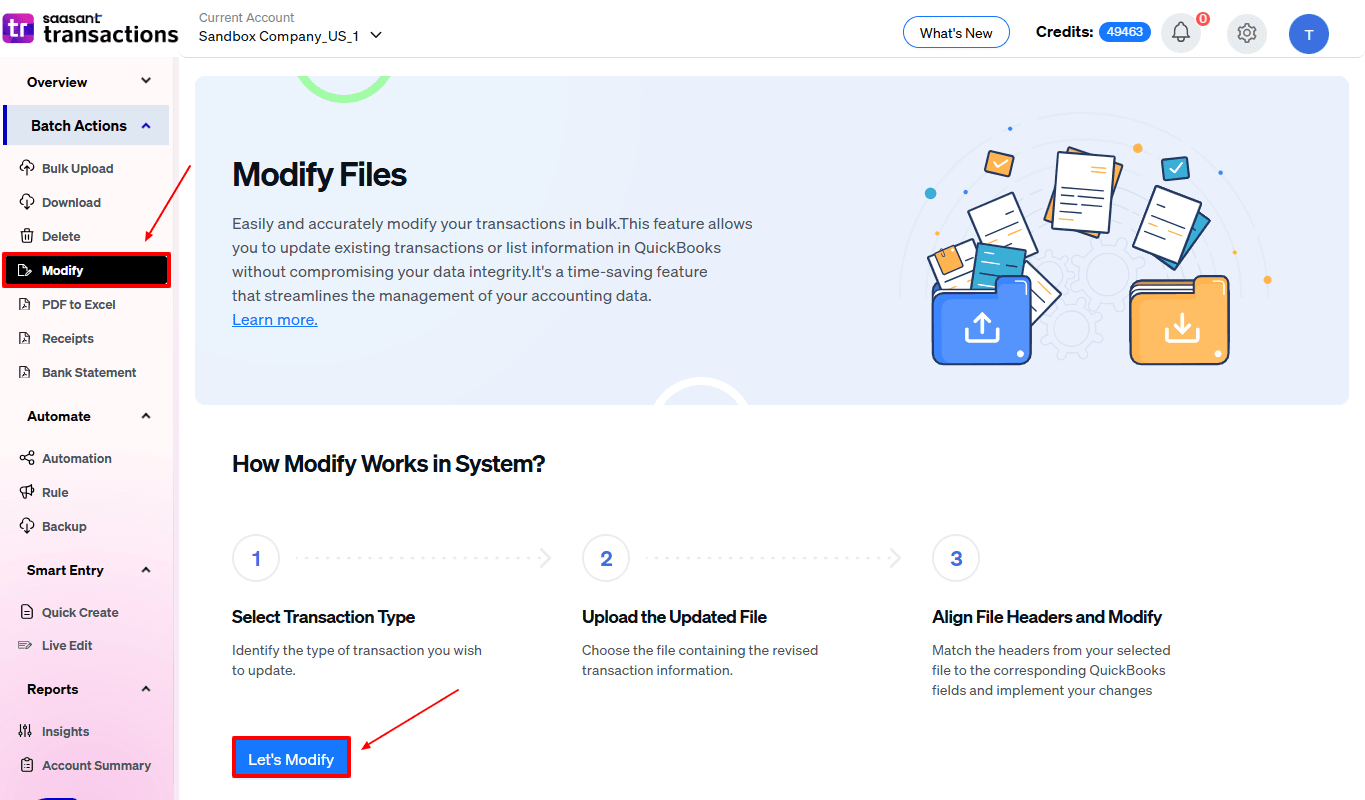
On the left side of the SaasAnt Transactions dashboard, you can see the menu bar with various options.
Select “Modify.”
At the bottom right, click on “Let’s Modify.”
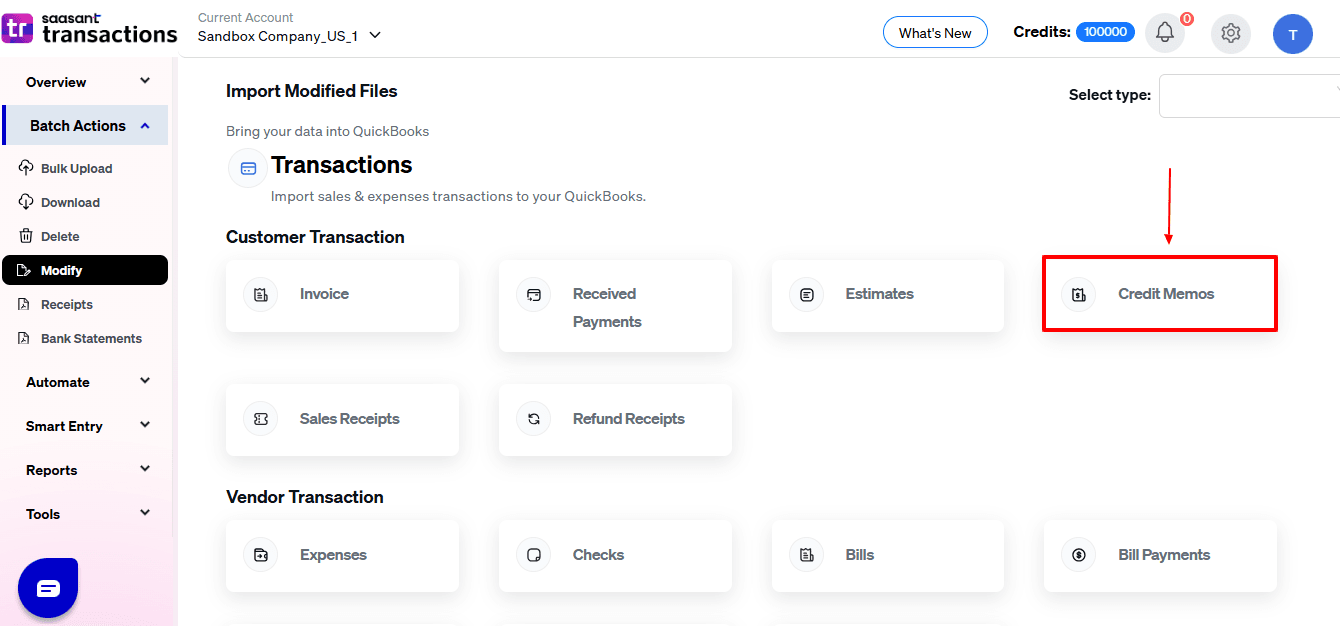
Select “Credit Memos” under the Customer Transactions section.
Browse and select the file you want to edit in QuickBooks.
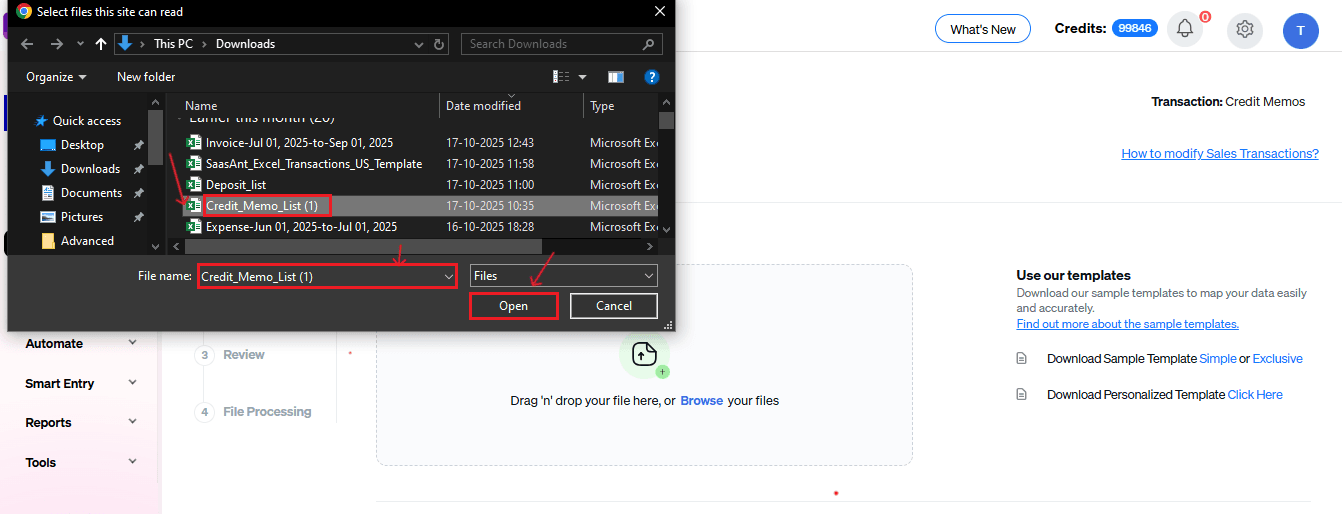
Now, upload your respective credit memo files from your device and click “Continue”.
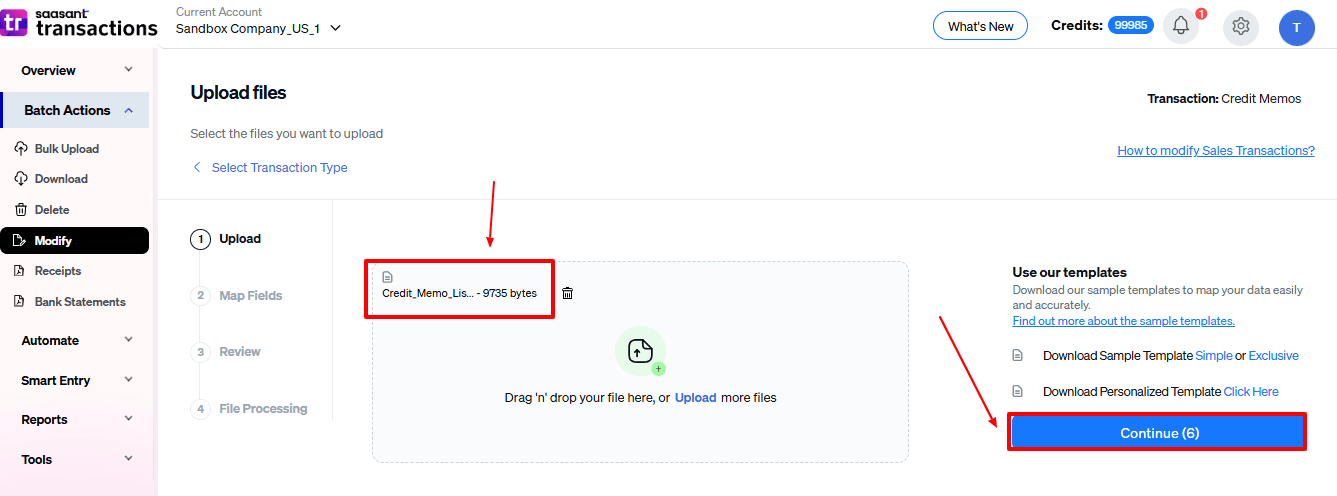
Step 7: Mapping Fields And Review
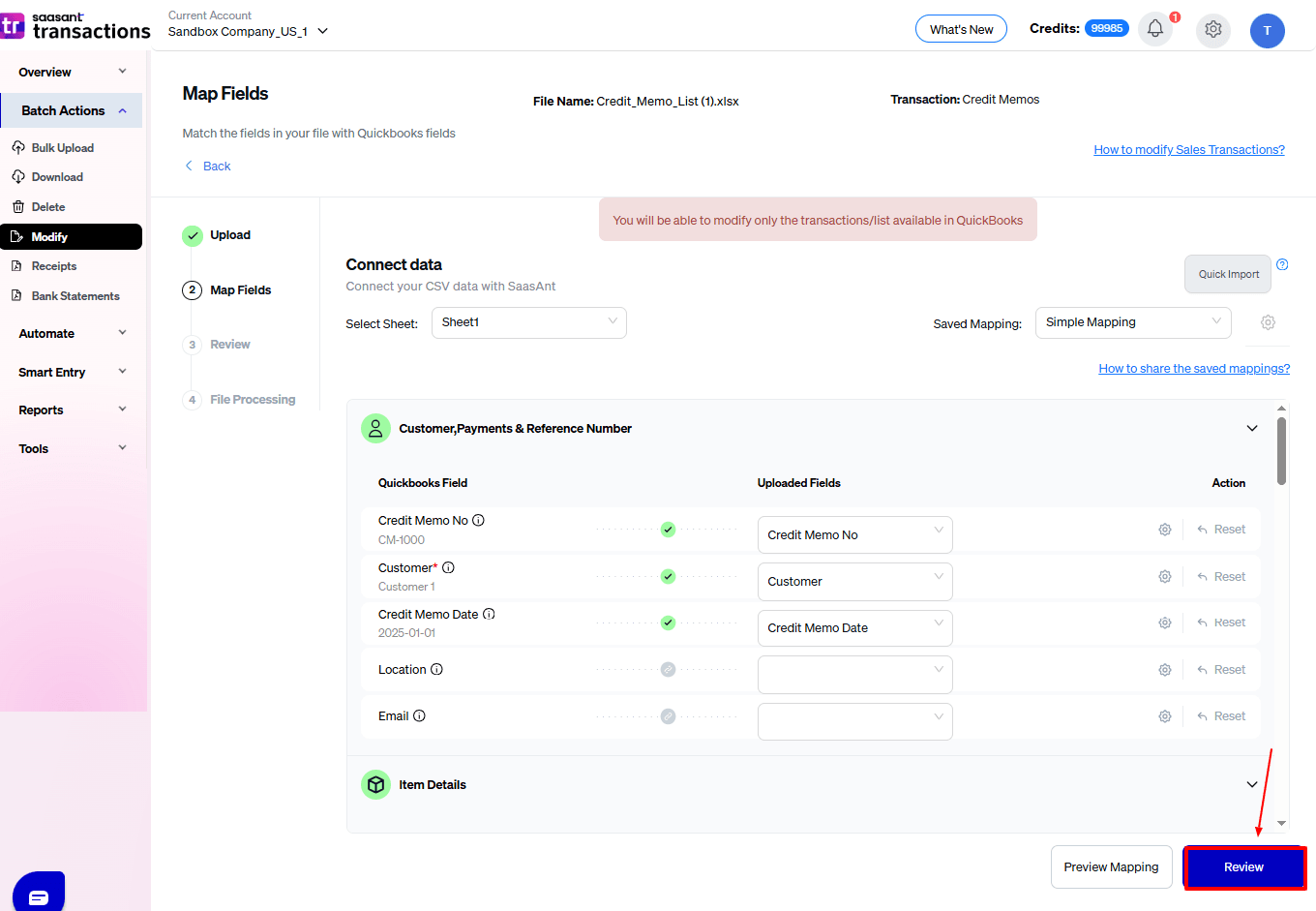
Ensures accurate mapping of essential fields: Credit memo number, customer, credit memo date, etc.
The ‘Preview Mapping’ feature allows users to verify field alignment before review.
Select “Review” after finalizing the mapping of all fields.
Step 8: Review And Update
Review the modified “Credit memo” data and select “Update QuickBooks”.
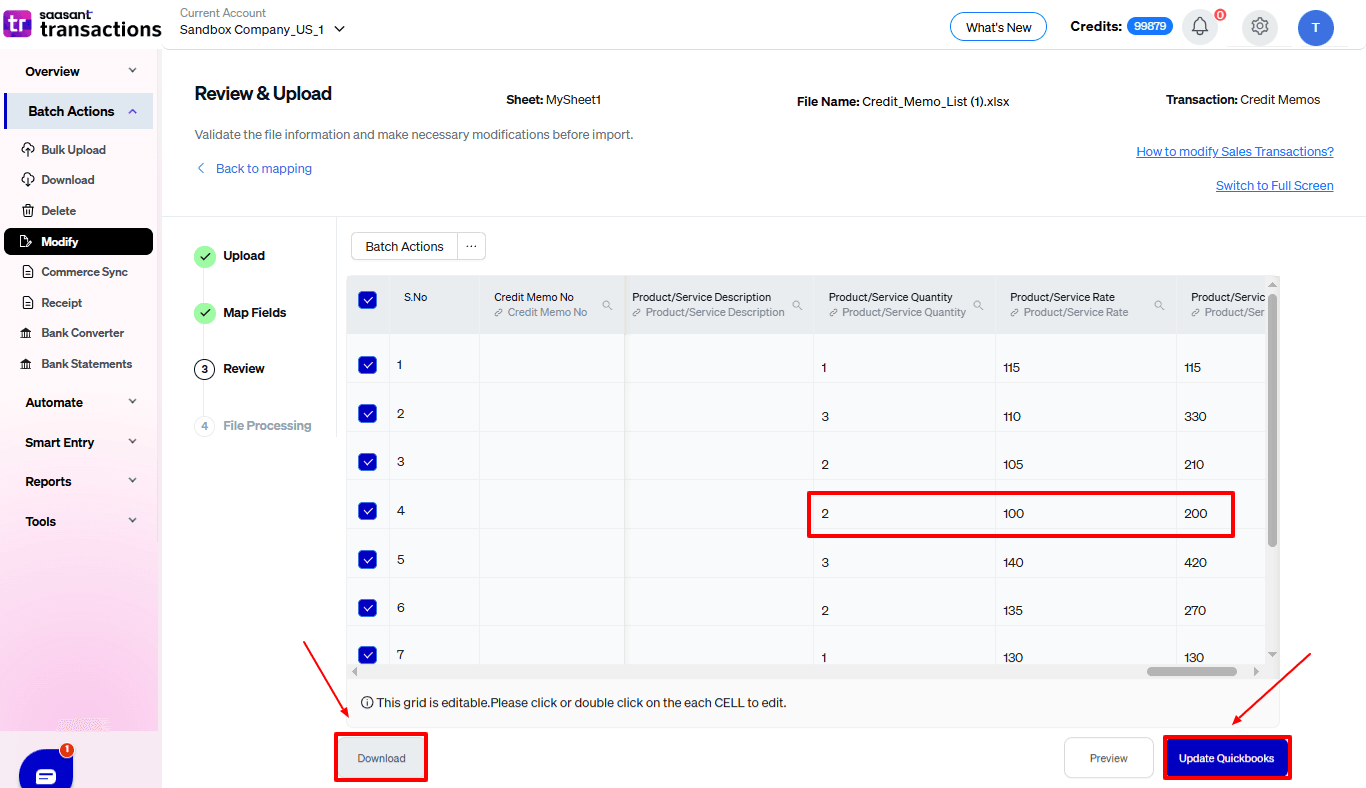
At the bottom left, there is a “Download” option, where you can download this modified data for your future reference.
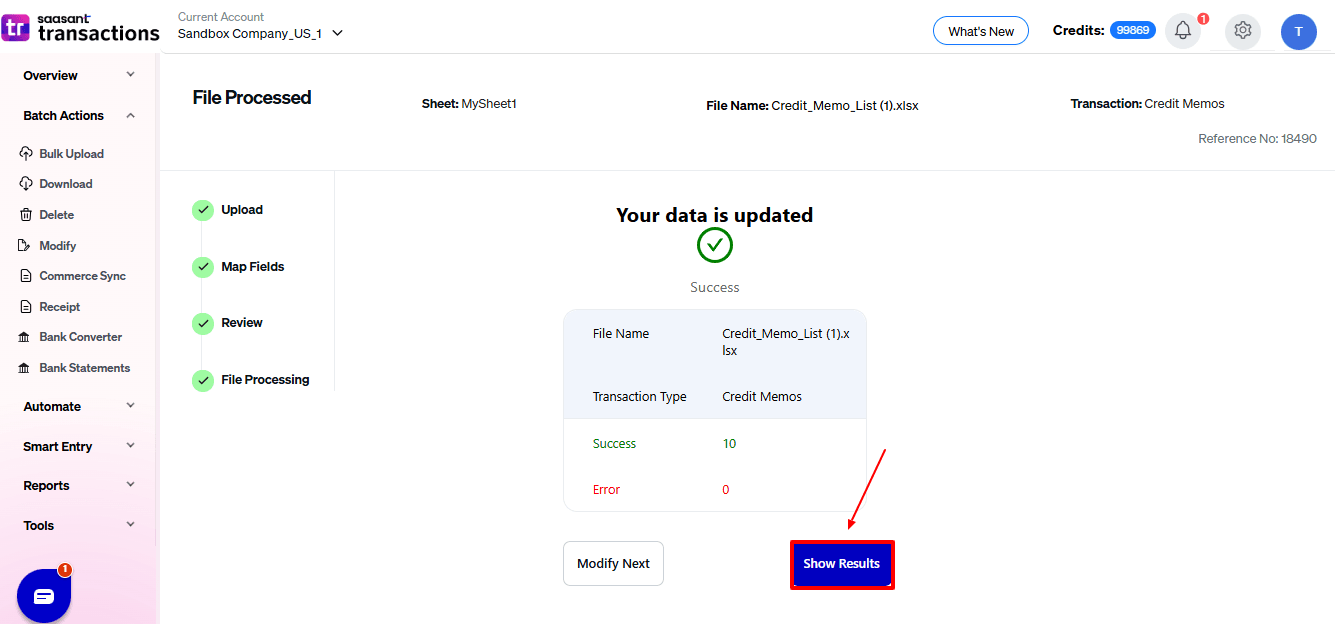
Your modified “Credit memo” data will be updated in QuickBooks Online. Click “Show Results”.
Step 9: Modify
Your modified “Credit memo” data appears. At the bottom left, there is a “Download” option, where you can download your modified credit memo data for future reference.
And also next to download, you can see “Undo”, where your “Credit memo” data will be rolled back.
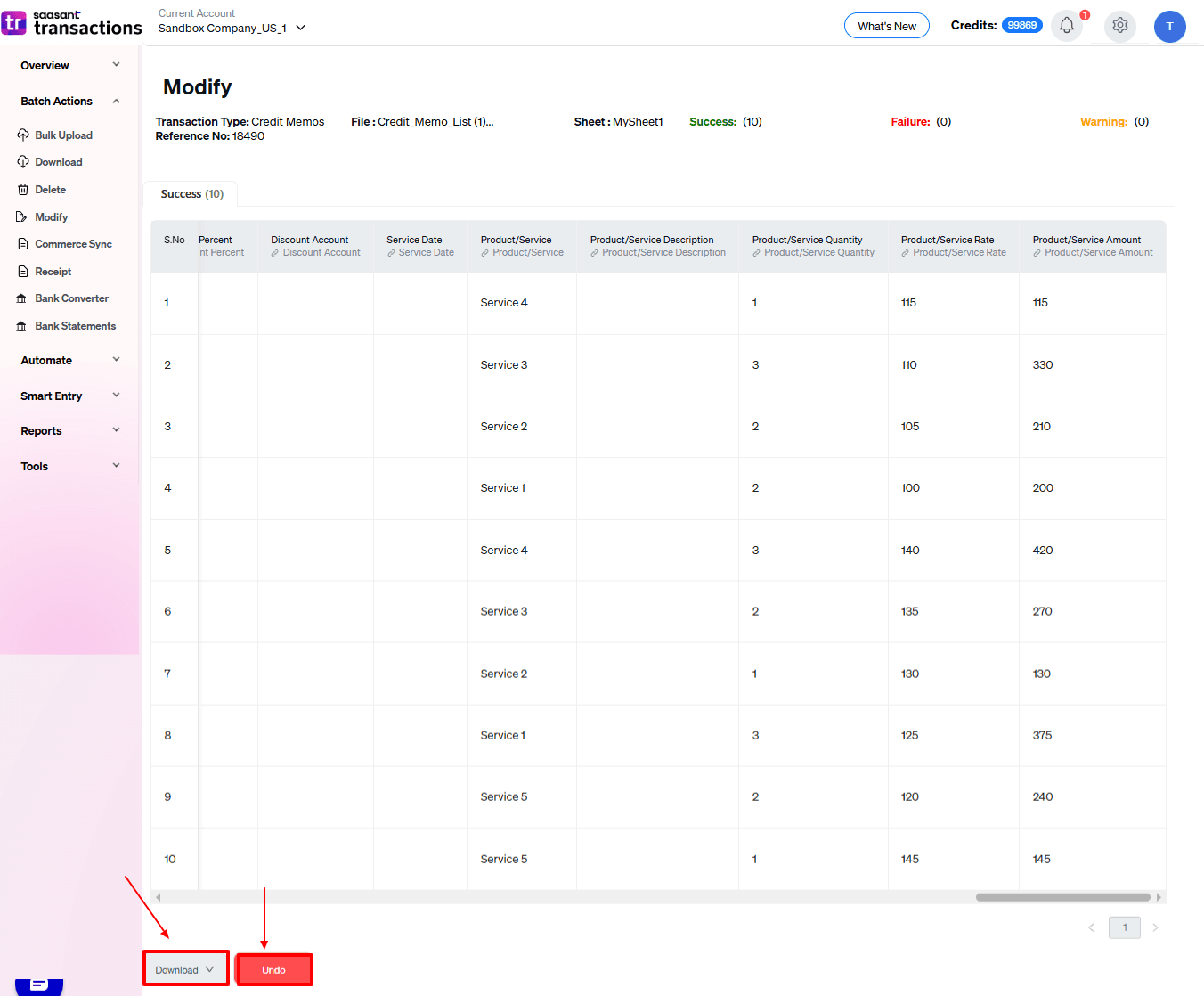
Modified “Credit memo” data are shown in QuickBooks Online.
CTA-Banner-1
Wrap Up
Editing credit memos in QuickBooks Online is important for accurate financial documentation, but the built-in features are limited. With SaasAnt Transactions Online, you can simplify the task, save time, and maintain accuracy regardless of whether you’re dealing with a small number of memos or thousands. For small to medium businesses, accountants, and enterprises, SaasAnt delivers the scalability, flexibility, and security necessary to optimise bookkeeping tasks.
If you're looking to enhance bookkeeping automation, SaasAnt simplifies bookkeeping so you stay accurate, efficient, and audit-ready.
If you have inquiries regarding our products, features, trial, or pricing, or if you require a personalised demo, contact our team today. We are ready to help you find the ideal solution for your QuickBooks workflow.
Frequently Asked Questions
1) Can I edit a credit memo directly in QuickBooks Online without SaasAnt?
Yes, but changes are made manually and one at a time. For bulk or advanced modifications, SaasAnt is considerably more efficient.
2) Can I undo changes if I make a mistake?
Yes, SaasAnt offers a one-click Undo option, enabling users to quickly reverse bulk edits without impacting other QuickBooks transactions.
3) Can I edit line item details like product/service description?
Certainly, SaasAnt enables changes to product or service descriptions, quantities, rates, tax codes, and other information, ensuring data accuracy..
4) Can I track who edited credit memos?
Yes, all updates made through SaasAnt appear in the Audit Log of QuickBooks Online, indicating the user, time, and modifications for total accountability.
5) Can SaasAnt be used for other transactions besides credit memos?
Indeed, SaasAnt supports invoices, bills, payments, expenses, and various customer/vendor transactions, delivering a comprehensive solution for bulk updates in QuickBooks.
Tags
Read Also
Import Credit Memo in QuickBooks Online: A Complete Guide
How to Export Credit Memo in QuickBooks Online : A Complete Guide
How to Delete Credit Memo in QuickBooks Online
How to Apply a Credit Memo to an Invoice in QuickBooks Online?