How to Delete Multiple Transactions in QuickBooks Desktop?
Handling transactions in QuickBooks Desktop can often feel like managing a packed inbox, particularly when you have numerous outdated, duplicate, or incorrect entries cluttering your records. Removing these individually is not only tedious, it’s also prone to mistakes.
This is where SaasAnt Transactions Desktop comes into play. This add-on allows you to delete multiple transactions in QuickBooks Desktop simultaneously, saving you hours of manual effort and keeping your records accurate and tidy.
This blog will explain how to delete multiple transactions in QuickBooks Desktop using SaasAnt Transactions Desktop, what to consider before you delete them, and why SaasAnt is the preferred automation tool for accountants, bookkeepers, and small business owners worldwide.
Delete Multiple Transactions in QuickBooks Desktop: Quick Instructions
Install SaasAnt Transactions Desktop: Download, install, and register with your license key while connected to the internet.
Launch the App: Start the SaasAnt Transactions Desktop and make sure QuickBooks Desktop is open.
Connect to QuickBooks: Navigate to File > Connect to QuickBooks to associate your company file.
Choose Delete Option: In the SaasAnt dashboard, click on Delete from the left menu.
Filter Transactions: Utilize QuickBooks Search or Filter to find specific transactions.
Select & Delete: Mark the transactions you want to delete, download a backup, and hit Delete.
Confirm & Review: Confirm the deletion and check the deleted records in Downloads.
How to Delete Multiple Transactions in QuickBooks Desktop?
Follow the steps below to delete multiple transactions in QuickBooks Desktop using SaasAnt Transactions Desktop.
Step 1: Install and Connect SaasAnt Transactions
Download the latest SaasAnt Transactions Desktop version.
Run SaasAntTransactions-Setup.exe as an administrator.
Accept the license agreement and complete the installation.
Open the app, go to Subscription > Register.
Enter the license key from your confirmation email.
Keep your internet connection active.
Step 2: Launch SaasAnt Transactions Desktop
Start by opening the SaasAnt Transactions Desktop app on your system.
Ensure that QuickBooks Desktop is open and connected to your company file before proceeding.
Step 3: Connect to QuickBooks Desktop
To access, you need to connect the SaasAnt Transactions Desktop with QuickBooks Desktop. Here's how:
Go to the ‘File’ menu in the top-left corner of SaasAnt Transactions Desktop.
Click ‘Connect to QuickBooks’ from the dropdown.

Step 4: Open SaasAnt Transactions
On the SaasAnt dashboard:
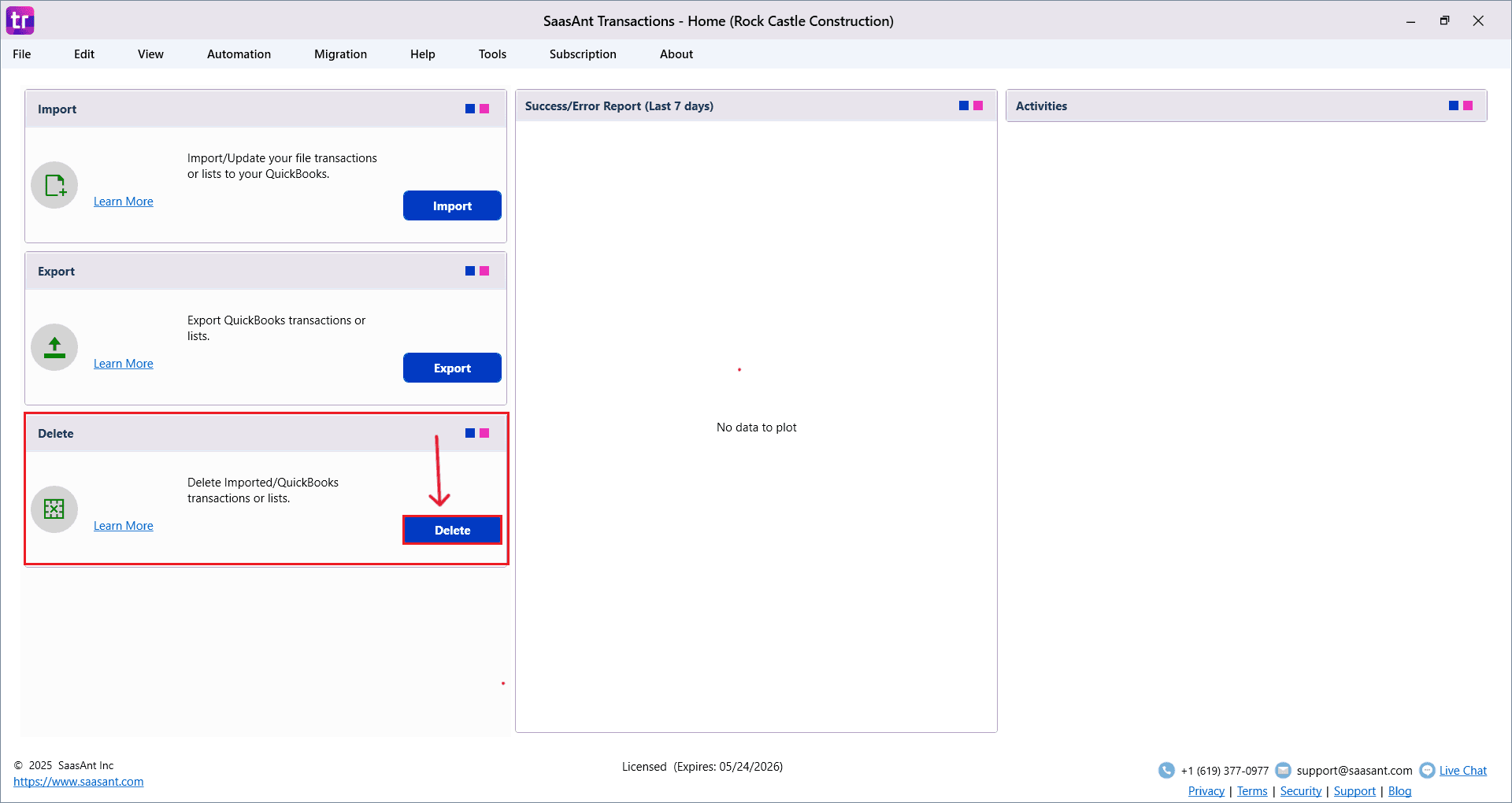
On the left side of the SaasAnt Transactions dashboard, you can see the menu bar with various options.
Select “Delete.”
Step 5: Filter and Search
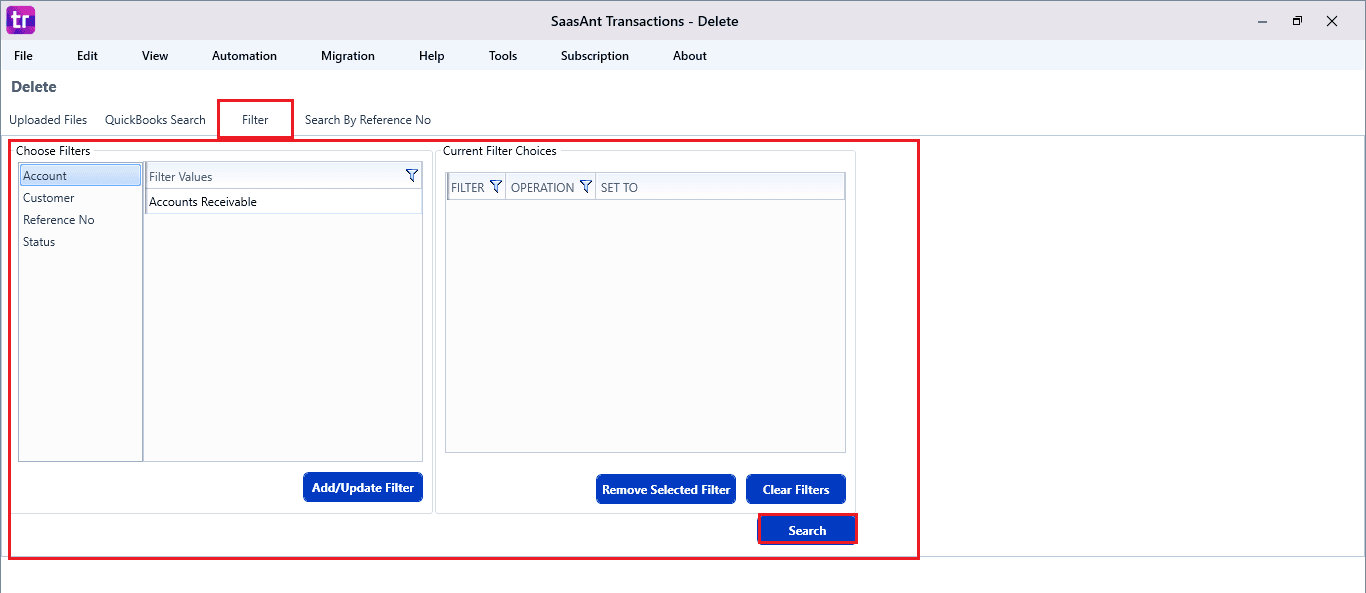
Choose “QuickBooks Search.”
Set QuickBooks Type to “Invoice.”
Enter the data range you want to delete.
Click “Search.”

There is also another option, “Filter”, where you can choose files and filters accordingly and search for the data.
Note: Below is a detailed list of the other transactions and list types that can be deleted:
Vendor Transactions | Customer Transactions | Other Transactions | Lists |
Bill | Invoice | Journal Entry | Inventory Site |
Checks | Receive payments | Trial Balance | Vendor |
Bill Payment Credit Card | Estimates | Vehicle Mileage | Employee |
Bill Payments Check | Credit memo | Time Tracking | Fixed Assets |
Purchase Orders | Sales receipts | Statement Charge | Item Discount |
Vendor Credits | Sales Order | Inventory Transfer | Item Inventory |
Credit Card Credits | Item Receipt | Inventory Adjustment | Item Non-Inventory |
Pay Down Credit Card | Deposit | Build Assembly | Item Other Charge |
Item Payment | |||
Item Sales Tax | |||
Item Sales Tax Group | |||
Item Service | |||
Account | |||
Chart Of Accounts | |||
Assembly Items | |||
Group Items | |||
Class | |||
Customer | |||
Other Name | |||
Price Level |
Step 6: Select Invoices
A list of matching Invoices will appear.
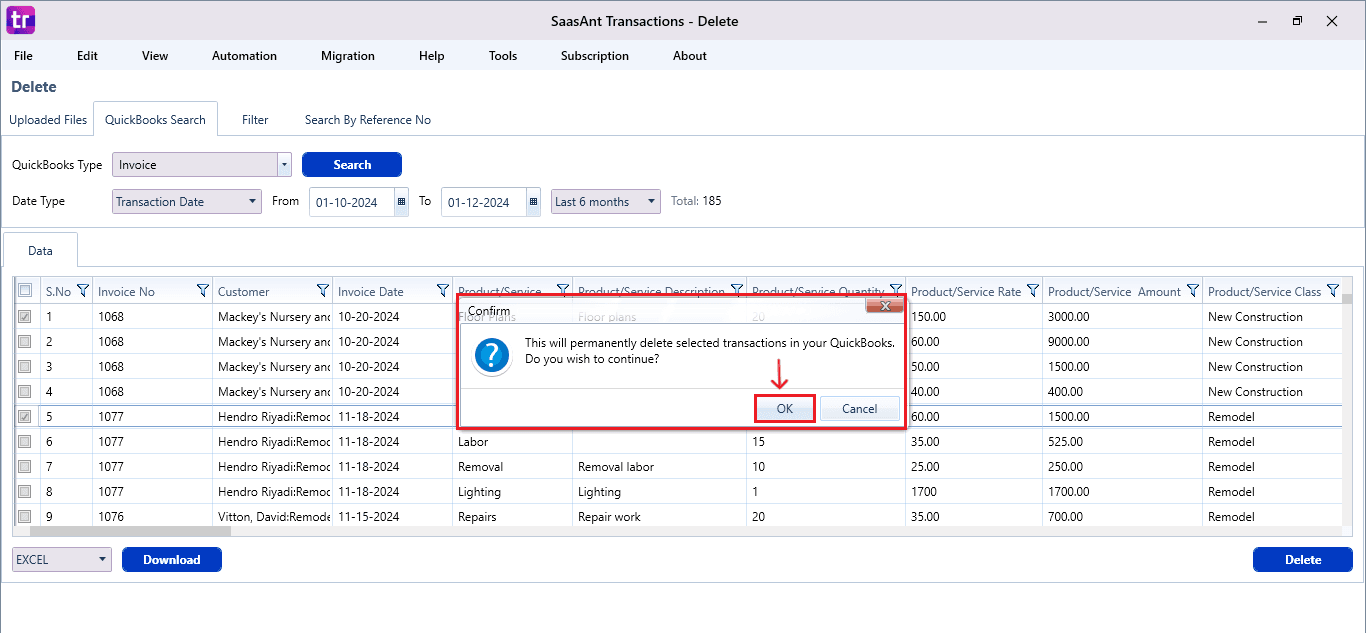
Review the list and check the boxes for the ones you want to delete.
At the bottom right, click “Delete.”
Before deleting, remember to back up your invoice data by clicking the “Download” button at the bottom left.
You can download the backup invoice data in both Excel and CSV format.

Step 7: Confirm Deletion
Once you click delete, a pop-up will ask you to confirm your deletion.
Click “OK” to proceed.
Step 8: View Deleted Payments
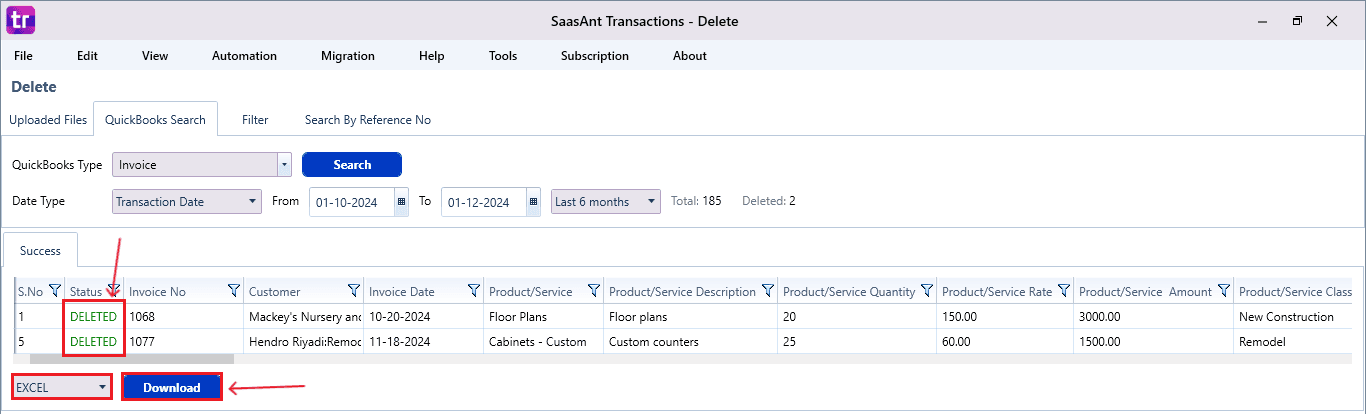
After deletion, the removed invoices will be listed on your SaasAnt dashboard.
You can download the deleted invoices by clicking “Download” at the bottom left.
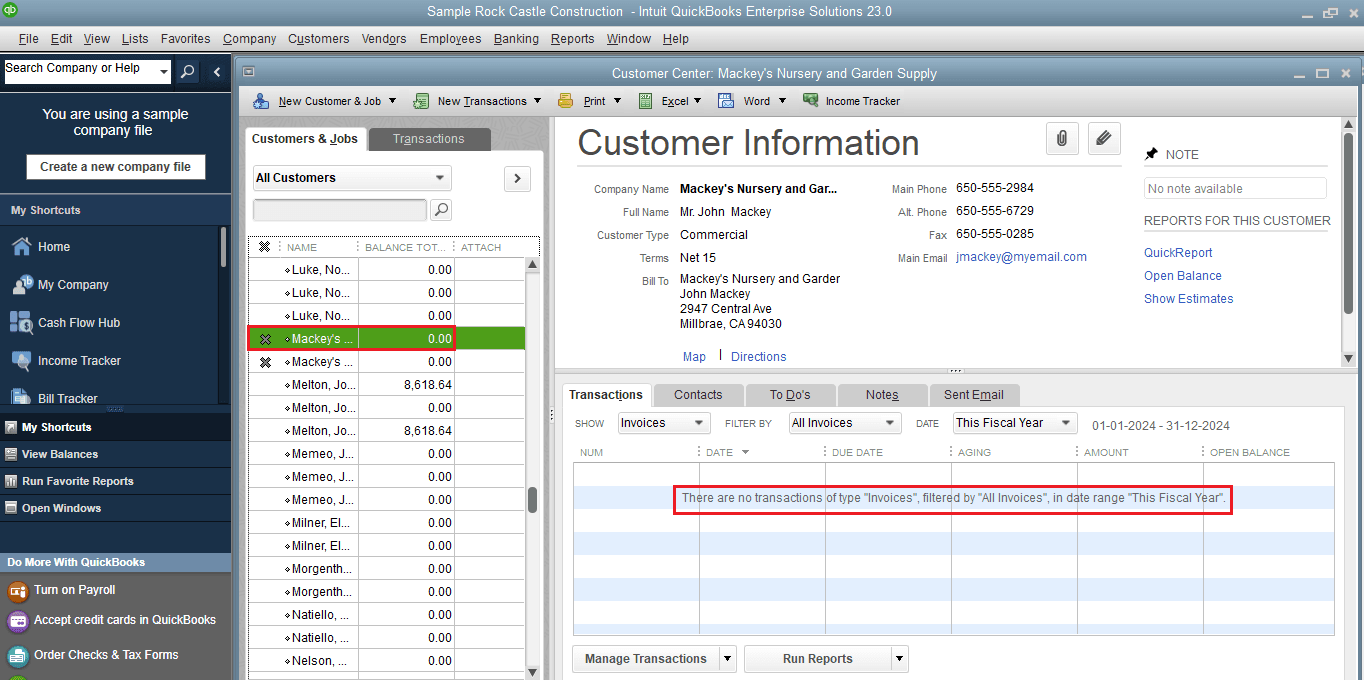
If you open the Customer Centre in QuickBooks Desktop, you'll notice the invoices have been deleted.
Things to Consider Before Deleting Multiple Transactions
Impact on Financial Reports
Deleting transactions will directly affect your financial statements. Removing income entries will reduce your reported revenue, possibly distorting profit & loss statements, balance sheets, and other financial reports.
Audit Trail Concerns
QuickBooks Desktop keeps a detailed audit trail of all actions, including deletions. Frequently deleted transactions might raise questions during audits or internal reviews. Documenting the reasons for significant transaction removals is essential to ensure clarity and justification.
Bank Reconciliations
If the transactions you’re considering deleting have already been matched or reconciled with bank statements, their removal might create discrepancies in future reconciliations. It could complicate the process and lead to inaccurate financial tracking.
Data Recovery Limitations
Retrieving deleted transactions is easy if you have a recent backup. Before deleting, ensure you have backed up your data. SaasAnt Transactions lets you download your file in Excel/ CSV format as a backup before deletion. It provides a safety net if you need to restore any information.
Cleanups that hold up in the real world
You are fixing a live QuickBooks Desktop file with deadlines, reconciliations, and people waiting on you. SaasAnt Transactions Desktop is built to help you clean fast without losing control.
Target only what is wrong. Filter by date, type, account, customer, memo, or user so you delete the exact duplicates or bad imports and keep the good records untouched.
Keep proof for reviewers. Before you delete, export the selection to Excel or CSV and take a QuickBooks backup. You will have a clear before and after for audits and month end.
Protect reconciliations. See what is linked or reconciled, unapply when needed, then remove only the transactions that will not break closed periods.
Fix duplicates at scale. Bank feeds and batch imports can clone deposits, expenses, or invoices. Sort and preview the set, then clear them in one pass.
Undo a wrong post quickly. If test data or the wrong client batch hit the live file, filter by creation date or user, export for records, delete, and bring balances back in line.
Stabilize AR and AP. Remove incorrect bills, credits, or payments in a controlled batch, then recheck AP Aging or Customer Balance Detail with your export as the reference.
Clean classes, jobs, and tax. When reporting is skewed, isolate the lines that carry the wrong class, job, or tax and remove just those entries.
Handle inventory with care. Delete misposted receipts or adjustments together, then rerun valuation reports to confirm on hand and cost are correct.
Work safely under pressure. Single user connection, admin rights, visible progress, and confirm prompts reduce mistakes. Test a small sample, then run the full batch.
Make it repeatable. Save your go to filters so the next cleanup takes minutes, and your team can follow the same checklist.
SaasAnt turns bulk deletion into a controlled, documented workflow. You get speed, precision, and proof, without risking the integrity of your QuickBooks Desktop file.
Wrap Up
Organizing your QuickBooks Desktop file doesn't need to be difficult. Using the SaasAnt Transactions Desktop, you can quickly and safely remove multiple transactions, giving you total control over your accounting.
Whether you're preparing for audits, eliminating test data, or fixing an import issue, SaasAnt makes sure your financial data remains efficient and dependable.
If you have inquiries regarding our products, features, trial, or pricing, or if you require a personalized demo, contact our team today. We are ready to help you find the ideal solution for your QuickBooks workflow.
Frequently Asked Questions
1) Can I delete multiple transactions at once in QuickBooks Desktop?
Not directly. QuickBooks Desktop only lets you delete one at a time. But with SaasAnt Transactions Desktop, you can remove hundreds or even thousands of transactions all at once.
2) Do I need admin access to delete transactions?
Yes. To enable bulk deletions, you need admin-level access in QuickBooks Desktop.
3) Will deleted transactions affect my reports?
Yes. Deleting transactions will modify your Profit & Loss, Balance Sheet, and Audit Trail data. Always remember to back up before you delete.
4) How can I back up transactions before deleting?
SaasAnt allows you to download all chosen transactions in Excel or CSV format prior to deletion.
5) What types of transactions can I delete using SaasAnt?
You can also delete Invoices, Bills, Payments, Checks, Journal Entries, Credit Memos, and others.
Read also
How to Import CSV file into QuickBooks Desktop
How to Import Transactions into QuickBooks Desktop
How to Export Data from QuickBooks Desktop to Excel
How to Edit Transactions in QuickBooks Desktop