How to Delete Employees in QuickBooks Online
Handling employee records is a regular yet crucial aspect of bookkeeping in QuickBooks Online (QBO). Whether you are tidying up outdated payroll information, deactivating inactive employees, or reorganising your chart of accounts, keeping precise employee records guarantees efficient payroll processing, accurate reports, and improved compliance.
Nonetheless, removing or deleting employees in QuickBooks Online is not as simple as it appears. QuickBooks permits you to mark employees as inactive, not to delete them permanently, if they have a pay history or associated transactions. This can lead to small business owners and accountants dealing with messy employee lists and unnecessary payroll entries.
While QuickBooks Online is a powerful accounting tool, it comes with notable limitations when managing and deleting employee records:
No Full Deletion Option: In QuickBooks, employees can only be marked inactive instead of being deleted, potentially causing database clutter as time goes on.
Manual Updates: All employee records must be updated individually, there is no option for bulk actions like inactivation or deletion.
No Bulk Import/Export Flexibility: Handling, updating, or cleaning up numerous employee profiles through Excel or CSV lacks native support, causing time-consuming manual efforts.
Linked Payroll History Restrictions: Employees who have previous paychecks or tax documents cannot be deleted, even if they are no longer active or relevant.
These limitations can considerably delay accountants and bookkeepers, especially during payroll audits, year-end cleanups, or when there is employee turnover. This is where SaasAnt Transactions comes in. SaasAnt Transactions Online, an Accountant's Favorite and User's choice award-winning automation add-on for QuickBooks that makes things easier by allowing bulk updates, deletions, and imports with just a few clicks.
Streamlining Employee Data Cleanup in QuickBooks Online
A bookkeeping company handling payroll for several small businesses dealt with disorganised employee lists in QuickBooks Online, filled with duplicates and inactive records. The manual deletion of each profile took hours each month and created a risk of data inconsistencies. By using SaasAnt Transactions, the company could bulk delete inactive employees, sort records by creation date, and safely back up data before the cleanup. This automation cut down manual work by 80%, provided clearer payroll reports, and maintained organised and audit-ready QuickBooks data.
Contents
Streamlining Employee Data Cleanup in QuickBooks Online
How to Delete Employees in QuickBooks Online: Step-by-Step Guide
Wrap Up
Frequently Asked Questions
How to Delete Employees in QuickBooks Online: Step-by-Step Guide
Follow the steps below to delete employee lists seamlessly into QuickBooks Online using SaasAnt Transactions.
Step 1: Log In to Your QuickBooks Account
Log in to your QuickBooks account.
Step 2: Navigate to the Apps Menu
On the left side of the QuickBooks dashboard, you can see the menu bar with various options.
Select “Apps.” Click the dropdown and select “Find Apps.”
Step 3: Search and Install SaasAnt Transactions
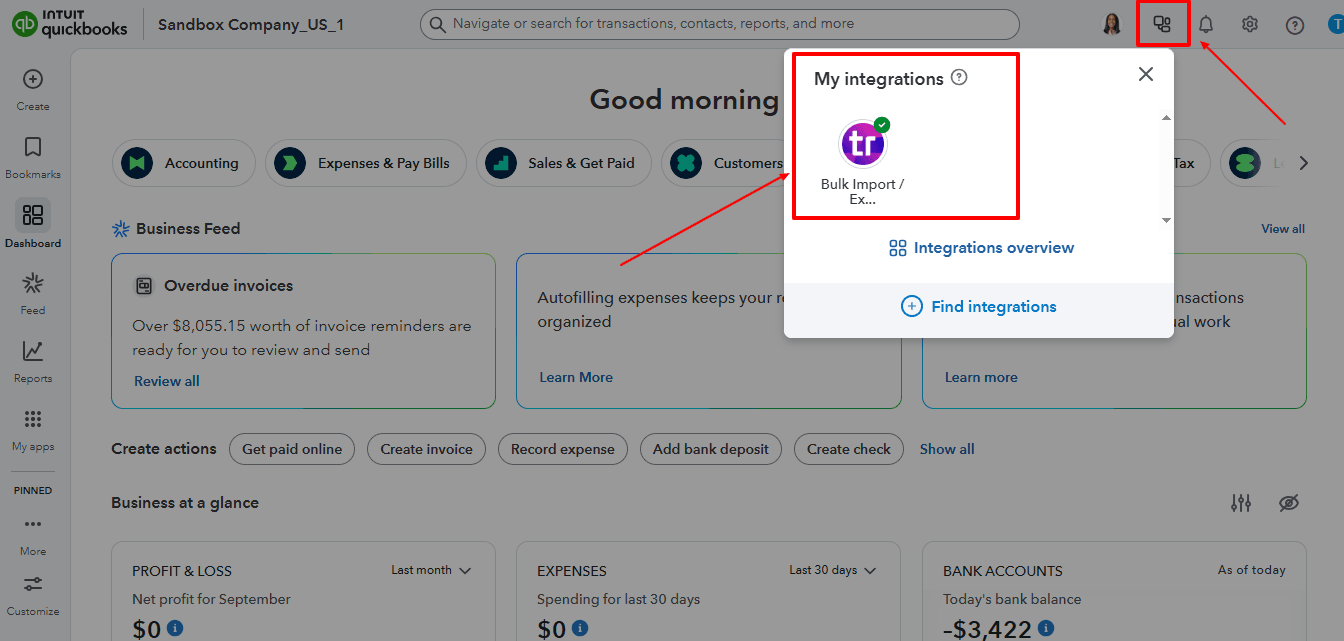
In the search bar, type “SaasAnt Transactions” as shown by the arrow in the image below.
Step 4: Open SaasAnt Transactions
Get the app from the App Store and connect it to QuickBooks.
On the SaasAnt dashboard:
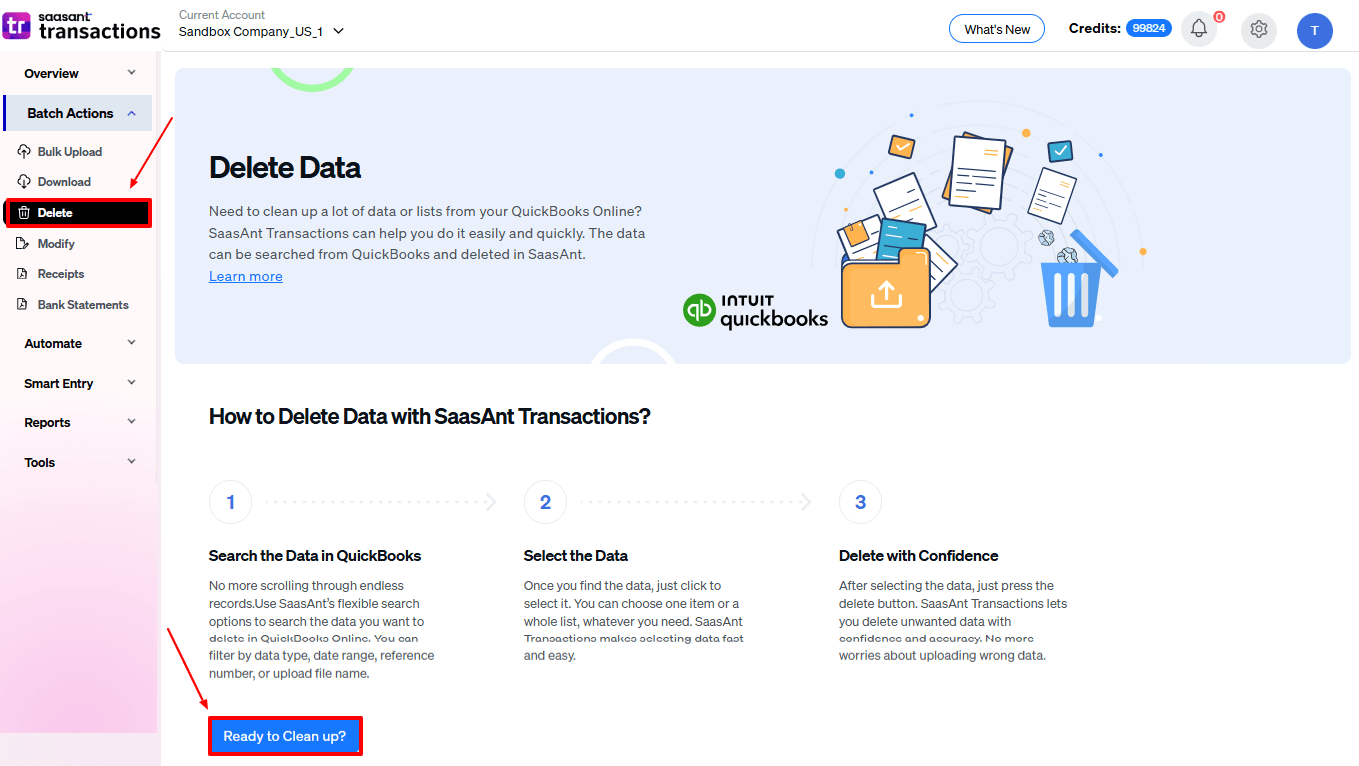
On the left side of the SaasAnt Transactions dashboard, you can see the menu bar with various options.
Select “Delete.”
You’ll be taken to the Delete Transactions interface as shown in the image below.
At the bottom left, click on “Ready to Clean up?”
Step 5: Choose Your Deletion Method
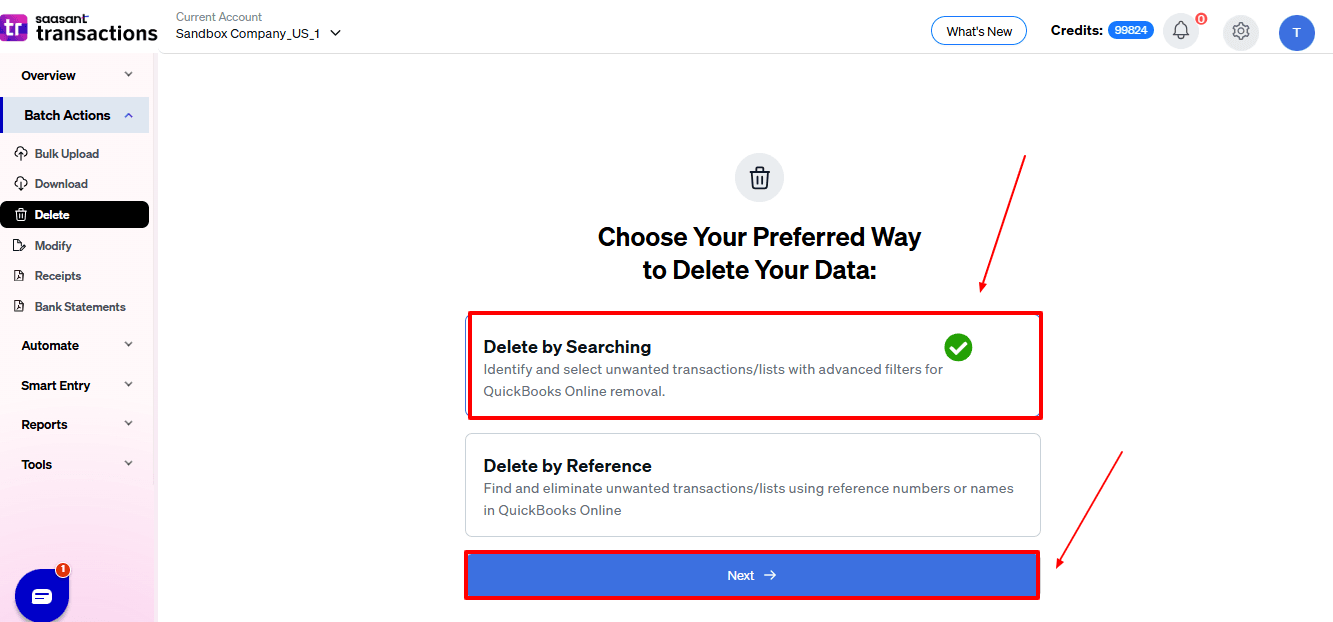
After selecting the option “Ready to Clean Up,” you will see two options.
The first option is “Delete by Searching,” and the other option is “Delete by Reference.”
In the “Delete by Searching” option, you can use filters like date range or transaction type to find and delete entries in QuickBooks Online.
In the “Already Imported Files” option, you can delete entries using specific names or reference numbers.
Choose the option “Delete by Searching.”
Step 6: Filter and Search for Transactions
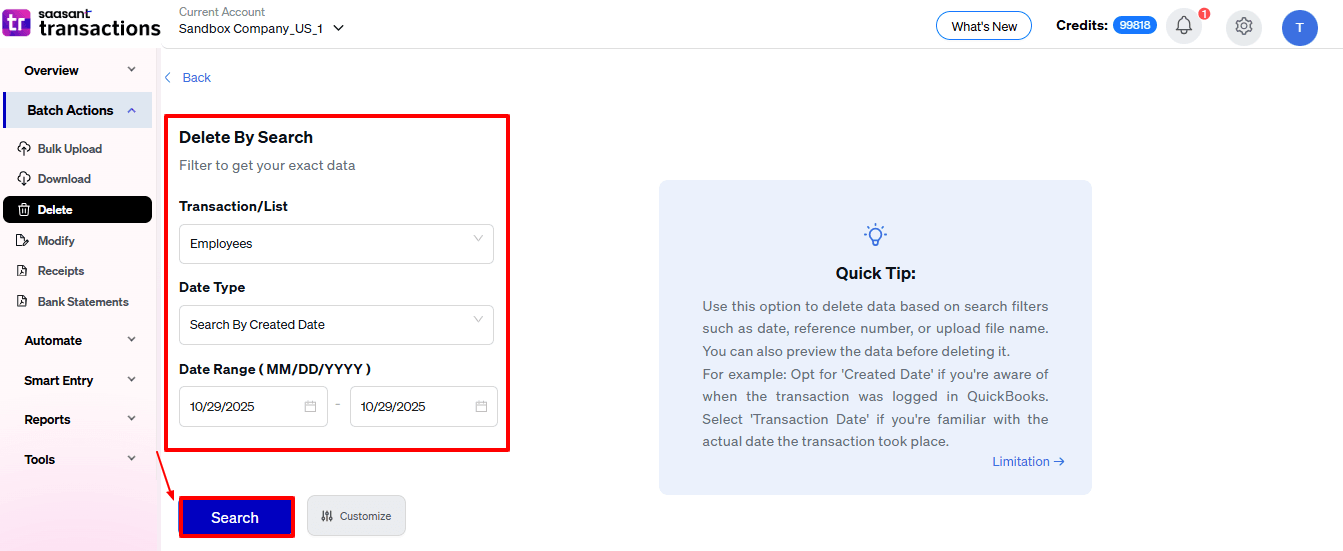
In the “Transaction/List” dropdown, select “Employees” to delete.
You can use this feature to delete various transaction types like invoices, expenses, quotes, and more.
In the “Data Type” dropdown, choose “Search By Created Date.”
Now enter the date ranges for cleanup and click “Search” to view the list of transactions.
Step 7: Select Transactions
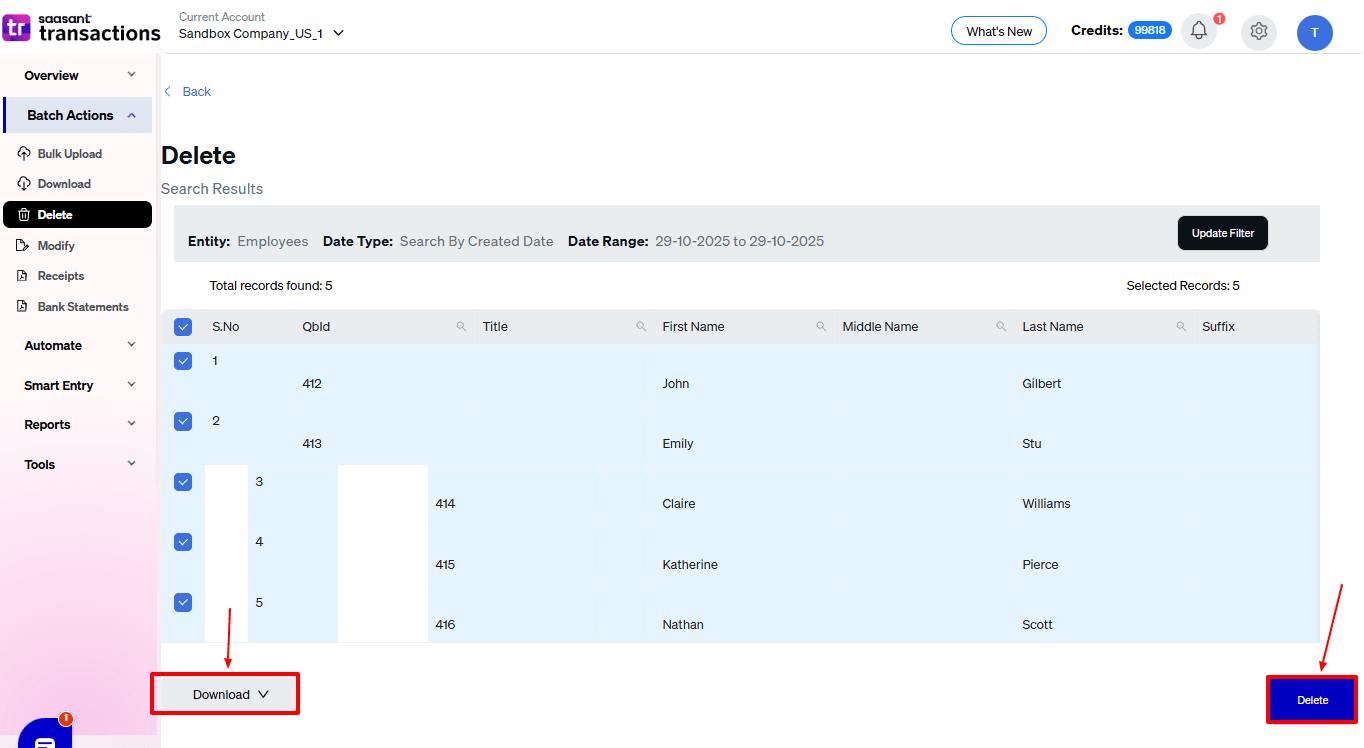
Review the list of results and click the checkboxes next to the employees' list you wish to delete.
Select the “Delete” option at the bottom right of the page, as shown in the image below.
Before deleting, remember to back up your employees' list by clicking the “Download” button at the bottom left.
Step 8: Confirm Deletion
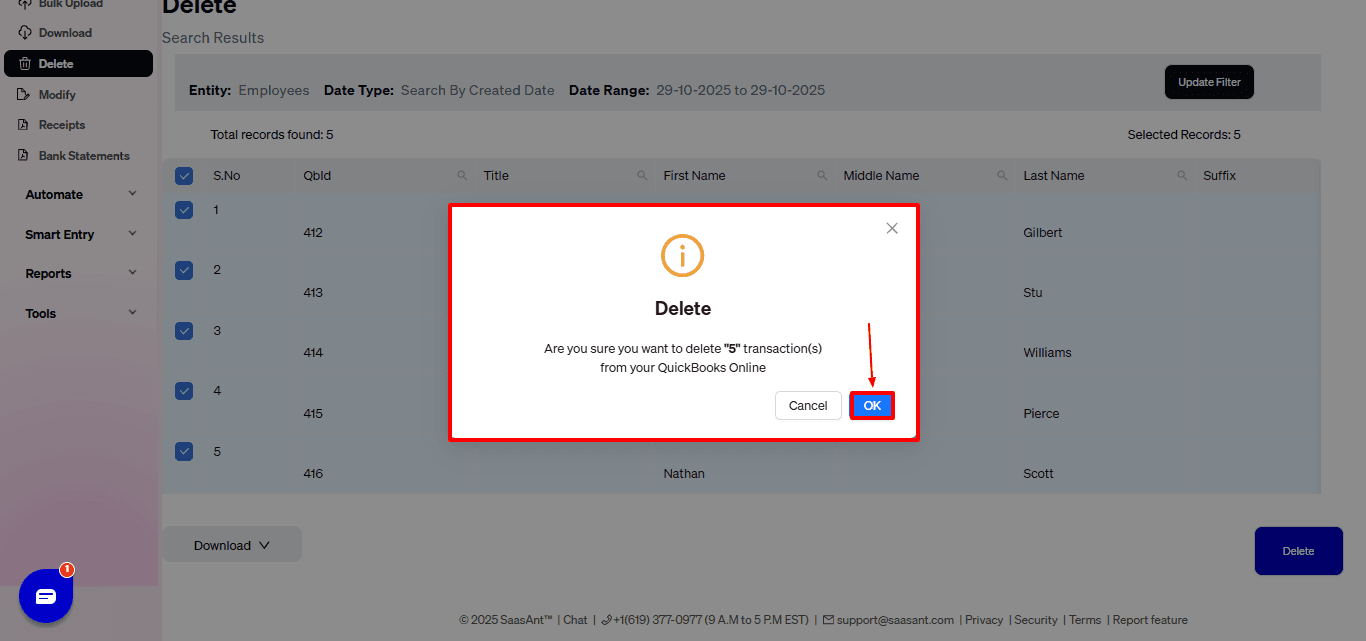
Once you click "Delete," a pop-up will appear to confirm your deletion.
Click “OK.”
Step 9: Deleted Transactions
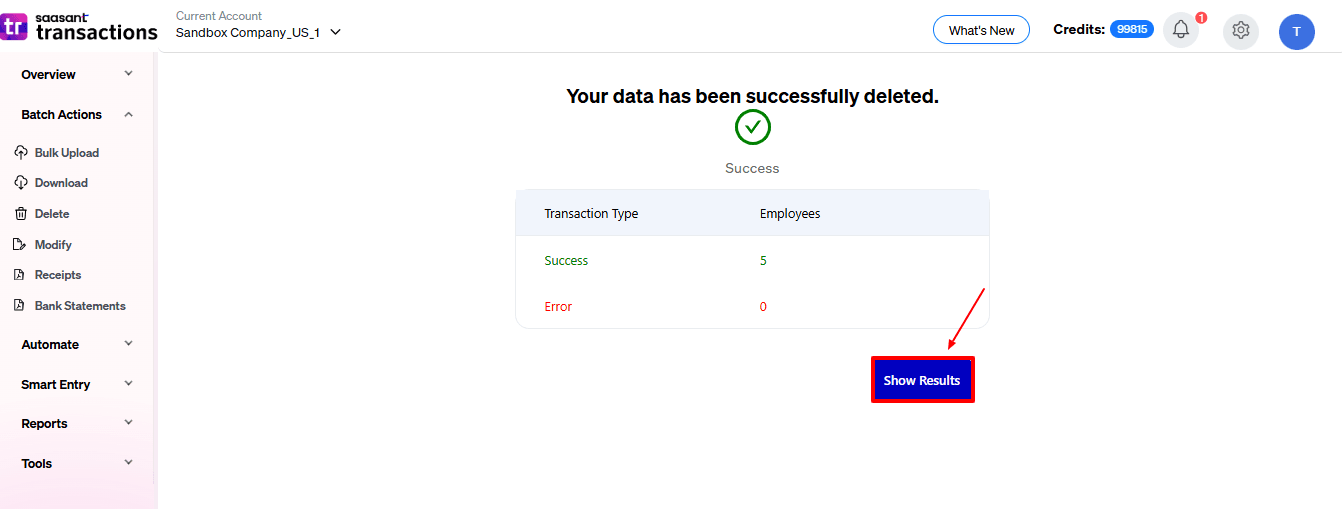
After deletion, click “Show Results” to view the deleted entries.
Use the “Download” button at the bottom right to download a copy of the deleted payments for your records.
Your deleted payments appear. At the bottom right, there is a “Download” option, which allows you to download your deleted payment data for future reference.
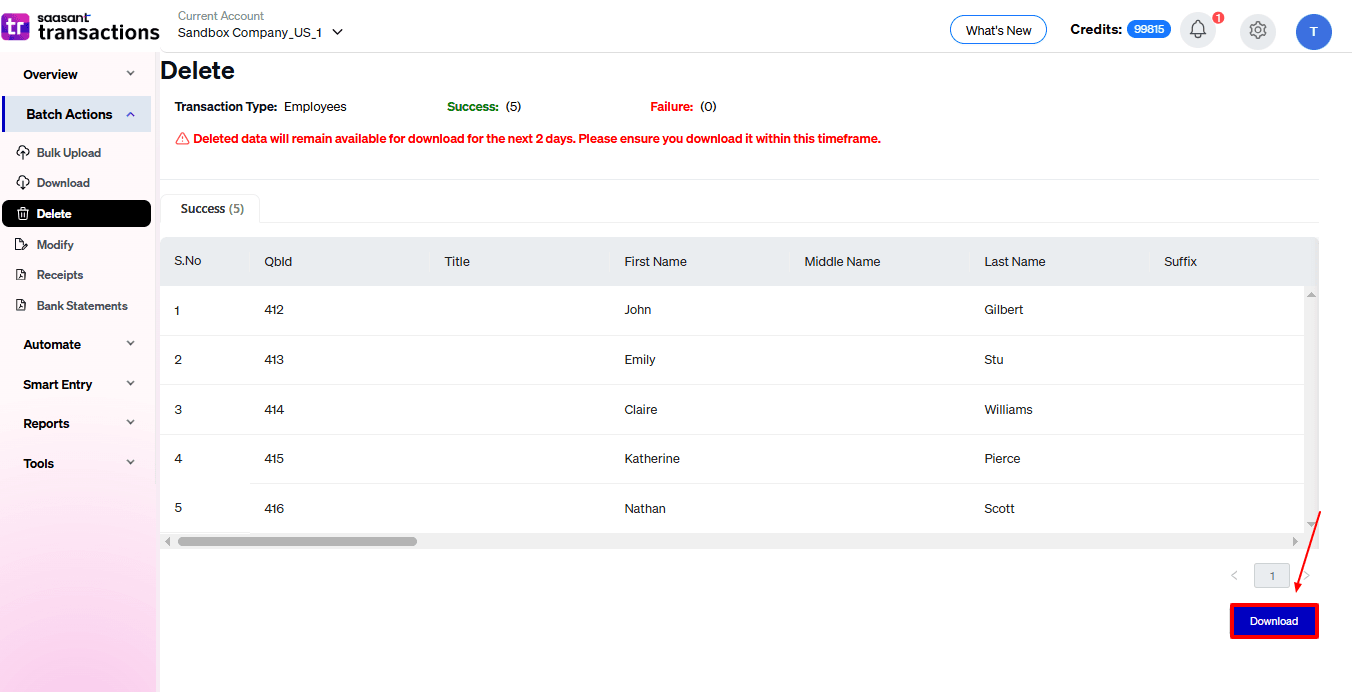
Note: Deleted data can only be downloaded within 2 days of deletion. After that, it will no longer be available.
Step 10: View Deleted Transactions
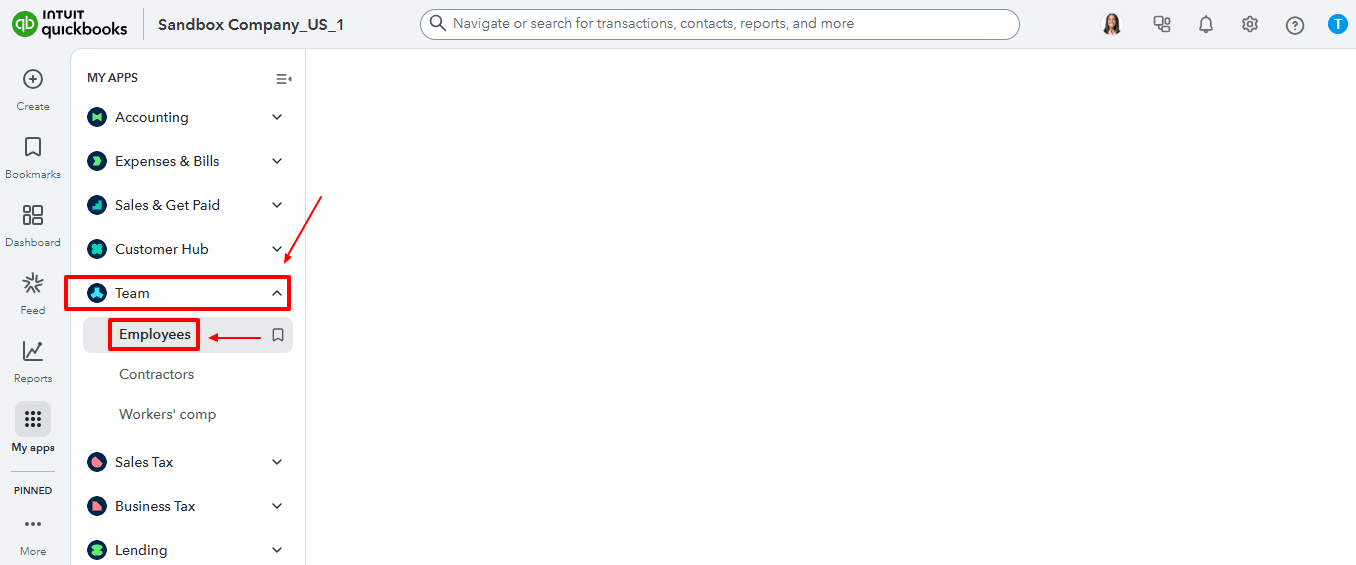
Now, return to the QuickBooks dashboard and select “Team” from the left. From the dropdown, choose “Employees.”
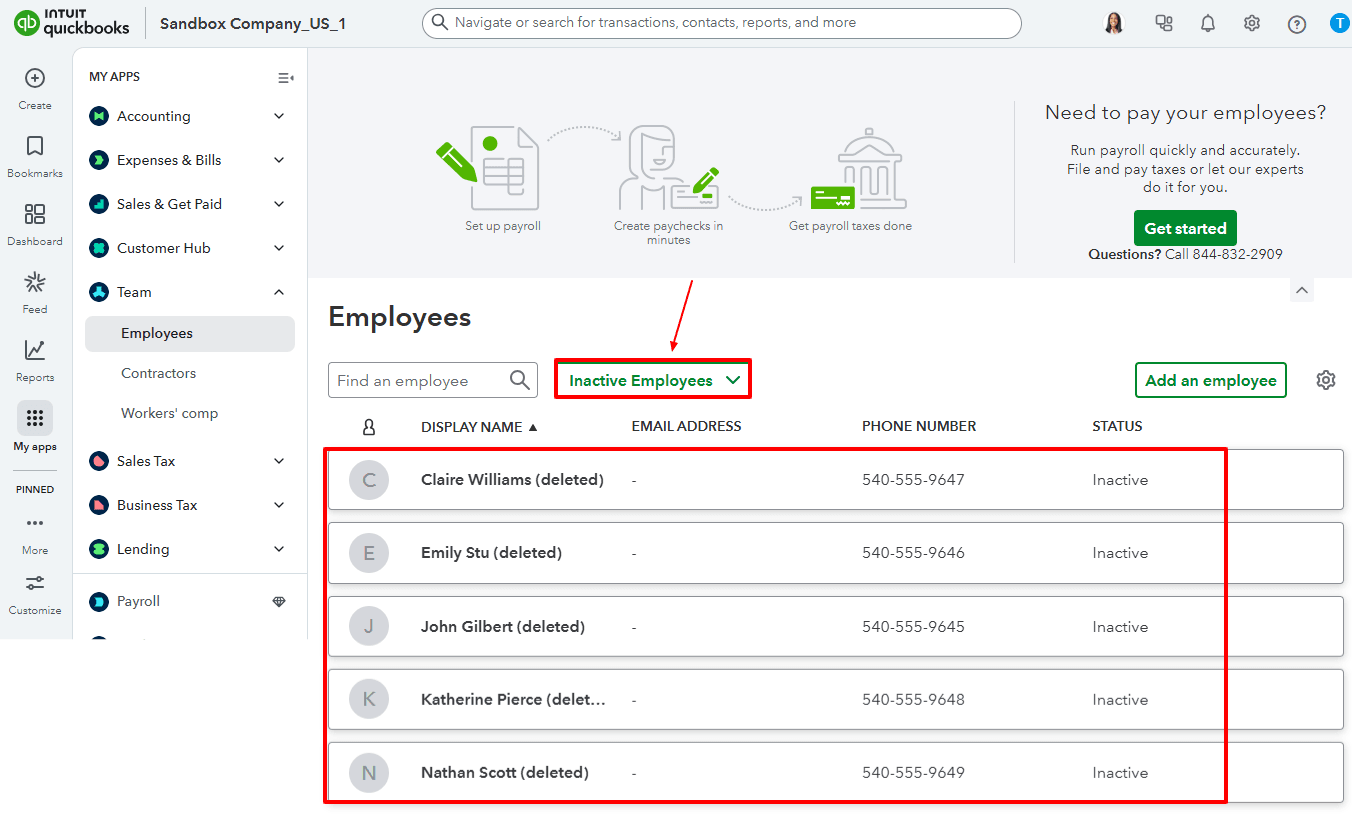
Select “Inactive Employees” from the dropdown.
The employees' list has been removed, as shown in the image below.
Why SaasAnt is the Ideal Add-On for Employee Deletion
SaasAnt Transactions is not just a data import tool, it’s a powerful automation solution designed for QuickBooks users. SaasAnt Transactions simplifies the cumbersome task of deleting, importing, or exporting employee data in QuickBooks Online to just a few simple clicks. Here’s why SaasAnt is the perfect add-on:
Bulk Deletion in a Few Clicks: Instead of deactivating each employee one at a time, SaasAnt enables you to delete multiple employee profiles at the same time. This feature for bulk deletion is great for businesses with large payrolls or seasonal employees.
Smart Filtering and Selection: SaasAnt allows you to filter employees by their status, creation date, or duplicates, ensuring that you only eliminate what is not needed, reducing the risk of accidentally removing valid data.
Payroll Integrity: SaasAnt makes sure that deleting employees does not interfere with existing payroll history or tax records. You can confidently eliminate inactive or duplicate profiles while remaining compliant.
Instant Undo/Rollback Feature: Did you make a mistake? With SaasAnt, you can reverse deletions easily with one click using its rollback feature, ensuring you manage your data completely.
Time and Cost Efficiency: What takes hours or days in QuickBooks can be completed in just minutes with SaasAnt, enabling businesses to prioritise payroll accuracy over manual corrections.
SaasAnt simplifies the management of employee data in QuickBooks, becoming faster, cleaner, and more reliable, exactly what every accountant and small business needs.
Wrap Up
Deleting employees in QuickBooks Online can be difficult when done manually, particularly with numerous inactive or duplicate records. While QuickBooks only allows you to mark employees as inactive, SaasAnt Transactions Online lets you delete them entirely in bulk, saving you hours of cleanup. With its user-friendly interface, advanced filters, and one-click backup, you can safely manage employee information while keeping your QuickBooks file organised. Whether you’re reconciling payroll, preparing for audits, or reorganising your team records, SaasAnt provides a smooth, accurate, and efficient way to manage employee data that QuickBooks alone cannot offer.
If you're looking to enhance bookkeeping automation, SaasAnt simplifies bookkeeping so you stay accurate, efficient, and audit-ready.
If you have inquiries regarding our products, features, trial, or pricing, or if you require a personalised demo, contact our team today. We are ready to help you find the ideal solution for your QuickBooks workflow.
Frequently Asked Questions
1) As an accountant, can I completely delete terminated employees from QuickBooks Online?
No, QuickBooks Online does not support complete deletion through its native interface, it only allows inactivation. However, with SaasAnt Transactions, you can delete employee data in bulk permanently while ensuring backups for compliance.
2) Can small business owners safely remove employees without affecting payroll records?
Yes. SaasAnt enables you to remove inactive or duplicate employee profiles while preserving historical payroll transactions, ensuring compliance with payroll tax regulations.
3) Can accountants undo a deletion if it was done accidentally?
Once deleted, data cannot be recovered in QuickBooks. But if you exported a backup file using SaasAnt before deletion, you can easily re-import the employee data.
4) How long do I have to download deleted employee records from SaasAnt?
Deleted employee records can be downloaded within 2 days of deletion. After this period, the data cannot be accessed from SaasAnt’s dashboard.
5) Is there a way to verify deleted employee data after cleanup?
Yes. Once deleted, SaasAnt shows a confirmation report listing all the employees that were removed. You can download this report as proof for audit trails or documentation needs.
Read Also
Export Employee Data From QuickBooks Online
Import Employee List into QuickBooks from Excel: How to Guide
How to Set Up Direct Deposit for Employees Using QuickBooks?
Workflow Automation for Bookkeeping and Accounting Professionals