How to Delete a Received Payment in QuickBooks Desktop
Maintaining accurate financial records is crucial for reliable reporting and efficient bookkeeping operations. In QuickBooks Desktop, a single misapplied or duplicate payment can disrupt your balances and cause confusion. Whether you’re correcting an error, cleaning up your books, or reversing a customer transaction, understanding how to delete a received payment safely is essential.
This blog will guide you through the steps to delete a received payment in QuickBooks Desktop using SaasAnt Transactions Desktop.
A landscaping company is paid twice by the same client due to a system synchronization issue. The bookkeeper identifies the duplicate entry during the monthly reconciliation. To prevent inflating income and mismatching invoices, the bookkeeper uses SaasAnt Transactions Desktop to locate and remove the extra payment in QuickBooks Desktop, all without having to sift through entries or manually jeopardize other transaction data.
This blog is ideal for bookkeepers, accountants, and small business owners, as well as QuickBooks Desktop users who want to maintain accurate records and streamline transaction processing.
Contents
How to Delete Received Payment in QuickBooks Desktop: Step-by-Step Guide
Wrap Up
Frequently Asked Questions
How to Delete Received Payment in QuickBooks Desktop: Step-by-Step Guide
Follow the steps below to delete a Received Payment in QuickBooks Desktop using SaasAnt Transactions.
Step 1: Install and Connect SaasAnt Transactions
Download the latest SaasAnt Transactions Desktop version.
Run SaasAntTransactions-Setup.exe as administrator.
Accept the license agreement and complete the installation.
Open the app, go to Subscription > Register.
Enter the license key from your confirmation email.
Keep your internet connection active.
Step 2: Launch SaasAnt Transactions Desktop
Start by opening the SaaSAnt Transactions Desktop app on your system.
Ensure that QuickBooks Desktop is open and connected to your company file before proceeding.
Step 3: Connect to QuickBooks Desktop
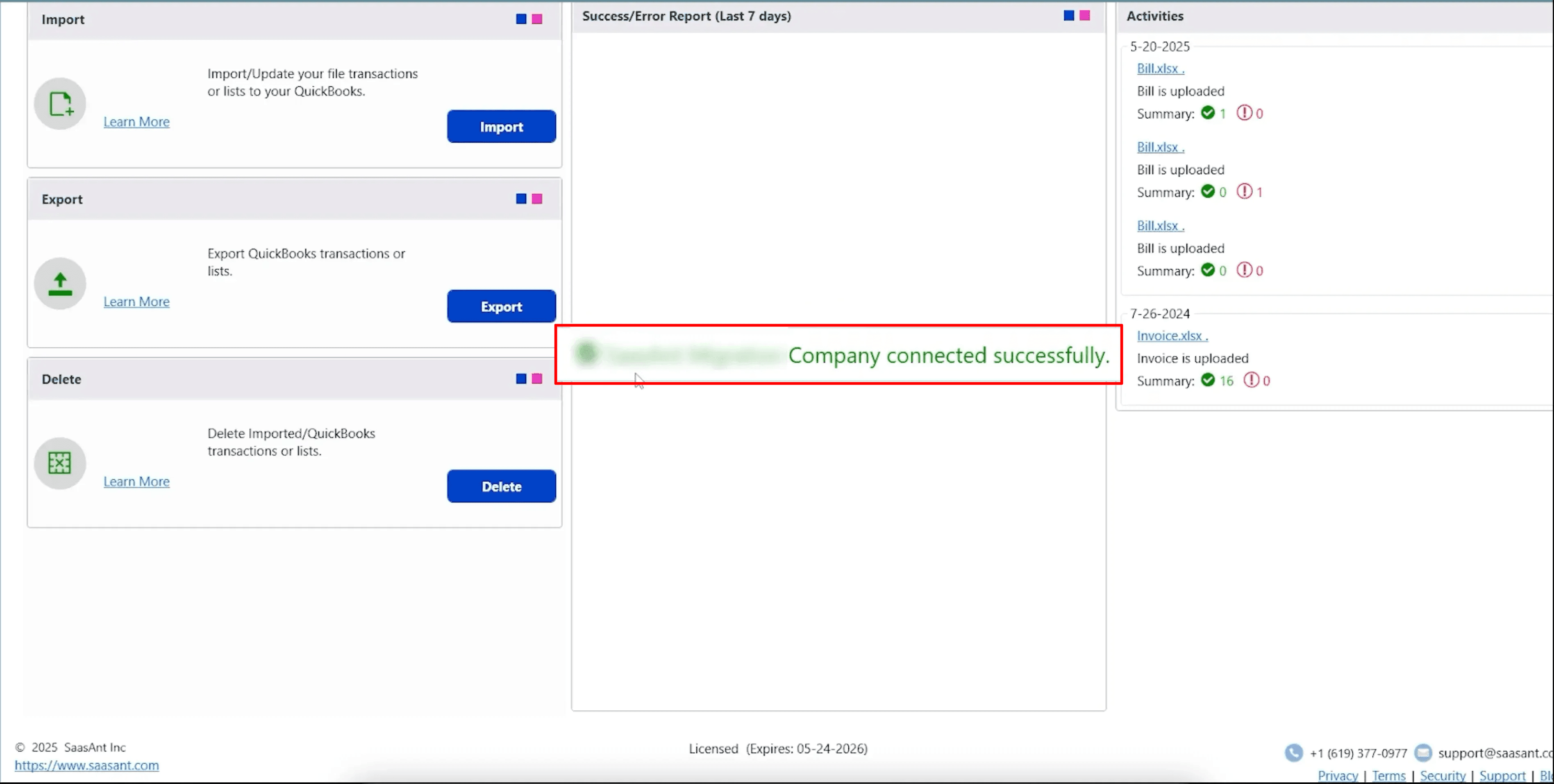
To access, you need to connect the SaasAnt Transactions Desktop with QuickBooks Desktop. Here's how:
Go to the ‘File’ menu in the top-left corner of SaasAnt Transactions Desktop.
Click ‘Connect to QuickBooks’ from the dropdown.
Step 4: Open SaasAnt Transactions
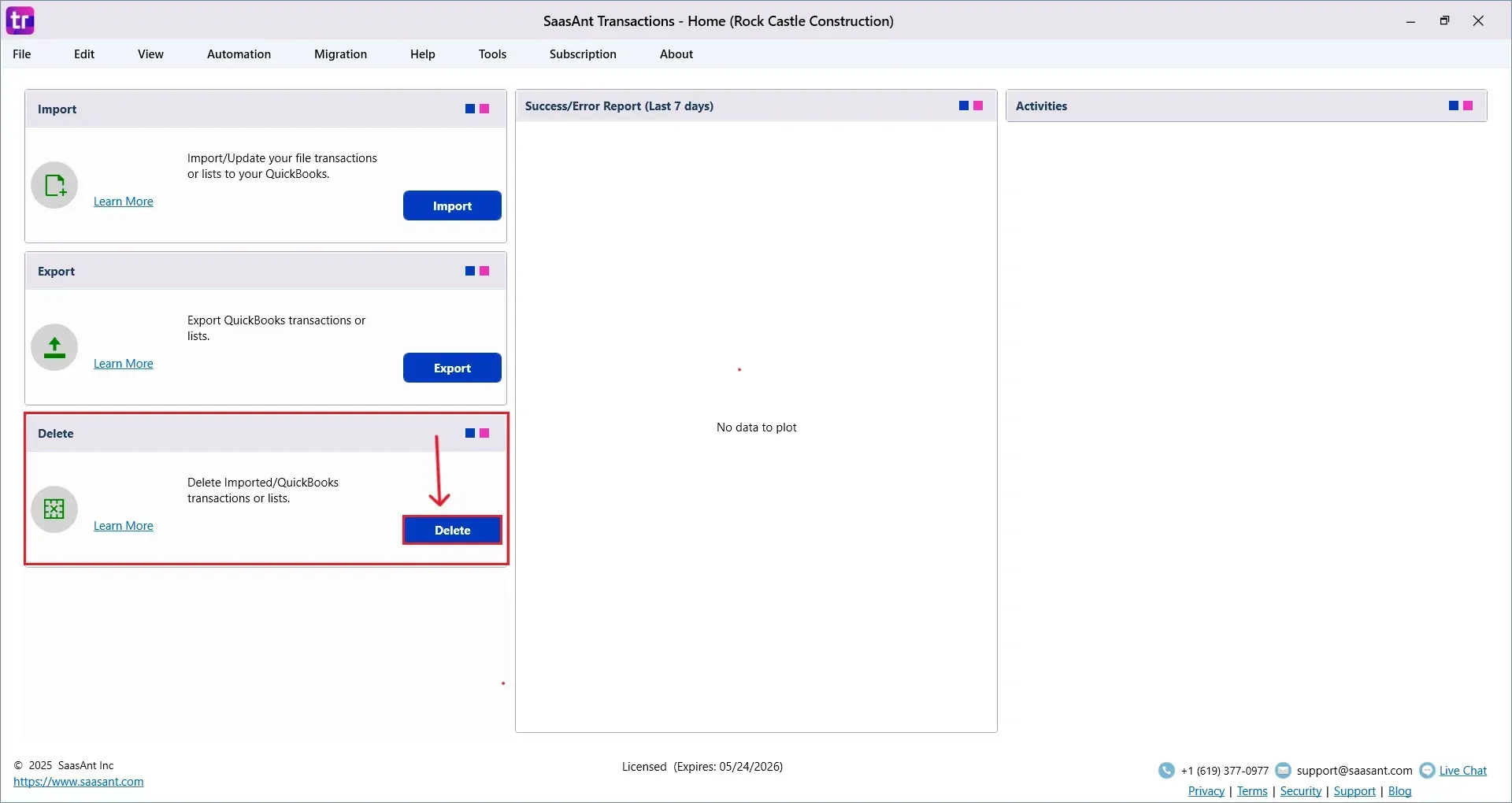
On the SaasAnt dashboard:
On the left side of the SaasAnt Transactions dashboard, you can see the menu bar with various options.
Select “Delete.”
Step 5: Filter and Search
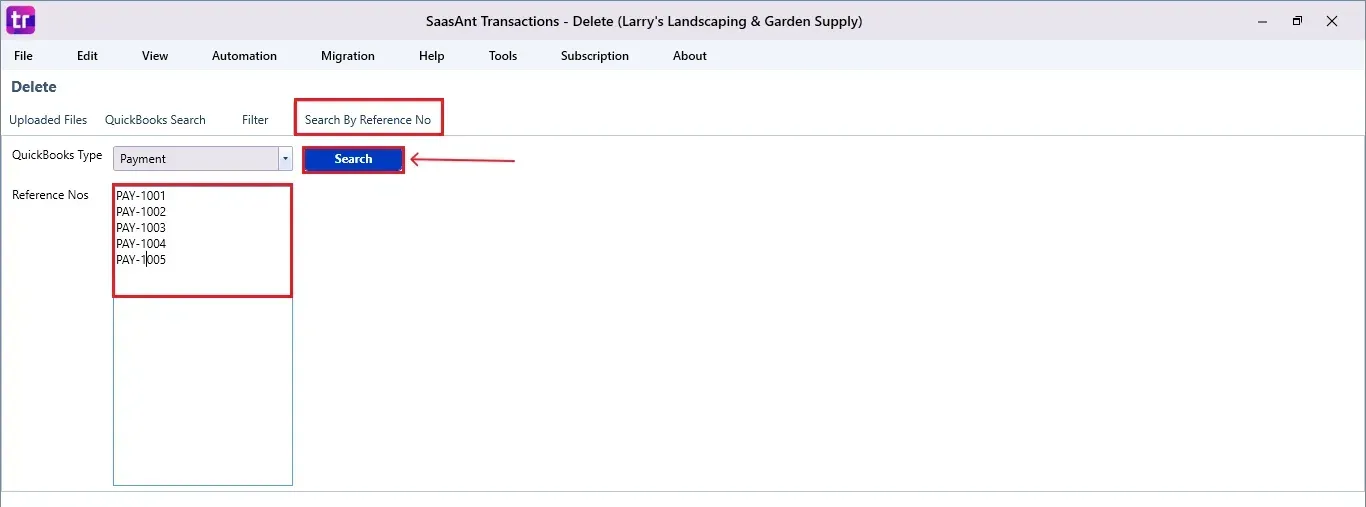
In the Search By dropdown, choose “Search By Reference Nos.”
Set QuickBooks Type to “Payment.”
Enter the reference numbers you want to delete.
Click “Search.”
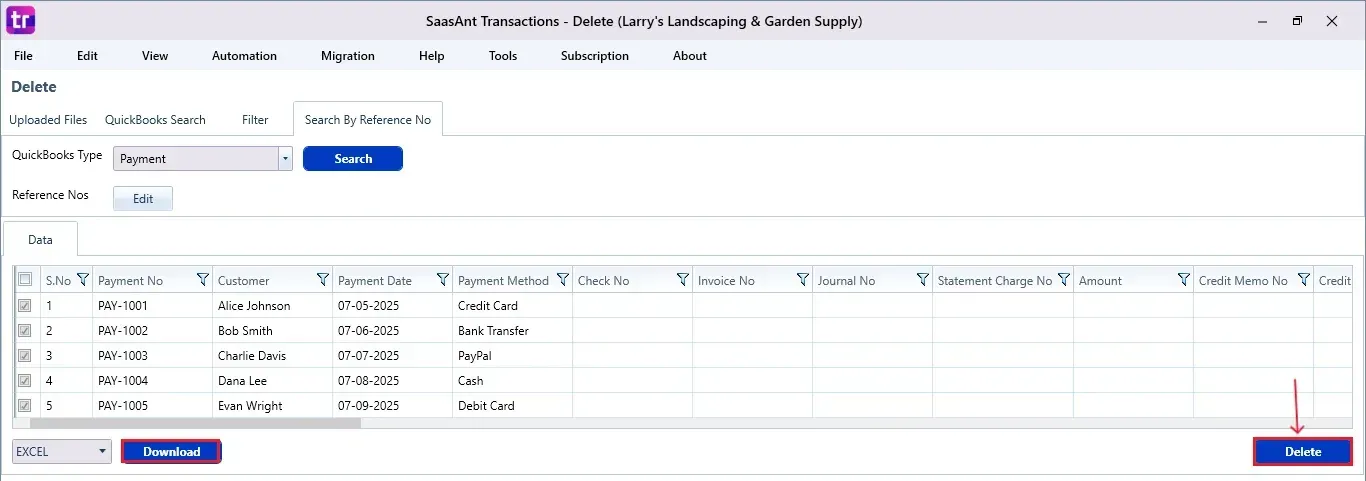
Step 6: Select Received Payment
A list of matching Received Payments will appear.
Review the list and check the boxes next to the items you want to delete.
At the bottom, click “Delete.”
Before deleting, remember to back up your Received Payment data by clicking the “Download” button at the bottom left.
Step 7: Confirm Deletion
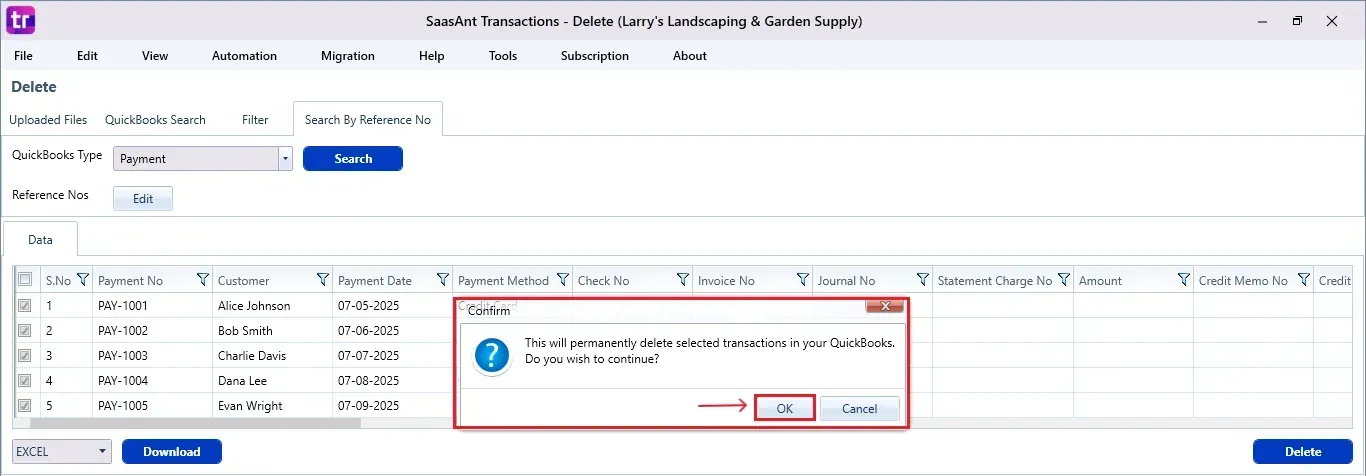
Once you click delete, a pop-up will ask you to confirm your deletion.
Click “OK” to proceed.
Step 8: View Deleted Payments
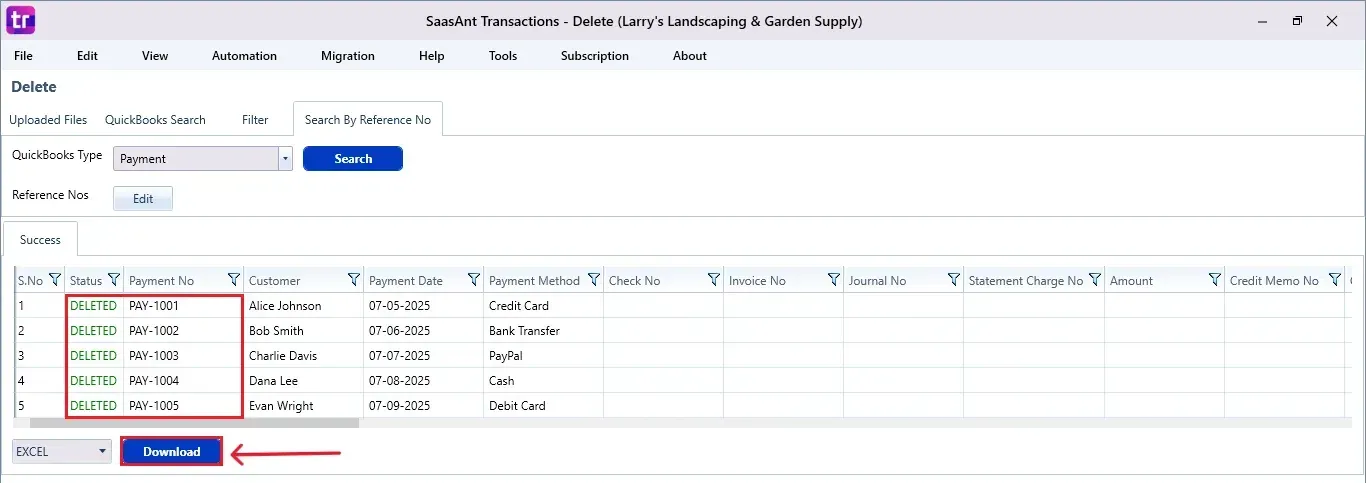
After deletion, the removed Received Payment will be listed on your SaasAnt dashboard.
You can download the list for records by clicking “Download” at the bottom left.
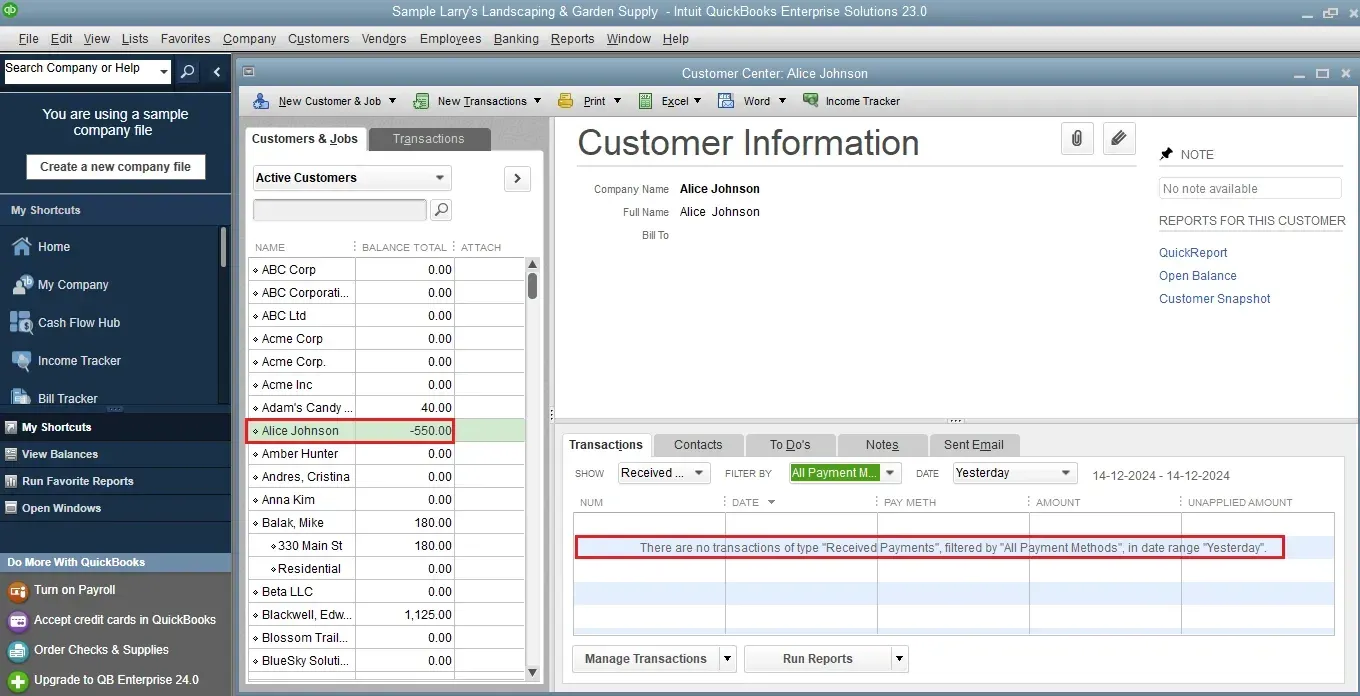
If you open the Customer Centre in QuickBooks Desktop, you'll notice the received payments have been deleted.
Wrap Up
Mistakes can happen, but correcting them shouldn’t be complicated. Whether you’re handling a duplicate payment or need to cancel a customer transaction, using SaasAnt Transactions Desktop with QuickBooks Desktop ensures your data is clean and dependable. This simple, guided process helps reduce manual work, improve accuracy, and keep your books in great shape.
By leveraging trustworthy platforms like QuickBooks for your accounting processes and SaasAnt for transaction management and automation, you can enhance the overall workflow, minimize errors, save time, and acquire greater financial insight.
If you have inquiries regarding our products, features, trial, or pricing, or if you require a personalized demo, contact our team today. We are ready to help you find the ideal solution for your QuickBooks workflow.
Frequently Asked Questions
1) Can I delete multiple received payments at once in QuickBooks Desktop?
Yes, with SaasAnt Transactions Desktop, you can bulk delete received payments by filtering them with reference numbers.
2) Can I undo a payment deletion?
No, once you delete it, the payment can't be restored. Therefore, it's essential to download and save the data before you delete it.
3) What if I deleted the wrong payment?
If you have the backup or the data you downloaded, you can either re-enter the payment manually or import it again with SaasAnt.
4) Is there a limit to how many payments I can delete at once using SaasAnt?
No, there isn't a strict limit. However, it's advisable to check the list thoroughly before deleting in bulk to make sure everything is correct.
Read also
Can I Import Accounts Receivable Payments into QuickBooks Desktop?
How to Import Payments in QuickBooks Desktop
How to Delete Multiple Transactions in QuickBooks Desktop?
QuickBooks Desktop to QuickBooks Online Migration: Your Ultimate Guide