How to Export Tax Rate in Xero
Exporting tax rates in Xero may seem like a minor task, but for accountants and bookkeepers, it is essential for compliance, reporting, and effective financial management. Whether you are preparing for audits, syncing data with other systems, or ensuring uniform tax setups for various clients, accurately extracting your tax rate data from Xero is vital.
However, Xero's native export features can often seem limiting, particularly when dealing with large amounts of data. Here's the reason:
No Bulk Exporting: Xero does not allow users to export all tax rates at once. Each rate must be checked individually, which can be time-consuming for businesses with multiple tax codes or complex setups.
No Bulk Editing: If tax rates require changes or updates, Xero needs each rate changed individually. Bulk updates for several rates are not possible on this platform.
Limited File Formats: Exports are limited to CSV, which restricts compatibility with tools that need other formats, such as XLSX or Google Sheets.
No Undo/Rollback Option: Mistakes during manual exports or edits in Xero cannot be corrected. Users cannot roll back or undo mistakes, which increases the likelihood of data inconsistencies.
These limitations create challenges for accounting firms, bookkeepers, and SMBs in their efforts to manage tax rates efficiently. This is where SaasAnt Transactions for Xero comes in. With features such as bulk exporting, customizable filters, undo capabilities, and support for different file formats, it changes a time-consuming task into an easy, automated workflow.
Bulk Tax Rate Export for Audit and Compliance
A medium-sized accounting firm serves a range of clients across various tax areas. Each client has specific tax rates for GST, VAT, and sales tax. During quarterly audits, the firm must gather all tax rates to check compliance and balance accounts. Manually exporting from Xero is slow and error-prone, since each rate must be copied one by one. With SaasAnt Transactions, the firm can export all tax rates in bulk, filter by client or tax type, and download in CSV or XLSX format, ensuring the data is accurate, efficient, and ready for audits.
This blog is suitable for accountants, bookkeepers, and small- to medium-sized business owners who use Xero and want quicker, more accurate methods for exporting bulk Tax Rates.
Contents
Bulk Tax Rate Export for Audit and Compliance
How to Export Tax Rate from Xero
Why Choose SaasAnt Transactions for Xero?
Wrap Up
Frequently Asked Questions
How to Export Tax Rate from Xero
Always back up your Xero Online data before you begin. Even though SaasAnt is designed to be safe and reliable, a backup provides an added layer of security. Follow the steps below to get started.
Step 1: Log In to Your Xero Account
Log in to your Xero account.
Step 2: Navigate to the Apps Menu
On the right side of the Xero dashboard, you can see the menu bar with various options.
Select the “Waffle” icon. Click the dropdown and select “Find more apps on Xero App Store.”
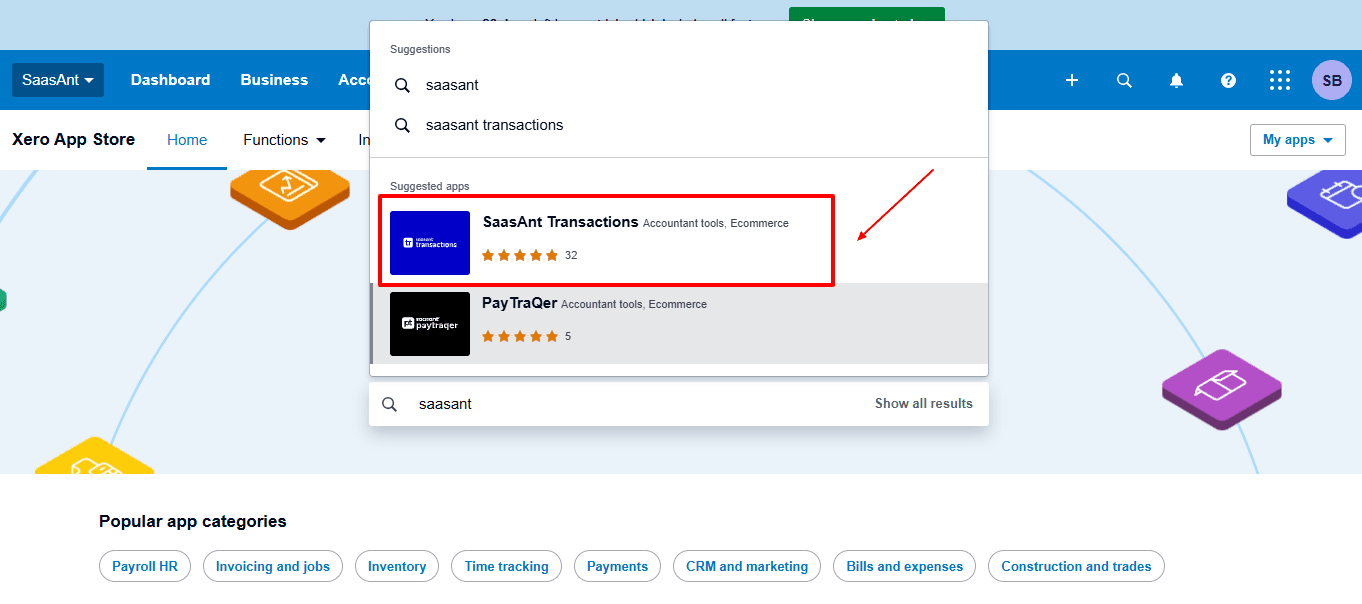
Step 3: Search SaasAnt Transactions
In the search bar, type “SaasAnt Transactions” as shown by the arrow in the image below.
Step 4: Open SaasAnt Transactions
Get the app from the App Store and connect it to Xero.
On the SaasAnt dashboard:
On the left side of the SaasAnt Transactions dashboard, you can see the menu bar with various options.
Select "Download”
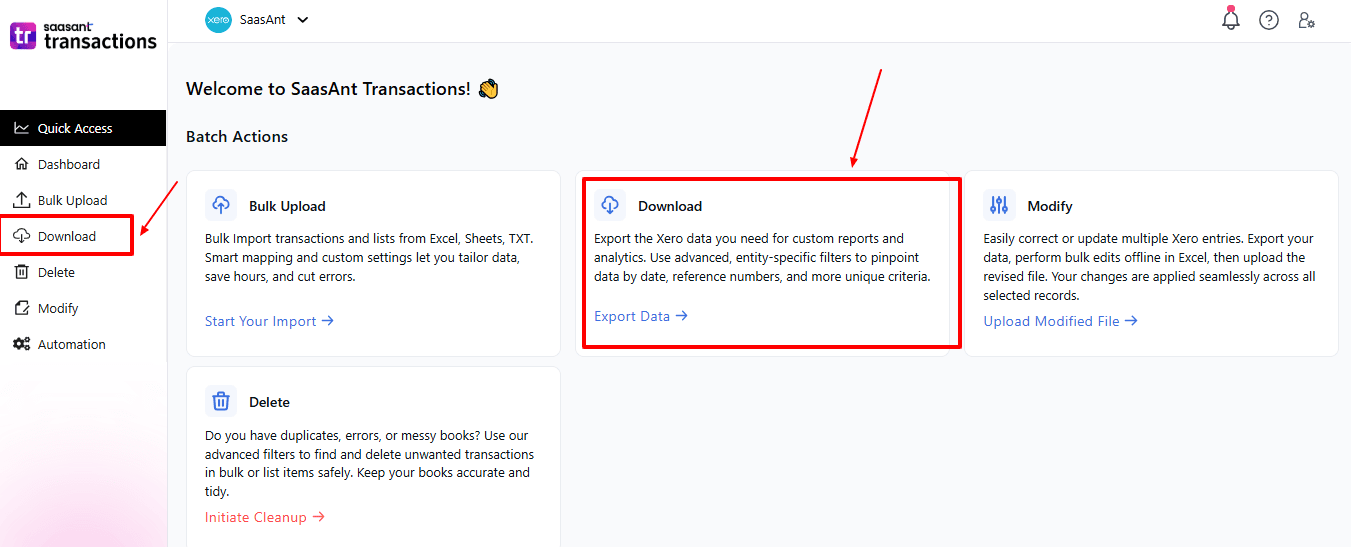
The Dashboard appears as shown in the image below.
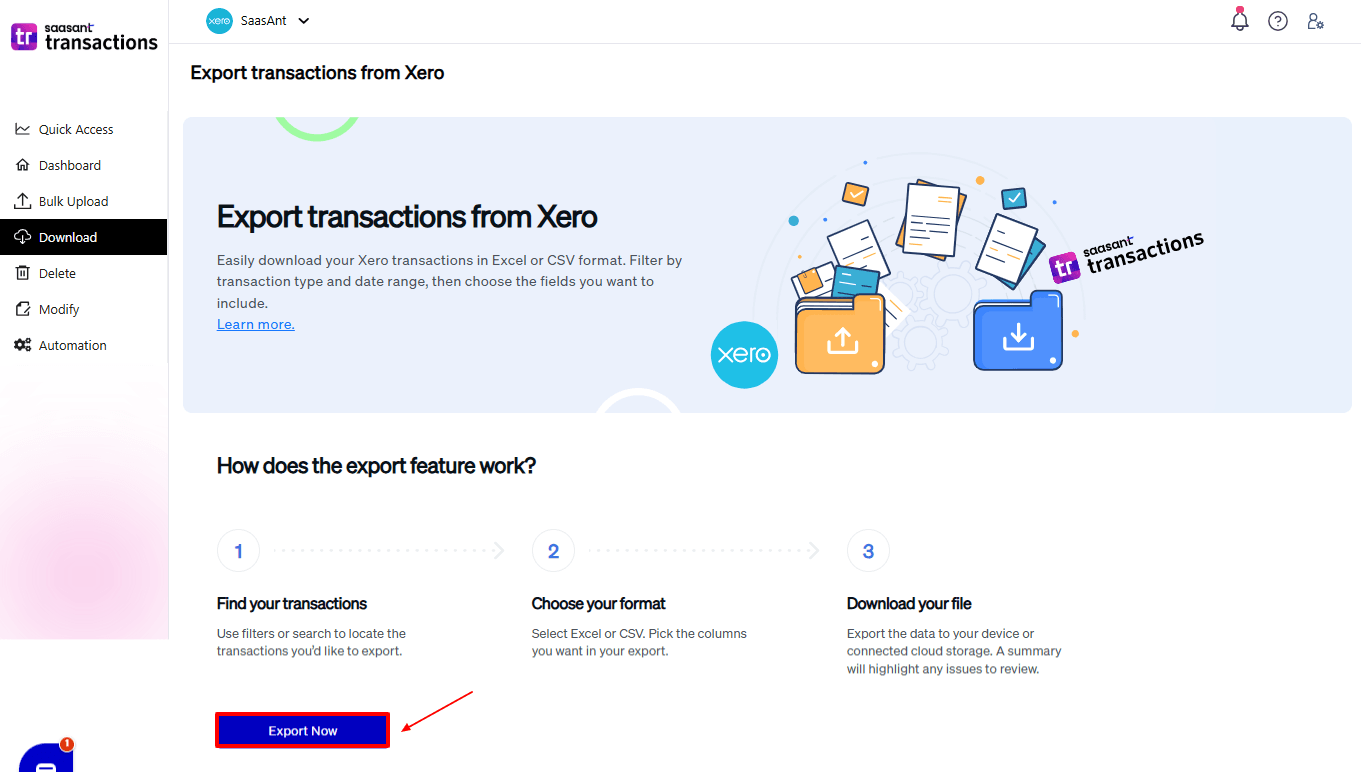
Step 5: Search and Filter Data
Fill in the required fields, such as transaction type, date type, and date range. We can select the transaction type as “Tax Rate”.
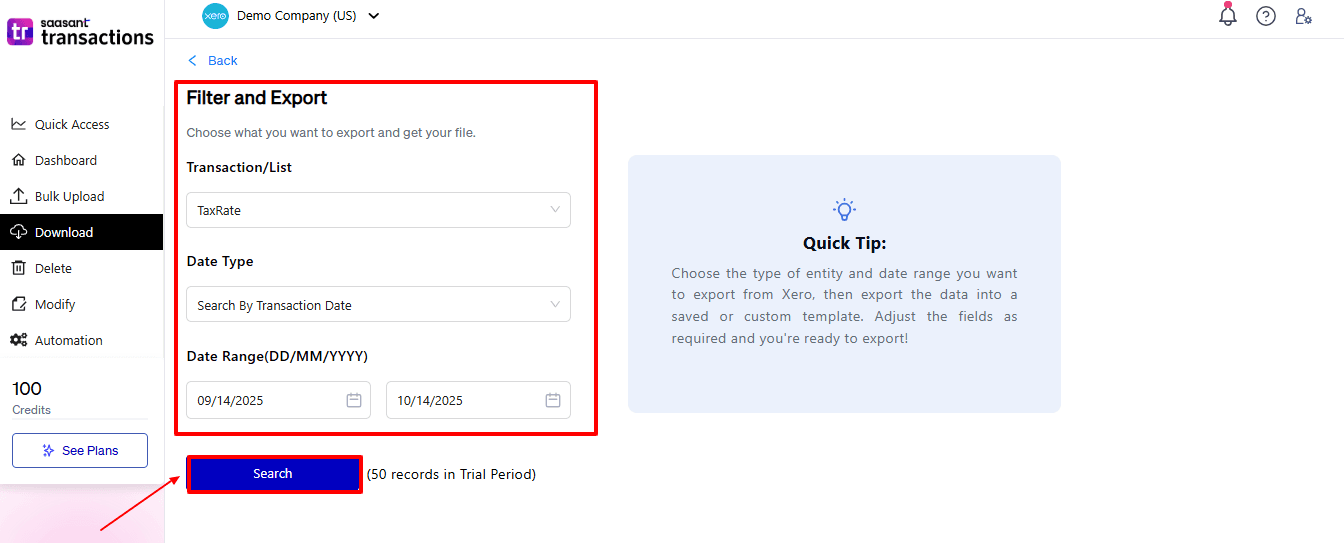
Step 6: Download Data
Click “Search,” and the tax rate appears in the dashboard. Now select “Download”.
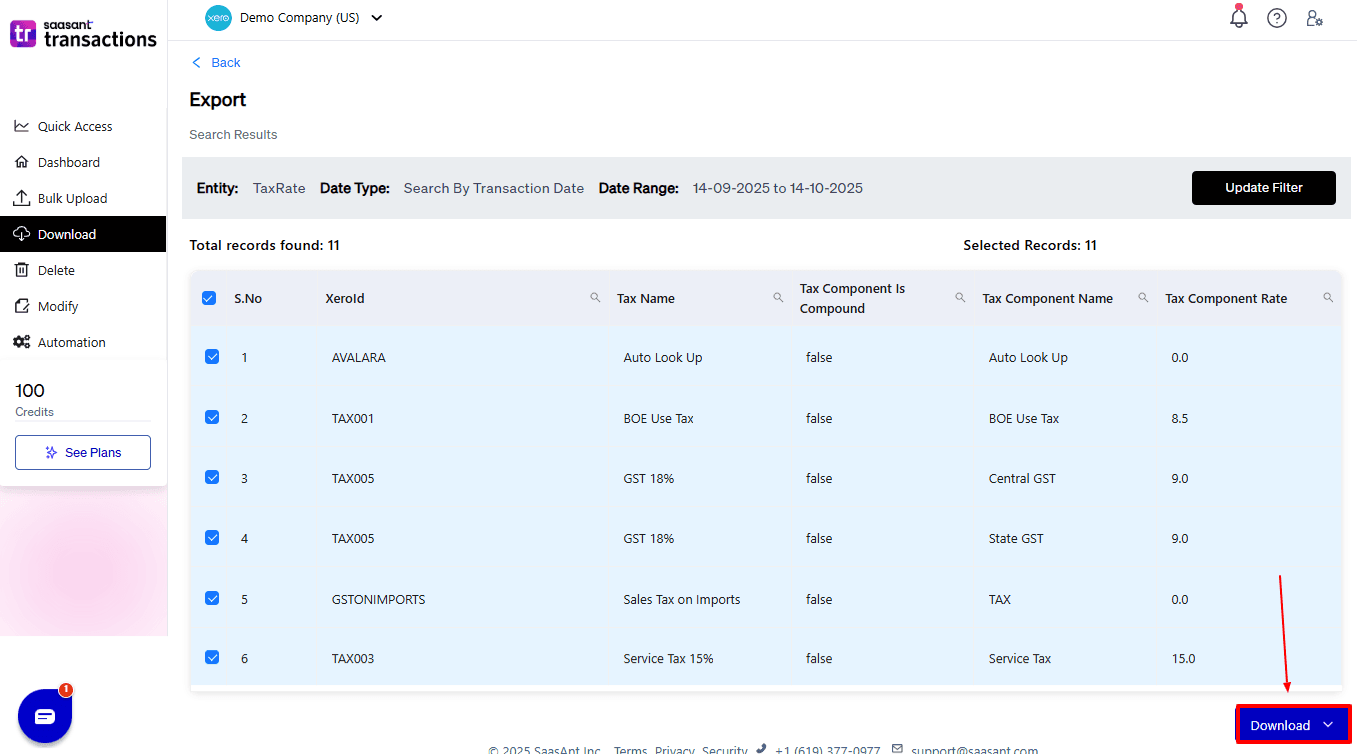
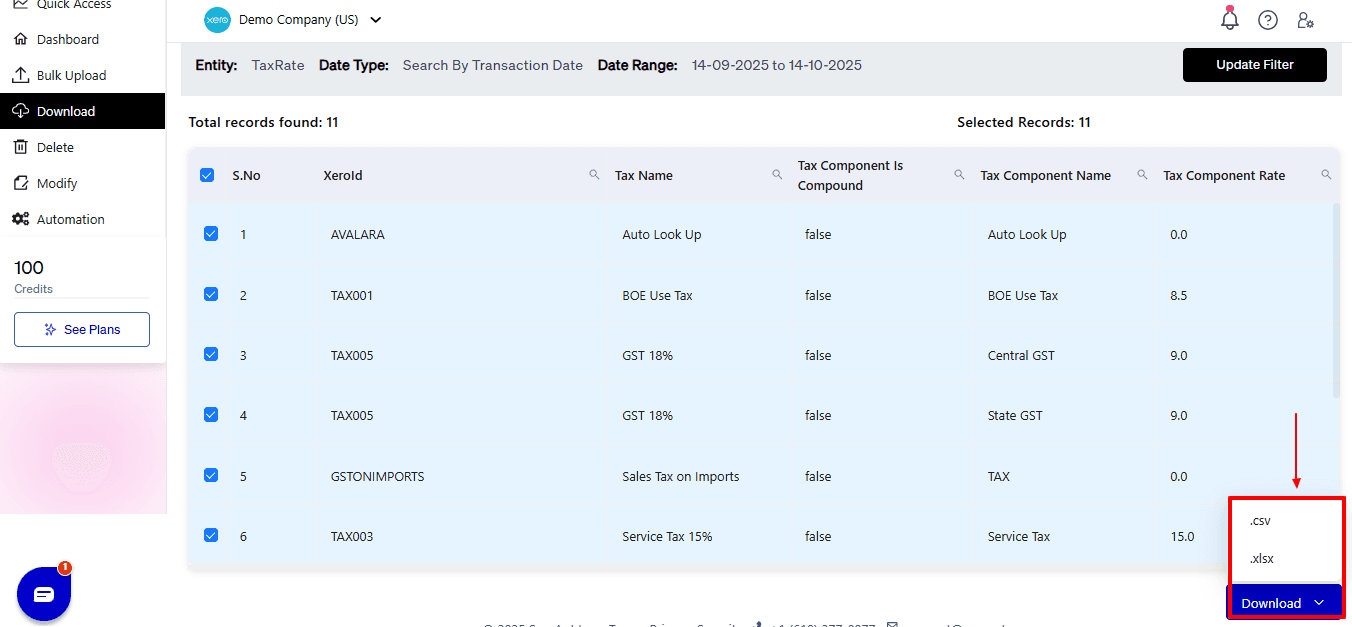
After you choose ‘Download,’ a dropdown will appear with two file format options: CSV and XLSX. Select your preferred format and download your tax rate data.
Why Choose SaasAnt Transactions for Xero?
Exporting tax rates in Xero can be restrictive, particularly when handling large datasets, various tax codes, or requiring bulk updates. SaasAnt Transactions overcomes Xero’s shortcomings and enhances the efficiency of the tax rate export process:
Bulk Export: Export all tax rates with a single click, eliminating the need to manually copy or extract each rate and saving time while minimising errors.
Adaptable File Support: Select from multiple file formats (CSV, XLSX) and adjust field mappings to fit your internal or external systems. Include custom fields, tags, or extra metadata that Xero’s standard export does not offer.
One-Click Undo: Mistakes can occur, even in bulk updates. SaasAnt offers a one-click undo feature that lets users revert any changes made during tax rate imports or edits.
Error Detection and Validation: Before importing or updating tax rates, SaasAnt automatically verifies the data to prevent errors. This lowers the risk of incorrect tax codes being uploaded to Xero, ensuring both accuracy and compliance.
Handling large datasets: SaasAnt manages thousands of tax rate entries smoothly, avoiding slowdowns or system timeouts, which are common issues in Xero.
Wrap Up
Exporting tax rates in Xero is crucial for precise bookkeeping, reporting, and compliance.
While Xero supports basic CSV exports, its capabilities are limited, especially when dealing with multiple tax codes or bulk updates. SaasAnt Transactions for Xero improves this by allowing customisable, bulk export of tax rates, error checking, and easy re-import into Xero. Accountants, bookkeepers, and small business owners can save time, minimise errors, and keep their records organised. By integrating Xero’s core accounting functions with SaasAnt’s superior export capabilities, businesses of all sizes can manage tax rates more quickly, accurately, and effectively.
If you have inquiries regarding our products, features, trial, or pricing, or if you require a personalised demo, contact our team today. We are ready to help you find the ideal solution for your Xero workflow.
Frequently Asked Questions
1) How can bookkeepers avoid errors when exporting tax rates in Xero?
Xero creates simple CSV files without any validation. SaasAnt Transactions automatically checks data before exporting or importing, minimising errors and ensuring accuracy.
2) Which file formats are available for exporting Tax Rate?
Unlike Xero, which supports only CSV, SaasAnt lets you use both CSV and XLSX, ensuring it works with Excel, Google Sheets, and other tools.
3) Can I customise which tax rate fields to export in Xero?
Xero does not offer the option to select fields. SaasAnt Transactions lets you choose which fields to export, such as tax code, rate, type, and status, personalising reports to your needs.
4) Can I export tax rates for multiple subsidiaries or companies at once?
Xero does not allow exports for multiple organisations. SaasAnt Transactions enables the export of tax rates from multiple Xero organisations simultaneously, making it ideal for accounting firms.
5) Can accountants create custom reports from exported Xero tax rates using SaasAnt?
Xero only exports standard fields. SaasAnt Transactions lets you select and export specific fields, helping accountants create customised reports for their clients.
Read Also
How to Import Journal Entry in Xero
How to Import Quotes into Xero?
How to Import Sales Invoices Into Xero?
How to Import Spend Money in Xero