How to Export Receive Payments from QuickBooks
You could be a business owner, bookkeeper, or accountant looking to export Receive Payments from QuickBooks Online. You may be reconciling payments for month-end reporting, sharing cash flow data with stakeholders, or just creating a secure backup for audit or compliance purposes.
The challenge is that QuickBooks Online doesn’t offer a straightforward or detailed method to export Receive Payment transactions. Fortunately, there's a CPA-trusted solution that makes this process quick and hassle-free. SaasAnt Transactions—rated 4.9 stars by over 4200 users and an Accountant's Favorite and User's choice award-winning app lets you effortlessly export and receive payments from QuickBooks Online using powerful filters, custom date ranges, and precise formatting options.
This guide explains how to use SaasAnt to export and receive payments step-by-step, along with details on supported fields, formats, and customization options.
Contents
Why Export Receive Payments from QuickBooks?
Export Receive Payments: Quick Instructions
How to Export Receive Payments from QuickBooks Online: Step-by-Step Instructions
Benefits of Using SaasAnt for Exporting Receive Payments
Common Use Cases
Conclusion
Frequently Asked Questions
Related Resources
Why Export Receive Payments from QuickBooks?
Receive payments in QuickBooks represent customer payments received against invoices. Exporting this data allows you to:
Analyze incoming cash flow
Perform reconciliation outside QuickBooks
Share payment reports with accountants or stakeholders
Maintain backups for audits or compliance
Migrate records into other accounting systems.
Instead of exporting manually line by line, SaasAnt Transactions enables you to export bulk receive payments from QuickBooks Online in just a few clicks.
Export Receive Payments: Quick Instructions
Connect SaasAnt Transactions
Install from the QuickBooks App Store and link to your QBO account (a 30-day free trial is available).Select “Receive Payments” Entity
In the SaasAnt dashboard, select "Receive Payments" from the Transaction List dropdown.Apply Advanced Filters
Filter by transaction date, customer name, amount range, or reference number.Download the File
Click "Download," then select either CSV or XLSX format.
How to Export Receive Payments from QuickBooks Online: Step-by-Step Instructions
Step 1: Connect SaasAnt Transactions
Go to the QuickBooks App Store, search for SaasAnt Transactions, and click Get App.
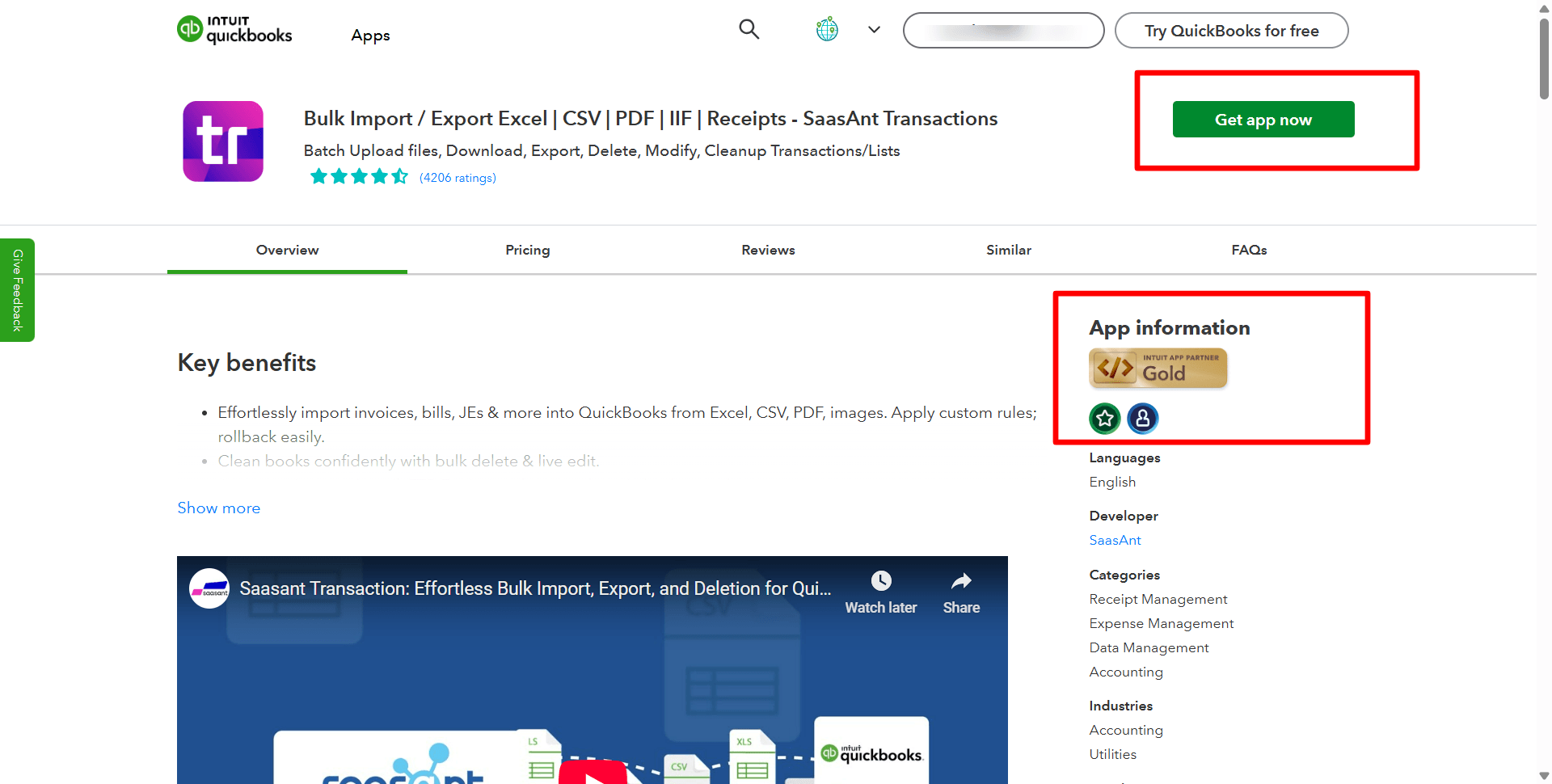
Follow the prompts to authorize SaasAnt to access your QuickBooks Online data.
Start your free 30-day trial—no credit card required.
Step 2: Entity Selection
In the SaasAnt dashboard, click Download.
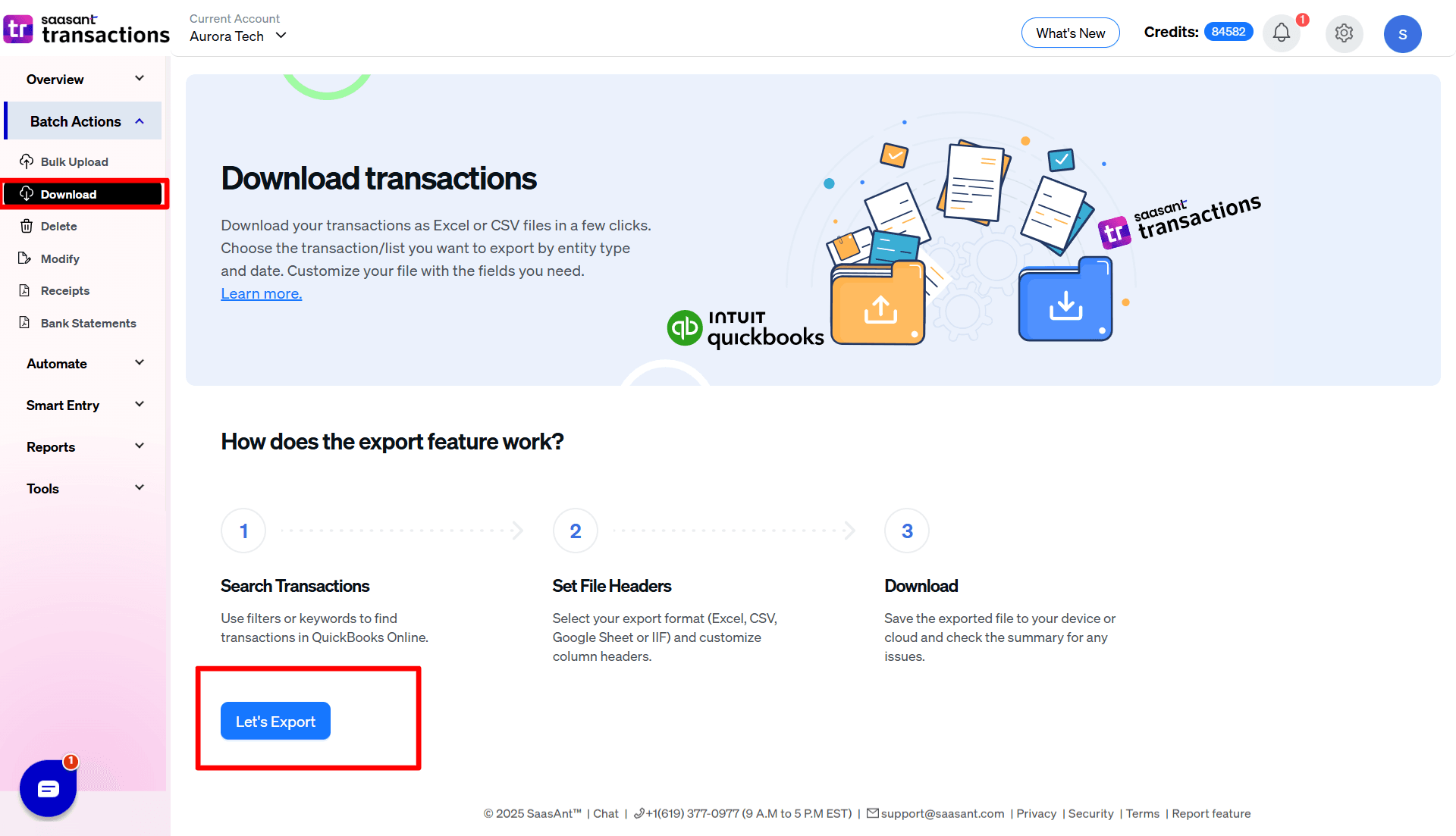
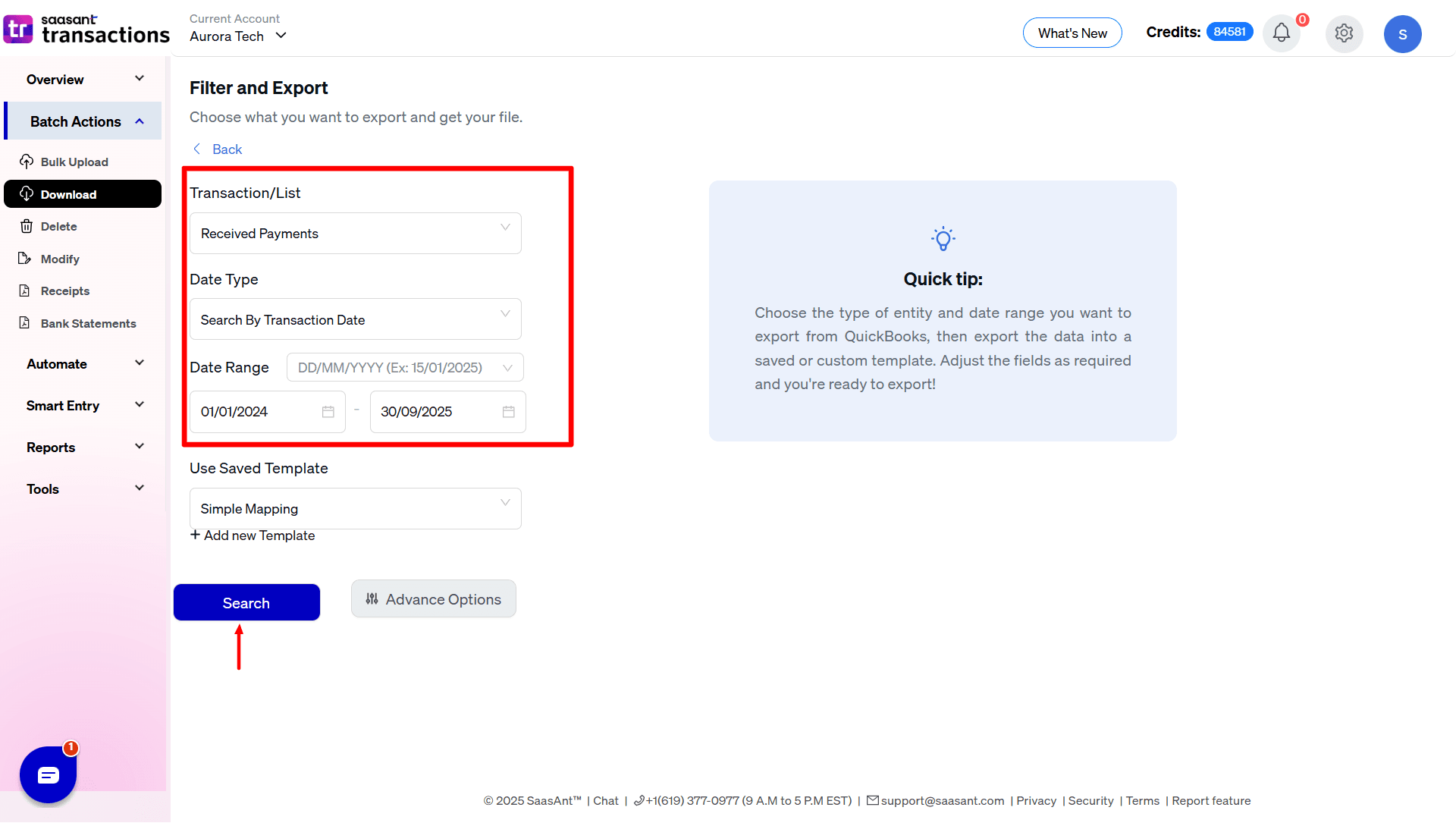
From the Transaction List dropdown, select Receive Payments.
Choose a date type: search by transaction date, search by created date, or search by last updated date. Select the date range and mapping template.
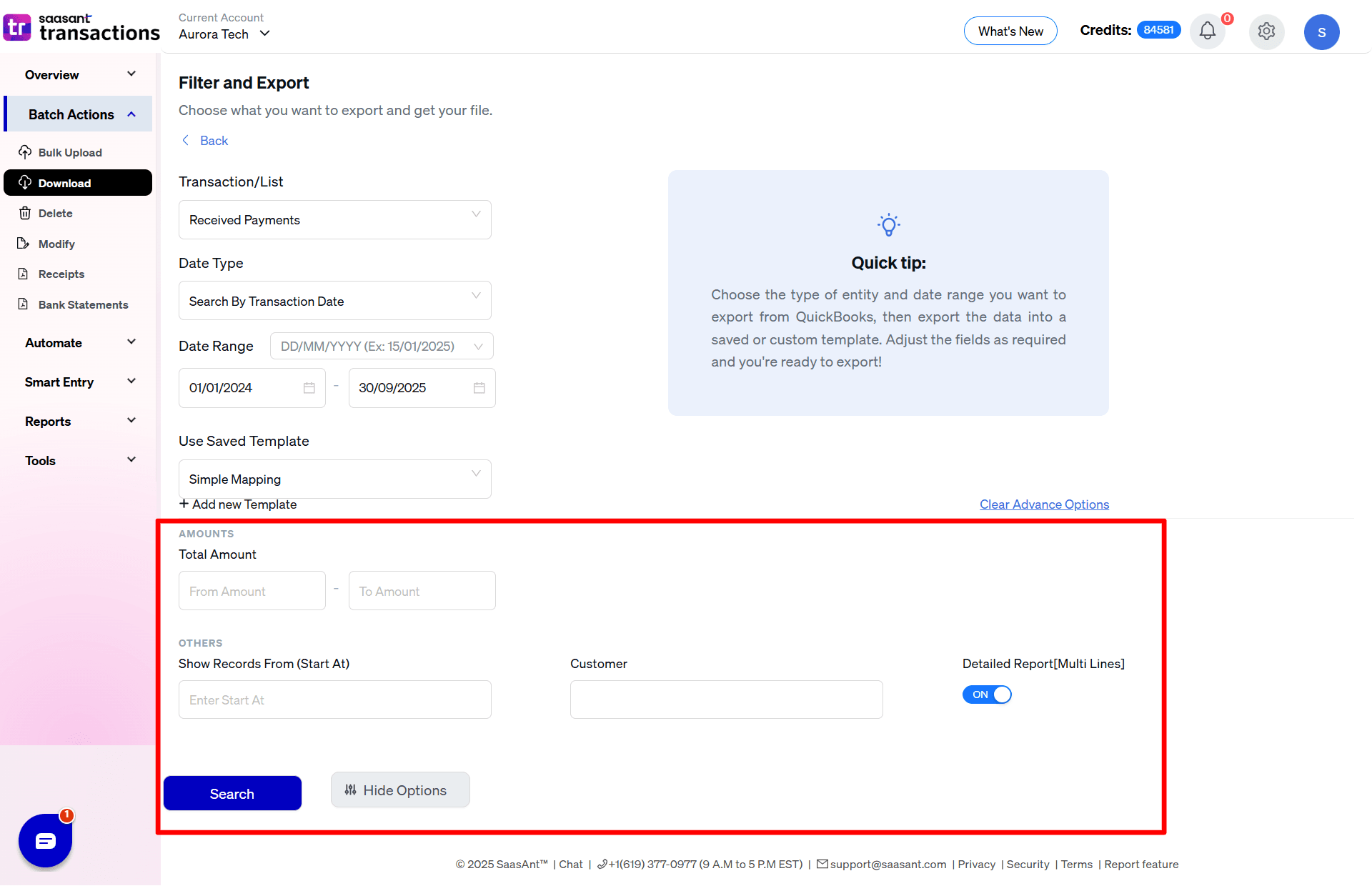
Step 3: Search Using Advanced Filter
You can also use advanced search filters, such as specific amounts and reference numbers, to refine your search.
Step 4: Choose a Download Format
After filtering, you’ll see a preview list of matching Receive Payments.
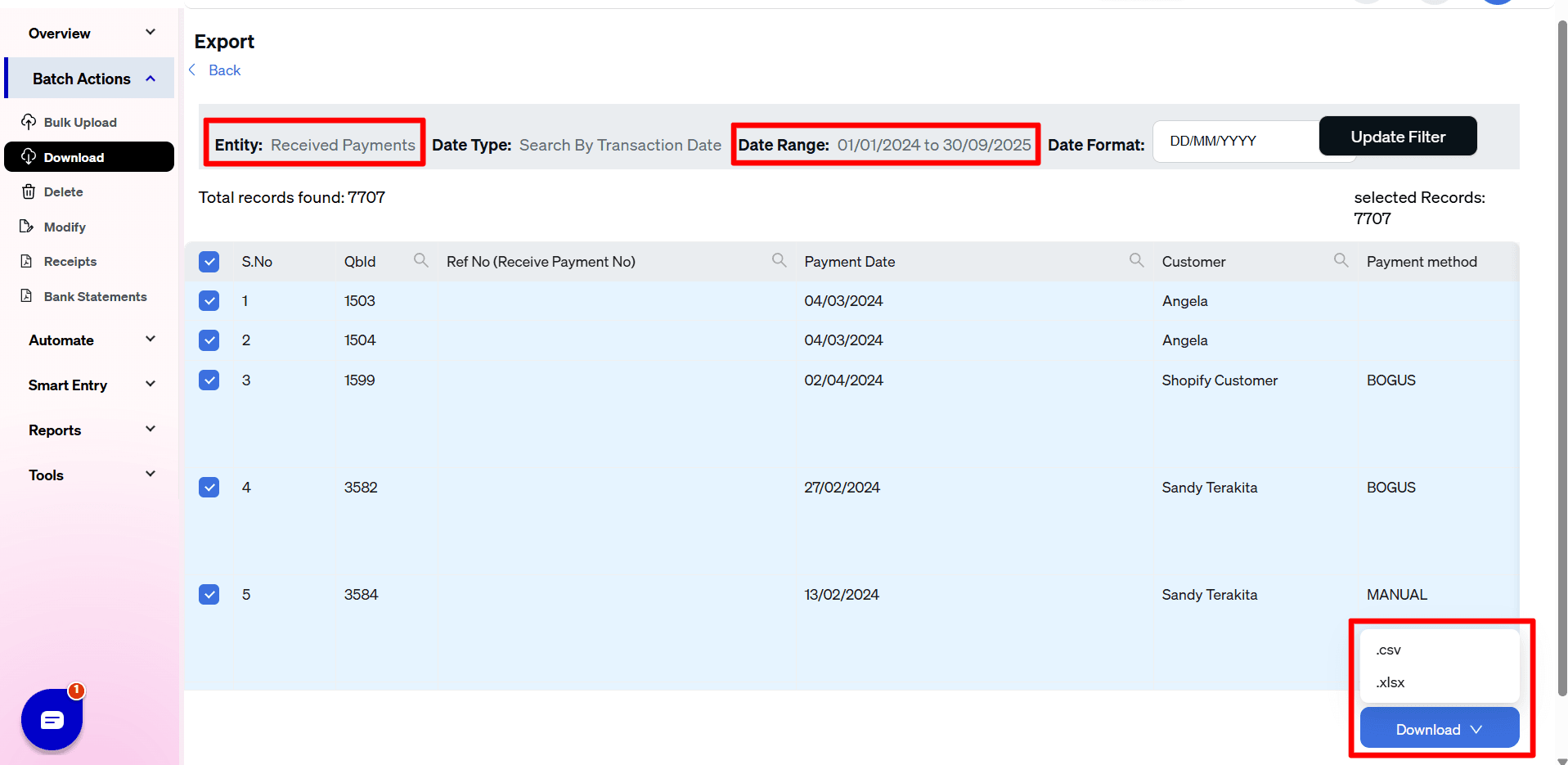
Click Download.
Select Excel (.XLSX) or CSV (CSV).
Tip: Use CSV when planning to import data into other systems; use XLSX for richer formatting in spreadsheets.
Step 5: Open and Review Your File
Locate the downloaded file in your Downloads folder.
Open in Excel or CSV to review or share.

Supported Export Formats
SaasAnt Transactions supports the following file formats for exporting:
Excel (.XLSX)
CSV (.CSV)
These formats are suitable for data analysis, audits, financial backups, and integration with third-party tools.
Benefits of Using SaasAnt for Exporting Receive Payments
Bulk Export: Export thousands of transactions in one batch
Advanced Filters: Export only the data that matters
Custom Field Selection: Control the columns and layout
Time-Saving Automation: No manual data copying
No Coding Required: Designed for users of all skill levels
Whether you're preparing for an audit or consolidating financial reports, SaasAnt gives you complete control over your exported payment data.
Common Use Cases
Month‑End Reconciliation: Quickly export all Receive Payments to match against bank deposits.
Stakeholder Reporting: Share customer payment trends with finance teams or board members to inform strategic decisions.
Audit Prep: Generate a complete backup of payment records for external auditors.
System Migration: Migrate payment data into a new ERP or CRM.
Cash Flow Analysis: Download payments by date range to model revenue inflows.
Conclusion
Exporting receive payments from QuickBooks Online becomes faster, easier, and more accurate when you use SaasAnt Transactions (Online). With just a few clicks, you can generate filtered, structured reports in Excel or CSV, ready for analysis, reconciliation, or sharing.
If you’re looking to improve visibility into customer payments and streamline your accounting workflows, SaasAnt is a reliable and efficient choice.
Frequently Asked Questions
1. Can I export payments for a specific customer only?
Yes. Use the Customer Name filter in SaasAnt to export payments from only the selected customers.
2. What export file types are supported?
SaasAnt supports both Excel (.XLSX) and CSV (.CSV) formats for exporting receive payments.
3. Can I include the invoice numbers associated with each payment?
Yes. The Applied Invoice No. field is included in the export and helps track which invoices were paid.
4. Is there a limit on the number of payments I can export?
No. SaasAnt supports exporting thousands of receive payments in a single operation.
5. Can I customize the columns before exporting?
Yes. You can select which fields appear in the export file based on your reporting or accounting needs.
Related Resources
Read Also
Export Bill Payments from QuickBooks Online
Export Estimates From QuickBooks to Excel
How to Export Payroll Data from QuickBooks Online: A Complete Guide
Export Employee Data From QuickBooks Online