How to Export Invoices from QuickBooks Desktop
Exporting invoices from QuickBooks Desktop goes beyond a simple accounting task; it is an essential process for organizing financial information, preparing for audits, sharing documentation with stakeholders, and ensuring smooth reporting. Whether you are moving to a new system, assessing sales performance, or simply safeguarding important records, having your invoice data in a tidy and accessible format can lead to significant improvements.
While QuickBooks Desktop includes fundamental export options, they frequently do not suffice for extensive or detailed exports. This is why using a powerful tool like SaasAnt Transactions Desktop is essential for accurate, efficient, and hassle-free invoice exports.
This blog is ideal for firms, accountants, bookkeepers, and small business owners who require quick and bulk invoice exports for reporting, audits, migrations, and workflow automation, ensuring minimal manual effort and maximizing data accuracy.
How to Export Invoices from QuickBooks Desktop: Step-By-Step Guide
Follow the steps below to export the Invoices in QuickBooks Desktop using SaasAnt Transactions Desktop.
Step 1: Install and Connect SaasAnt Transactions
Download the latest SaasAnt Transactions Desktop version.
Run SaasAntTransactions-Setup.exe as an administrator.
Accept the license agreement and complete the installation.
Open the app, go to Subscription > Register.
Enter the license key from your confirmation email.
Keep your internet connection active.
Step 2: Launch SaasAnt Transactions Desktop
Start by opening the SaasAnt Transactions Desktop app on your system.
Ensure that QuickBooks Desktop is open and connected to your company file before proceeding.
Step 3: Connect to QuickBooks Desktop
To access, you need to connect the SaasAnt Transactions Desktop with QuickBooks Desktop. Here's how:
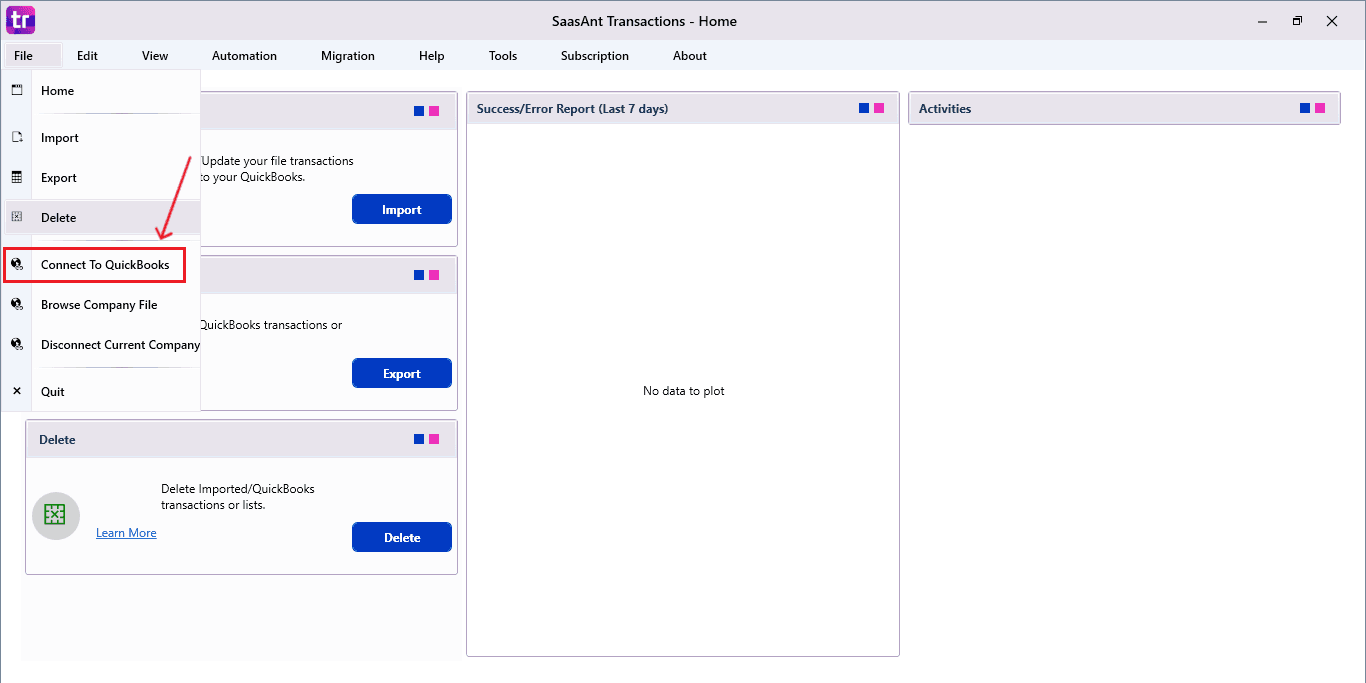
Go to the ‘File’ menu in the top-left corner of SaasAnt Transactions Desktop.
Click ‘Connect to QuickBooks’ from the dropdown.
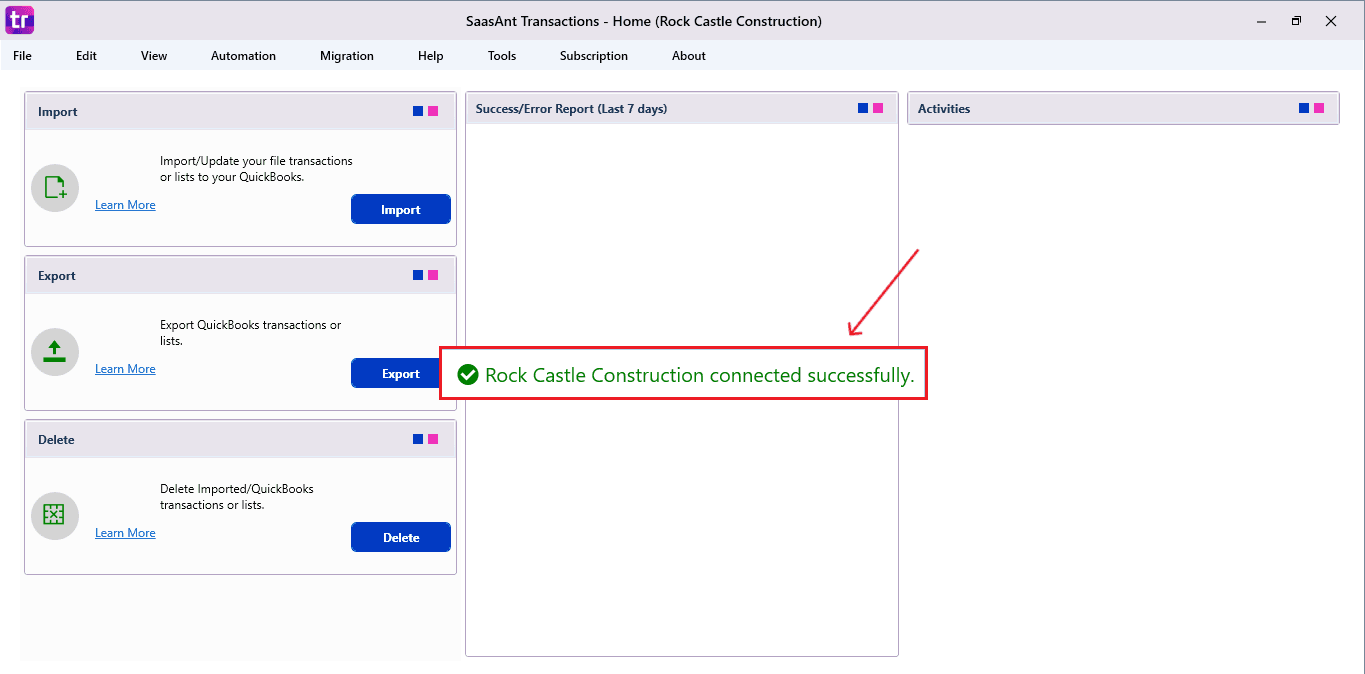
The company is now successfully connected to QuickBooks.
Step 4: Open SaasAnt Transactions
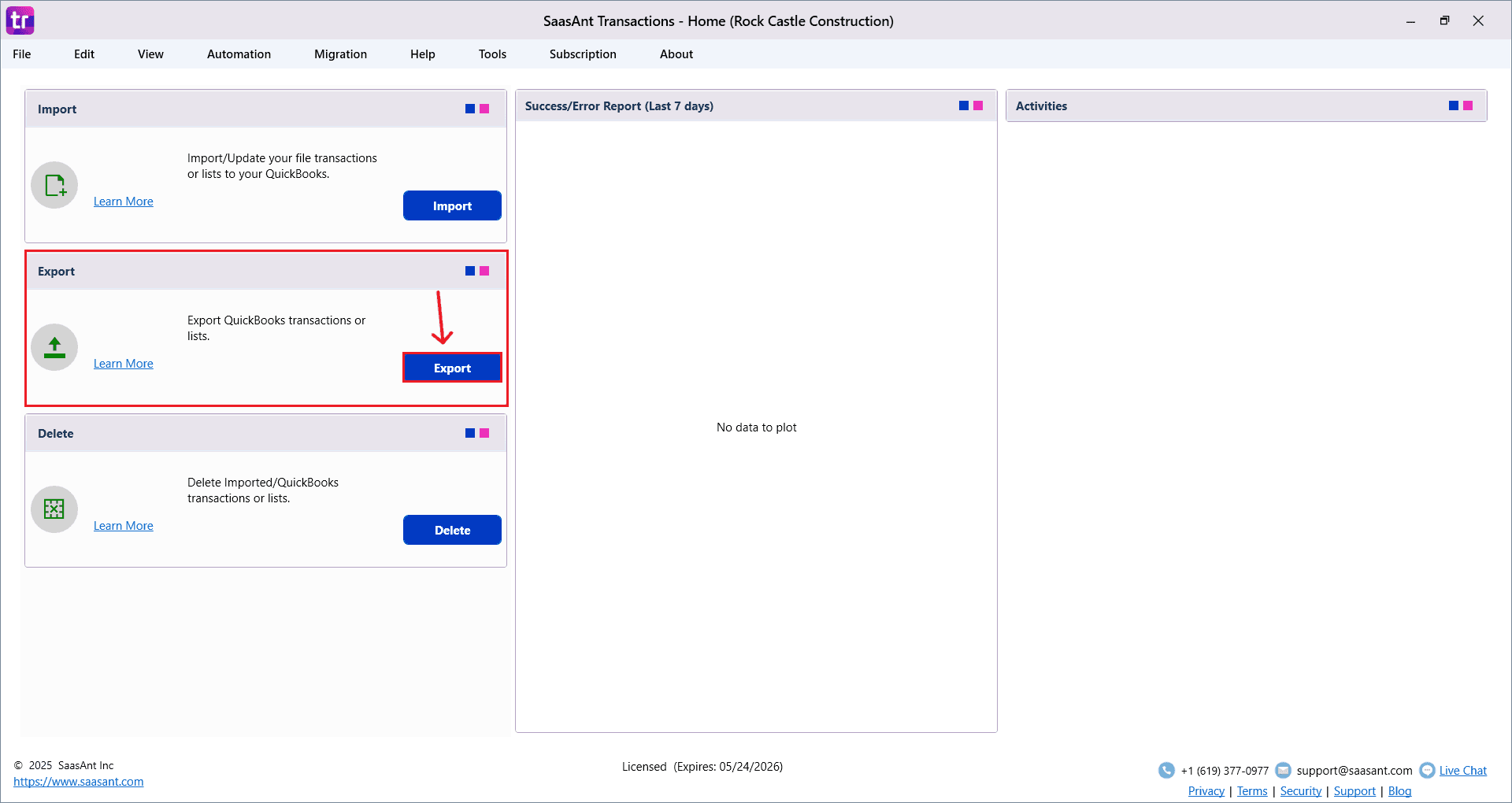
On the SaasAnt dashboard:
On the top-left of the SaasAnt Transactions dashboard, you can see various options. Select “Export”.
Step 5: Search and Download Invoices
Fill in the required fields, such as QuickBooks Type, Date Type, From Date, and To Date.
You can also choose Export template from the options available in the dropdown menu.
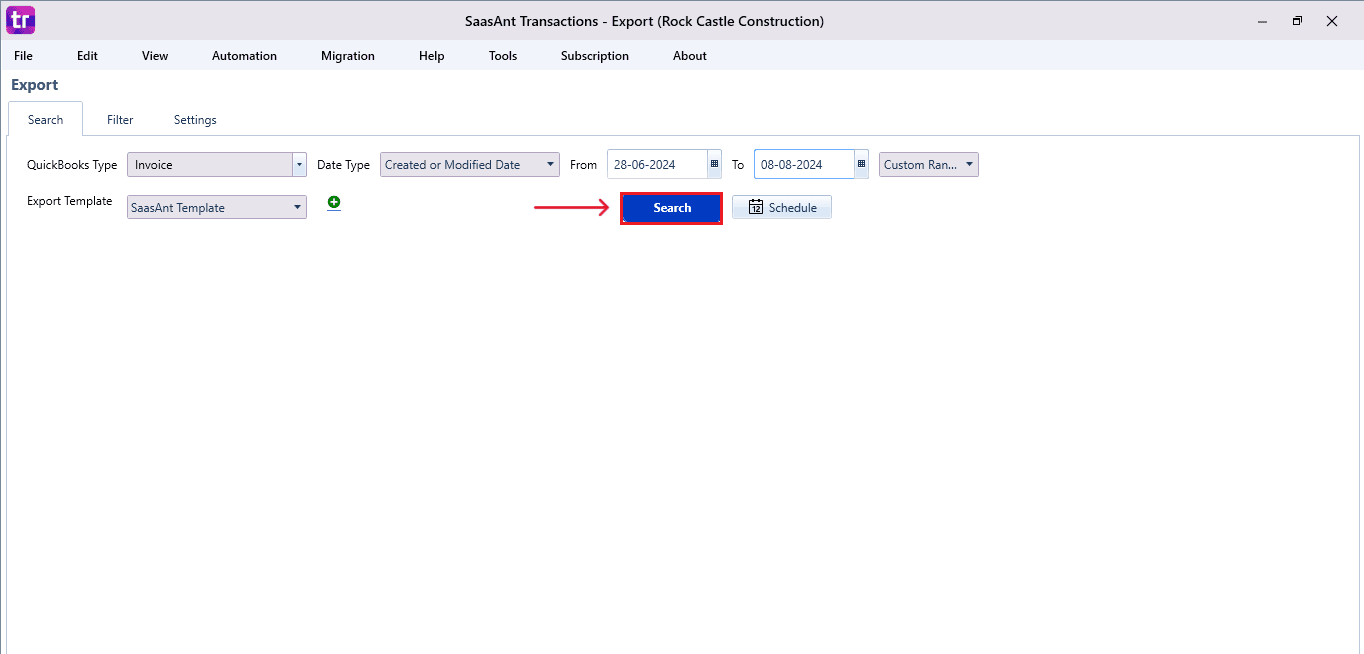
Click “Search,” and the Invoices appear in the dashboard. Now select “Download”.
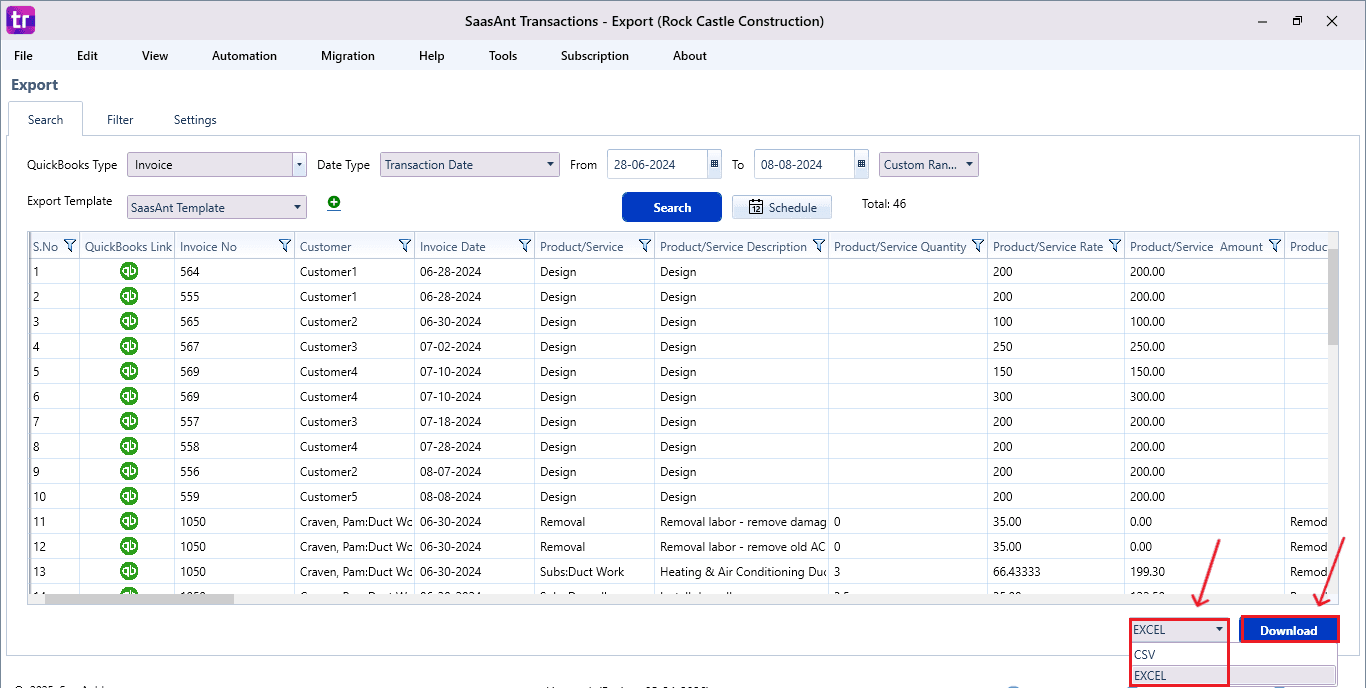
The file can be downloaded in both Excel and CSV formats. Choose the file format according to your requirement.
Step 6: Export the Data
Choose the file location when the pop-up appears.
Save the exported Invoices to your system.
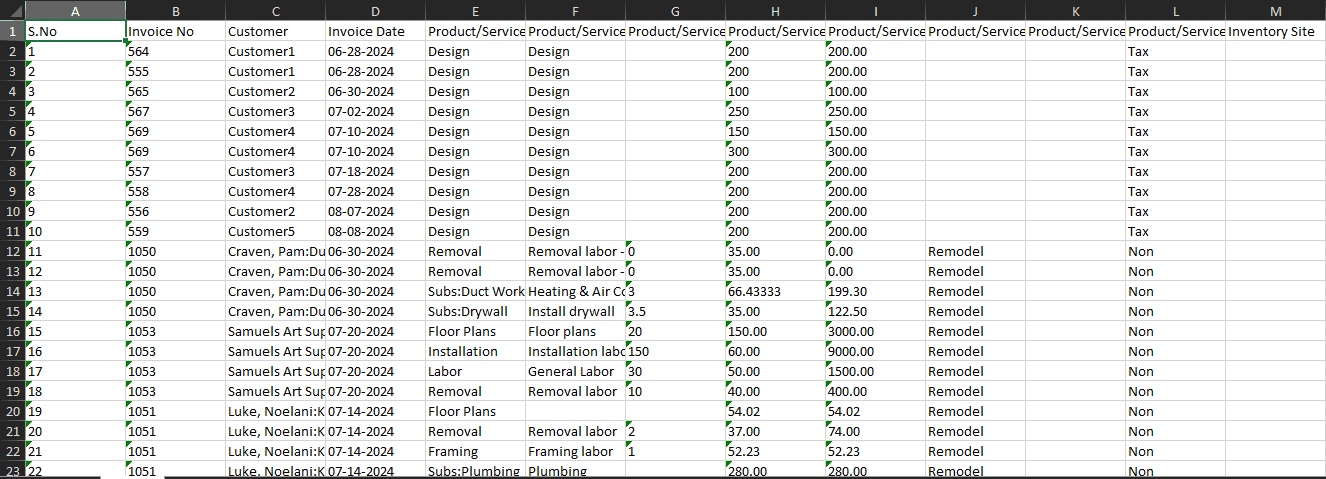
Step 7: Exported Invoices Data
Your exported invoice data looks like this in your system.
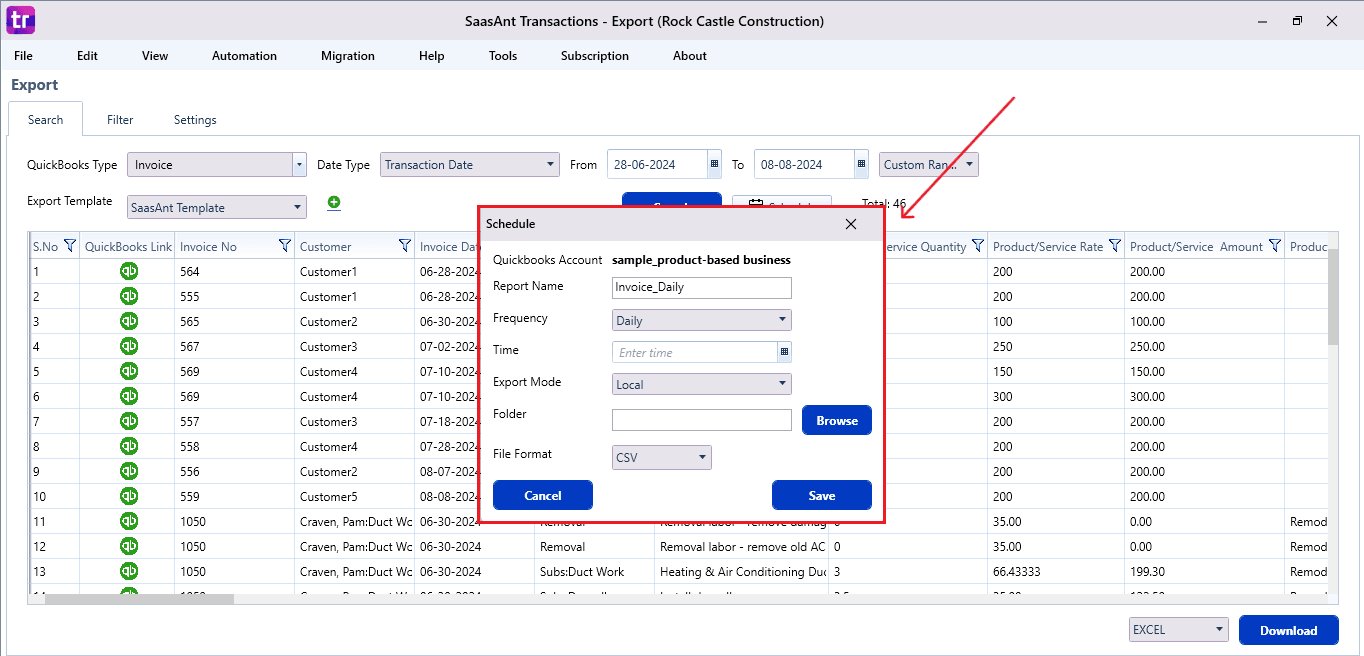
Step 8: Schedule Export (Optional)
There is another option, “Schedule”, where you can schedule the export of your data.
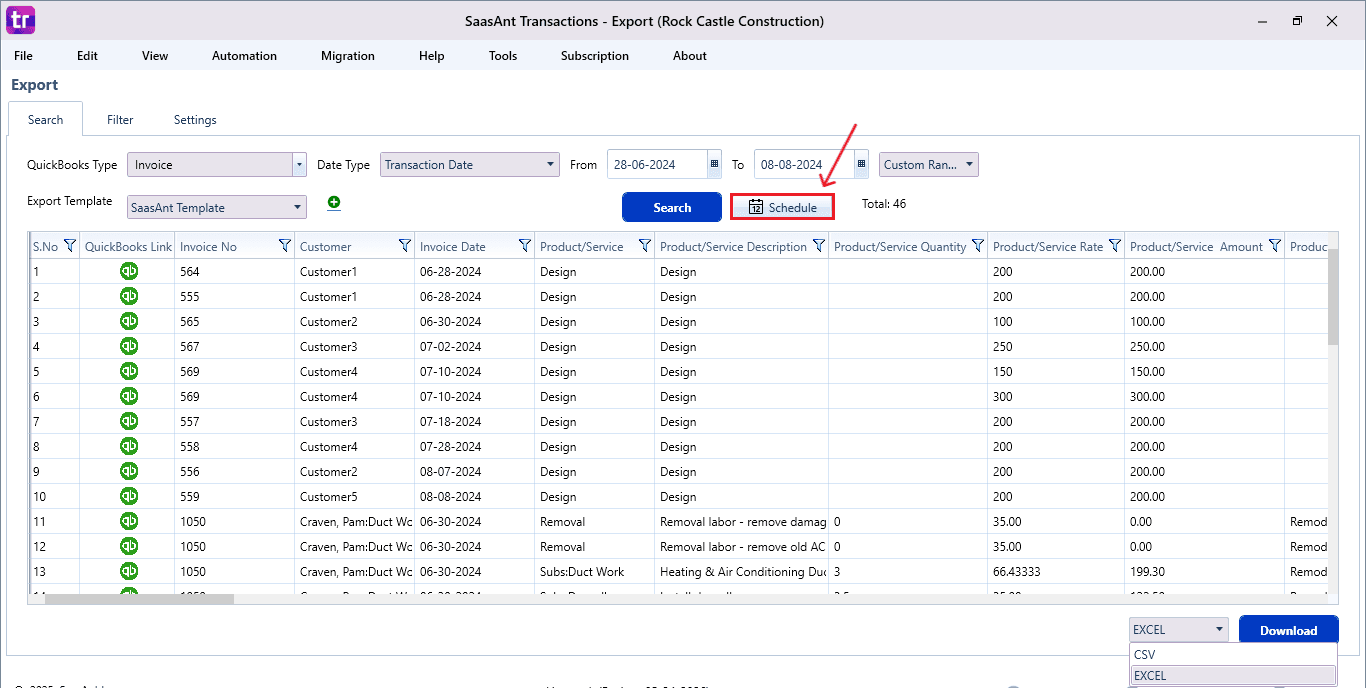
Fill in the required fields, such as report name, frequency (daily, weekly, or monthly), time, export mode (local, server, or email), folder location, and file format.
Once all fields are filled, click “Save”. Your Invoices (or any selected data) will now be exported at the scheduled time and location.
Why SaasAnt Transactions Desktop Is the Best for Exporting Invoices
When you export invoices from QuickBooks Desktop, it can become quite complex, especially with large volumes, custom fields, detailed line items, or datasets that cover several years. QuickBooks’ native export tools frequently do not offer the necessary flexibility, structure, and depth. This is particularly true for accountants, bookkeepers, and businesses that need reliable reporting or migration-ready files.
SaasAnt Transactions Desktop offers a major benefit in this scenario. It is specifically designed for bulk data management, providing unparalleled control, customization, and automation for exporting invoices smoothly and accurately.
Full Access to Every Invoice Field: SaasAnt exports all parts of an invoice—such as line items, custom fields, classes, terms, and tracking information, providing you with complete data visibility beyond regular reports.
Bulk Export Without Performance Complications: SaasAnt efficiently manages the export of hundreds or thousands of invoices, processing large datasets swiftly without causing any delays in QuickBooks Desktop.
Reusable Templates for Recurring Exports: You are able to save export templates and settings, allowing for the immediate execution of weekly, monthly, or quarterly exports, thus decreasing the repetitive setup workload for accountants and accounts receivable teams.
Multiple Export Options: Export invoices in Excel, CSV, or IIF formats, ensuring seamless compatibility with reporting tools, audit workflows, or different accounting platforms.
Wrap Up
Exporting invoices from QuickBooks Desktop can be easy and quick. With SaasAnt Transactions Desktop, this task is simplified, expedited, and significantly more adaptable. Whether your requirements involve invoice exports for audits, reporting, compliance, or migration, SaasAnt ensures the precision, oversight, and automation necessary for your needs.
If you have inquiries regarding our products, features, trial, or pricing, or if you require a personalized demo, contact our team today. We are ready to help you find the ideal solution for your QuickBooks workflow.
Frequently Asked Questions
1) Can I export line-level invoice details using SaasAnt Desktop?
Yes. SaasAnt exports all invoice data, which includes each line item, item descriptions, custom fields, classes, and quantities.
2) Can I export thousands of invoices at once?
QuickBooks Desktop has challenges with exporting large volumes of data. SaasAnt Desktop is specifically created for bulk tasks, enabling you to export thousands of invoices in just one click, free from performance issues or data discrepancies.
3) Does exporting invoices from QuickBooks Desktop affect my company file?
No, exporting only obtains a copy of the invoice data. It does not adjust or erase any content within the company file, rendering it completely safe for audits and reviews.
4) Can I automate recurring invoice exports?
Yes. SaasAnt Desktop lets you save filters, layouts, and templates, making it easy to do quick recurring exports without having to set everything up again for each session.
5) Can I export invoices that contain multiple currencies?
Yes. SaasAnt Desktop manages exports of invoices in multiple currencies, taking into account exchange rates, home currency amounts, and original transaction values while maintaining data accuracy.
6) What format can I export invoices to?
QuickBooks only works with Excel worksheets. SaasAnt Desktop allows you to export to Excel, CSV, or text formats, providing more options for reporting and analysis.
Read Also
Bulk Import, Export, Edit, Delete in QuickBooks Desktop using SaasAnt Transactions Desktop
How to Export Data from QuickBooks Desktop to Excel
How to Export Chart of Accounts from QuickBooks Desktop
How to Export Customer List from QuickBooks Desktop