How to Export General Ledger in QuickBooks Online
The General Ledger is one of the most critical reports in QuickBooks Online. It provides a comprehensive view of every transaction across all accounts, making it essential for audits, reconciliations, financial reviews, and compliance purposes.
While QuickBooks Online provides some reporting options, exporting the General Ledger in bulk or in specific formats can be difficult without the right tool. This is where a trusted, CPA-recommended solution like SaasAnt Transactions Online comes in. With a 4.9-star rating on the QuickBooks App Store, it allows you to quickly export your General Ledger to Excel or CSV for deeper analysis and reporting.
This blog will walk you through how to export your General Ledger from QuickBooks Online step by step.
Download General Ledger From QuickBooks Online: Quick Instructions
Connect SaasAnt Transactions Online to QuickBooks.
Select General Ledger as the entity.
Apply filters using the advanced search feature.
Download the report in Excel or CSV format.
View your exported General Ledger.
Contents
Download General Ledger From QuickBooks Online: Quick Instructions
How to Export General Ledger From QuickBooks Online: Step-by-Step Guide
Benefits of Exporting General Ledger From QuickBooks to Excel
Frequently Asked Questions (FAQs)
How to Export General Ledger From QuickBooks Online: Step-by-Step Guide
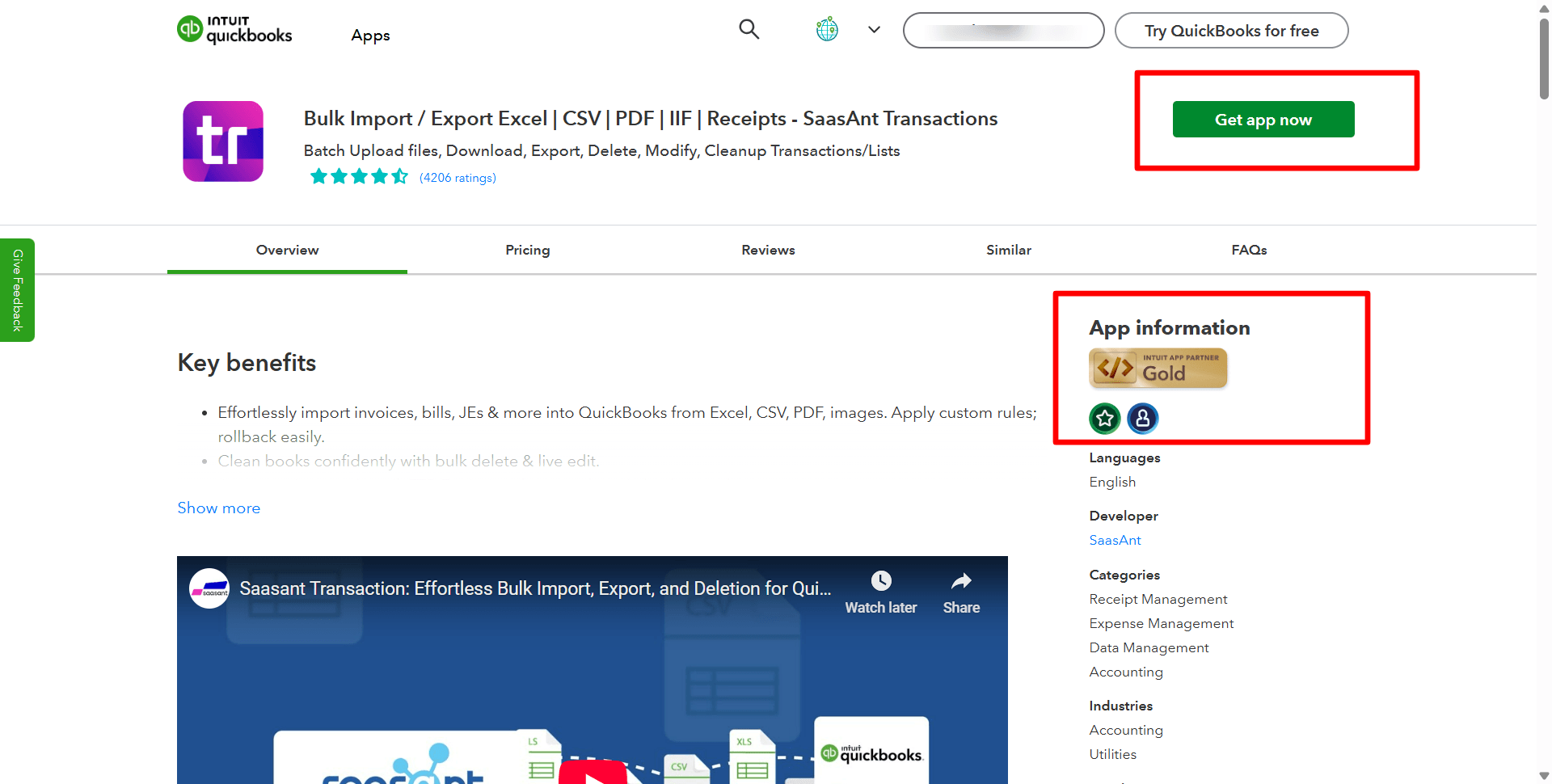
Step 1: Connect with SaasAnt Transactions Online
Find SaasAnt Transactions Online in the QuickBooks App Store and connect it to your QuickBooks account. Start with a free 30-day trial. SaasAnt Transactions is certified, secure, and ensures your accounting data remains safe.
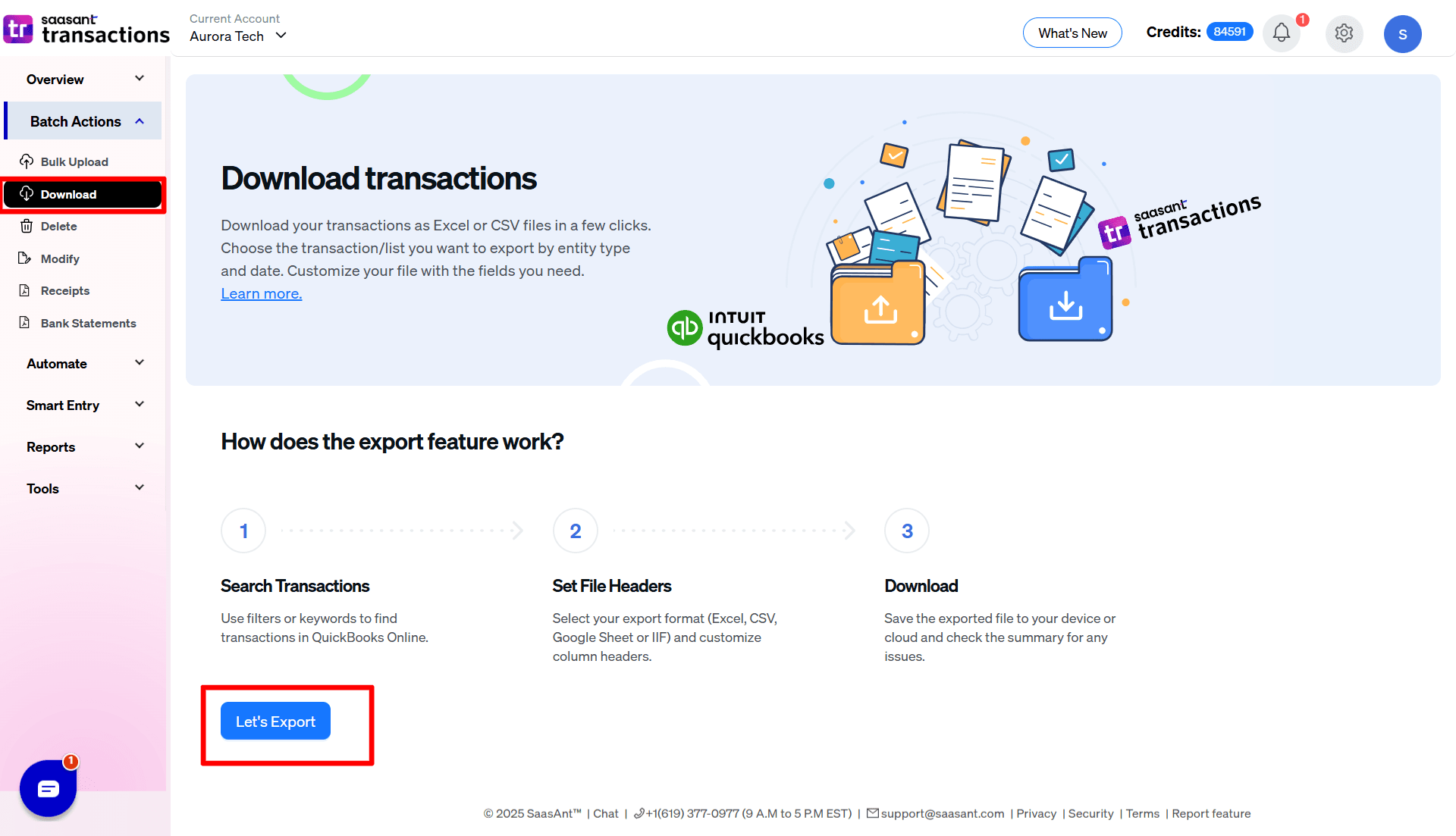
Step 2: Select General Ledger as the Entity
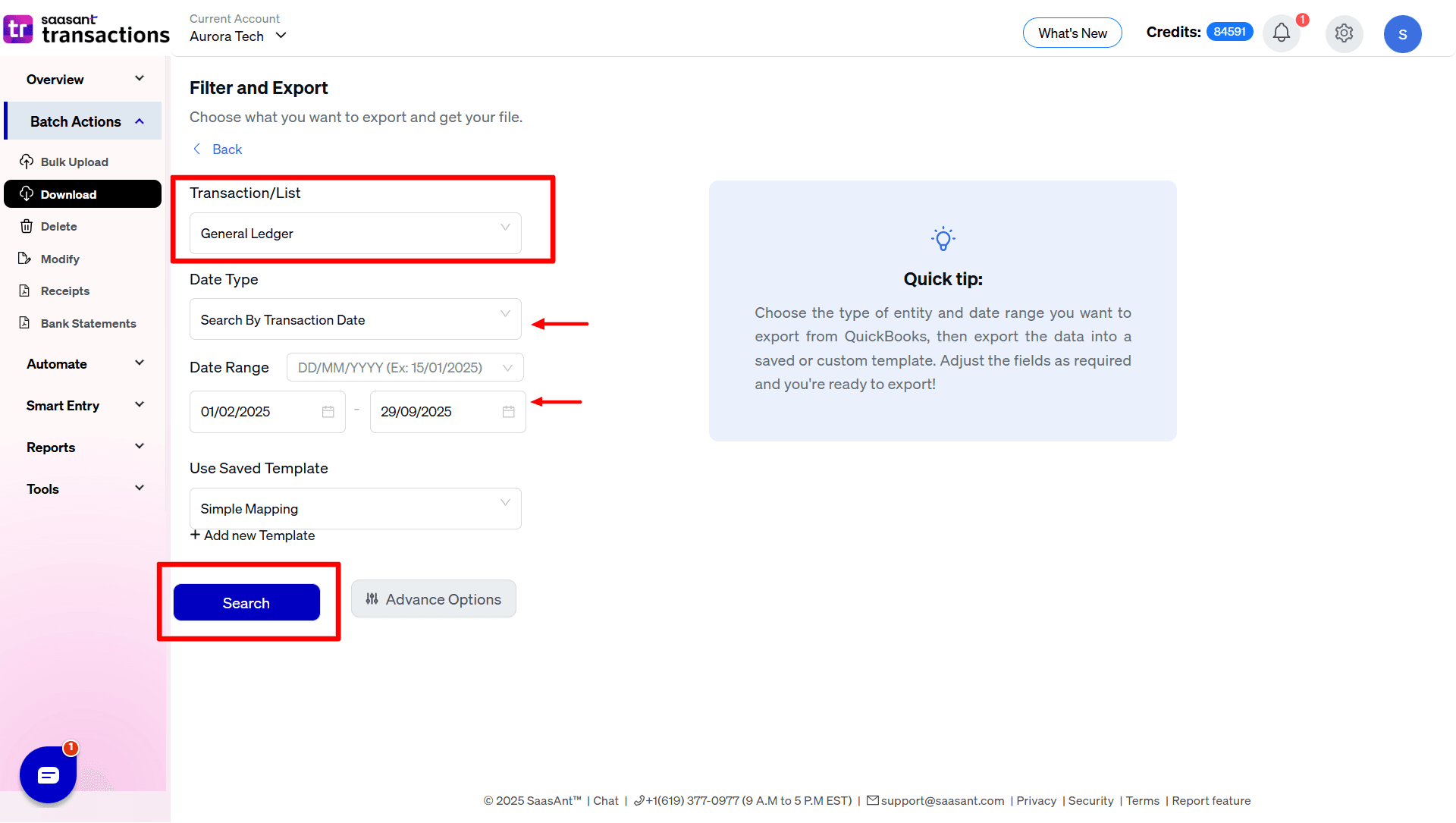
From the SaasAnt dashboard, go to Download. In the Transaction List drop-down menu, select General Ledger.
Step 3: Apply Advanced Search Filters
Use filters to refine your export. You can search by:
Transaction date
Created date
Last updated date
You can also specify ranges, amounts, or reference numbers for more targeted exports.
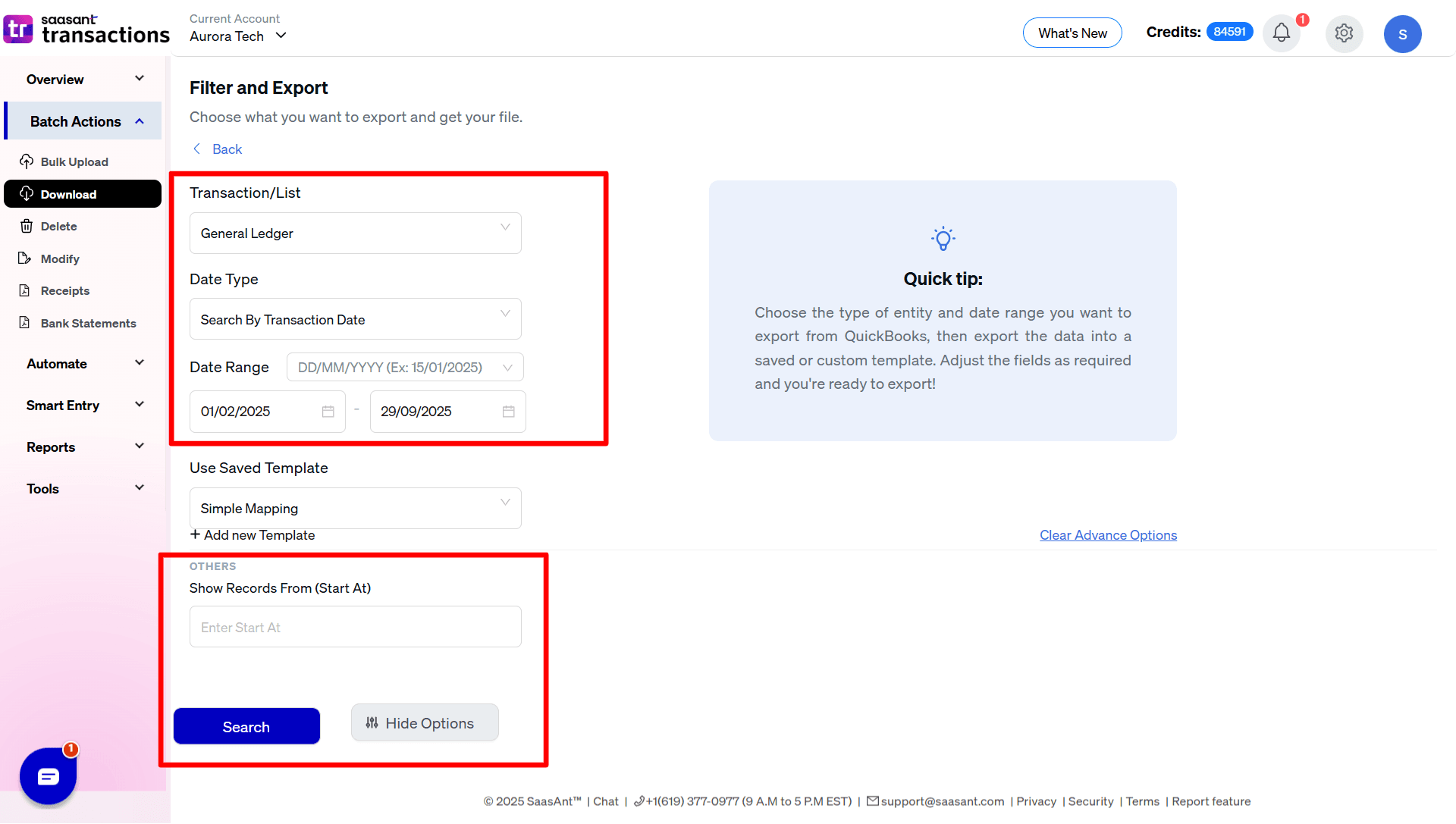
Step 4: Choose Download Format
Once the list of transactions appears, click "Download" and select whether to export in .XLSX or .CSV format.
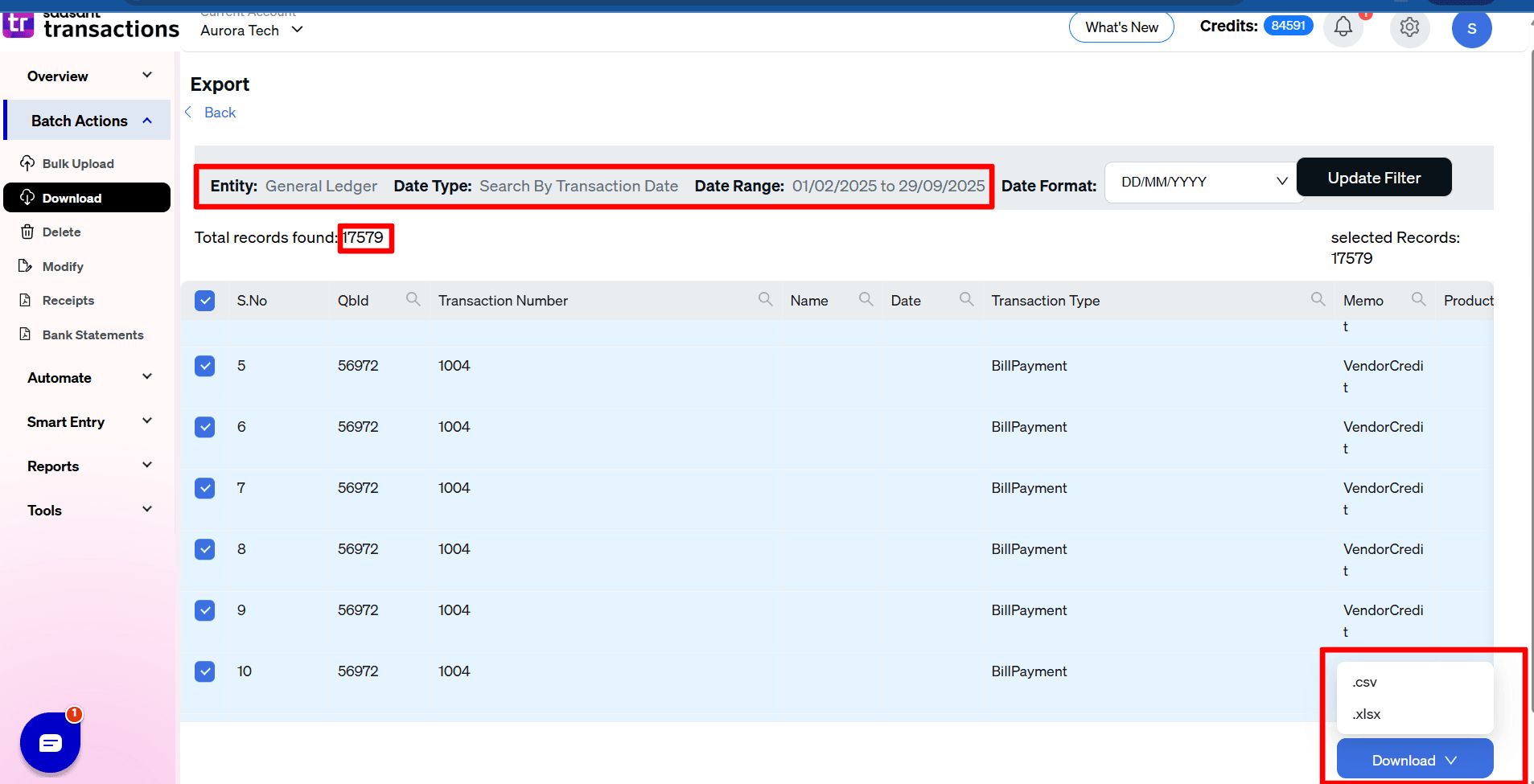
Step 5: View the Exported File
Navigate to your downloads folder and open the file in Excel or your preferred spreadsheet tool.
Benefits of Exporting General Ledger From QuickBooks to Excel
1. Enhanced Data Analysis
Exporting the GL to Excel enables you to utilize pivot tables, formulas, and charts for more comprehensive analysis beyond QuickBooks reports.
2. Custom Reporting
QuickBooks reports are standardized, but in Excel, you can build tailored reports to match your business needs.
3. Improved Data Visualization
Excel’s charting tools help transform transaction data into visual dashboards that are easier to interpret.
4. Integration and Collaboration
Exported GL data can be shared with auditors, managers, or integrated with other systems like ERP or BI tools.
Frequently Asked Questions (FAQs)
1. How do I export the General Ledger from QuickBooks Online?
Connect SaasAnt Transactions to QuickBooks Online by going to Export, selecting General Ledger as the entity, setting your filters, and downloading in CSV or Excel format.
2. Can I export the General Ledger directly from QuickBooks Online without an app?
QuickBooks Online offers a General Ledger report that can be exported to Excel, although it has limited customization options. For bulk exports and advanced filtering, SaasAnt is recommended.
3. What file formats are supported for exporting the General Ledger?
You can export your GL data in .CSV or .XLSX formats.
4. Can I filter transactions while exporting the General Ledger?
Yes. SaasAnt Transactions allows you to filter by transaction date, created date, last updated date, amount, or reference numbers.
5. Is the exported General Ledger secure?
Yes. SaasAnt Transactions is a certified QuickBooks app with advanced security to protect your financial data.
Read Also
How to Create a Manual General Ledger with Excel?
How to Delete a General Ledger Account In QuickBooks Online?
What is a General Ledger? A Complete Guide for Businesses
How to Import General Ledger into QuickBooks Online