How to Export Customer List from QuickBooks Desktop
For accountants, bookkeepers, and small business owners, managing customer data efficiently is crucial. Whether you are creating backup records, analyzing client trends, or preparing for audits, having your customer list readily accessible outside of QuickBooks Desktop is a must. This blog will show you how to export your customer list from QuickBooks Desktop using SaasAnt Transactions Desktop.
A small accounting firm handles many client files in QuickBooks Desktop. To simplify year-end reporting and CRM syncing, they utilize SaasAnt Transactions Desktop to export the customer list with just a few clicks. This enables them to eliminate manual entry, reduce data loss, and focus more on advisory tasks.
This blog is ideal for accountants, bookkeepers, and small business owners who regularly need to export customer data from QuickBooks Desktop for reporting, analysis, backups, or CRM use.
Contents
How to Export Customer List from QuickBooks Desktop: Step-By-Step Guide
Wrap Up
Frequently Asked Questions
How to Export Customer List from QuickBooks Desktop: Step-By-Step Guide
Follow the steps below to export the Customer List in QuickBooks Desktop using SaasAnt Transactions Desktop.
Step 1: Install and Connect SaasAnt Transactions
Download the latest SaasAnt Transactions Desktop version.
Run SaasAntTransactions-Setup.exe as an administrator.
Accept the license agreement and complete the installation.
Open the app, go to Subscription > Register.
Enter the license key from your confirmation email.
Keep your internet connection active.
Step 2: Launch SaasAnt Transactions Desktop
Start by opening the SaasAnt Transactions Desktop app on your system.
Ensure that QuickBooks Desktop is open and connected to your company file before proceeding.
Step 3: Connect to QuickBooks Desktop
To access invoices, you need to connect SaasAnt Transactions Desktop with QuickBooks Desktop. Here's how:
Go to the ‘File’ menu in the top-left corner of SaasAnt Transactions Desktop.
Click ‘Connect to QuickBooks’ from the dropdown.
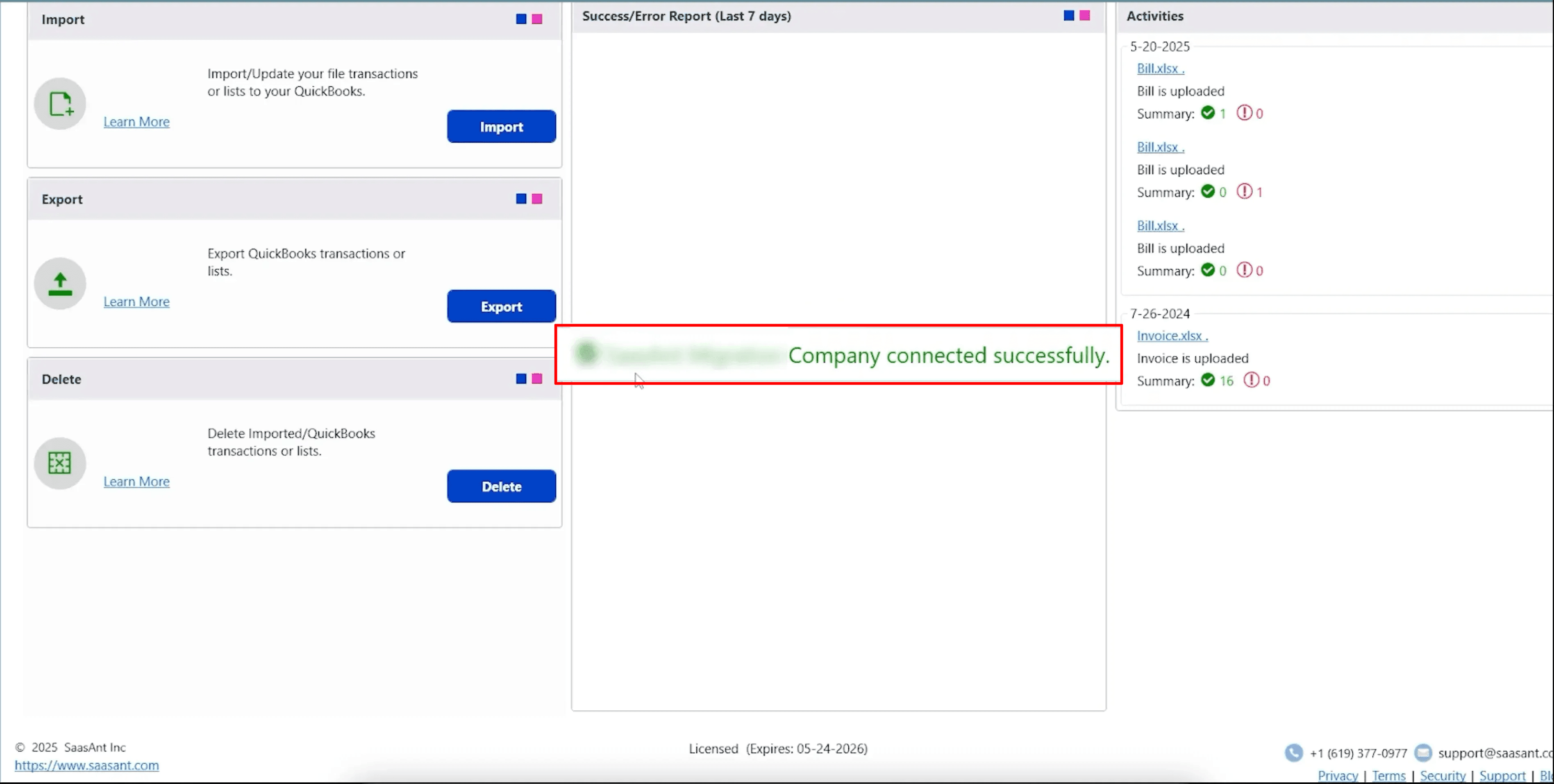
Step 4: Open SaasAnt Transactions
On the SaasAnt dashboard:
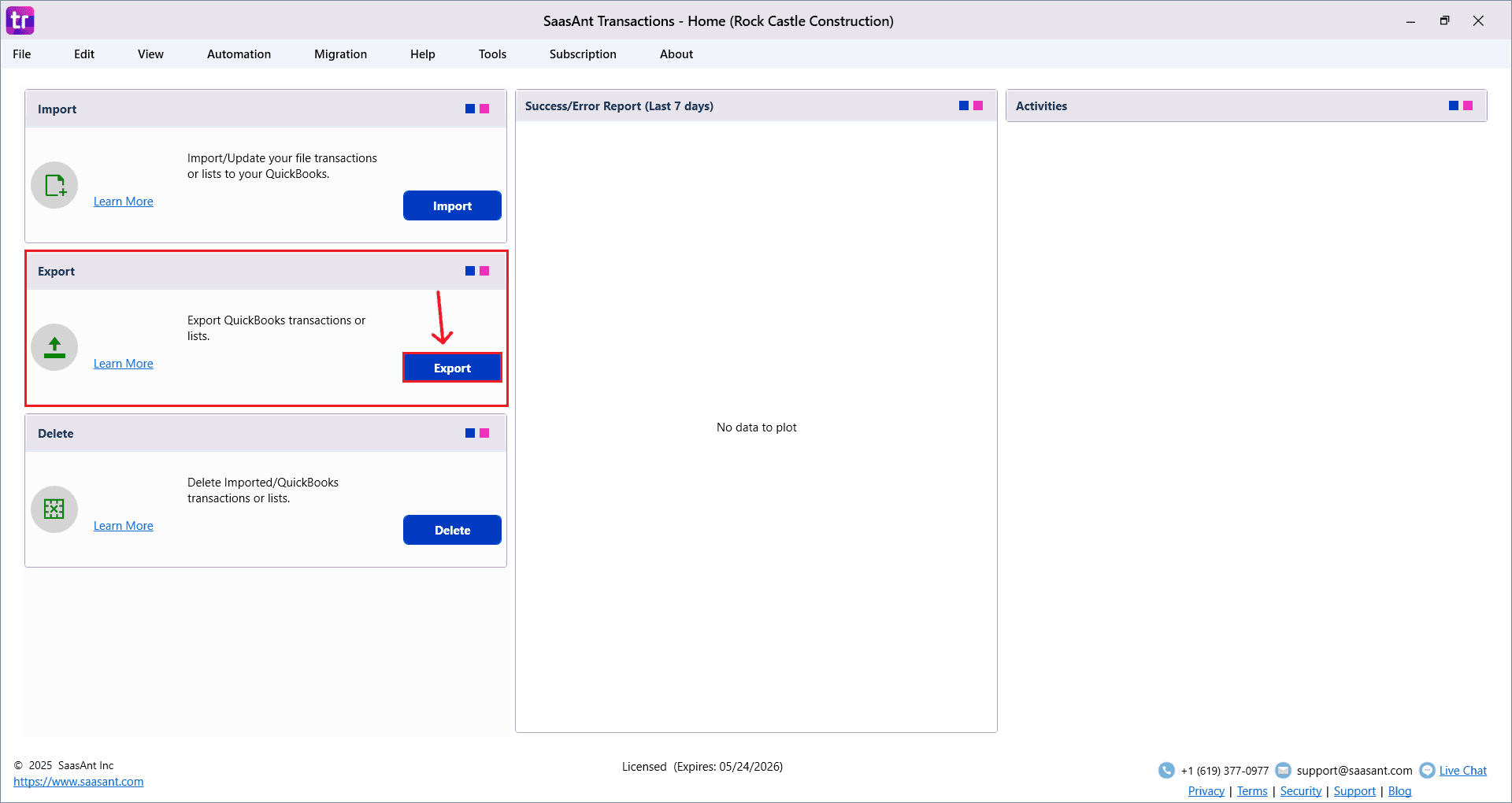
On the top left side of the SaasAnt Transactions dashboard, you can see the menu bar with various options.
Select “Edit,” and select “Export” under the edit dropdown.
The Dashboard appears as shown in the image below.
Step 5: Search and Download Customer List
Fill in the required fields, such as QuickBooks Type, Date Type, From Date, To Date, and Export Template.
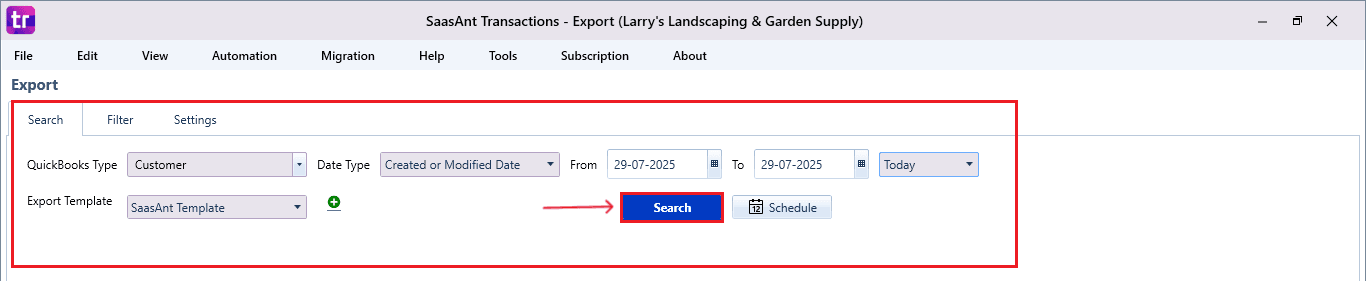
Click “Search,” and the Customer List appears in the dashboard. Now select “Download”.
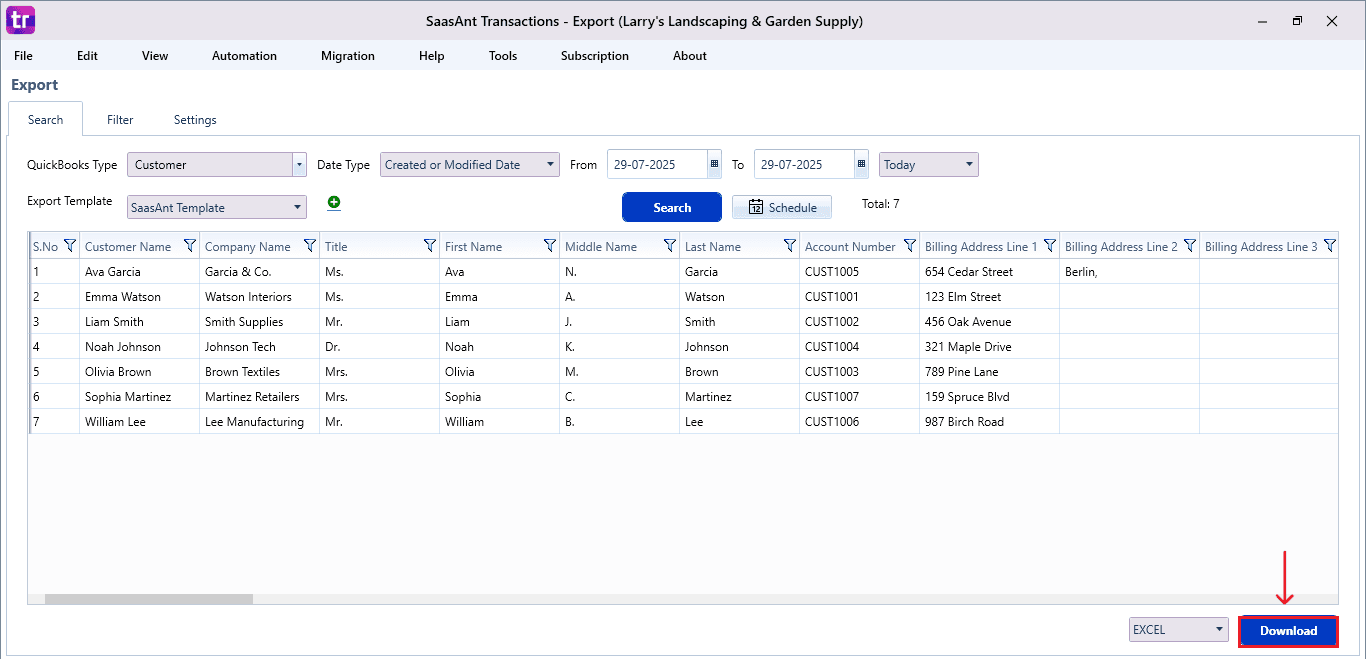
Step 6: Export the Data
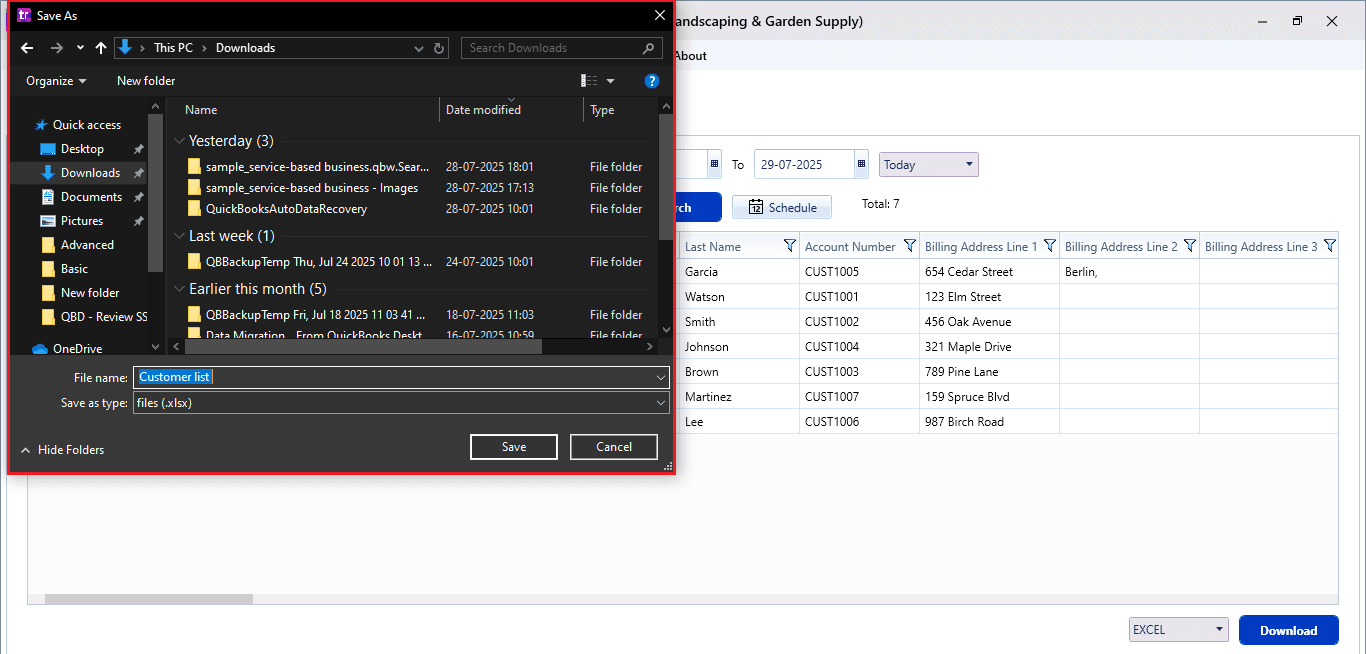
Choose the file location when the pop-up appears.
Save the exported Customer List to your system.
Step 7: Schedule Export (Optional)
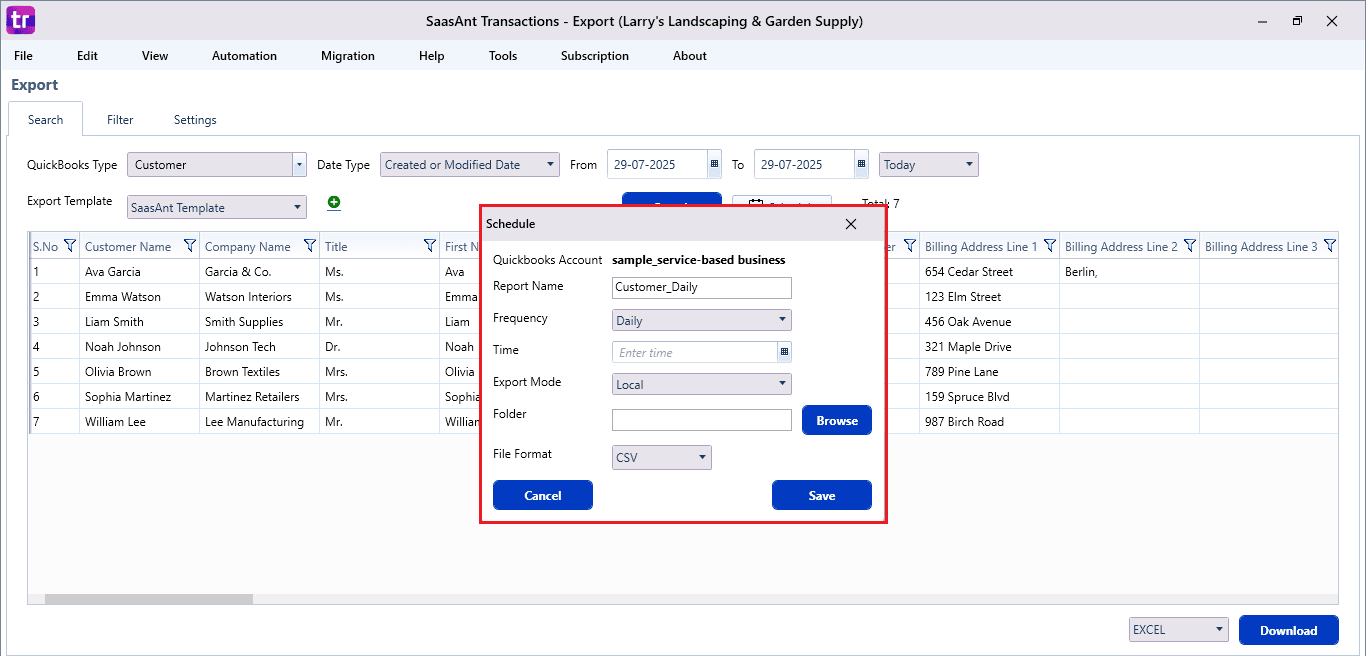
There is another option, “Schedule”, where you can schedule the export of your data.
Fill in the required fields, such as report name, frequency (daily, weekly, or monthly), time, export mode (local, server, or email), folder location, and file format.
Once all fields are filled, click “Save”. Your Customer List (or any selected data) will now be exported at the scheduled time and location.
Wrap Up
You can export your customer list from QuickBooks Desktop without it being a tedious manual task. SaasAnt Transactions Desktop allows you to automate, customize, and schedule exports easily. This enhances efficiency and keeps you organized and ready for audits.
By leveraging trustworthy platforms like QuickBooks for your accounting processes and SaasAnt for transaction management and automation, you can enhance the overall workflow, minimize errors, save time, and acquire greater financial insight.
If you have inquiries regarding our products, features, trial, or pricing, or if you require a personalized demo, contact our team today. We are ready to help you find the ideal solution for your QuickBooks workflow.
Frequently Asked Questions
1) Can I export only selected customer data from QuickBooks Desktop?
Yes, with SaasAnt Transactions Desktop, you can use filters to export particular customer records by date, type, or custom fields.
2) Is it possible to schedule regular customer list exports?
Yes, SaasAnt Transactions Desktop lets you schedule exports daily, weekly, or monthly.
3) Can I export inactive customers as well?
You can export both active and inactive customers by choosing the right filters.
4) Will exporting customer data affect my QuickBooks records?
No, exporting data is a read-only action. It does not modify or delete any data from your QuickBooks company file.
Read also
How to Import Customers into QuickBooks Online
How to Delete a Customer in QuickBooks Online
How to Edit a Customer in QuickBooks Online
How to Export Customer List from QuickBooks to Excel