How to Export Bills in Xero
Dependable access to bill records is fundamental for effective bookkeeping in Xero, particularly when teams are required to audit, analyse, or transfer financial data. However, when exporting bills in bulk from Xero, users often encounter frustrating batch limits and manual processes that delay monthly or year-end activities. This issue is even more significant for rapidly expanding businesses or accountants managing high volumes.
Xero includes simple export features, but they usually fail to manage large datasets or sophisticated requirements:
Limited Volume Capacity: Xero’s importer works best with small batches, so importing thousands of bills at once isn’t possible, making it unsuitable for growing businesses with heavy monthly transactions.
No Bulk Editing: Once bills are uploaded, Xero does not permit bulk updates or edits. If you need to make changes, you have to edit each bill one by one, which can be very time-consuming.
Manual Error Handling: Any mistakes identified during the import must be fixed manually in the CSV file before you can re-upload it. This process is tedious and inefficient, particularly when dealing with large datasets.
No Undo/Reverse Option: If you mistakenly upload the wrong bills, there’s no easy way to reverse the import. The only choice is to delete them individually.
This is where SaasAnt Transactions for Xero comes in. With features such as bulk exporting, customizable filters, undo capabilities, and support for different file formats, it changes a time-consuming task into an easy, automated workflow.
Streamlining Bill Exports for Monthly Reporting
A manufacturing firm handles over 800 supplier invoices each month for materials, utilities, and logistics. The finance department requires these invoices to be exported to Excel for monthly reconciliation and board presentations. Using Xero alone, they face repeated CSV downloads, limited filters, and time-consuming manual consolidation. With SaasAnt Transactions for Xero, the team applies advanced filters (e.g., vendor, due date, or status), exports all bills in a single XLSX file, and saves filter templates for future use. This saves hours of manual effort, reduces errors, and ensures reports are accurate, timely, and audit-ready.
This blog is suitable for accountants, bookkeepers, and small to medium business owners who use Xero and want quicker, accurate methods to export bulk bills effectively.
Contents
Streamlining Bill Exports for Monthly Reporting
How to Export Bills from Xero
Why Choose SaasAnt Transactions for Xero?
Wrap Up
Frequently Asked Questions
How to Export Bills from Xero
Always back up your Xero Online data before you begin. Even though SaasAnt is designed to be safe and reliable, a backup provides an added layer of security. Follow the steps below to get started.
Step 1: Log In to Your Xero Account
Log in to your Xero account.
Step 2: Navigate to the Apps Menu
On the right side of the Xero dashboard, you can see the menu bar with various options.
Select the “Waffle” icon. Click the dropdown and select “Find more apps on Xero App Store.”
Step 3: Search SaasAnt Transactions
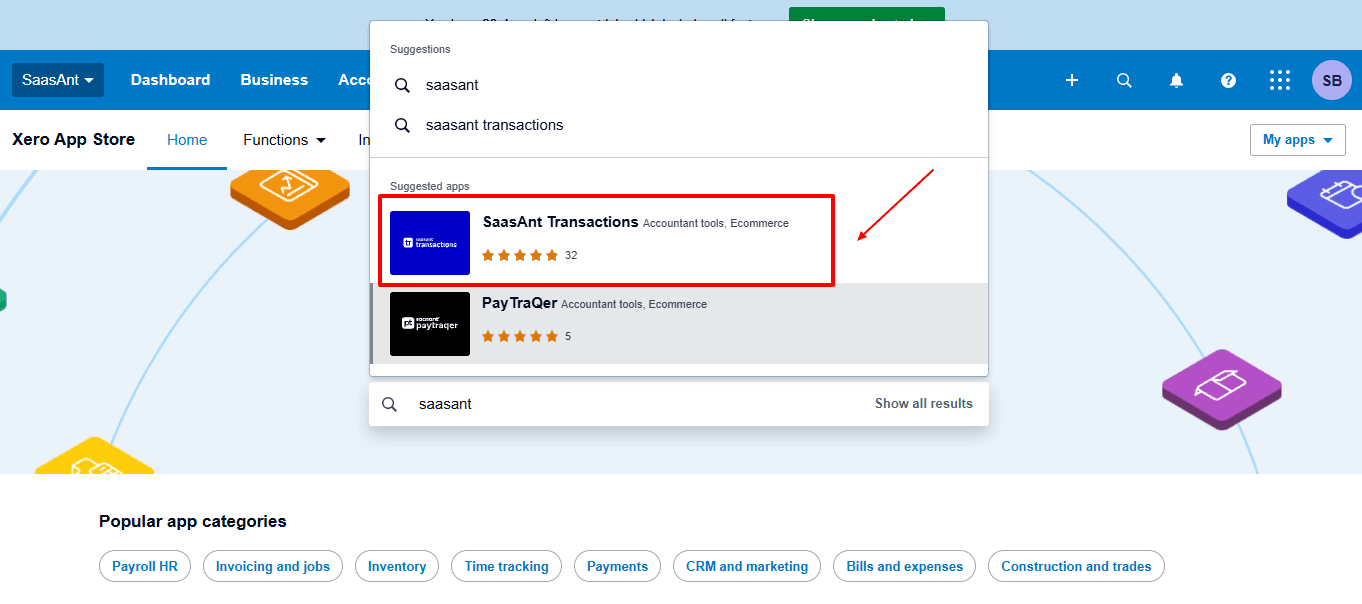
In the search bar, type “SaasAnt Transactions” as shown by the arrow in the image below.
Step 4: Open SaasAnt Transactions
Get the app from the App Store and connect it to Xero.
On the SaasAnt dashboard:
On the left side of the SaasAnt Transactions dashboard, you can see the menu bar with various options.
Select "Download”
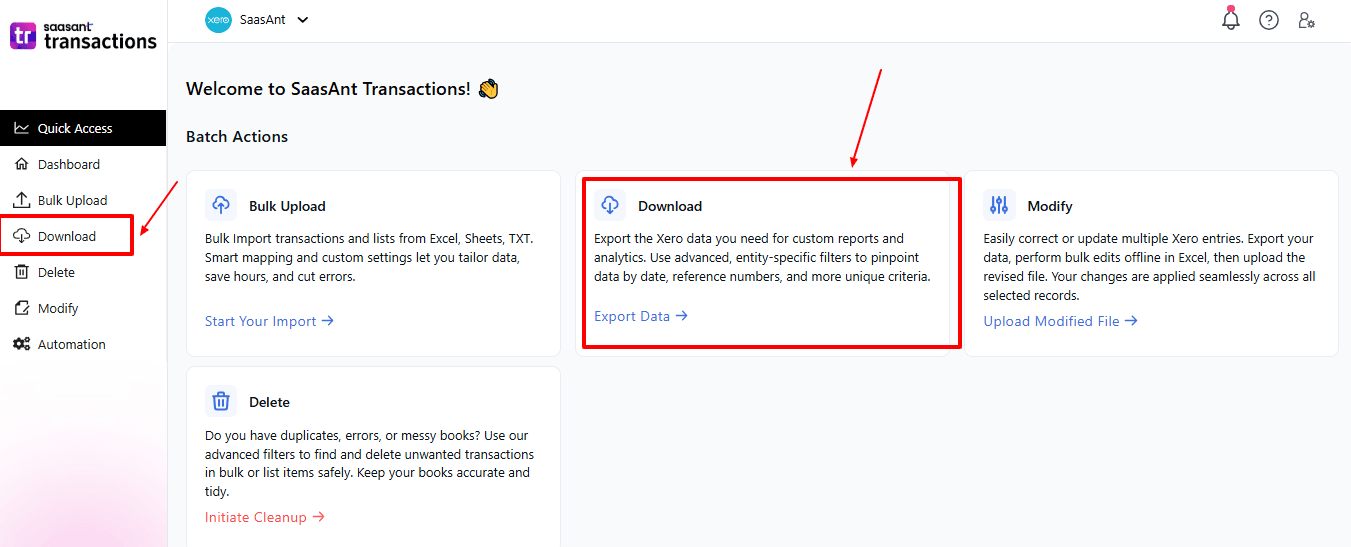
The Dashboard appears as shown in the image below.
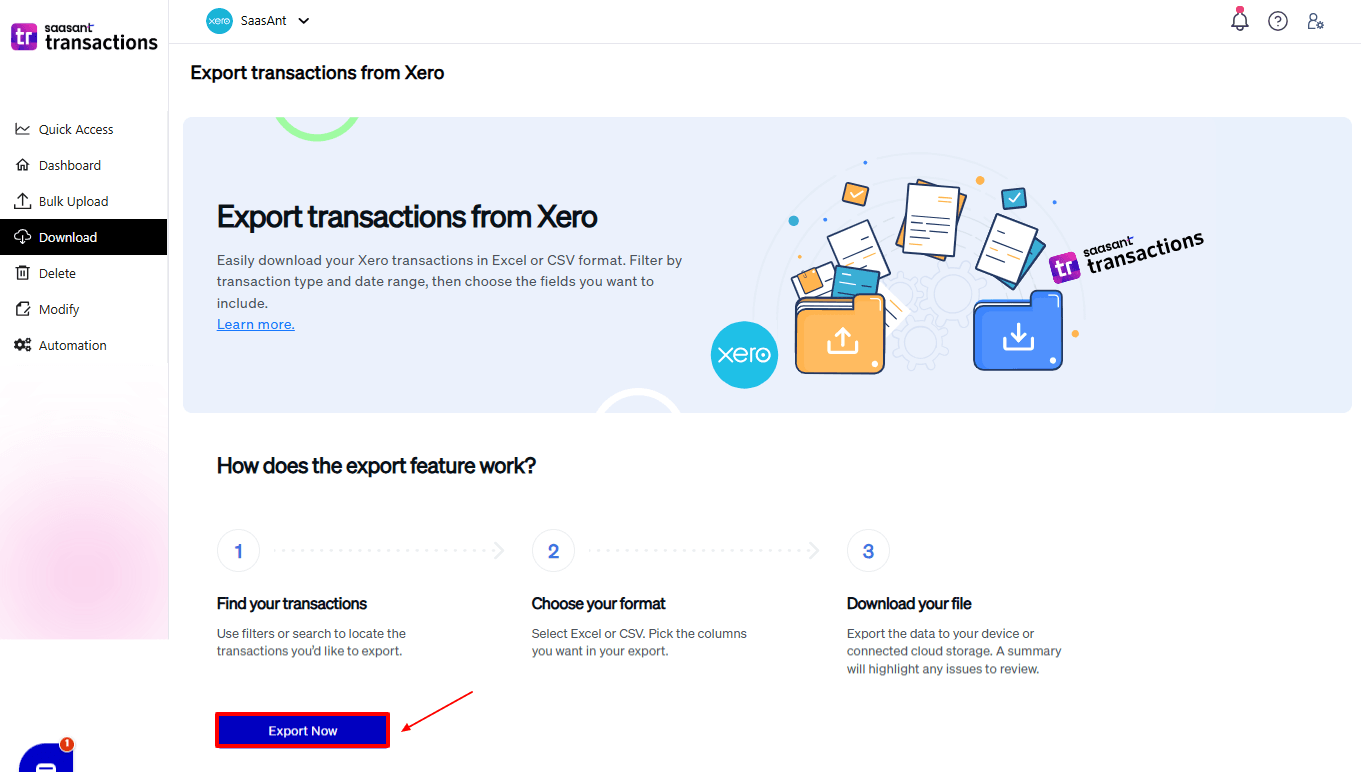
Step 5: Search and Filter Data
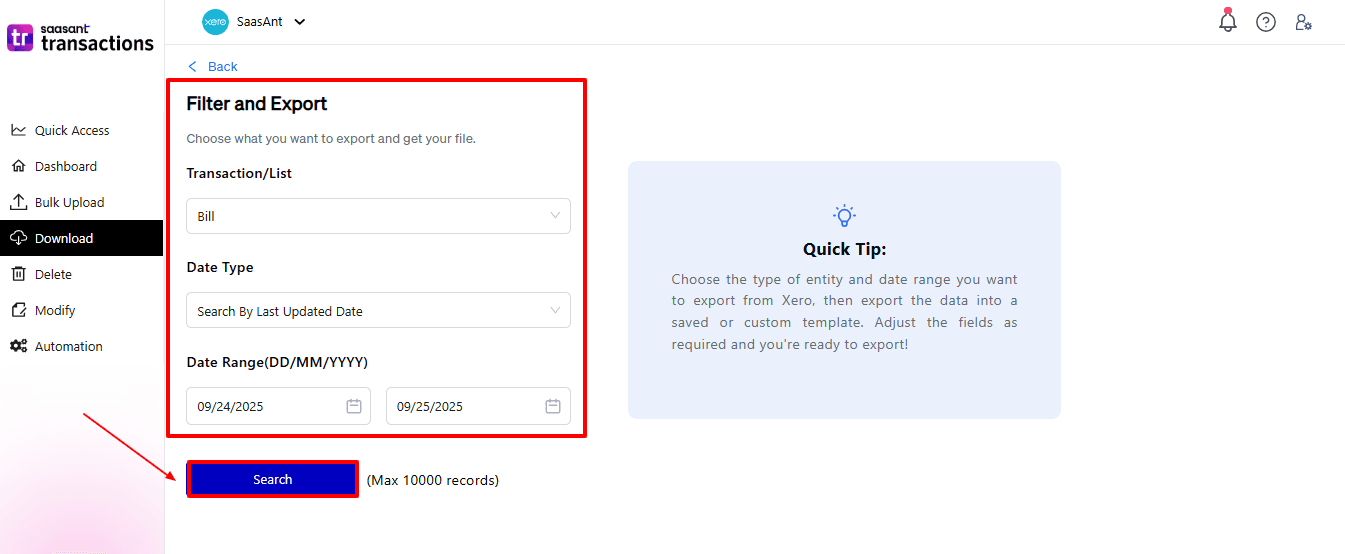
Fill in the required fields, such as transaction type, date type, and date range. We can select the transaction type as “bills”.
Step 6: Download Data
Click “Search,” and the bills appear in the dashboard. Now select “Download”.
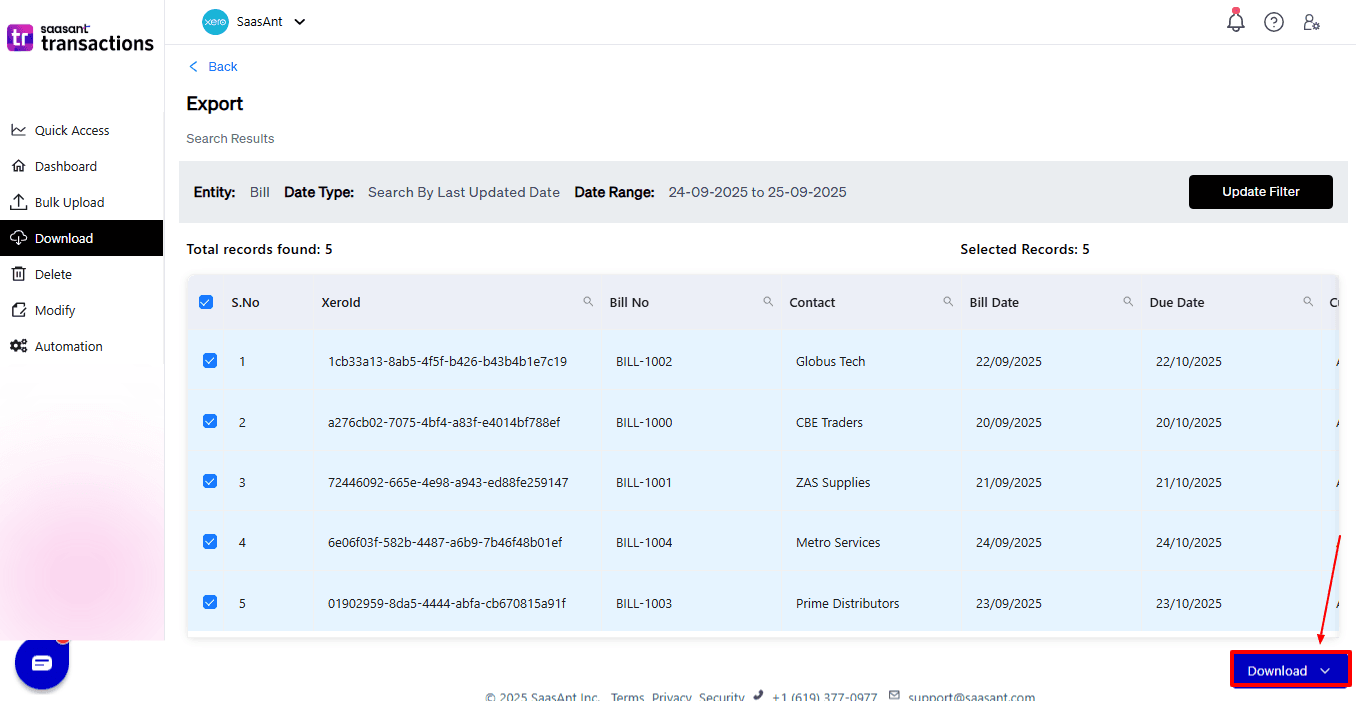
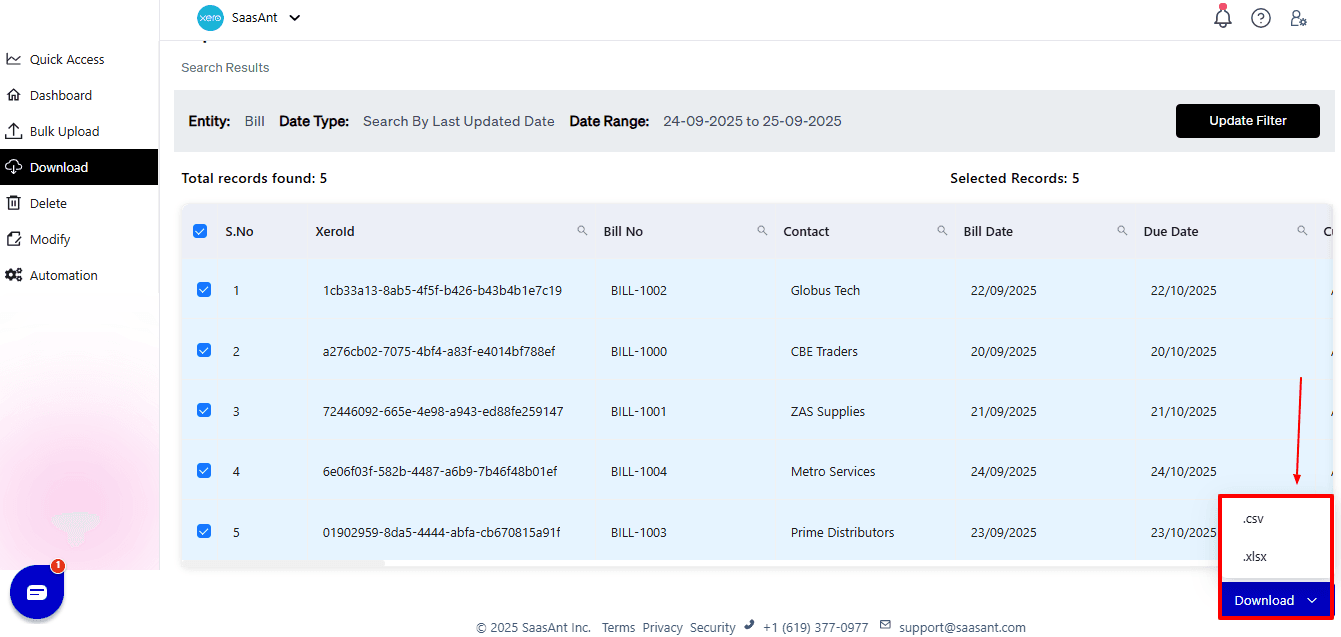
After you choose ‘Download,’ a dropdown will appear with two file format options: CSV and XLSX. Select your preferred format and download your bills data.
Why Choose SaasAnt Transactions for Xero?
The fact is that while Xero is a solid accounting platform, its import functions were not tailored for businesses with large volumes. SaasAnt improves the workflow by:
Bulk Import: Upload thousands of bills, invoices, or expenses in one go without encountering file-size or volume limitations.
Adaptable File Support: Unlike Xero’s CSV-only import feature, SaasAnt accommodates CSV, Excel, and text files for better usability.
Custom Field Mapping: Align your data fields directly with Xero’s format, which helps reduce errors and avoids strict templates.
One-Click Undo: Instantly reverse or remove complete imports if errors occur, eliminating the hassle of manual deletions.
Automation & Templates: Maintain export templates for ongoing tasks to reduce redundant work and ensure consistency.
Wrap Up
For businesses with increasing transaction volumes, efficient bill export workflows can significantly impact the accuracy of records and prevent costly mistakes. Although Xero’s export features meet basic requirements, issues such as batch size limits, restricted file formats, and a lack of automation can slow down teams and create risks. SaasAnt Transactions for Xero directly addresses these challenges, enabling bulk operations, automating exports, using advanced validation, and supporting custom templates to save time and reduce mistakes.
In today’s rapidly evolving business environment, accountants and bookkeepers seeking reliability, audit readiness, and seamless workflow integration will find SaasAnt Transactions to be an essential partner for their Xero platform.
If you have inquiries regarding our products, features, trial, or pricing, or if you require a personalised demo, contact our team today. We are ready to help you find the ideal solution for your QuickBooks workflow.
Frequently Asked Questions
1) Can I export thousands of bills at once in Xero?
Xero has difficulty handling large datasets. For exporting in bulk, SaasAnt Transactions for Xero is the preferred choice.
2) Does Xero support exporting bills in Excel format?
No, Xero only supports CSV files. SaasAnt allows downloads in XLSX format.
3) Can I undo a bill in Xero?
No. You have to delete bills individually. However, SaasAnt provides a one-click undo option, which allows you to reverse incorrect imports quickly.
4) Can SaasAnt export other transaction types besides bills?
Yes. SaasAnt supports exporting invoices, payments, credit notes, expenses, and more, providing businesses with a comprehensive solution.
5) Are SaasAnt Transactions only for large businesses?
No. Although it is particularly beneficial for large imports and exports, small businesses also gain from its automation, error management, and time efficiency.
Read Also
How to Edit Item in Xero
How to Delete Bills in Xero
How to Export Bills in Xero
How to Export Data in Xero