How to Edit Receive Payments in QuickBooks Desktop
Businesses often manage numerous customer payments daily, which implies that Receive Payments records in QuickBooks Desktop must be accurate and regularly updated. Whether it involves correcting an incorrect amount, changing the payment method, applying a payment to the correct invoice, or editing several customer payments at once, it is critical to maintain accuracy in Receive Payments for effective bookkeeping, cash flow tracking, and financial reporting.
However, the manual editing options available in QuickBooks Desktop are somewhat limited, particularly when bulk changes are necessary. This is where a strong automation tool like SaasAnt Transactions Desktop becomes necessary. SaasAnt allows you to export, edit, and re-import Receive Payments in bulk, ensuring precision and saving hours of manual cleanup each month.
This blog is ideal for businesses, accountants, bookkeepers, and small business owners overseeing regular or substantial Receive Payments in QuickBooks Desktop that require editing, cleanup, and bulk correction options supported by automated tools like SaasAnt Desktop for accuracy and efficiency.
How to Edit Receive Payments in QuickBooks Desktop: Step-By-Step Guide
Follow the steps below to edit Receive Payments in QuickBooks Desktop using SaasAnt Transactions Desktop.
Step 1: Install and Connect SaasAnt Transactions
Download the latest SaasAnt Transactions Desktop version.
Run SaasAntTransactions-Setup.exe as an administrator.
Accept the license agreement and complete the installation.
Open the app, go to Subscription > Register.
Enter the license key from your confirmation email.
Keep your internet connection active.
Step 2: Launch SaasAnt Transactions Desktop
Start by opening the SaasAnt Transactions Desktop app on your system.
Make sure QuickBooks Desktop is open and connected to your company file before you continue.
Step 3: Connect to QuickBooks Desktop
To access, you need to connect the SaasAnt Transactions Desktop with QuickBooks Desktop. Here's how:
Go to the ‘File’ menu in the top-left corner of SaasAnt Transactions Desktop.
Click ‘Connect to QuickBooks’ from the dropdown.
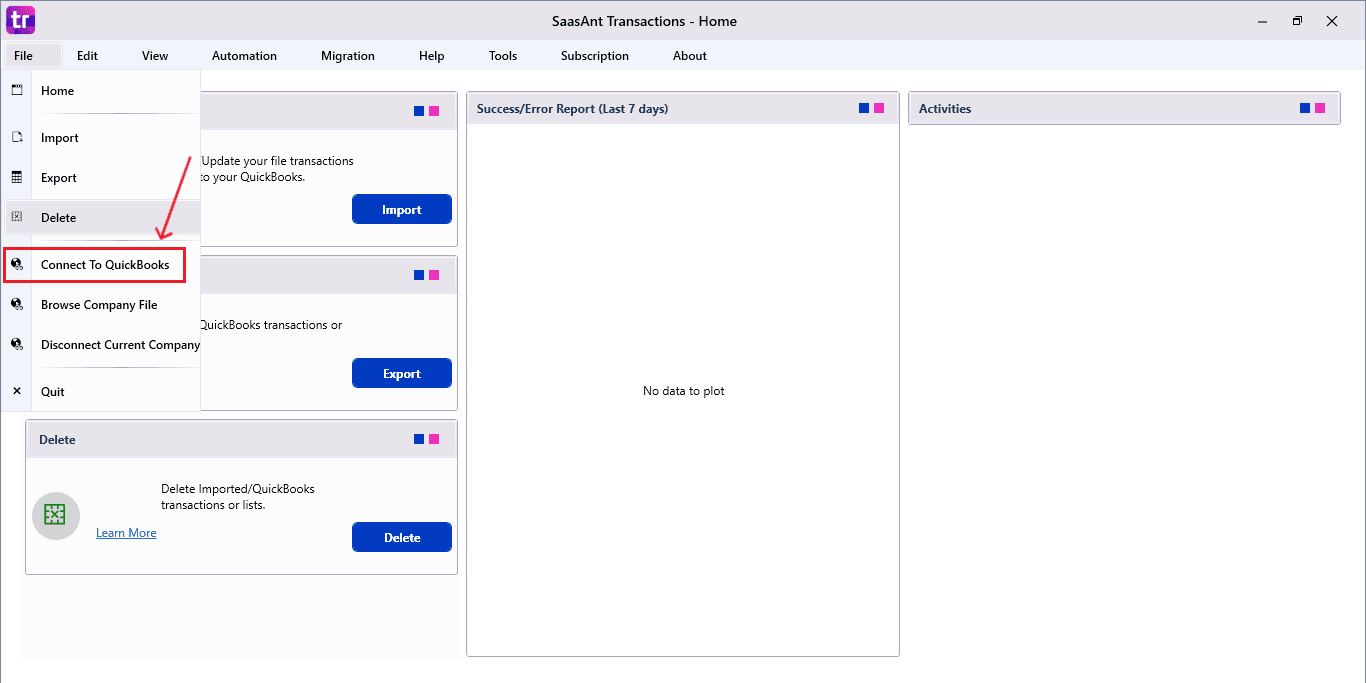
The company is now successfully connected to QuickBooks.
Step 4: Open SaasAnt Transactions
On the SaasAnt dashboard:
On the top-left of the SaasAnt Transactions dashboard, you can see various options. Select “Export”.
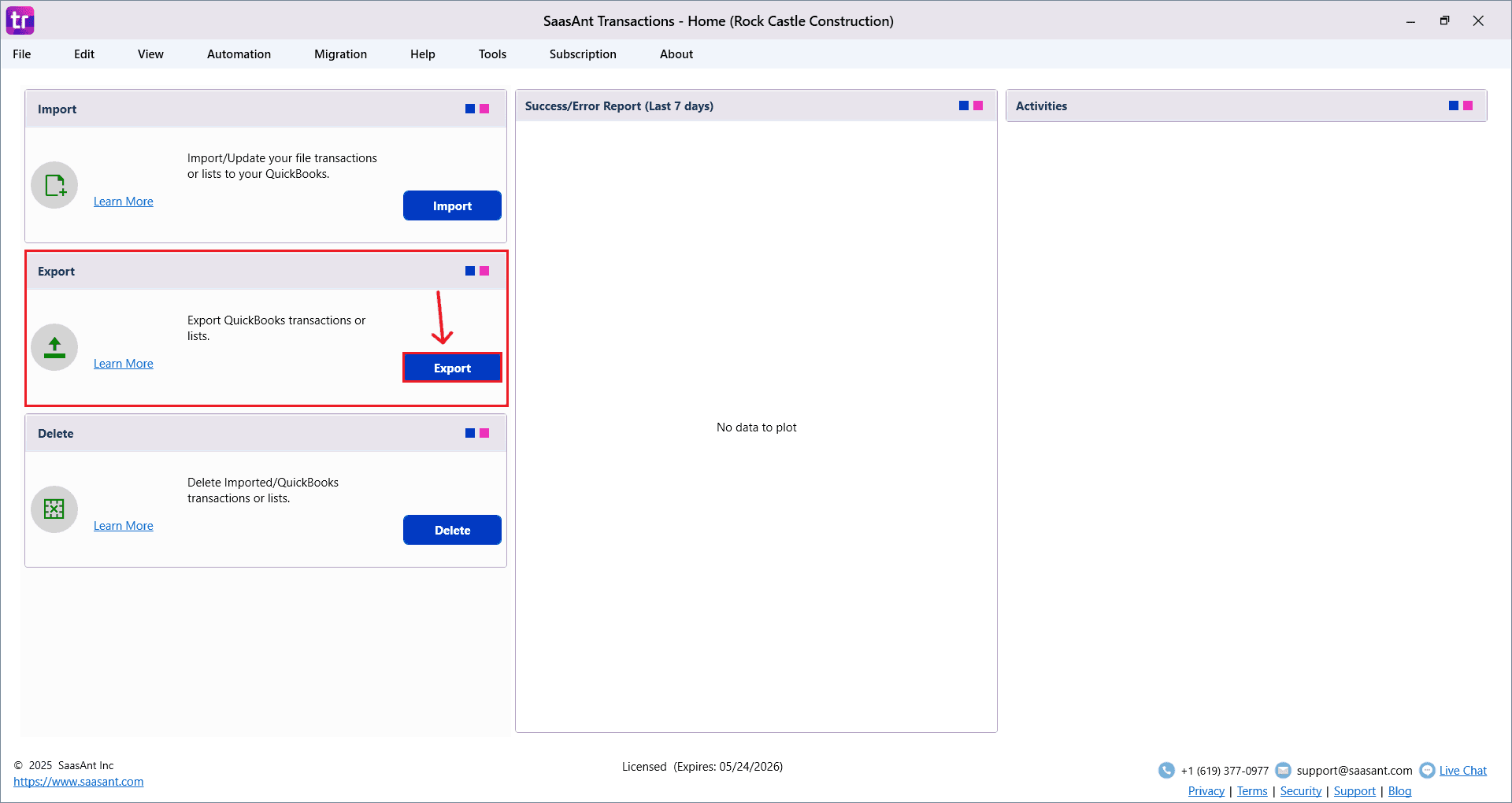
Step 5: Search and Download Receive Payments
Fill in the required fields, such as QuickBooks Type, Date Type, From Date, and To Date.
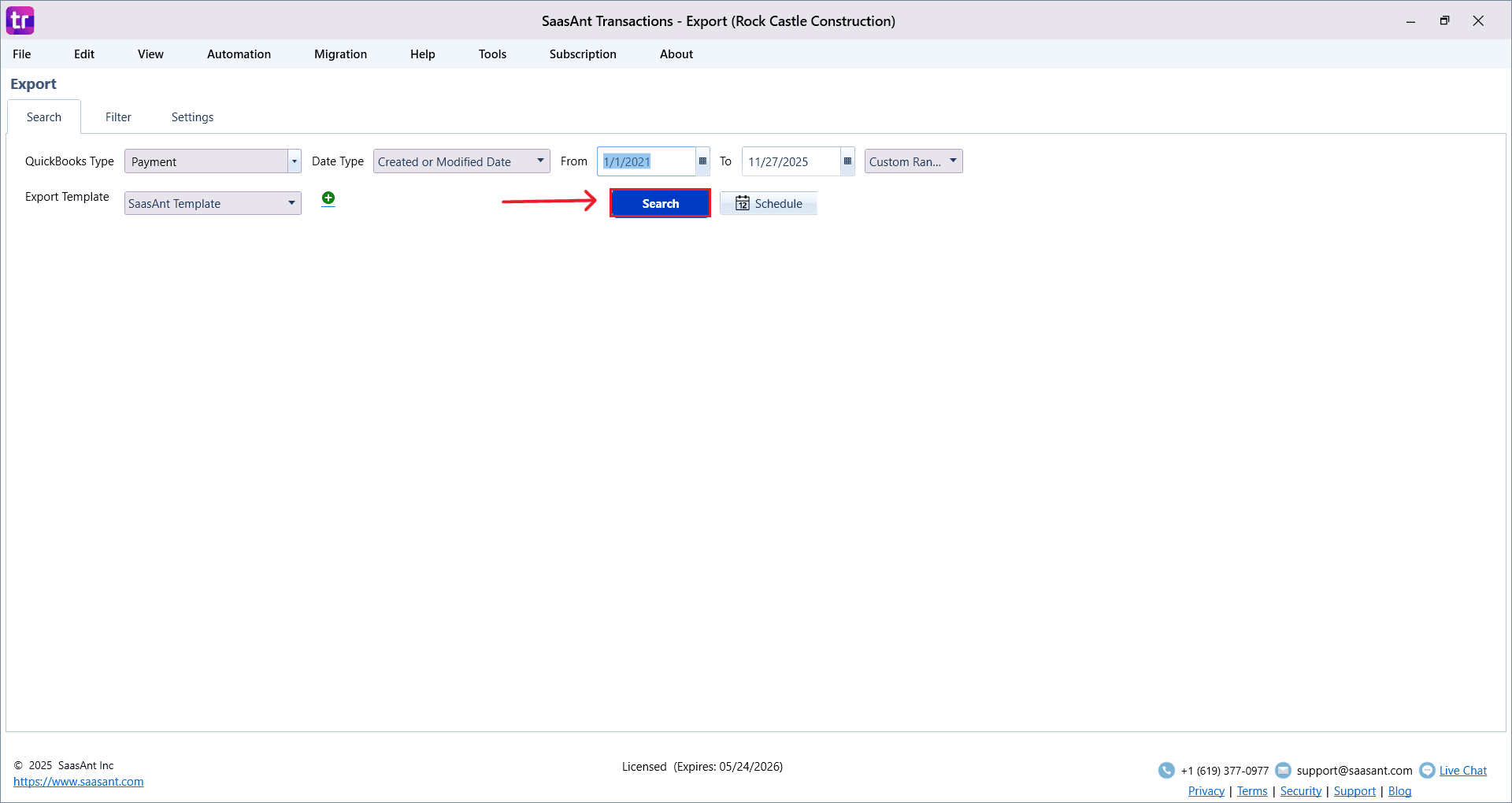
You can also choose Export template from the options available in the dropdown menu.
Export the Receive Payments file in Excel (.xlsx) or CSV for editing.
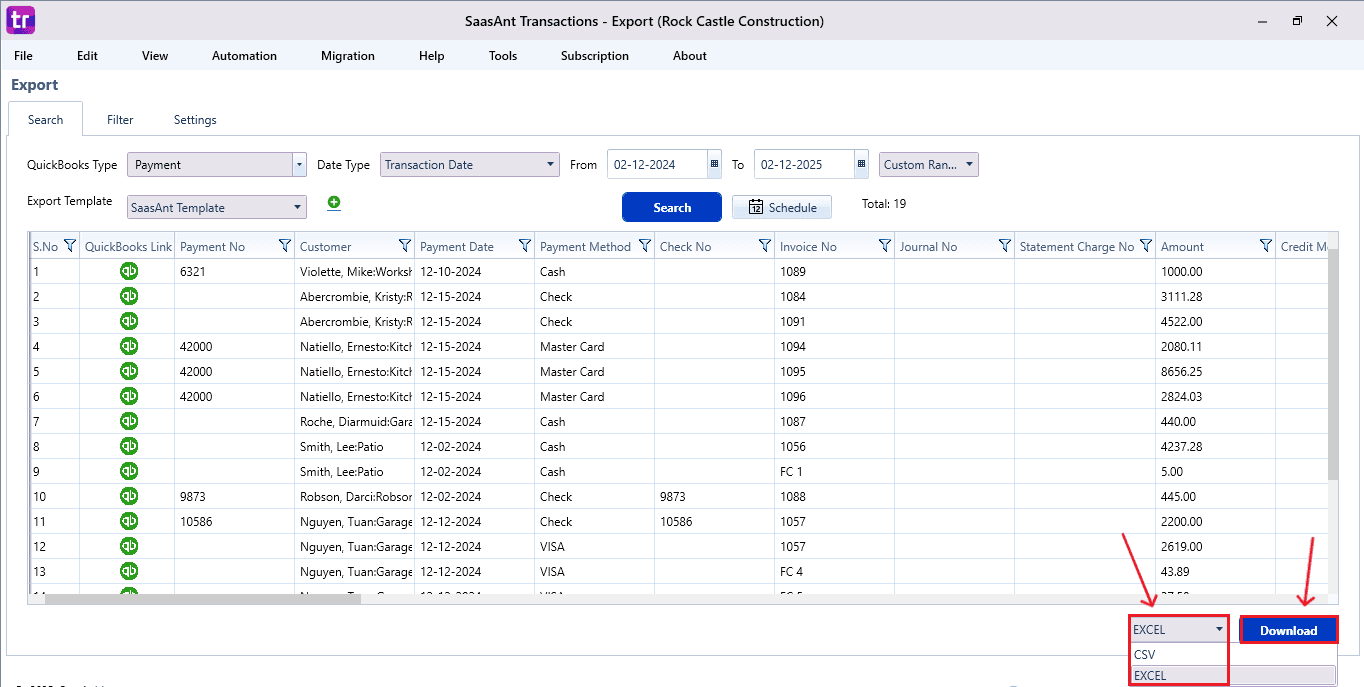
Step 6: Make edits in the spreadsheet
Open the exported file using Excel or Google Sheets.
Find the Receive Payments you need to change (by number, customer, or date).
Make the necessary adjustments: change amounts, dates, line items, customer information, etc.
Save the file as a CSV (if SaasAnt requires it).

Step 7: Re-import the edited Receive Payments
Return to SaasAnt Transactions.
On the SaasAnt dashboard:
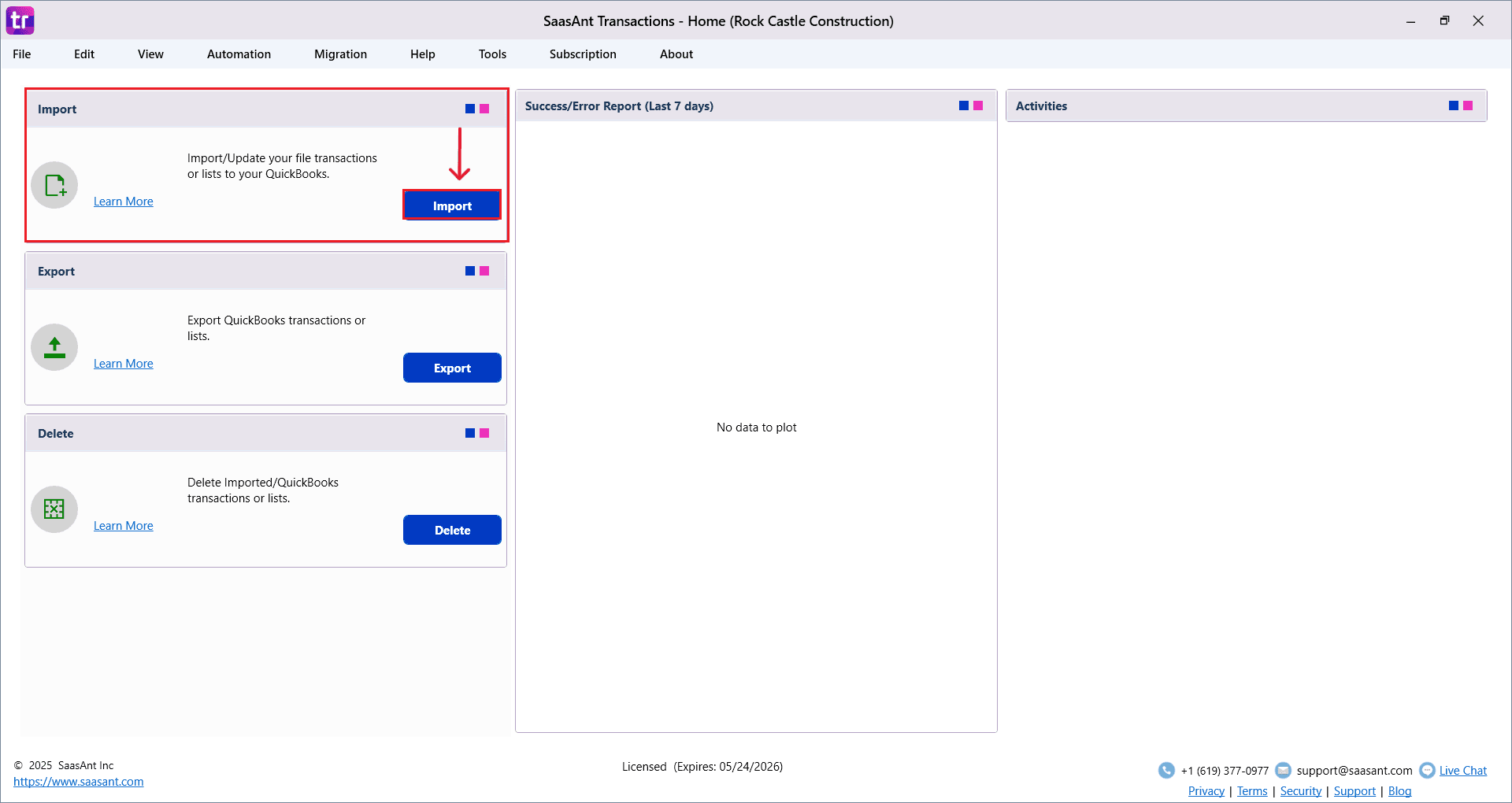
On the top left side of the SaasAnt Transactions dashboard, select “Import”.
The Dashboard appears as shown in the image below.
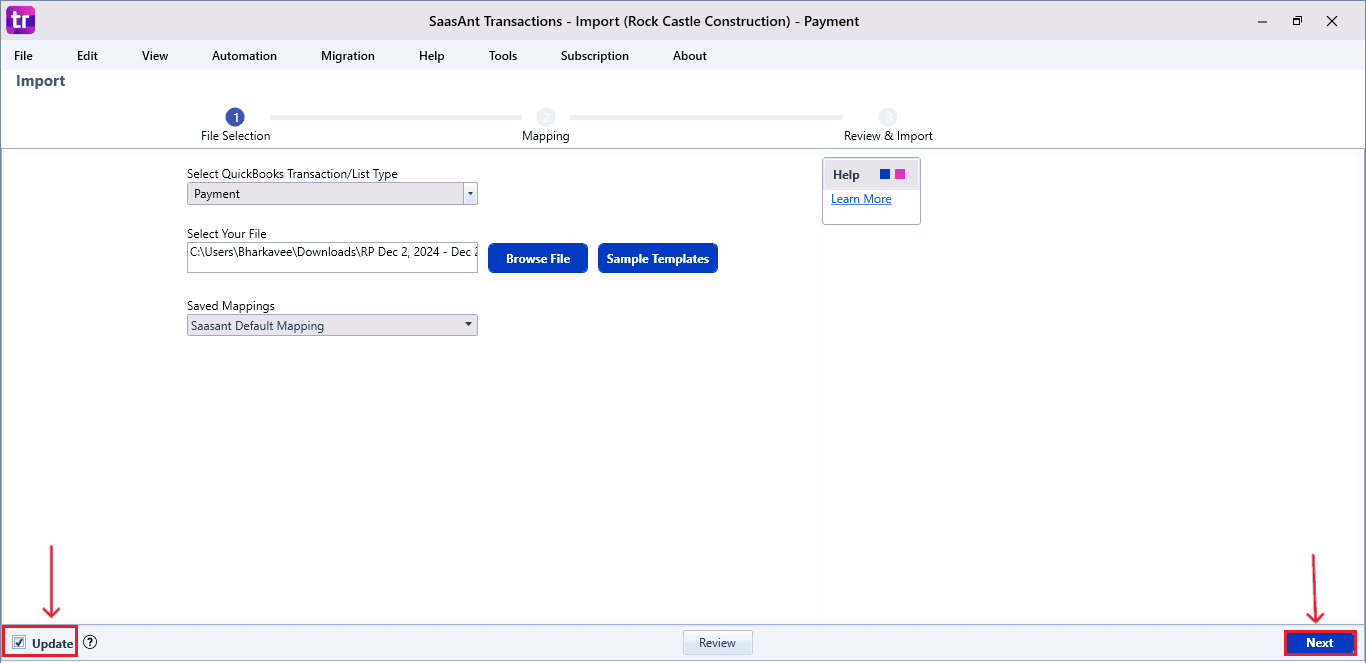
Select “Receive Payments” from the SaasAnt Transaction Type dropdown and upload your Excel or CSV file.
Select “SaasAnt Default Mapping” under the Saved Mapping dropdown.
Step 8: Mapping Fields
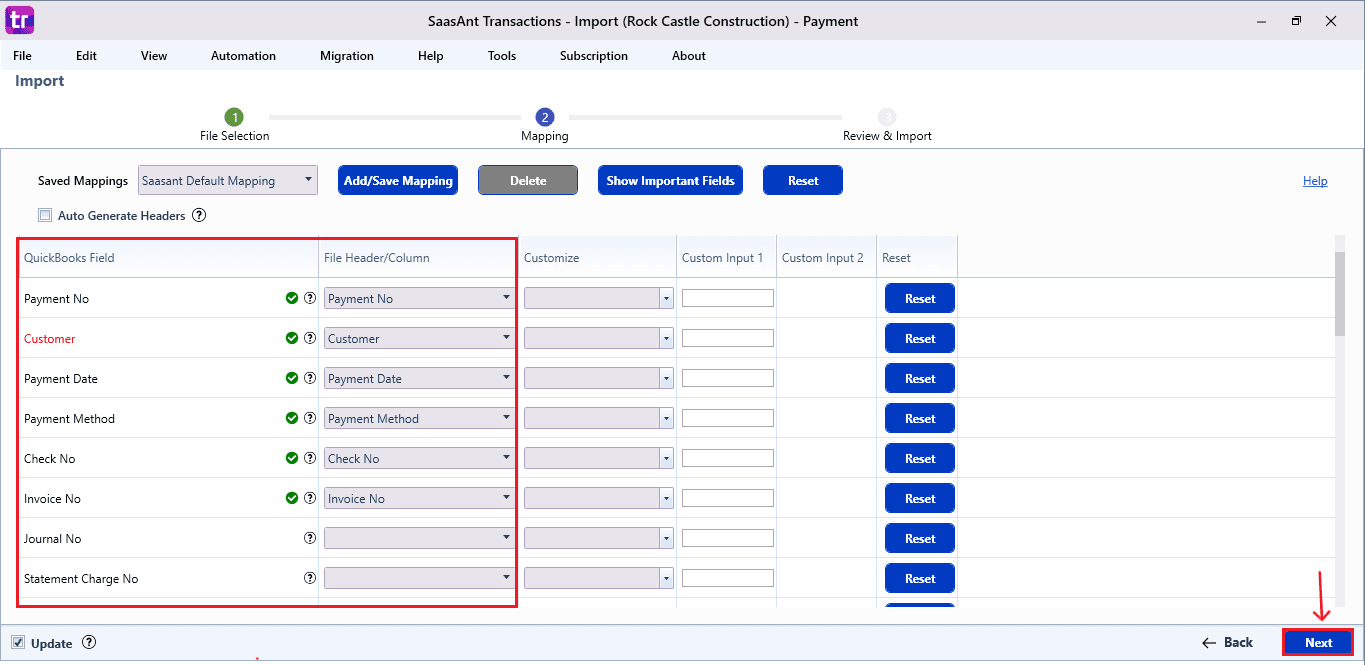
Ensures the mapping of essential fields, including the Receive Payments number, the Receive Payments date, the invoice number, the payment method, etc.
Select the Update button in the bottom left corner to indicate that you are modifying existing data in QuickBooks.
Select “Next” at the bottom right of the dashboard.
Step 9: Import the Data
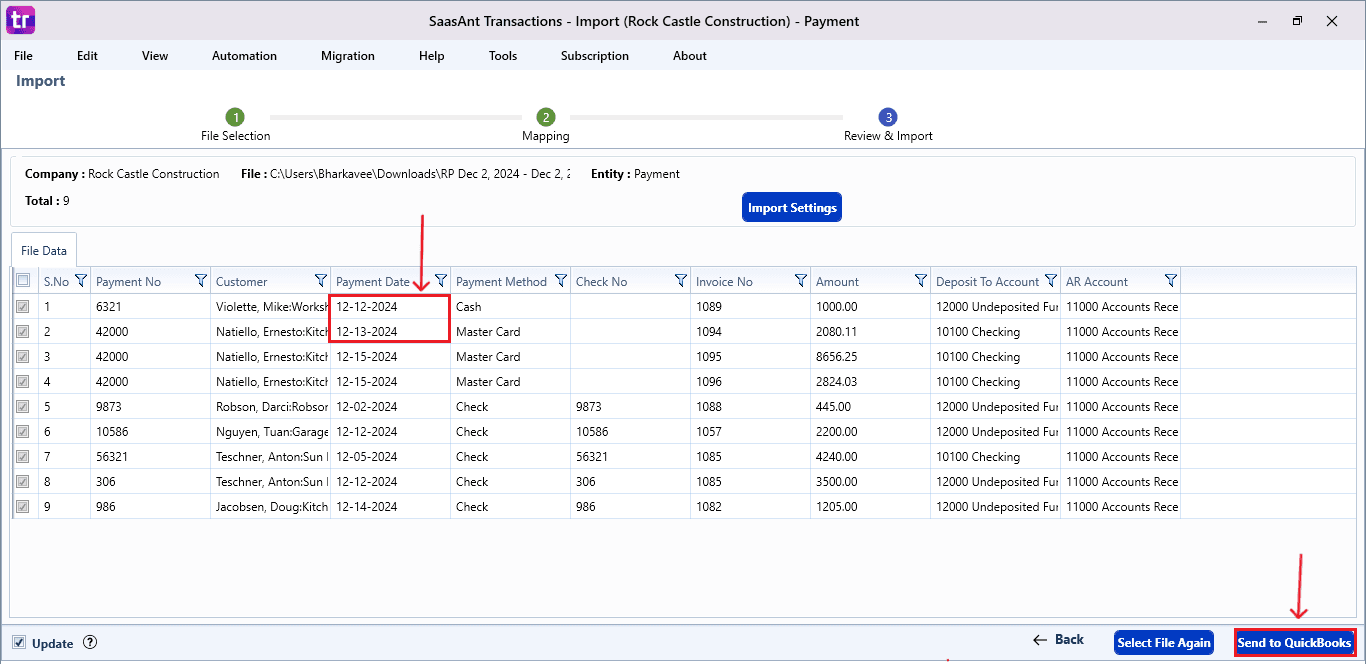
Click the “Send to QuickBooks” option at the bottom right of the dashboard, as shown in the image below.
SaasAnt will now push the Receive Payments into your connected QuickBooks Desktop account.
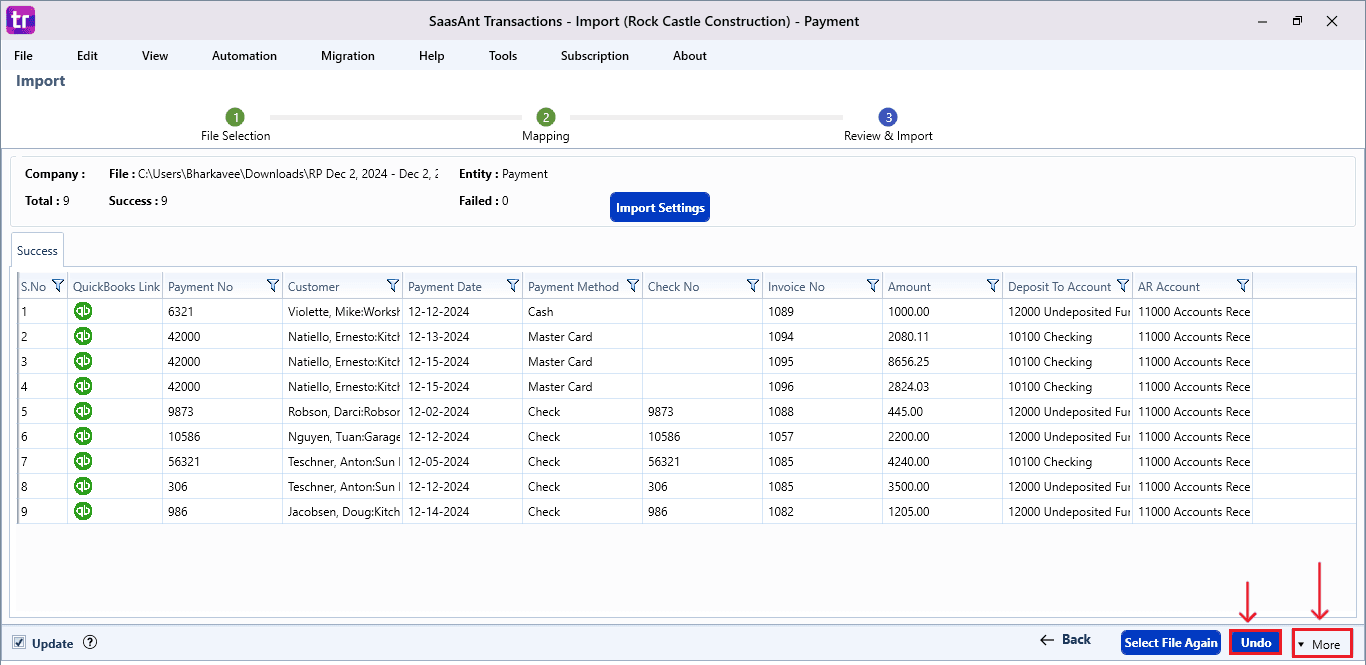
The Receive Payments are reflected in the dashboard.
At the bottom right, click the “More” dropdown and select the option to download your Receive Payments for reference.
Additionally, next to the download option, you can see “Undo”, which allows you to roll back your “Receive Payments”.
Step 10: Verify in QuickBooks Desktop
Click the “qb” icon to view the imported Receive Payments.
The updated Receive Payments with your changes will be reflected in your QuickBooks Desktop as shown in the image below.
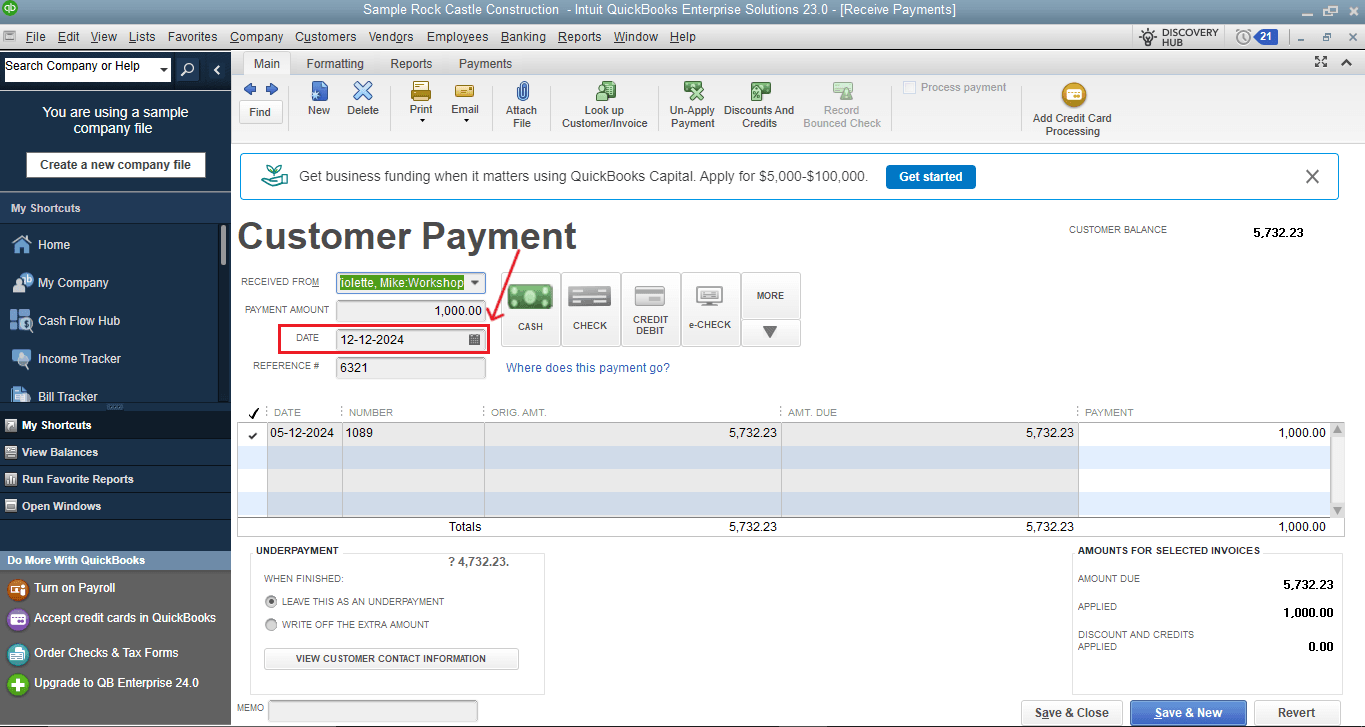
This final step ensures your data is accurate and properly reconciled in QuickBooks.
Why SaasAnt Transactions Desktop Is the Best Add-On for Receive Payments Edit
SaasAnt Transactions Desktop simplifies the process of editing complex Receive Payments in QuickBooks Desktop. Here’s what sets it apart:
Bulk Editing Efficiency: SaasAnt allows users to modify hundreds or thousands of Receive Payments at the same time, which is particularly beneficial for businesses dealing with daily customer transactions, large transaction loads, or historical corrections that QuickBooks cannot manage efficiently.
Correct Data Mapping: Field mapping makes certain that all Receive Payments details are in accordance with the QuickBooks format, decreasing errors and ensuring the reliability of financial record accuracy.
Preview Before Import: The preview function lets you check and fix Receive Payments information before making changes, helping to avoid errors and enhance data management during updates.
Undo/Rollback Feature: If an edit doesn’t go as expected, the Undo function immediately reverts the original Receive Payments, providing users with total assurance during extensive modifications.
Smart Error Validation: SaasAnt identifies potential issues before the import takes place, like missing invoice links or formatting conflicts, which allows users to fix errors early and prevent inaccurate payment entries.
Wrap Up
Adjusting Receive Payments in QuickBooks Desktop is vital for maintaining accurate financial information. While QuickBooks does allow for manual changes, it is not optimized for bulk modifications or high-volume workflow corrections. This is why SaasAnt Transactions Desktop is the perfect solution, enabling businesses, accountants, and bookkeepers to edit, correct, and update Receive Payments effortlessly.
Whether you are dealing with customer reconciliations, rectifying errors, or conducting year-end cleanup, SaasAnt makes sure your financial records are accurate with minimal work.
If you have inquiries regarding our products, features, trial, or pricing, or if you require a personalized demo, contact our team today. We are ready to help you find the ideal solution for your QuickBooks workflow.
Frequently Asked Questions
1) How do I bulk edit Receive Payments in QuickBooks Desktop?
QuickBooks Desktop does not support bulk editing, but SaasAnt Transactions Desktop allows for quick and accurate exporting, modifying, and re-importing of large Receive Payments.
2) Will editing Receive Payments affect previous bank reconciliations?
Indeed, modifying payment dates or amounts may affect reconciliations; therefore, it is essential to check the updated Receive Payments after making changes in QuickBooks.
3) Does SaasAnt support undoing incorrectly edited Receive Payments?
Yes, SaasAnt has an Undo feature that securely reverts imported Receive Payments, bringing your QuickBooks data back to its earlier state.
4) Can SaasAnt preview Receive Payments before importing updates?
Yes. SaasAnt’s preview screen verifies the mapping, highlights possible errors, and guarantees that Receive Payments modifications are correct before they are sent to QuickBooks.
5) Can I edit Receive Payments for multiple customers at once?
Yes, SaasAnt enables bulk editing for multiple customers, which is ideal for extensive accounts receivable updates and cleanup activities.
Tags
Read also
How to Edit a Journal Entry in QuickBooks Desktop
How To Edit A Bill In QuickBooks Desktop
How to Edit a Deposit in QuickBooks Desktop
How to Export Receive Payments in QuickBooks Desktop