How to Edit Manual Journal in Xero
Editing manual journals in Xero can be challenging, particularly with a high number of transactions. While Xero supports basic edits, manual editing can be slow and lead to mistakes. This is where SaasAnt Transactions Xero proves beneficial. With its enhanced editing features, you can quickly change manual journals in bulk, cut down on manual tasks, and ensure data accuracy. This guide provides a step-by-step approach to editing manual journals in Xero using SaasAnt, assisting small business owners, accountants, and bookkeepers in optimising their workflow while complying with reporting and tax regulations.
Also Read: Getting Started with SaasAnt Transactions for Xero
Contents
Making Manual Journal Edits Easy
How to Edit Manual Journal with Xero Online: Step-by-Step Guide
Wrap Up
Frequently Asked Questions
Making Manual Journal Edits Easy
A small business owner identifies inconsistencies in their expense allocations in Xero. Instead of manually adjusting each journal entry, they use SaasAnt Transactions to swiftly update multiple manual journals in bulk. This not only saves time but also ensures accurate financial reporting, minimises compliance risks, and keeps records prepared for audits.
This blog is particularly beneficial for small business owners, accountants, and bookkeepers using Xero who want to edit manual journals effectively, reduce manual tasks, improve accuracy, and secure financial reporting that meets audit standards.
How to Edit Manual Journal with Xero Online: Step-by-Step Guide
Always back up your Xero Online data before you begin. Even though SaasAnt is designed to be safe and reliable, a backup provides an added layer of security. Follow the steps below to get started.
Step 1: Log In to Your Xero Account
Log in to your Xero account.
Step 2: Navigate to the Apps Menu
On the right side of the Xero dashboard, you can see the menu bar with various options.
Select the “Waffle” icon. Click the dropdown and select “Find more apps on Xerp App Store.”
Step 3: Search SaasAnt Transactions
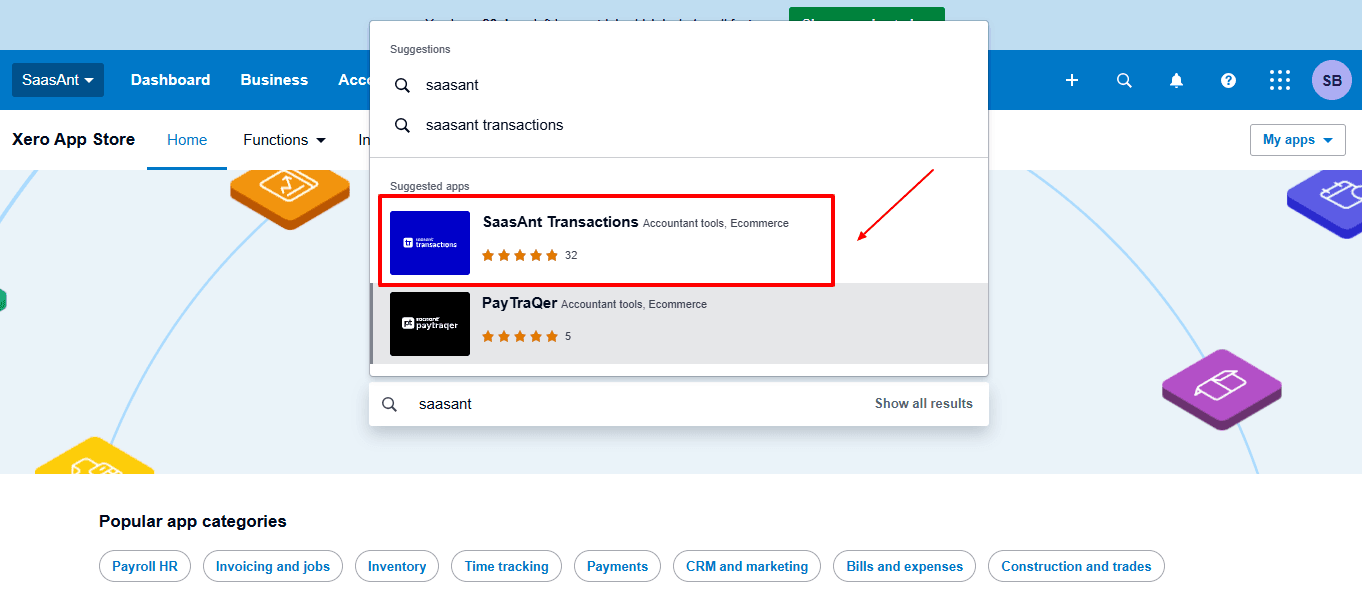
In the search bar, type “SaasAnt Transactions” as shown by the arrow in the image below.
Step 4: Open SaasAnt Transactions
Get the app from the App Store and connect it to Xero.
On the SaasAnt dashboard:
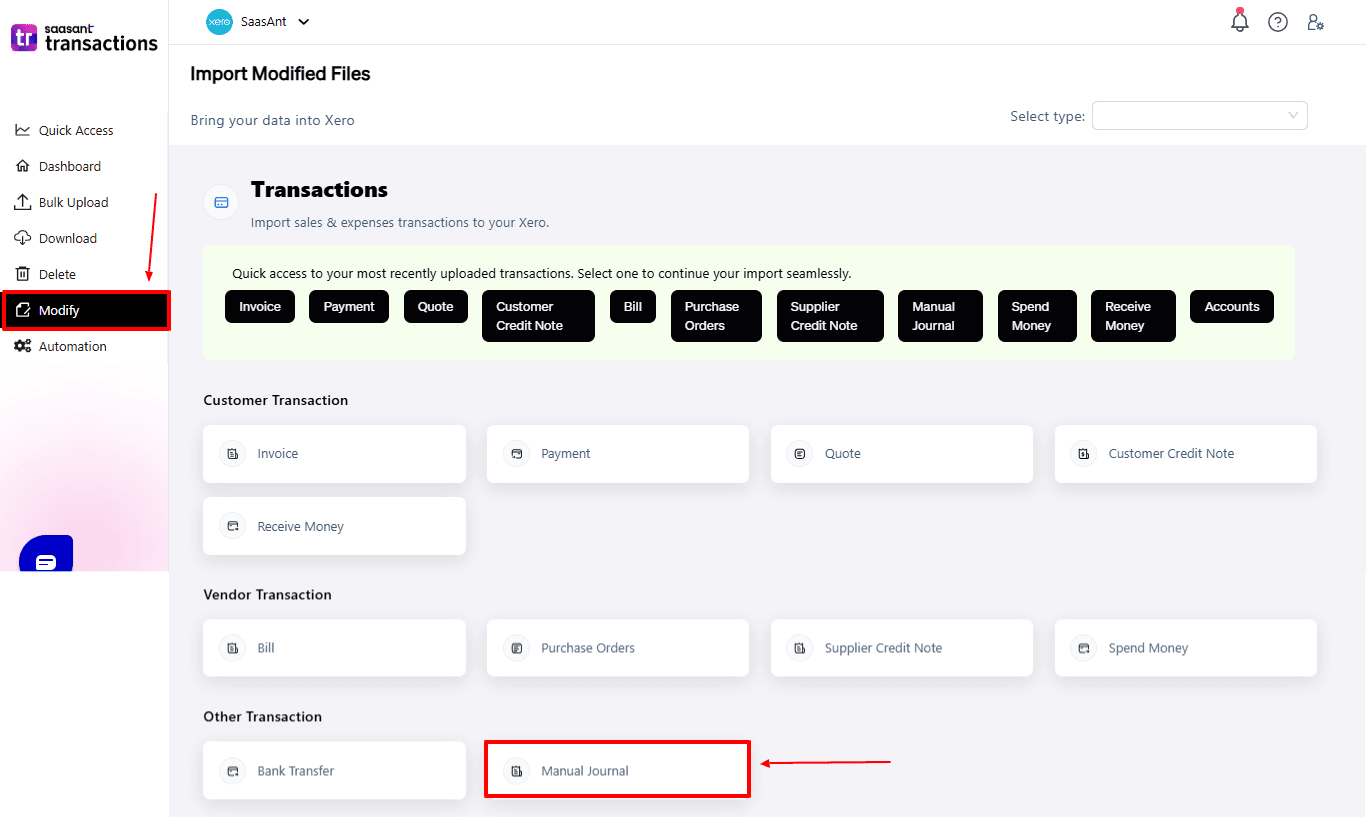
On the left side of the SaasAnt Transactions dashboard, you can see the menu bar with various options.
Select “Modify.”
At the bottom right, click on “Let’s Modify.”
Before you modify, make sure that your respective manual journals are already uploaded to your Xero account.
Now select “manual journal” under the Other Transactions section.
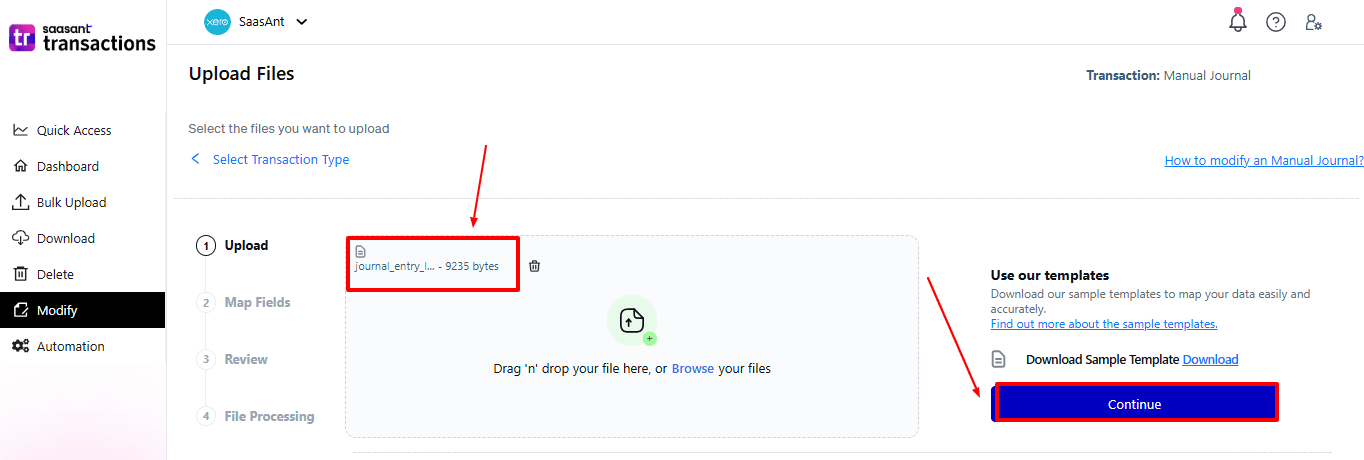
Now, upload your respective supply credit note files from your device and click “Continue”.
Step 5: Mapping Fields And Review
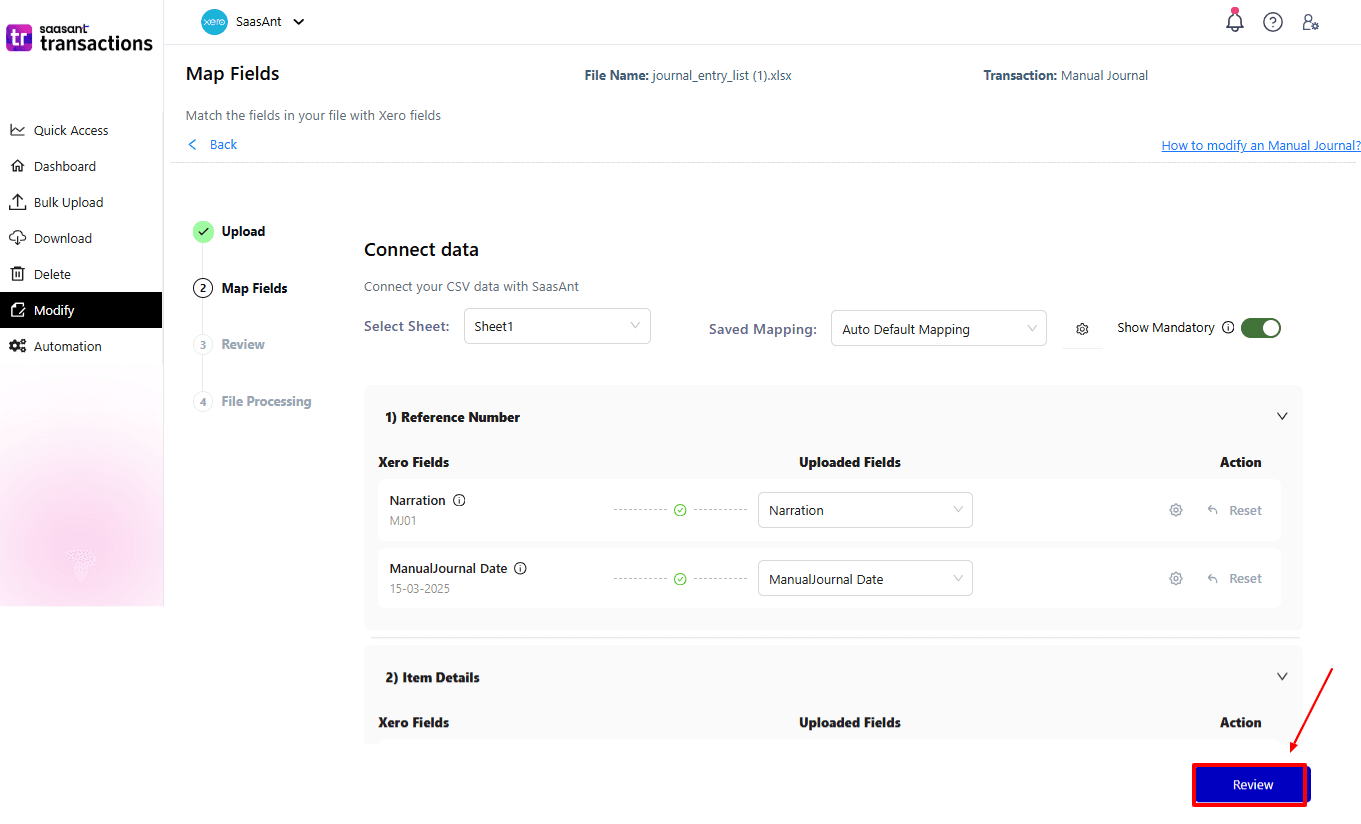
Ensures accurate mapping of essential fields: Supply credit number, contact, date, etc.
The ‘Preview Mapping’ feature allows users to verify field alignment before review.
Select “Review” after finalising the mapping of all fields.
Step 6: Review And Update
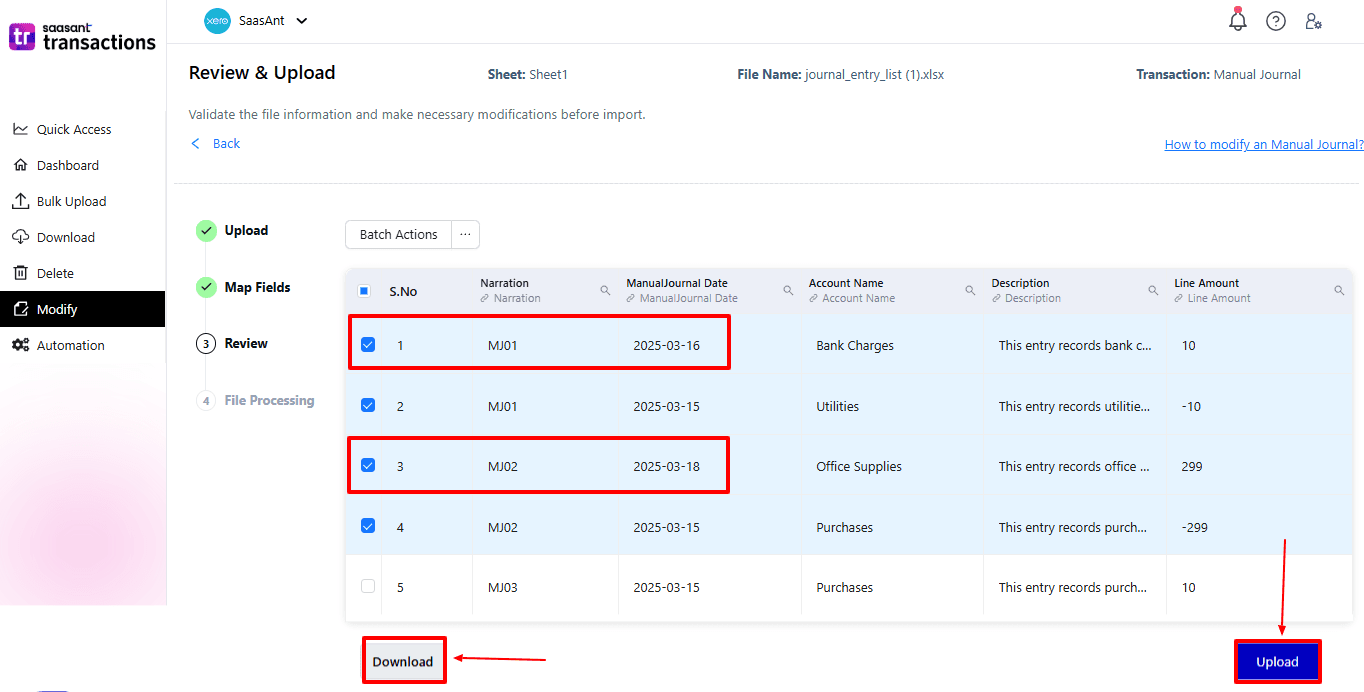
Review the modified “manual journal” and select “Upload”.
At the bottom left, there is a “Download” option, where you can download this modified data for your future reference.
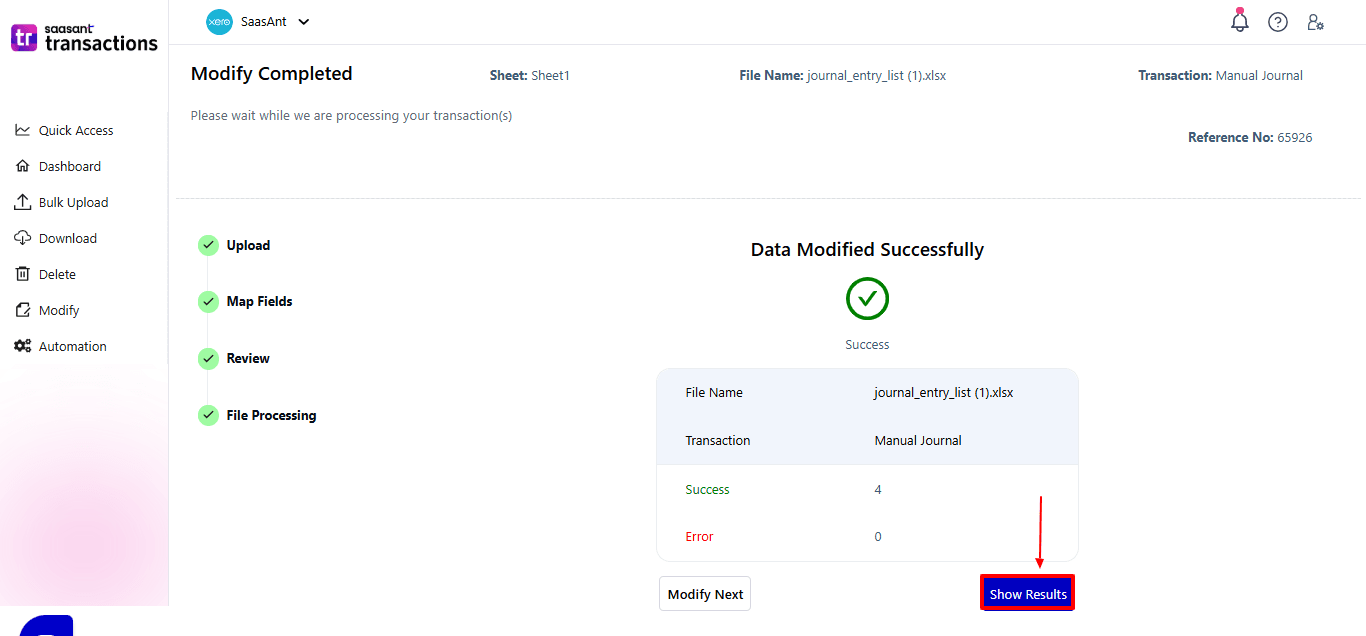
Your modified “manual journal” will be updated in Xero Online. Click “Show Results”.
Step 7: Modify
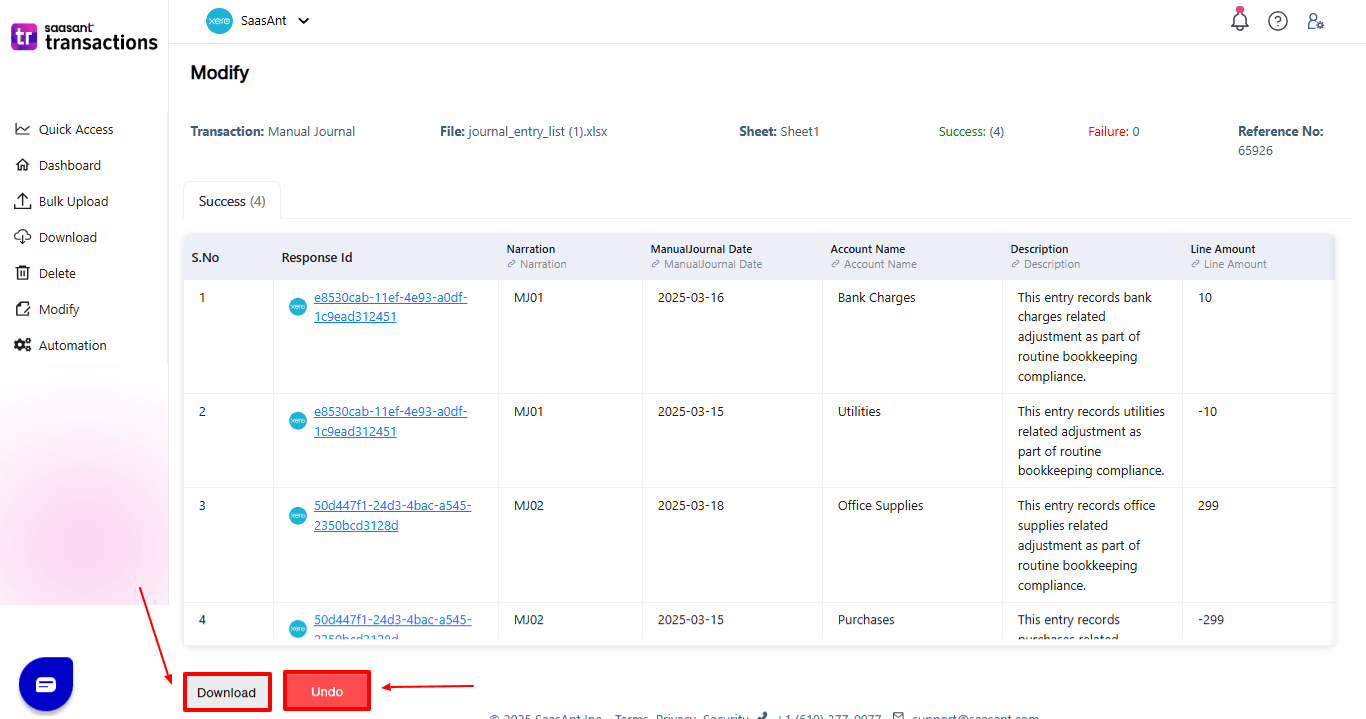
Your modified “manual journal” appears. At the bottom left, there is a “Download” option, where you can download your modified manual journal for future reference.
Additionally, next to “Download”, you can see “Undo”, which allows you to roll back your “manual journal”.
Step 8: View the Modified Manual Journal
Now, back to the Xero dashboard, select “Accounting” on your top left. From the dropdown, now select “Reports”.
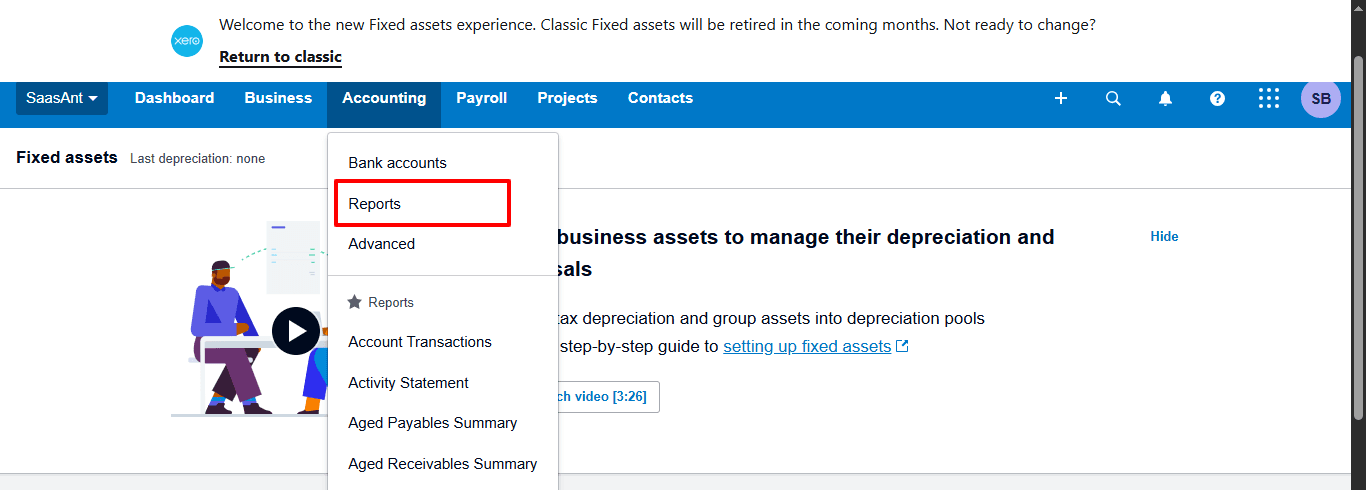
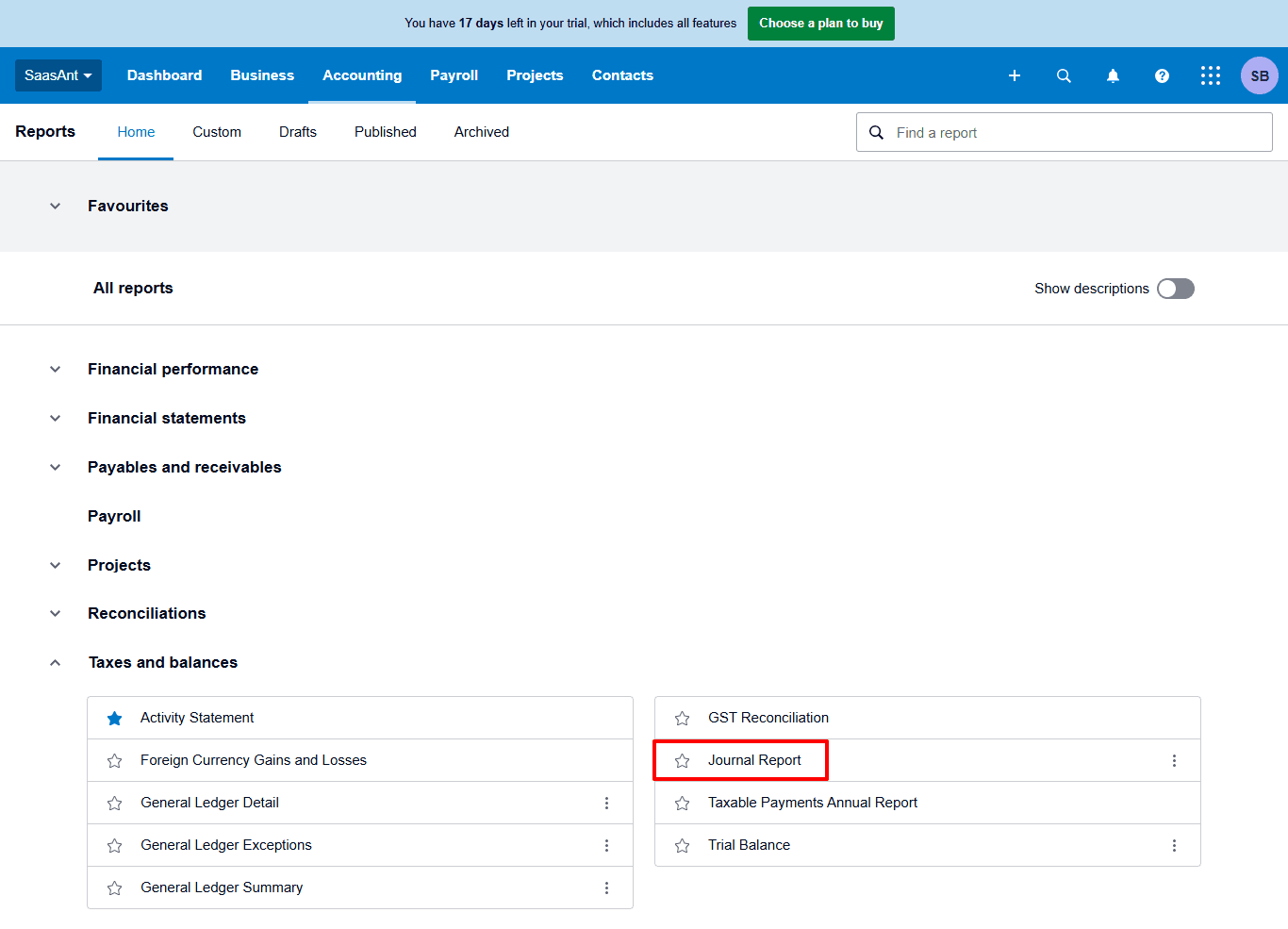
The dashboard of reports appears, and now select “Journal Report” from the “Taxes and balances” dropdown.
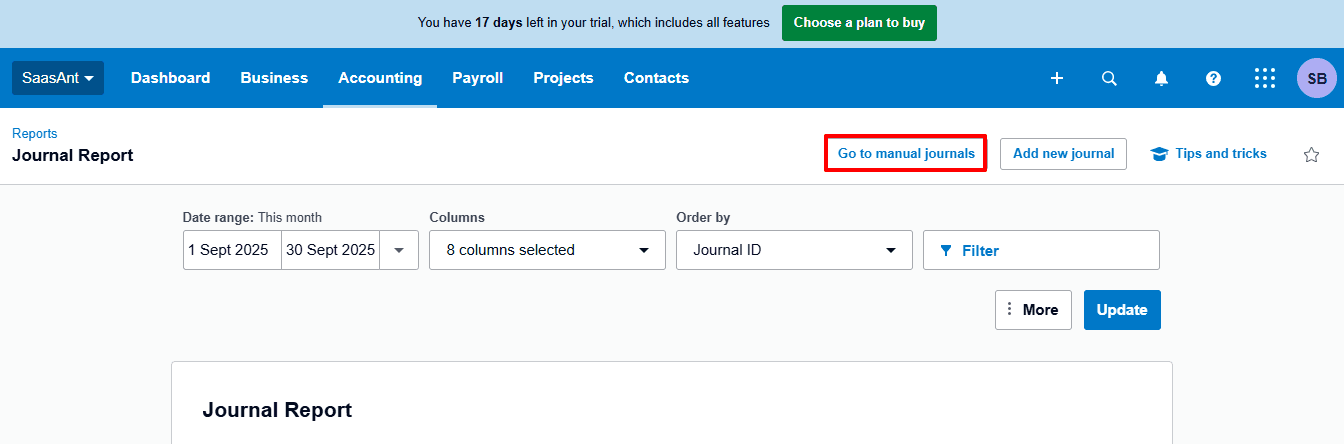
The journal report dashboard appears as shown below. Now select “Go to manual journals”
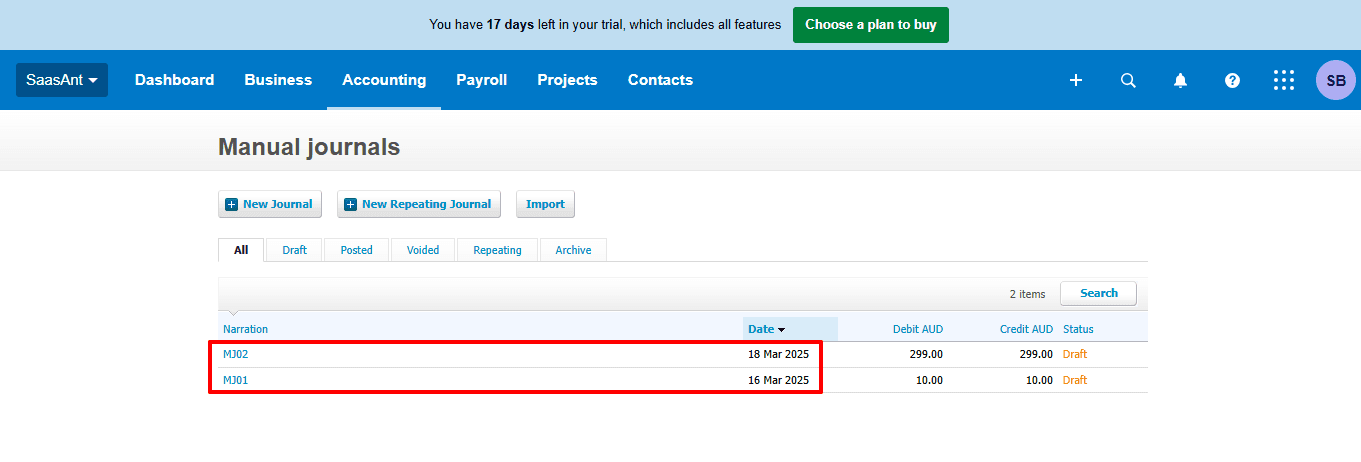
The modified “manual journal” is displayed, as shown in the image below.
Also Read: Mastering Xero: Your Beginner's Guide to Cloud Accounting
Wrap Up
Handling manual journals in Xero can be simple. By using SaasAnt Transactions Xero, you can edit journals more precisely, save time, and ensure compliance effortlessly. Whether you're an accountant with many clients or a small business owner managing your own finances, this method keeps your financial data accurate and ready for audits.
If you're looking to enhance bookkeeping automation, SaasAnt simplifies bookkeeping so you stay accurate, efficient, and audit-ready.
If you have inquiries regarding our products, features, trial, or pricing, or if you require a personalised demo, contact our team today. We are ready to help you find the ideal solution for your QuickBooks workflow.
Frequently Asked Questions
1) Can I edit a manual journal directly in Xero?
Yes, Xero enables manual modifications, but it is limited and tedious for large edits. SaasAnt make this task simpler and more effective.
2) Why should I use SaasAnt for editing manual journals?
With SaasAnt, you can edit in bulk, accurately map fields, and maintain audit-ready records, thereby reducing the time spent on manual editing in Xero.
3) Can I undo changes after editing a manual journal in Xero?
Yes, with SaasAnt, you can use the "Undo" feature to revert changes if required.
4) Will editing journals affect my existing financial reports in Xero?
Yes, when updated, the revised journals will reflect in your reports. Always ensure you back up your data before editing.
5) Can I download edited manual journals for reference?
Yes, SaasAnt offers a download feature that allows you to save a copy of your edited journals.
5) What file types does SaasAnt Transactions Online support for Xero Online imports?
For almost all entities in Xero, SaasAnt Transactions Online supports XLS, XLSX, XLSM, CSV, and TXT. You can also schedule imports by sending CSV or Excel files via Email, Zapier, or FTP.
Read Also
Amazon Pay Xero Integration: Step-by-Step Guide
Etsy Xero Integration: A Complete Guide
How to Create an Invoice in Xero
How to Delete Bills in Xero