How to Edit a Deposit in QuickBooks Online
Maintaining accurate financial records in QuickBooks Online (QBO) is crucial for the health of your business. Deposits are a key part of your cash flow, but errors in recording them inevitably happen. Need to fix one or many? Knowing how to correctly edit a deposit in QuickBooks Online is essential.
This task can sometimes be more complex than it appears, especially when dealing with bundled payments or transactions that have already been reconciled. This comprehensive guide provides step-by-step instructions for safely editing deposits in QBO, covering single manual edits, efficient bulk updates using SaasAnt Transactions, handling linked payments, bank feed considerations, and critical warnings to keep your books accurate. It's essential reading for Small Business Owners and Bookkeepers using QuickBooks Online.
How to Edit Deposits in QuickBooks Online: Step-by-Step
Always back up your QuickBooks Online data before you begin. Even though SaasAnt is designed to be safe and reliable, a backup provides an added layer of security. Follow the steps below to get started.
Step 1: Log In to Your QuickBooks Account
Log in to your QuickBooks account.
Step 2: Navigate to the Apps Menu
On the left side of the QuickBooks dashboard, you can see the menu bar with various options.
Select “Apps.” Click the dropdown and select “Find Apps.”
Step 3: Search and Install SaasAnt Transactions
In the search bar, type “SaasAnt Transactions” as shown by the arrow in the image below.
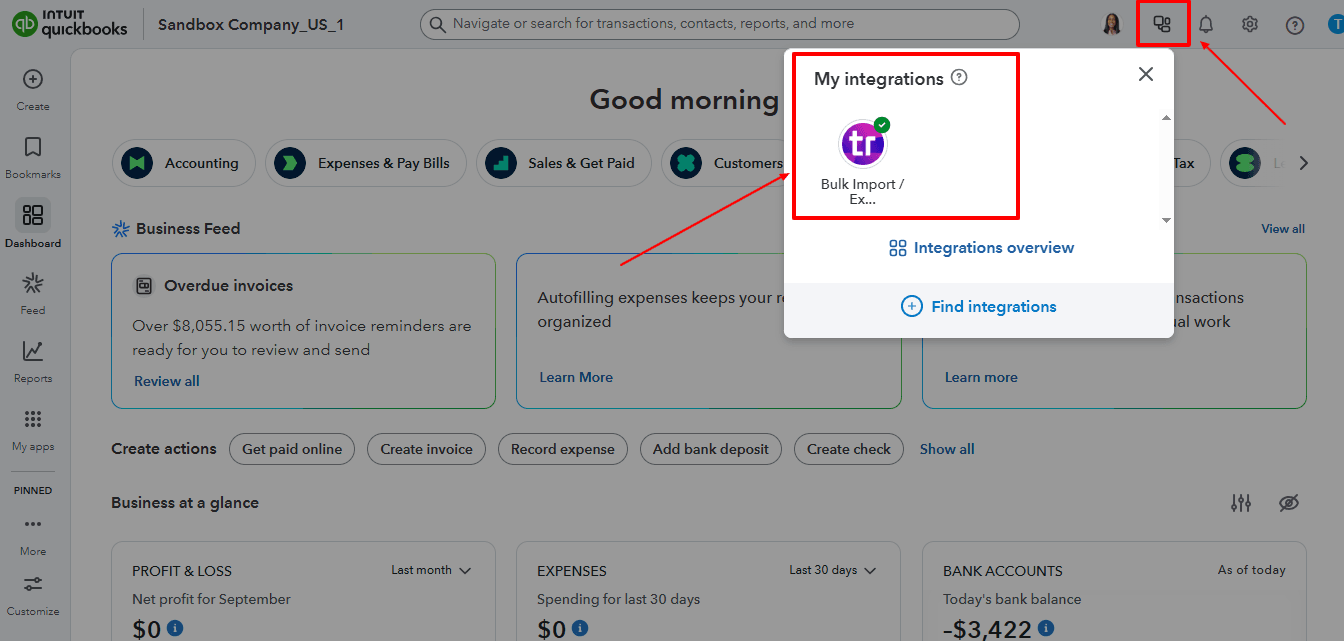
Step 4: Download existing Deposits
On the SaasAnt dashboard:
On the left side of the SaasAnt Transactions dashboard, you can see the menu bar with various options.
Select “Download.”
At the bottom right, click on “Let’s Export.”
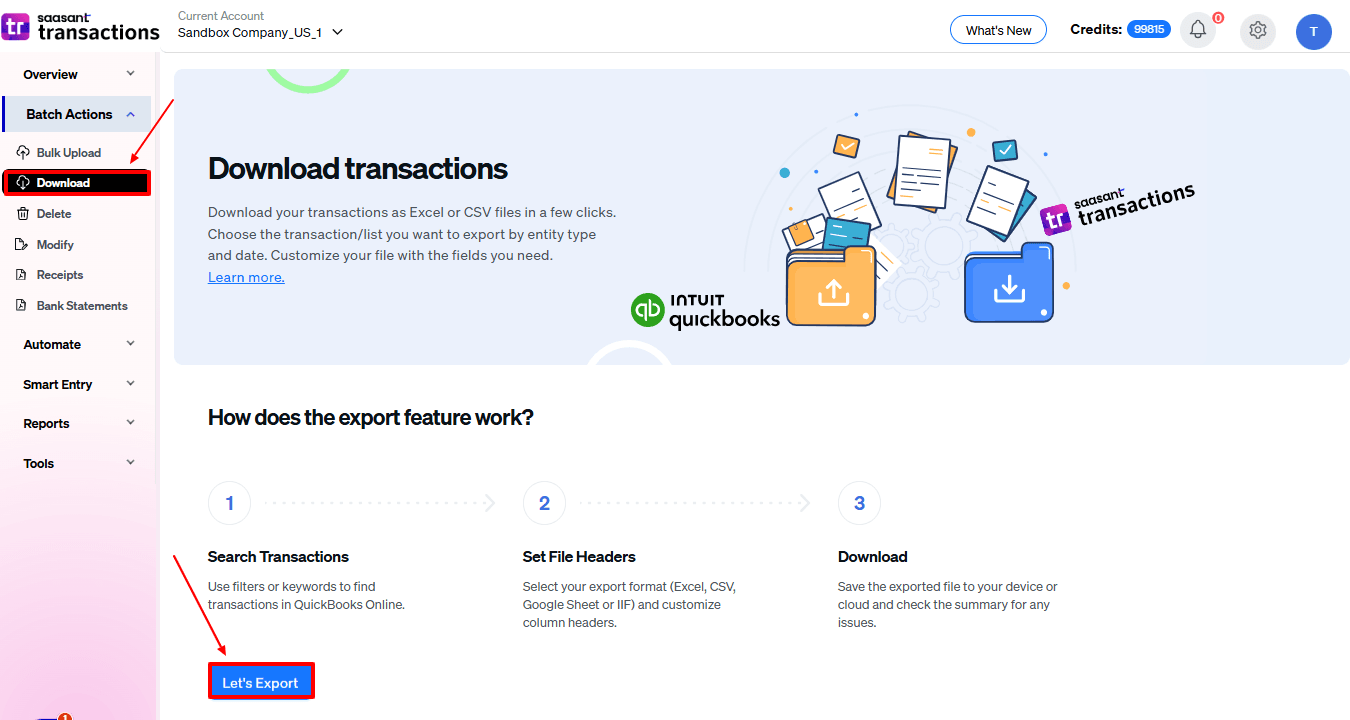
In SaasAnt Transactions, choose the entity "Deposits."
Use filters to pick the right date range, customer(s), or status of the estimates you want to modify.
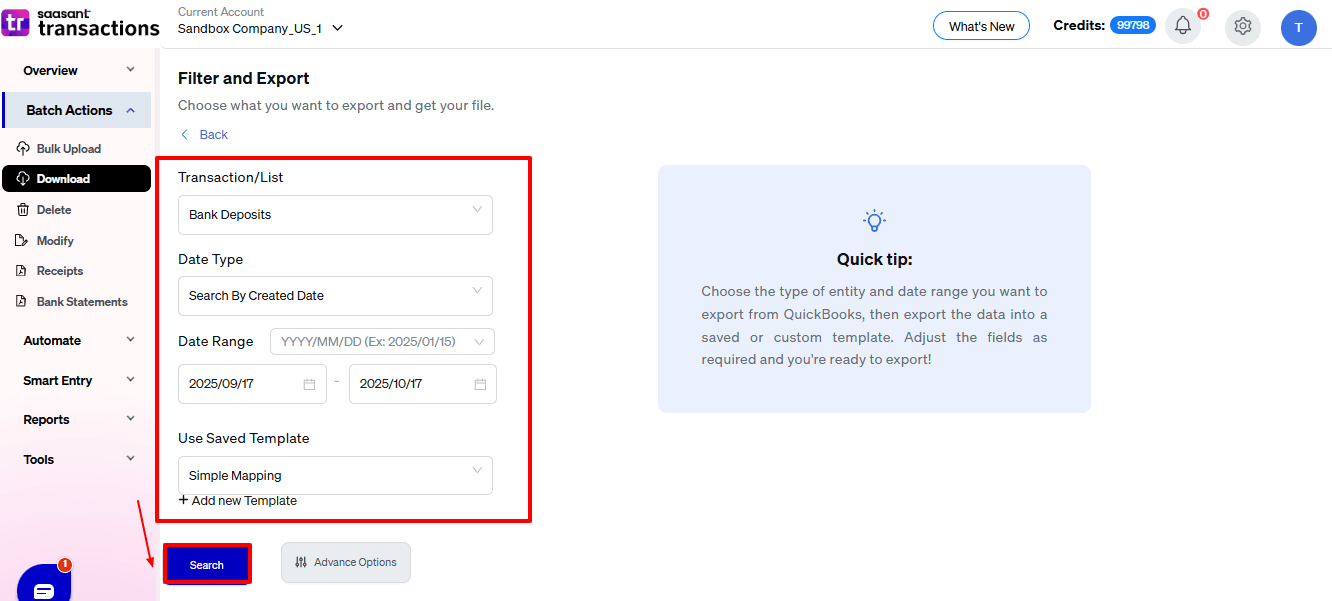
Export the deposits to Excel (.xlsx) or CSV for editing.
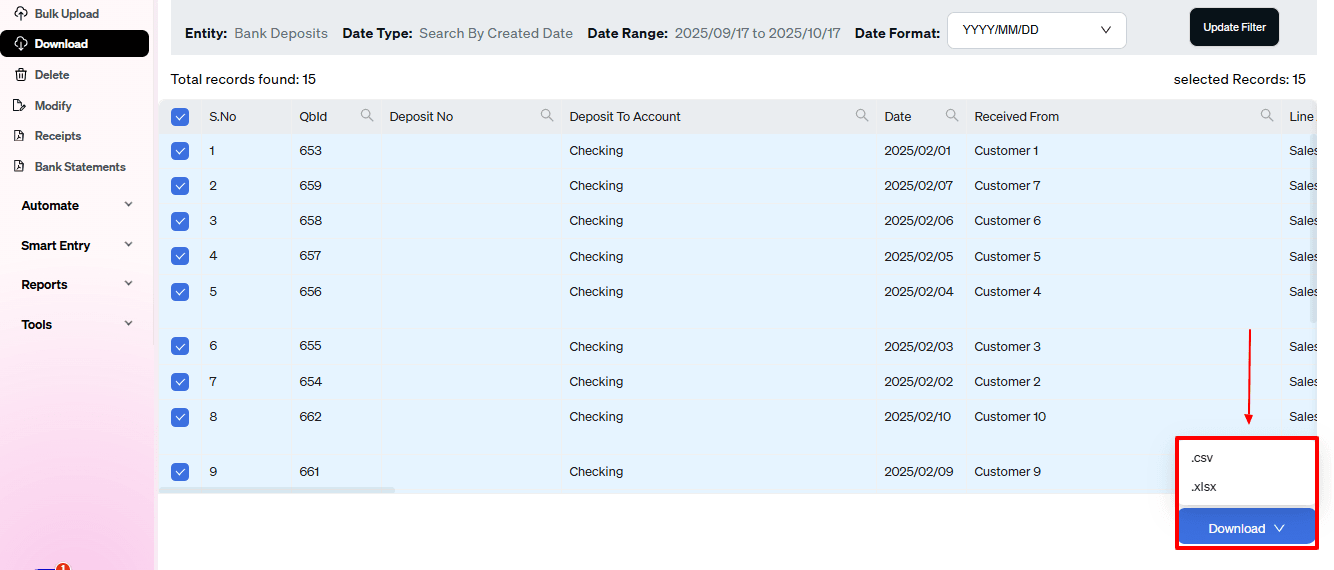
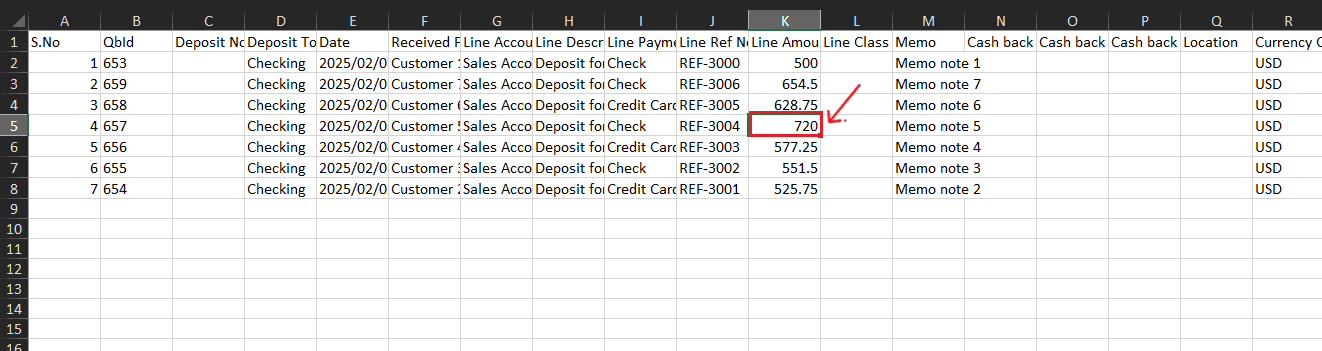
Step 5: Make edits in the spreadsheet
Open the exported file using Excel or Google Sheets.
Find the deposits you need to change (by number, customer, or date).
Make the necessary adjustments: change amounts, dates, line items, customer information, etc.
Save the file as a CSV (if SaasAnt requires it).
Step 6: Re-import the edited Deposits
Return to SaasAnt Transactions.
On the SaasAnt dashboard:
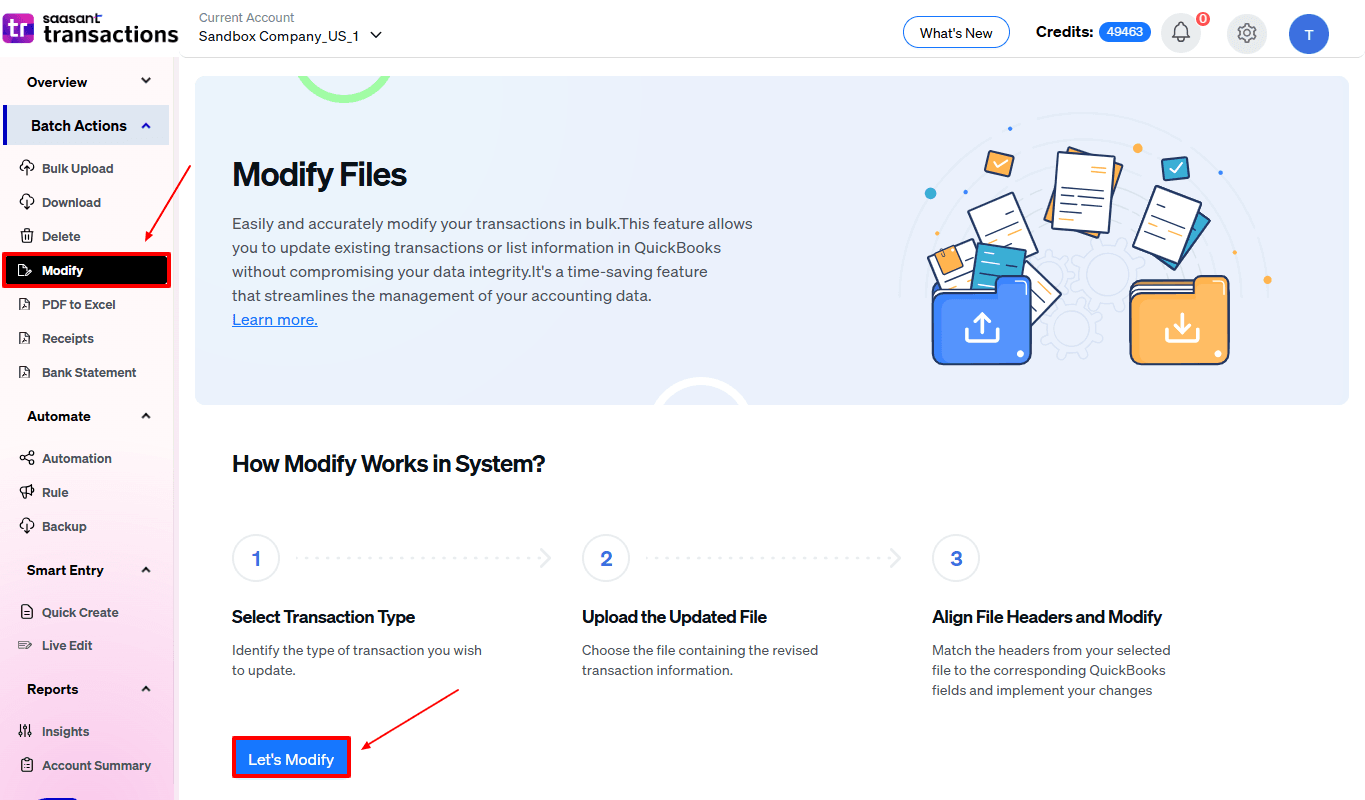
On the left side of the SaasAnt Transactions dashboard, you can see the menu bar with various options.
Select “Modify.”
At the bottom right, click on “Let’s Modify.”
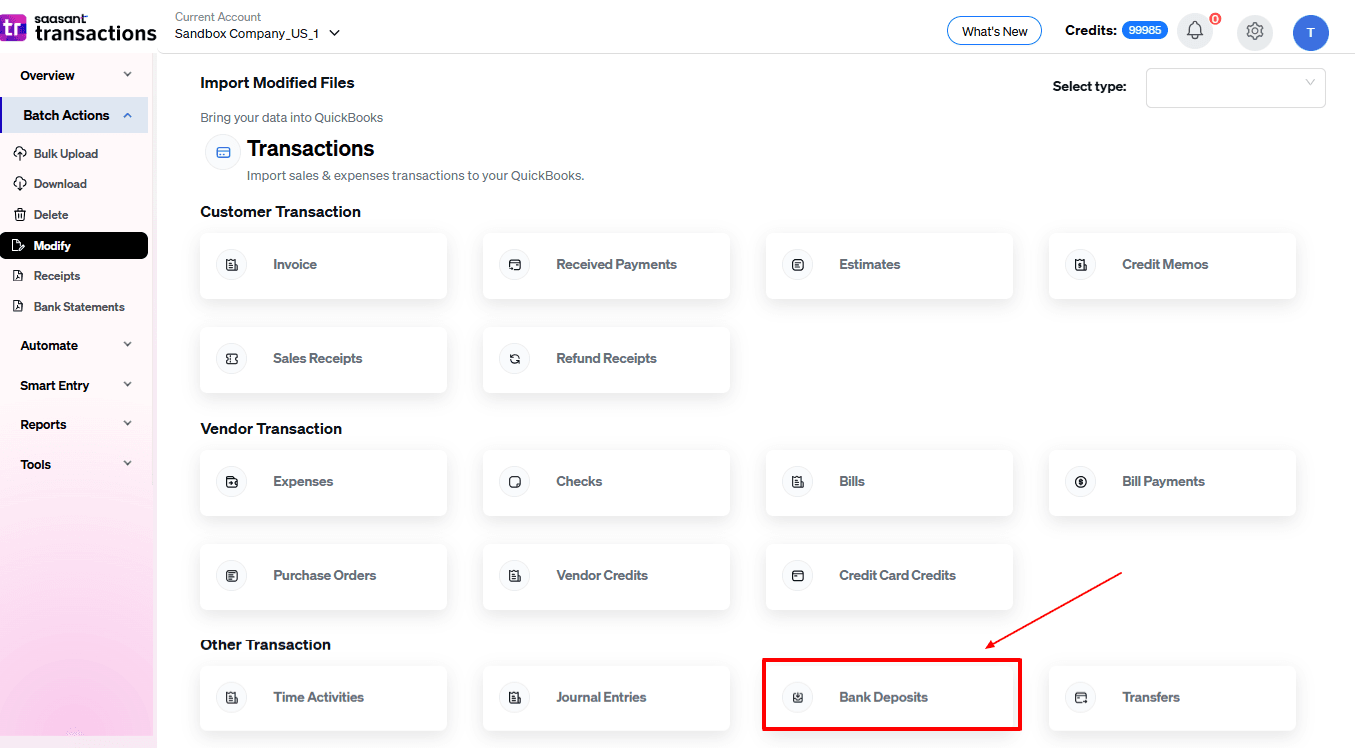
Select “Deposits” under the Customer Transactions section.
Browse and select the file you want to edit in QuickBooks.
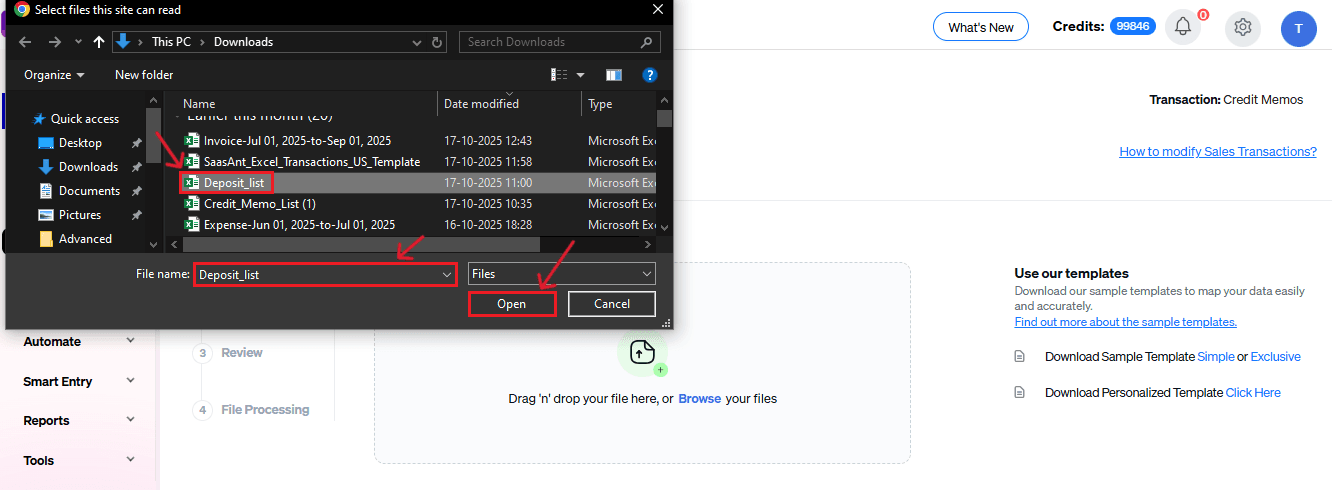
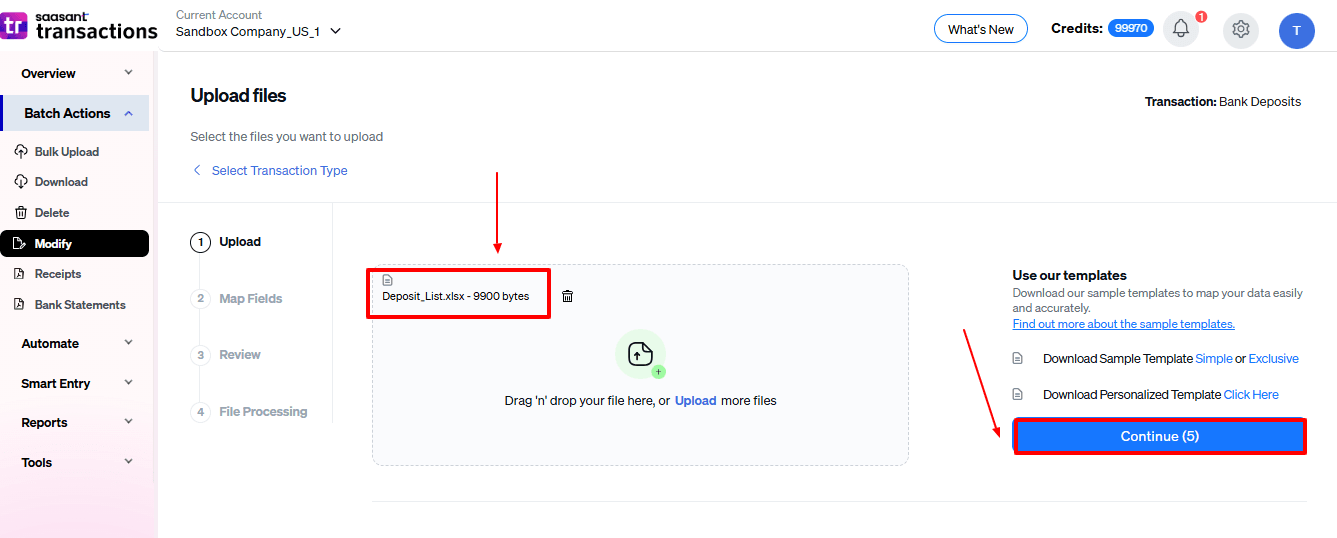
Now, upload your respective deposit files from your device and click “Continue”.
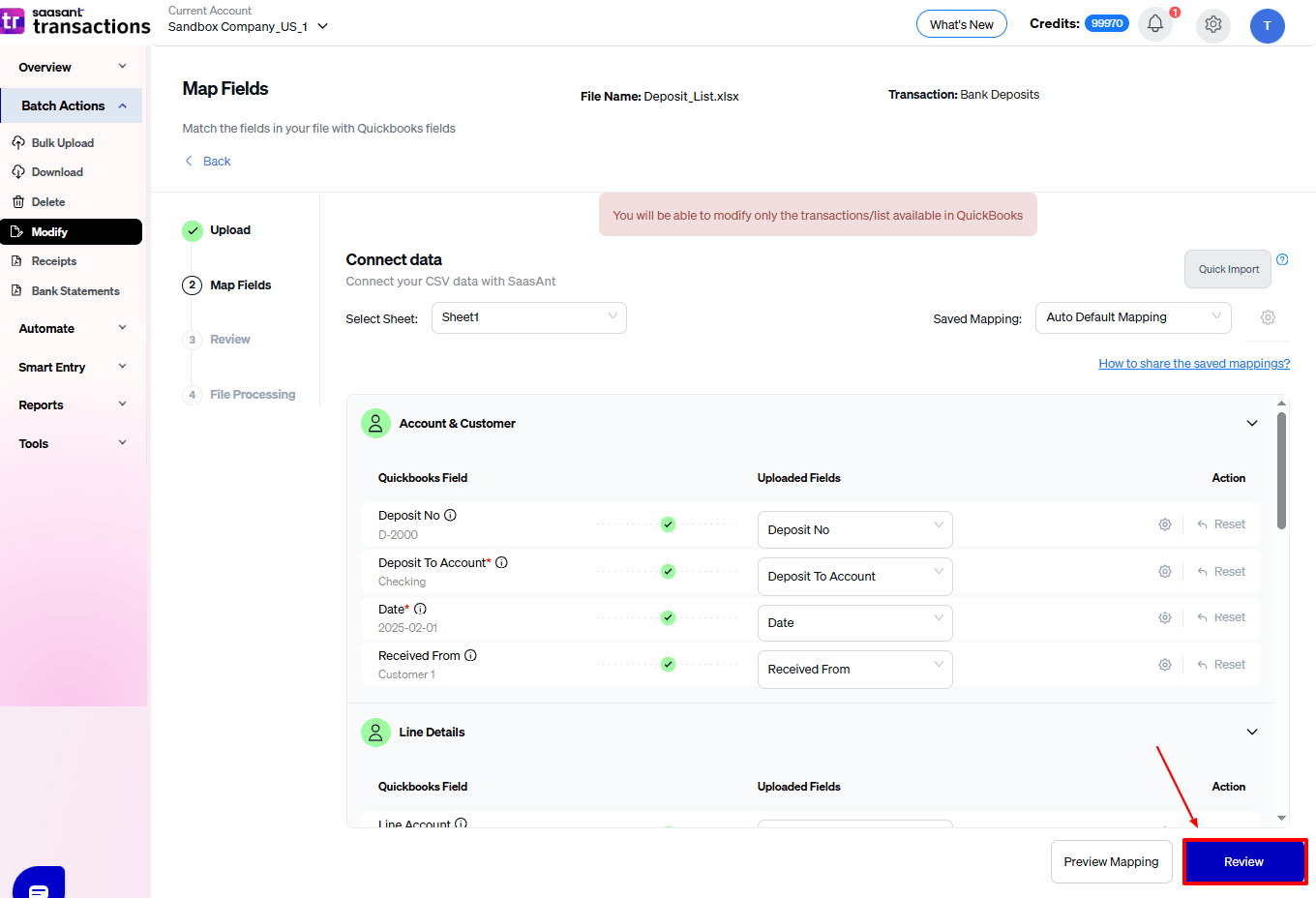
Step 7: Mapping Fields And Review
Ensures accurate mapping of essential fields: deposit number, deposit to account, date, etc.
The ‘Preview Mapping’ feature allows users to verify field alignment before review.
Select “Review” after finalizing the mapping of all fields.
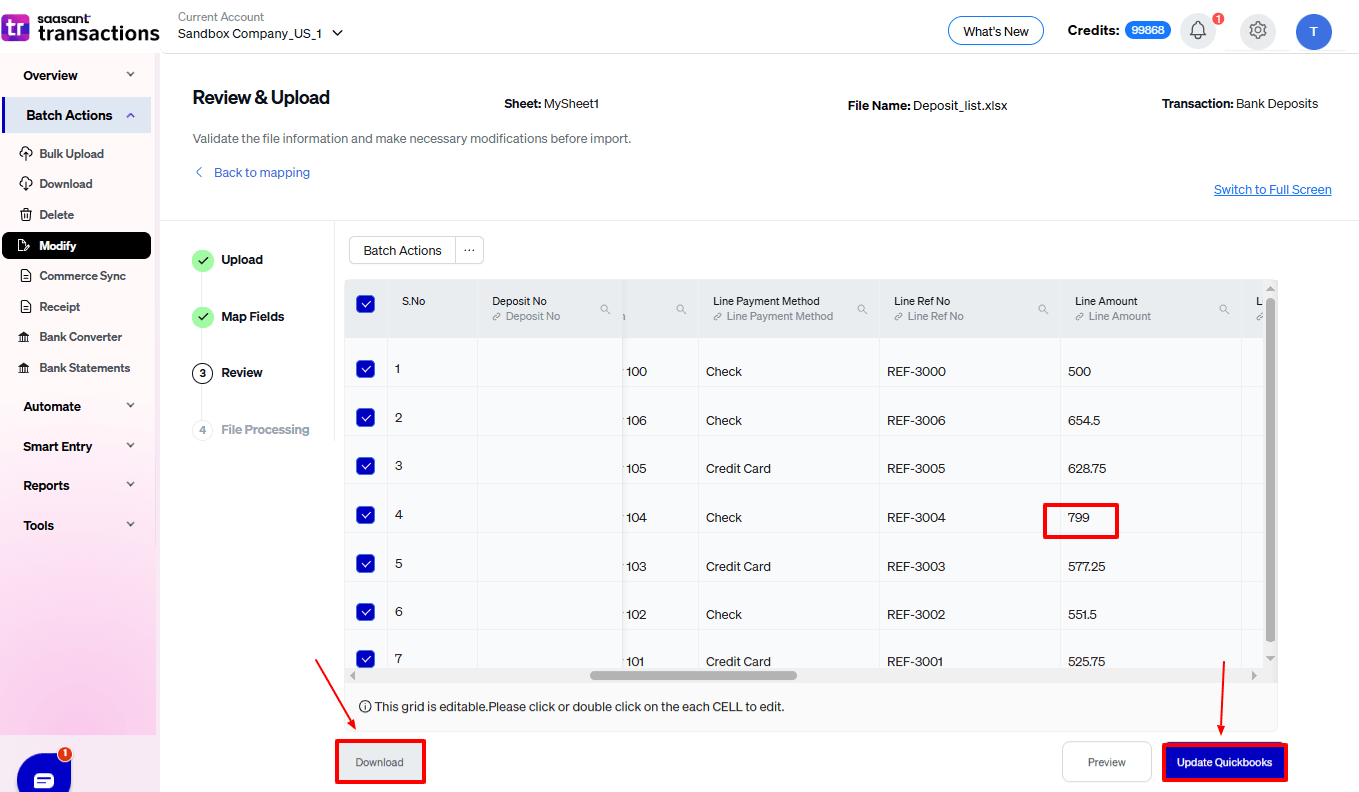
Step 8: Review And Update
Review the modified “Deposits” data and select “Update QuickBooks”.
At the bottom left, there is a “Download” option, where you can download this modified data for your future reference.
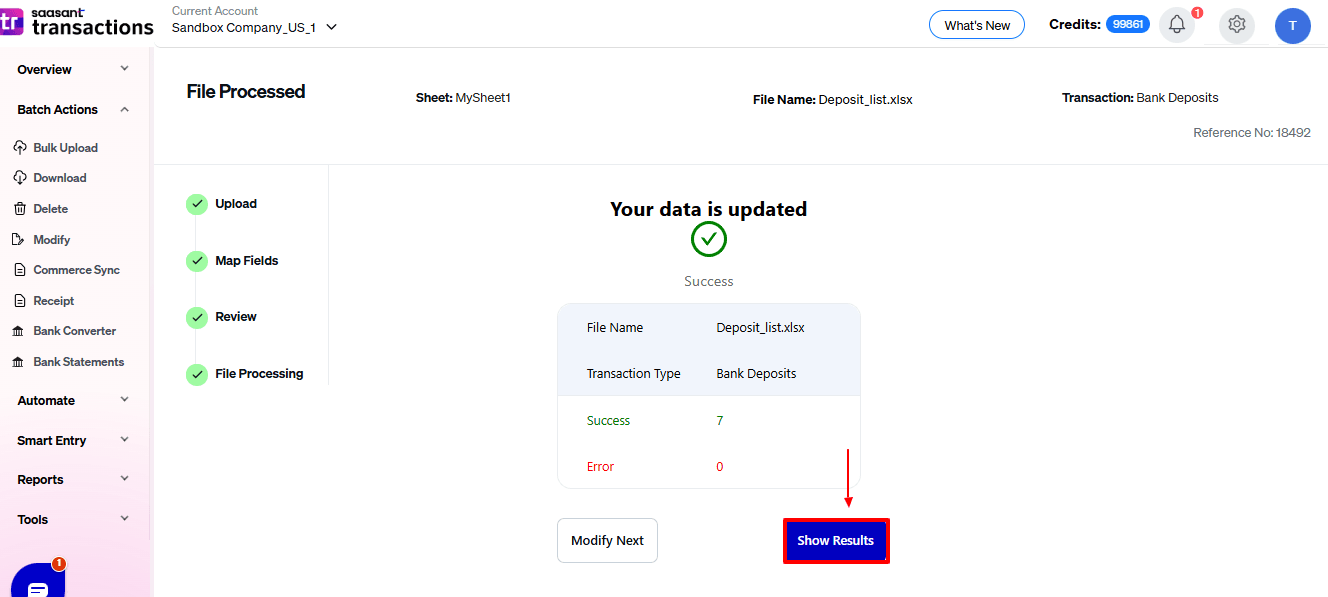
Your modified “Deposits” data will be updated in QuickBooks Online. Click “Show Results”.
Step 9: Modify
Your modified “Deposits” data appears. At the bottom left, there is a “Download” option, where you can download your modified deposit data for future reference.
And also next to download, you can see “Undo”, where your “Deposits” data will be rolled back.
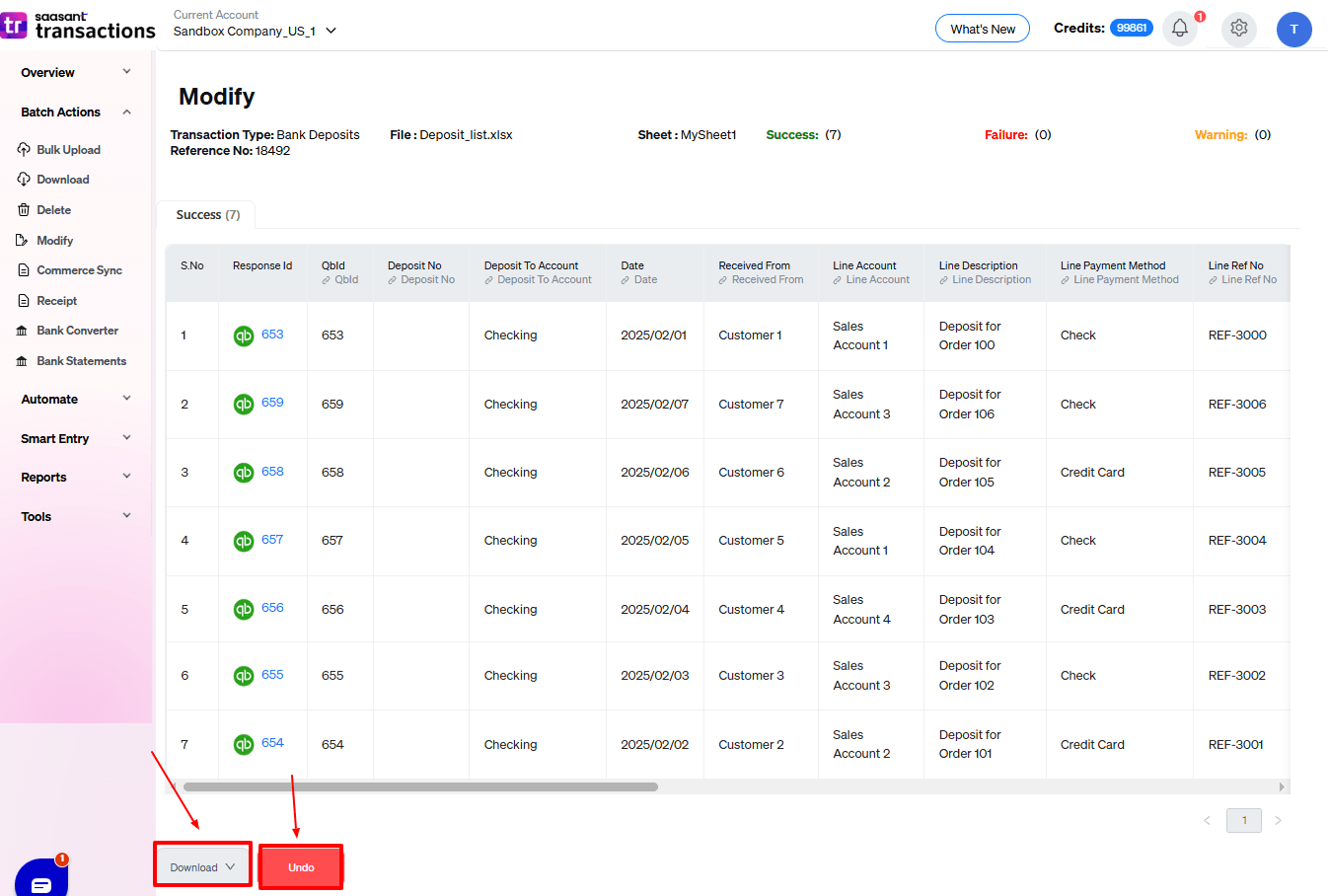
Modified “Deposits” data are shown in QuickBooks Online.
Wrap Up
Editing deposits in QuickBooks Online is essential for keeping accurate records, but the built-in features can be limiting. With SaasAnt Transactions Online, you get strong bulk-editing tools, minimise mistakes, and save time while ensuring compliance. Whether you are an accountant dealing with many transactions or a business owner overseeing daily deposits, SaasAnt provides the scalability, flexibility, and precision you require.
If you're looking to enhance bookkeeping automation, SaasAnt simplifies bookkeeping so you stay accurate, efficient, and audit-ready.
If you have inquiries regarding our products, features, trial, or pricing, or if you require a personalised demo, contact our team today. We are ready to help you find the ideal solution for your QuickBooks workflow.
Frequently Asked Questions
1) Can I edit deposits directly in QuickBooks Online?
Yes, however, QuickBooks Online allows edits one at a time, making it inefficient for managing large amounts and increasing the risk of data errors.
2) How does SaasAnt simplify deposit editing in QuickBooks Online?
SaasAnt allows for bulk changes to deposits, precise field mapping, and rollback features, making bookkeeping workflows quicker, safer, and more efficient.
3) What file types does SaasAnt support for editing deposits?
SaasAnt supports Excel and CSV file uploads, which makes it easy to get your deposit data ready in widely used spreadsheet formats.
4) Can I edit deposit line item details like descriptions?
Yes, SaasAnt lets you change line descriptions, amounts, accounts, classes, and reference numbers, enabling full updates to deposit details.
5) Should I back up QuickBooks before editing deposits with SaasAnt?
Yes, it is highly advised to create backups, as they offer extra security, even though SaasAnt provides an Undo feature for fast transaction recovery.
Read also
How to Import Deposits in QuickBooks Online
How to Delete a Deposit in QuickBooks Online
How to Export Deposits in QuickBooks Online
How To Make a Deposit in QuickBooks Online?