How to Edit Contacts in Xero
Handling and editing contacts in Xero is crucial for maintaining accurate customer and supplier details. However, Xero’s native features only permit manual changes, which can be tedious and repetitive when updating several records. Xero is a strong accounting platform, but its limitations may lead to issues for businesses that manage large datasets:
Only manual editing: Each contact needs to be updated individually.
Time-consuming: Updating hundreds of contacts can take a long time.
Increased risk of errors: Manual data entry raises the likelihood of mistakes.
No bulk update options: Significant changes need external support.
Rollback limitations: There is no easy method to reverse bulk changes.
SaasAnt Transactions Xero serves as a powerful add-on that facilitates bulk data editing, effectively saving time and decreasing the likelihood of errors. It enables users to import, export, delete, and change data in bulk, including contact details, in only a few minutes. This ensures accuracy and efficiency, even for tasks like cleaning up duplicate entries or updating hundreds of contacts at the same time.
Contents
Bulk Editing Contacts with SaasAnt
How to Edit Contact with Xero Online: Step-by-Step Guide
Wrap Up
Frequently Asked Questions
Bulk Editing Contacts with SaasAnt
A mid-sized accounting firm that uses Xero had to update more than 500 client contacts because of changes in email domains and business addresses. Manually changing each contact in Xero would have taken days and raised the chance of mistakes. By utilizing SaasAnt Transactions for Xero, the firm was able to bulk upload the updated contact list, map the required fields, and finish the edits in just a few minutes. This not only saved a lot of time but also guaranteed clean and accurate client records without any manual work.
This blog is particularly beneficial for small business owners, accountants, and bookkeepers using Xero who need to efficiently edit or make bulk changes to contact transactions to keep their financial records accurate.
How to Edit Contact with Xero Online: Step-by-Step Guide
Always back up your Xero Online data before you begin. Even though SaasAnt is designed to be safe and reliable, a backup provides an added layer of security. Follow the steps below to get started.
Step 1: Log In to Your Xero Account
Log in to your Xero account.
Step 2: Navigate to the Apps Menu
On the right side of the Xero dashboard, you can see the menu bar with various options.
Select the “Waffle” icon. Click the dropdown and select “Find more apps on Xerp App Store.”
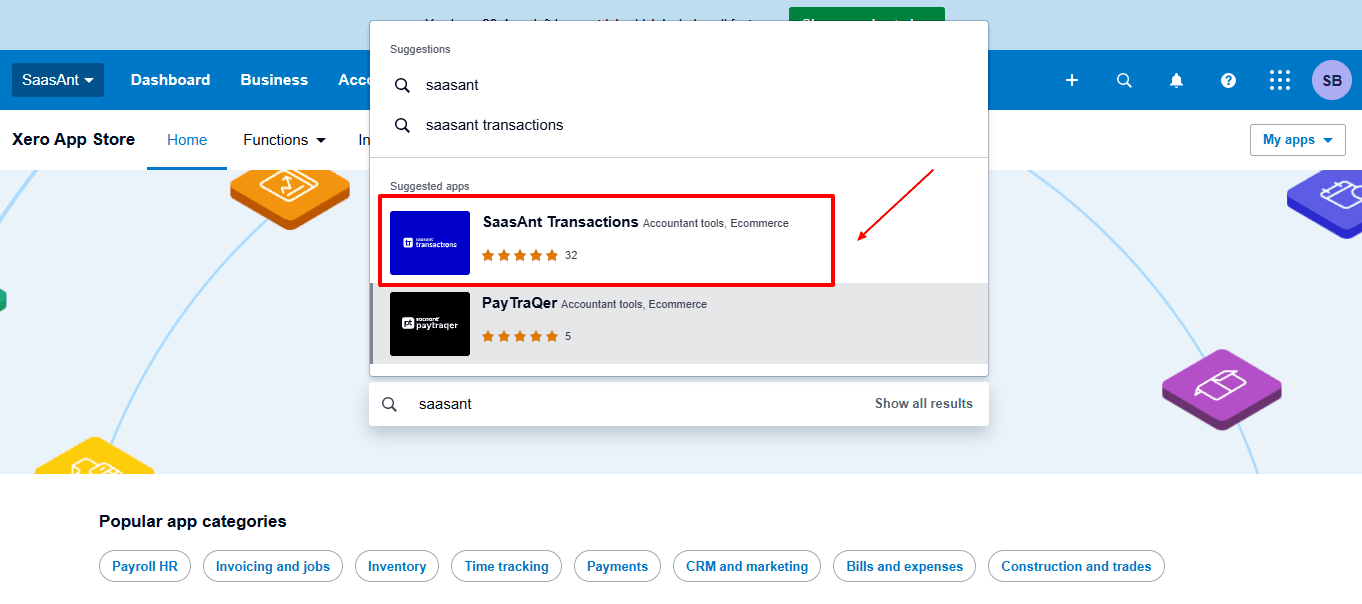
Step 3: Search SaasAnt Transactions
In the search bar, type “SaasAnt Transactions” as shown by the arrow in the image below.
Step 4: Open SaasAnt Transactions
Get the app from the App Store and connect it to Xero.
On the SaasAnt dashboard:
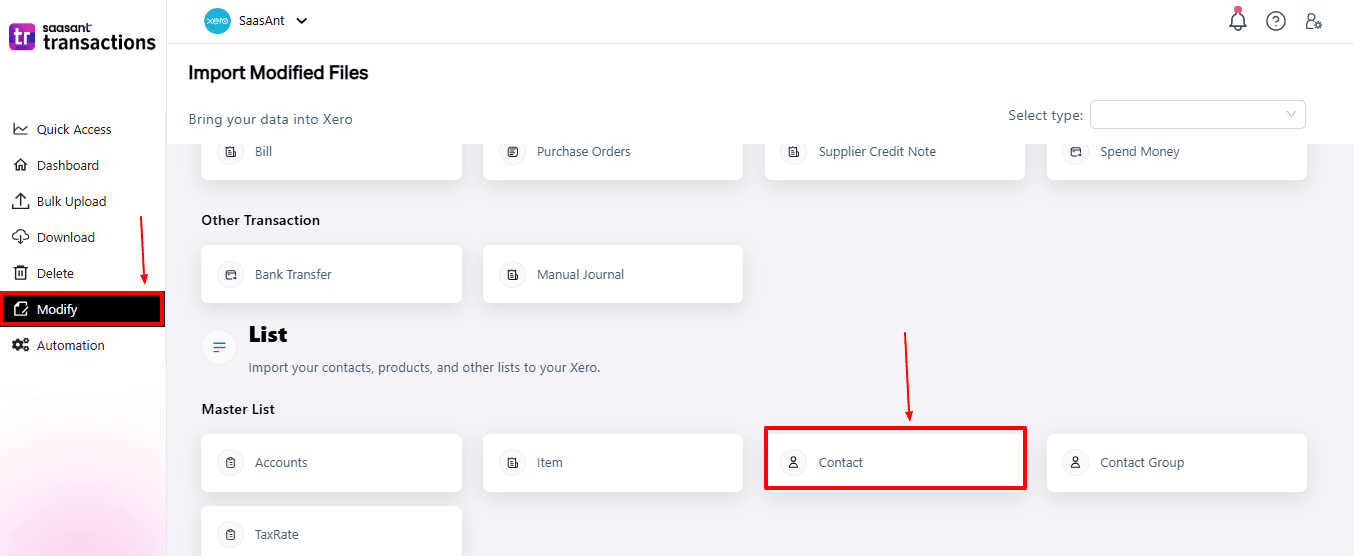
On the left side of the SaasAnt Transactions dashboard, you can see the menu bar with various options.
Select “Modify.”
At the bottom right, click on “Let’s Modify.”
Before you modify, make sure that your respective contact data is already uploaded to your Xero account.
Now select “contact” under the list section.
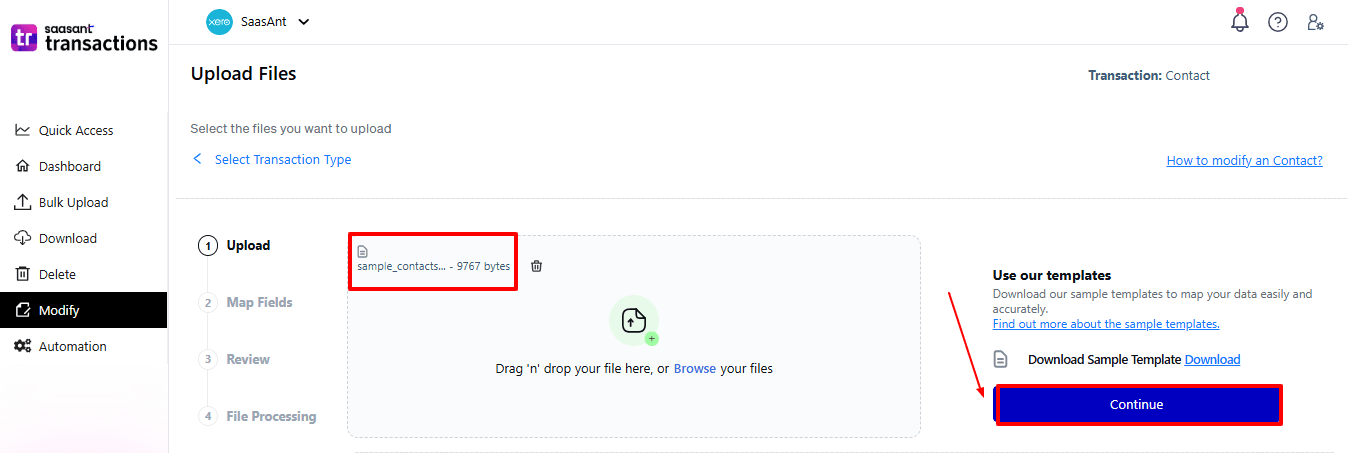
Now, upload your respective contact files from your device and click “Continue”.
Step 5: Mapping Fields And Review
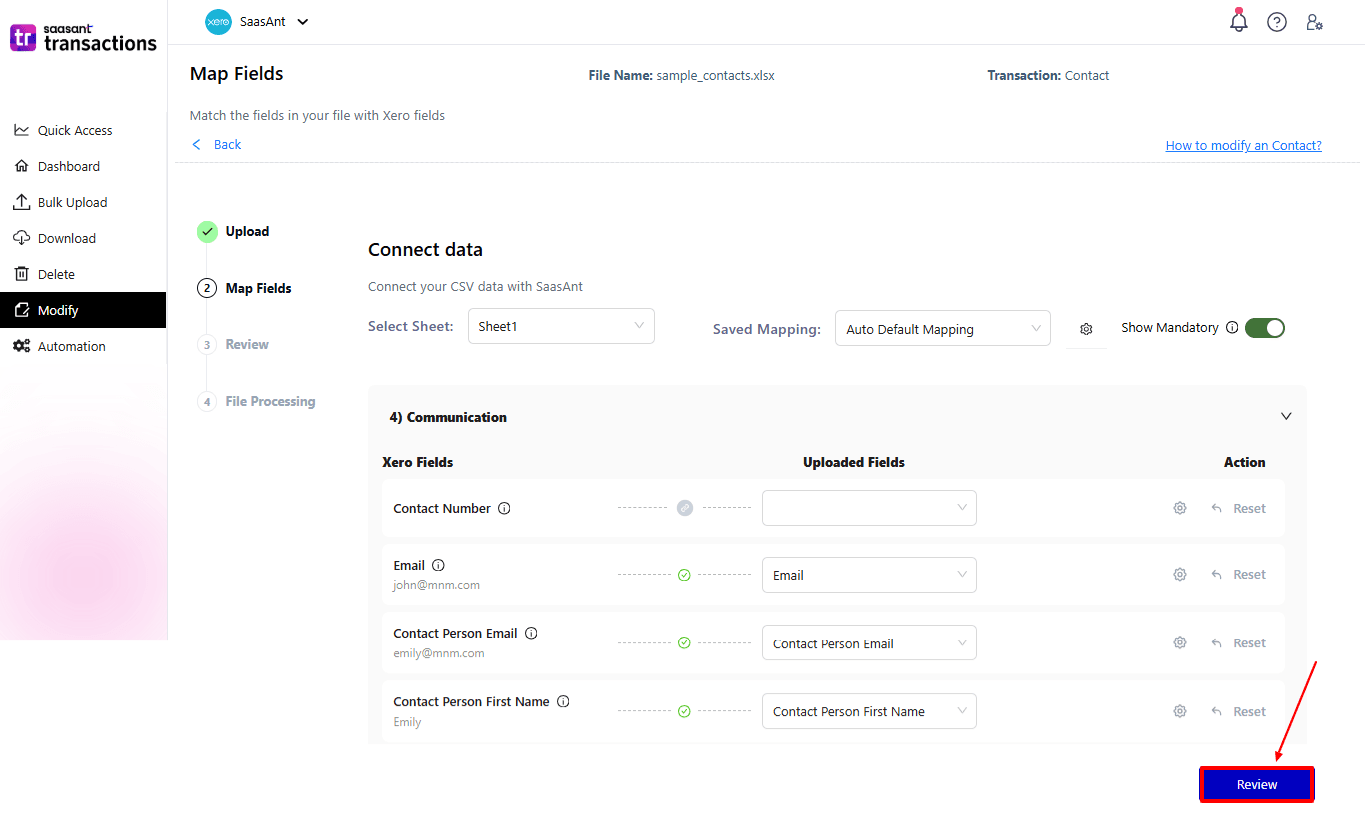
Ensures accurate mapping of essential fields: contact name, email, etc.
The ‘Preview Mapping’ feature allows users to verify field alignment before review.
Select “Review” after finalising the mapping of all fields.
Step 6: Review And Update
Review the modified “contact” and select “Upload”.
At the bottom left, there is a “Download” option, where you can download this modified contact data for your future reference.
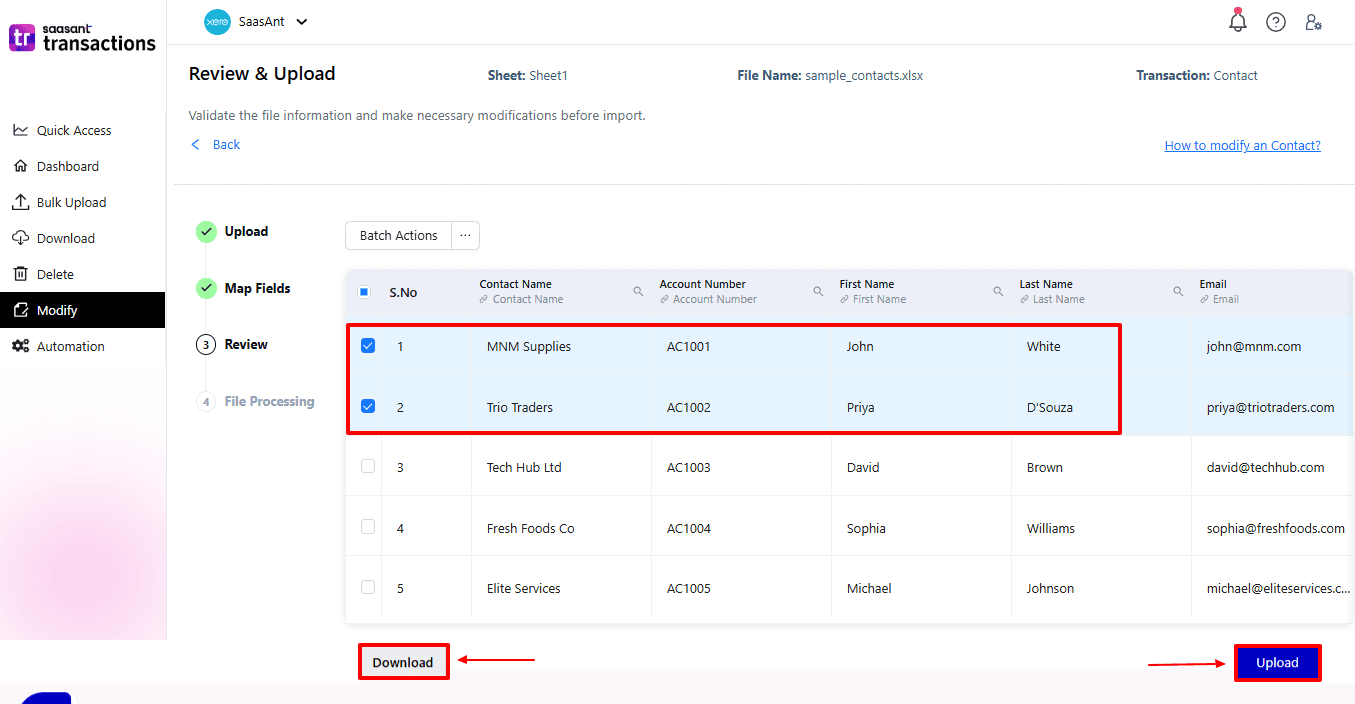
Your modified “contact” will be updated in Xero Online. Click “Show Results”.
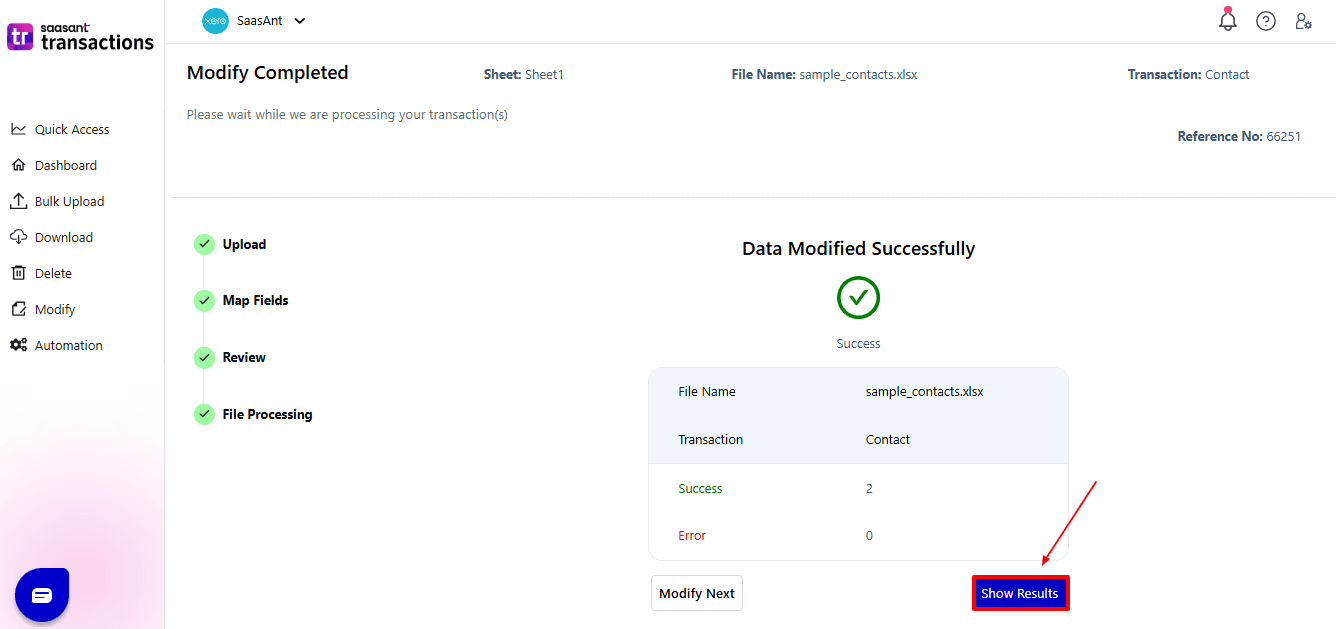
Step 7: Modify
Your modified “contact” appears. At the bottom left, there is a “Download” option, where you can download your modified contact data for future reference.
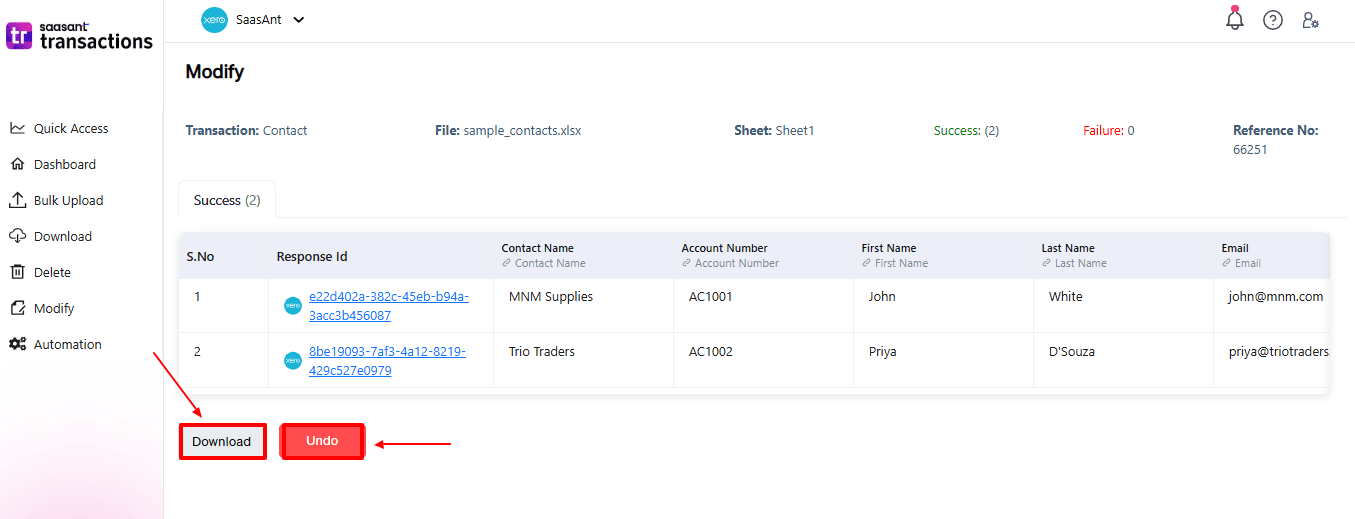
Additionally, next to “Download”, you can see “Undo”, which allows you to roll back your “contact.”
Step 8: View Modified contact
Now, return to the Xero dashboard and select “Contact” from the top. From the dropdown, choose “All contacts”.
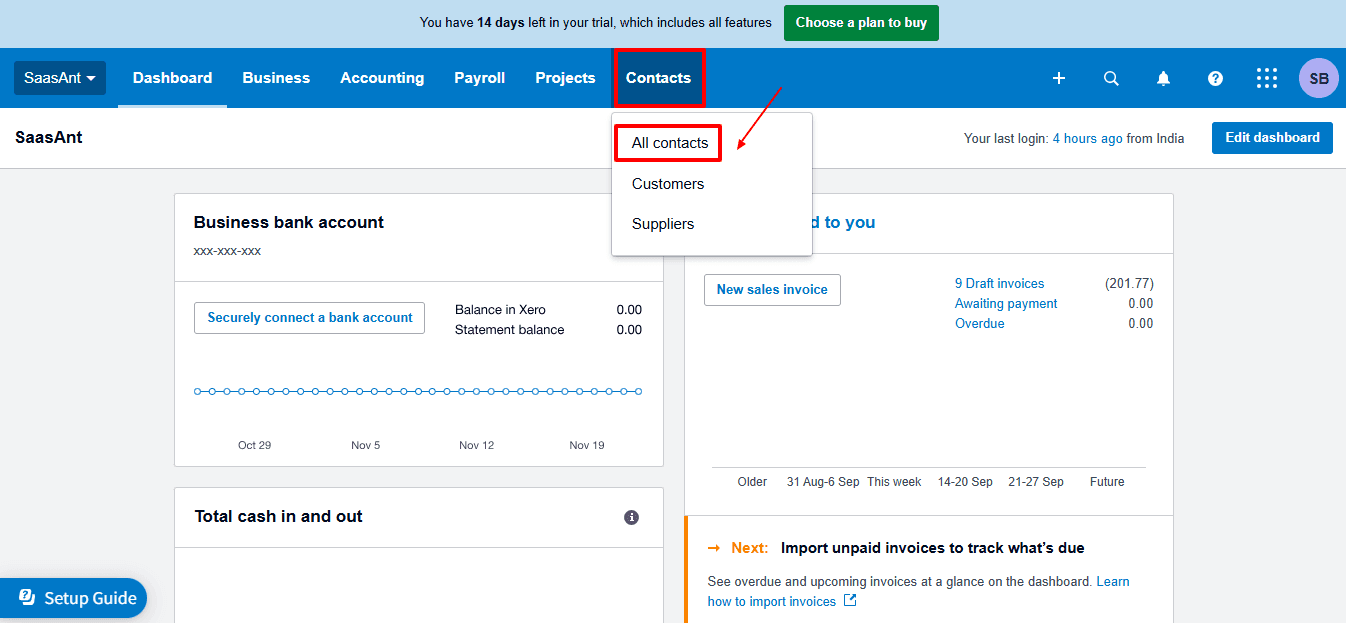
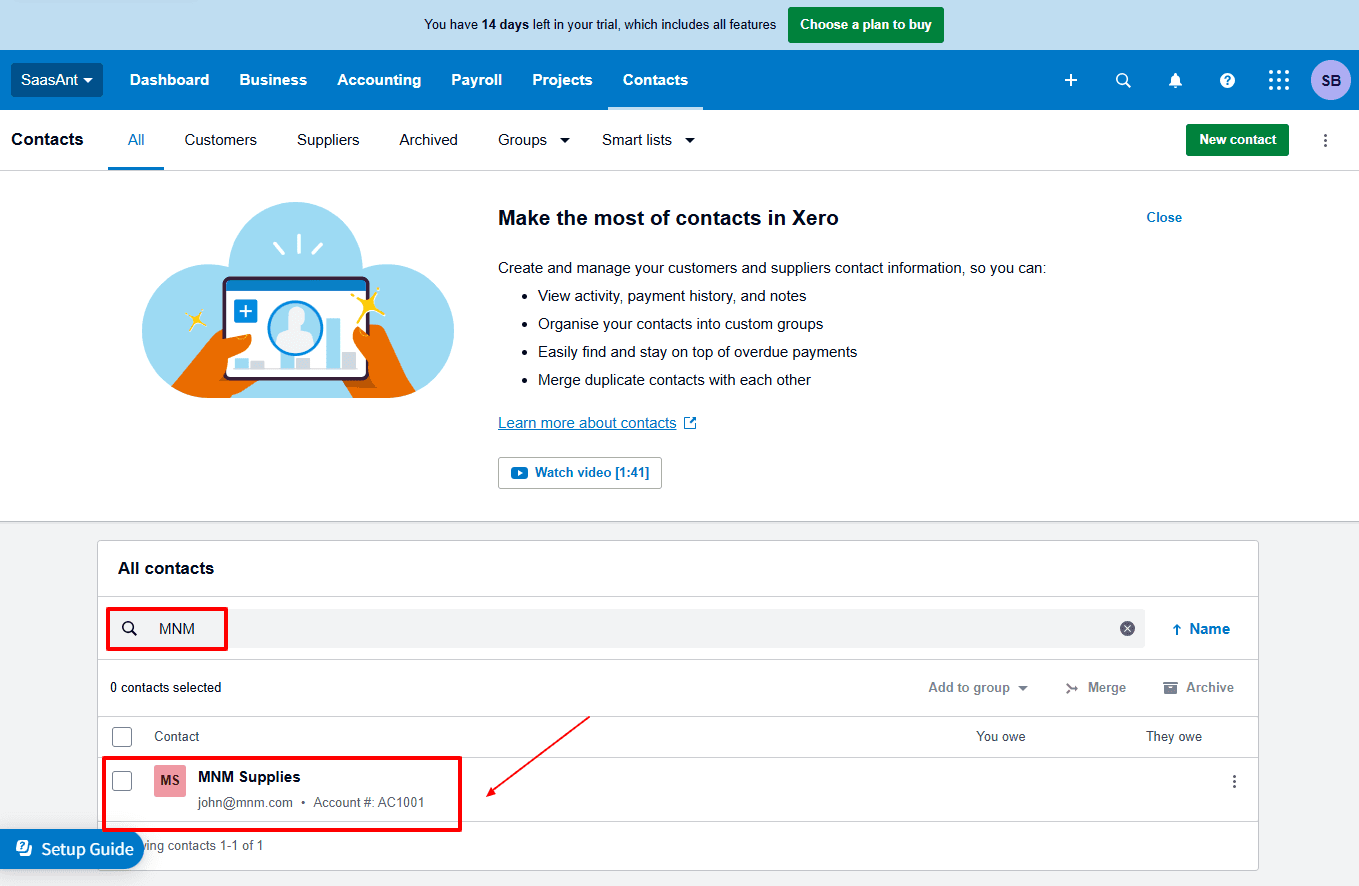
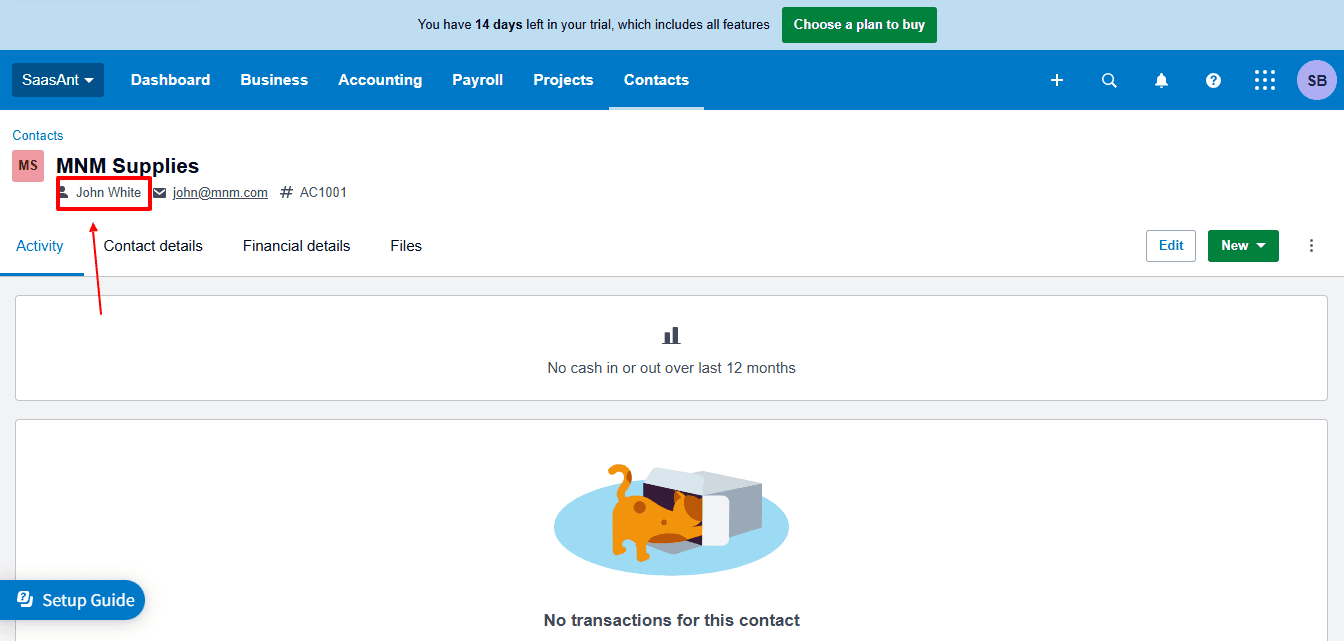
Modified contact data is displayed, as shown in the image below.
Also Read: Mastering Xero: Your Beginner's Guide to Cloud Accounting
Wrap Up
Editing contacts in Xero can be quick and accurate. While Xero has limited options for manual editing, SaasAnt Transactions for Xero gives you the ability to bulk import, export, delete, and modify data smoothly in just a few minutes. By simplifying difficult tasks into fast, efficient steps, it supports businesses, accountants, and bookkeepers in maintaining correct records without wasting time on manual updates.
If you're looking to improve your contact management, minimize errors, and save time, SaasAnt is the best add-on to optimize your Xero workflow.
If you have inquiries regarding our products, features, trial, or pricing, or if you require a personalised demo, contact our team today. We are ready to help you find the ideal solution for your QuickBooks workflow.
Frequently Asked Questions
1) Can I edit multiple contacts at once in Xero?
No, Xero only supports manual editing, done one by one. For bulk changes, SaasAnt Transactions is a more effective solution.
2) Can I undo changes made to contacts in SaasAnt?
Yes. SaasAnt provides an "Undo" feature, allowing you to revert contact updates.
3) Is there a way to back up contacts before editing in bulk?
Yes. You can download and back up your contact data in SaasAnt before making any modifications.
4) Can I use SaasAnt to correct contact details like email addresses?
Certainly. You can change fields like names, emails, account numbers, and others all at once.
5) Is there a limit to how many contacts I can edit at once with SaasAnt?
There is no strict limit, SaasAnt is built to manage bulk data effectively, even with extensive contact lists.
6) What file types does SaasAnt Transactions Online support for Xero Online imports?
For almost all entities in Xero, SaasAnt Transactions Online supports XLS, XLSX, XLSM, CSV, and TXT. You can also schedule imports by sending CSV or Excel files via Email, Zapier, or FTP.
Read Also
How to Change Tax Rate on Invoice in Xero
How to Create an Invoice in Xero
How to Delete Customer Credit Notes in Xero
How to Delete Item in Xero