How To Edit A Bill In QuickBooks Desktop
Editing bills in QuickBooks Desktop is a crucial task for bookkeepers and accountants who aim to maintain accurate and up-to-date records. Whether it’s correcting an invoice number, altering the due date, or updating product specifics, SaasAnt Transactions Desktop makes the process easy, particularly when working with bulk bills.
This guide will show you how to effectively edit bills in QuickBooks Desktop with SaasAnt Transactions, including pre-import editing, field mapping, data verification, and the final import.
This guide is ideal for bookkeepers, accountants, and finance professionals who manage large volumes of bills in QuickBooks Desktop and require a faster, more reliable method for editing and updating them.
Use Case
At a mid-sized company, a bookkeeper identifies several vendor bills in QuickBooks Desktop that contain incorrect due dates and amounts due to recent pricing updates. Updating each invoice manually would be time-consuming and could lead to errors. By using SaasAnt Transactions Desktop, users can upload revised data, perform quick edits in the dashboard, and efficiently sync updates to QuickBooks, ensuring data accuracy.
Contents
Use Case
How to Edit Bills into QuickBooks Desktop: Step-By-Step Guide
Wrap Up
Frequently Asked Questions
How to Edit Bills into QuickBooks Desktop: Step-By-Step Guide
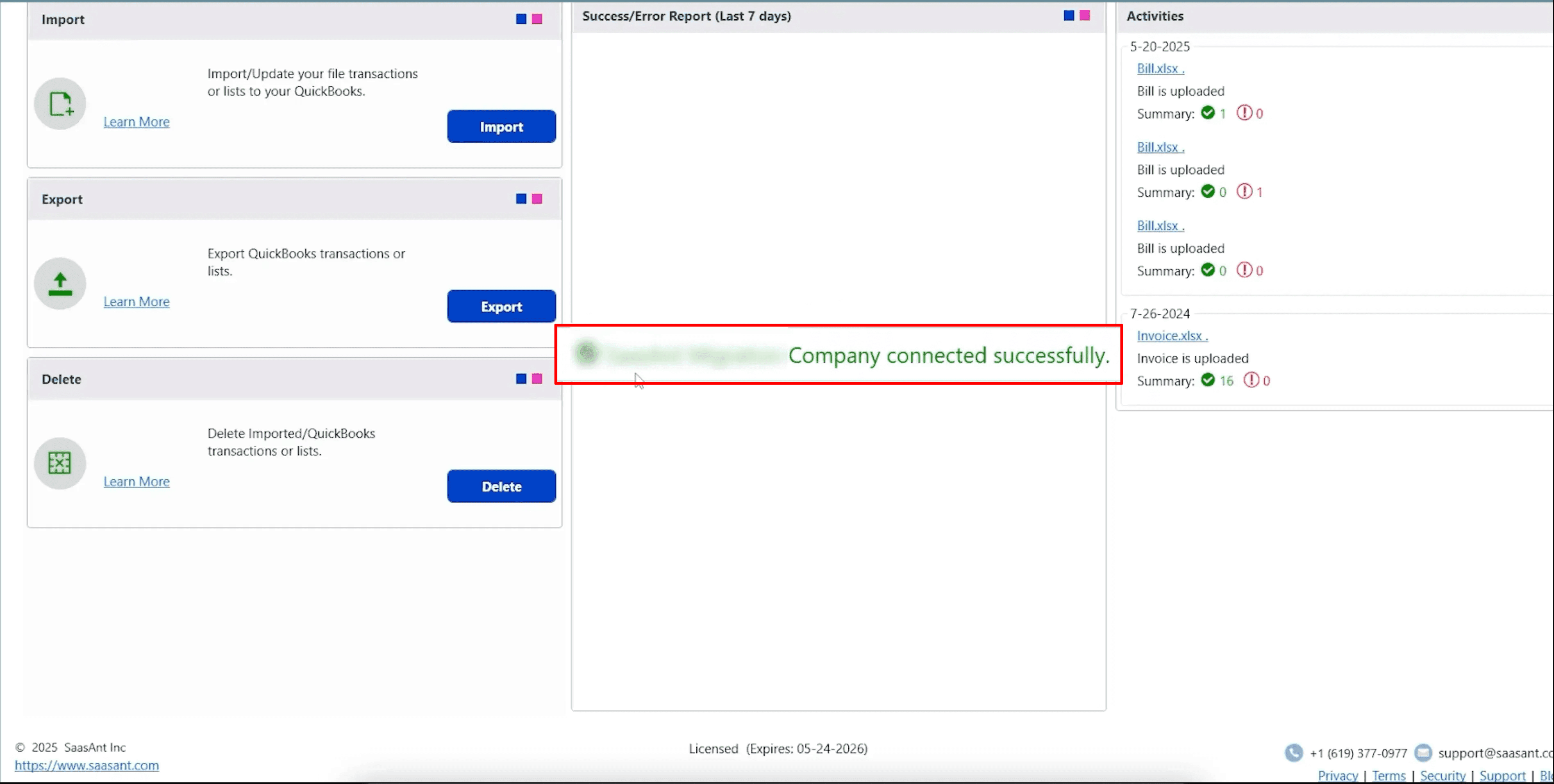
Start by launching SaasAnt Transactions Desktop and connecting it to your QuickBooks Desktop company file. Ensure your bills are ready in an Excel or CSV file before you start.
Step 1: Install and Connect SaasAnt Transactions
Download the latest SaasAnt Transactions Desktop version.
Run SaasAntTransactions-Setup.exe as an administrator.
Accept the license agreement and complete the installation.
Open the app, go to Subscription > Register.
Enter the license key from your confirmation email.
Keep your internet connection active.
Step 2: Open SaasAnt Transactions
On the SaasAnt dashboard:
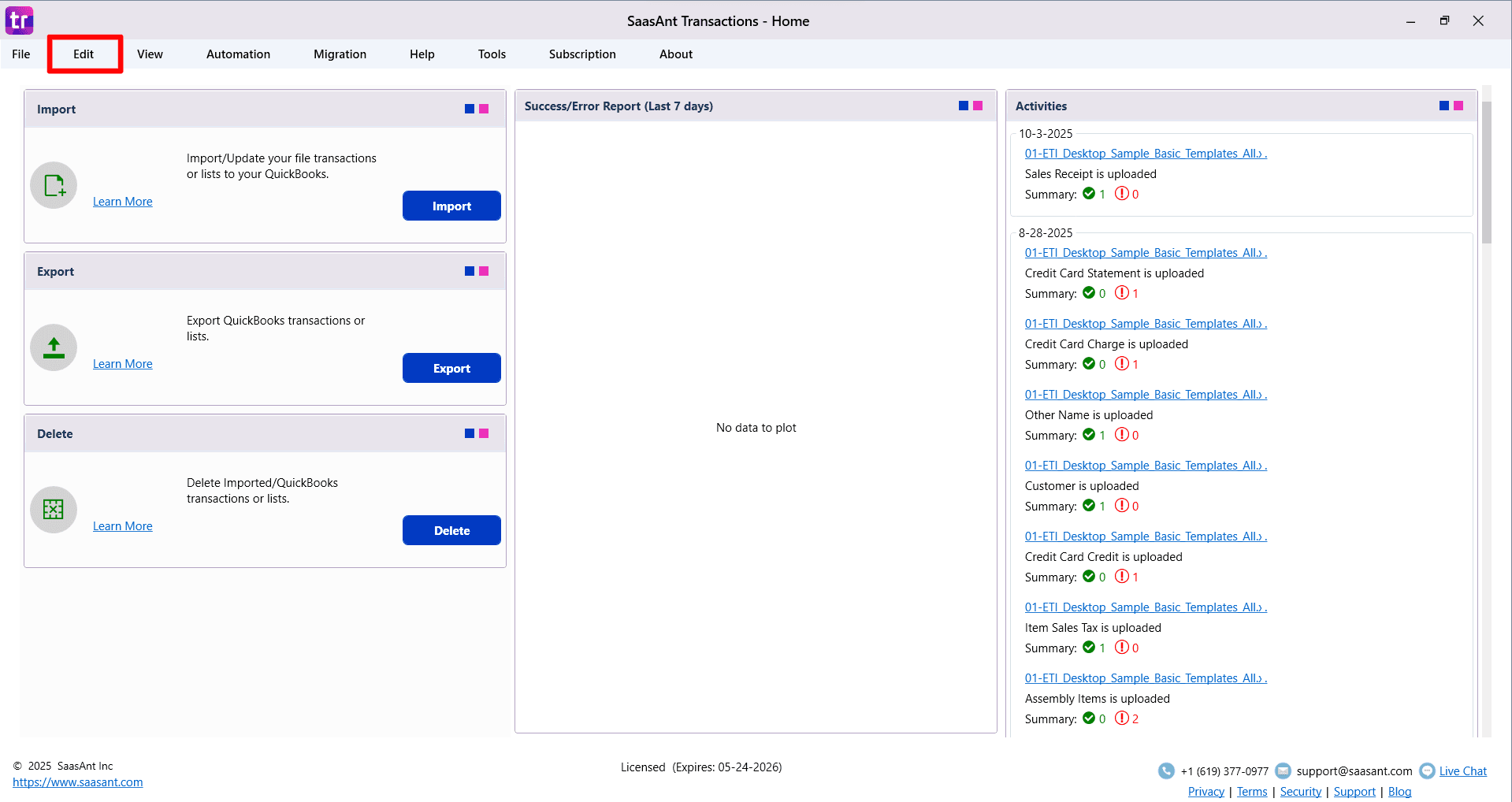
On the top left side of the SaasAnt Transactions dashboard, you can see the menu bar with various options.
Select “Edit,” and select “Import” under the edit dropdown.
The Dashboard appears as shown in the image below.
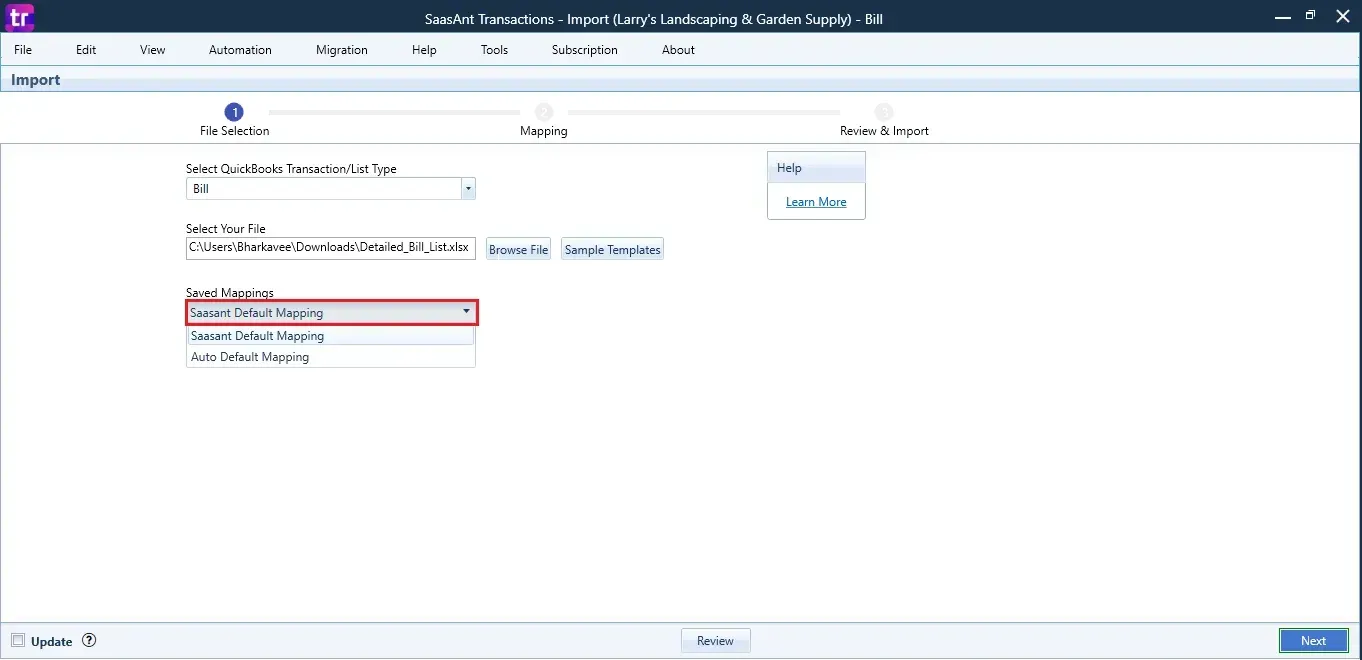
Select “Bill” from the SaasAnt Transaction Type dropdown and upload your Excel or CSV file.
Select “SaasAnt Default Mapping” under the Saved Mapping dropdown.
Step 3: Mapping Fields
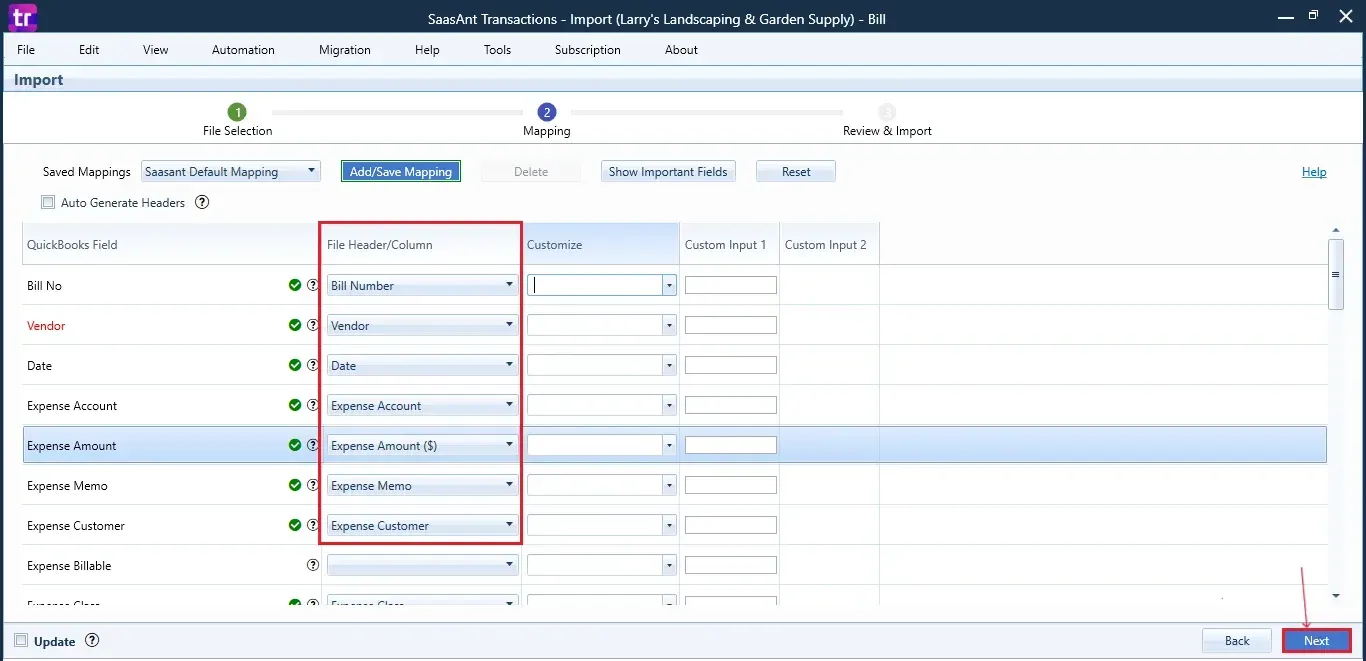
Ensures the mapping of essential fields, including bill number, vendor name, transaction dates, and accounts.
Select “Next” at the bottom right of the dashboard.
This step ensures that your data is aligned with QuickBooks’ fields, including vendor name, bill date, due date, bill number, item details, and amounts.
Step 4: Review & Pre-Edit the Data
Before importing, SaasAnt allows you to preview and edit the bill data directly within the interface.
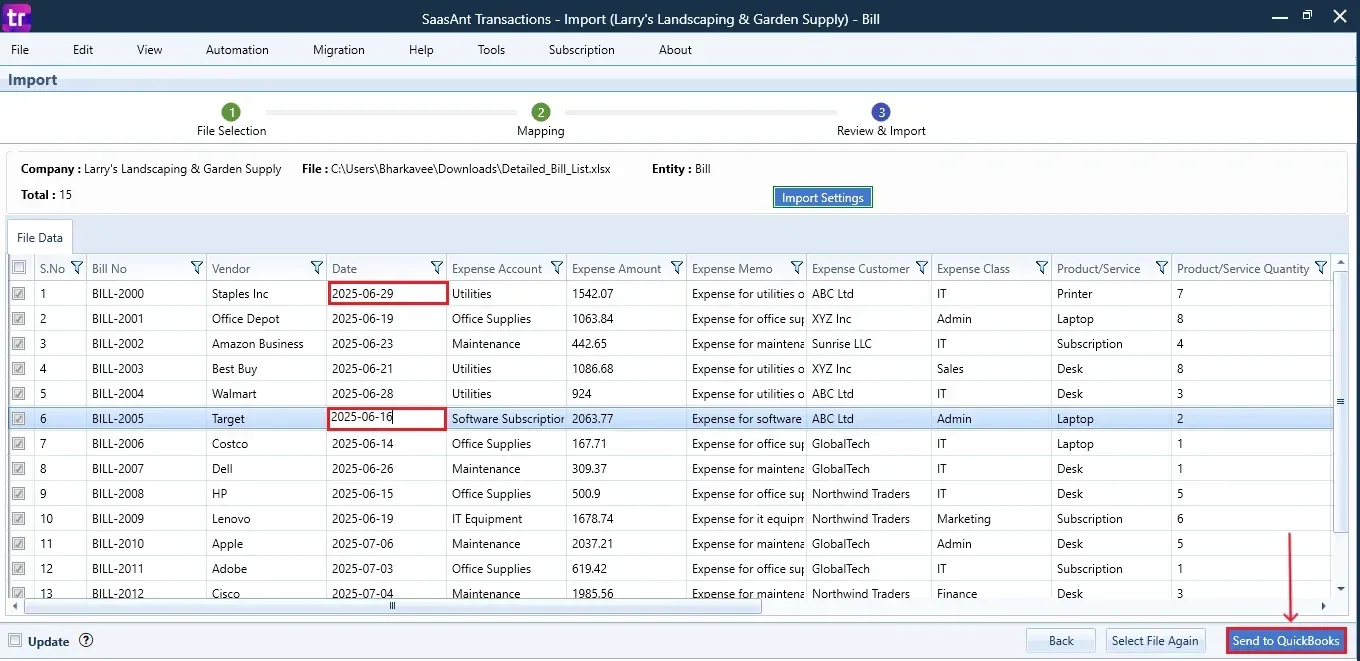
Step 5: Edit and Send to QuickBooks
Now, select and edit the dates of the bills and click the “Send to QuickBooks” option at the bottom right of the dashboard, as shown in the image below.
SaasAnt will now push the edited bill data into your connected QuickBooks Desktop account.
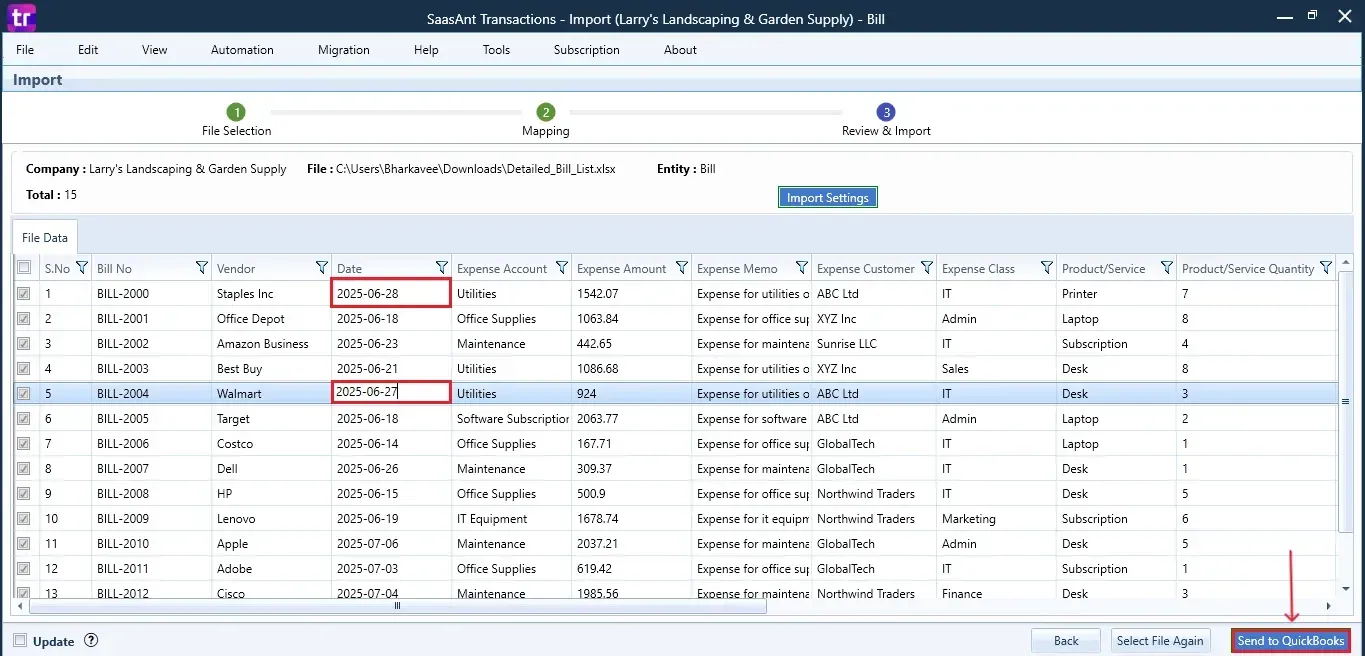
Step 6: Import the Data
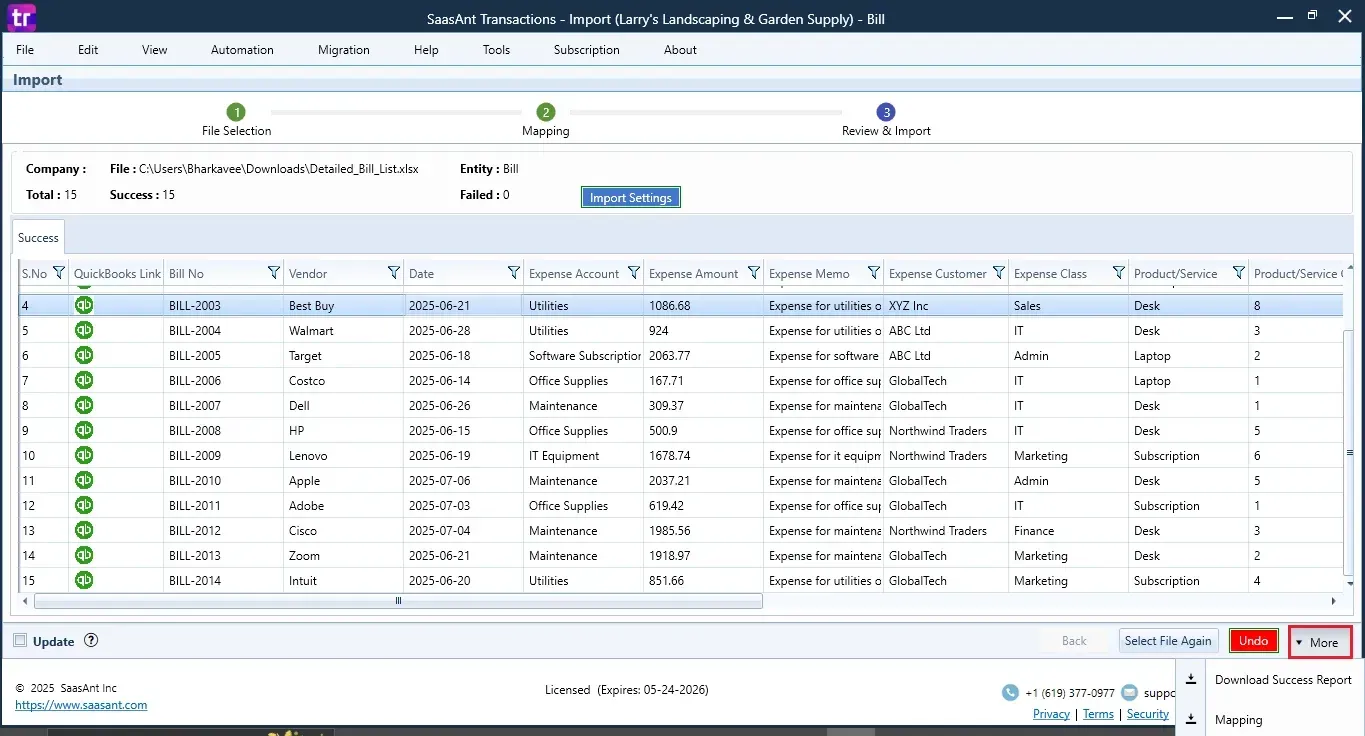
The edited dates of the bills are reflected in the dashboard.
At the bottom right, click the “More” dropdown and select the option to download your edited bills for reference.
Download the mapping file separately (optional but recommended).
And also next to download, you can see “Undo”, where your “Bill” data will be rolled back.
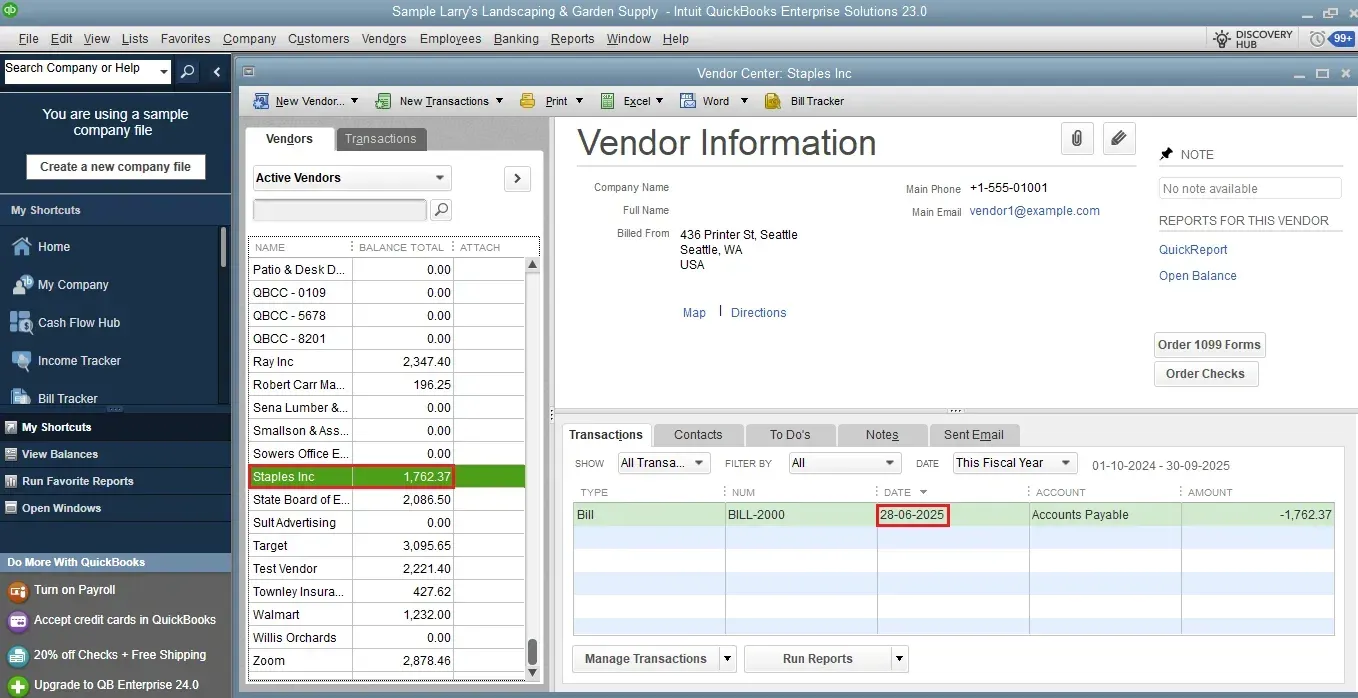
Step 7: Verify in QuickBooks Desktop
Open QuickBooks Desktop, go to the “Vendors” menu, and select “Vendor Centre”.
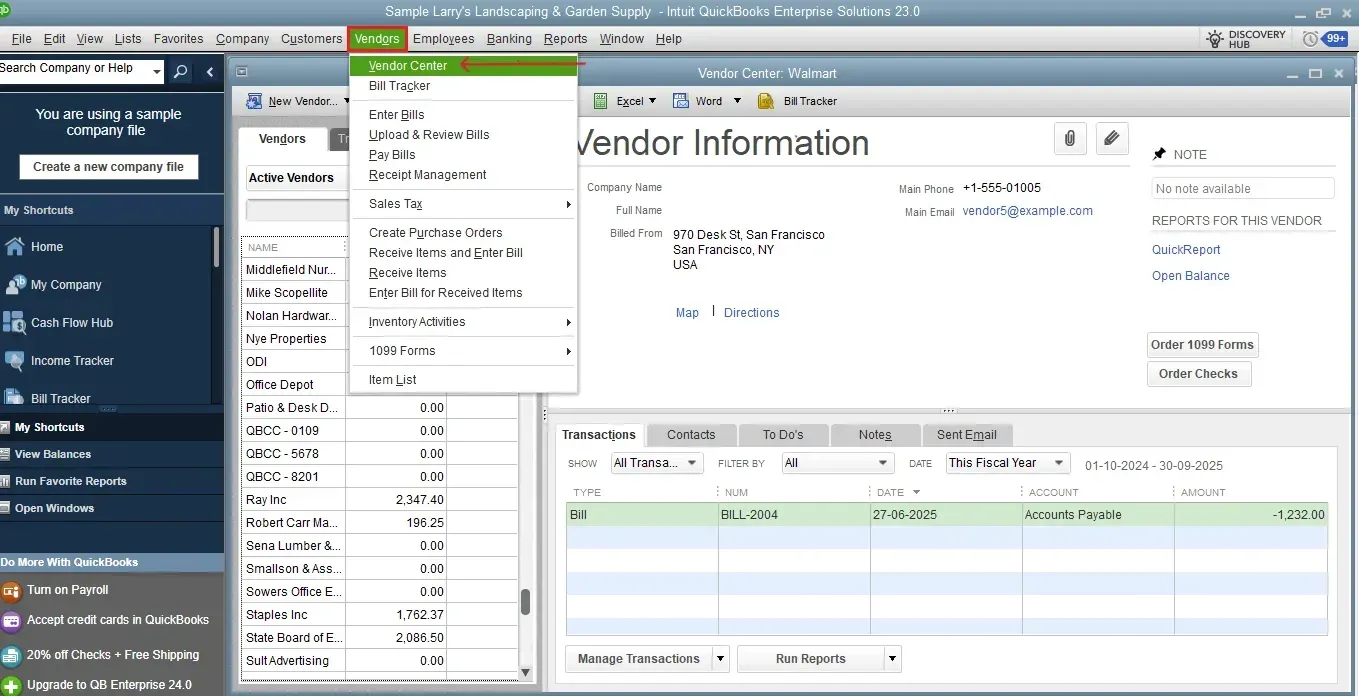
Search for the vendor whose bill you edited to view the updated bill with your changes.
This final step ensures that your data is accurate and reconciled properly within QuickBooks.
Wrap Up
Editing bills in QuickBooks Desktop doesn't have to be tedious, especially when you're using tools like SaasAnt Transactions Desktop. It supports easy imports, real-time edits, bulk fixes, and accurate data mapping. Whether you're addressing a minor typo or executing a cleanup project, these steps ensure your financial records stay organized and accurate.
By leveraging trustworthy platforms like QuickBooks for your accounting processes and SaasAnt for transaction management and automation, you can enhance the overall workflow, minimize errors, save time, and acquire greater financial insight.
If you have inquiries regarding our products, features, trial, or pricing, or if you require a personalized demo, contact our team today. We are ready to help you find the ideal solution for your QuickBooks workflow.
Frequently Asked Questions
1) Can I directly edit bills within QuickBooks Desktop without using SaasAnt?
Yes, but editing bills manually in QuickBooks Desktop is time-consuming, especially in bulk. SaasAnt simplifies bulk edits and ensures accuracy.
2) Do I need to delete the original bill before editing?
No, SaasAnt enables you to update the existing bill data by matching the bill number and vendor.
3) Is this method suitable for accountants handling multiple clients?
Definitely. The bulk editing feature is perfect for accountants handling extensive datasets for multiple clients.
4) Can I save my field mappings for future imports?
Absolutely. SaasAnt allows you to save your mappings and reuse them, making recurring tasks even faster.
Read Also
How to Export Bill Payments in QuickBooks Desktop
How to Import Bills into QuickBooks Desktop
How to Delete Bill Payments in QuickBooks Desktop
How to Edit Transactions in QuickBooks Desktop