How to Delete Receive Payments in QuickBooks Online
You might be a business owner or an accountant trying to delete receive payments in QuickBooks Online to reverse a transaction that was entered incorrectly, remove outdated or unnecessary payment records, or maintain accurate records in anticipation of an audit or financial review.
QuickBooks doesn’t allow bulk deletion of receive payments. This is manageable with just a few payments, but when you need to delete multiple transactions, a QuickBooks add-on like SaasAnt Transactions —an Accountant's Favorite and User's choice award-winning app —is essential.
This CPA-recommended solution boasts a 4.9-star rating in the QuickBooks app store and facilitates bulk deletion of receive payments in QuickBooks Online.
Let’s get started with the steps.
Contents
Delete Receive Payment in QuickBooks Online - Quick Instructions
How to Delete Receive Payments in QuickBooks Online: Step-by-Step Guide
Best Practices for Deleting Receive Payments
Conclusion
FAQ
Delete Receive Payment in QuickBooks Online - Quick Instructions
Connect SaasAnt Transactions with QuickBooks
Select the entity as Receive Payment.
Use the advanced filter to search.
Bulk delete
How to Delete Receive Payments in QuickBooks Online: Step-by-Step Guide
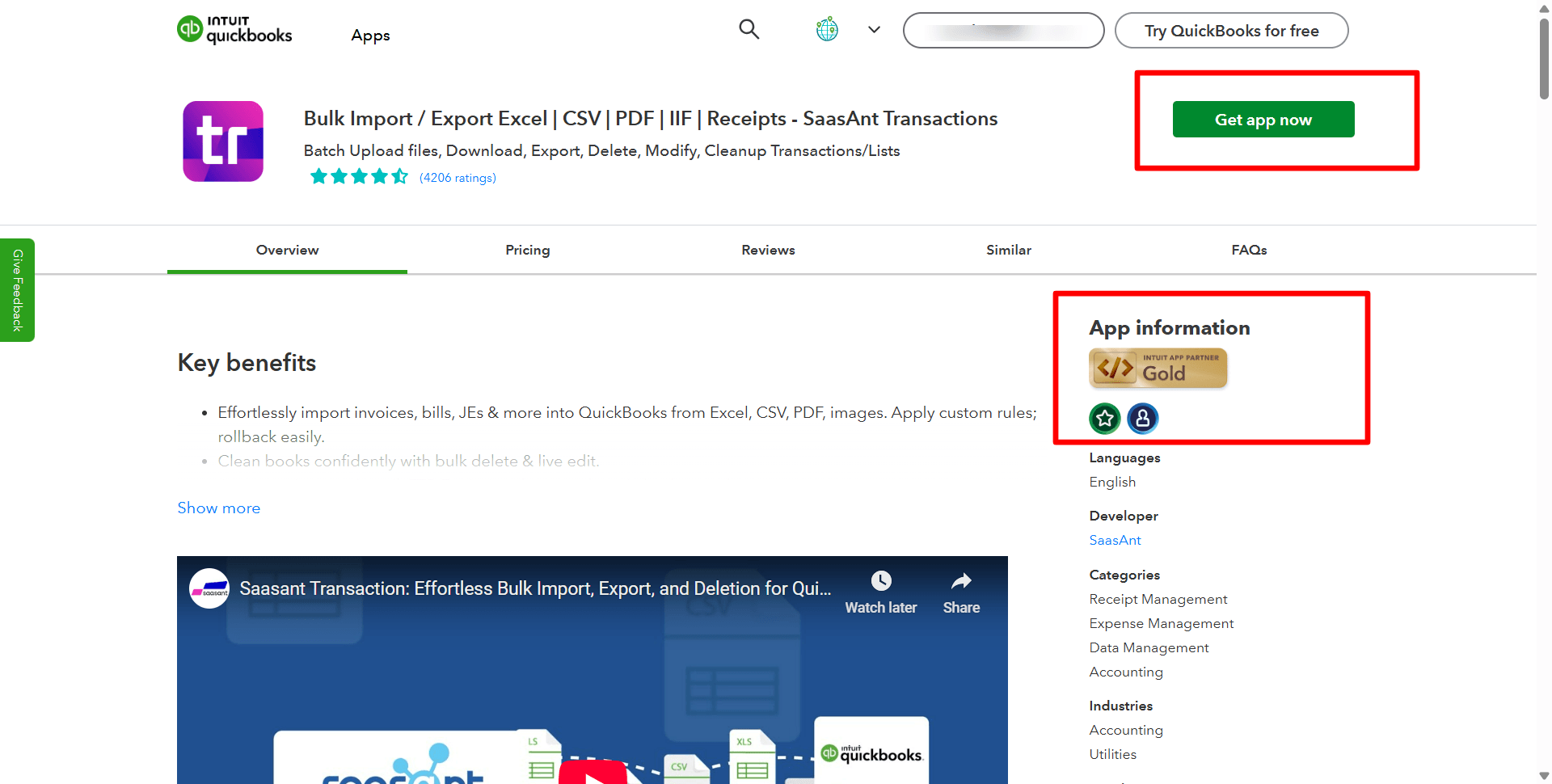
Step 1: Connect with SaasAnt Transactions
Find SaasAnt Transactions in the QuickBooks App Store and connect it to your QuickBooks account. This certified, secure app keeps your data safe and well-managed.
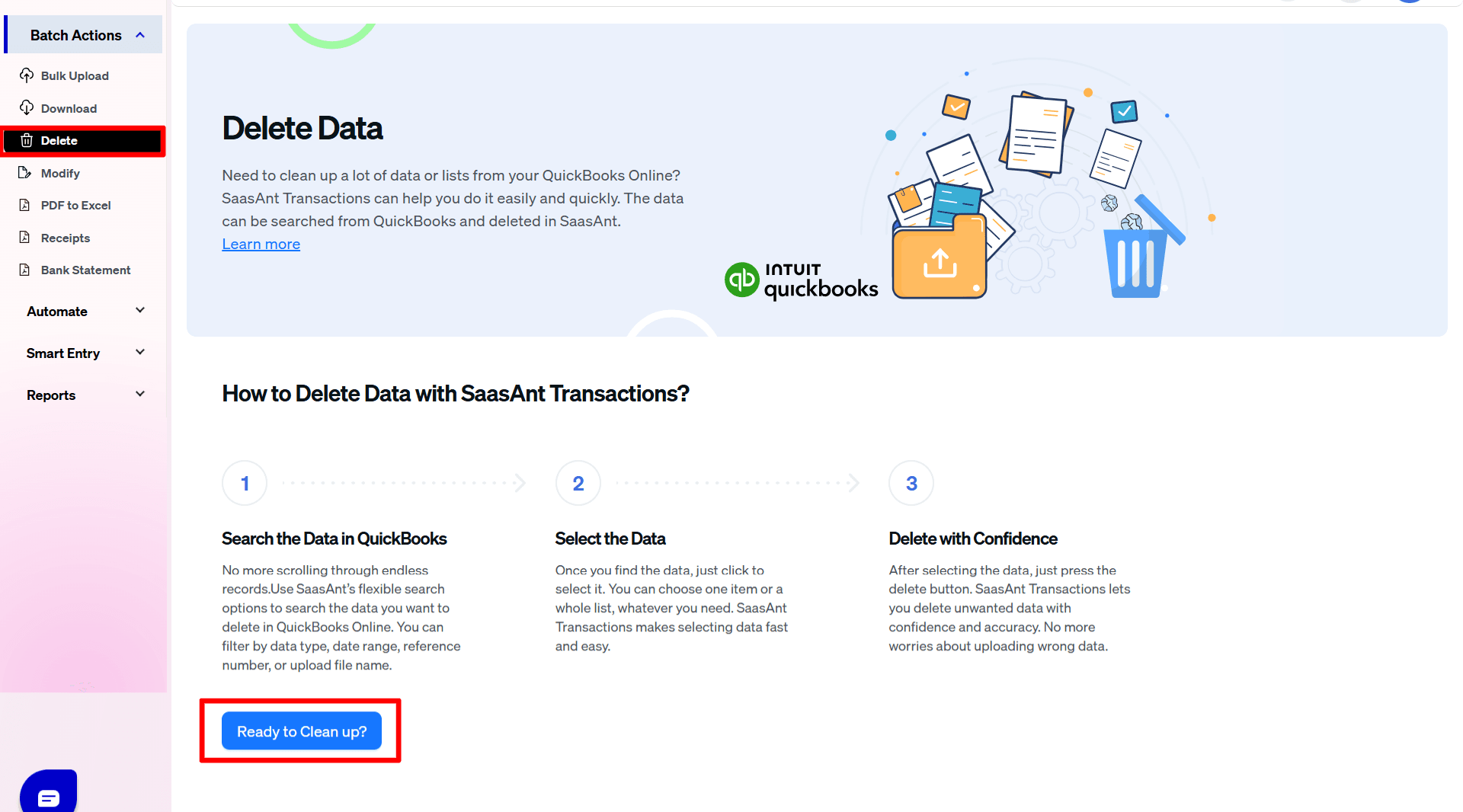
Step 2: Filter by Date
Go to SaasAnt Transactions Dashboard -> Delete.
Select Delete by Searching if you want to delete using date type and date range. Select whether you want to delete based on the created date, transaction date, or last updated date, and select a date range.
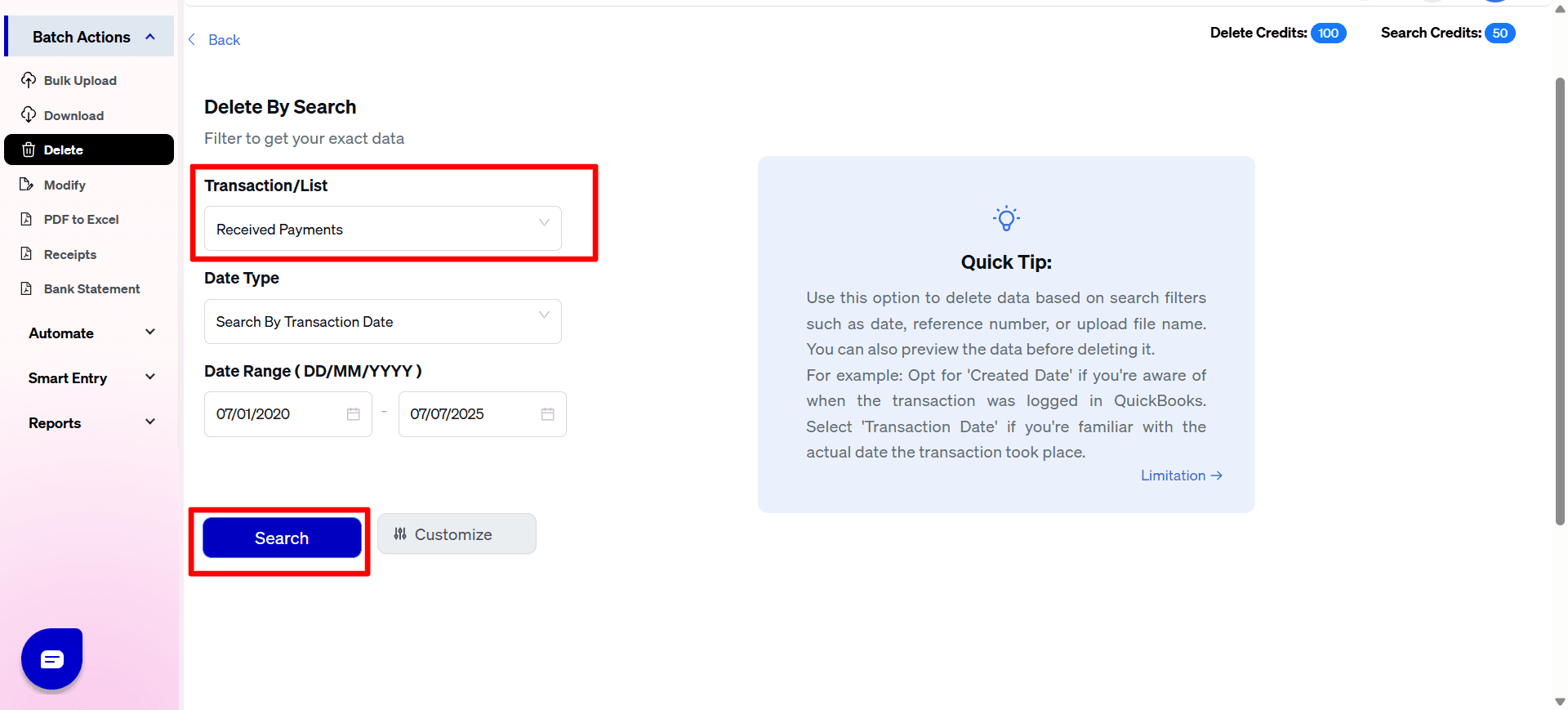
Step 3: Bulk Delete
A list of Receive Payments for the chosen date type and range will be displayed. Click on delete. You can also uncheck the check box of a particular Receive Payment if you wish not to delete it.
Important: Always back up your receive payments before deleting them. You can use the export function in SaasAnt Transactions to create a backup copy.
Best Practices for Deleting Receive Payments
Review the payment to confirm that deletion is necessary and won't lead to discrepancies in your records.
Always back up your QuickBooks data before deleting payments to avoid accidental data loss. You can easily create a backup by using the export feature in SaasAnt Transactions.
Check if the payment is associated with other transactions and understand how its deletion may affect those linked records.
Carefully review each payment to prevent the accidental deletion of important records when performing bulk deletions.
Conclusion
This guide has outlined the steps for deleting receive payments individually and in bulk, providing you with the necessary applications to simplify your process. You can ensure data integrity and compliance by following best practices, such as reviewing, backing up data, and considering voiding data instead of deleting it. Using applications like SaasAnt Transactions for bulk deletions can further enhance efficiency. Implementing these techniques will save you time, reduce errors, and support the financial health of your business. The best part is that you can get started with a 30-day free trial immediately since no credit card details are required.
FAQ
Can I delete multiple receive payments at once in QuickBooks Online?
No, QuickBooks Online does not allow bulk deletion of receive payments. To delete multiple transactions efficiently, consider using a QuickBooks add-on like SaasAnt Transactions, which streamlines the process.
How do I back up my QuickBooks data before deleting payments?
You can back up your QuickBooks data by using the export feature in SaasAnt Transactions. This ensures you have a copy of your records before making any deletions, protecting against accidental data loss.
What should I check before deleting a receive payment?
Before deleting a receive payment, review the transaction to confirm deletion is necessary, check for any linked transactions, and ensure that it won’t cause discrepancies in your records.
Read also
How to Edit Bill Payments in QuickBooks
Export Bill Payments from QuickBooks Online
How to Delete a Bill Payment in QuickBooks Online
Import Bill Payments in QuickBooks Online