How To Delete Product/Service List In QuickBooks Online
Organizing your product and service list in QuickBooks Online is essential for maintaining accurate records, especially when outdated or unused items clutter your chart of accounts. Whether you are optimizing inventory, fixing errors, or preparing for a new financial cycle, deleting old product/service entries can save time and alleviate confusion.
In this guide, we’ll walk you through the safest and most efficient way to delete your product/service list in QuickBooks Online using SaasAnt Transactions, an Accountant's Favorite and User's choice award-winning app.
This guide is ideal for bookkeepers, accountants, and small business owners looking to automate and efficiently manage large-scale data cleanup.
Contents
Why Clean Up Your Product/Service List?
How to Delete Product/Service List in QuickBooks Online: Step-by-Step Guide
Wrap Up
Frequently Asked Questions
Why Clean Up Your Product/Service List?
Cleaning up product/service lists in QuickBooks Online eliminates duplicates, outdated items, and errors, making your records more accurate and easier to manage.
Organized listings enhance inventory control, improve reporting accuracy, and simplify transaction entry.
It also guarantees a more seamless workflow and gives a more professional look to invoices and documents that customers see.
How to Delete Product/Service List in QuickBooks Online: Step-by-Step Guide
Always back up your QuickBooks Online data before you begin. Even though SaasAnt is designed to be safe and reliable, a backup provides an added layer of security. Follow the steps below to get started.
Step 1: Log In to Your QuickBooks Account
Log in to your QuickBooks account.
Step 2: Navigate to the Apps Menu
On the left side of the QuickBooks dashboard, you can see the menu bar with various options.
Select “Apps.” Click the dropdown and select “Find Apps.”
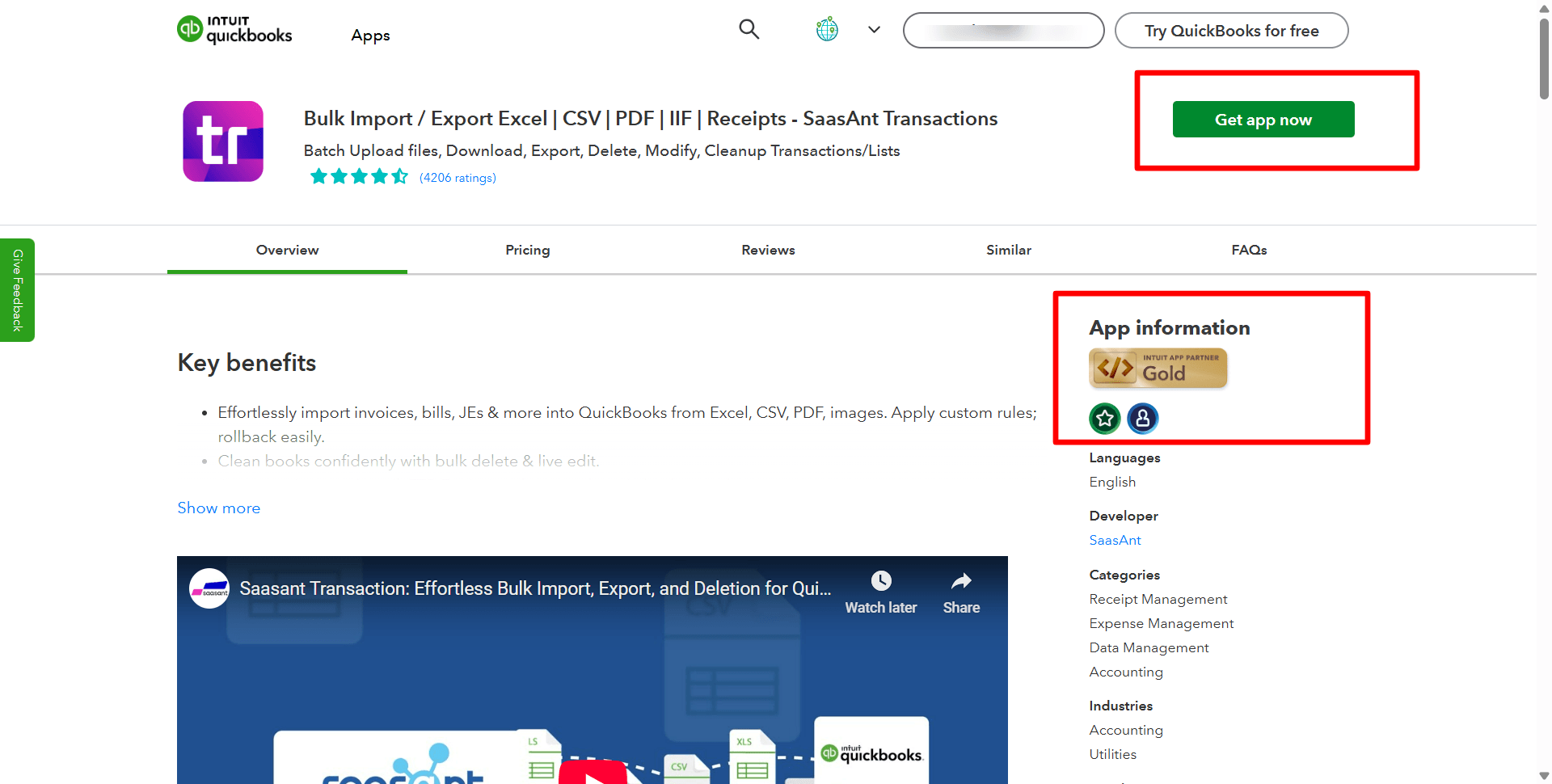
Step 3: Search and Install SaasAnt Transactions
In the search bar, type “SaasAnt Transactions” as shown by the arrow in the image below.
Step 4: Open SaasAnt Transactions
Get the app from the App Store and connect it to QuickBooks.
On the SaasAnt dashboard:
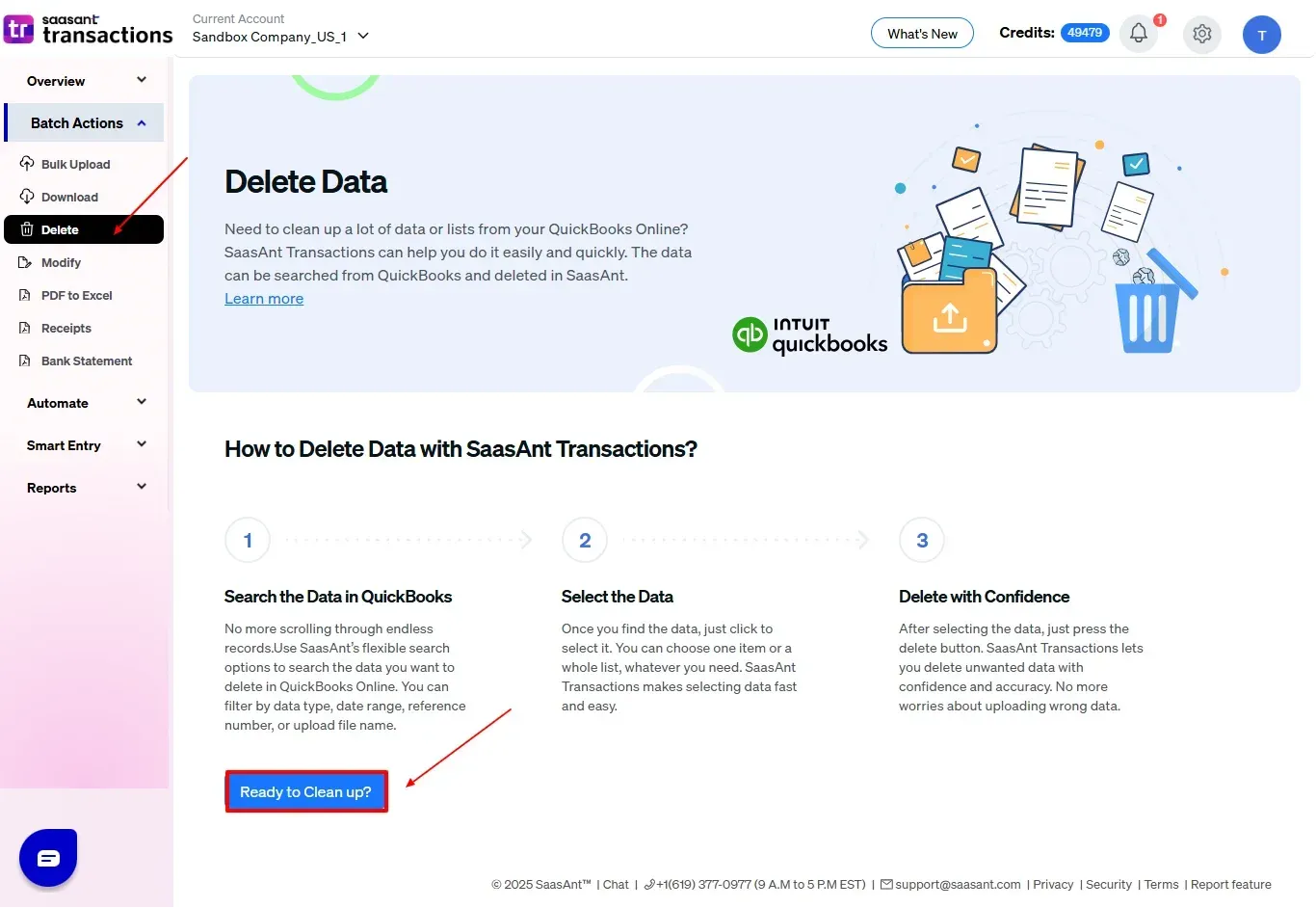
On the left side of the SaasAnt Transactions dashboard, you can see the menu bar with various options.
Select “Delete.”
You’ll be taken to the Delete Transactions interface as shown in the image below.
At the bottom right, click on “Ready to Clean up.”
Step 5: Choose Your Deletion Method
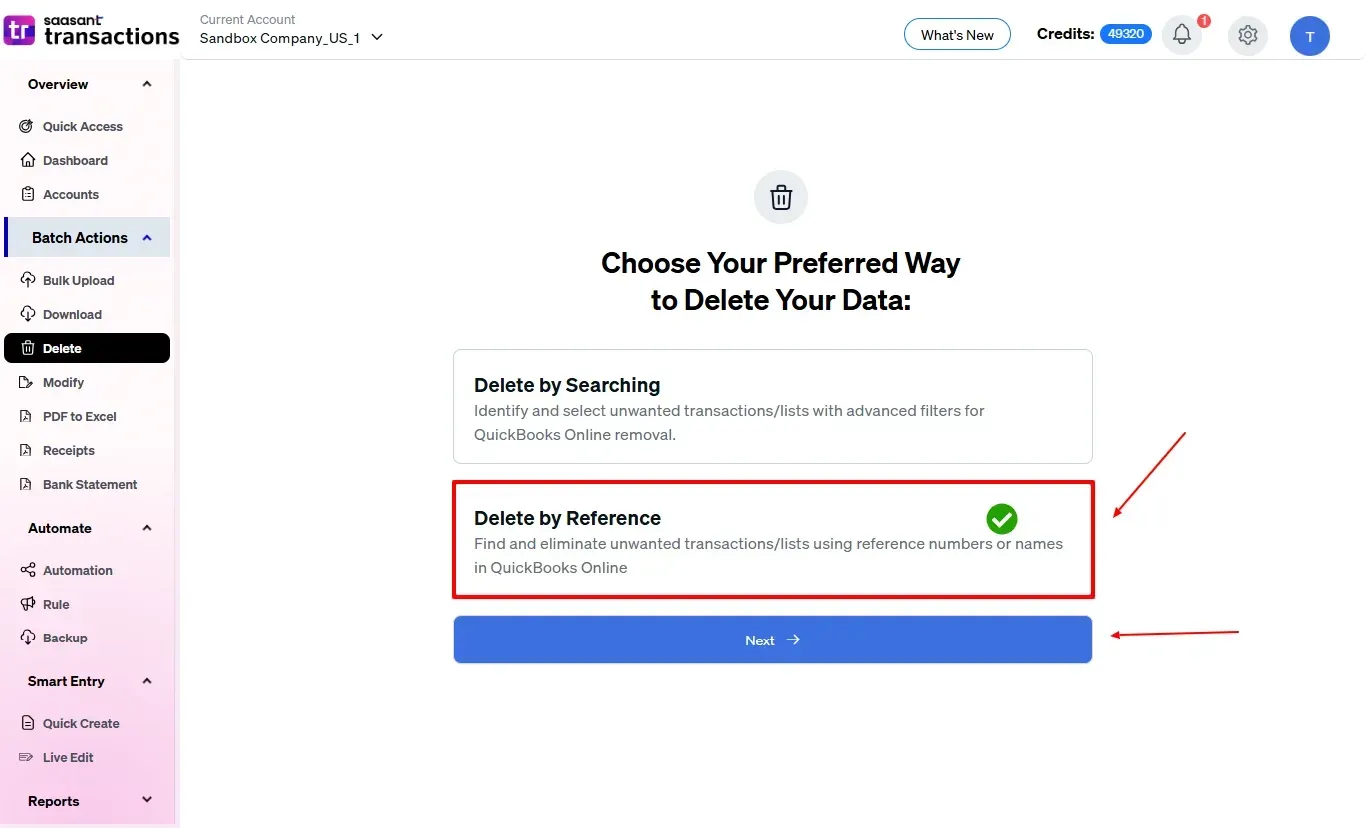
After selecting the option “Ready to Clean up,” you will see two options.
The first option is “Delete by Searching,” and the other option is “Delete by Reference.”
In the “Delete by Searching” option, you can use filters like date range or transaction type to find and delete entries in QuickBooks Online.
In the “Delete by Reference” option, you can delete entries using specific names or reference numbers.
Choose the option “Delete by Reference.”
Step 6: Filter and Search for Transactions
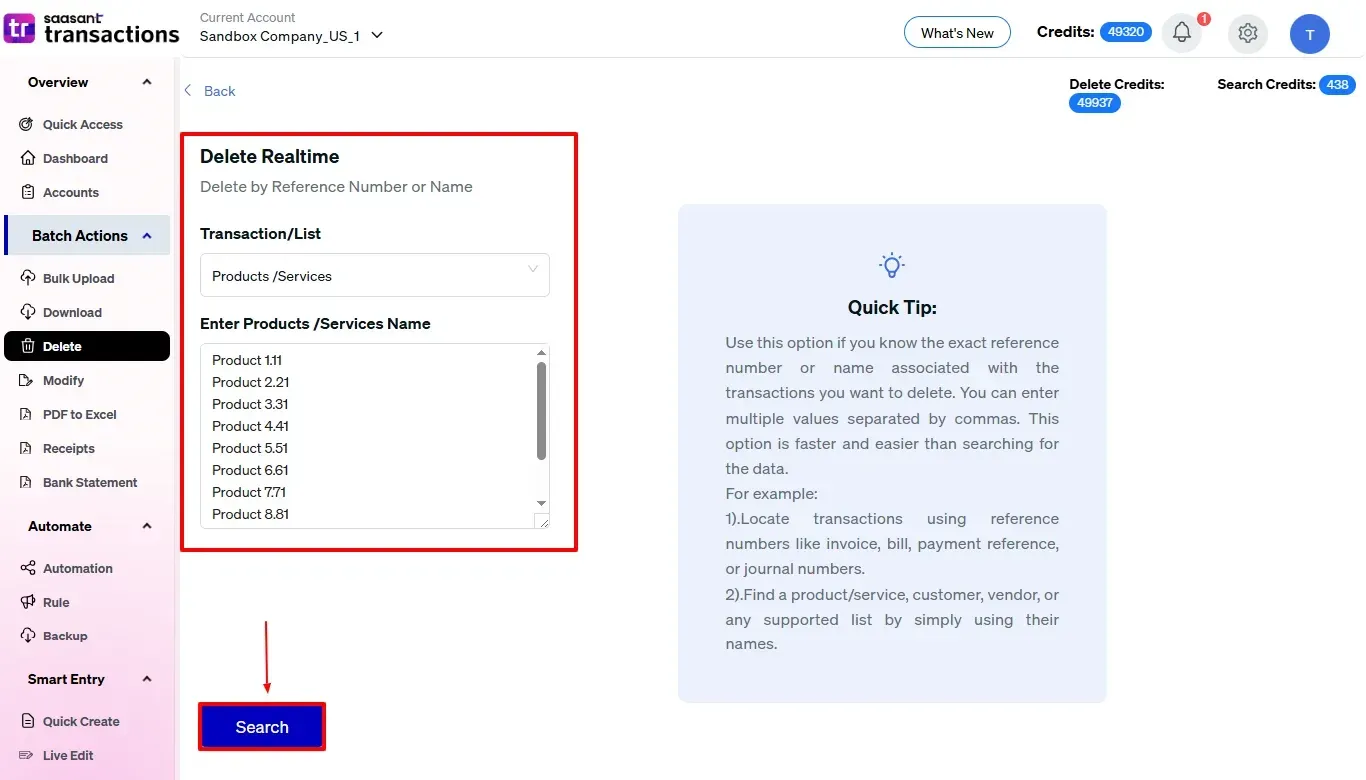
In the “Transaction/List” dropdown, select “Product/Service” to delete.
You can use this feature to delete various transaction types like Expenses, Invoices, Bills, Payments, and more.
In the “Enter Product/Service Name”, enter the name of the product/service and click “Search” to view the list of transactions.
Step 7: Select Transactions
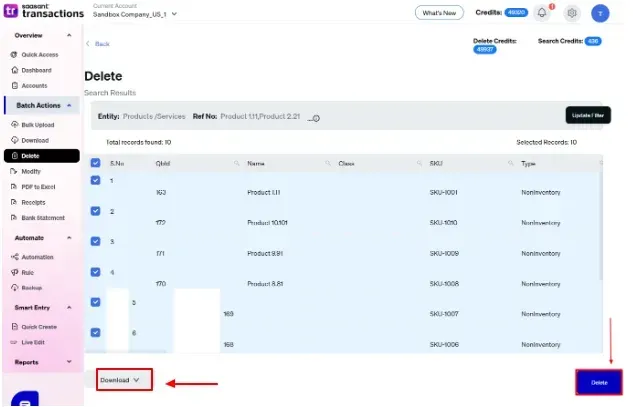
Review the list of results and click the checkboxes next to the transactions you wish to batch delete.
Select the “Delete” option at the bottom right of the page, as shown in the image below.
Before deleting, remember to back up your product/service list by clicking the “Download” button at the bottom left.
Step 8: Confirm Deletion
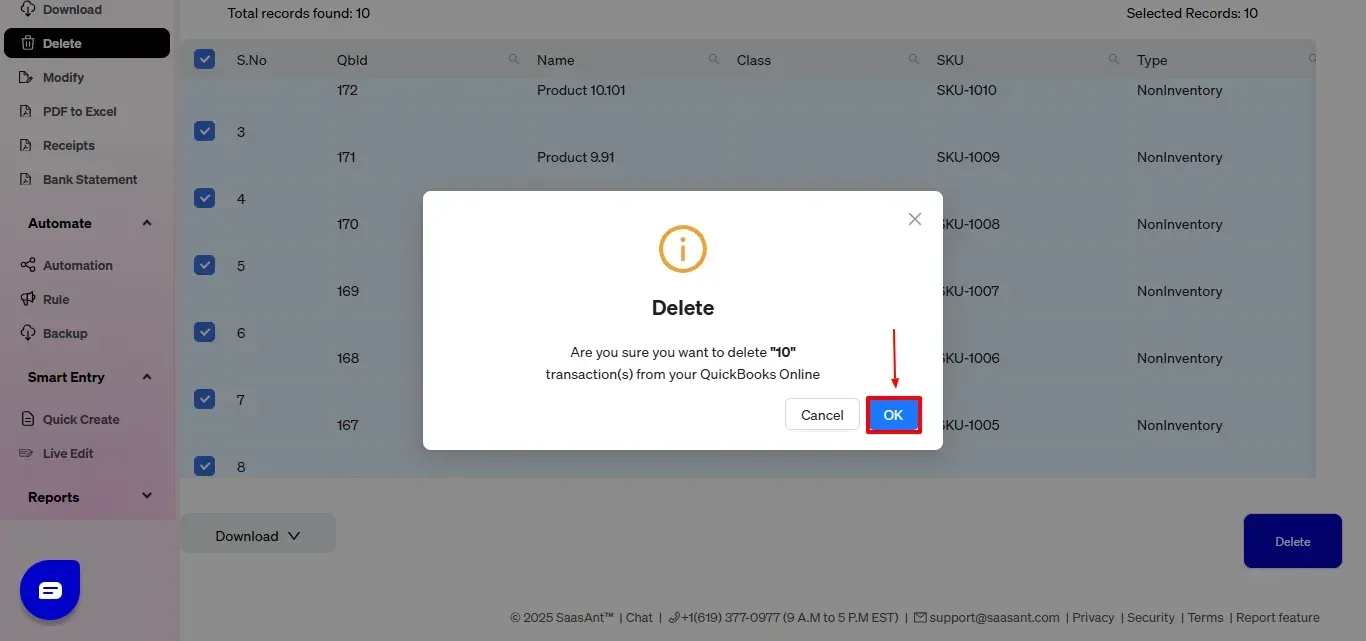
Once you click delete, a pop-up will ask you to confirm your deletion.
Click “OK.”
Step 9: View Deleted Transactions
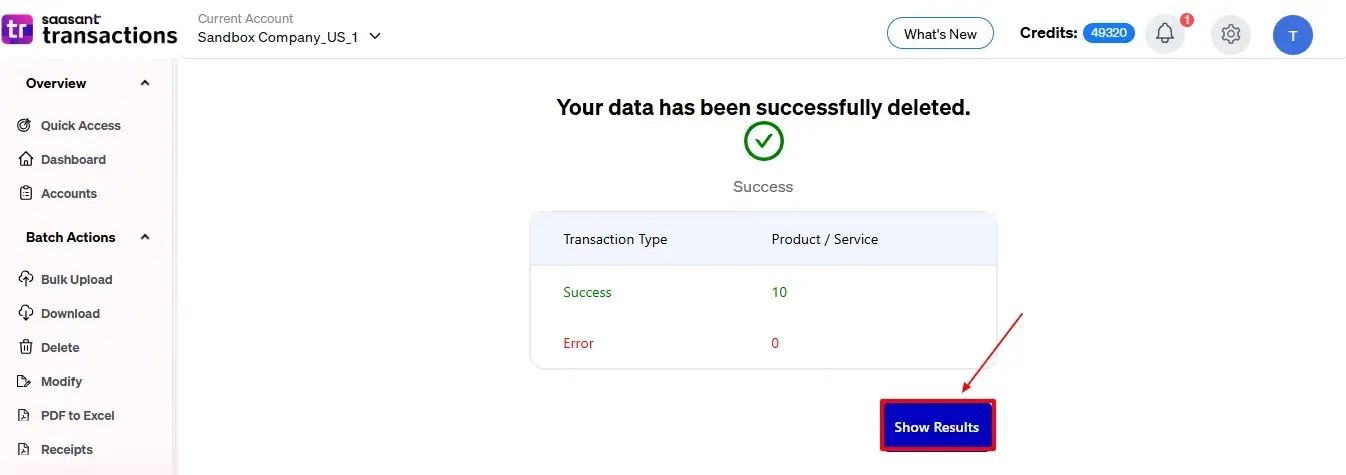
After deletion, click “Show Results” to view the deleted entries.
Use the “Download” button at the bottom right to download a copy of the deleted transactions for your records.
Your deleted transactions appear. At the bottom right, there is a “Download” option, where you can download your deleted transaction data for future reference.
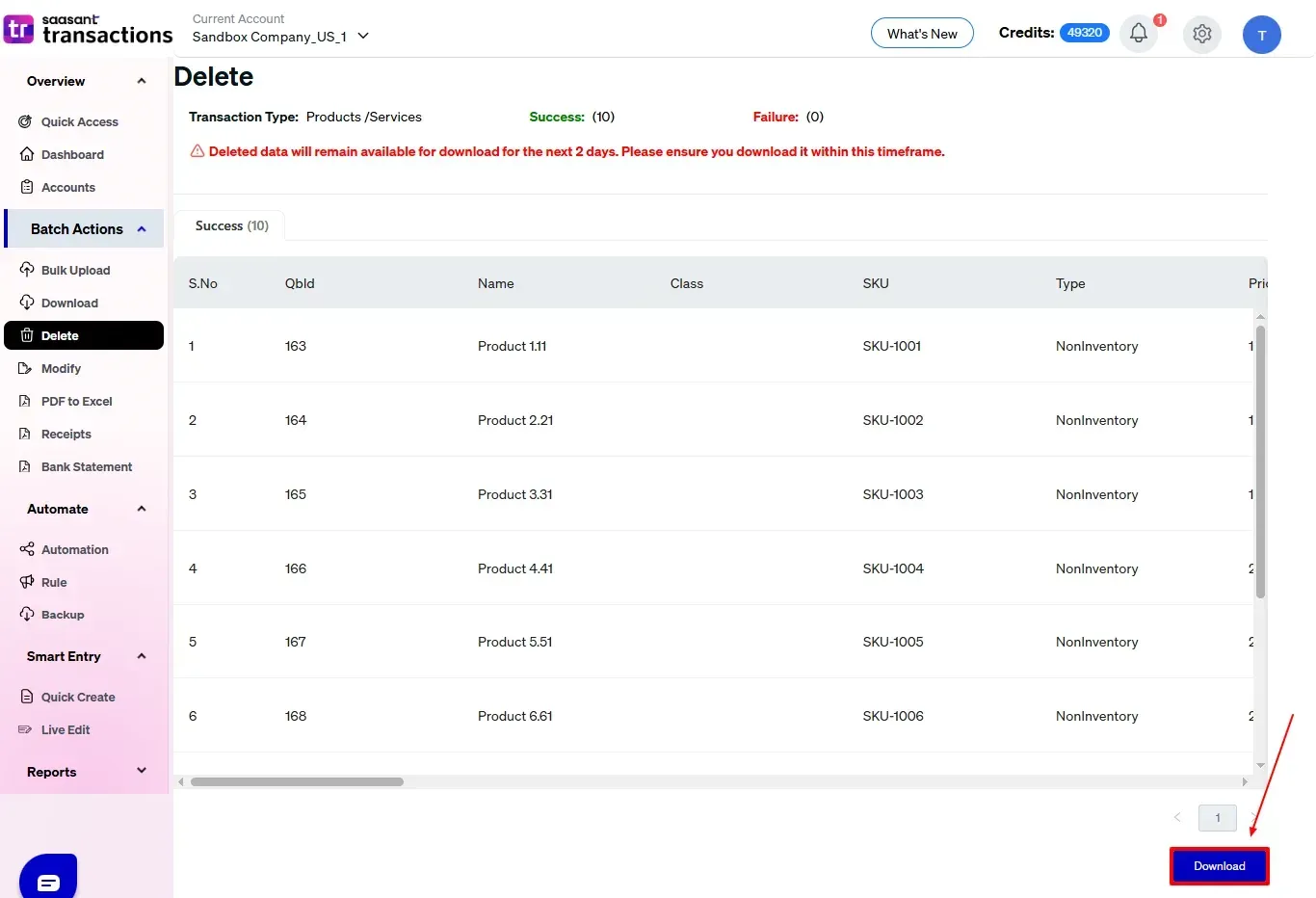
Note: Deleted transaction data can only be downloaded within 2 days of deletion. After that, it will no longer be available.
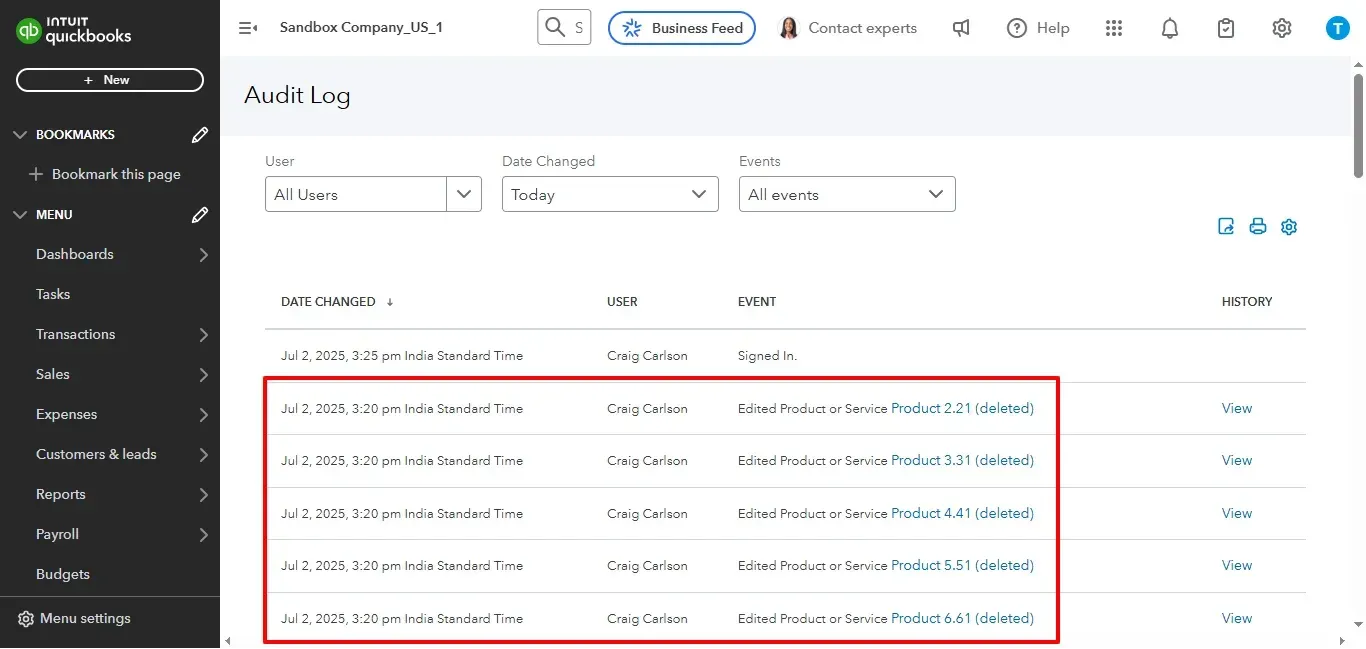
Deleted transactions are shown in the Audit Log of QuickBooks Online, featuring details like the user, date, and the type of transaction that has been removed, as shown in the image below.
Wrap Up
Streamlining your product and service list in QuickBooks Online can be done efficiently without taking up too much time. With SaasAnt Transactions, you can safely and effectively delete items in bulk, keeping your data accurate, relevant, and manageable.
Always back up your QuickBooks data before you begin bulk actions. Always back up your QuickBooks data before you begin bulk actions. Once you are done, you will clear out your QuickBooks system and also enhance the accuracy of your reports, and improve workflow efficiency.
By leveraging trustworthy platforms like QuickBooks for your accounting processes and SaasAnt for transaction management and automation, you can enhance the overall workflow, minimize errors, save time, and acquire greater financial insight.
If you have inquiries regarding our products, features, trial, or pricing, or if you require a personalized demo, contact our team today. We are ready to help you find the ideal solution for your QuickBooks workflow.
Frequently Asked Questions
1) Can I delete multiple product/service items at once in QuickBooks Online?
QuickBooks Online does not have built-in support for bulk deletion, but you can do it efficiently using SaasAnt Transactions.
2) Can I download a report of all deleted product/service entries?
Yes. SaasAnt lets you download a file of deleted entries, but this is only available for 2 days following the deletion.
3) Can I undo a deleted product or service item in QuickBooks Online?
No, once you delete product or service items, they cannot be recovered. It is strongly advised to back up your data before you delete anything.
4) Can I use this process to delete other lists like Customers or Vendors?
Yes, SaasAnt allows you to delete other lists and transaction types, such as Customers, Vendors, Invoices, and Bills.
Read Also
How to Delete Journal Entries in QuickBooks Desktop
How to Delete Multiple Transactions in QuickBooks Desktop?
How to Delete a Bill in QuickBooks Desktop
How to Delete Inventory Adjustment in QuickBooks Desktop