How to Delete Manual Journal in Xero
Manual journals are crucial for adjusting financial data and keeping accurate records in Xero. However, errors or duplicate entries can happen, which may cause inaccuracies in your records. In these situations, it is essential to delete the wrong manual journal to keep your accounts clean and precise. Although Xero permits manual deletion, it can be pretty tedious if you have several entries to manage. SaasAnt Transactions Xero simplifies this task by offering flexible search filters and enabling bulk deletions, helping you save a lot of time. This guide will take you through the steps to delete manual journals in Xero, helping you avoid mistakes and adhere to your accounting standards.
Also Read: Mastering Xero: Your Beginner's Guide to Cloud Accounting
Contents
Bulk Deletion of Manual Journals Made Simple
Step-By-Step Guide to Delete Manual Journal in Xero
Wrap Up
Frequently Asked Questions
Bulk Deletion of Manual Journals Made Simple
An expanding business discovers numerous duplicate manual journals resulting from an import error. Individually deleting them in Xero is tedious and can lead to mistakes. Using SaasAnt Transactions, the accountant can easily filter by transaction type and date, delete the duplicates in bulk, and download a copy for their records, saving hours of manual effort while maintaining accuracy and compliance.
This blog is perfect for small and medium businesses, accountants, and bookkeepers who use Xero and want to correct errors, delete unwanted manual journals, and ensure accuracy in their financial reporting.
Step-By-Step Guide to Delete Manual Journal in Xero
Always back up your Xero Online data before you begin. Even though SaasAnt is designed to be safe and reliable, a backup provides an added layer of security. Follow the steps below to get started.
Step 1: Log In to Your Xero Account
Log in to your Xero account.
Step 2: Navigate to the Apps Menu
On the right side of the Xero dashboard, you can see the menu bar with various options.
Select the “Waffle” icon. Click the dropdown and select “Find more apps on Xerp App Store.”
Step 3: Search SaasAnt Transactions
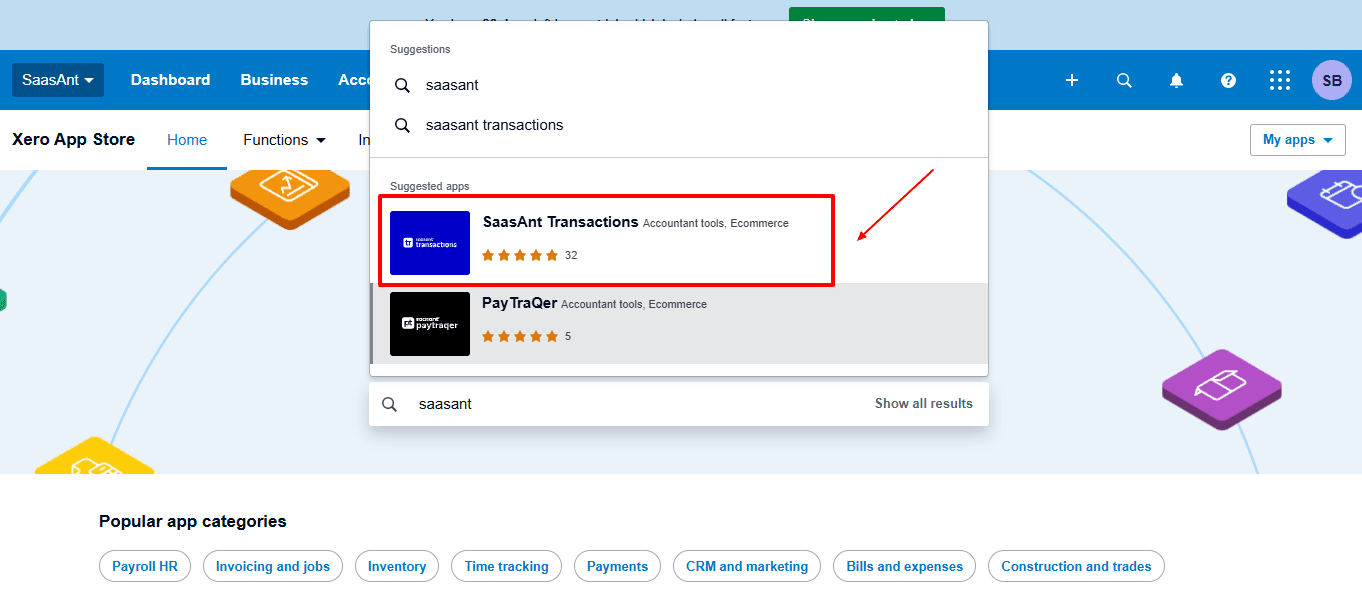
In the search bar, type “SaasAnt Transactions” as shown by the arrow in the image below.
Step 4: Open SaasAnt Transactions
Get the app from the App Store and connect it to Xero.
On the SaasAnt dashboard:
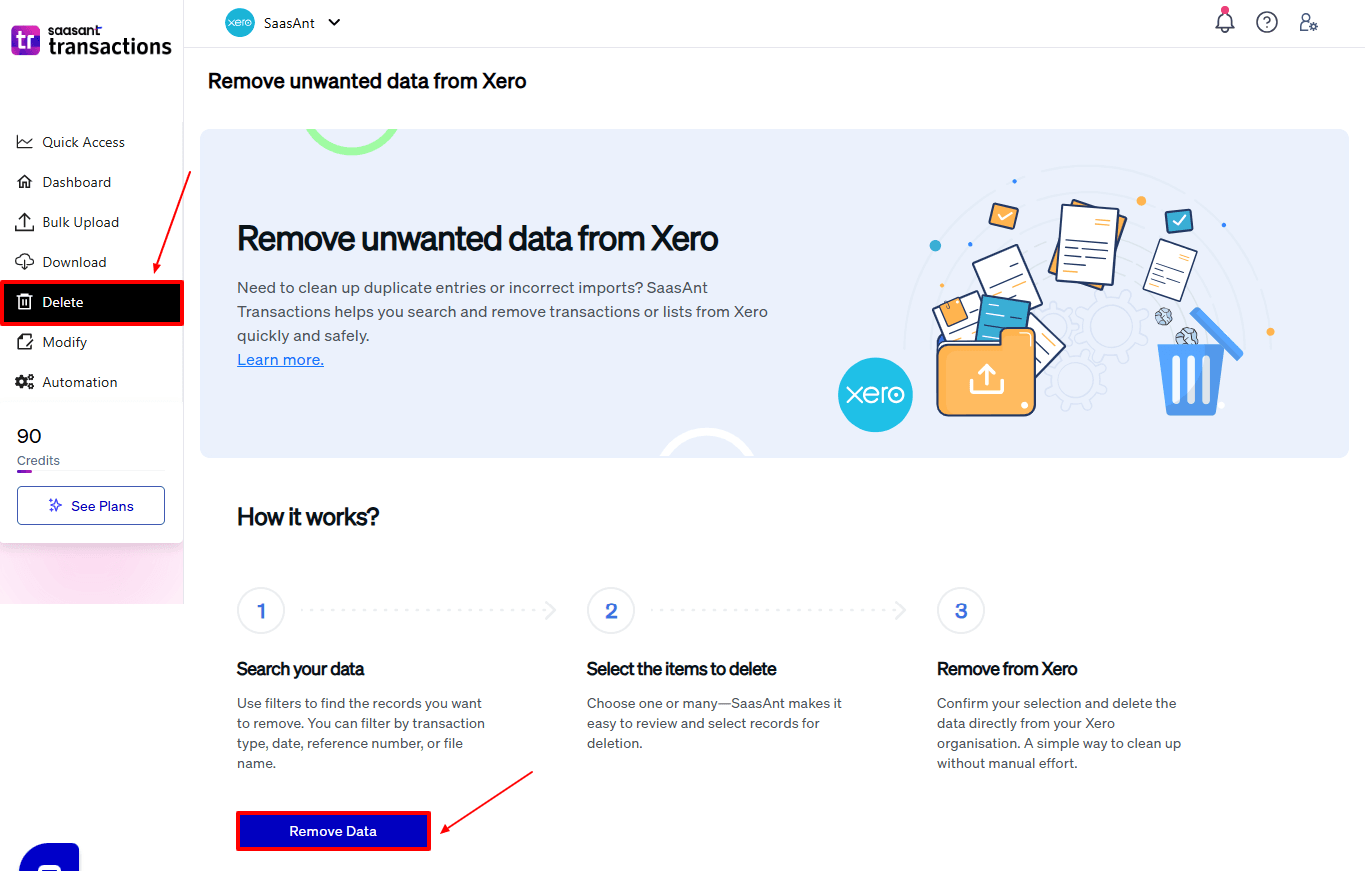
On the left side of the SaasAnt Transactions dashboard, you can see the menu bar with various options.
Select “Delete.”
You’ll be taken to the Delete Transactions interface as shown in the image below.
At the bottom left, click on “Remove Data.”
Step 5: Choose Your Deletion Method
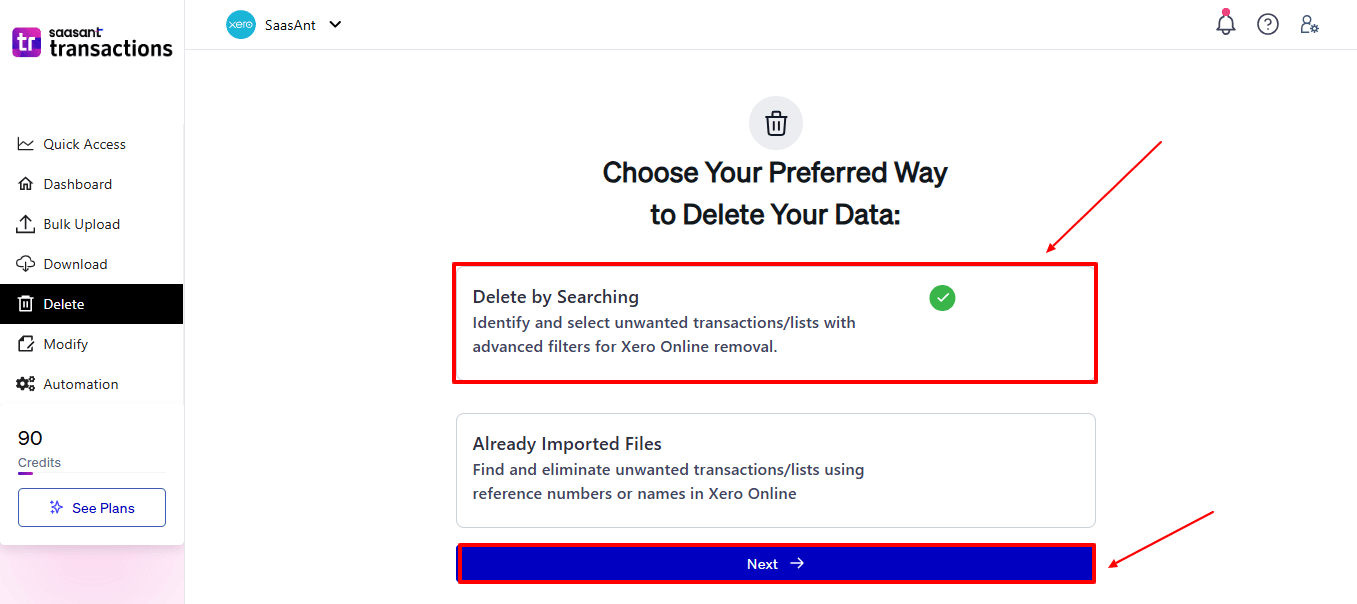
After selecting the option “Remove Data,” you will see two options.
The first option is “Delete by Searching,” and the other option is “Delete by Reference.”
In the “Delete by Searching” option, you can use filters like date range or transaction type to find and delete entries in Xero Online.
In the “Already Imported Files” option, you can delete entries using specific names or reference numbers.
Choose the option “Delete by Searching.”
Step 6: Filter and Search for Transactions
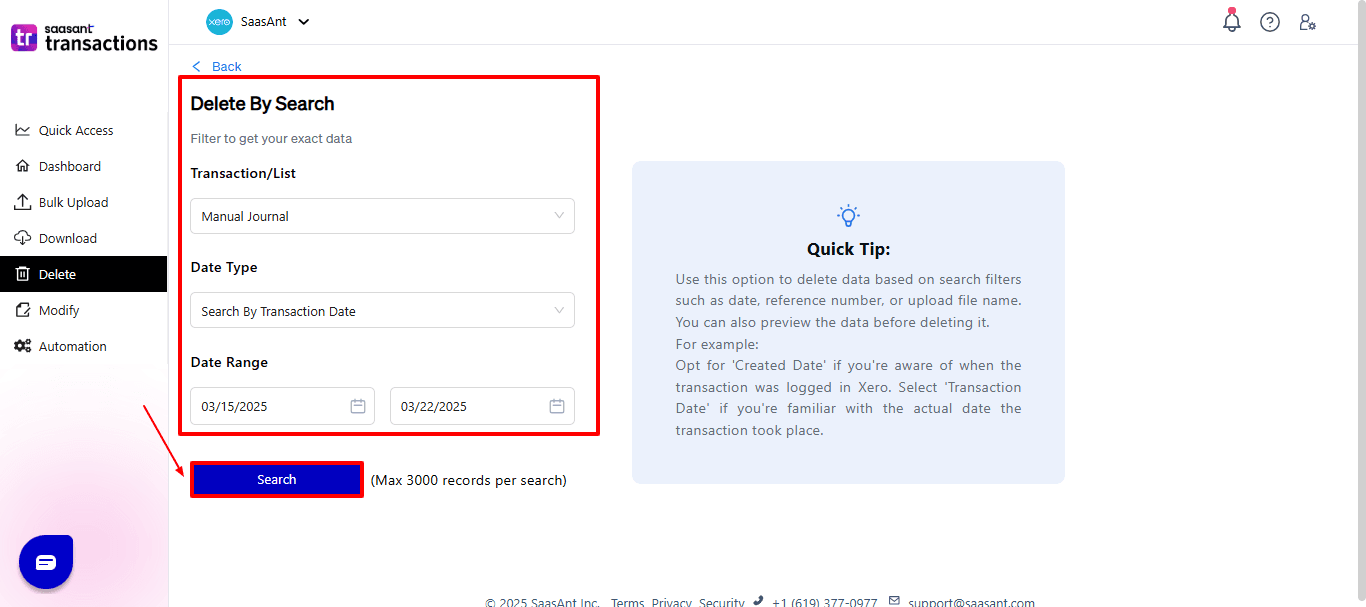
In the “Transaction/List” dropdown, select “manual journal” to delete.
You can use this feature to delete various transaction types like invoices, expenses, payments, and more.
In the “Data Type” dropdown, choose “Search By Transaction Date.”
Now enter the date ranges for cleanup and click “Search” to view the list of transactions.
Step 7: Select Transactions
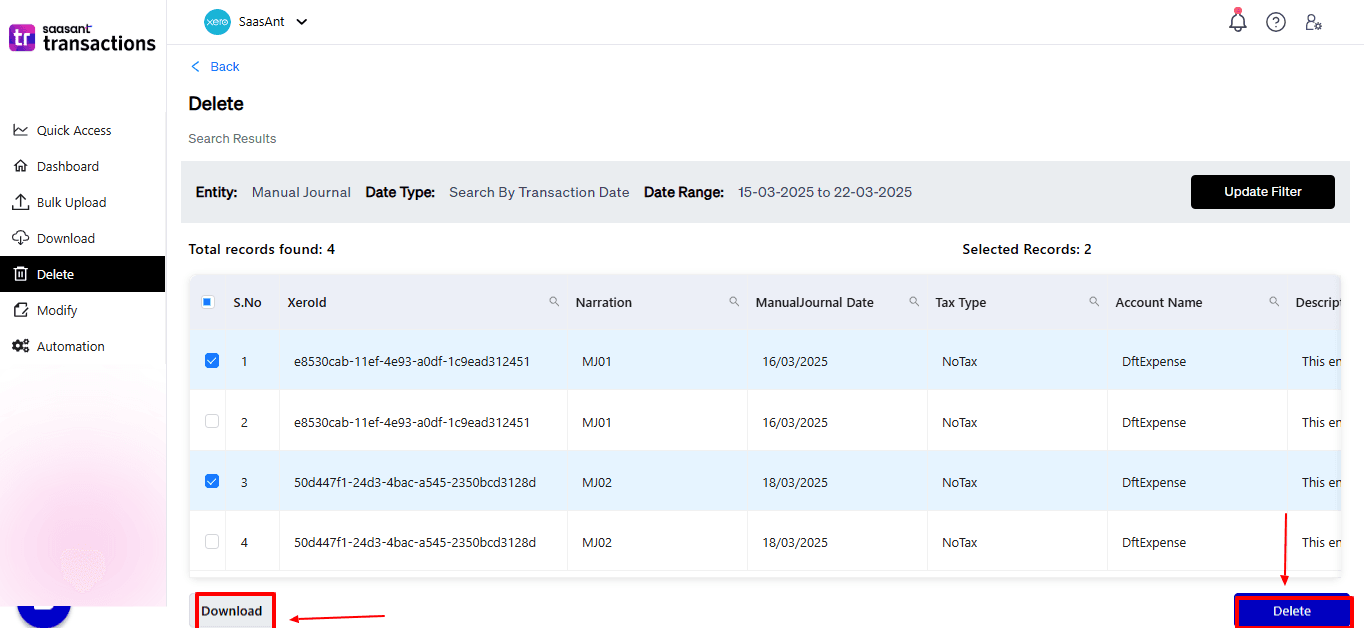
Review the list of results and click the checkboxes next to the manual journal you wish to delete.
Select the “Delete” option at the bottom right of the page, as shown in the image below.
Before deleting, remember to back up your manual journal list by clicking the “Download” button at the bottom left.
Step 8: Confirm Deletion
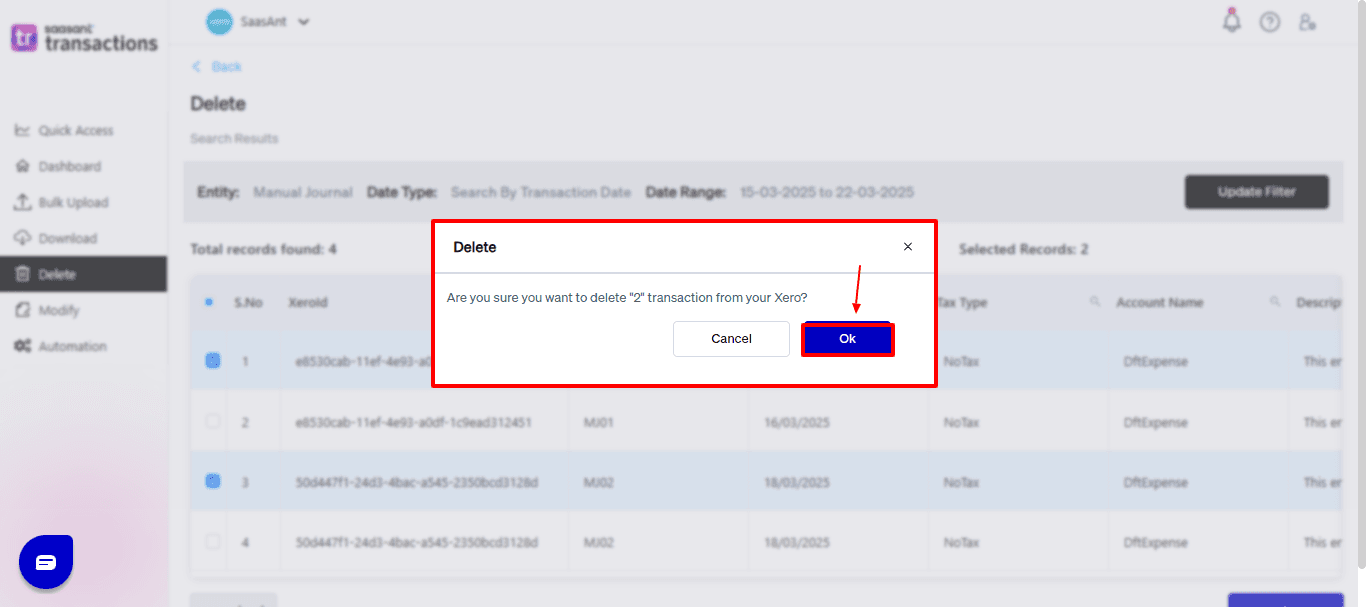
Once you click delete, a pop-up will ask you to confirm your deletion.
Click “OK.”
Step 9: Deleted Transactions
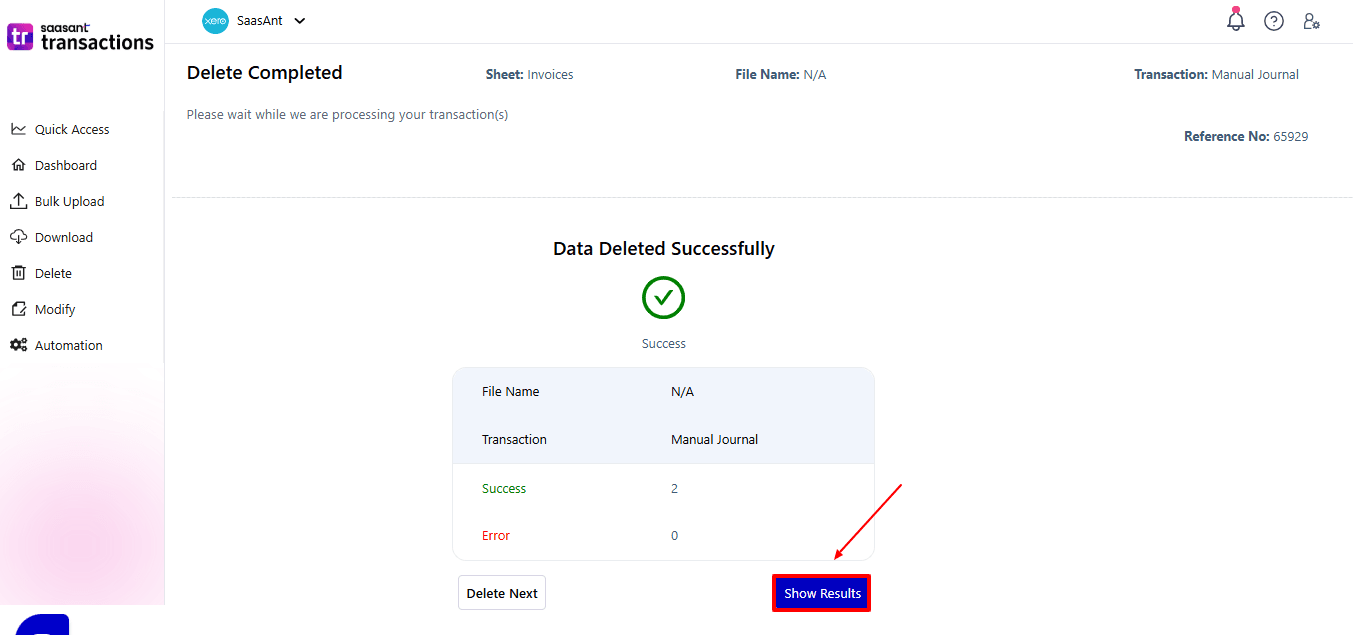
After deletion, click “Show Results” to view the deleted entries.
Use the “Download” button at the bottom right to download a copy of the deleted manual journal for your records.
Your deleted manual journals appear. At the bottom right, there is a “Download” option, where you can download your deleted manual journal data for future reference.
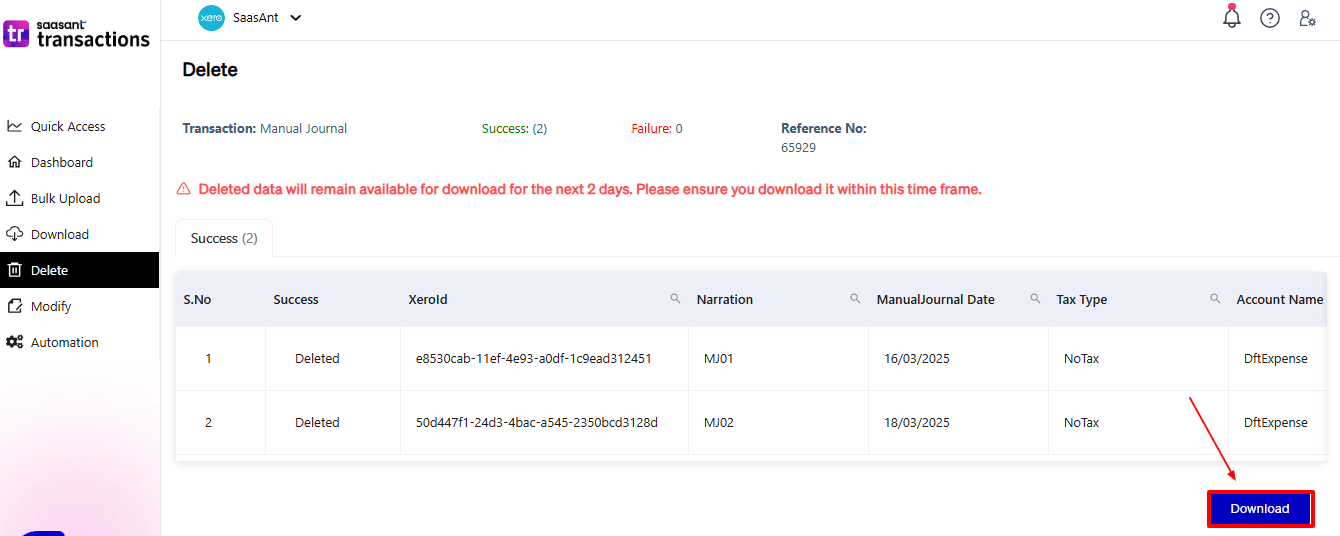
Note: Deleted manual journals can only be downloaded within 2 days of deletion. After that, it will no longer be available.
Step 10: View Deleted Transactions
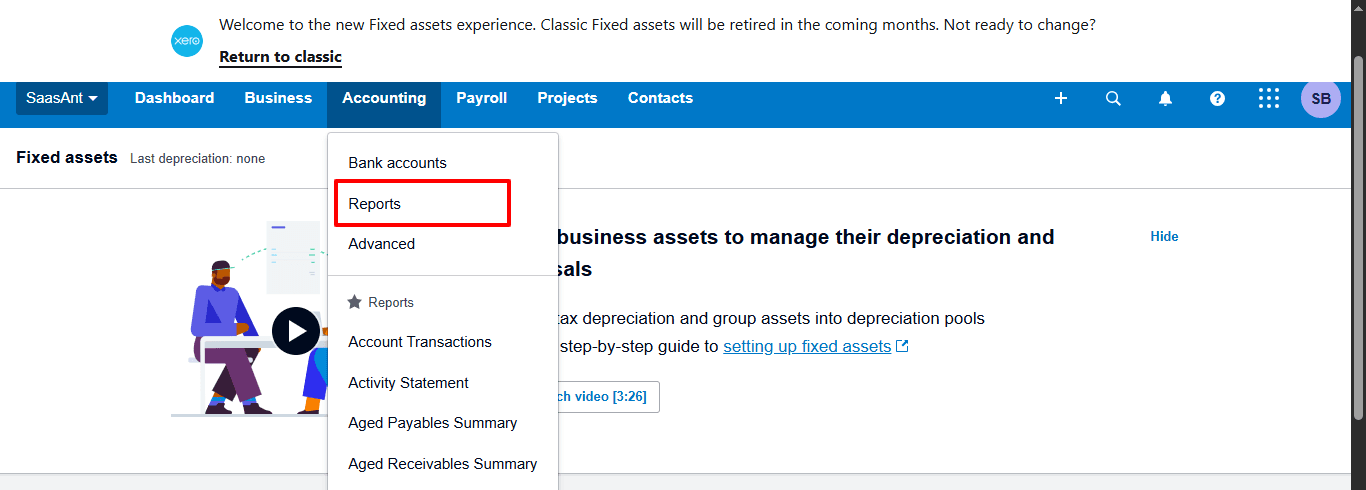
Now, back to the Xero dashboard, select “Accounting” on your top left. From the dropdown, now select “Reports”.
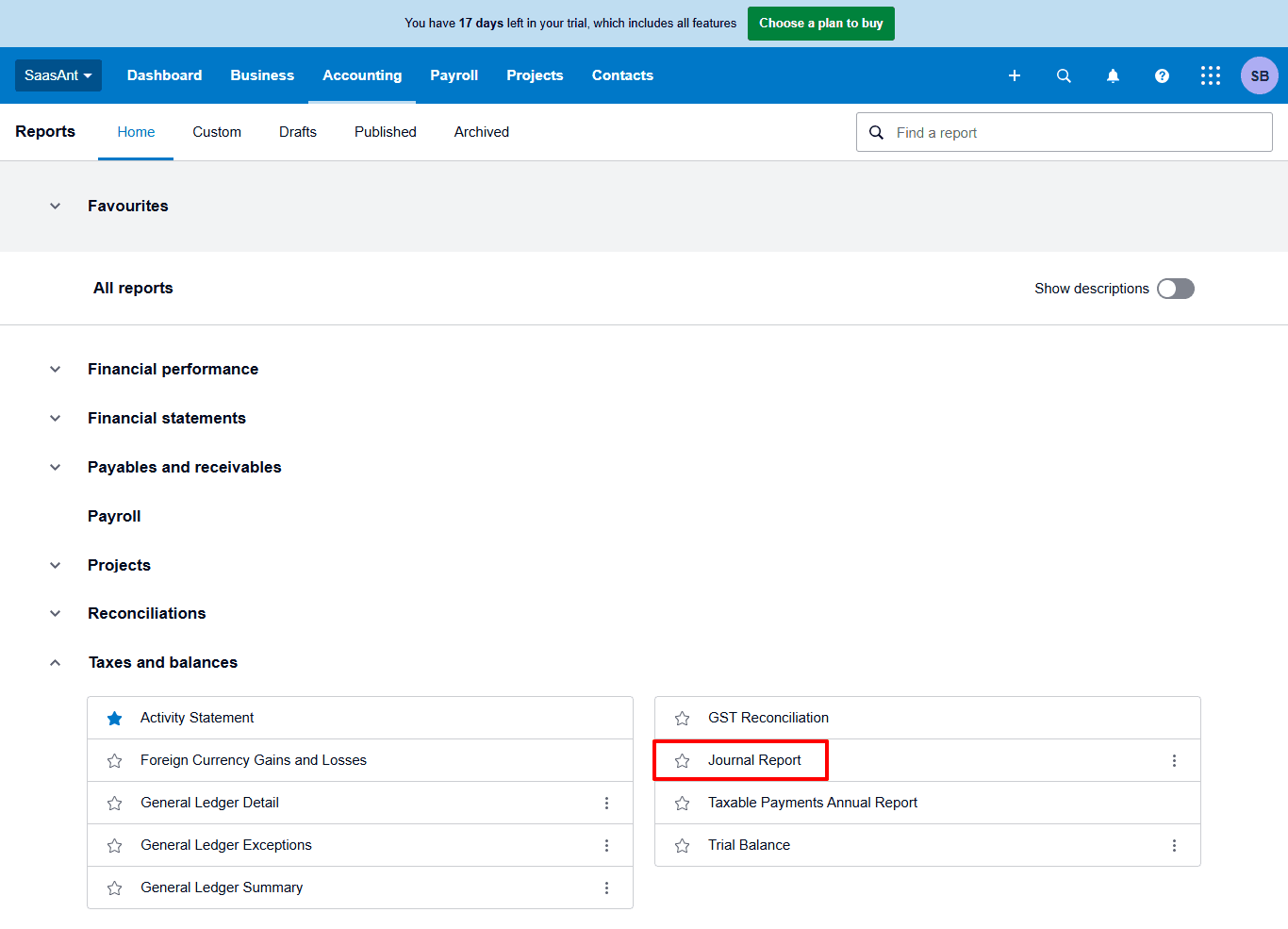
The dashboard of reports appears, and now select “Journal Report” from the “Taxes and balances” dropdown.
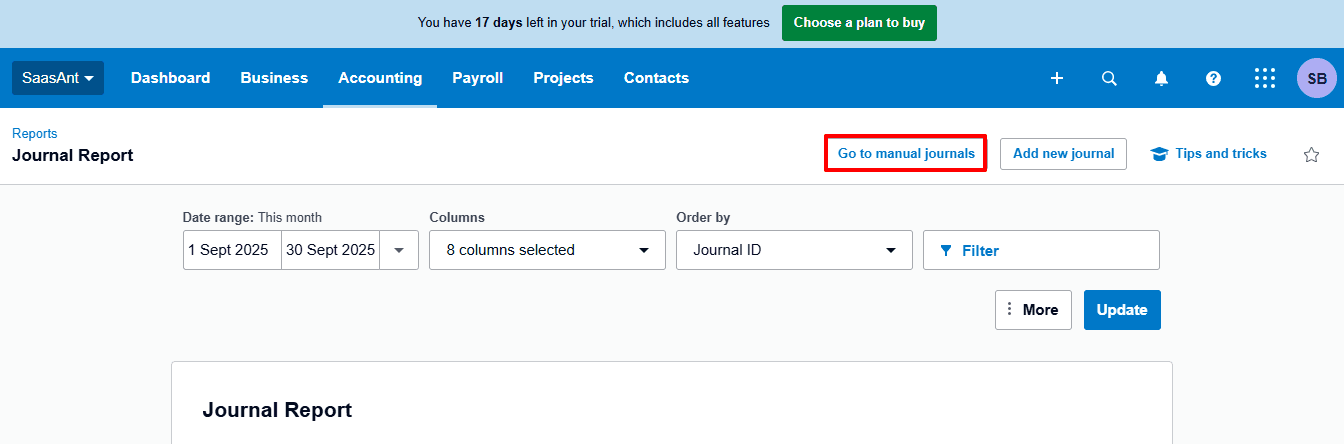
The journal report dashboard appears as shown below. Now select “Go to manual journals”
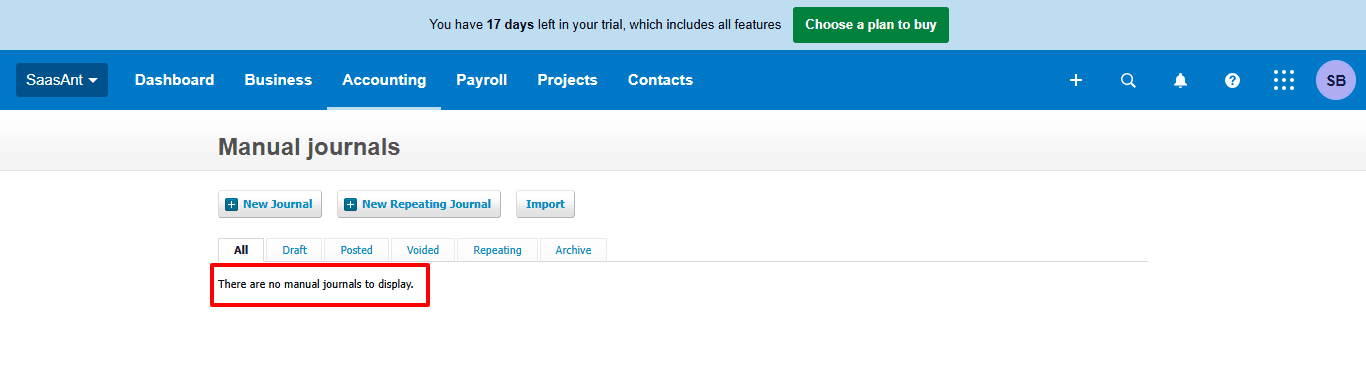
The deleted manual journal feature details like the reference number, date, and the status of the manual journal that have been removed, as shown in the image below.
Also Read: Getting Started with Xero: Essential Steps & Settings
Wrap Up
Deleting a manual journal in Xero is easy when you use SaasAnt Transactions Xero Online. With smart filters to find entries and the ability to delete them in bulk, SaasAnt makes your data cleanup quicker, safer, and more dependable than manual methods. Always ensure you back up your records before deleting anything, and utilise SaasAnt’s download feature to keep a copy for later use.
If you're looking to enhance bookkeeping automation, SaasAnt simplifies bookkeeping so you stay accurate, efficient, and audit-ready.
If you have inquiries regarding our products, features, trial, or pricing, or if you require a personalised demo, contact our team today. We are ready to help you find the ideal solution for your QuickBooks workflow.
Frequently Asked Questions
1) What is a manual journal in Xero?
A manual journal in Xero is a direct way to enter debit and credit transactions to modify accounts without using regular invoices, bills, or payments.
2) Do I need admin access to delete a manual journal in Xero?
Manual journals can only be deleted by users who have advisor or standard access along with reporting rights.
3) Can deleted manual journals be recovered in Xero?
No, once they are deleted, they cannot be restored directly. With SaasAnt, you can download deleted data within 2 days for future reference.
4) Should I back up data before deleting a manual journal?
Yes, SaasAnt simplifies this with its built-in 'Download' feature for both active and deleted transactions.
5) Can I bulk delete manual journals in Xero?
Xero does not support bulk deletions by default, but SaasAnt Transactions makes it easy to delete in bulk with just a few clicks.
6) What file types does SaasAnt Transactions Online support for Xero Online imports?
For almost all entities in Xero, SaasAnt Transactions Online supports XLS, XLSX, XLSM, CSV, and TXT. You can also schedule imports by sending CSV or Excel files via Email, Zapier, or FTP.
Read Also
How to Create a Journal Entry in Xero
How to Create an Invoice in Xero
How to Delete Bills in Xero
How to Edit Bills in Xero