How to Delete Customer Credit Notes in Xero
Managing Customer Credit Notes in Xero is important for ensuring your financial records are accurate and compliant. Mistakes or duplicate entries can happen, which may require you to delete certain credit notes. Deleting them the wrong way could result in data mismatches or compliance issues, so it's crucial to follow the correct process. This guide will take you through the steps to delete Customer Credit Notes in Xero with SaasAnt Transactions Xero, ensuring accuracy and avoiding financial discrepancies.
Also Read: Mastering Xero: Your Beginner's Guide to Cloud Accounting
Contents
Bulk Deleting Customer Credit Notes with SaasAnt Transactions
Step-By-Step Guide to Delete Customer Credit Note in Xero
Wrap Up
Frequently Asked Questions
Bulk Deleting Customer Credit Notes with SaasAnt Transactions
Picture an accounting team that accidentally uploaded 200 duplicate Customer Credit Notes into Xero during a bulk import. Deleting each credit note individually in Xero would require hours and increase the risk of errors. With SaasAnt Transactions, the team can filter these duplicates by date and transaction type, select all the affected credit notes together, and delete them in a few clicks. This not only saves significant time but also ensures that the books remain clean and accurate, without the stress of manual tasks.
This blog is perfect for small and medium businesses, accountants, and bookkeepers who use Xero and want to manage Customer Credit Notes correctly, prevent data mistakes, and maintain efficient bookkeeping processes.
Step-By-Step Guide to Delete Customer Credit Note in Xero
Always back up your Xero Online data before you begin. Even though SaasAnt is designed to be safe and reliable, a backup provides an added layer of security. Follow the steps below to get started.
Step 1: Log In to Your Xero Account
Log in to your Xero account.
Step 2: Navigate to the Apps Menu
On the right side of the Xero dashboard, you can see the menu bar with various options.
Select the “Waffle” icon. Click the dropdown and select “Find more apps on Xerp App Store.”
Step 3: Search SaasAnt Transactions
In the search bar, type “SaasAnt Transactions” as shown by the arrow in the image below.
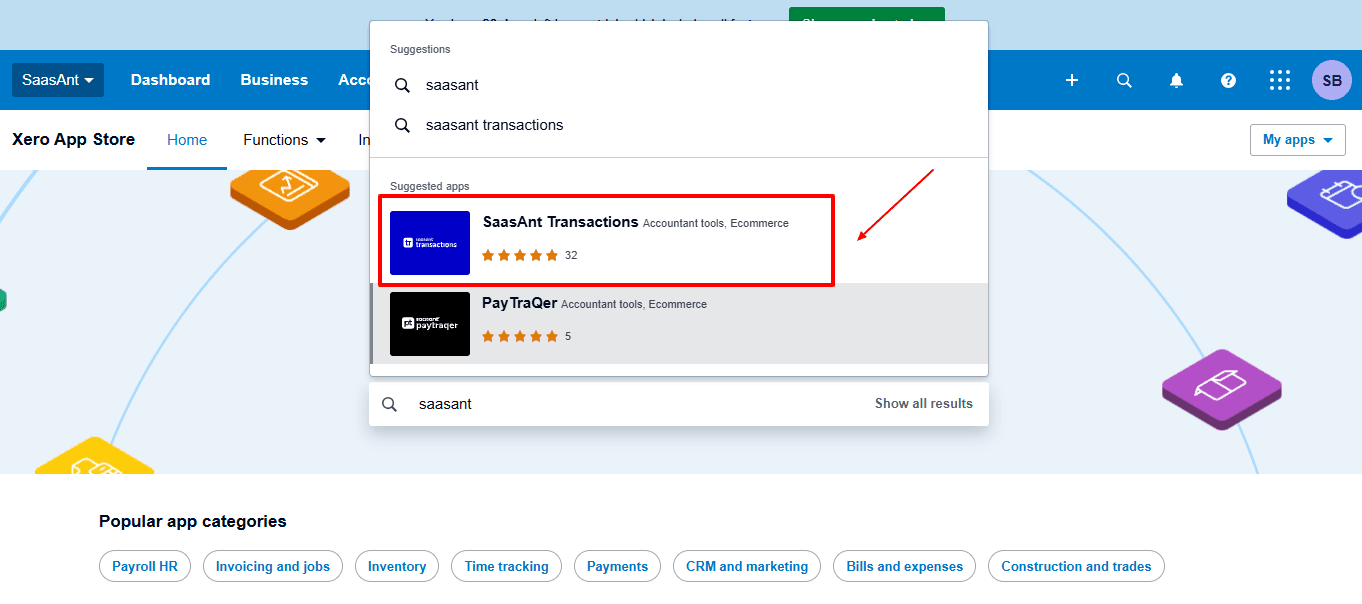
Step 4: Open SaasAnt Transactions
Get the app from the App Store and connect it to Xero.
On the SaasAnt dashboard:
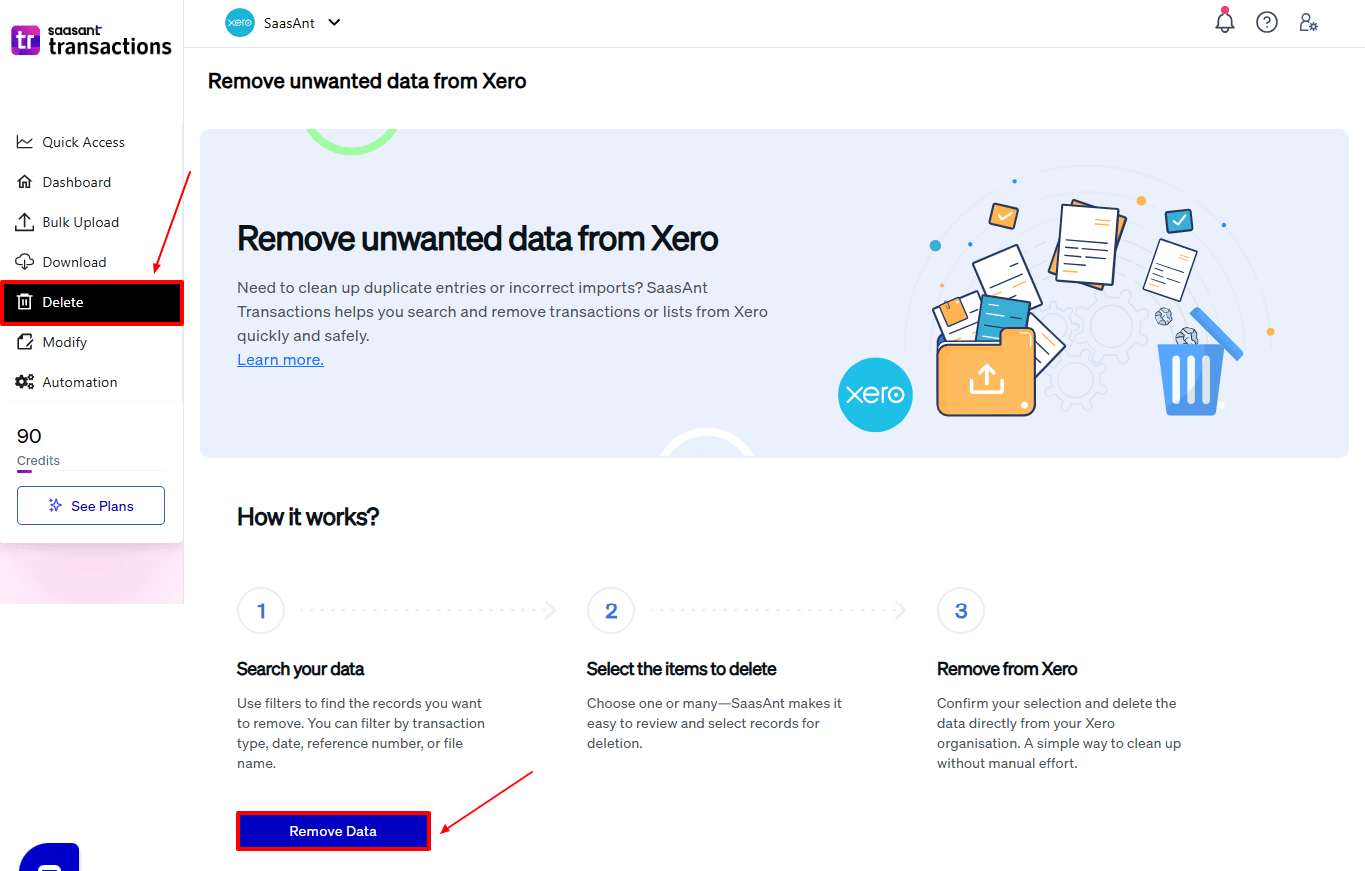
On the left side of the SaasAnt Transactions dashboard, you can see the menu bar with various options.
Select “Delete.”
You’ll be taken to the Delete Transactions interface as shown in the image below.
At the bottom left, click on “Remove Data.”
Step 5: Choose Your Deletion Method
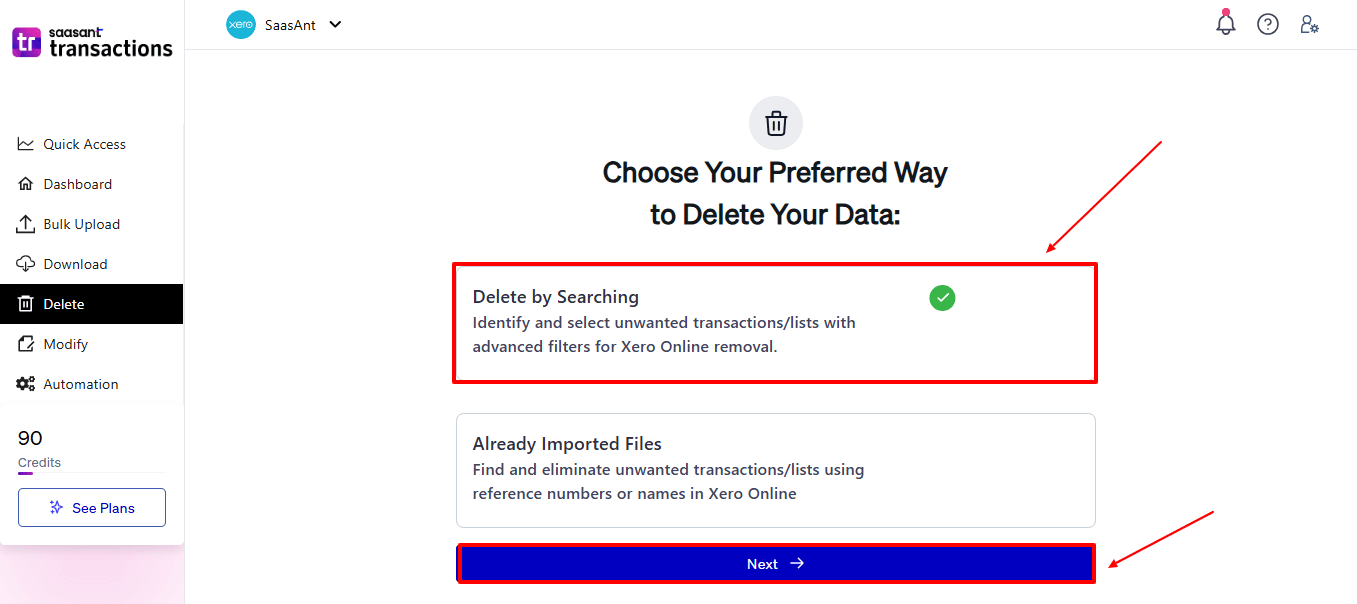
After selecting the option “Remove Data,” you will see two options.
The first option is “Delete by Searching,” and the other option is “Delete by Reference.”
In the “Delete by Searching” option, you can use filters like date range or transaction type to find and delete entries in Xero Online.
In the “Already Imported Files” option, you can delete entries using specific names or reference numbers.
Choose the option “Delete by Searching.”
Step 6: Filter and Search for Transactions
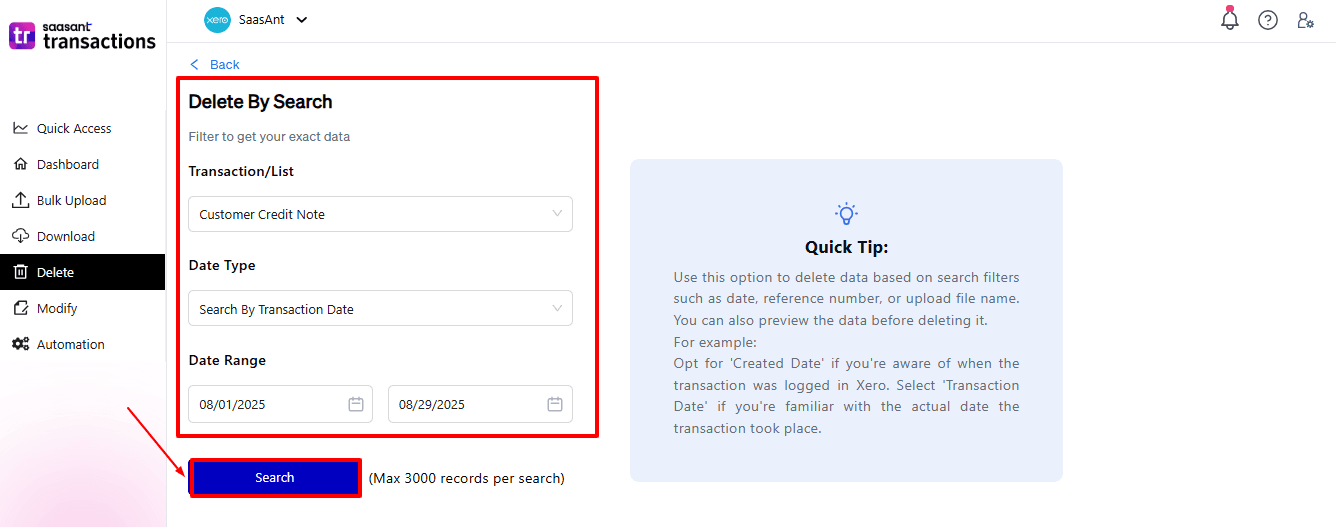
In the “Transaction/List” dropdown, select “Customer Credit Note” to delete.
You can use this feature to delete various transaction types like invoices, expenses, payments, and more.
In the “Data Type” dropdown, choose “Search By Transaction Date.”
Now enter the date ranges for cleanup and click “Search” to view the list of transactions.
Step 7: Select Transactions
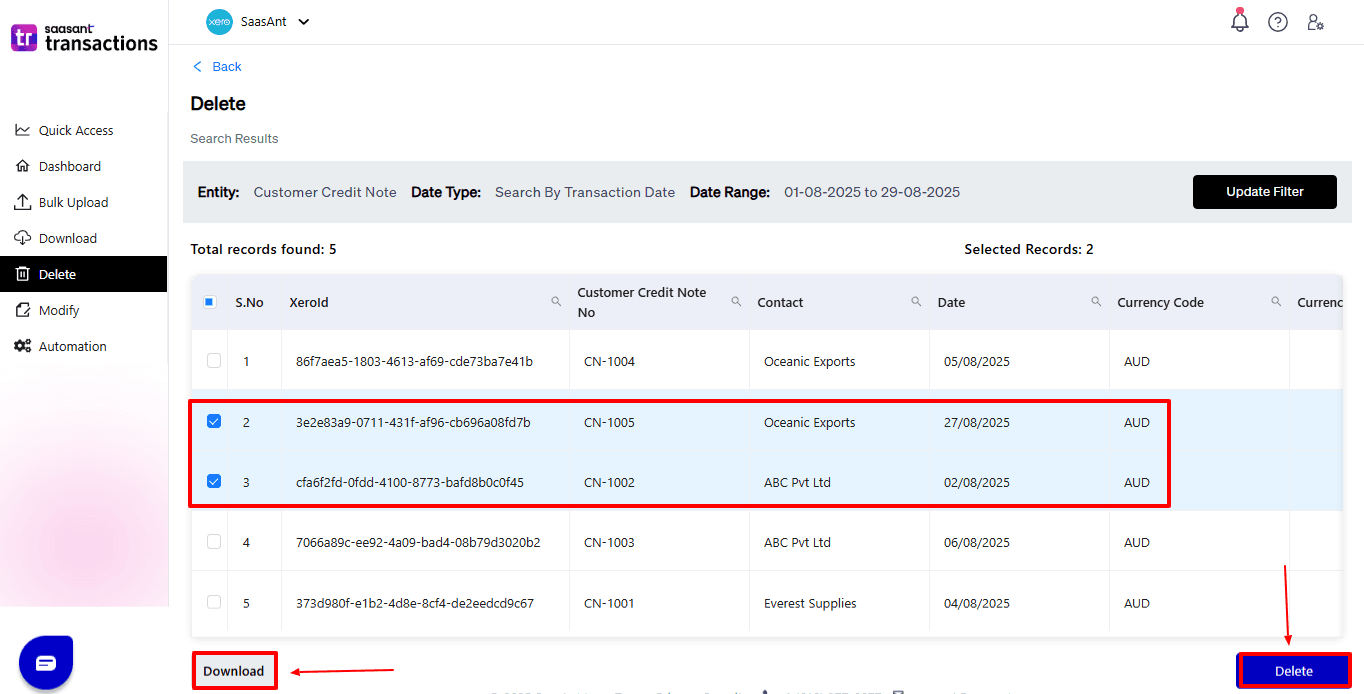
Review the list of results and click the checkboxes next to the customer credit note you wish to delete.
Select the “Delete” option at the bottom right of the page, as shown in the image below.
Before deleting, remember to back up your customer credit note list by clicking the “Download” button at the bottom left.
Step 8: Confirm Deletion
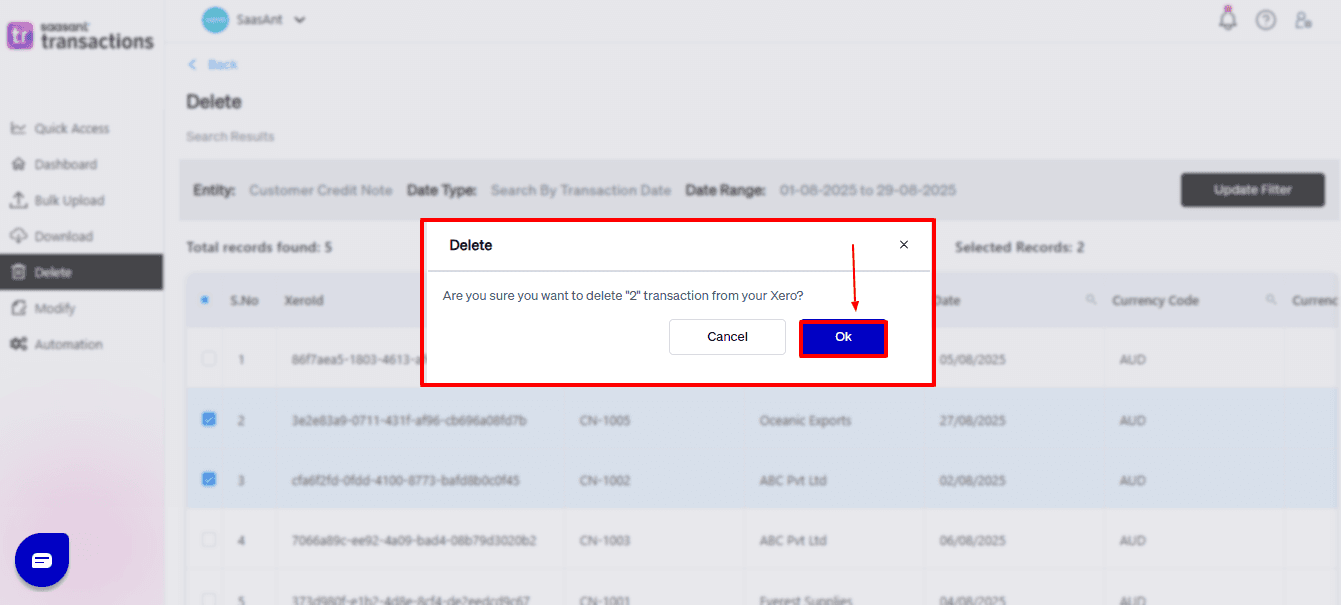
Once you click delete, a pop-up will ask you to confirm your deletion.
Click “OK.”
Step 9: Deleted Transactions
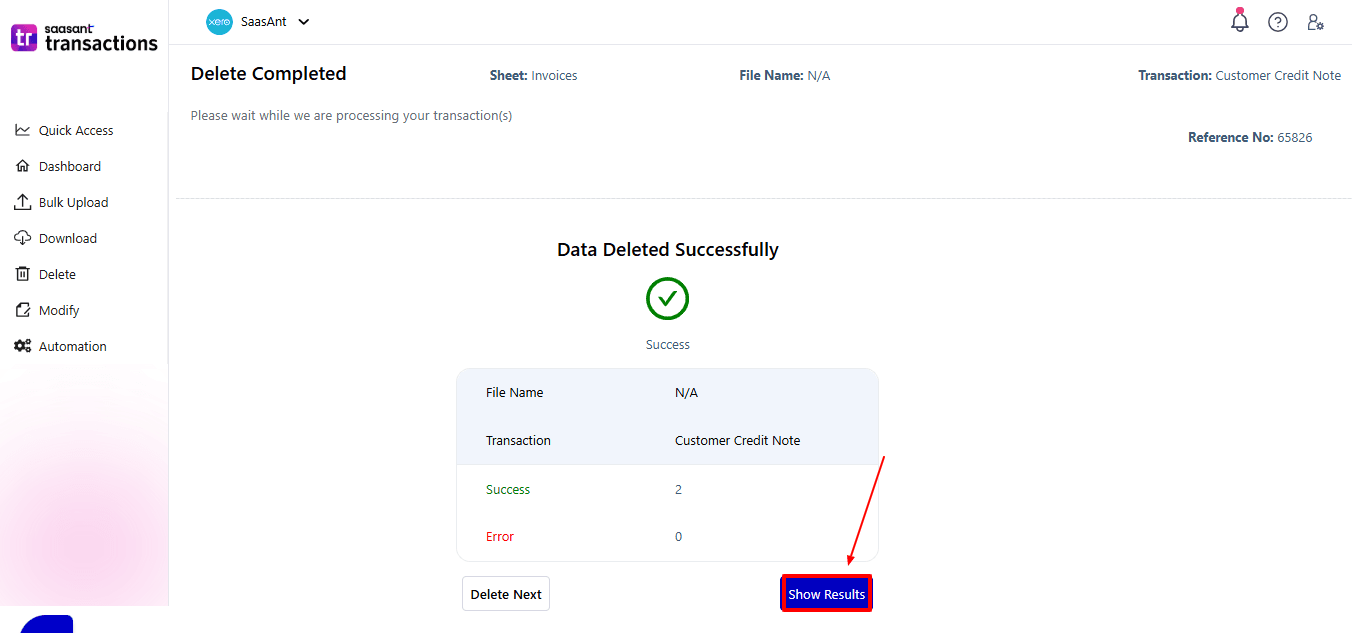
After deletion, click “Show Results” to view the deleted entries.
Use the “Download” button at the bottom right to download a copy of the deleted customer credit note for your records.
Your deleted customer credit notes appear. At the bottom right, there is a “Download” option, where you can download your deleted payment data for future reference.
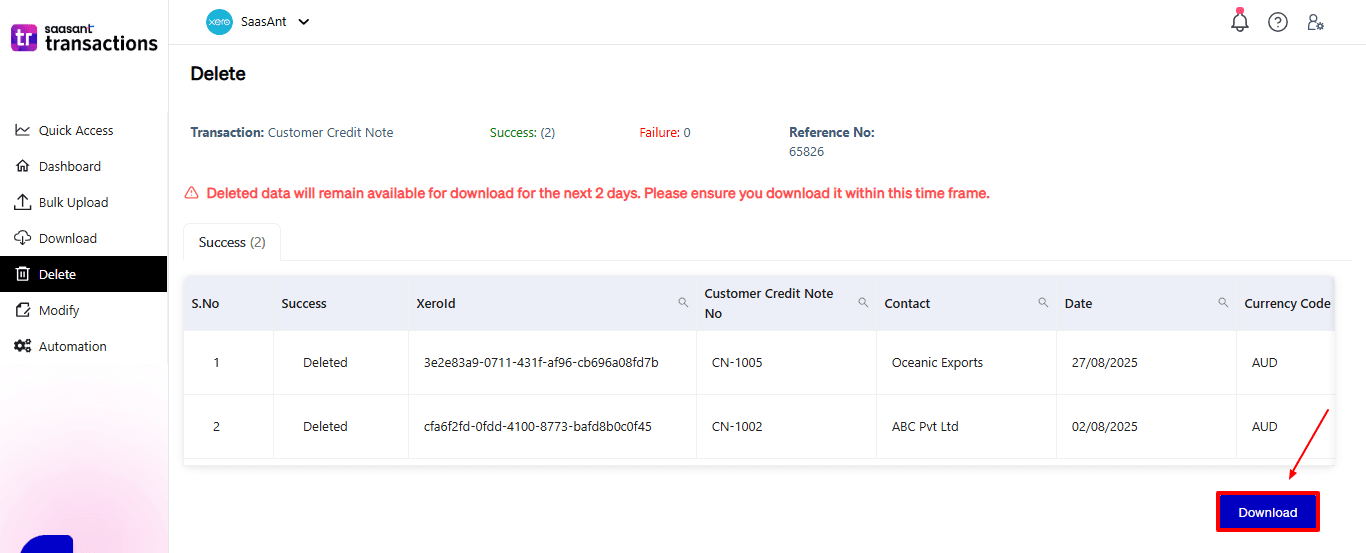
Note: Deleted customer credit notes can only be downloaded within 2 days of deletion. After that, it will no longer be available.
Step 10: View Deleted Transactions
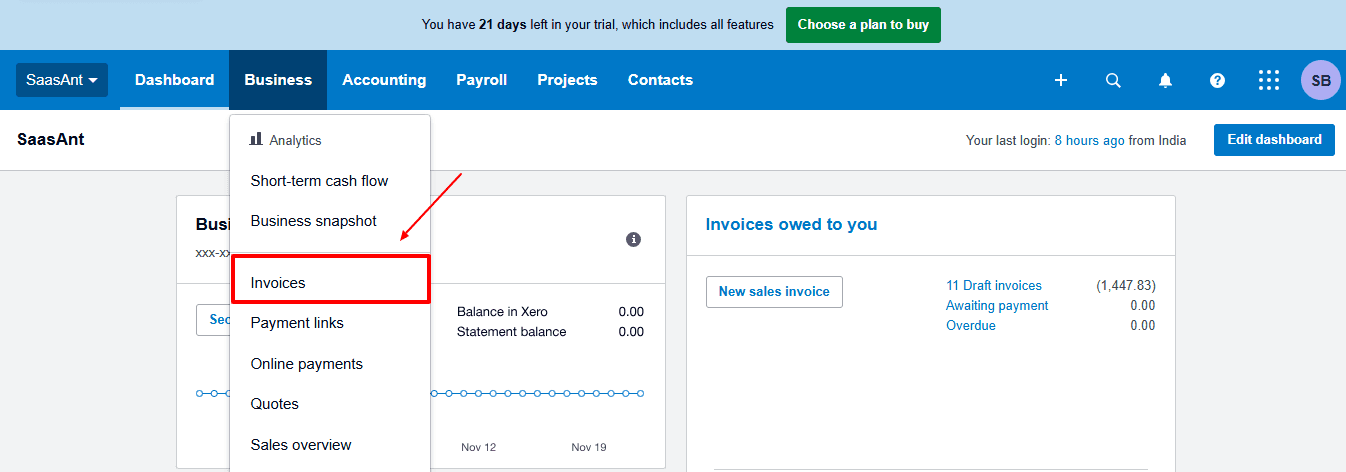
Now, back to the Xero dashboard, select “Business” on your top left. From the dropdown, now select “Invoices”.
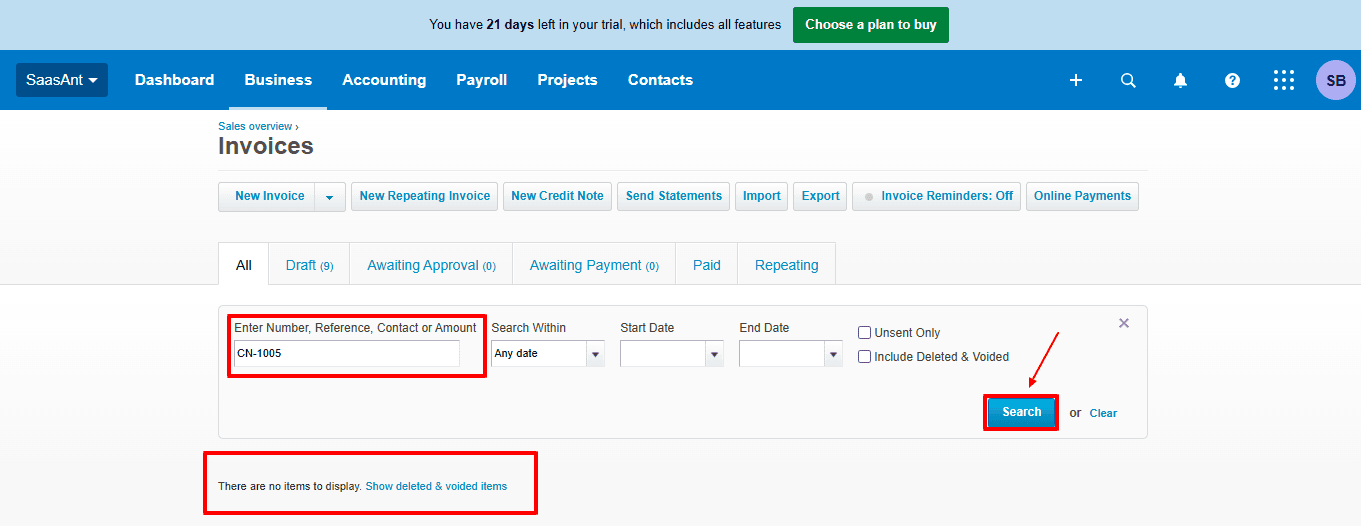
The deleted customer credit note feature details like the reference number, date, and the status of the customer credit note that have been removed, as shown in the image below.
Also Read: Getting Started with Xero: Essential Steps & Settings
Wrap Up
Deleting Customer Credit Notes in Xero might appear challenging, however, with SaasAnt Transactions Xero, it becomes an easy task. By diligently following the specified steps, you can maintain clean records, ensure compliance, and maintain accurate reporting. Always remember to back up your data before proceeding with deletions to secure your information. Sound bookkeeping not only prevents financial inaccuracies but also aids businesses in remaining prepared for audits and functioning efficiently.
If you're looking to enhance bookkeeping automation, SaasAnt simplifies bookkeeping so you stay accurate, efficient, and audit-ready.
If you have inquiries regarding our products, features, trial, or pricing, or if you require a personalised demo, contact our team today. We are ready to help you find the ideal solution for your QuickBooks workflow.
Frequently Asked Questions
1) What is a customer Credit Note in Xero?
A customer credit note is a document given to a customer to fix overcharges, refunds, or returns. It decreases the amount the customer has to pay.
2) What happens when I delete a Customer Credit Note in Xero?
The transaction has been permanently deleted from your records and will no longer appear in financial reports or customer balances.
3) What if I select the wrong credit notes for deletion?
Before you confirm deletion, SaasAnt provides a preview of the chosen records, allowing you to check and prevent errors.
4) Is it possible to delete Customer Credit Notes by reference number?
Yes, SaasAnt Transactions has a feature named "Delete by Reference," enabling you to remove specific transactions by using reference numbers or unique IDs.
5) What types of transactions can I delete with SaasAnt Transactions?
Alongside Customer Credit Notes, invoices, bills, payments, expenses, journal entries, and other transactions can be deleted in Xero.
6) What file types does SaasAnt Transactions Online support for Xero Online imports?
For almost all entities in Xero, SaasAnt Transactions Online supports XLS, XLSX, XLSM, CSV, and TXT. You can also schedule imports by sending CSV or Excel files via Email, Zapier, or FTP.
Read Also
How to Create Quotes in Xero
How to Create a Journal Entry in Xero
How to Delete Manual Journal in Xero
How to Add Chart of Accounts in Xero