How to Delete a Bill in QuickBooks Desktop
Managing multiple bills in QuickBooks Desktop can be a tedious task, especially when you need to remove incorrect or duplicate entries. While QuickBooks Desktop allows manual deletion of bills, it becomes inefficient when handling bulk data. SaasAnt Transactions Desktop provides an innovative solution for quickly and securely deleting multiple bills. This step-by-step guide will show you how to delete bills in QuickBooks Desktop using SaasAnt.
Why You May Need to Delete Bills
Common reasons for deleting bills in QuickBooks Desktop include:
Incorrect or duplicate bills were imported
System errors created unwanted transactions.
Bills were assigned to the wrong account or date.
You need to reverse a bulk action applied by mistake.
Deleting bills helps maintain accurate accounts payable records and financial reports.
Essential Considerations Before Deleting Bills
Before you delete bills in QuickBooks Desktop, remember these key points:
Always create a backup of your QuickBooks Desktop company file before making changes
The QuickBooks Audit Trail will record all deletion activities.
You must unlink or delete any payments or credits associated with the bill before deleting it.
Contents
Why You May Need to Delete Bills
Essential Considerations Before Deleting Bills
How to Delete Multiple Bills in QuickBooks Desktop: Step-by-Step Guide
How to Confirm Bills Are Deleted in QuickBooks Desktop
Final Thoughts
Frequently Asked Questions
How to Delete Multiple Bills in QuickBooks Desktop: Step-by-Step Guide
Follow these steps to delete bills efficiently with SaasAnt Transactions Desktop:
Step 1: Install and Launch SaasAnt Transactions Desktop
Download SaasAnt Transactions Desktop from the official SaasAnt website
Run the installer and follow the setup process to complete the installation.
Open the application, go to the Subscription menu, and register your license key.
Step 2: Connect SaasAnt to QuickBooks Desktop
In SaasAnt Transactions, open your QuickBooks company file.
Enable multi-user access if prompted by QuickBooks.
Step 3: Choose the Transaction Type
In SaasAnt Transactions (Desktop), click on the Delete tab at the top of the screen.
From the QuickBooks Transaction Type dropdown, select Bills.
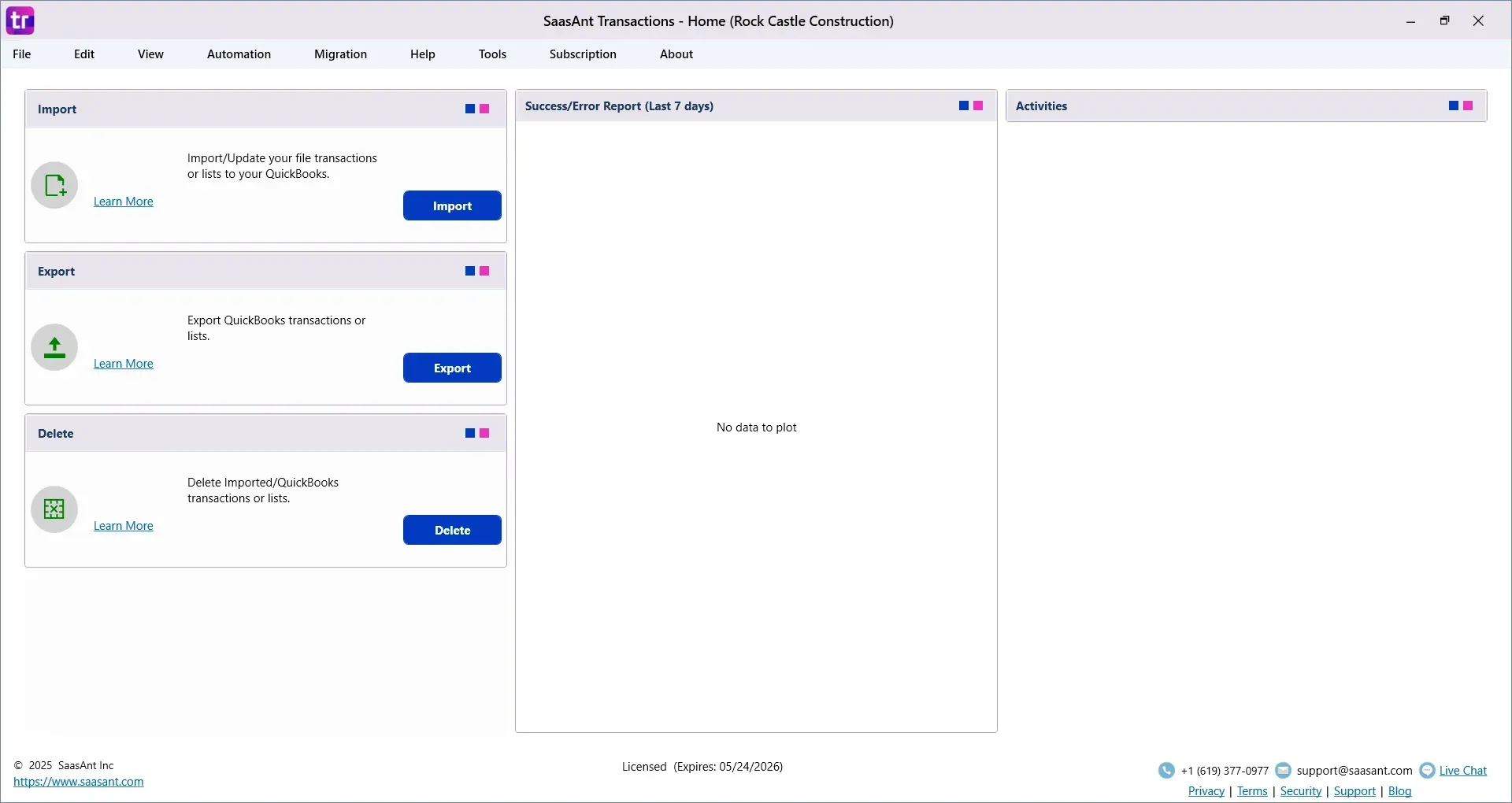
Step 4: Select the Date Range
Select the date range that encompasses the bills you wish to delete.
Step 5: Search for Bills
Click the Search button to view all bills within the selected date range.
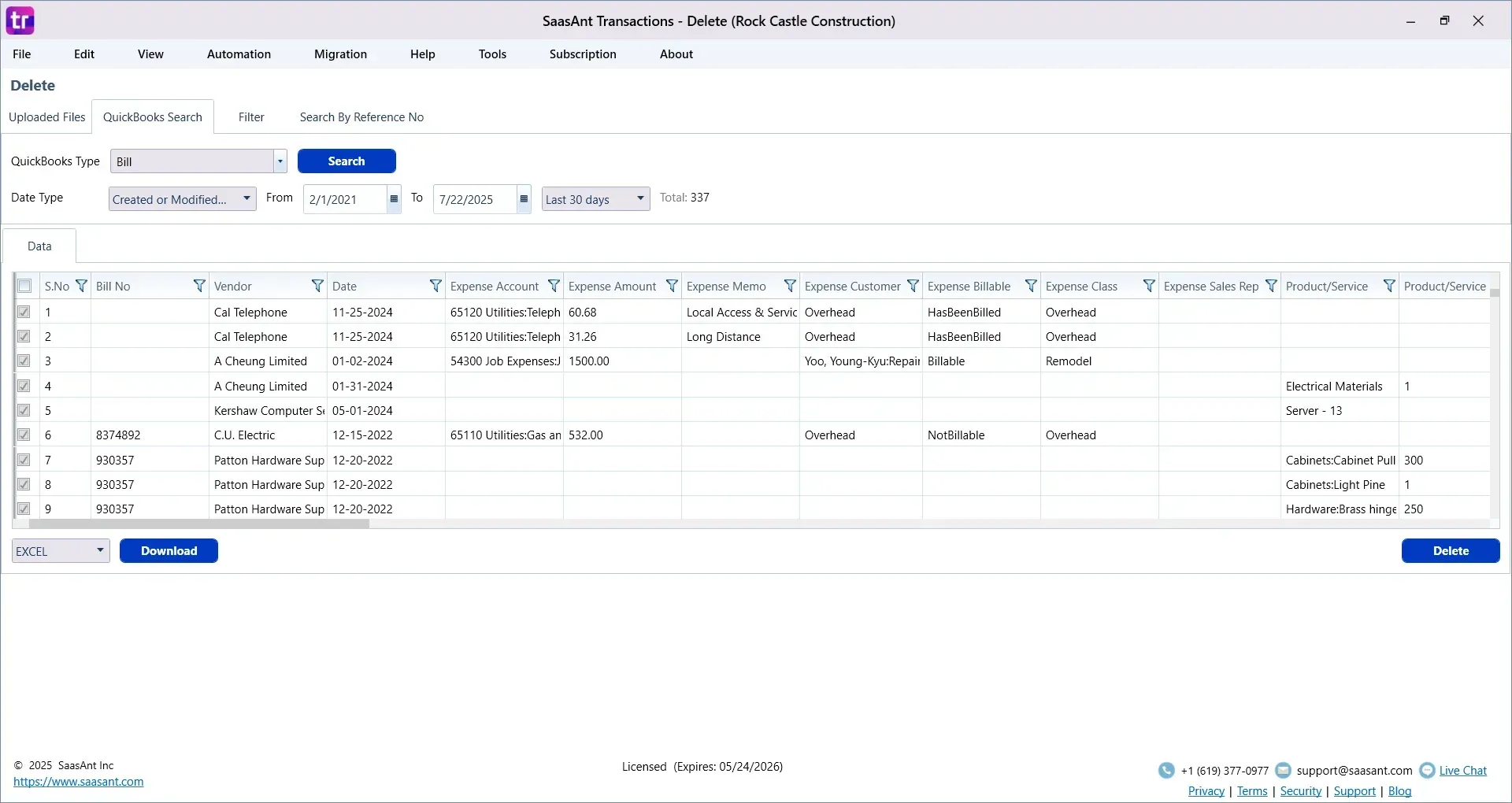
Step 6: Select and Delete Bills
Choose the bills you want to delete from the search results.
Click Delete.
You can export a list of the deleted bills to Excel or CSV for your records.
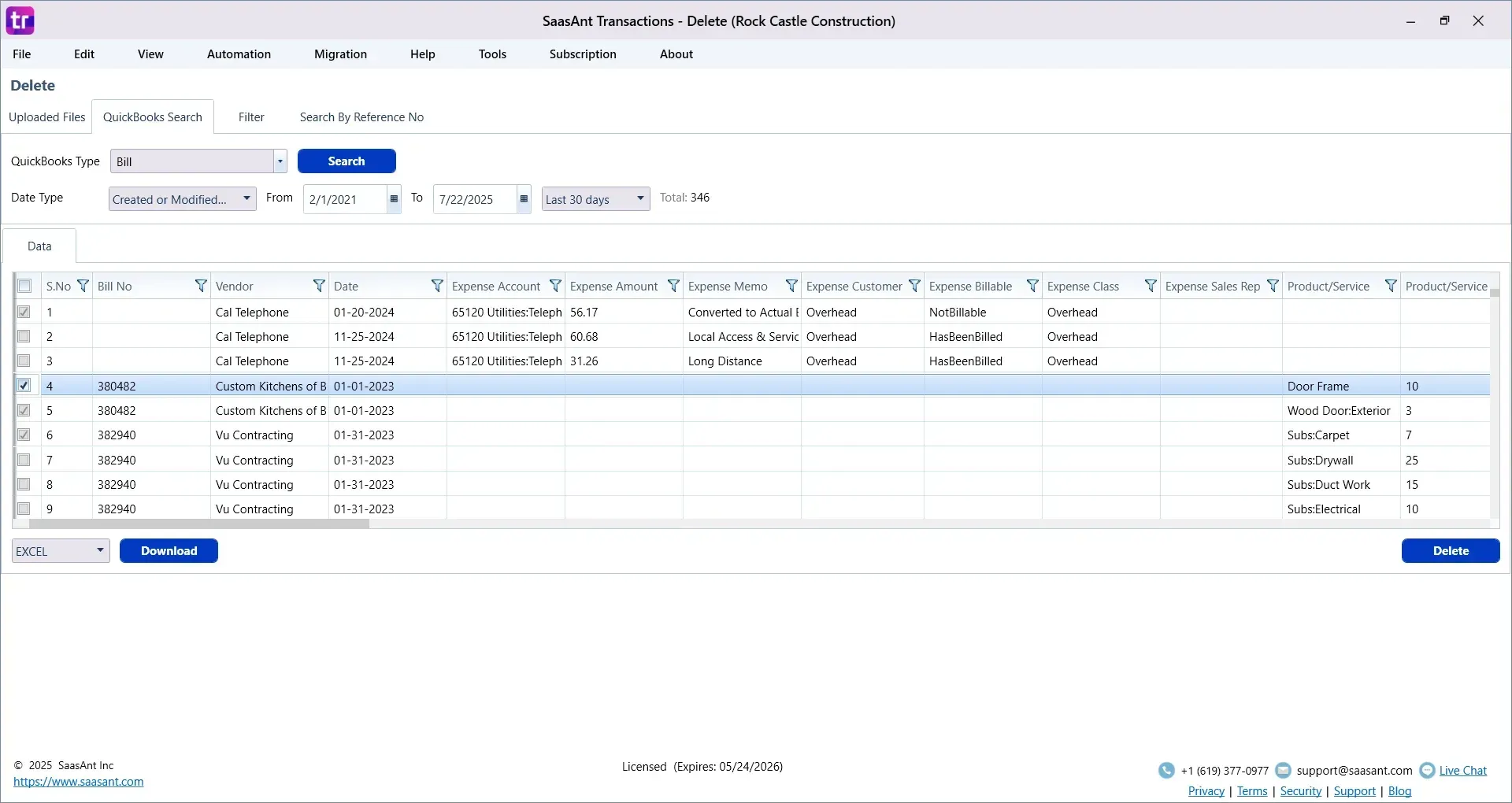 Click Ok to confirm deletion
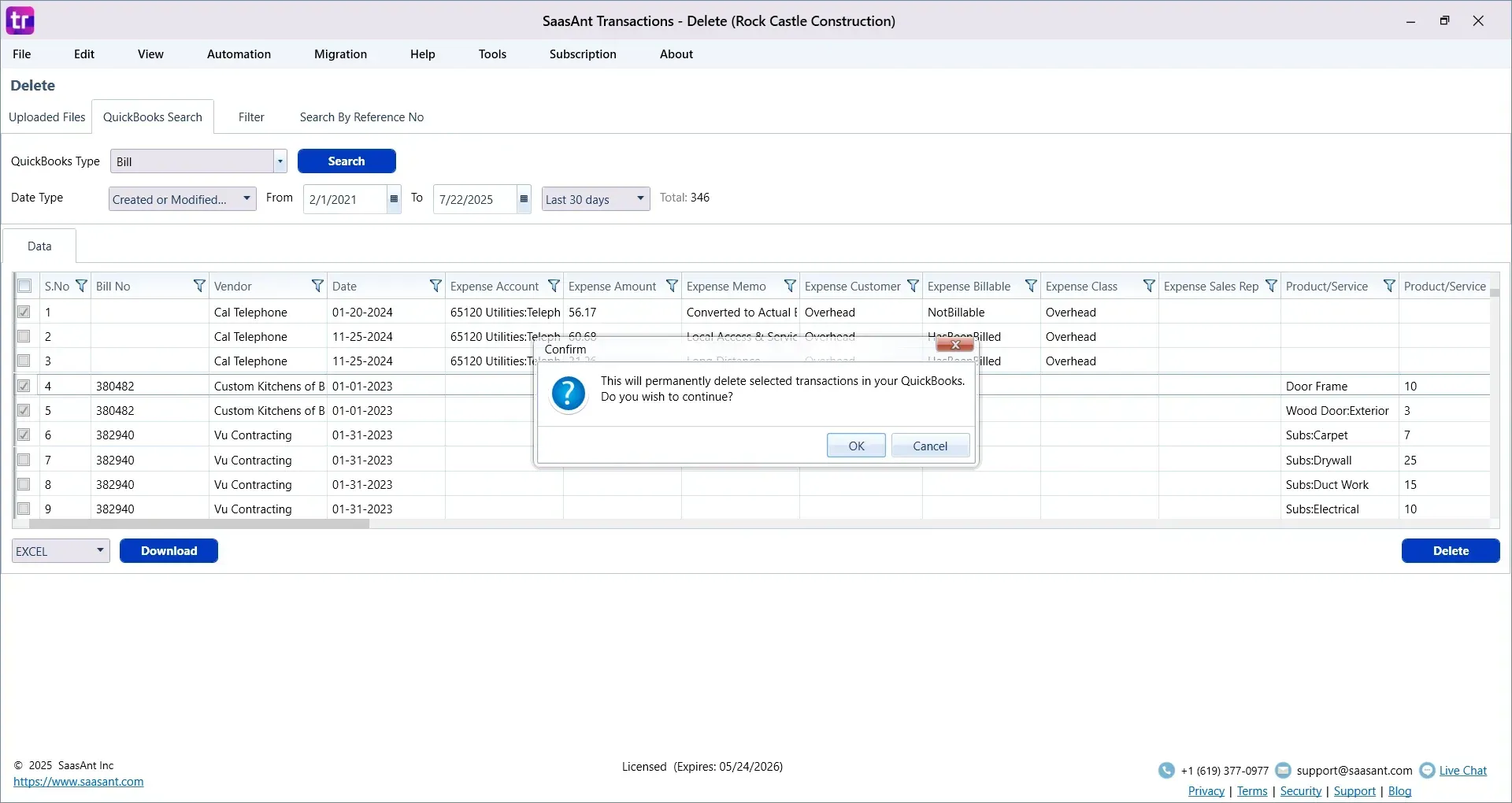
How to Confirm Bills Are Deleted in QuickBooks Desktop
After you delete bills using SaasAnt Transactions, verify the results in QuickBooks Desktop by:
Checking the Vendor Center for removed bills
Reviewing the Accounts Payable Aging Summary report
Examining the Audit Trail report under Reports, then Accountant and Taxes.
Final Thoughts
Manually deleting bills in QuickBooks Desktop is impractical when managing large volumes of data. SaasAnt Transactions Desktop simplifies this process, allowing you to delete multiple bills efficiently while maintaining accurate financial records. Whether you are cleaning up data imports or correcting accounting errors, SaasAnt is a trusted solution for QuickBooks Desktop users.
Frequently Asked Questions
Can Deleted Bills Be Restored in QuickBooks Desktop?
No. Once a bill is deleted using SaasAnt Transactions or manually in QuickBooks Desktop, it is permanently removed. The only way to restore a deleted bill is by restoring your QuickBooks company file from a backup created before the deletion.
How Many Bills Can I Delete at One Time with SaasAnt Transactions?
SaasAnt Transactions (Desktop) supports bulk deletion of bills without any strict limit on the number of records. However, it is recommended to delete in smaller batches when performing the process for the first time to ensure accuracy.
Will Deleting Bills Affect My Financial Reports?
Yes. Once bills are deleted, they are removed from reports like Accounts Payable Aging Summary, Vendor Balance Detail, and other financial reports. Always review your reports after deletion to verify the changes.
What Happens If I Delete a Bill That Has Linked Payments?
You cannot delete a bill if it is linked to payments or credits. You must first unlink or delete those transactions before deleting the bill. SaasAnt Transactions will flag linked transactions during the deletion attempt.
Is There a Way to Track Deleted Bills After the Action?
Yes. QuickBooks Desktop maintains an Audit Trail report where all deleted transactions, including bills, are logged. You can access this report under Reports, then Accountant and Taxes, followed by Audit Trail.
Can I Use SaasAnt Transactions to Delete Other Transaction Types?
Yes. SaasAnt Transactions (Desktop) supports the deletion of various transaction types in QuickBooks Desktop, including invoices, payments, credit memos, journal entries, and other transaction types. You can select the transaction type from the dropdown before performing the delete action.
Do I Need Admin Access to Delete Bills Using SaasAnt?
Yes. You must have administrative privileges in QuickBooks Desktop to authorize the connection and allow SaasAnt Transactions to delete bills.
Will SaasAnt Transactions Work with All Versions of QuickBooks Desktop?
SaasAnt Transactions (Desktop) is compatible with most supported versions of QuickBooks Desktop, including Pro, Premier, and Enterprise editions. Always check compatibility with your specific QuickBooks version before use.
Read also
How to Import Bills into QuickBooks Desktop
How To Edit A Bill In QuickBooks Desktop
How to Export Bill Payments in QuickBooks Desktop
QuickBooks Desktop to QuickBooks Online Migration: Your Ultimate Guide