How to Bulk Edit Data in Xero
As organisations expand, the volume and complexity of their financial records also increase. Invoices, bills, expenses, and payments frequently require adjustments to align with updated accounts, tax rates, or compliance standards. While Xero provides a centralised platform for accounting, making bulk changes can quickly become challenging. Xero does provide tools for data import or updates, but its functionality is limited. Common challenges include:
Limited File Compatibility: Xero exclusively accepts CSV imports, restricting options for businesses that utilise various formats.
Error Sensitivity: A single error in file headers or data formatting can cause imports to fail, requiring additional work.
Lack of Bulk Edit or Undo: Once data is uploaded, it cannot be undone or edited in bulk. Any corrections must be made manually.
Lack of Automation: There is no way to automate recurring updates, resulting in a repetitive process for bulk editing.
Complex Transactions Issues: Multi-line invoices, split payments, or custom fields might not update properly during the import process.
This is where SaasAnt Transactions for Xero makes an impact. Integrating SaasAnt with Xero enables businesses to have complete control over their data, enhancing workflows, mitigating risks, and ensuring accuracy, compliance, and efficiency during bulk imports, edits, and updates.
Contents
Bulk Editing Vendor Bills
How to Edit Data in Xero Online: Step-by-Step Guide
Why SaasAnt is a Powerful Add-on
Wrap Up
Frequently Asked Questions
Bulk Editing Vendor Bills
Consider an accounting firm that manages a retail client with 2,000 vendor bills each month. During the quarter, the client decided to change the expense account and tax rate applied to these bills due to changes in regulations.
With Xero Alone: The accountant is required to either manually revise each bill or try a CSV import, which can lead to formatting complications. If errors happen, fixing them can be a lengthy and frustrating process.
With SaasAnt Transactions: The accountant is able to bulk edit all 2,000 bills within minutes, adjust the account and tax rate for all records, and confirm the changes before posting to Xero. If anything goes amiss, they can effortlessly undo the modifications.
The difference? Manual tasks that used to take hours or even days are now completed in minutes, allowing accountants to redirect their focus towards client advisory, compliance, and strategic analysis.
Moreover, SaasAnt Transactions for Xero provides a sense of security because mistakes can be undone, and accountants no longer have to doubt every upload. This not only ensures accuracy but also builds trust in the data shared for audits, tax filings, and decision-making.
This blog is well-suited for accountants, bookkeepers, small to medium businesses, and finance teams that handle a lot of transactions, who need quick bulk edits, accurate imports, automation, and
How to Edit Data in Xero Online: Step-by-Step Guide
Always back up your Xero Online data before you begin. Even though SaasAnt is designed to be safe and reliable, a backup provides an added layer of security. Follow the steps below to get started.
Step 1: Log In to Your Xero Account
Log in to your Xero account.
Step 2: Navigate to the Apps Menu
On the right side of the Xero dashboard, you can see the menu bar with various options.
Select the “Waffle” icon. Click the dropdown and select “Find more apps on Xerp App Store.”
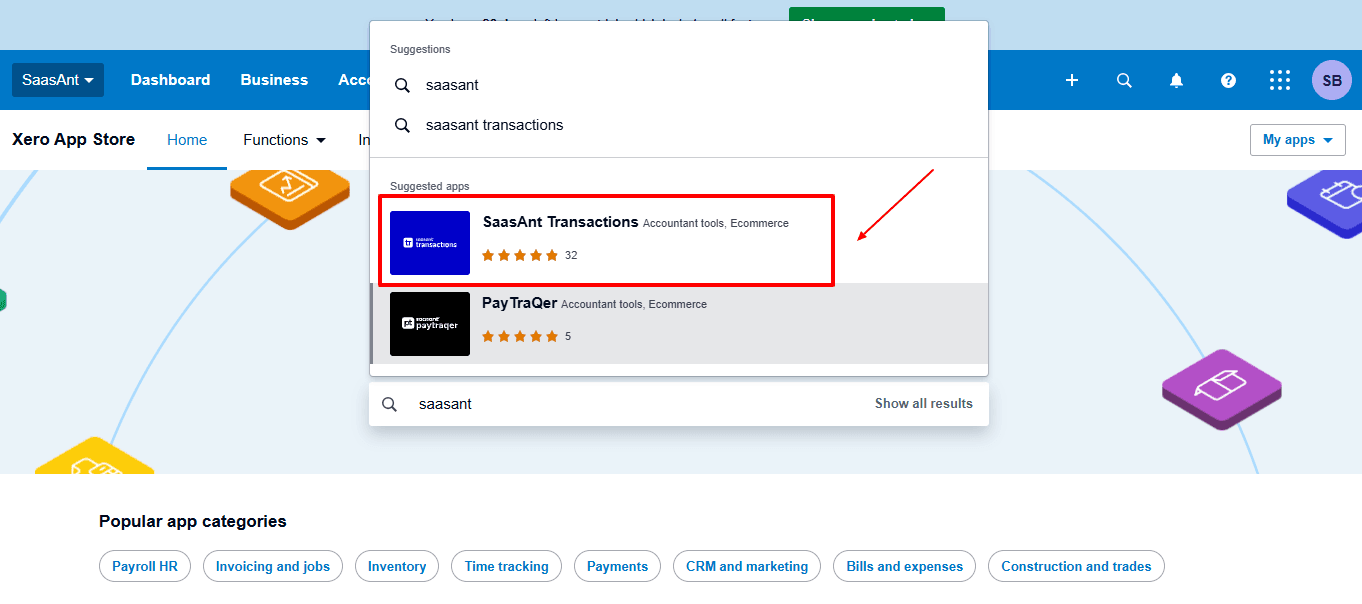
Step 3: Search SaasAnt Transactions
In the search bar, type “SaasAnt Transactions” as shown by the arrow in the image below.
Step 4: Open SaasAnt Transactions
Get the app from the App Store and connect it to Xero.
On the SaasAnt dashboard:
On the left side of the SaasAnt Transactions dashboard, you can see the menu bar with various options.
Select “Modify.”
At the bottom right, click on “Let’s Modify.”
Now select from the entities you need to edit. Like if you want to edit invoices in Xero, select “Invoice”.
Before you modify, make sure that your respective invoice data is already uploaded to your Xero account.
Now select “invoice” under the list section.
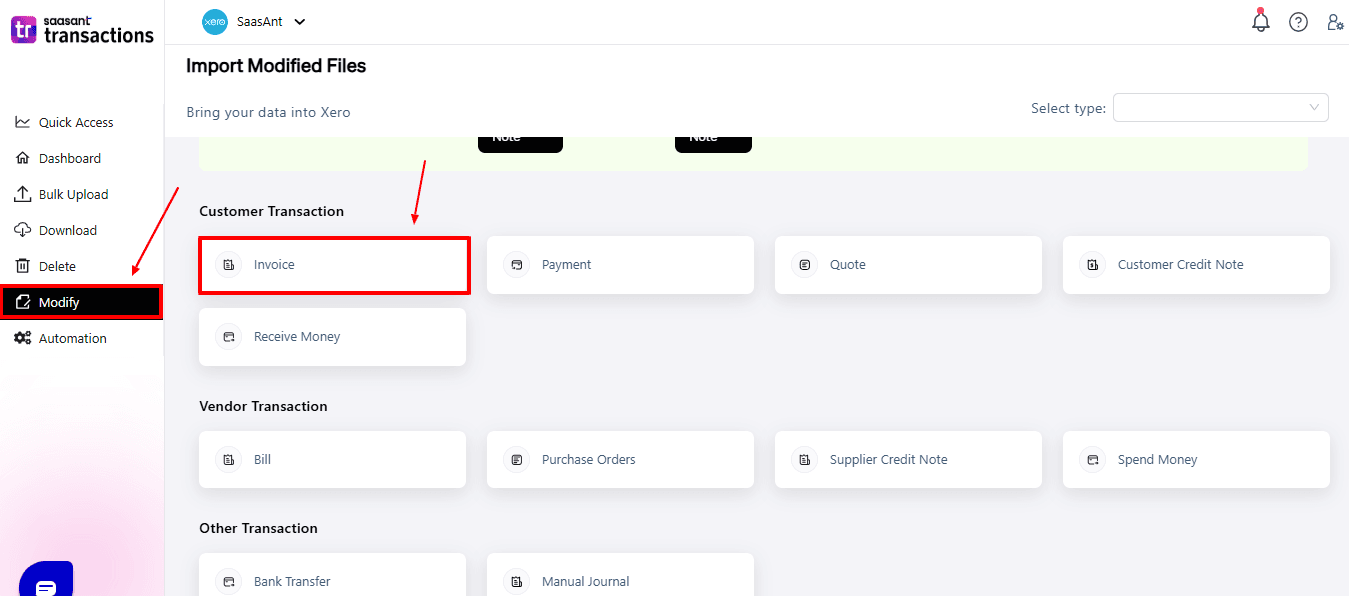
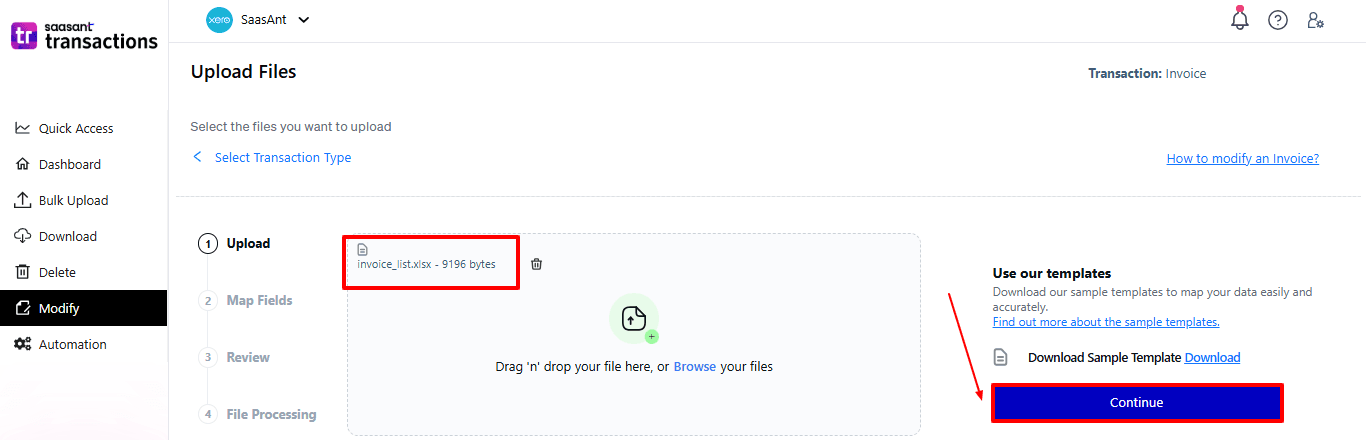
Now, upload your respective invoice files from your device and click “Continue”.
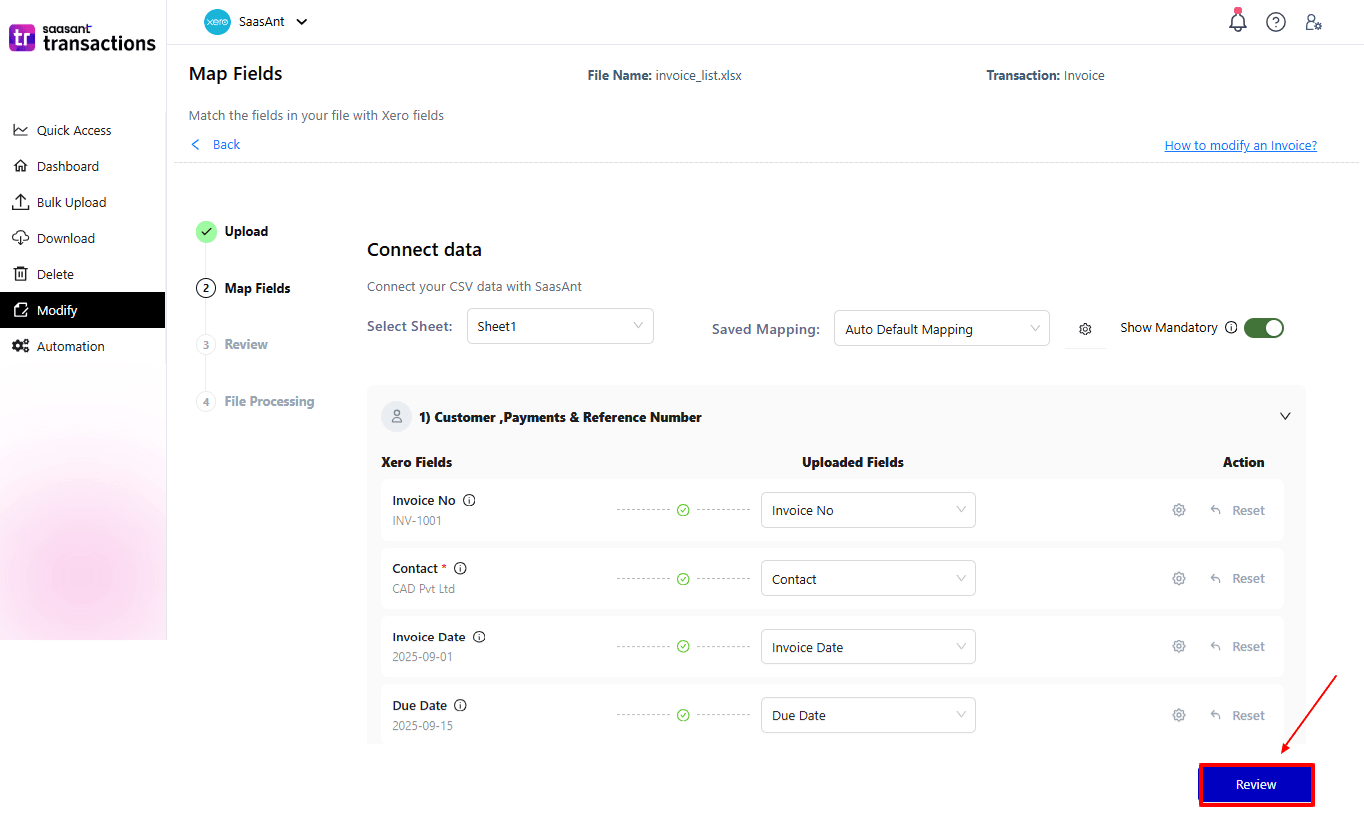
Step 5: Mapping Fields And Review
Ensures the accurate mapping of essential fields, including invoice number, invoice date, and due date.
The ‘Preview Mapping’ feature allows users to verify field alignment before review.
Select “Review” after finalising the mapping of all fields.
Step 6: Review And Update
Review the modified “invoice” and select “Upload”.
At the bottom left, there is a “Download” option, which allows you to download this modified invoice data for future reference.
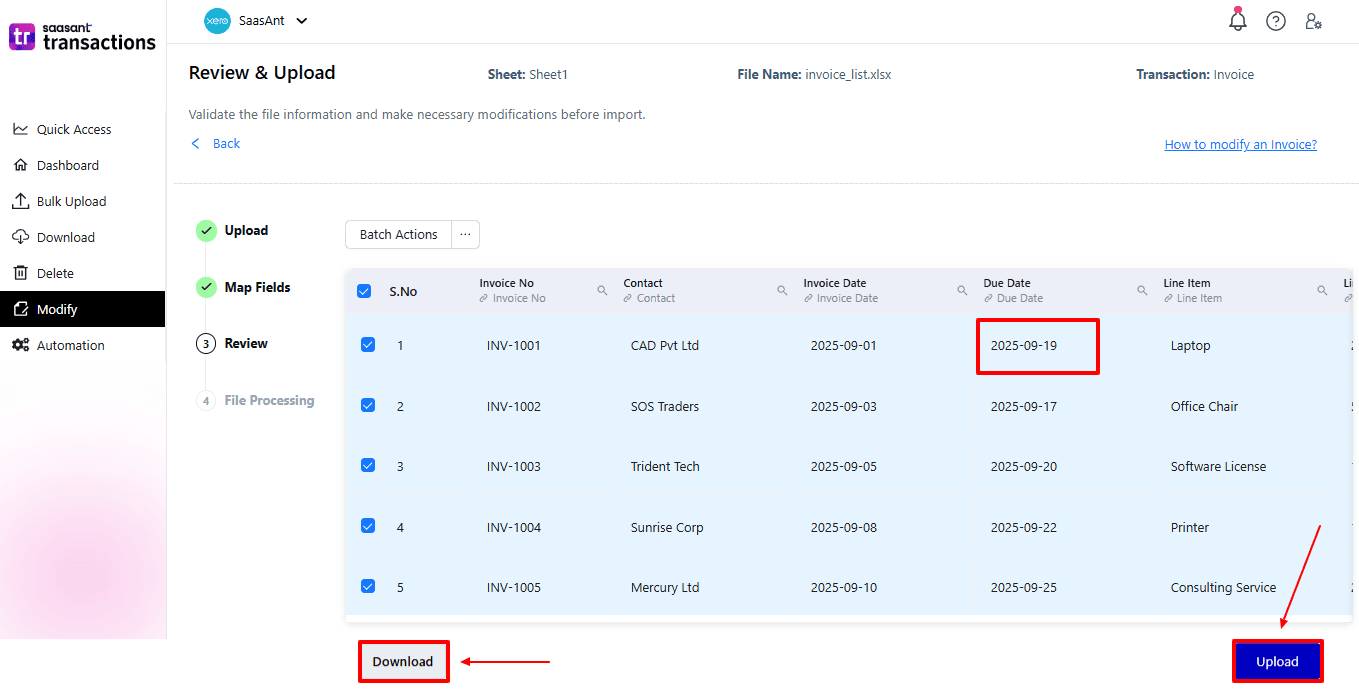
Your modified “invoice” will be updated in Xero Online. Click “Show Results”.
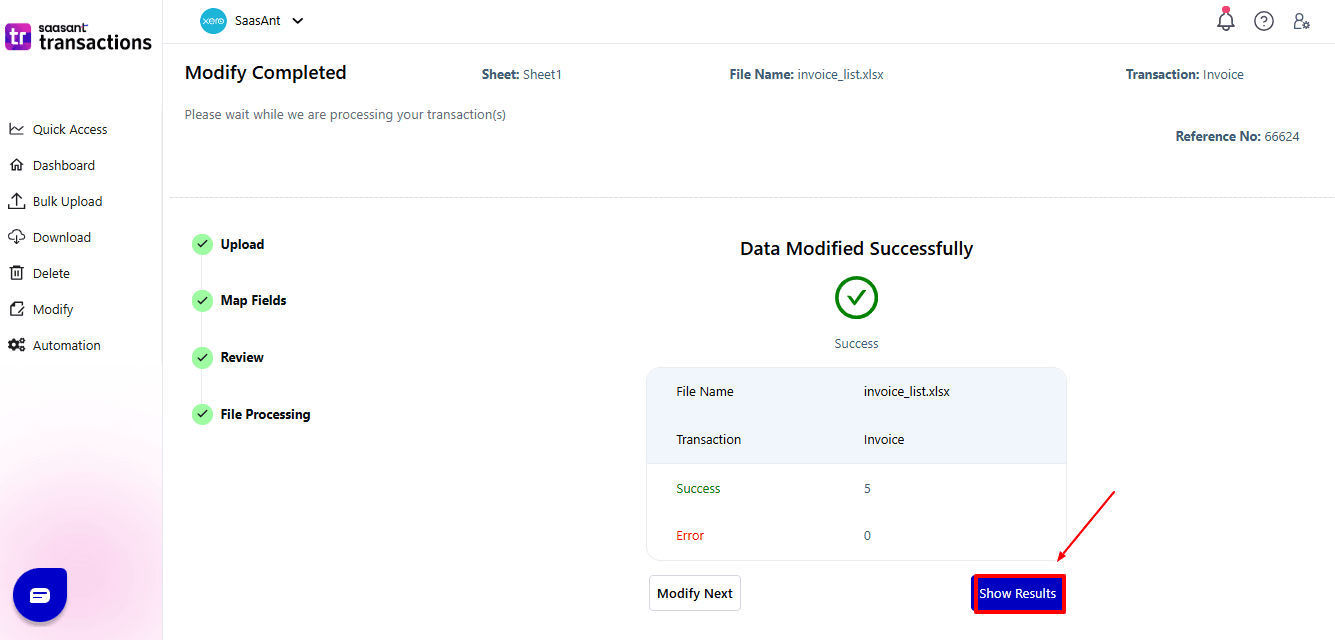
Step 7: Modify
Your modified “invoice” appears. At the bottom left, there is a “Download” option, where you can download your modified invoice data for future reference.
Additionally, next to “Download”, you can see “Undo”, which allows you to roll back your “invoice.”
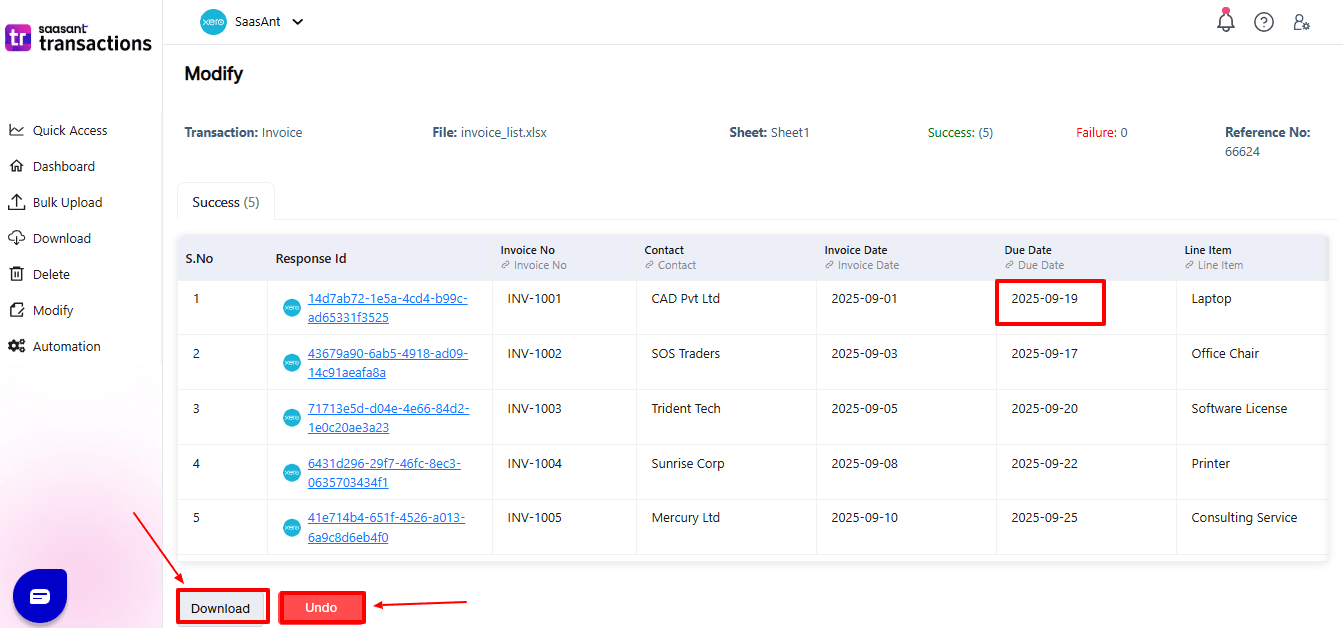
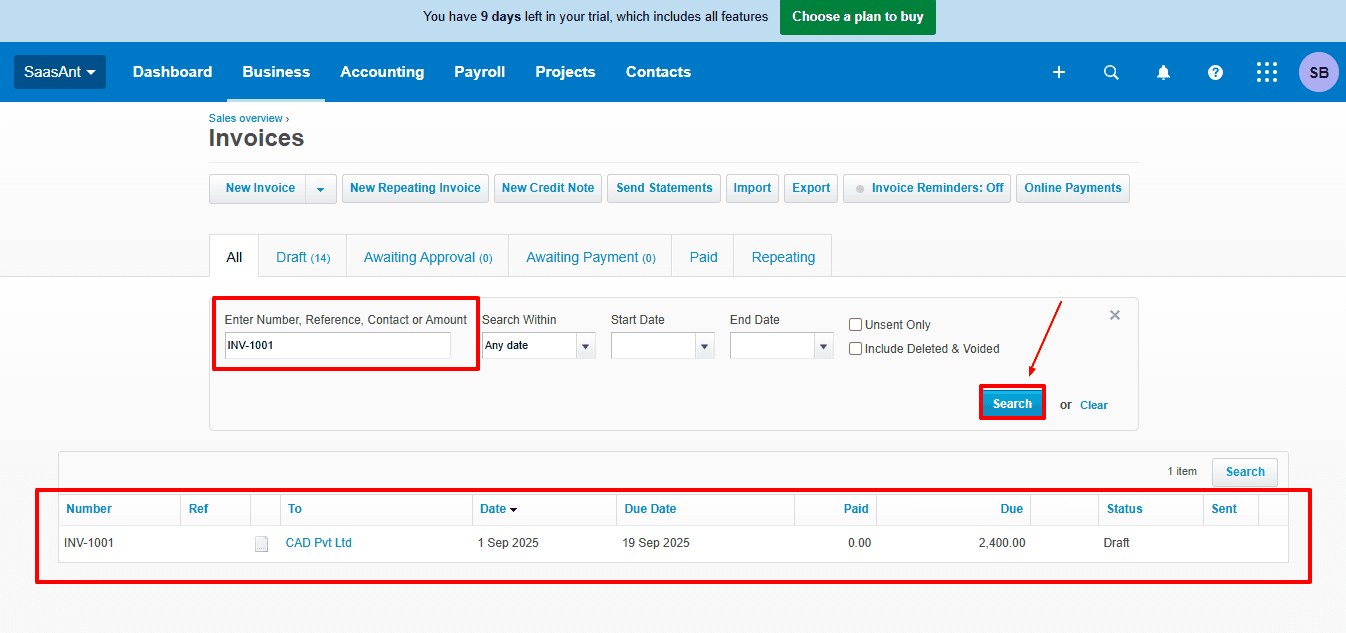
Step 8: View Modified Invoice
Now, return to the Xero dashboard and select “Business” from the top. From the dropdown, “Invoices”
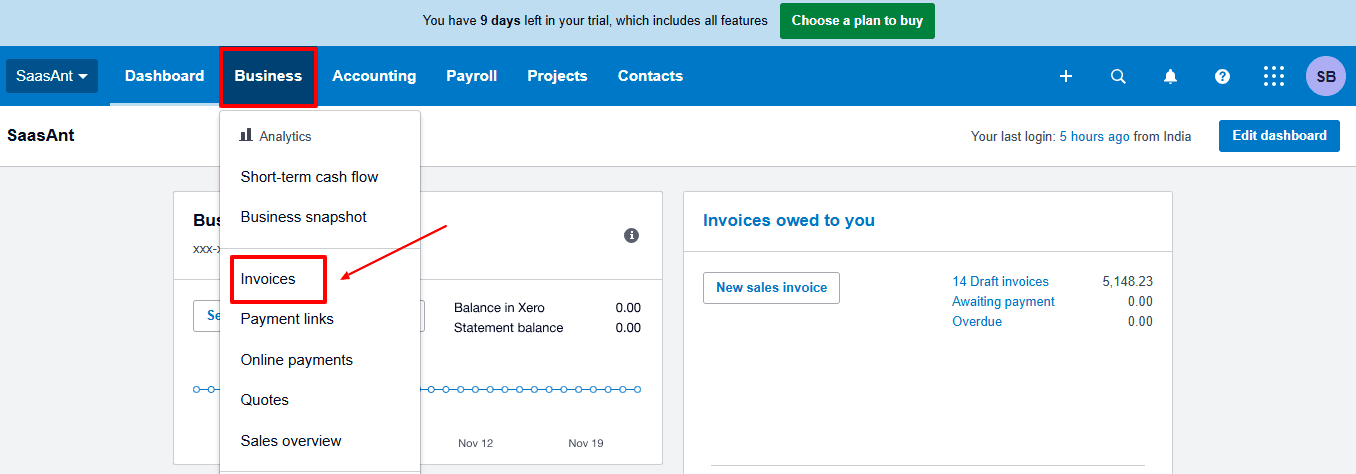
Modified invoice data is displayed, as shown in the image below.
Why SaasAnt is a Powerful Add-on
Xero offers dependable accounting tools, yet efficiently managing bulk data often calls for more sophisticated features. SaasAnt Transactions for Xero streamlines the process, making it easy, precise, and quick for handling large data sets.
Bulk Editing Made Easy: Update thousands of invoices, bills, payments, or expenses quickly with just a few clicks.
Flexible File Support: Import and edit data from Excel, CSV, or other formats with customizable mapping.
Undo Feature: Reverse transactions if errors happen, something Xero doesn’t support by default.
Handling Complex Data: Multi-line invoices, detailed bills, and custom fields are processed smoothly.
Automation to Save Time: Automate regular imports and updates, allowing teams to avoid repetitive tasks.
When businesses integrate SaasAnt with Xero, they can manage their data entirely, guaranteeing efficiency and accuracy as they grow.
Wrap Up
Although Xero is a strong accounting tool, its limitations in bulk editing can reduce productivity, particularly for companies handling a high volume of transactions. Manual changes and import errors not only delay processes but also raise the chances of incorrect financial records. SaasAnt Transactions for Xero addresses this issue with its enhanced bulk editing capabilities, versatile import options, error handling, and automation features. By integrating SaasAnt with Xero, businesses can achieve the efficiency, accuracy, and scalability they require to remain competitive.
If you're looking to improve your invoice management, minimise errors, and save time, SaasAnt is the best add-on to optimise your Xero workflow.
If you have inquiries regarding our products, features, trial, or pricing, or if you require a personalised demo, contact our team today. We are ready to help you find the ideal solution for your QuickBooks workflow.
Frequently Asked Questions
1) Does Xero allow bulk editing natively?
Xero allows for limited data changes using CSV import, but it does not support actual bulk editing and an undo feature for errors.
2) How does SaasAnt Transactions enhance bulk editing in Xero?
With SaasAnt, users can bulk import, edit, validate, and undo multiple records all at once, with support for various file formats and automation.
3) Does SaasAnt only work with invoices?
SaasAnt supports various Xero transactions, including invoices, bills, payments, expenses, credit notes, and journals.
4) What file formats does SaasAnt support for editing?
SaasAnt is compatible with CSV and Excel files, providing customizable field mapping for more flexibility.
5) How does SaasAnt save time compared to Xero alone?
Edits that would normally take hours or days in Xero can be finished in minutes with SaasAnt’s bulk editing and automation capabilities.
How to Delete Invoices in Xero
How to Create Quotes in Xero
How to Create a Purchase Order in Xero
How to Add Chart of Accounts in Xero