Buildium and QuickBooks Integration: Streamline Your Property Management Finances
Managing property management and accounting data across multiple systems can quickly become complex. When Buildium is used for day-to-day property operations and QuickBooks for financial reporting, transferring data between the two often involves manual effort, duplication, and a higher risk of errors. Without a structured integration workflow, reconciling records can become time-consuming and inefficient.
Tools such as SaasAnt Transactions help bridge this gap by enabling accurate, structured imports from Buildium into QuickBooks. By automating data transfer, teams can reduce manual work, maintain data consistency, and ensure their financial records remain audit-ready.
This blog explains how to export data from Buildium and import it into QuickBooks using SaasAnt Transactions. To keep the process clear and practical, the Trial Balance will be used as the primary example. The same approach can be applied to other Buildium data types, with SaasAnt’s support team available to assist as needed.
Exporting the Trial Balance from Buildium into QuickBooks
Imagine you’re preparing for a month-end close, and your accountant requests the Trial Balance for reconciliation. Buildium lets you download the Trial Balance, but QuickBooks requires the data to be formatted correctly for import. Here’s where SaasAnt Transactions simplifies the workflow:
Download the Trial Balance from Buildium
Step 1: Log in to Buildium and navigate to the Reports section.
Step 2: Select Trial Balance, choose the property and date range to generate the report.
Step 3: Export the Report - Download the Trial Balance in CSV format for further processing.
Pro Tip: Double-check that the Excel file includes all necessary columns, such as Account Name, Debit, and Credit amounts, for easy mapping.
Import Trial Balance into QuickBooks using SaasAnt Transactions:
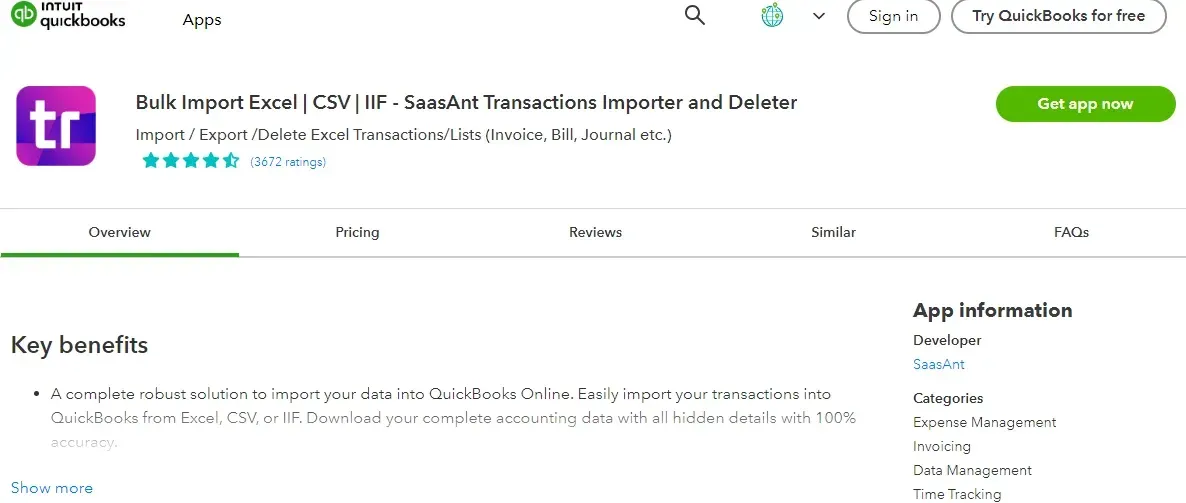
Step 1: Locate SaasAnt Transactions in the QuickBooks App Store and connect it to your QuickBooks account. As a certified and secure app, SaasAnt guarantees the safety and organization of your data.
Step 2: Navigate to the SaasAnt Transactions Dashboard. Select ‘Import’ from the main menu and click on ‘Trial Balance.’
Step 3: Format your Trial Balance file as CSV, Excel, or a Google Sheet link to meet SaasAnt Transactions requirements for seamless integration.
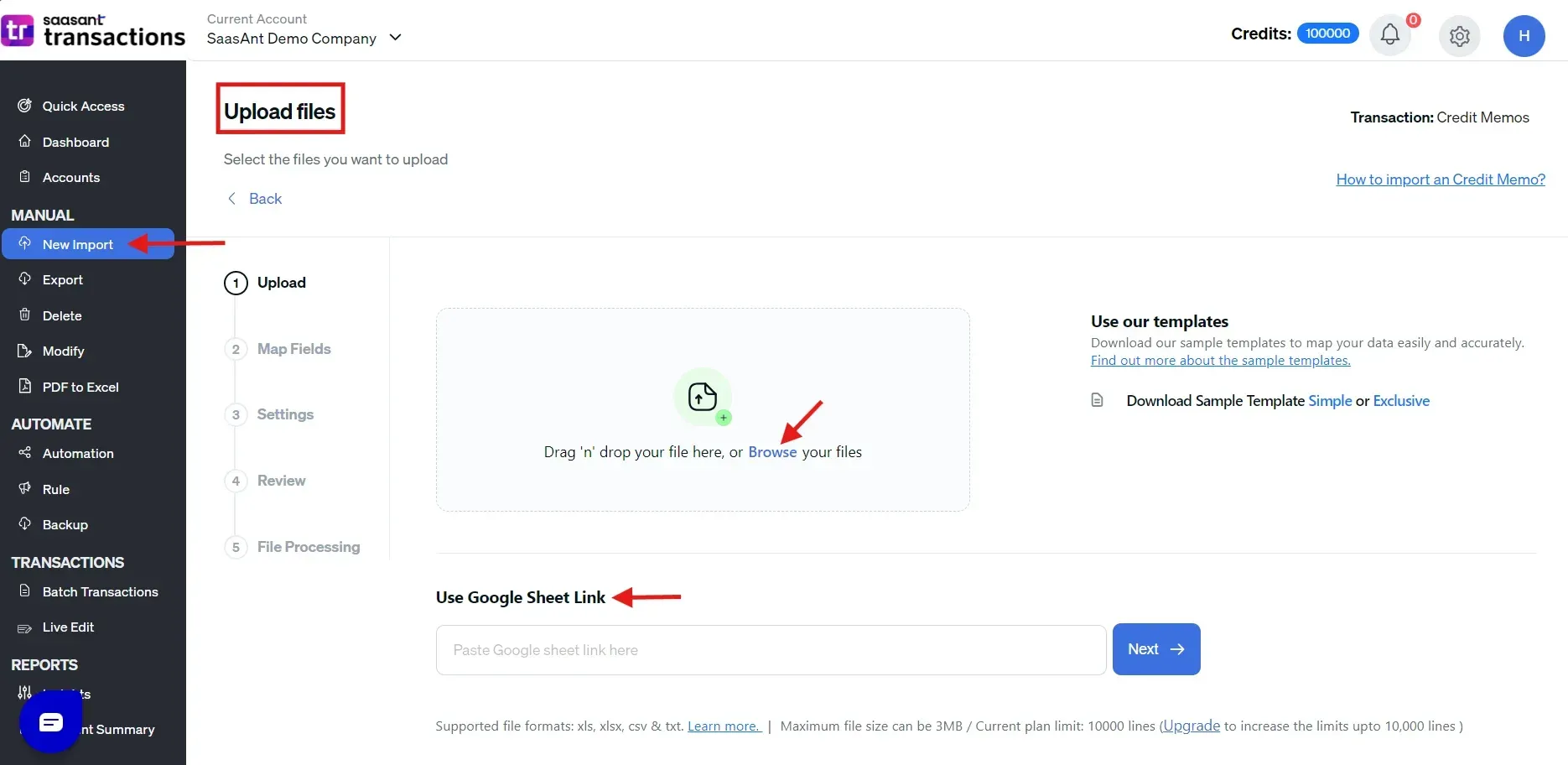
Step 4: Upload your file, then map its fields to QuickBooks Online using SaasAnt Transactions for accurate and organized data placement.
Step 5: Carefully review your data for accuracy, make any needed adjustments, and confirm the import to integrate Trial Balances into QuickBooks Online.
Conclusion
Successfully managing finances across property management and accounting platforms requires a reliable, repeatable data transfer process. When Trial Balance data moves cleanly from Buildium into QuickBooks, month-end close, reconciliation, and reporting become significantly more efficient. Manual exports and reformatting introduce unnecessary risk and delay, especially as property portfolios scale.
By using SaasAnt Transactions to structure and automate the import process, property managers, accountants, and finance teams can maintain data accuracy, reduce reconciliation friction, and ensure their QuickBooks records remain complete and audit-ready. While this guide focuses on importing the Trial Balance, the same workflow can be extended to other Buildium reports and financial data, allowing teams to standardize integrations and focus more on analysis rather than data preparation.
FAQ’s
1. How can I export a Trial Balance from Buildium?
To export a Trial Balance from Buildium, log in and go to the Reports section. Select Trial Balance, choose the desired property and date range, and download the file in CSV format. Ensure it includes critical columns like Account Name, Debit, and Credit for seamless mapping to QuickBooks.
2. What’s the easiest way to import a Trial Balance into QuickBooks?
The easiest way is to simplify the process using a tool like SaasAnt Transactions. With just a few clicks, you can upload the CSV file from Buildium, map the fields to QuickBooks format, validate the data for errors, and complete the import.
3. Which file formats are compatible with QuickBooks for importing a Trial Balance?
QuickBooks accepts Trial Balance files in CSV, Excel, or Google Sheets. Using SaasAnt Transactions, you can easily map and validate these file types to ensure compatibility and accurate data import.
4. How do I avoid errors when importing financial data into QuickBooks?
To avoid errors, ensure your file is formatted correctly with all required columns, such as Account Name, Debit, and Credit. Using tools like SaasAnt Transactions, you can validate the data before importing, reducing errors and saving time.
5. Is using third-party tools for importing data into QuickBooks secure?
Yes, certified tools like SaasAnt Transactions, available on the QuickBooks App Store, provide secure solutions for importing data. They ensure your financial records are accurate, organized, and protected during import.