Ultimate Guide to Resolving QuickBooks Desktop Installation Issues with ABS PDF Driver
QuickBooks Desktop uses the ABS PDF Driver to generate, save, and print PDF documents like invoices and statements. If this driver or its dependent components fail to register during installation, the QuickBooks setup wizard will fail.
This guide provides step-by-step instructions to resolve these installation issues using automated repair tools and manual installation methods.
Contents
Common Error Codes Linked to ABS PDF Driver Failure
How Do You Resolve QuickBooks Desktop Installation Issues with ABS PDF Driver?
Method 1: Use the QuickBooks Tool Hub Repair Utilities
Method 3: Use the QuickBooks Clean Install Tool
Method 3: Manually Run the ABS PDF Driver Setup
Wrap Up
Frequently Asked Questions
Common Error Codes Linked to ABS PDF Driver Failure
When the ABS PDF Driver fails to install, the Windows installer typically rolls back and displays one of the following error codes:
Error 1722: Indicates a problem with the Windows Installer package execution.
Error 1603: A critical error occurs during installation, often caused by damaged Microsoft components.
Error 1904: A specific module or
.ocxfile fails to register in the Windows Registry.Error 1935: The installer cannot assemble core components like the .NET Framework.
How Do You Resolve QuickBooks Desktop Installation Issues with ABS PDF Driver?
There are several methods and tools that you can use to resolve QuickBooks Desktop installation issues with ABS PDF Driver. Depending on the type and severity of the issue, you may need to try one or more of the following solutions:
Method 1: Use the QuickBooks Tool Hub Repair Utilities
The QuickBooks Tool Hub contains automated utilities designed to repair corrupted installation paths and registration entries.
Run the QuickBooks Install Diagnostic Tool
Close the QuickBooks installation wizard if it is still open.
Download the latest version of the QuickBooks Tool Hub from the official Intuit website.
Open the downloaded setup file (
QuickBooksToolHub.exe) and complete the installation.Launch the Tool Hub from your desktop shortcut.
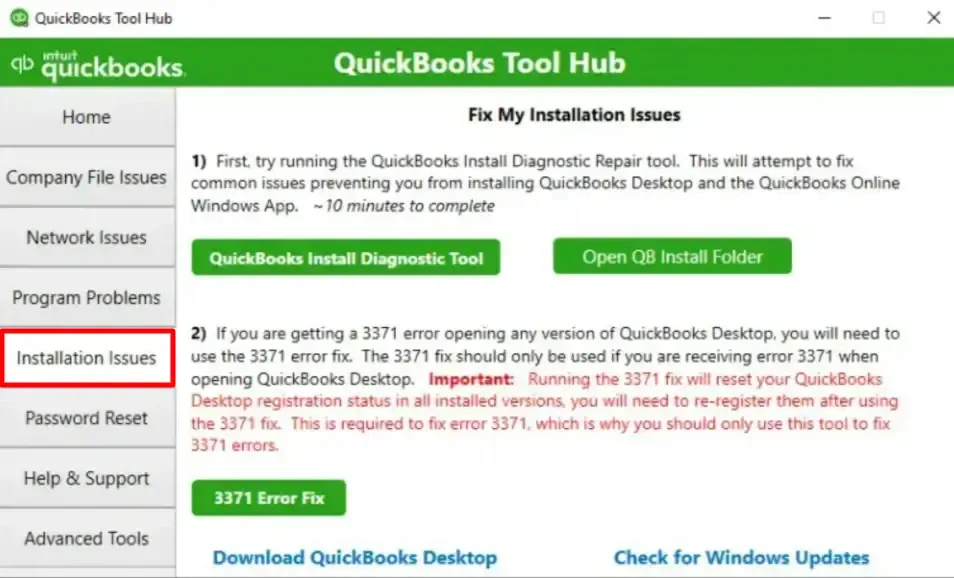
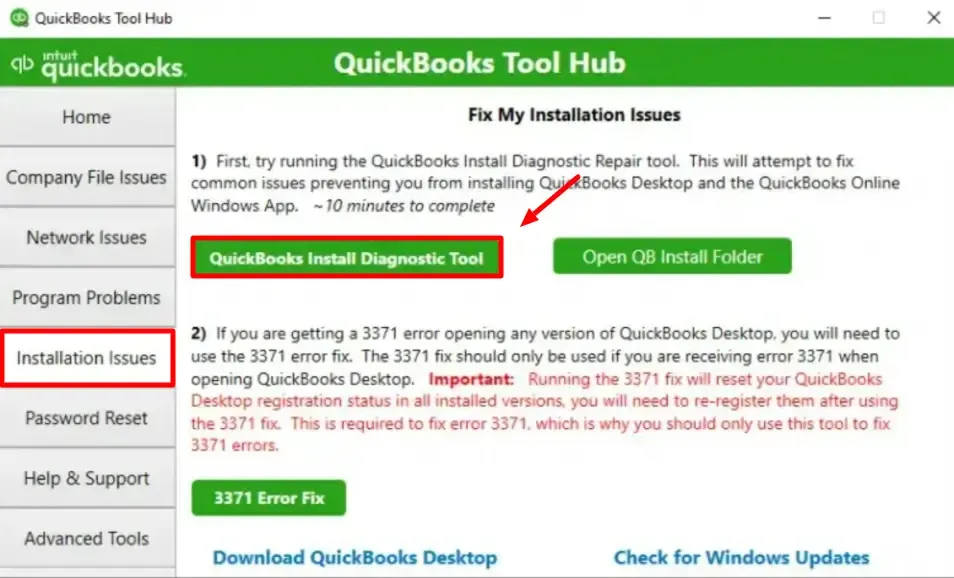
Select the Installation Issues tab from the left-hand menu.
Click QuickBooks Install Diagnostic Tool. The utility will scan and repair missing or damaged Windows components (such as MSXML, C++, and the .NET Framework).
Once the tool finishes, restart your computer and attempt to install QuickBooks again.
Run Quick Fix My Program
If the diagnostic tool does not resolve the error, use the program repair utility:
Open the QuickBooks Tool Hub.
Select the Program Problems tab.
Click Quick Fix my Program.
Wait for the background processes to complete, then retry your QuickBooks installation.
Method 3: Use the QuickBooks Clean Install Tool
If the installation remains blocked, residual or corrupted files from previous versions of QuickBooks may be conflicting with the installer. A clean installation renames these folders to ensure a fresh setup environment.
Open the QuickBooks Tool Hub.
Select the Installation Issues tab.
Click Clean Install Tool.
Select the specific version and year of QuickBooks Desktop you are trying to install, then click Continue.
The tool will rename your old program directories automatically.
Run your main QuickBooks Desktop installation file again. You will need your product and license numbers to complete this process.
Method 3: Manually Run the ABS PDF Driver Setup
If the automated tools fail to register the driver, you can manually run the standalone ABS PDF installer from the temporary directory where QuickBooks extracts its setup files.
Press Windows Key + R to open the Run dialog box.
Type
%temp%into the field and press Enter.Locate the QuickBooks installation folder. It will typically be named PrX_usXXrX or Enterprise_usXXrX (where "XX" represents the year and version of your software).
Open the folder and navigate to the following path:
Third Party \ ABSDouble-click the file named ABSPDF412Setup.exe to run the driver installation directly.
Follow the on-screen prompts to complete the driver setup.
Once installed, restart your QuickBooks Desktop installation wizard.
Solution 4: Contact QuickBooks Support
If you need help with the above solutions or are uncomfortable performing any steps, contact QuickBooks Support for further assistance. QuickBooks Support is a team of experts who can help you troubleshoot and resolve any QuickBooks issues that you may have. To contact QuickBooks Support, follow these steps:
Navigate to the official QuickBooks website and click the ‘Contact Us’ button at the bottom of the page.
Choose the QuickBooks product you are using and the issue you are facing from the drop-down menus.
Click the ‘Start a Message’ button and fill out the form with your name, email address, phone number, and a brief issue description.
Click the ‘Submit’ button and wait for a QuickBooks Support agent to contact you via email or phone. You may need to provide some additional information or perform some steps as instructed by the agent to resolve your issue.
Wrap Up
In conclusion, resolving ABS PDF Driver installation issues in QuickBooks Desktop is crucial for seamless functionality, especially when printing transactions. This comprehensive guide offers a step-by-step approach to troubleshooting and overcoming common installation obstacles. By leveraging the QuickBooks Tool Hub and employing both automated and manual methods, users can navigate through issues such as freezing or unresponsiveness during installation.
Remember to address potential root causes, such as internet connectivity, system requirements, and software/hardware interferences, before embarking on the installation process. The Quick Fix My Program feature within the QuickBooks Tool Hub streamlines problem-solving, while the manual ABS PDF Driver setup provides an alternative for persistent issues.
Following these steps ensures a smooth installation experience and promotes uninterrupted use of QuickBooks Desktop. However, if challenges persist, seeking assistance from an IT professional to analyze your system thoroughly is recommended.
Stay proactive, follow the guide meticulously, and enjoy hassle-free QuickBooks Desktop installation with a fully functional ABS PDF Driver. Your financial management tasks will thank you for it. Happy accounting!
Frequently Asked Questions
Why does QuickBooks require the ABS PDF Driver?
QuickBooks relies on this driver to convert forms, reports, and financial transactions into PDF format for emailing and printing. Without it, printing functions within the software will freeze or fail.
What should I do if the %temp% folder does not contain the ABS installer?
If the installer folder is missing from your temporary directory, the downloaded QuickBooks setup file may be incomplete. Download a fresh copy of the QuickBooks Desktop installer from the official Intuit accounts page.
Can I fix these errors by manually updating Windows?
Yes. Damaged or outdated Microsoft components like the .NET Framework can block the ABS PDF Driver installation. Ensure your operating system is fully updated via Windows Update before running the QuickBooks installer.