QuickBooks for Restaurants: Complete Guide
Restaurants have accounting requirements that differ significantly from those of most other businesses due to high transaction volumes, tight margins, inventory sensitivity, and labor complexity. Below is a consolidated overview of the key accounting considerations specific to restaurants.
Core Accounting Requirements for Restaurants
13-Period Accounting
Many restaurants operate on a 13-period fiscal calendar, dividing the year into 13 four-week periods rather than traditional monthly reporting. This approach aligns closely with weekly operating cycles and enables more consistent period-over-period comparisons, particularly for labor, food costs, and sales performance.
Custom and Operational Reporting
Restaurant profitability depends heavily on specialized financial reporting. Critical metrics include food and beverage cost percentages, labor cost segmentation (front-of-house versus back-of-house), prime cost, and the distinction between controllable and non-controllable expenses. These reports are essential for monitoring margins, identifying inefficiencies, and supporting operational decision-making.
POS System Integration
Seamless integration between the point-of-sale system and accounting software is essential. Effective POS integration automates the transfer of sales data, payment details, and in some cases inventory movements, Food ordering system, reducing manual entry and minimizing reconciliation errors.
Inventory and Cost Control
Accurate tracking of food and beverage inventory is central to cost management. Capabilities such as recipe-level costing, theoretical versus actual food cost analysis, and waste tracking play a critical role in controlling margins and identifying loss.
Multi-Location Management
For restaurant groups or franchises, the accounting system must support multiple locations while enabling consolidated reporting. This ensures visibility into both individual store performance and overall business health.
QuickBooks for Restaurants: Versions and Compatibility
QuickBooks Online
Restaurants widely use this cloud-based platform due to its accessibility, scalability, and extensive third-party integrations. It supports multiple users and locations, though some restaurants find its 13-period reporting less flexible than platforms such as Xero.
QuickBooks Desktop (Pro, Premier, Enterprise)
Desktop versions offer strong accounting functionality and advanced inventory features, particularly in Enterprise. However, they lack native cloud accessibility and have more limited integrations with modern POS systems.
QuickBooks POS (Discontinued)
Previously offered by Intuit, QuickBooks POS is no longer supported for new users. Existing customers may continue using it, but the product does not receive updates or ongoing enhancements, making it unsuitable for new restaurant implementations.
Key QuickBooks Features Relevant to Restaurants
Class tracking allows restaurants to categorize income and expenses by revenue stream or service type, such as dine-in, takeout, bar, or catering. Inventory tracking is available but is more general-purpose and less specialized than restaurant-focused inventory platforms. Sales tax tools support collection and reporting, while payroll integrations, such as QuickBooks Payroll, enable wage, tip, and compliance management.
QuickBooks Online supports multi-location accounting and offers standard financial reports such as profit and loss statements and balance sheets, which can be customized to varying degrees. Integration with third-party applications, including POS systems, payroll providers, and inventory tools, significantly extends its functionality.
Setting Up QuickBooks for Restaurant Accounting
Selecting the appropriate QuickBooks version is the first step, with QuickBooks Online generally preferred for its integrations and flexibility. The chart of accounts should be customized to reflect restaurant-specific revenue and cost categories, such as food sales, beverage sales, food costs, and liquor costs.
Class tracking should be configured early to support segmented reporting. If inventory tracking is required, items must be set up correctly and inventory features enabled. Choosing a POS system with a reliable QuickBooks Online integration is critical for efficient data flow.
Payroll should be connected through either QuickBooks Payroll or a compatible third-party provider. For restaurants using POS systems without direct integration, recurring journal entry templates can be used to import summarized sales data. Custom reporting should be configured to track key operational metrics, recognizing that this may require additional setup time.
Consulting with an accountant who specializes in restaurant accounting is strongly recommended to ensure proper configuration, regulatory compliance, and adherence to industry best practices.
Alternatives to QuickBooks for Restaurants
Restaurants with more advanced operational needs may benefit from purpose-built accounting or restaurant management platforms. Options include Restaurant365, TouchBistro, ZipBooks, and FreshBooks. These solutions often offer features such as native 13-period accounting, integrated inventory and recipe costing, or simplified user experiences tailored to restaurant operations.
How to use QuickBooks for Restaurants?
Here's a step-by-step guide to setting up QuickBooks for your restaurant:
Establishing Company Lists:
For new users, click on the Express Start button. Existing users can click on the File menu and select New Company.

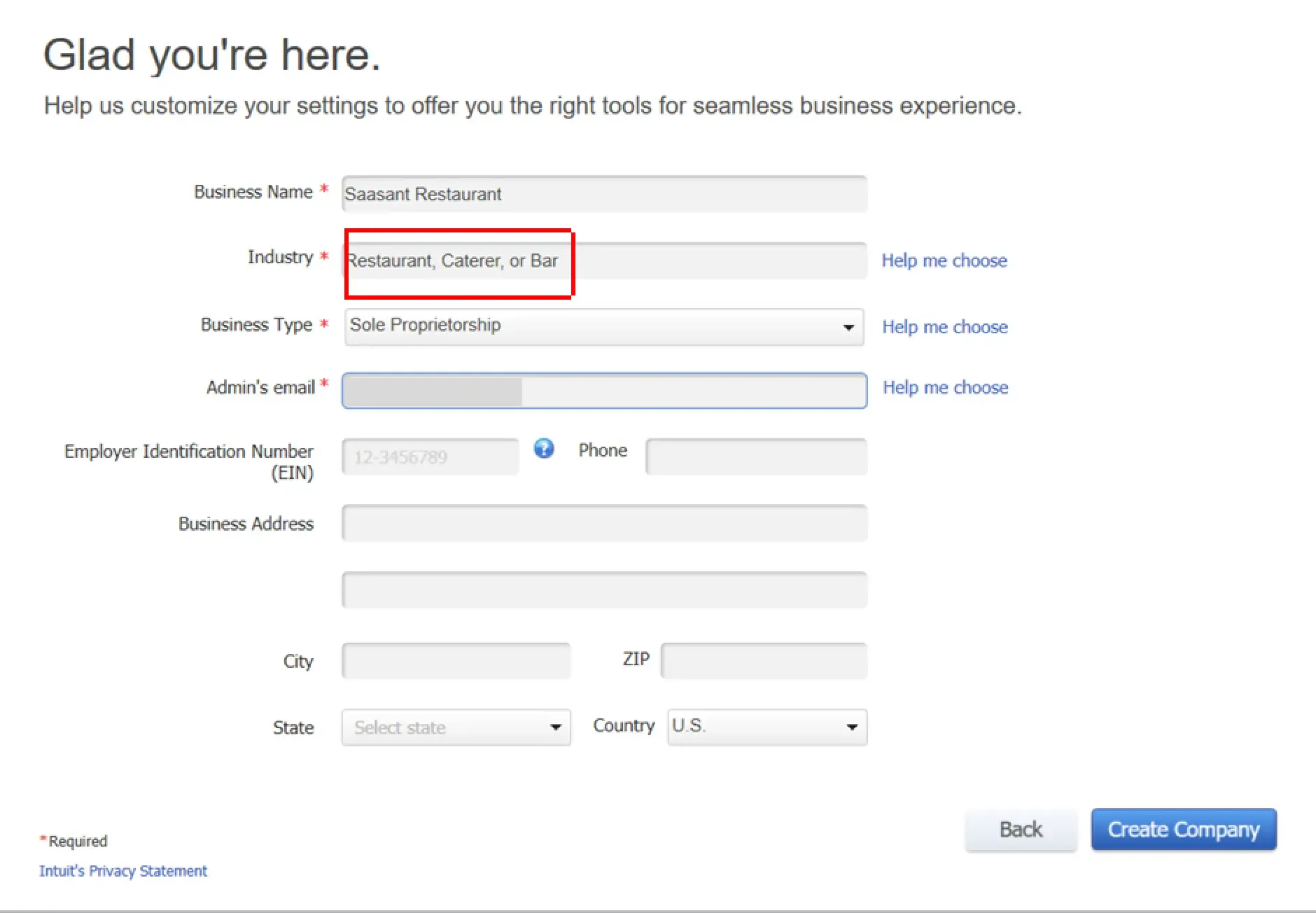
Input all the necessary details about your business, such as Company Name, Street Address, Phone Number, City, Country, Email Address, Tax ID, Website ID, etc... Click Next.
From the Industry Type field, select Help Me Choose and then choose Restaurant, Bar, or Caterer. Click Next
Choose the appropriate company type for your restaurant (for example, S-Corporation, Partnership Corporation, etc.). Click Next.
Select My Fiscal Year Starts from the drop-down menu and pick the month your fiscal year starts. Click Next.
Click Create Company File and then Start Working.
Adding Customers
Open QuickBooks Desktop - Launch the QuickBooks Desktop software on your computer.
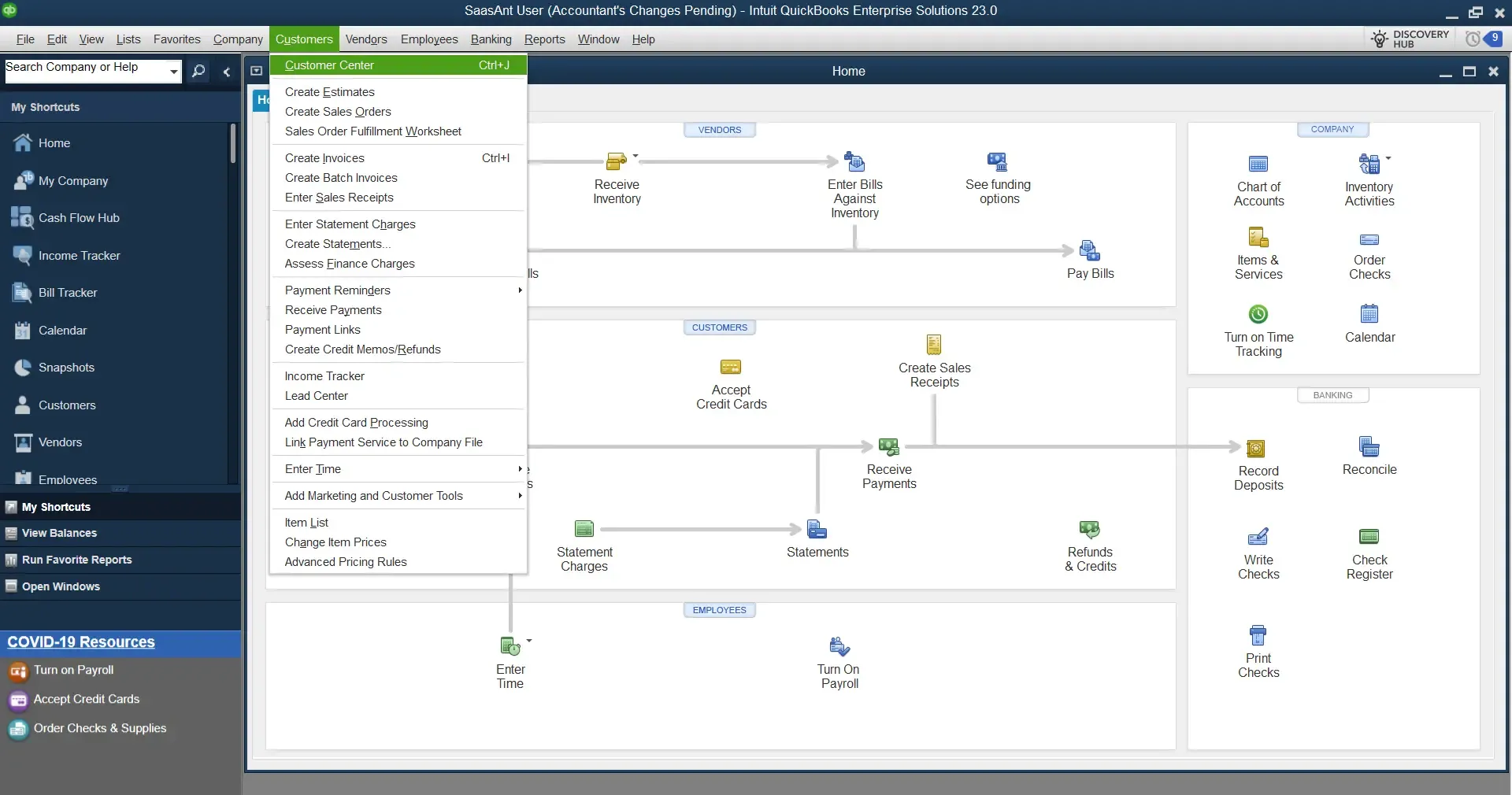
Navigate to the "Customer Center - From the top menu, select "Customers" and then "Customer Center."
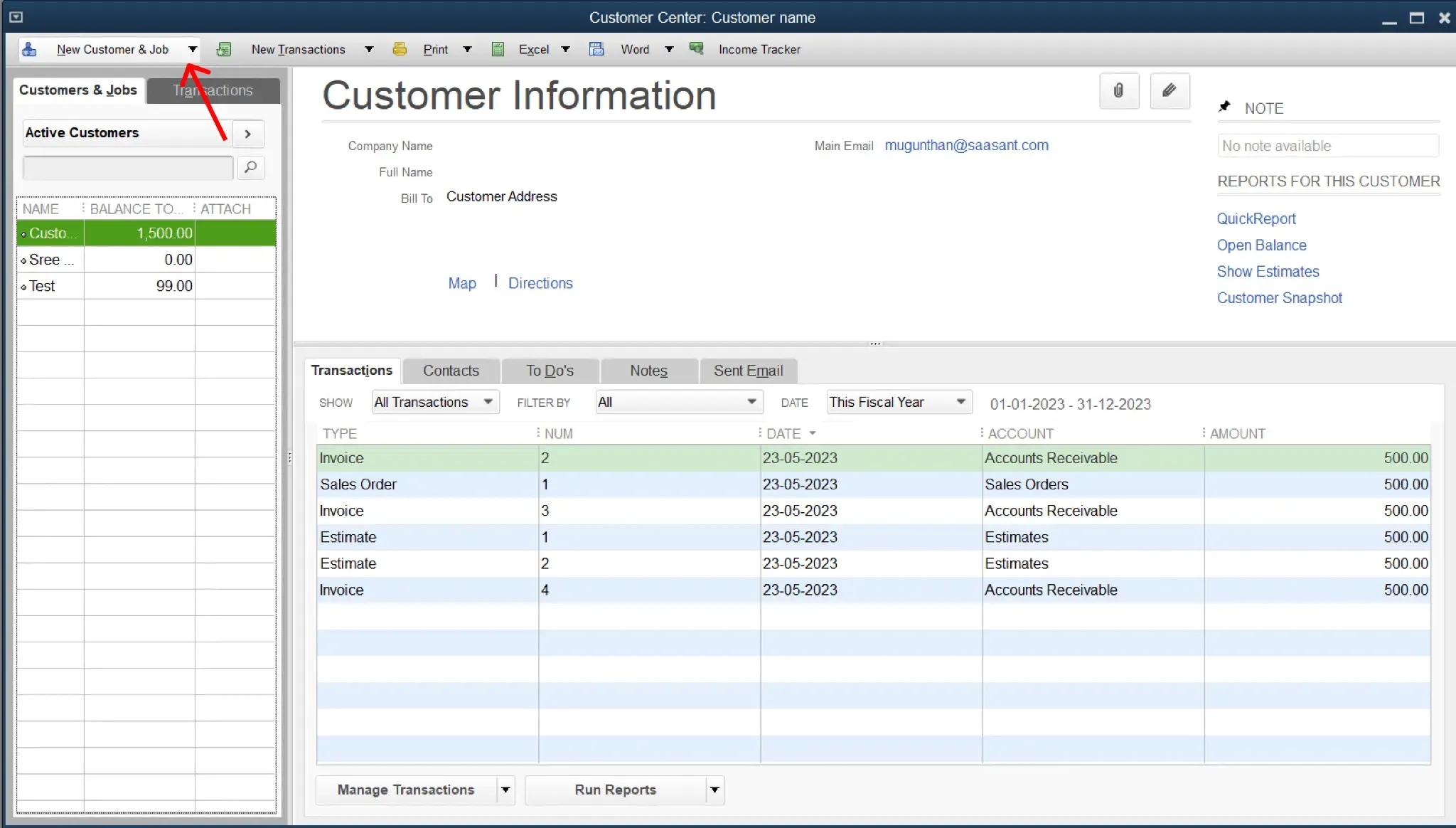
Create a New Customer- On the Customer Center screen, click "New Customer & Job," then select "New Customer."
Enter Customer Information - In the "New Customer" window, enter the necessary information for your customer. This includes details such as name, billing address, contact information, and any other details you wish to track.

Save the Customer Information - Click "OK" or "Next" to save the customer information. If you have more customers to add, click "Next," and if you're done, click "OK."
Adding Items (Product/Service)
Open the "Item List" - From the top menu, select "Lists" and then "Item List."

Create a New Item - On the Item List screen, click the "Item" button at the bottom left of the screen, then select "New."
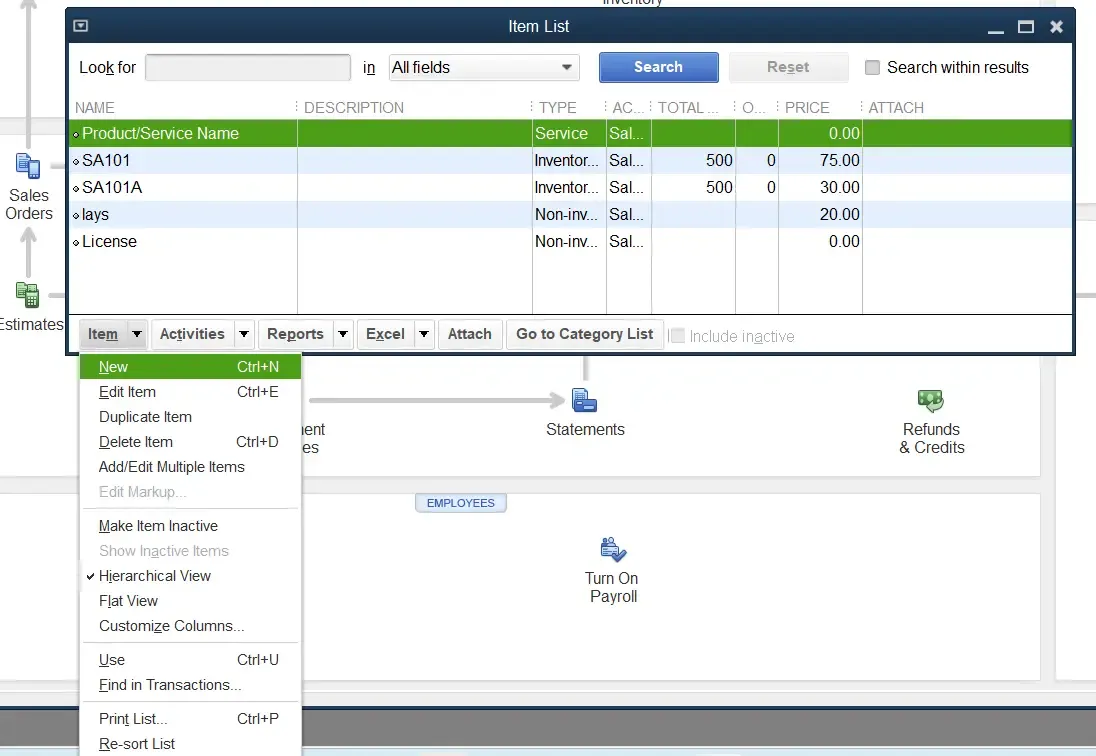
Enter Item Information - In the "New Item" window, select the "Type" of the item from the drop-down menu (this might be "Service" for a service you provide or "Inventory Part" for a product you sell). Enter the item name, description, price/rate, tax code, and other necessary information.
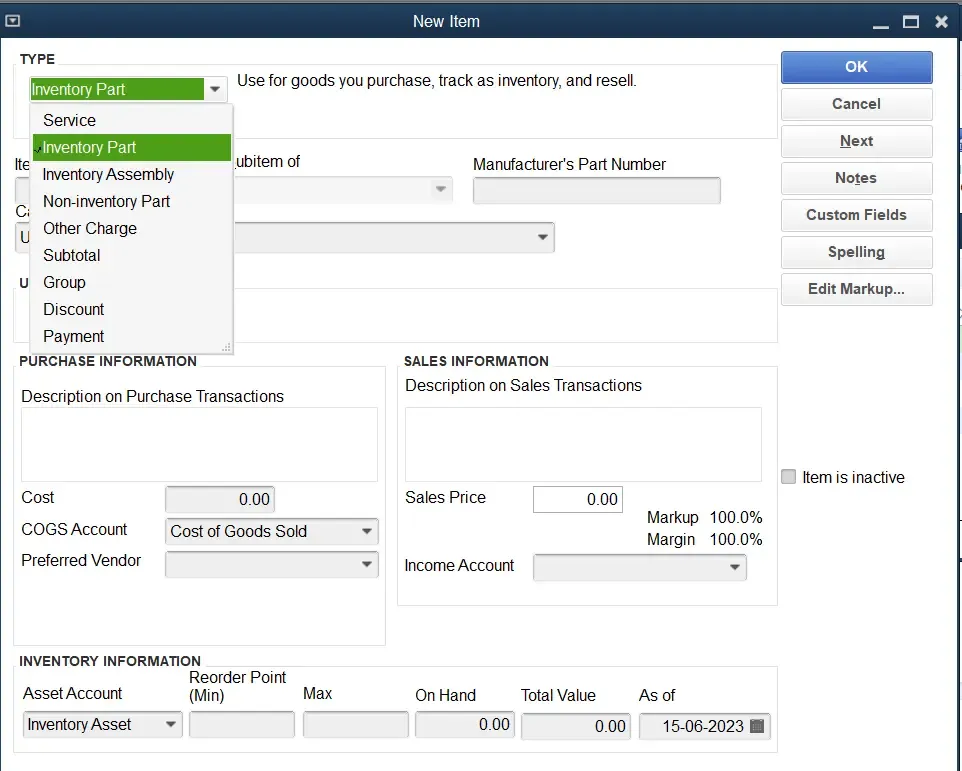
Save the Item Information - Click "OK" to save the item information.
Adding Vendors
Open the "Vendor Center" - From the top menu, select "Vendors" and then "Vendor Center."

Create a New Vendor - Click " New Vendor " on the Vendor Center screen, and click "New Vendor."
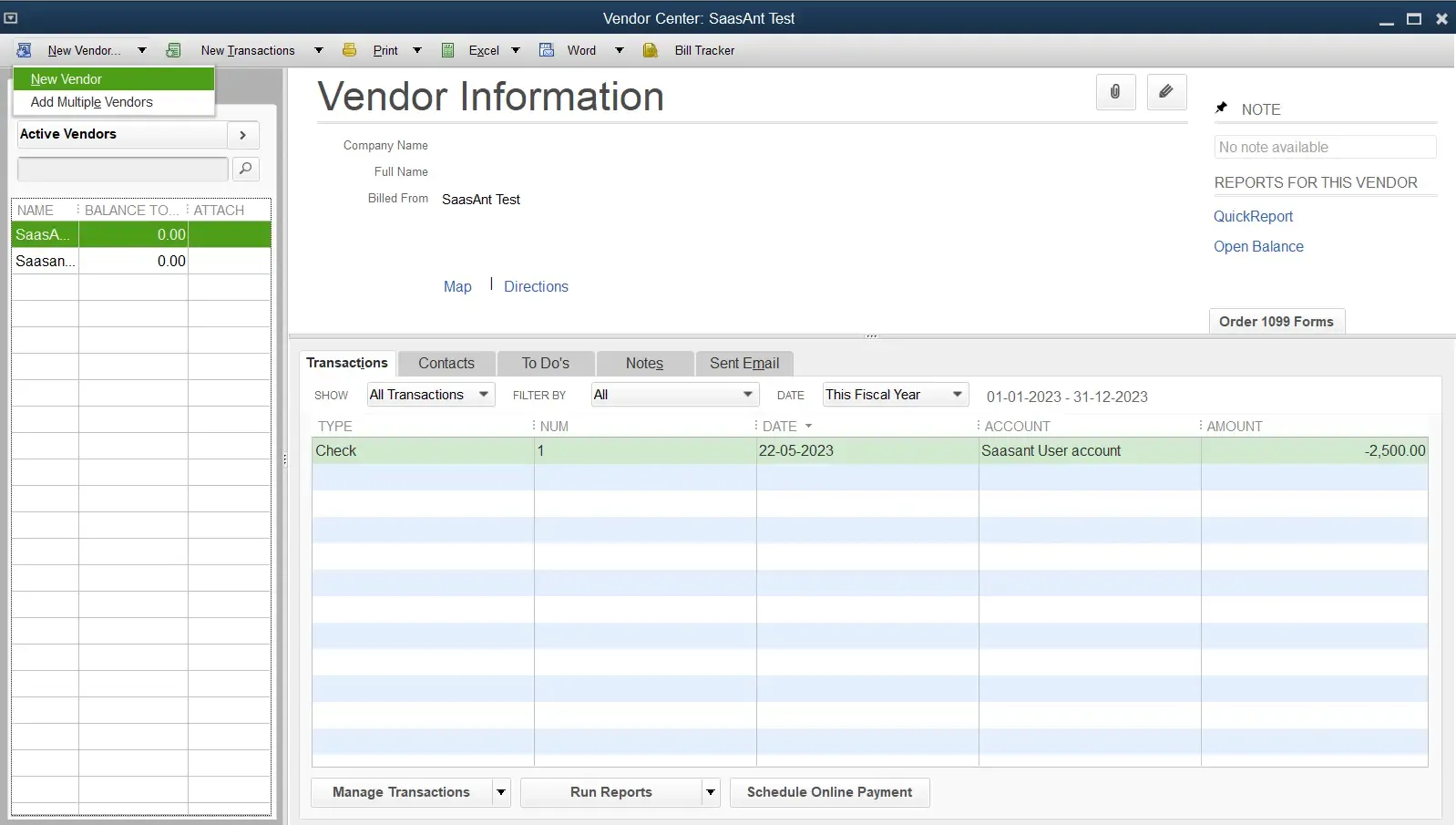
Enter Vendor Information - In the "New Vendor" window, enter the necessary information for your vendor. This includes details such as name, billing address, contact information, and any other details you wish to track.
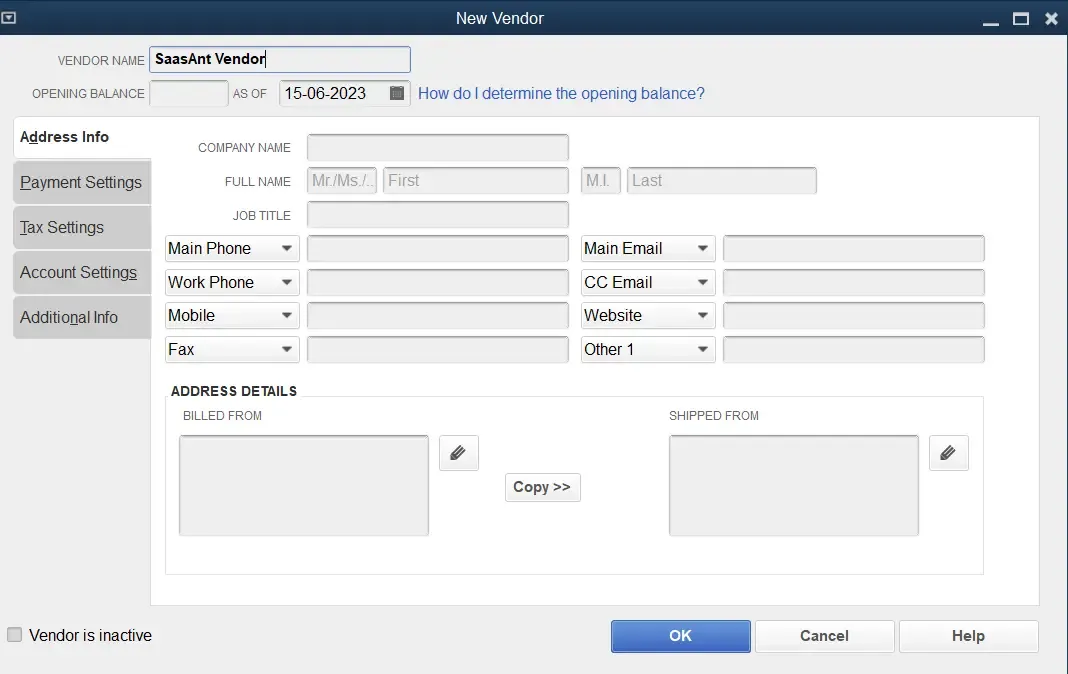
Save the Vendor Information - Click "OK" to save the vendor information.
To learn how to upload vendors into QuickBooks Desktop, refer to this guide.
Setting Up Class Tracking
Turn on Class Tracking - From the top menu, select "Edit" and then "Preferences." Select "Accounting" from the list on the left in the Preferences window, then select the "Company Preferences" tab. Check the "Use class tracking" box and click "OK."
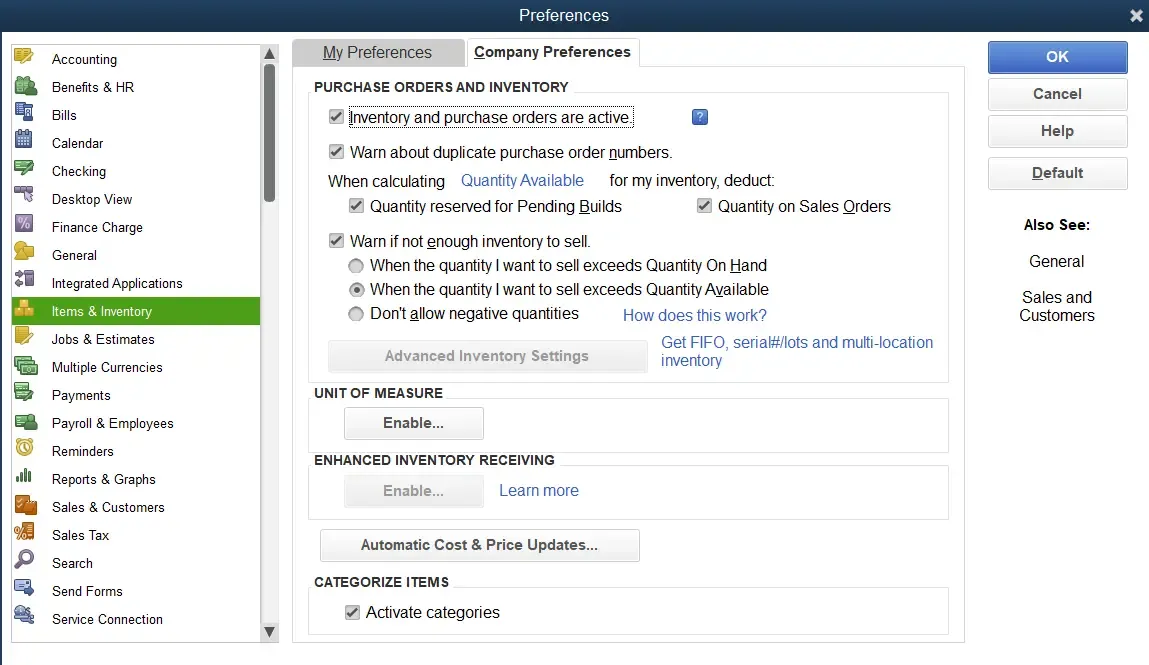
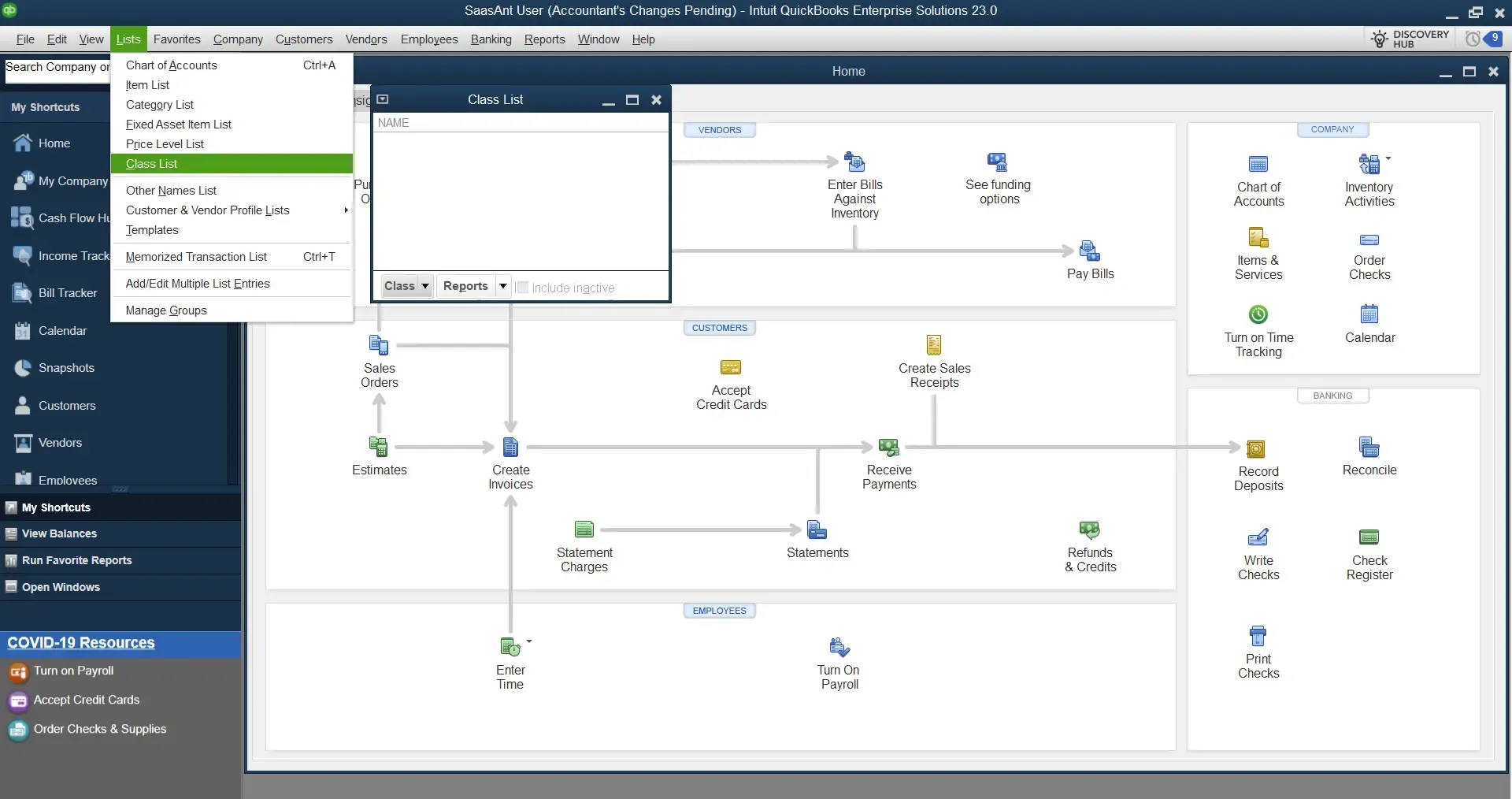
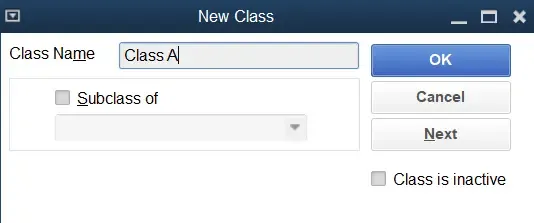
Add New Classes - Select "Lists" and "Class List" from the top menu. In the Class List window, click "Class" at the bottom left of the screen, then select "New." Enter a name for the class, then click "OK."
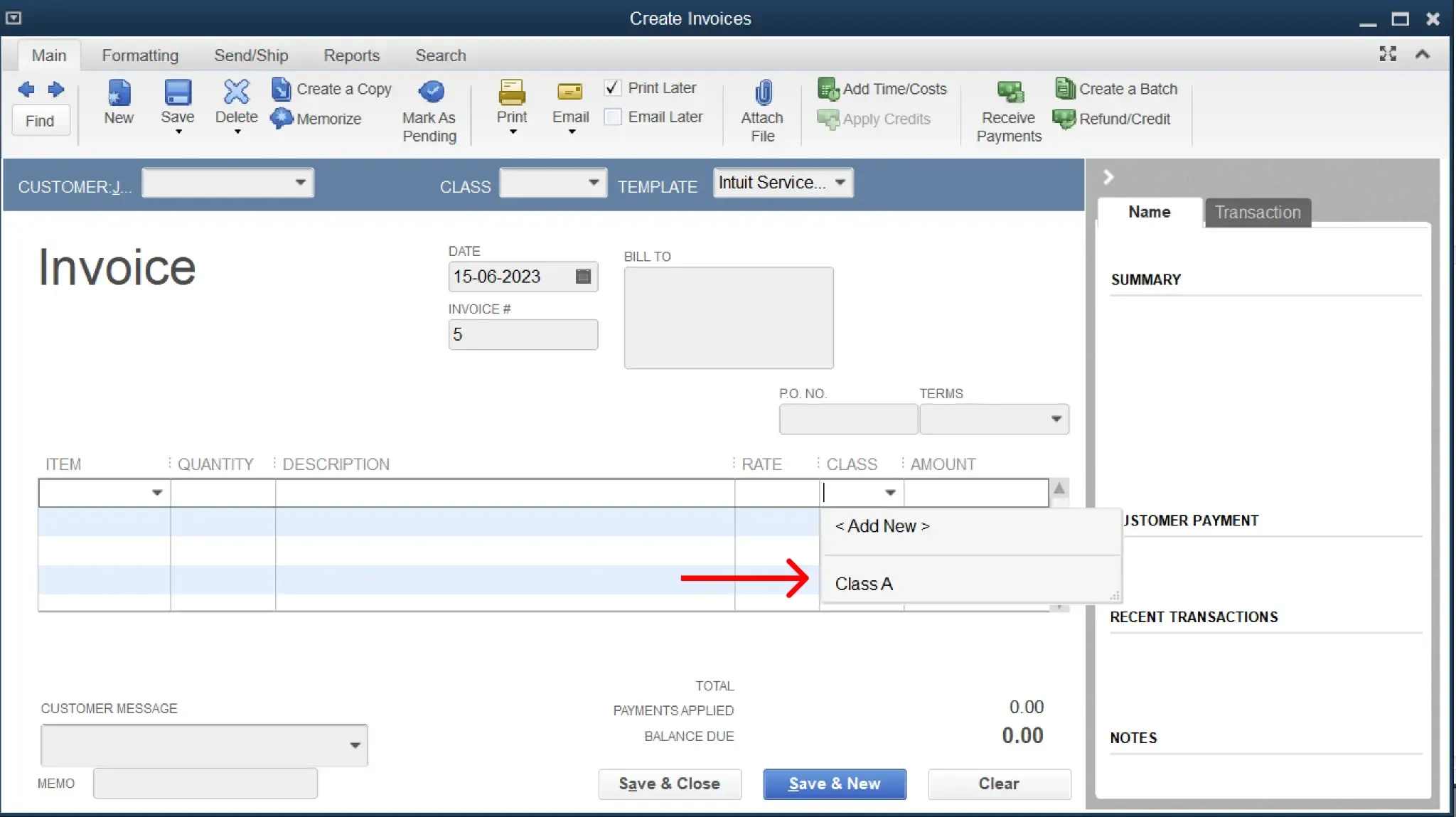
Use Class Tracking in Transactions - When you enter a transaction, you'll see a "Class" column where you can assign the appropriate class. This will help you track income and expenses in different categories (such as restaurant locations or departments).
Remember to save your work periodically and back up your data regularly to prevent any loss of information.
Frequently Asked Questions
What is QuickBooks, and how can it benefit restaurants?
QuickBooks is an accounting software developed by Intuit. It helps restaurant owners manage cash flow, track income and expenses, process sales tax efficiently, and collect vital data to make informed business decisions. QuickBooks Online, a cloud-based software version, can benefit restaurants, offering powerful reporting capabilities, customizable invoices, inventory management, and over 650 integrations.
What are the unique features of QuickBooks for restaurants?
QuickBooks supports various key operations for restaurants, such as credit payment processing (supports all major credit cards), integration with apps like Stripe, Square, Bill.com, and PayPal, and features that allow tracking income and expenses across different locations or classes. This software also provides live bookkeeping support, automated billing, and invoicing, allowing restaurant owners to generate comprehensive reports.
How can I set up QuickBooks for my restaurant?
Setting up QuickBooks for your restaurant involves several steps. These include creating company lists, adding customers, items (products or services), and vendors, and setting up class tracking. It's important to enter all necessary details accurately and to save your work periodically. Regularly backing up your data is also crucial to prevent any loss of information.
Can QuickBooks integrate with my point-of-sale (POS) system?
Yes, QuickBooks can integrate with various POS systems, which can help streamline your sales process. It can also sync with your bank account to automatically update your financial transactions.