A Comprehensive Guide to Handling Month-End Accruals in QuickBooks

Managing month-end accruals is a critical part of maintaining clean, GAAP-compliant financial records. Each month, businesses must record expenses incurred but not yet paid, and revenue earned but not yet billed. These adjustments prevent distorted financial statements, ensuring your reports accurately reflect true business performance for the closing period.
This comprehensive guide covers how to record and reverse month-end accruals manually in QuickBooks Online (QBO) and how to leverage automation tools like SaasAnt Transactions to handle complex, high-volume entries in bulk.
table-of-contents
What Are Month-End Accruals in QuickBooks?
Month-end accruals are adjustments made at the end of an accounting period to align revenues and expenses with the period in which they occurred, regardless of when cash changes hands.
Example: If your business uses electricity in December but receives the utility bill in January, the expense must be recognized in December's financials to maintain reporting integrity.
Why Accruals Matter
Accurate Matching: Aligns income and expenses precisely to the correct month, preventing artificial spikes or drops in profitability.
Regulatory Compliance: Meets the requirements of General Accepted Accounting Principles (GAAP) and International Financial Reporting Standards (IFRS) for accrual-basis accounting.
Better Data for Decisions: Provides leadership and stakeholders with an accurate, real-time snapshot of financial health each month.
Manually entering these adjustments can bottleneck your close cycle if you manage multiple ledger accounts or a growing client portfolio.
💡 Struggling with tight close deadlines? See how automation eliminates manual ledger entries during your month-end workflow.
Common Types of Month-End Accruals
During the close process, look out for these two core types of adjustments:
A. Accrued Expenses (Liabilities)
Costs incurred during the month that have not yet been invoiced by the vendor or paid.
Unpaid wages and salaries earned by employees up to the final day of the month.
Utilities (electricity, internet, water) consumed but not yet billed.
Interest due on commercial loans or lines of credit.
Pro-rated rent or software subscriptions billed in arrears.
B. Accrued Revenues (Assets)
Income earned during the current month that has not yet been invoiced to the client or collected.
Completed project milestones or services rendered but pending billing.
Unbilled consulting hours.
Earned interest or investment income waiting to be credited.
How to Add Month-End Accruals in QuickBooks?
QuickBooks Online handles accruals through manual journal entries. Follow these steps to record an adjustment:
Click the
+ Newbutton in the top-left navigation panel.Under the Other column, select
Journal entry.
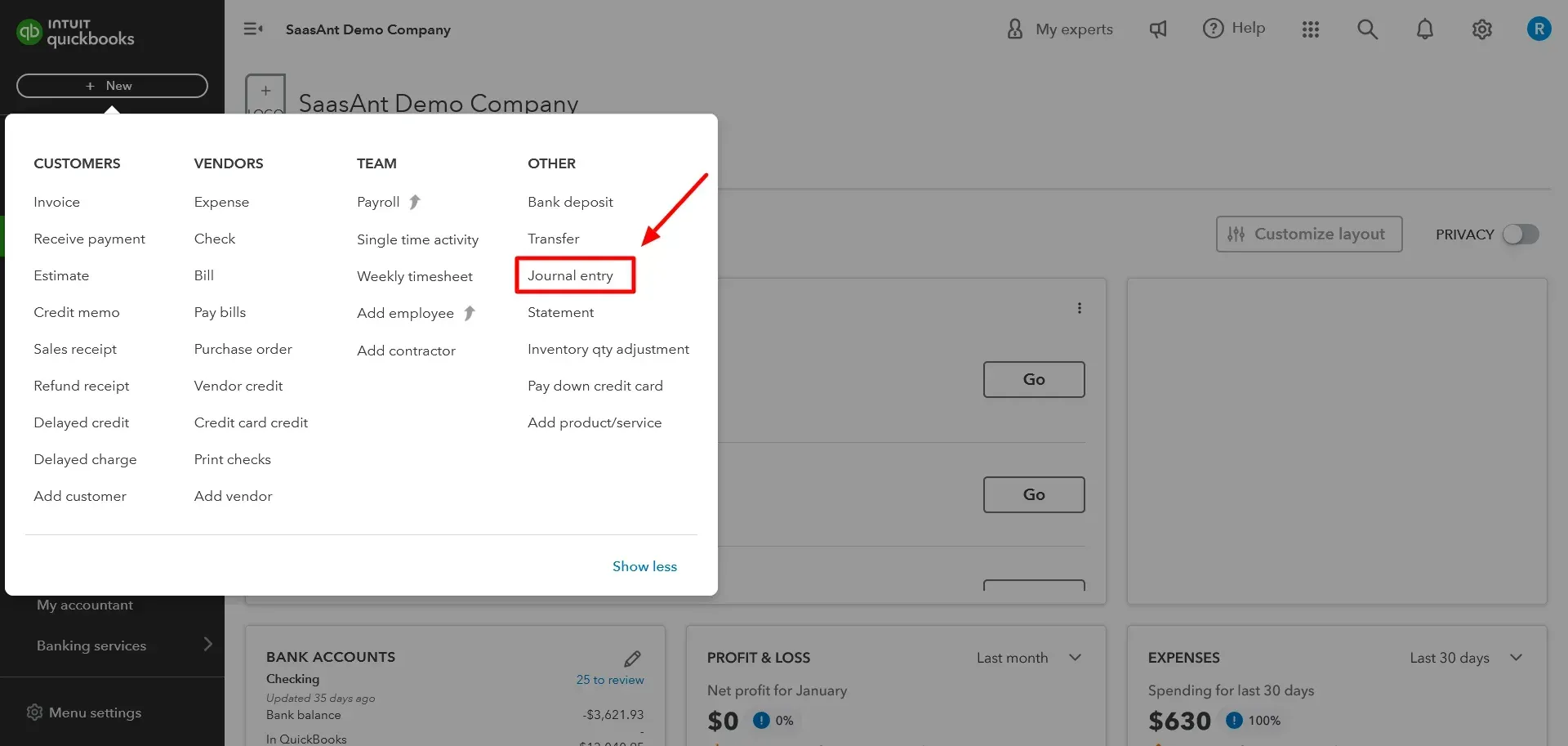
Set the Transaction Date: Enter the exact final day of the reporting month (e.g.,
12/31/2025).Assign an Entry Number: Use a structured, sequential naming convention (e.g.,
ACC-2025-12-01) to simplify tracking.Line 1 (Debit): Select the target expense account (e.g., Utilities Expense) and enter the accrual amount in the Debit column.
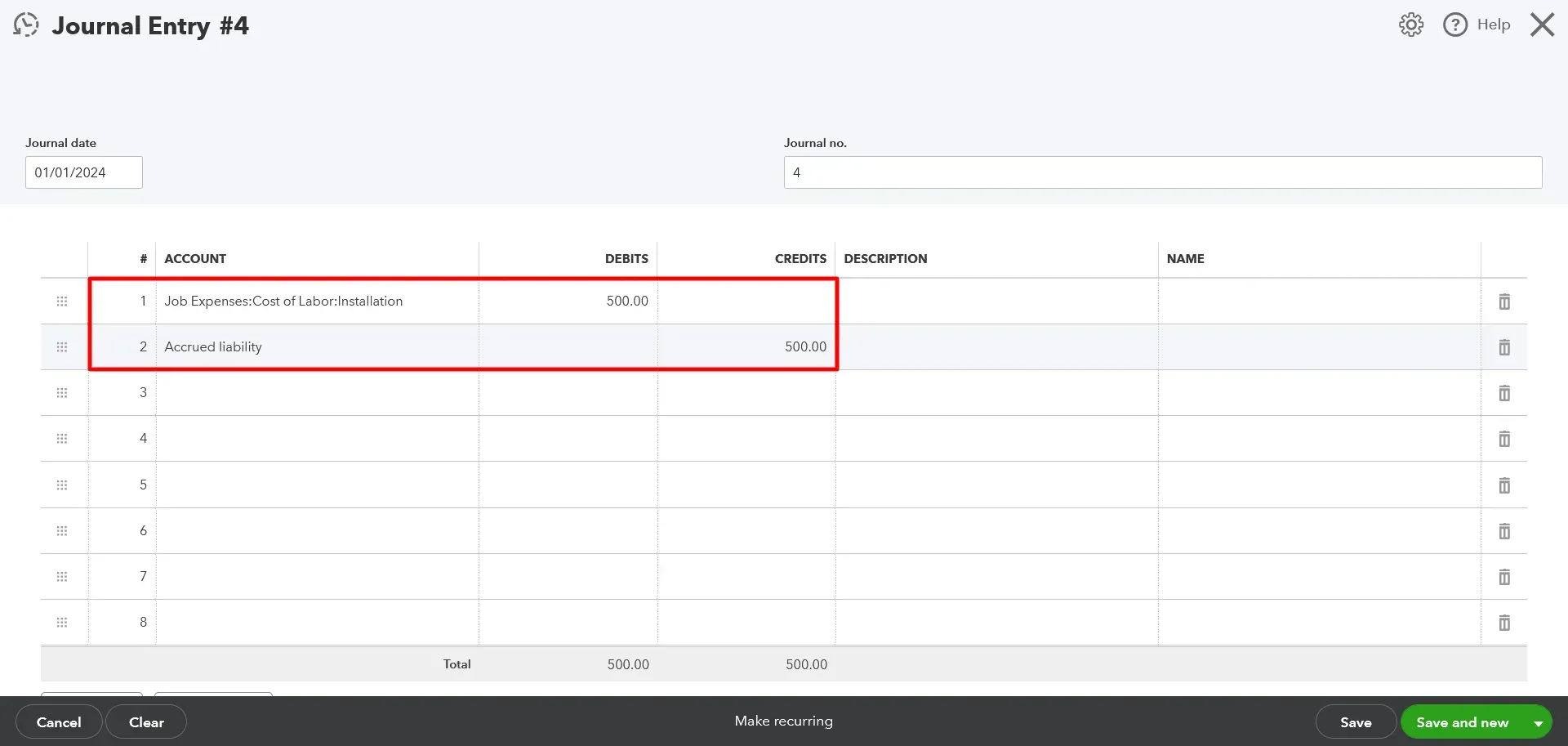
Line 2 (Credit): Select your Accrued Liabilities account (an Other Current Liabilities account type). QuickBooks will automatically populate the balancing amount in the Credit column.
Add Reference Details: Write a clear note in the Description field (e.g., "Accrued Dec 2025 power usage - bill pending") to assist with audits.
Click
Save and close.
You have successfully added a month-end accrual in QuickBooks. You can repeat these steps for each accrual you need to record.
Example of a Month-End Accrual
Date | Account | Debit | Credit | Description |
31/12/2025 | Utilities Expense | $150.00 | — | Accrued Dec utility usage |
31/12/2025 | Accrued Liabilities | — | $150.00 | Accrued Dec utility usage |
How to reverse month-end accruals in QuickBooks?
To avoid double-counting expenses when the actual vendor invoice arrives in the next period, you must reverse the accrual entry on the first day of the new month.
Locate the original accrual entry using the
Journal no.,Date, or the global search icon in QBO.Open the entry and review the details.
Click
Reversein the bottom action toolbar. QuickBooks Online will automatically generate a new journal entry, swap the debit and credit positions, and maintain the account links.Update the Date: Change the transaction date to the first day of the next accounting period (e.g.,
01/01/2026).Click
Save and close.
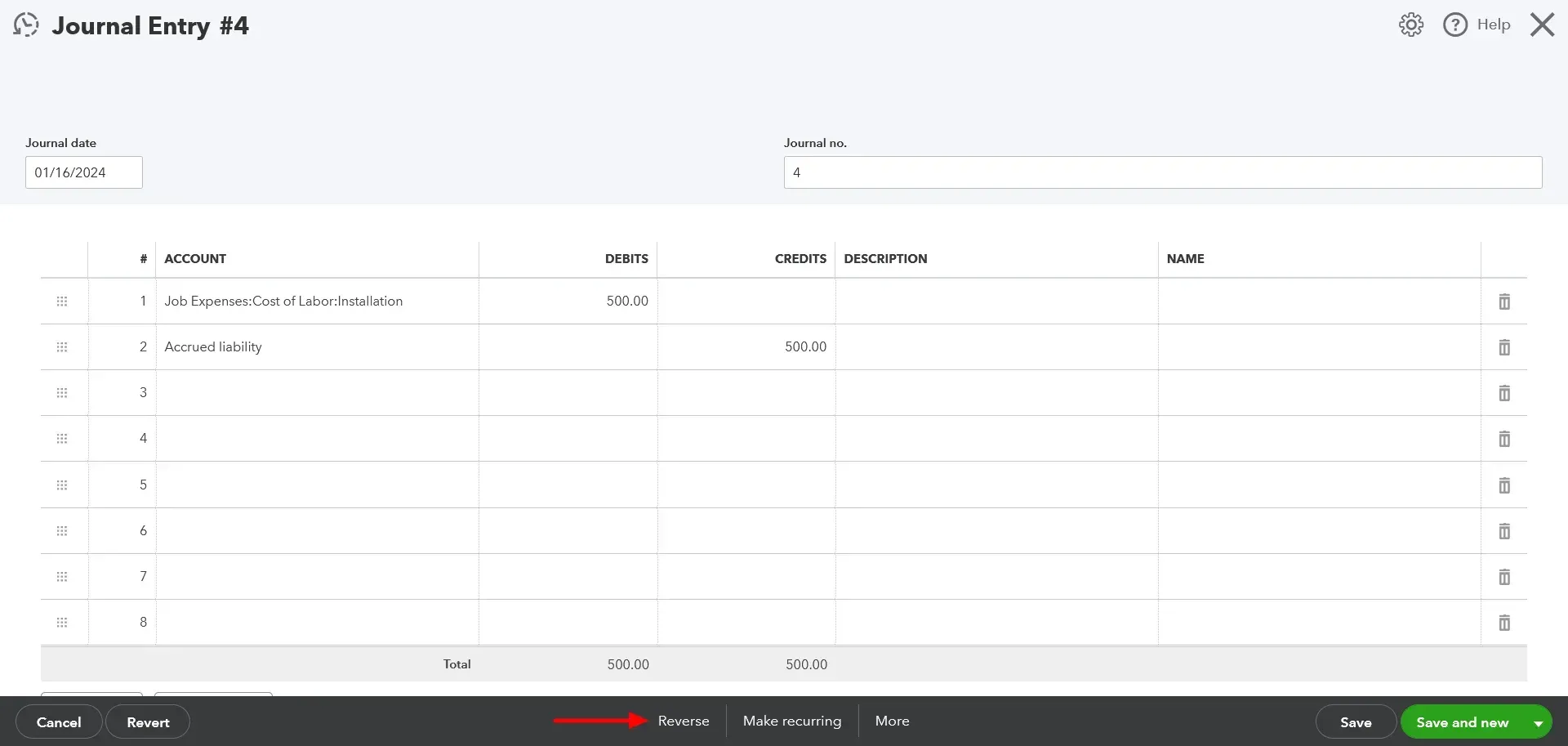
You have successfully reversed an accrual in QuickBooks. You can repeat these steps for each accrual you need to reverse.
The Importance of Reversing Accruals
Failing to reverse accruals is a frequent cause of balance sheet errors and distorted income statements.
Prevents Double Counting: When the actual bill is received and entered in the new month, the reversing entry offsets it, keeping your current-period expenses accurate.
Maintains Ledger Cleanliness: Keeps your Accrued Liabilities and Accrued Assets clearing accounts balanced and true.
Streamlines Audits: Clear matching pairs of accrual and reversal transactions provide an explicit paper trail for internal and external auditors.
Automating the Accrual Process with SaasAnt Transactions
While recording a few journal entries manually is straightforward, managing dozens of accruals across multiple entities or client files quickly scales into a tedious, error-prone chore.
SaasAnt Transactions eliminates this operational bottleneck by allowing you to bulk-import, validate, and reverse entries directly within QuickBooks Online via Excel or CSV sheets.
Why Outsource Your Accrual Workflow to SaasAnt?
Bulk Import Capability: Upload hundreds of journal lines simultaneously from a single spread sheet.
Pre-Import Data Validation: The software scans your data before it hits your ledger, catching mismatched accounts, unbalanced debits/credits, or formatting bugs early.
One-Click Bulk Reversals: Instantly generate balancing reversal rows for imported sheets without manual copying.
Step-by-Step: Importing Accruals with SaasAnt
Step 1: Format Your File
Prepare your import data in an Excel or CSV file using standard column headers:
JournalNo,TransactionDate,AccountName,DebitAmount,CreditAmount,Description
ACC-12-01,2025-12-31,Utilities Expense,150.00,,Dec Accrual
ACC-12-01,2025-12-31,Accrued Liabilities,,150.00,Dec Accrual
Step 2: Upload and Map
Log into SaasAnt Transactions and connect your QuickBooks company file.
Click
New Importand selectJournal Entryas your target transaction type.Upload your file. SaasAnt's mapping engine will align your file columns with corresponding QuickBooks data fields automatically.
Step 3: Review, Validate, and Complete
Review the data on the preview dashboard. Any systemic inconsistencies or missing fields will be highlighted for correction.
Click
Importto instantly push all valid journal entries into your live QuickBooks Online ledger.
Streamlining Reversal Entries with SaasAnt Transactions
Instead of clicking into individual entries inside QBO on day one of the new month, you can use your original spreadsheet file, swap the Debit and Credit amounts (or leverage SaasAnt's built-in reversal toggle), adjust the date column to the first of the new month, and re-import. Hundreds of entries clear out cleanly in under a minute.
Process Breakdown: Manual vs. Automated Closing
Operational Metric | Manual QuickBooks Entry | With SaasAnt Transactions |
Data Input Method | Line-by-line entry for each account | Bulk upload from Excel, CSV, or text files |
Data Integrity Guard | Dependent on manual checking | Automated pre-flight field validation |
Time Investment | Hours to days (based on volume) | Minutes per batch file |
Reversal Execution | Manual search and reverse per entry | Bulk template upload or automated conversion |
Audit Controls | Variable manual notation habits | Consistent logging and reliable tracking |
Best Practices for Month-End Accrual Management
To maximize efficiency and accuracy during your month-end close cycle, integrate these systemic habits into your finance department:
Establish a Master Checklist: Keep an updated register of recurring operational expenses that require tracking (e.g., payroll, specialized software tools, utilities).
Enforce Strict Document Memos: Require internal staff to document every entry with explicit details detailing why the amount was accrued. This minimizes context loss during audit cycles.
Review Account Activity Continuously: Check your Trial Balance and General Ledger reports right after close to confirm your accrual balances match your expected vendor run rates.
Standardize Naming Sequences: Use distinct, predictable document prefixes for accruals (
ACC-YYYY-MM) and reversals (REV-YYYY-MM) to keep your ledger highly searchable.
Final Thoughts
Optimize Your Month-End Close
Maintaining accurate accrual accounting shouldn't break your operations team's monthly capacity. By pairing the accounting framework of QuickBooks Online with the high-volume data handling of SaasAnt Transactions, you can shrink your close cycle, minimize manual input errors, and keep your financial statements perfectly reliable.
Frequently Asked Questions
1. What is the difference between an accounts payable balance and an accrued liability?
Accounts Payable holds formal invoices received from suppliers that are awaiting cash settlement. Accrued Liabilities represent expenses your business has incurred, but a formal bill or invoice has not yet been generated by the vendor.
2. Can I use recurring transaction templates in QBO for accruals?
Yes. QuickBooks Online lets you save manual journal entries as recurring templates. However, because variance occurs monthly on bills like electricity or usage-based software, you must manually open and update the financial amounts each month.
3. What happens if I forget to reverse an accrual entry?
If left unreversed, your ledger will likely double-count the expense in the following month when the true vendor bill is logged via the standard Accounts Payable workflow. This artificially suppresses your net income for that period.
4. Do I need to use specific accounts for accruals in QBO?
Yes. Debits should go to the relevant operational expense account on your Income Statement, and credits should point to a liability account on your Balance Sheet (typically categorized under Other Current Liabilities as Accrued Liabilities).