How to Write Off Bad Debt in QuickBooks
Even with the best credit control practices, some customers fail to pay their invoices — leaving you with uncollectible accounts receivable. These unpaid invoices, or bad debts, distort your books and overstate your profits if not written off properly.
In QuickBooks Online or Desktop, you can easily write off bad debts to keep your financial reports accurate and compliant. This guide walks you through the step-by-step process to write off bad debts in QuickBooks and shows how SaasAnt Transactions can help automate and bulk-import bad debt write-offs for faster cleanup
Writing off Bad Debts in QuickBooks: Boost Your Financial Accuracy
Step 1: Review and Identify Bad Debts
Before you can write off bad debts, it’s essential to review your accounts receivable and identify the debts that are considered uncollectible.
Check your aging accounts receivable
Review other invoices or receivables that should be considered as bad debt using the Accounts Receivable Aging Detail report
Navigate to Business Overview menu, then select Reports
Find and open the Accounts Receivable Aging Summary
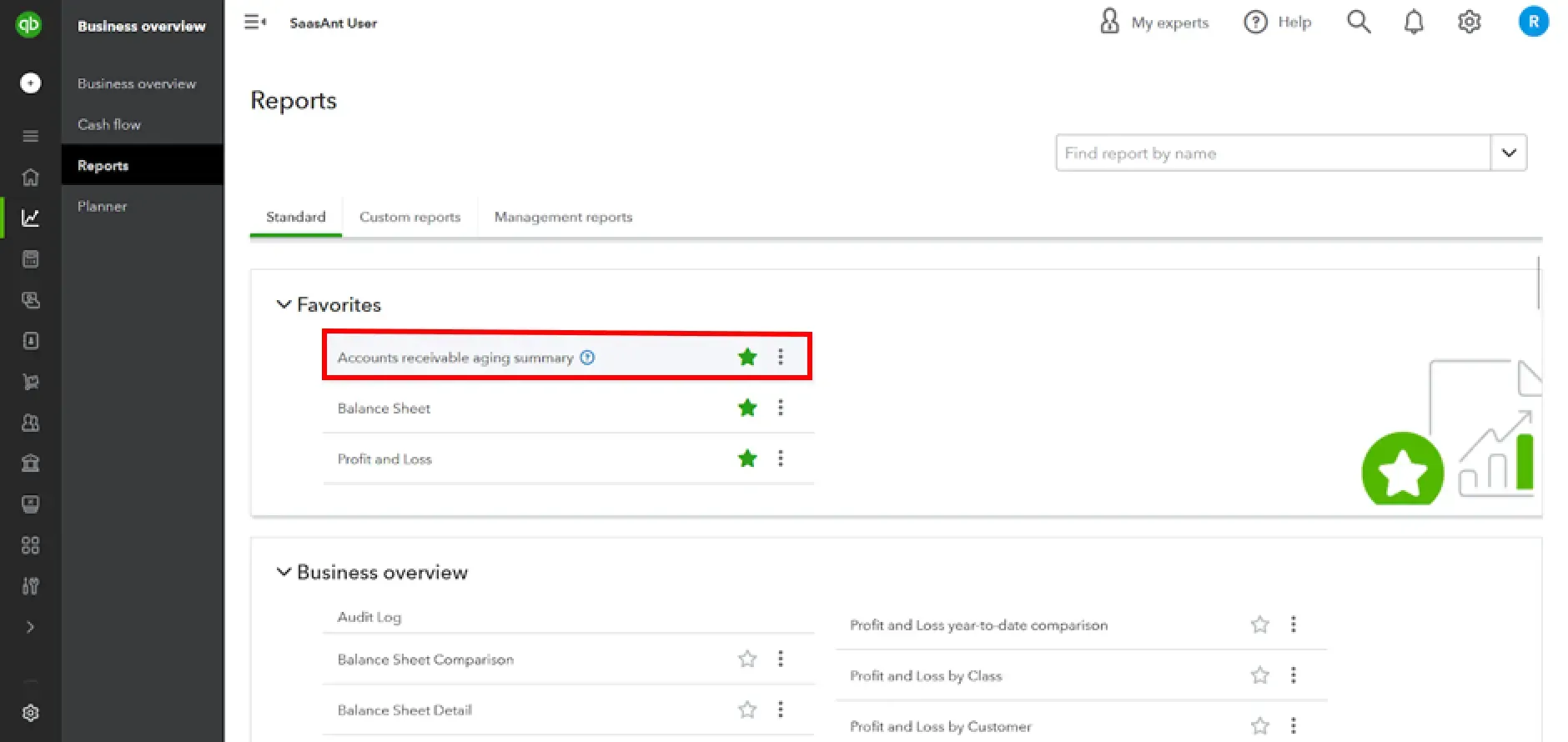
Check which outstanding accounts receivable should be written off
Step 2: Create a Bad Debt Expense Account
To accurately track and report bad debts, you must create a dedicated expense account in QuickBooks. This account will record the value of the debts you’re writing off.
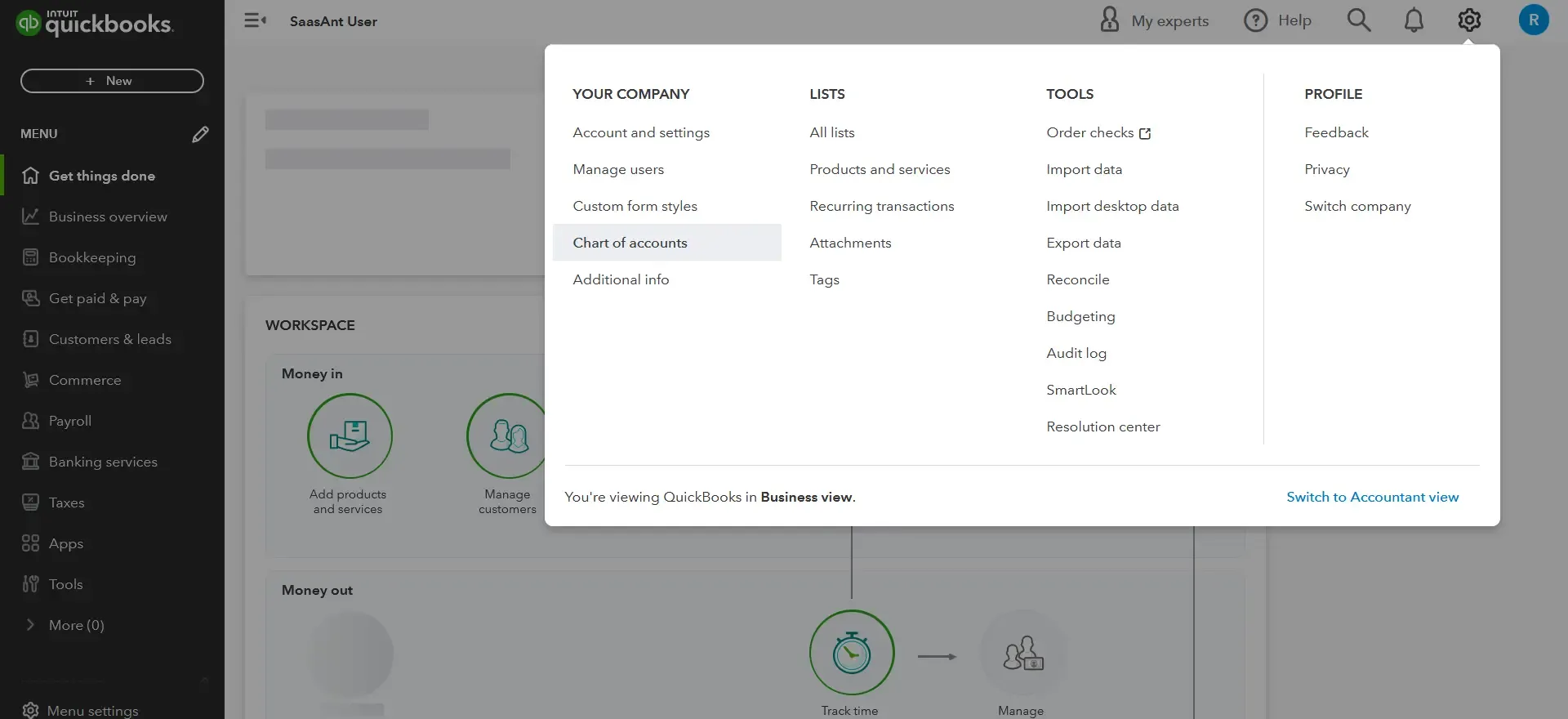
Click the Settings gear icon and select ‘Chart of Accounts’
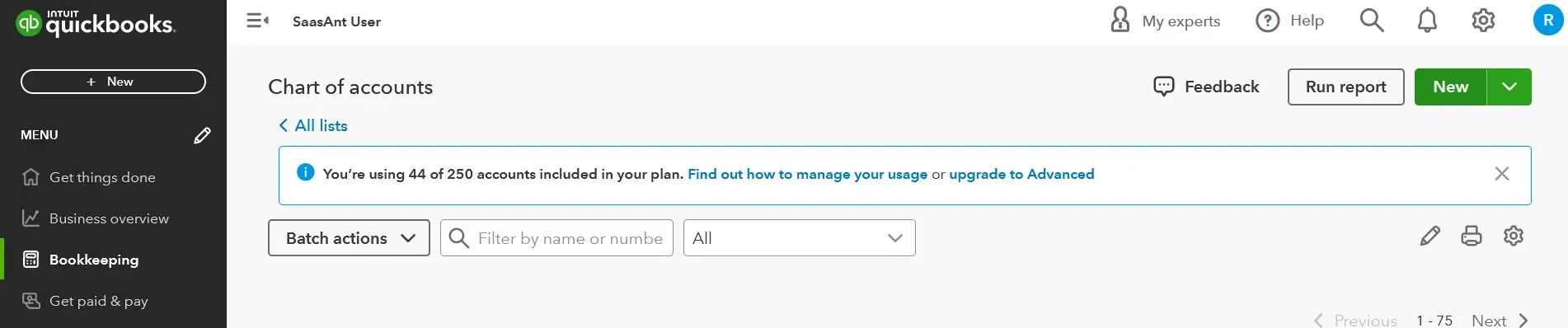
At the upper right in the ‘Chart of Accounts screen’ select ‘New’ to create a new account
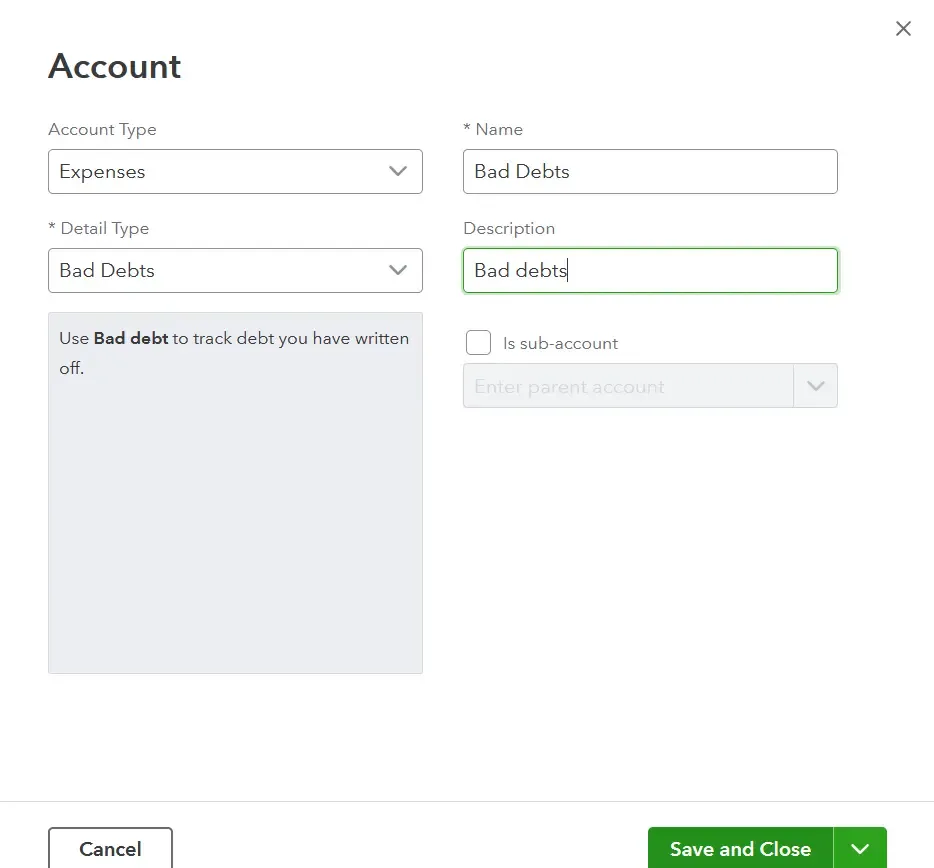
From the Account Type ▼ dropdown, select ‘Expenses’
From the Detail Type ▼ dropdown, select ‘Bad debts’
In the Name field, enter ‘Bad debts’
Select Save and Close
Step 3: Create a Bad Debt Item
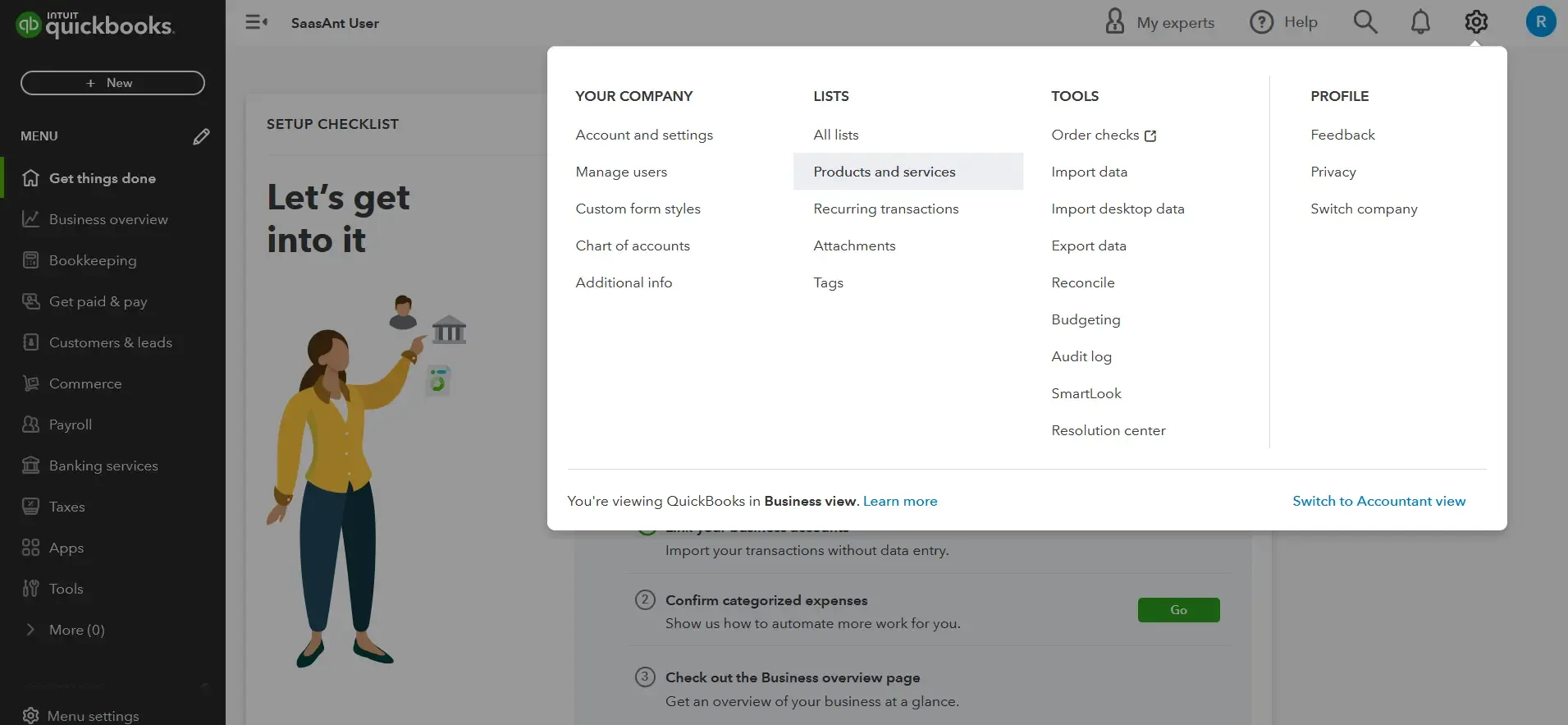
Click the Settings gear icon and select ‘Products and Services’
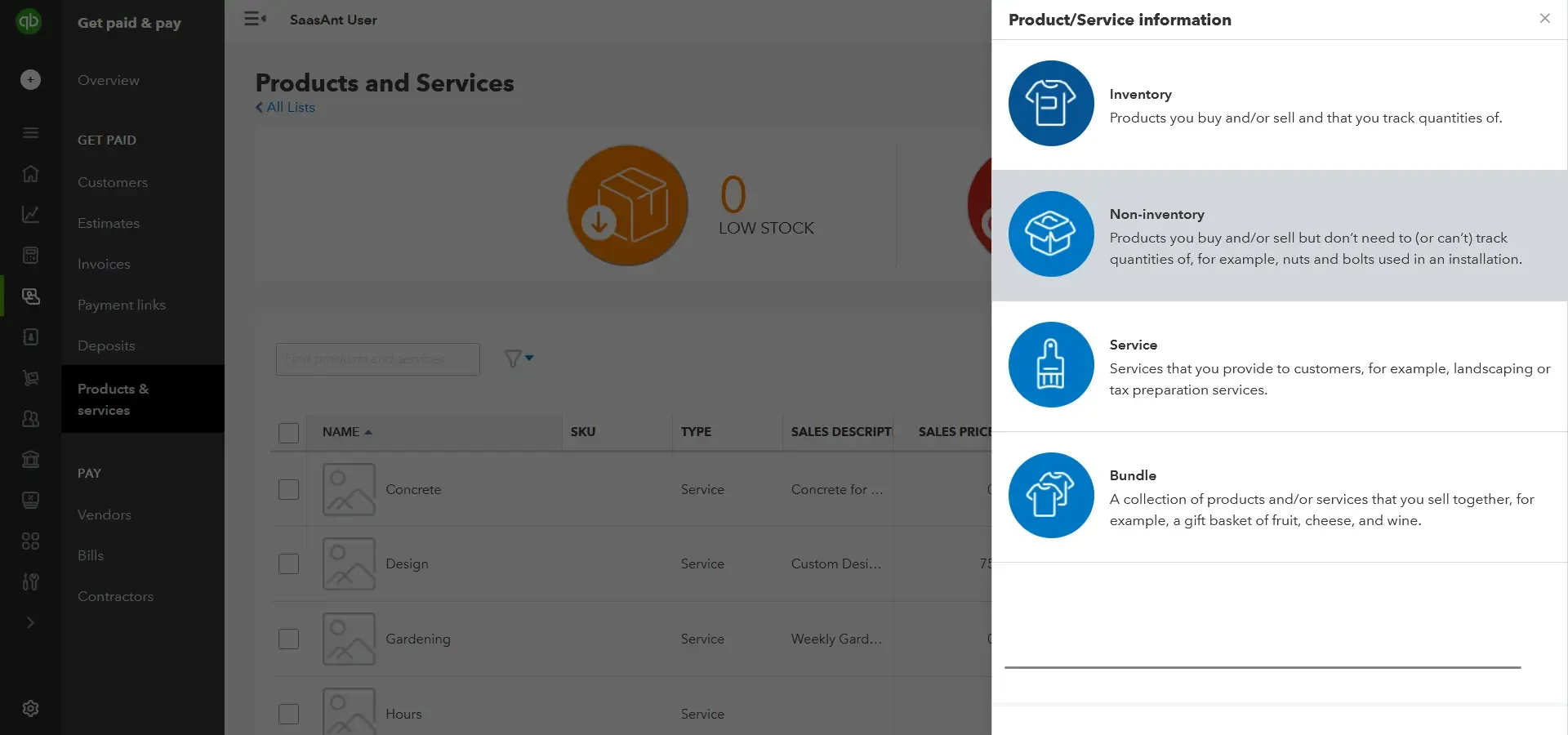
In the ‘Product/Service information screen’ select 'New' and then 'Non-inventory'
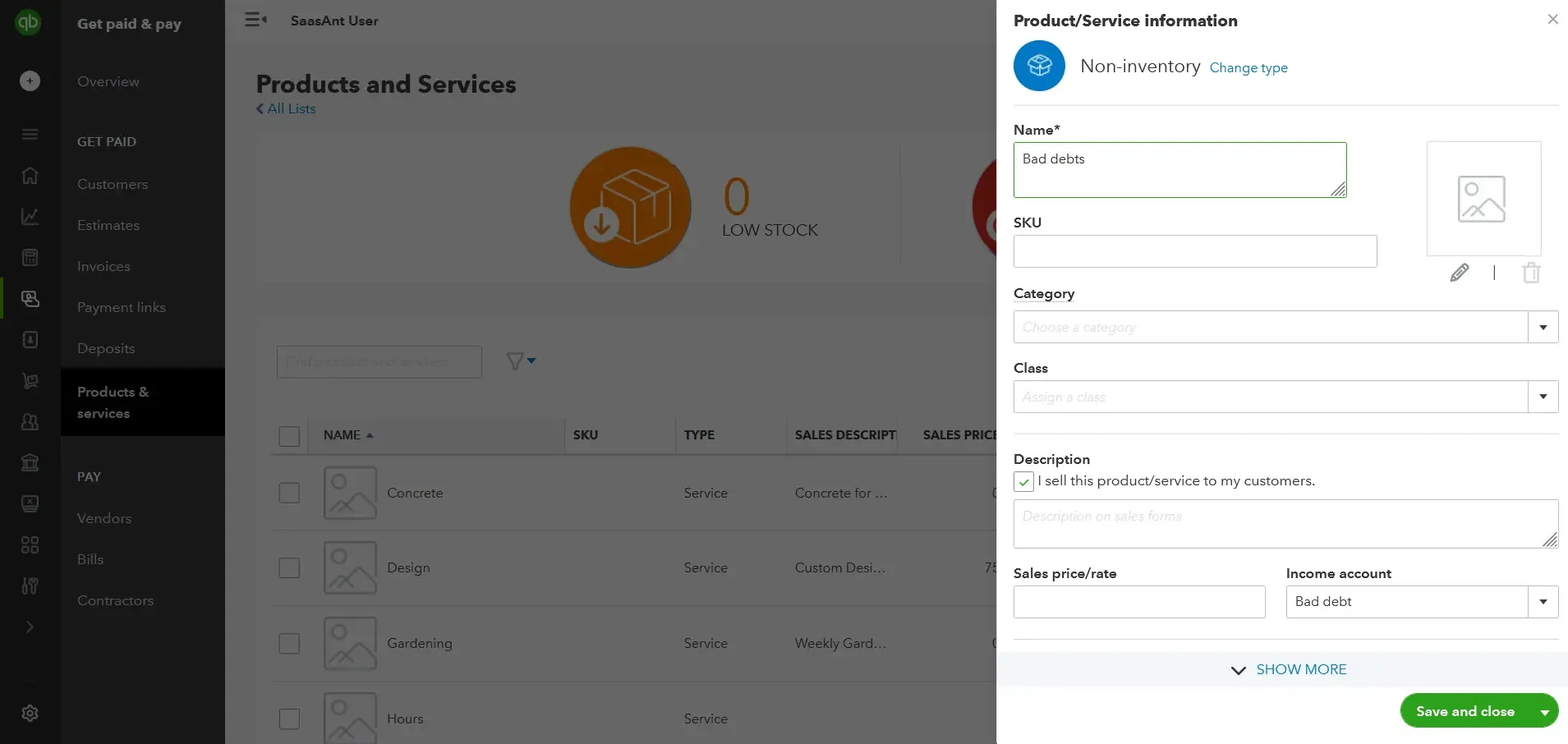
In the Name field, enter ‘Bad debts’
From the Income account ▼ dropdown, select ‘Bad debts’
Select Save and Close
Step 4: Prepare a Credit Memo
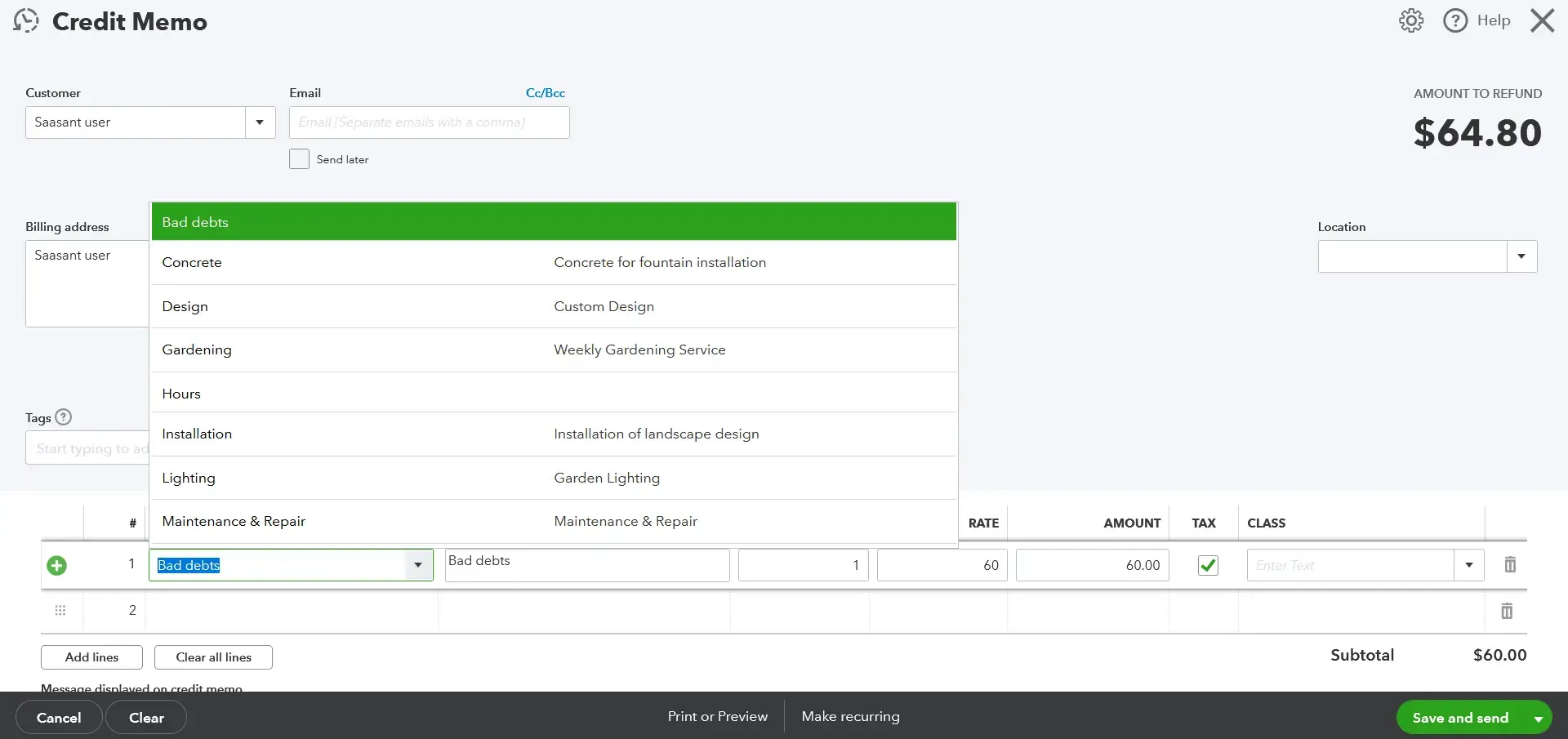
Once you’ve created the bad debt items, the next step is to prepare a credit memo for each customer who owes an uncollectible amount.
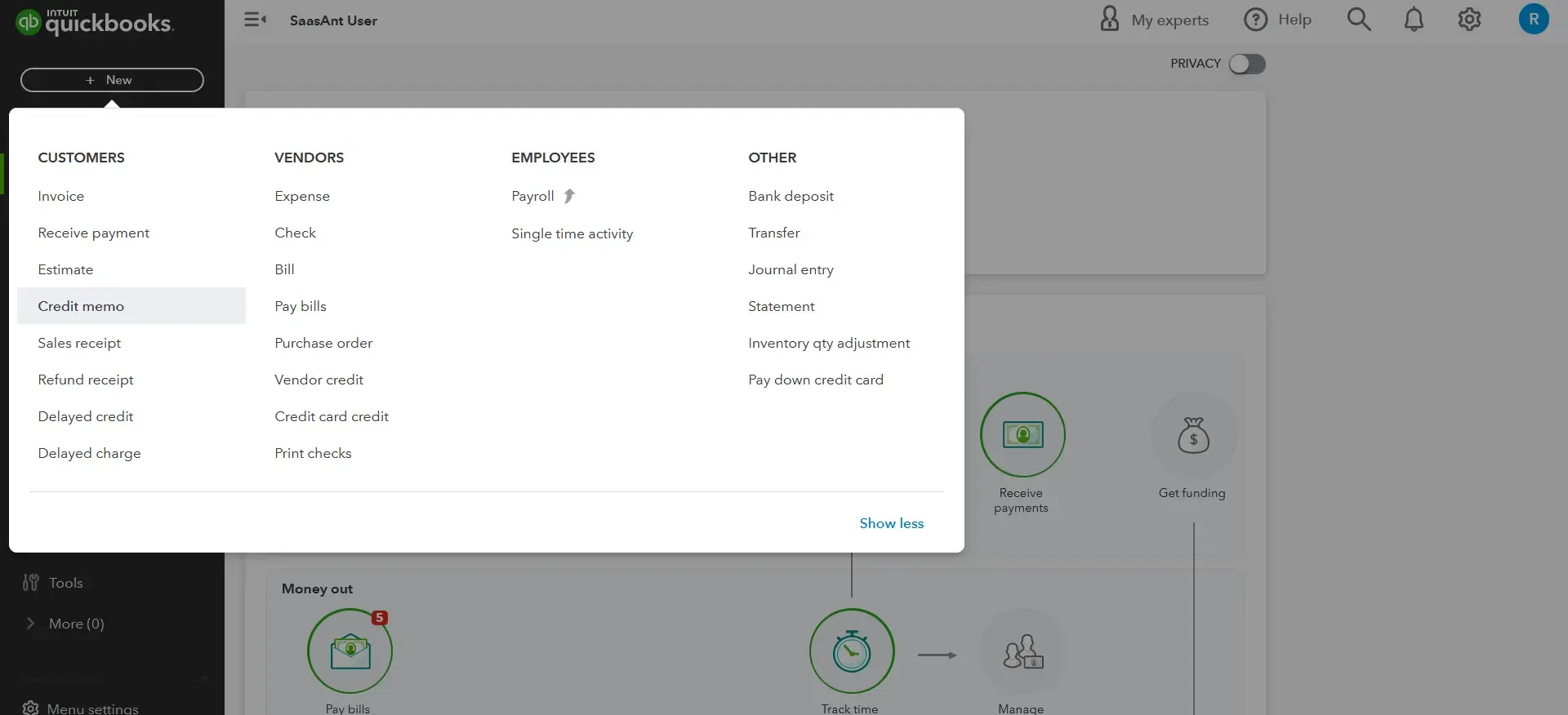
Click + New
Select Credit memo
Select the customer from the Customer ▼ dropdown
Select' Bad debts in the 'Product/Service' section
In the Amount column, enter the amount you want to write off
In the Message displayed on the statement box, enter ‘Bad Debt’
Select Save and Close
Step 5: Apply the Credit Memo
After creating the credit memo, apply it to the specific invoices that are deemed uncollectible. QuickBooks automatically adjusts the customer's accounts receivable balance, as a result, the bad debts will be reduced.
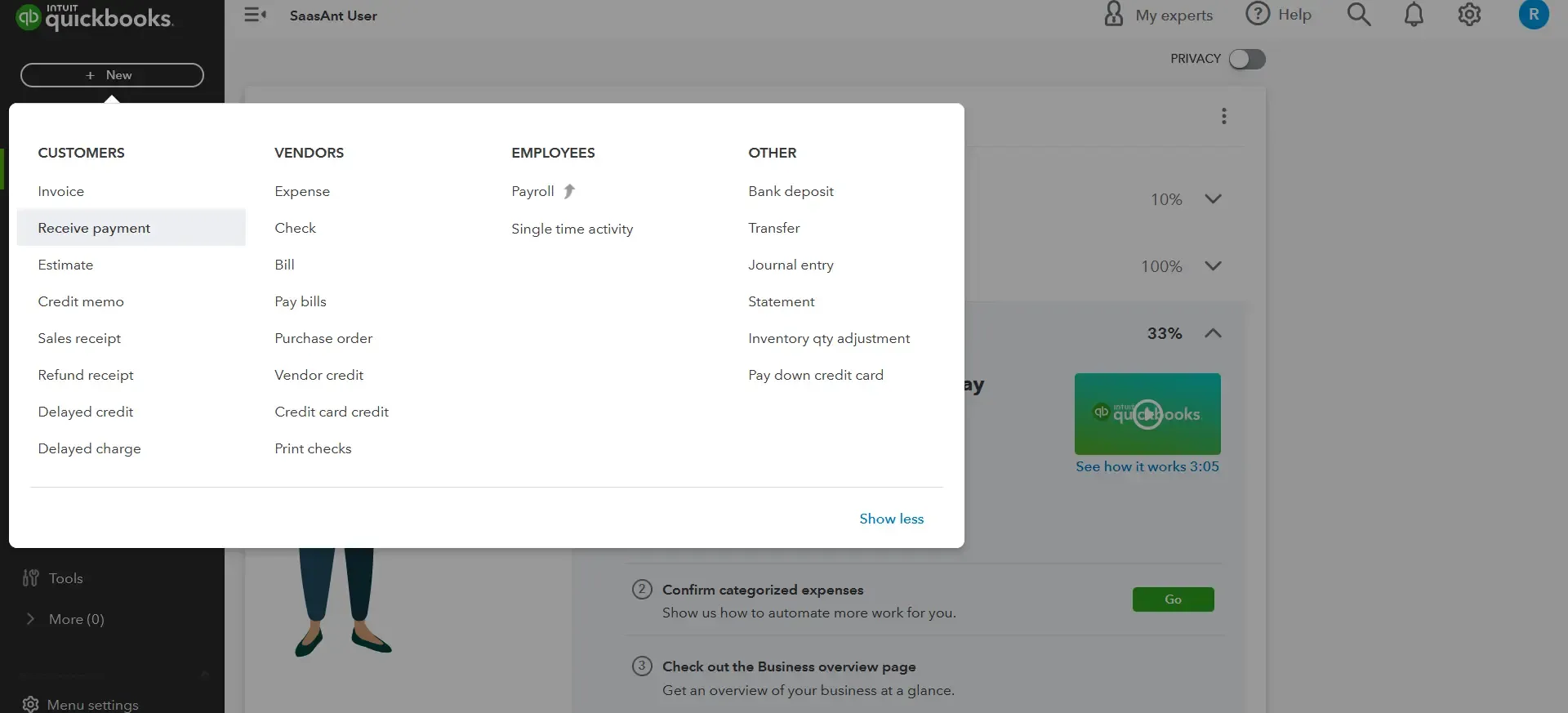
Click + New
Under Customers, select Receive Payment
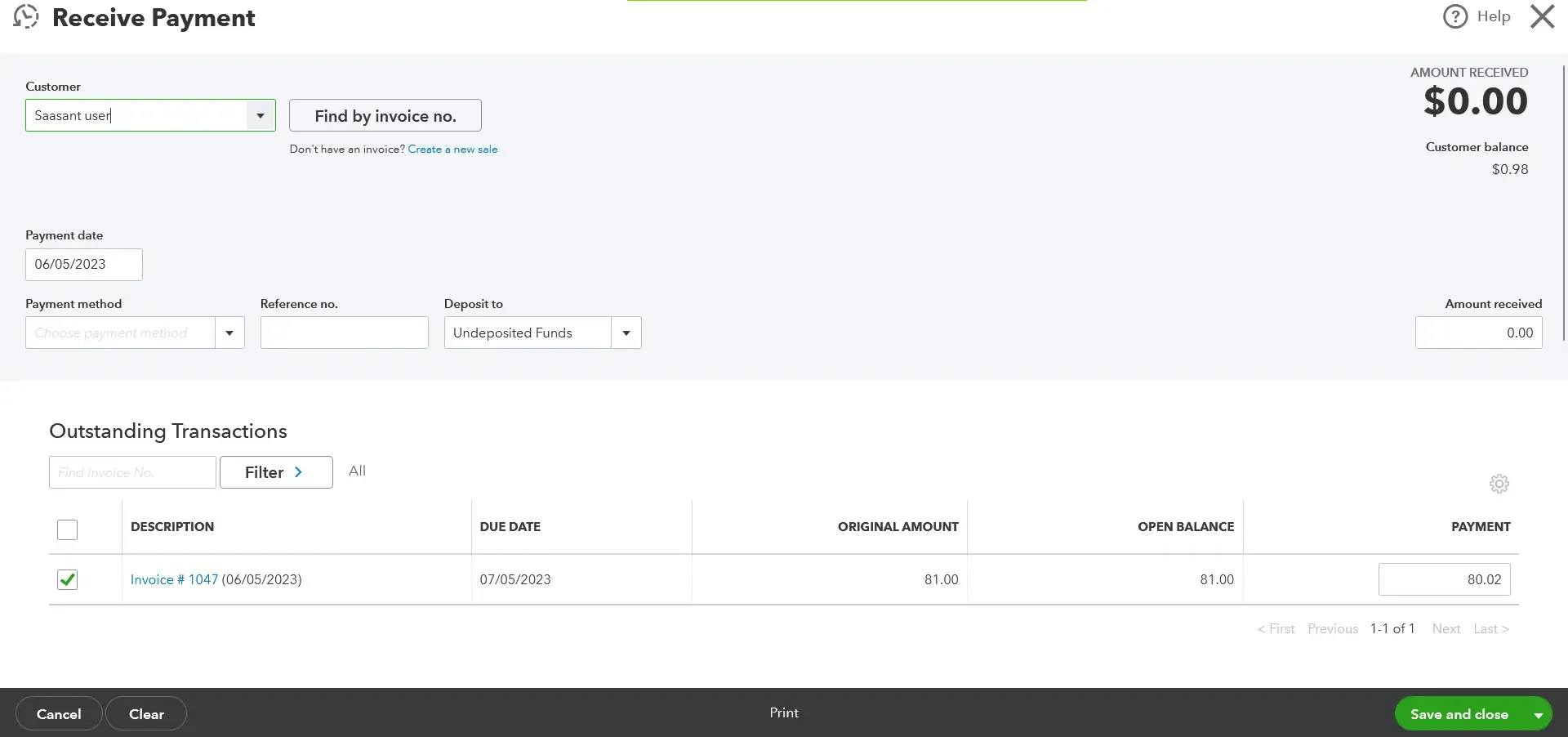
From the Customer ▼ dropdown, select the appropriate customer
From the ‘Outstanding Transactions’ section, select ‘Invoice’
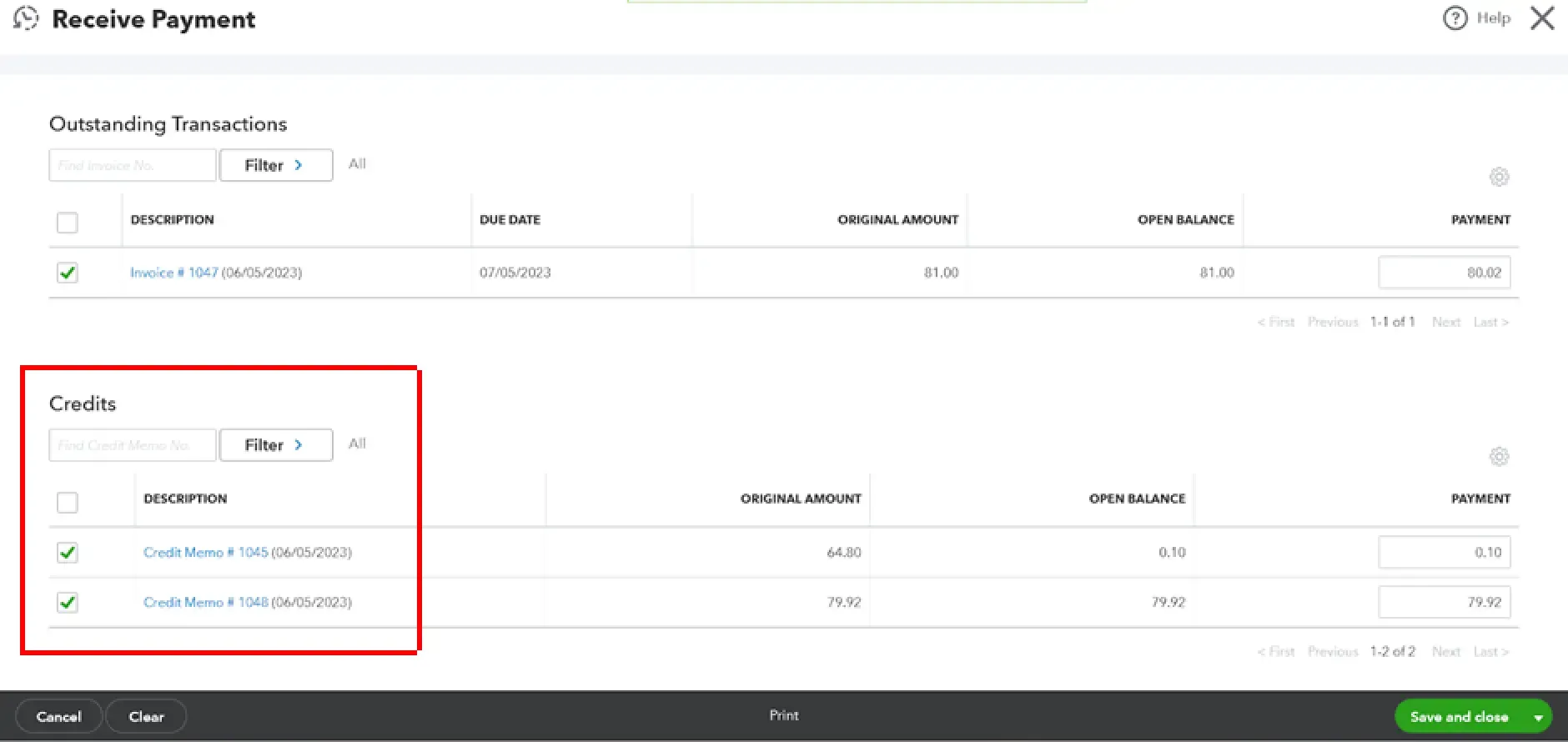
From the ‘Credits’ section in the ‘Receive Payment’ menu select the ‘Credit Memo’
Select Save and Close
Step 6: Run Financial Reports
After completing the write-off process, run financial reports in QuickBooks to ensure the bad debts have been accurately reflected. Generate reports such as the Profit and Loss statement and the Balance Sheet to review the impact on your business’s financial position.
How to Write Off Bad Debt in QuickBooks Desktop:
After saving the Credit Memo, QuickBooks might ask how you want to use it. Choose Apply to an invoice.
If not prompted, go to Customers > Receive Payments.
Select the Customer.
You should see the outstanding Invoice(s). Check the specific invoice you are writing off.
Click the Discounts & Credits button (or similar).
In the Credits tab, select the Credit Memo you created. Ensure the amount applied matches the invoice amount being written off. Click Done.
The Payment Amount / Amount to Apply should become $0.00.
Verify the date.
Save the $0.00 payment.
While the decision and specific steps to write off a bad debt invoice happen within QuickBooks (often using a Credit Memo), SaasAnt Transactions can drastically speed up the process if you're dealing with multiple write-offs. Instead of creating and applying credit memos one by one, SaasAnt allows you to bulk import these credit memos (or journal entries) directly from an Excel/CSV file, saving significant time during A/R cleanup or year-end adjustments.
Automate Bad Debt Write-Offs with SaasAnt Transactions
If you manage multiple customer accounts, writing off bad debts one by one in QuickBooks can be tedious. SaasAnt Transactions simplifies this process by allowing you to bulk-import credit memos, journal entries, or adjustments directly from Excel or CSV.
Here’s how SaasAnt accelerates your workflow:
Bulk Write-Offs: Import hundreds of credit memos or journal entries at once.
One-Click Imports: Map fields and post data directly into QuickBooks.
Error-Free Data Sync: Validate all data before import to prevent posting errors.
Automate A/R Cleanup: Save hours during year-end or monthly A/R reconciliation.
Seamless Integration: Works with QuickBooks Online and QuickBooks Desktop (Pro, Premier, Enterprise).
With SaasAnt, you eliminate repetitive manual tasks and maintain accurate, audit-ready books in minutes instead of hours.
Conclusion
Writing off bad debts in QuickBooks is more than just a cleanup task — it’s about maintaining accurate financial statements and ensuring your books reflect true business performance. By following the structured steps above, you can handle uncollectible invoices with confidence.
And when you’re managing multiple bad debt write-offs, tools like SaasAnt Transactions make the process effortless by automating imports, credit memos, and journal entries in bulk. The result? Cleaner books, saved time, and complete financial accuracy — all within QuickBooks.
FAQs
1. What are bad debts in QuickBooks?
Bad debts refer to unpaid customer invoices that can no longer be collected. These are written off to reflect true income and maintain accurate accounts receivable.
2. Why should I write off bad debts in QuickBooks?
Writing off bad debts ensures your financial statements accurately reflect real income, improves A/R reporting, and supports compliance during audits or tax filing.
3. Can I recover a debt after writing it off?
Yes. If a customer later pays a written-off invoice, record the payment as income in QuickBooks and apply it to the appropriate customer account.
4. Do I need a credit memo to write off bad debts?
Yes. Using a credit memo is the recommended method. It creates a clear audit trail and properly adjusts the customer’s accounts receivable balance.
5. How can SaasAnt help automate bad debt write-offs?
SaasAnt lets you bulk import credit memos or journal entries for multiple customers directly from Excel or CSV. It reduces manual data entry, improves accuracy, and saves significant time.
Tags
Read also
How to Apply a Credit Memo to an Invoice in QuickBooks Online?
Import Credit Memo in QuickBooks Online: A Complete Guide
Import Journal Entries into QuickBooks Online: Step by Step Guide
How to Create a Credit Memo in QuickBooks